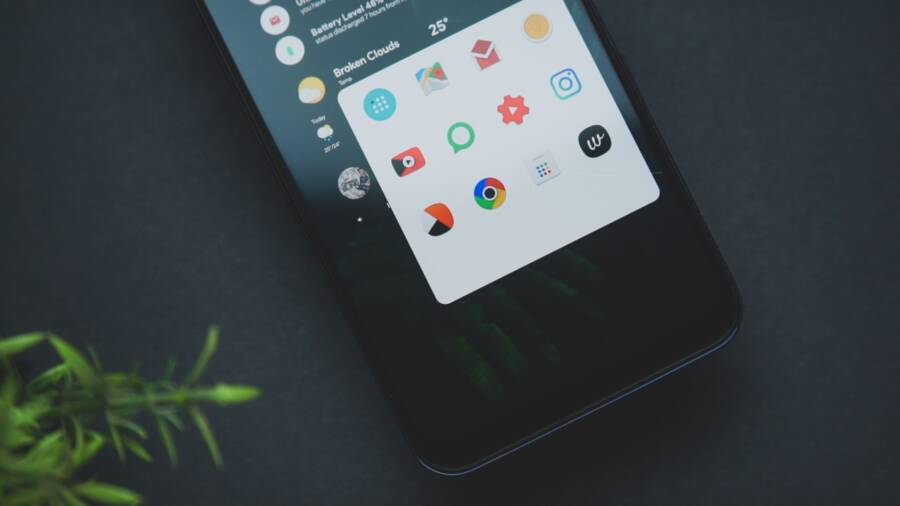
Your smartphone icons revert to their default state because the operating system prioritizes security and stability over third-party visual overrides. When your device performs an automated update, clears its cache, or encounters a launcher conflict, it resets custom configurations to ensure the interface functions as intended by the manufacturer.
You can stop this cycle by adjusting specific notification settings or switching to a dedicated launcher that stores icon data locally. Understanding why these changes occur helps you choose a permanent fix that keeps your custom aesthetic intact through future software cycles.
Understanding Why Icons Keep Reverting on Your Smartphone
Smartphone icons often revert to their default appearance because the operating system prioritizes core software integrity over individual cosmetic adjustments. Manufacturers design the user interface to stay predictable, so whenever a background process triggers a refresh, the system attempts to restore its original visual configuration. You might notice these changes occurring right after an automated software update or when the phone memory reaches a critical capacity limit.
Operating System Overrides and Updates
Your smartphone performs maintenance tasks in the background to keep the device responsive. During these updates, the system cache often clears, which removes temporary files used to store custom icon paths. If the operating system cannot locate your custom icon file quickly, it defaults to the original design embedded in the app package. This behavior protects you from potential errors where a missing icon could prevent an app from launching.
Updates also patch security gaps within the launcher, which sometimes resets personalized settings to their factory state. While this feels like an annoyance, the system is simply ensuring that every icon correctly maps to its updated internal file directory. If you frequently see icons reset after an update, the current launcher likely lacks the permission or the memory to hold onto your custom mapping permanently.
Launcher Compatibility and Memory Management
A third-party launcher acts as a layer on top of the default interface. When you use one of these tools, it keeps a database of your custom icons and their positions. If your smartphone manages memory aggressively, it may shut down the launcher process to save power for other tasks. Once the launcher reloads, it occasionally fails to restore your customizations instantly, leading the operating system to fill the gaps with default icons until the launcher finishes its reboot.
You can check if your launcher is the root cause by observing when the resets happen. If your icons revert immediately after opening a power-hungry game or a large application, the phone is likely killing the background launcher process. To prevent this, you might need to adjust the battery optimization settings:
Open your phone settings menu.
Select battery or power management.
Look for battery optimization or background usage limits.
Find your launcher app in the list.
Change the setting to unrestricted or do not optimize.
By granting your launcher constant background access, you keep it active in the memory at all times. This simple change stops the system from closing the app and forces it to maintain your layout through various usage scenarios. This small adjustment often provides the stability needed to keep your custom look intact for the long term.
Step-by-Step Fixes for Persistent Icon Reversion
Icons on your smartphone may jump back to their original state because the system launcher constantly monitors your home screen for unauthorized changes. While this security feature keeps your phone predictable, it can frustrate users who prefer a personalized look. Applying specific settings to your launcher effectively forces the interface to honor your manual modifications rather than reverting to factory defaults during system refreshes.
Locking Your Launcher Settings
Many modern launcher applications include a dedicated lock feature designed to keep your home screen layout exactly how you arranged it. When this setting is active, the software ignores commands from the operating system that would otherwise shuffle your icons or force a reset. You should look for this option first because it acts as a primary defense against accidental or automated layout changes.
Open your launcher settings by long-pressing an empty space on your home screen and selecting the gear icon.
Locate the menu labeled home screen, desktop, or layout settings.
Search for a toggle switch named lock desktop, lock layout, or lock home screen.
Enable the feature to freeze the current positions of your icons and widgets.
Once you activate this lock, the smartphone prevents any further modifications to your home screen until you toggle the setting off again. This configuration stops the system from detecting empty spaces or disorganized icons that might trigger a default refresh. If your launcher does not support a lock feature, consider installing a third-party option that specifically highlights home screen management as a core strength.
Managing Battery Optimization Settings
Your smartphone runs an internal battery saver that aggressively terminates background processes to conserve energy. Launchers often fall into the category of non-essential apps in the eyes of your device, causing the system to kill the launcher process when you are not actively using the home screen. When the launcher restarts, it briefly loses track of custom icon assets, which forces the operating system to load default images while the launcher restores its database.
You can resolve this issue by manually excluding your launcher from these power management protocols. This allows the launcher to remain active in the memory of your smartphone at all times, keeping your icon map loaded and ready for immediate display.
By whitelisting your launcher, you ensure that the application process never sleeps. You can verify this change by checking if your icons remain stable after opening heavy games or memory-intensive applications. If your smartphone keeps clearing your custom icons, revisit these settings to confirm that the changes saved correctly and that no secondary power manager is interfering with your active launcher.
Choosing the Right Tools to Keep Your Customization Stable
Selecting reliable software tools prevents icons from reverting to default after system updates. Many third-party launchers offer more stability than the default interface because they manage icon assets through a dedicated, local database. When you pick a launcher, prioritize options that have active developer support and a clear record of compatibility with your specific version of Android.
Evaluating Launcher Reliability
The most stable launchers act as a persistent shell that handles your home screen requests independently of the primary system processes. A high-quality launcher minimizes the frequency of background crashes, which is the most common reason icons fail to load correctly. Look for applications that allow you to export your home screen configuration to a file. This creates a backup you can restore if the system ever forces a reset.
When you research tools, pay attention to the update frequency in the app store. A launcher that hasn’t seen an update in over a year will likely struggle with newer security protocols that your smartphone imposes. You should also check user reviews for reports of “icon snapping” or “reverting to original,” as these are clear indicators of poor asset management.
Utilizing Icon Pack Managers
Some users prefer to use icon packs alongside a launcher to get a specific look. If your icons revert, the issue might lie in how the icon pack interacts with the launcher’s theme engine. You can resolve this by using an independent icon pack manager tool that applies icons at the system level rather than relying on the launcher to translate the files.
These managers often create a more permanent link between the app package and the visual icon. If you find your setup disappears often, try these steps to verify your tools:
Download a reputable icon pack manager from a trusted developer.
Apply the icon pack through the manager rather than through the launcher settings.
Check the “keep icon cache” setting within the manager app if available.
Set the manager as a permanent visual override in your smartphone accessibility or display settings.
Comparing Configuration Methods
Not all customization tools operate the same way. Some modify the icon files directly, while others simply apply a visual mask over existing shortcuts. You can see the difference in how they handle resets by comparing them side by side.
Choosing the right tool depends on your technical comfort level. If you want a setup that stays fixed for months, a stable third-party launcher remains the best choice. It provides the necessary controls to override system defaults while keeping your custom icons stored in a way the smartphone operating system respects.
Common Questions About App Icon Customization
Users often have questions about the limitations and requirements of icon modification on a smartphone. While most modern devices allow for significant visual changes, the way these modifications persist varies by system and manufacturer. Addressing these frequent concerns helps clarify why icons reset and how you can prevent future configuration losses.
Why do my icons reset after a phone restart?
Restarting your smartphone triggers a full reload of the system interface and all background services. If your custom icons rely on a secondary launcher, that launcher must initialize its icon database before the operating system displays your home screen. If the system loads the default interface faster than the launcher, it displays the original icons until the launcher finishes its process. To prevent this, ensure your launcher app is set to launch automatically upon startup and keep it updated to the latest version to improve its integration with the system boot sequence.
Is it safe to use third party icon packs?
Using icon packs is safe as long as you download them from official app stores like Google Play or trusted developer repositories. These packages contain simple image files that the launcher maps to your installed applications, so they rarely interfere with the core functionality of your smartphone. You should check the reputation of the developer or the number of downloads before installation, as some unreliable packs may include unnecessary advertisements or malicious components that could slow down your device performance.
Can I change icons without installing a launcher?
Some smartphone manufacturers provide built-in theme engines that allow you to modify icon styles directly within the system settings. These tools are the most stable option because they utilize the native interface architecture rather than an additional layer of software. If your device supports system-wide themes, you can often find them in the display or personalization menu. If your manufacturer does not include this feature, you typically need a third-party launcher to apply custom icon packs, as the default system launcher often lacks the permission to accept external image overrides.
How do I stop icons from reverting when using power saver mode?
Power saver mode is a common culprit because it restricts background processes, which often includes the launcher responsible for your custom icons. When the system forces the launcher to close to save energy, the home screen reverts to the stock configuration until you reopen the app. You can fix this by adding your launcher to the battery optimization whitelist in your settings menu, which ensures the system keeps the application active regardless of the power saving state. This adjustment prevents the most common cause of spontaneous icon resets and keeps your custom setup consistent throughout the day.
Conclusion
Icons on your smartphone primarily revert to defaults when the system prioritizes stability over third-party visual overrides during background processes or updates. You can minimize these interruptions by locking your home screen layout and whitelisting your launcher within the battery optimization settings to prevent the system from terminating it.
Focus on selecting one reliable launcher and keeping it updated to ensure it maintains its connection to your custom icon assets. Sticking with a single, stable method is the most effective way to keep your interface consistent over time.