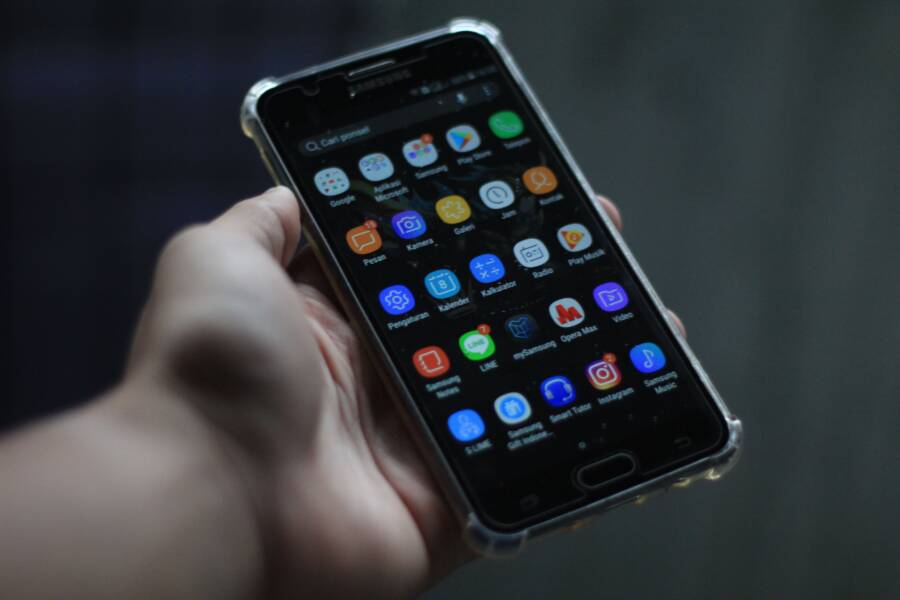
It is frustrating when your apps disappear from your home screen folders without warning. This issue usually stems from a buggy home screen launcher, a corrupted system cache, or simply hitting the storage limit for your folders.
You can fix this persistent problem by resetting your launcher settings or clearing the cache on your smartphone. The following steps will walk you through the specific configuration changes required to keep your folders stable and visible.
Identifying the Root Cause of Folder Issues
When apps vanish from your home screen folders, the smartphone often struggles to maintain the link between the icon and its location in your database. This happens because the system launcher encounters a glitch, or a background setting prevents the desktop from updating. Finding the source of these errors is the first step toward restoring your organization.
Is Your Home Screen Layout Locked?
Many Android devices feature a setting labeled “Lock Home Screen Layout” to prevent accidental changes. When this toggle is active, it blocks you from moving icons, deleting shortcuts, or adding new items to existing folders. If you try to reorganize your apps or drag a new one into a folder while this mode is on, the OS may fail to save your changes, leading to icons that disappear after a reboot or a sync attempt.
Check if this is the cause by following these steps:
Open your device settings or long-press an empty space on your home screen.
Select Home Screen Settings or Launcher Settings.
Locate the option for locking the layout and switch it to off.
Once you disable this setting, try dragging your apps back into the folders. If they remain in place after you refresh the screen, the lock was the primary culprit. Some launchers even fail to sync changes to the cloud backup while the layout is locked, which causes temporary folders to vanish whenever the device reloads the interface.
When Third Party Launchers Cause Conflicts
Custom launchers offer great personalization for your smartphone, but they act as a separate layer on top of the native operating system. A third party launcher manages the display of your icons and folders independently. When the system receives a major update, the launcher might become outdated or incompatible with new Android security protocols. This mismatch prevents the launcher from reading your app database correctly, which results in empty or missing folders.
A conflict often presents itself after an OS patch or when the launcher app has a pending update of its own. If you suspect your custom launcher is creating these issues, resetting its data is usually effective.
Navigate to your phone settings and choose Apps or Application Manager.
Find your third party launcher in the list.
Tap on Storage and select Clear Cache or Clear Data.
Clearing the data forces the launcher to rebuild its database of icons and folders from scratch. If the folders remain missing after a reset, you might need to uninstall the third party app and reinstall it to ensure you are running the latest version. If the problem persists even after a clean install, your smartphone may struggle to support that specific launcher software due to hardware limitations or conflicting system optimizations. Switching back to the default system launcher is a simple way to verify if the custom software is the source of the conflict.
Simple Steps to Stop Folders From Vanishing
When your phone folders randomly disappear, the issue often stems from temporary data conflicts within your software. These glitches prevent the system from correctly rendering your home screen icons. Addressing these problems requires basic maintenance that resets your interface without losing your personal data.
Clearing the Launcher Cache for a Fresh Start
The system launcher is the primary application responsible for displaying your home screen. Over time, it accumulates temporary files that may become corrupted, leading to display errors like missing folders. Clearing the cache forces the launcher to rebuild its internal index, which often resolves the issue instantly.
Open the Settings app on your smartphone.
Tap on Apps or Manage Apps to view your installed software.
Locate your system launcher in the list. Note that it might be named after your manufacturer, such as One UI Home or Pixel Launcher.
Select Storage and then tap Clear Cache.
This process removes the temporary data used for icon placement without deleting your app shortcuts or home screen layout. If the folders still do not appear, you can try Clear Data, but be aware that this often resets your home screen to its default factory configuration. Perform this step only if clearing the cache proves ineffective.
Updating Your System Software and Apps
Outdated software is a frequent cause of interface bugs that affect icon stability. Smartphone manufacturers release periodic updates to fix known issues within the system launcher and the core operating system. Running an older version of the software creates compatibility gaps that lead to folders vanishing after updates or reboots.
Checking for updates is the most effective long-term solution for maintaining a stable home screen. Follow these steps to keep your device current:
Open your phone Settings and navigate to Software Update or System Update.
Download and install any available firmware patches.
Visit the Google Play Store or your manufacturer’s app store.
Check the My Apps section to see if the system launcher has a pending update.
Keeping your apps current ensures that the code responsible for folder management remains compatible with the latest security and stability standards. If you continue to experience issues after updating everything, restart your device to finalize the changes and refresh the system memory. Regular updates minimize the risk of recurring interface glitches, providing a stable environment for your organized apps.
Advanced Troubleshooting for Persistent Glitches
When standard maintenance fails to keep your home screen organized, the system may have deeper configuration errors. These persistent glitches often require a more aggressive approach to restore normal functionality. Before you decide to erase your current setup, consider these secondary options to resolve the underlying instability.
How to Reset Home Screen Layout Safely
Sometimes the data files governing your icon positions become permanently corrupted. A layout reset reverts your home screen to the manufacturer default, essentially giving your smartphone a blank slate. This action removes all custom folders and widget placements, so it is a final resort for persistent bugs.
Follow these steps to perform a factory reset of your layout:
Open the Settings app on your smartphone.
Find the Apps or Application Manager section.
Locate your specific system launcher (e.g., One UI Home, Pixel Launcher, or Launcher).
Select Storage and then tap Clear Data.
Confirm the action if prompted. You will immediately notice that all icons shift back to their original positions as they appeared when you first unboxed the phone. You must recreate your folders and reposition your widgets after this process completes. While this is time-consuming, it frequently repairs persistent errors that standard cache clearing cannot fix. Always check your cloud backups before proceeding, as some manufacturers offer a way to restore your layout from a previous sync.
Checking for Storage Space Issues
Your smartphone requires a small amount of free memory to save changes to the interface configuration. When your internal storage reaches capacity, the system often loses the ability to write updates to your home screen database. If you add an app to a folder and it disappears after a moment, the system is likely failing to commit that change to the disk.
Most modern devices provide a warning when storage is critically low, but you can check manually:
Go to Settings and tap on Storage or Device Care.
Observe the available free space indicator.
Delete large, unused videos, old downloads, or unnecessary cache files to free up at least 1GB of space.
The operating system prioritizes core functions over interface modifications when storage is tight. Once you free up space, try rearranging your icons again. If the changes stick, the lack of overhead room was the primary blocker. Maintaining a healthy buffer of free storage prevents the system from struggling to save minor home screen tweaks, which keeps your folders stable in the long run.
Choosing Between System and Third Party Launchers
Deciding whether to stick with your factory-installed interface or switch to a third party option is a frequent dilemma for smartphone users. The built-in launcher provides the foundation for your home screen experience, while custom alternatives offer a different set of visual and functional features. Making the right choice depends on your personal preference for reliability versus the desire for deep aesthetic control.
Pros and Cons of Custom Launchers
Third party launchers gain popularity because they allow you to transform how your smartphone looks and behaves. You can customize icon packs, change grid sizes, or adjust animation speeds to create a workspace that fits your specific needs. These applications often provide gesture controls that the default system software ignores, which speeds up navigation for power users. If you enjoy experimenting with your home screen, these tools provide a playground of options that the manufacturer simply does not support.
However, these benefits come with potential drawbacks regarding stability. Because a third party launcher sits on top of the operating system as an extra layer, it occasionally conflicts with background processes or system updates. When the manufacturer releases a patch for the core software, the launcher might fail to adapt immediately. This lack of integration causes common bugs like icons vanishing from folders or widgets failing to load.
Consider these trade-offs before installing a new launcher:
Custom launchers offer extensive visual themes and grid layouts that allow you to personalize your device beyond standard manufacturer limitations.
Many custom options include advanced gesture support, letting you launch apps or perform tasks with simple swipes or taps on the home screen.
These apps often consume more system memory because they run as a secondary process alongside your native interface.
Stability issues frequently emerge after Android version updates, leading to broken folder structures or unresponsive home screen elements.
Most third party launchers require manual management, such as clearing cached data or checking for developer updates, to remain functional over time.
While custom launchers bring personality to your device, the default system launcher is almost always more stable. The factory software has deep access to the system APIs, which helps it recover gracefully from errors that cause third party apps to crash. If you notice your folders disappearing frequently, consider returning to the default launcher for a few days to see if the problem stops. A stable home screen often matters more than the ability to customize every icon on your display.
Conclusion
Most cases of vanishing home screen folders on your smartphone originate from minor software conflicts or improper system settings. You can resolve the vast majority of these issues by toggling your layout lock, clearing the launcher cache, or ensuring your system software is current.
Maintaining a stable device environment relies on keeping your operating system and applications updated regularly. This simple habit prevents compatibility gaps that lead to interface glitches.
If your folders continue to disappear despite these efforts, you might consider reverting to the default system launcher to rule out third party software interference. A tidy, well-maintained home screen keeps your essential apps accessible and saves you time during daily tasks.