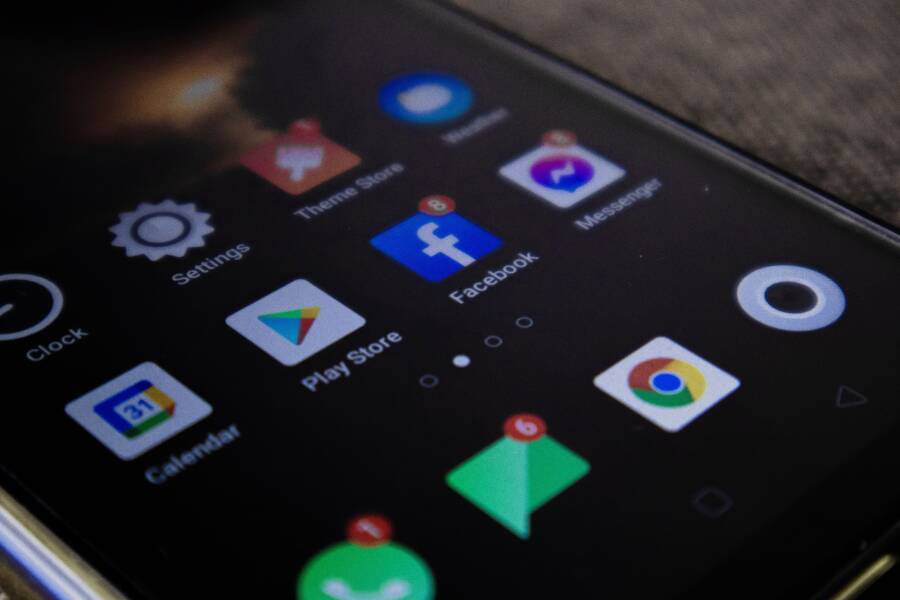
When your smartphone launcher starts crashing immediately after a theme change, the fastest solution is to clear the application cache or revert to the default system theme. This error often occurs because incompatible assets or broken icons within the new theme conflict with the launcher software.
You don’t need a factory reset to regain control of your device. This issue is common among Android users who customize their interface, but it is entirely fixable with a few simple adjustments.
Follow these steps to stabilize your interface and get your phone running correctly again.
Why Does Your Smartphone Launcher Keep Crashing?
When your interface fails to load after applying a new visual style, the issue often stems from a mismatch between the launcher application and the theme assets. A smartphone launcher manages how your home screen functions, including icon placement, widget rendering, and application drawer organization. When you install a custom theme, you provide a new set of instructions for these interface elements. If those instructions conflict with the underlying software, the launcher experiences a critical error and shuts down to protect system stability.
The Role of Launcher Software and Theme Files
Most launcher applications operate on specific frameworks designed to interpret theme data correctly. A theme file contains image assets, configuration scripts, and layout definitions that tell the launcher how to display your smartphone interface. Problems occur when the theme relies on features or variables that your current version of the launcher does not support.
For example, a theme developed for a newer version of a launcher might include advanced animation sequences or specialized widget containers. If you apply this theme to an older launcher version, the software cannot parse the new data structures. It then halts operations because it lacks the logic to handle the unexpected input. Manufacturers frequently update launcher software to improve performance or security, yet these updates often modify the internal architecture. Unless the theme creator also updates their files to match these structural changes, the compatibility gap remains. Frequent software updates are positive for security, but they sometimes render older themes obsolete, which triggers a crash loop during the loading process.
Identifying Corrupt Theme Downloads
Even if a theme is theoretically compatible with your smartphone, a flawed installation process often leads to severe instability. A crash loop frequently signals that the theme file was incomplete or corrupted during the download. When your device attempts to render an icon pack or a background layout using a partial or damaged file, the launcher logic fails.
Incomplete downloads happen when your internet connection fluctuates or the server hosting the theme experiences high traffic. Since the launcher requires every piece of the theme to construct the home screen, missing metadata acts like a missing puzzle piece in a complex machine. The software tries to initialize the display, reaches the corrupt segment, and hits a fatal exception. Poor coding within the theme itself also causes these errors. Some theme developers may inadvertently leave broken file references or invalid image paths in their configurations. When the launcher tries to pull an asset that does not exist or follows a malformed link, it lacks a fallback mechanism. The result is an immediate crash that persists every time the launcher tries to restart. If you suspect a corrupt file, deleting the theme folder or clearing the cache within the application settings is the most effective way to stop the crash loop and regain access to your device.
Immediate Steps to Stop the Crashing Loop
When your smartphone enters a constant cycle of crashing, your first goal is to interrupt the process. The system becomes unresponsive because the launcher cannot finish loading the interface, which prevents you from accessing your settings to fix the problem. By bypassing the faulty launcher entirely, you can regain control and remove the problematic theme.
Booting Into Safe Mode for Stability
Safe mode is a diagnostic environment that disables all third-party applications, including the custom launcher currently causing the error. Because the system runs only on essential software, the problematic theme cannot trigger its typical crash loop. This gives you a stable environment to navigate the menus and perform necessary repairs.
To enter safe mode on most Android devices, follow these steps:
Press and hold the power button until the power menu appears on your screen.
Long-press the “Power off” icon on the screen.
Your device will prompt you to reboot into safe mode; select “OK” or “Restart.”
Once the phone reboots, you will see “Safe mode” text displayed in the corner of your screen.
If your device uses a different button combination, such as holding the volume down key during startup, consult your manufacturer’s support site. Once you are in safe mode, the standard factory launcher will load automatically. You can now access your settings menu without the custom launcher interfering with your navigation.
Clearing Cache and Data for Your Launcher
Once you have regained access to your smartphone in safe mode, you need to reset the launcher to its original factory state. Clearing the cache and data removes the temporary files and configuration settings linked to the corrupted theme. This forces the application to start fresh as if it were just installed.
Navigate to your device settings and follow these steps to reset the software:
Open the “Settings” menu and tap on “Apps” or “Apps & notifications.”
Select “See all apps” and scroll through the list to find your active launcher.
Tap on the launcher name to view the “App info” screen.
Select “Storage & cache.”
Tap “Clear cache” first, then choose “Clear storage” or “Clear data.”
Clearing the data reverts the launcher to its default settings and deletes the link to the conflicting theme. After performing these steps, restart your smartphone normally to exit safe mode. When the phone boots up, it will load the default home screen interface, allowing you to use your device again without the previous interruptions. If the launcher remains unstable, you may need to uninstall the launcher application entirely and reinstall it from the app store.
Restoring Your Device When You Cannot Reach Settings
When a faulty launcher locks you out of your device, you might feel like you have lost access to your most important tools. If your screen is unresponsive or the interface crashes before you can tap any icons, you still have alternative ways to regain control. You do not always need a physical menu to manage your software. Using your voice or performing a system-level reset provides a path forward when the traditional touch interface fails.
Utilizing Google Assistant or Voice Commands
Voice commands provide a functional bridge when the touch interface on your smartphone becomes unresponsive due to a crashing launcher. If your voice assistant is already set up and active, you can bypass the frozen home screen to reach essential system controls. This method works because the assistant operates as a background service that remains active even when the primary launcher fails to render.
To navigate to your settings using your voice, speak clearly to your device:
Wake the assistant by saying “Hey Google” or “OK Google.”
Command the phone to “Open Settings.”
Once the settings menu appears, you can navigate manually to clear your launcher cache or revert your theme.
If you need to uninstall a specific app, say “Open Apps and Notifications” to jump directly to the manage applications screen.
This approach works best if you have granted the assistant the necessary permissions to perform system actions. If the assistant does not recognize your voice or fails to trigger, it might be due to a lack of an active internet connection. Ensure your smartphone is connected to a stable Wi-Fi network, as the assistant relies on cloud processing to interpret your requests and execute these commands.
Performing a Factory Reset as a Last Resort
A factory reset is the final option to consider when all other troubleshooting steps fail to stop the crash loop. This process erases every piece of data on your smartphone, including personal photos, messages, and app configurations. You should only use this nuclear option if your device is completely unusable and you cannot access the settings menu through safe mode or voice commands.
Preparation is key because a factory reset cannot be undone. Check your cloud storage platforms to see if your files synchronized recently. Most modern devices automatically back up contacts, calendar events, and photos to your primary account. If you store important documents or media locally, you will lose them permanently unless they exist elsewhere.
If you must proceed with a reset, use the physical button combination specific to your device model:
Power off your smartphone completely.
Press and hold the volume down and power buttons simultaneously until the recovery menu appears on your screen.
Use the volume keys to highlight “Wipe data/factory reset” and press the power button to select it.
Confirm your choice when the device prompts you, then select “Reboot system now” once the process completes.
This action returns your smartphone to its out-of-the-box state. While this clears the corrupted theme and launcher data, it also requires you to reconfigure your accounts and download your apps again. Only select this path when you have confirmed that no other recovery method restores stability to your interface.
Tips for Safely Personalizing Your Smartphone
Personalizing your smartphone interface offers a great way to make the device feel truly yours. However, modifying core software components involves risks that can cause stability problems or expose your data to unwanted threats. You should prioritize security by following standard practices whenever you adjust your home screen layout or icon packs.
Choosing Trusted Theme Sources
The most effective way to keep your device secure is to limit your theme downloads to official, verified channels. Official app stores like the Google Play Store or manufacturer-specific portals, such as Samsung Themes, implement rigorous screening processes for every submission. These stores verify that theme packages contain legitimate configuration files and do not include malicious scripts.
When you download themes from third-party websites or obscure forums, you bypass these safety checks. Unverified files often contain hidden code that monitors your activity, redirects your web traffic, or silently installs additional software in the background. Even if a site appears professional, it lacks the accountability of major platforms. Sticking to official sources provides a guarantee that the software meets quality standards and stays free of harmful components. If a theme provider prompts you to sideload an APK file from an unknown browser link, you should decline the installation immediately. Stick to apps managed by your device’s primary software provider to maintain a stable experience.
Checking Version Compatibility Before Installing
Compatibility issues remain a frequent cause of interface crashes on any modern smartphone. Before you install a new theme or custom launcher, verify that the package supports your current operating system version. Most launchers display a compatibility tag on their store page or within their documentation files. If your system runs Android 14, for instance, a theme designed for Android 11 may attempt to access deprecated system APIs. These outdated calls cause the launcher to freeze or crash upon startup because it cannot find the expected data paths.
Always check the following items before confirming an installation:
OS requirements: Ensure the theme specifically lists support for your current Android or manufacturer UI version.
Launcher version: Confirm your launcher app is updated to the latest build, as older versions often lack support for newer theme assets.
User reviews: Scan recent comments for reports of crashes, as other users often flag compatibility bugs before you install the software.
Developer updates: Look for a recent update timestamp on the theme page to ensure the developer maintains the files.
If you find that a theme is outdated or specifically mentions an older version of your software, avoid the installation entirely. Using incompatible themes places unnecessary stress on your launcher, which eventually triggers the crash loops that lead to data loss or required resets. Spending a few seconds to verify these details saves you the frustration of recovering a broken home screen later.
Conclusion
Launcher crashes are frustrating, yet they are rarely permanent problems. You can restore your smartphone to a functional state by clearing the cache or utilizing safe mode to remove conflicting theme files.
Prevent future issues by keeping your device software and launcher applications updated. Regular updates ensure better compatibility between your OS and various theme assets. Relying on verified sources for your customization needs remains the best way to maintain a stable interface while still enjoying a personalized look.