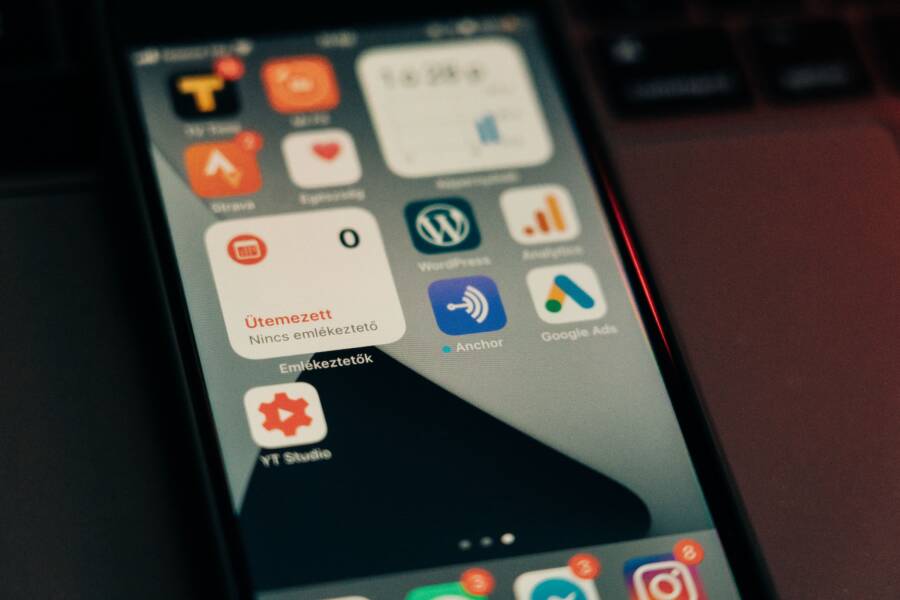
Missing status bar icons on your smartphone are a common frustration, often caused by temporary software glitches or system UI conflicts. Most of the time, a simple restart or a quick adjustment to your display settings restores these indicators to their rightful place.
You don’t need technical expertise to handle this issue. Following these troubleshooting steps will help you identify the root cause and get your battery, Wi-Fi, and notification icons back on the screen.
Quick Fixes for Vanishing Status Bar Icons
When the icons at the top of your screen disappear, your phone usually has a minor software conflict rather than a hardware failure. Because the status bar relies on the system user interface to render icons correctly, a temporary glitch can often make these elements flicker or vanish entirely. You can resolve most of these issues by clearing out background processes or updating your system software to correct known interface bugs.
Performing a Hard Restart on Your Device
A standard power down is a graceful exit for your smartphone, as it tells the operating system to save your data and close open applications properly. In contrast, a hard restart, or forced reboot, cuts power to the processor immediately. This action clears the temporary memory and kills frozen background tasks that might be preventing your status bar from rendering correctly.
For iOS devices, the sequence depends on your model. If you use a device without a home button, press and quickly release the volume up button, press and quickly release the volume down button, then hold the side button until the Apple logo appears. On older models with a physical home button, hold the home button and the top or side power button simultaneously until the screen goes black and the logo reappears.
Android devices use a fairly universal method for a forced restart. You need to press and hold the power button and the volume down button together for about 10 to 15 seconds. The screen will blink and the device will reboot. This process does not erase your personal files, but it does force the phone to reload the system interface from scratch, which is often enough to force those missing icons to reappear.
Checking for Pending Operating System Updates
Software is complex, and sometimes the code responsible for your display indicators develops a bug that only shows up under specific conditions. Developers regularly release patches to fix these UI glitches and improve system stability. If your smartphone runs an outdated version of its operating system, it is more likely to experience visual errors in the status bar or notification tray.
To check for available updates on an iPhone, open your Settings app, tap General, and then select Software Update. If an update is available, your phone will show a download option. Installing this patch may resolve existing conflicts between your installed apps and the system UI.
Android users should open Settings, scroll down to System or About Phone, and look for a section labeled System Update or Software Update. Tap Check for Update to see if your manufacturer has released a fix. Keeping your software current is one of the most effective ways to prevent icon display issues from returning in the future. If a specific update caused the problem, check the official forums for your device to see if other users report similar issues and if a newer, corrected patch is available.
Troubleshooting Hidden Settings and Display Modes
Sometimes your status bar icons go missing because of user-modified settings or specific system display modes. While most people assume a hardware fault, the issue is often buried within the interface customization menus or accidentally toggled display preferences. If you have recently changed your phone settings, look here first.
Adjusting Display and Notification Settings
Custom launcher apps are popular for their visual flair, but they often struggle to render system status bars accurately. If you installed a third-party home screen or theme engine, it might be overriding the default notification settings. These applications frequently include their own icon visibility toggles that operate independently from the main system settings.
Check if your launcher has a specific menu for “Status Bar” or “Icon Configuration.” You may find a checkbox that hides battery percentage, clock, or connection indicators to create a cleaner look. If you accidentally checked these boxes, the icons will remain hidden regardless of what the primary Android or iOS settings display.
In addition to launcher settings, system-wide “Do Not Disturb” or “Focus Mode” profiles can suppress status bar notifications to minimize distractions. Check these points to verify your current status:
Review your active notification categories to ensure system alerts are not blocked.
Disable custom themes or icon packs to see if the standard icons return to their positions.
Toggle the “Always Show” setting for specific indicators, such as battery percentage or Wi-Fi status, within your display preferences.
Understanding System UI Tuner and Developer Options
Advanced smartphone users often explore hidden menus like System UI Tuner or Developer Options to refine their experience. While these menus offer granular control, they also provide dangerous toggles that can remove status bar icons permanently. If you or someone else accessed these menus, a single tap could hide essential system indicators.
The System UI Tuner is a legacy feature on many Android devices that allows users to pick which icons appear in the status bar. If you scroll through this menu, you might find a list of system icons with individual switches. If the switch for a specific icon is set to off, that indicator will never appear on the screen, even if the feature is active.
To resolve this, navigate to your System settings and search for “UI Tuner” or “System UI.” If you cannot find it, the option might be hidden behind Developer Options. Accessing Developer Options usually requires tapping the “Build Number” in your phone information menu seven times. Once inside, look for entries labeled “Demo Mode” or “Status Bar” settings.
If Demo Mode is active, your phone might display a fake status bar that hides your real connection or battery information. Turning off Demo Mode immediately restores your actual status bar data. Always proceed with caution in these menus, as they are intended for testing and can cause visual inconsistencies if configured incorrectly.
Advanced Solutions When Simple Fixes Fail
When standard restarts and setting checks do not restore your status bar icons, the issue often stems from corrupted system data or misconfigured preferences. These deeper problems require specific interventions to force the operating system to rebuild its interface. While these steps sound technical, you can perform them on your smartphone without losing your photos, contacts, or apps.
Clearing the System Cache Partition
The system cache partition stores temporary files that your smartphone uses to launch apps and render the user interface quickly. Sometimes these files become corrupted after an OS update or a major app change. This corruption can prevent the status bar from displaying icons correctly because the system reads outdated or broken data. Clearing this partition forces the device to delete these temporary files and recreate them upon the next boot.
To perform this task on most Android devices, you must enter Recovery Mode. Begin by powering off your device completely. Once it is off, hold the power button and the volume down button simultaneously until a menu appears on the screen. Use the volume keys to navigate and select the option labeled Wipe Cache Partition, then confirm your choice with the power button.
Your personal data remains safe during this process. The system only removes temporary cache files used for speed and optimization. After the device finishes clearing the partition, select the Reboot System Now option. Your smartphone will restart, and the system UI will generate fresh cache files, which often resolves display glitches in the status bar.
Resetting App Preferences and System Settings
If clearing the cache does not fix the missing icons, your system settings might have reached a state of conflict that a simple toggle cannot resolve. Performing a full settings reset returns the system configuration to its factory state without deleting your personal files or apps. This action is effective if a specific accessibility feature or notification setting is blocking your icons from appearing.
Navigate to your phone settings menu and locate the Reset options. You will typically find this under General Management or System. Select Reset All Settings or Reset System Settings. Your device will prompt you to confirm this choice, as it will clear your saved Wi-Fi networks, Bluetooth pairings, and customized wallpaper or alarm preferences.
This reset fixes hidden issues where a corrupted preference file prevents icons from rendering. Your apps stay installed and your data remains on the storage, but the underlying UI rules are returned to their default behavior. After the phone finishes the reset and reboots, check the top of your screen to see if your icons have returned to their standard layout. If they appear, you can then safely reconfigure your preferences for Wi-Fi and Bluetooth as needed.
Identifying Persistent Hardware or Software Faults
When your status bar icons refuse to reappear after you try software fixes and system resets, the problem might reside deeper within the hardware or the operating system itself. Persistent display issues often point to internal conflicts that simple toggles cannot correct. Recognizing when a fix remains out of your reach helps you avoid unnecessary frustration while preserving the integrity of your device.
When to Contact Manufacturer Support
You should consider reaching out to manufacturer support if your smartphone displays other irregularities alongside missing icons. Persistent failures, such as a frozen touch interface or random reboots, often suggest that your phone suffers from a deeper system bug specific to your model. Many manufacturers maintain official databases where you can check if your specific device version has known issues with its software updates.
Before you start a warranty claim, visit the official support page for your brand. Use your device model number to search for active service bulletins or software patch notes. Sometimes a known bug exists where a specific OS version conflicts with the display driver, and the manufacturer might already have a documented workaround or a forthcoming patch.
If you determine that the software remains sound but the problem persists, contact the manufacturer to discuss warranty options. Document the steps you already took, such as performing a hard reset or clearing system partitions. This information helps the support representative verify your hardware condition more efficiently. If your device is covered under warranty, the company may offer a repair or a replacement to address the underlying failure.
Evaluating Screen Damage and Sensor Issues
Display hardware damage can sometimes manifest as UI irregularities rather than obvious cracks or broken glass. The digitizer, which is the layer responsible for touch input, sits behind your screen and works closely with the display panel. If this layer sustains internal damage from a drop or pressure, specific zones of the screen may stop rendering information correctly.
This failure can cause the status bar area to go blank even while the rest of the display functions as expected. You might notice dead pixels or flickering patterns near the top of the screen if the hardware is failing. If the display appears distorted, washed out, or fails to update in certain areas, the connection between the logic board and the screen might be loose or damaged.
You can perform a quick test by taking a screenshot of your home screen. Open the image in your photo gallery and inspect the top section. If the status bar icons appear clearly in the screenshot file, your phone’s software is rendering them correctly, which points toward a physical issue with the display panel itself. If the icons remain invisible in the screenshot, the operating system is failing to generate those indicators. In cases where the screen is physically damaged, professional service from a certified repair center is necessary to restore your visual interface.
Conclusion
Most status bar icon issues on your smartphone stem from minor software conflicts or misconfigured settings rather than physical hardware failure. You can usually fix these visual glitches by performing a forced restart, updating your operating system, or checking for accidental changes in your display preferences.
System software is complex, so take your troubleshooting one step at a time. Start with the easiest solutions, such as restarting your device, before moving to deeper system resets. This methodical approach helps you identify the exact cause without unnecessary stress.
If your icons remain missing after you attempt these software-based steps, the issue might require professional attention or point toward a hardware defect. You now have the knowledge to distinguish between temporary glitches and persistent technical faults. Use these steps to restore your display and ensure your device functions as intended.