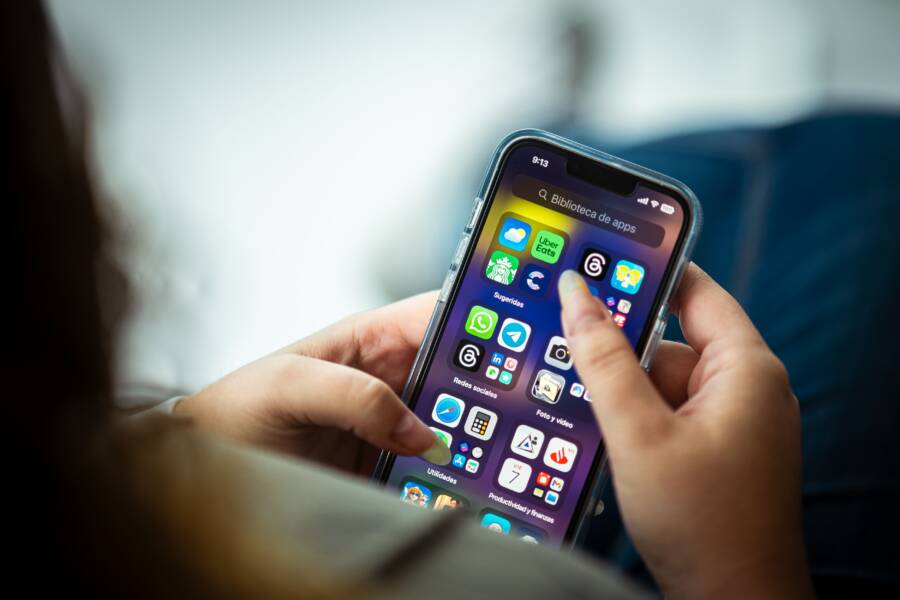
A messy home screen that refuses to stay organized is a common frustration for smartphone users. You move your apps into specific folders or rows, but they bounce back to their original positions or disappear entirely after a reboot.
This problem usually stems from software glitches, incorrect launcher settings, or interference from third-party applications. Most people assume they need a factory reset to fix the issue, but you can usually resolve it with a few simple adjustments.
Follow these steps to lock your icon layout and prevent your phone from rearranging your apps without your permission.
Quick Fixes for a Shifting Home Screen Layout
Your home screen layout often shifts because of subtle configuration settings that prioritize convenience over permanence. When your smartphone automatically adds new content or remains unlocked for reorganization, app icons frequently displace your established groups. You can stabilize your interface by adjusting a few specific system settings that govern how the operating system handles app placement and layout restrictions.
Checking the Lock Home Screen Settings
Modern smartphones provide a way to freeze your app arrangement, preventing accidental drags or long presses from moving items out of place. This feature is particularly helpful if you frequently find your folders disorganized after putting your phone in your pocket or letting others use it.
On an iPhone, Apple includes an option to prevent changes to the home screen layout within the Screen Time settings. Open your Settings app and tap Screen Time, then choose Content & Privacy Restrictions. You must enable the main toggle at the top if it is off, then select iTunes & App Store Purchases. Look for the setting labeled Don’t Allow under the section for Deleting Apps or changing the home screen, though this is primarily for managing app removal. To specifically lock the layout, keep your icons organized by avoiding unintended long-press actions, as iOS does not have a single master “lock” toggle for the home screen grid itself.
Android devices often handle this through the default launcher settings. Long-press any empty space on your home screen and look for a Settings or Home Settings icon. Many manufacturers, including Samsung and Google, provide a toggle labeled Lock Home Screen Layout. When you activate this, the system ignores any attempt to move, delete, or rearrange apps until you manually disable the lock. This is the most effective way to maintain your preferred setup on an Android smartphone.
Disabling Auto-Add Icons from the App Store
Another frequent cause for a cluttered home screen is the automatic placement of new app installations. Whenever you download a fresh application, the system may create a shortcut on your home screen by default. This action forces existing icons to shift to the next available slot or creates a new page, which disrupts your carefully curated layout.
On an iPhone, you can manage this by opening Settings and selecting Home Screen. Under the New App Downloads section, choose App Library Only. This setting ensures that new applications appear only in your library rather than populating the home screen immediately. It keeps your primary pages clean and prevents the automatic shuffling of your existing folders.
Android users should access their Play Store settings to stop this behavior. Open the Google Play Store app and tap your profile icon at the top right, then select Settings. Tap the General menu to reveal the option Add Icon to Home Screen. Toggle this switch off to stop the system from placing new shortcuts on your home screen. By changing this, you maintain full control over your smartphone interface, ensuring your apps stay exactly where you placed them.
Troubleshooting Software Issues on Your Smartphone
When standard settings fail to keep your icons in place, deeper software glitches are usually to blame. These issues often manifest as ghosting, where icons appear to drift, or complete layout resets that occur after you restart your smartphone. Such behavior indicates that the system is failing to save your configuration file or that a background process is constantly overwriting your preferences.
Clearing the Cache for Your Home Screen Launcher
The launcher acts as the engine for your home screen, managing everything from your wallpaper to the specific grid size of your apps. Over time, the temporary files or cache associated with this app can become corrupted. If the cache stores outdated information about your icon placement, the system may struggle to load your saved layout correctly. Clearing these files forces the smartphone to refresh its memory and rebuild the UI structure.
To clear the cache for your default launcher on Android, follow these steps:
Open the Settings app on your smartphone.
Tap on Apps or Application Manager.
Locate your launcher in the list. Note that it might be labeled with the name of your phone manufacturer, such as One UI Home for Samsung or Pixel Launcher for Google devices. If you cannot see it, tap the three-dot menu icon in the corner and select Show System Apps.
Select Storage or Storage & Cache.
Tap Clear Cache. Do not select Clear Storage or Clear Data unless you are prepared to lose your current home screen organization entirely, as that will reset the launcher to its factory state.
After performing this action, restart your smartphone to see if the layout remains stable. This simple process removes temporary files that often cause ghosting or sudden resets.
Managing Third-Party Launcher Conflicts
Custom home screen launchers allow you to personalize your interface with different themes, gesture controls, and grid layouts. However, these apps effectively sit on top of the native operating system. If the third-party launcher experiences a conflict with a recent software update or lacks the necessary permissions to write to your system files, it can cause the home screen to become unstable.
When a third-party app overrides your system defaults, it may struggle to communicate with the core smartphone software during a reboot. This lack of synchronization is why your icons often snap back to an older version or move into random positions. You can diagnose this issue by switching back to your device’s default launcher.
Navigate to your settings menu and search for Default Apps or Home App. Select the pre-installed system launcher to see if the layout shifts persist. If the problem disappears, the third-party launcher is the source of the conflict. You should check the Play Store for any pending updates for that launcher or consider resetting its settings within its own menu. If the instability continues, it may be necessary to uninstall the custom launcher to preserve the integrity of your home screen grid.
When to Reset Your Home Screen Settings
You should consider a home screen reset when your icon layout becomes consistently unpredictable. If your apps move on their own after a reboot or if your folders keep vanishing, your configuration files are likely corrupted. Resetting the layout provides a clean slate for your smartphone. It stops the system from fighting against your manual arrangements and allows you to build your organization from the ground up without the interference of lingering software errors.
The Difference Between a Soft Reset and a Full Layout Reset
Many users confuse a simple system reboot with a total wipe of their device data. A soft reset, which is just restarting your smartphone, clears the volatile memory and stops background processes that might be glitching. This is your first line of defense. It is safe, quick, and keeps your personal data, photos, and messages exactly where they are.
A home screen layout reset is different. It targets only the launcher application. When you perform this reset, you are telling the smartphone to delete the specific file that records where your icons and widgets sit. Here is how they compare:
The benefit of a layout reset is that it removes the corrupted configuration without touching your actual applications or private files. You will lose your current folder structure and icon placement, but your apps remain installed. You can reorganize your home screen in minutes, which is often faster than troubleshooting persistent ghosting or shifting icons for days. If you reach a point where your smartphone refuses to save your changes, a layout reset is the most efficient way to regain stability.
Prevention Tips to Keep Your Layout Organized
Keeping your icons in their intended spots requires a proactive stance against common software behaviors. Many phones prioritize automatic functionality, which often causes your carefully arranged screen to move or reset without warning. By tightening these specific settings on your smartphone, you prevent unwanted changes before they happen.
Configure Home Screen Restrictions
The most effective way to stop icon displacement is to restrict the system’s ability to modify your layout. These built-in limitations prevent accidental dragging or system-wide reorganization.
On an iPhone, you can use Screen Time to protect your current layout from unauthorized changes. Navigate to Settings, choose Screen Time, and tap Content and Privacy Restrictions. Once you toggle this feature on, look for iTunes and App Store Purchases to set your preferences. While Apple doesn’t offer a single “lock icon” switch, keeping your device settings restrictive prevents kids or accidental pocket touches from shifting your grid.
Most Android manufacturers include a dedicated switch to freeze your current setup. Access this by long-pressing on any empty area of your home screen until the menu appears. Tap the Home Settings gear icon. Locate the toggle labeled Lock Home Screen Layout and turn it on. This setting prevents any new icons from being added to your existing pages and ensures that no apps move, even if you hold down on an icon by mistake.
Manage Automatic App Placement
Your smartphone often tries to be helpful by placing new downloads directly on your home screen. This behavior forces existing icons to shift into new slots to accommodate the fresh installation.
To keep your layout static, disable these automatic placement features immediately:
For Android users, open the Play Store. Tap your profile icon, select Settings, and then tap General. Locate the Add icon to Home Screen switch and toggle it off. New apps will now appear only in your app drawer.
For iOS users, go to Settings and tap Home Screen. Select the App Library Only option under the New App Downloads section. This stops new applications from populating your home screen pages automatically.
Clean Your Workspace Regularly
Sometimes a cluttered interface contributes to shifting icons, especially when you have too many folders or widgets vying for space. When the system detects a crowded page, it may attempt to optimize space by automatically moving icons during an update or reboot.
Aim to keep your most used applications in the dock or on your primary home screen page. Move secondary applications into the App Library or an app drawer folder. Reducing the number of widgets also helps, as large, dynamic widgets often trigger a re-flow of the entire grid if the system encounters a display glitch. Regularly auditing your pages ensures that your smartphone remains stable and that you avoid the frustration of a sudden, unwanted reorganization.
Conclusion
You can regain full control over your smartphone home screen by adjusting the right system preferences. Most instances of shifting icons stem from automatic organization features or simple configuration errors rather than deep system failures.
By enabling your device’s lock settings and preventing new downloads from populating the front pages, you stop the constant cycle of reorganization. If problems persist, clearing your launcher cache or testing a default interface provides a quick path back to stability. Take the time to audit your app placement settings today so your layout remains exactly where you want it.