An old phone can become a useful home weather display with a local forecast page or a weather app on its screen. Put it on a stable stand, connect it to Wi-Fi, choose a forecast for your location, and set the display so it is easy to read without leaving the phone in direct sun. The phone shows weather data; it does not measure your porch temperature or rainfall by itself.
Choose the kind of weather view you want
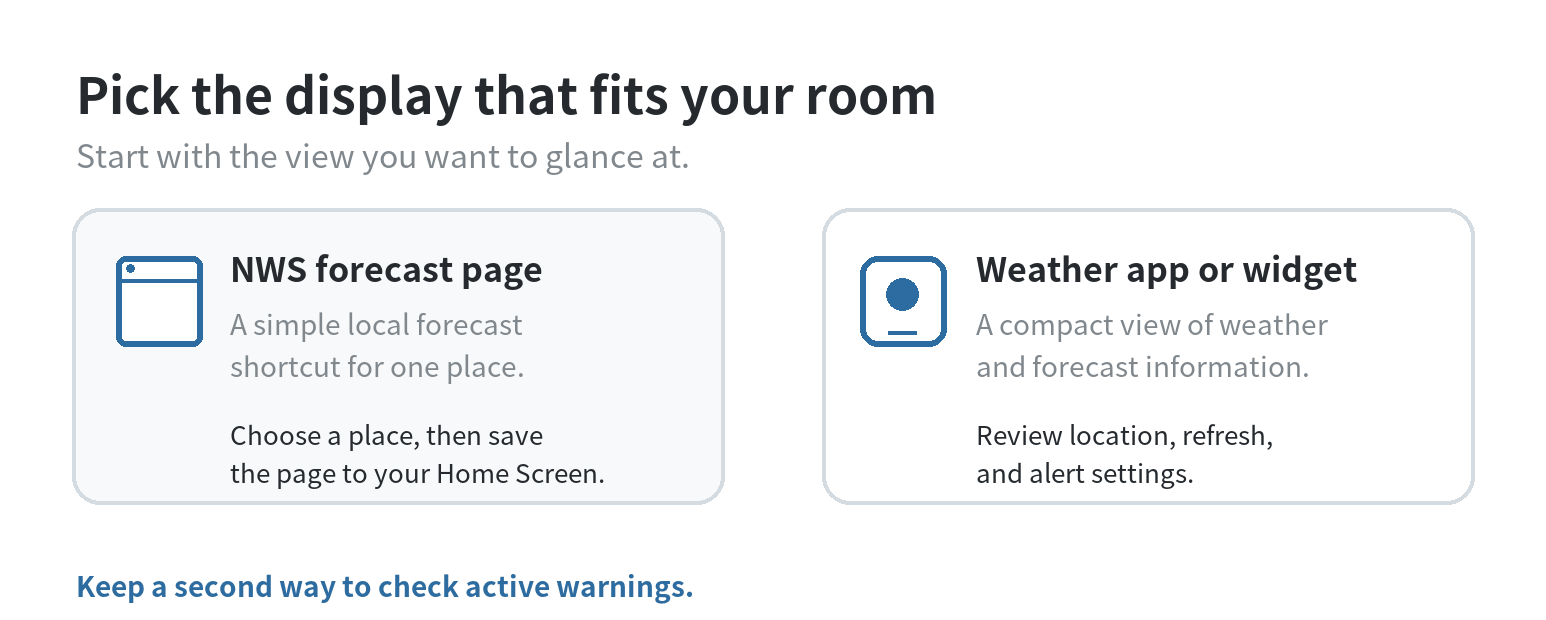
Start with the information you want to see as you walk by. A saved forecast page is enough if you mainly want today’s conditions and the outlook for your ZIP code. An app or home-screen widget makes more sense when you want a compact glance at conditions, a saved city, or alerts.
Keep the first screen simple. A large current-condition card and a short forecast are easier to read from across a kitchen than a busy radar map. If you want to see radar, open it when needed instead of leaving an animated map running all day.
Match the first view to where you will stand. A phone by the front door can show current conditions and the day’s outlook for a quick clothing check. A phone on the kitchen counter can open to the hourly forecast if you check it before errands or a walk. Keep one location selected; switching between saved cities adds taps without helping a fixed home display.
Think of the phone as a display terminal. The National Weather Service (NWS) distinguishes forecasts from observations: forecasts describe expected conditions, while observations come from specific weather stations. A phone showing an NWS forecast is not a sensor reporting the exact temperature at your home.
Check the old phone before setting it out
Charge the phone, connect it to your home Wi-Fi, and open its browser. If the forecast page loads and stays readable, you can begin without installing anything. For an app-based display, check that the app still installs or opens on the phone’s operating system and that its official listing describes the widget or forecast features you want.
Use the phone’s settings to remove clutter from this one-purpose screen. Turn off unrelated notification previews, remove personal accounts you do not need on the device, and leave only the weather shortcut or app easy to reach. If you use location access, compare the displayed city or ZIP code with the place you meant to follow.
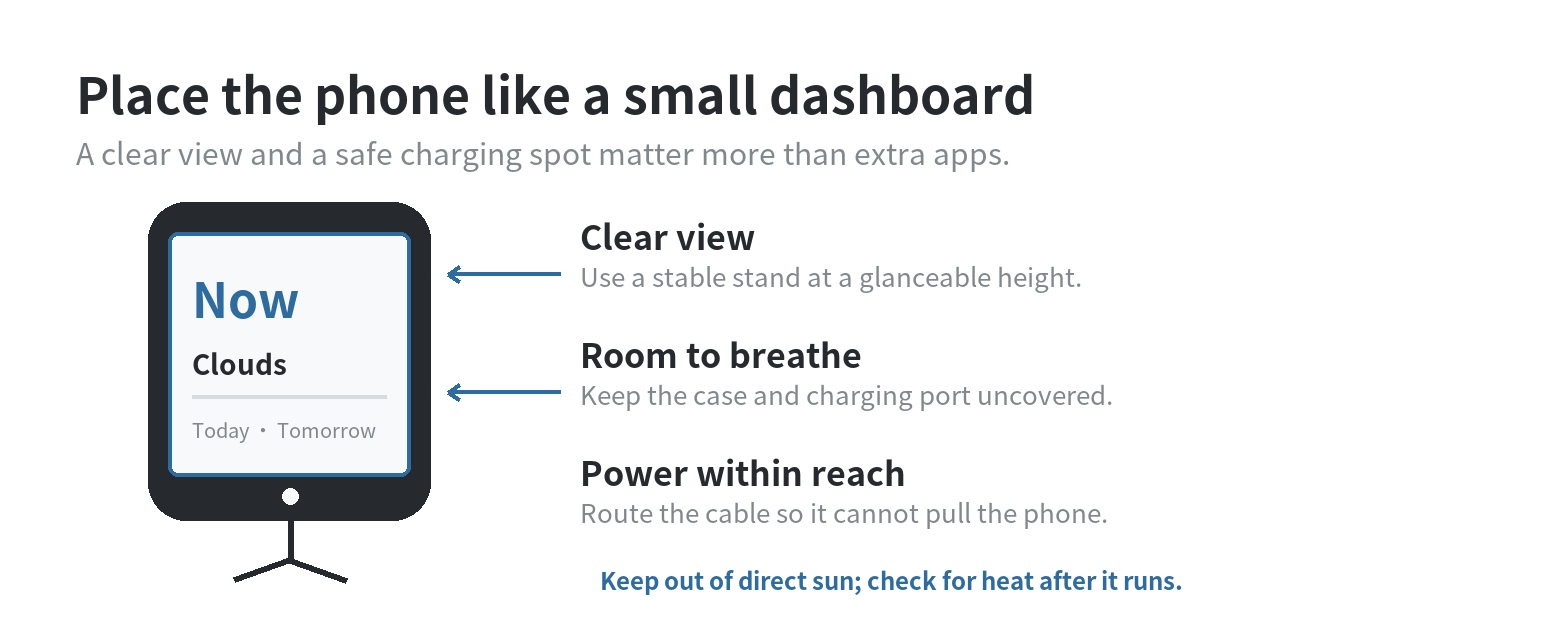
Pick a spot where the screen is visible from the room but the phone is not exposed to splashes, a cooking surface, or a sunny window. A small stand near an outlet works better than balancing the phone against a mug. Route the charging cable so a passing hand cannot snag it.
Save a local NWS forecast to the Home Screen
The NWS mobile guidance says you can open weather.gov on a phone, choose a location by city, state, ZIP code, or map, then add the forecast page to the Home Screen. On an iPhone, use the browser’s share control and choose “Add to Home Screen.” On Android, use the browser menu and choose the Home Screen shortcut option; the label can vary by browser.
Open the new shortcut once before mounting the phone. Confirm that it lands on the location you selected and that the forecast is readable in portrait orientation. If the page opens to a broad map or the wrong place, return to weather.gov, select the local forecast, and save that page instead. If the text feels crowded, close other tabs and adjust browser zoom only until the forecast headings still fit.
The NWS API documentation describes forecasts, alerts, and observations as separate data types. That distinction helps set expectations: a forecast page can show what is expected in the area, while a separate observation is tied to a reporting station. For a simple home display, the point forecast is the low-maintenance starting view.
Set up an app or widget for a quicker glance
If you prefer an app, review its own listing and help page before making it the display. Check that it offers a home-screen widget or a clear full-screen forecast, supports a manually chosen location, and explains how it handles alerts and updates. These details differ by app, so test the actual screen on the old phone rather than relying on screenshots from a newer model.
Set a fixed home location if the phone will stay in one room. That avoids giving a stationary display continuous access to location when a saved city will do. If the app needs location permission for a feature you use, choose the narrowest permission that still works and verify the city shown afterward.
Before leaving it on the counter, wait for the forecast to load over Wi-Fi, close and reopen the app, and check whether the display returns to the same location. If its widget stays on the wrong city, use the site’s weather widget location guide for that separate problem.
Keep the screen visible and the phone cool
On an iPhone, Apple’s user guide places Auto-Lock under Settings, then Display & Brightness. On a Pixel phone, Google’s help page places Screen timeout under Settings, then Display & touch. Menu names and available durations depend on the model, so use Settings search if the path differs. A longer timeout can use more power; test the shortest setting that still lets you glance at the display.
Lower brightness until the forecast is readable in the room, and turn on a dark theme if the app offers one and you prefer it at night. Keep the charger and case from trapping heat, and do not put the phone in direct sun. Apple says high temperatures can cause charging to slow or stop and the display to dim; Google’s Android battery guidance also advises keeping a phone cool.
If the display goes dark sooner than expected, check its timeout and battery-saving settings before changing anything else. The site’s screen timeout troubleshooting guide covers cases where a phone does not keep the setting you chose.
Run a short test before relying on the display
Leave the phone in its intended spot while you go through part of your normal routine. Check that the page or app stays on the correct location, that the screen is readable from where you pass, and that the cable does not pull the phone off its stand. Touch the screen once to confirm the display wakes as expected.
Open the app or forecast again later and see whether the information refreshes. Review alert controls separately; a quiet display is not the same thing as an alert system. Keep your regular phone available for warnings and check the NWS or local emergency guidance when severe weather is possible.
This setup works best as a convenient glance at a forecast. If you need measurements from your own yard—such as temperature or rainfall—you need a separate weather sensor that collects those readings. The old phone can still display that sensor’s data if its app supports the phone, but the sensor supplies the measurement.
FAQ
Can an old phone show weather without an active SIM card?
Yes, a phone connected to Wi-Fi can load a forecast page or app without using mobile data. Test the page on the home network before mounting the phone, and leave the network connection available for refreshes.
Can a weather app send an alert while the display is sitting on a counter?
Only if the app offers alerts and its notification controls are enabled. Check its official help page for alert coverage and settings, then keep your regular phone available for warnings.
Can I leave the phone screen on all day?
You can extend the screen timeout where the phone allows it, but a lit display uses power and charging can add heat. Lower the brightness, keep the device out of direct sun, and check its temperature during the first run.
Can I see readings from a backyard weather sensor on the old phone?
Yes, if the sensor and its companion app support the phone’s operating system. The sensor records the local reading; the phone displays the app’s data. Check the manufacturer’s setup guide for the supported connection and app versions.