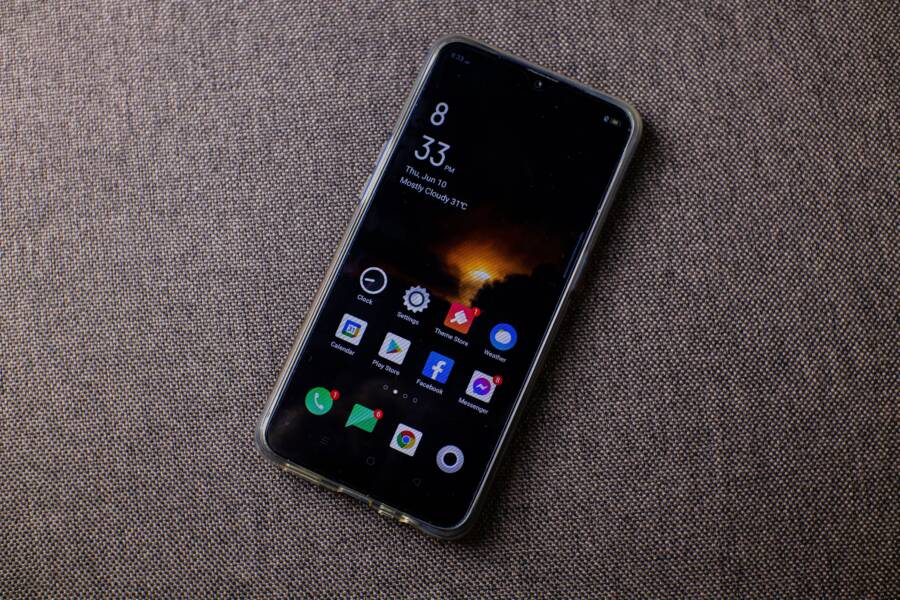
A frozen battery percentage is usually a software glitch or a calibration error rather than a physical failure of the battery itself. When your smartphone stops updating its charge status, the operating system is failing to communicate accurately with the power management chip.
You can often resolve this frustration without needing a professional repair or a hardware replacement. Simple resets and software adjustments frequently restore the display to its correct functionality.
Follow the steps below to identify the cause of your display error and restore your battery monitoring system to normal operation.
How to Perform a Forced Restart on Your Smartphone
When your smartphone battery percentage remains static despite heavy usage or charging, a standard power-off sequence often fails to correct the issue. This happens because a simple restart tells the operating system to initiate a graceful shutdown, but it does not clear out every active process or temporary file. If a background service or a corrupted sensor driver is hanging, that faulty state persists even after a normal reboot. A forced restart interrupts the power supply at the hardware level, which compels the device to drop all current tasks and reload the core operating system from scratch.
When a Basic Restart Is Not Enough
Standard reboots are essentially software commands. They request that the system save your data and close open applications before turning off the power. If the battery monitoring software is trapped in a loop or experiencing a memory conflict, the system may ignore the command to refresh the battery status or simply carry the error over into the next session.
A forced restart, often called a hard reset or a forced reboot, acts as a physical interruption. It skips the software’s polite request to close and instead cuts the connection between the battery and the processor for a split second. This process clears the system cache and resets the temporary hardware registers. Because the smartphone reinitializes every component, it forces the power management integrated circuit to re-poll the battery voltage.
You should consider this method if you notice these specific behaviors:
The battery percentage remains at the same number for several hours despite active charging.
Your device temperature spikes without a clear cause, suggesting a background process is caught in a loop.
The system interface feels sluggish or unresponsive in conjunction with the frozen percentage.
A standard restart changed nothing after you turned the phone back on.
This action does not erase your photos, contacts, or installed apps. It only clears the volatile memory that stores temporary system states. Once the device boots back up, it performs a new check of all connected components, including the battery sensor, which usually clears the frozen display and provides an accurate reading again. If you still see the same frozen value after a forced restart, the issue likely points toward a calibration fault or a deeper driver error that requires a more advanced software reset or professional diagnostics.
Calibrating Your Battery to Fix Display Errors
When your smartphone shows an inconsistent battery percentage, the internal fuel gauge often needs a reset. Software updates, frequent partial charges, or background app errors can cause the system to lose track of the battery’s true capacity. Calibration reconciles the data reported by your phone with the actual voltage output of the battery hardware. This process involves draining the battery completely and recharging it to full, which allows the power management chip to map the high and low voltage points of your specific battery cell accurately.
The Draining Process Explained
To begin the calibration, you must first deplete the battery until the device shuts down on its own. Start by using your smartphone normally until the display indicates a very low charge. You can accelerate this by keeping the screen brightness at maximum, running demanding applications, or streaming video content. Once the device hits one percent, continue using it until it powers off completely.
After the phone turns off, keep it in an inactive state for at least three to four hours. This period ensures that any remaining residual voltage in the battery cells dissipates, allowing the voltage to reach its absolute floor. You should not attempt to turn the device back on during this time, as even brief startup attempts can cause the sensor to register false data and interrupt the calibration sequence. By keeping the phone powered off, you provide the power management software a clean baseline to identify the true zero-percent state.
Charging Safely to Restore Accuracy
Once the resting period concludes, you must recharge the battery to its full capacity without any interruptions. Connect your smartphone to a power source using a certified charger and a high-quality cable that you trust. Avoid using computer USB ports or third-party wireless pads during this specific charge, as these methods often provide inconsistent current that can fluctuate and prevent a clean calibration.
Keep the device powered off while it charges, as this prevents background software from drawing power and interfering with the register update. If your phone automatically turns on when plugged in, manually power it off again as soon as the charging animation appears. Leave the device connected to the wall outlet for at least two hours after it reaches the 100 percent mark. This additional time allows the battery to settle into its maximum capacity state, giving the system controller enough time to recognize the top end of the voltage range. Once this cycle is complete, the phone should display the charge percentage with restored accuracy during daily use.
Troubleshooting Software Conflicts and Updates
A frozen battery percentage often stems from a mismatch between the operating system and the hardware power controller. When your smartphone updates, the background processes managing energy consumption occasionally encounter a logic error. This results in the battery icon displaying a static value, even while the actual charge levels fluctuate. You can resolve most of these conflicts by managing your system cache, clearing problematic app data, or finishing interrupted updates.
Managing Recent Software Updates
Operating system updates sometimes fail to initialize the power management driver correctly. If you recently installed a new version of Android or iOS, the system might have hung during the final stage of the installation. A pending or incomplete update creates a bottleneck where the phone cannot properly communicate with the battery sensors.
Check your settings menu to confirm that no updates are waiting for your final approval. Navigate to your device settings to view the software update section. If a download shows as incomplete, manually trigger the installation process again while the phone is connected to power and stable Wi-Fi. Many users find that a second, full installation pass overwrites the previous errors and forces the sensor polling software to reactivate.
Identifying Background Application Conflicts
Third-party applications sometimes override system commands or lock specific resources. If you notice the frozen display occurs right after opening a specific app, that software likely interferes with the system power controller. These apps often request constant sensor access, which can stall the primary battery monitoring service.
You should investigate if your smartphone shows this behavior only when certain tools remain active:
Apps that demand heavy hardware access, such as augmented reality games or high-resolution video editors, frequently cause these resource conflicts.
Battery saver apps often attempt to manage power themselves, which creates a direct conflict with the operating system default settings.
Older, unoptimized applications may not be compatible with the current version of your operating system, leading to unexpected freezes.
If you suspect an app is at fault, boot your phone into safe mode. This environment disables all third-party software and runs only the factory-installed services. If the battery percentage begins to update normally in safe mode, you know an installed application is causing the interference. You can then identify the culprit by removing recently installed apps one by one until the issue disappears.
Clearing the System Cache
The system partition stores temporary files that help your phone load data quickly. When these files become corrupted, the operating system may struggle to read the correct battery status from the hardware registers. Clearing this cache removes the corrupted data without deleting your personal photos, files, or messages.
On many models, you can clear this through the recovery menu by powering off the device and holding a combination of physical buttons. Once in the recovery mode, select the option to wipe the cache partition. This action acts as a reset for system-wide temporary files, allowing the smartphone to rebuild its internal logs during the next boot cycle. After the process finishes, the system usually polls the hardware sensors immediately, which often causes the frozen percentage to snap back to the actual charge level.
Signs Your Smartphone Battery Hardware Is Actually Failing
Software fixes address most display issues, but physical degradation is a reality for every lithium-ion cell. Over time, chemical reactions within the battery lead to capacity loss and internal resistance, which can interfere with the sensor readings your smartphone relies on. Recognizing when the hardware itself is failing prevents potential safety hazards and helps you decide if a repair or a replacement is necessary.
When to Visit a Professional Repair Shop
You should stop your DIY troubleshooting if you notice physical symptoms of battery failure. Lithium-ion batteries store a high density of energy, and once their protective housing is compromised or their chemical stability is lost, they pose genuine safety risks. If the battery shows signs of physical damage, do not attempt to force-restart or calibrate the device. Instead, power it down immediately and take it to a qualified service center.
Watch for these specific physical warning signs:
The screen or the back panel of your smartphone begins to lift or bulge. This occurs when gases build up inside a failing battery and push against the device casing.
You detect a strange, sweet, or metallic smell emanating from the charging port or the seams of the device. This odor indicates that the battery seal is breached.
The phone feels unusually hot in a specific area even when you are not using it or charging it. Excessive heat while the device is idle points to an internal short circuit.
The battery percentage drops drastically in seconds or jumps around randomly during normal use, indicating the cell can no longer maintain a stable voltage.
Never try to open the device to inspect the battery yourself. Modern smartphone batteries are often glued or tightly integrated with delicate ribbon cables, and accidental punctures can trigger a fire. If your phone shows these symptoms, it is no longer a software calibration issue. A professional technician has the correct tools to discharge the unit safely and replace it with a certified component. If you choose to keep using a device with a bloated battery, you run the risk of further damaging the logic board or suffering a total system failure. Always prioritize your safety by letting a professional handle hardware that has reached its end of life.
Conclusion
Most frozen battery percentages are simple software errors that resolve after a forced restart or a full calibration cycle. By clearing your system cache and verifying that no background applications are creating resource conflicts, you can usually restore the accuracy of your device readings without needing a hardware replacement.
Monitor your battery behavior closely over the next few days to see if the status remains stable. While modern smartphone software handles power management effectively, occasional maintenance keeps your sensors aligned with the physical state of the battery. If you notice signs of hardware failure, such as casing bulges or rapid temperature spikes, contact a service professional to avoid any risk of battery damage.