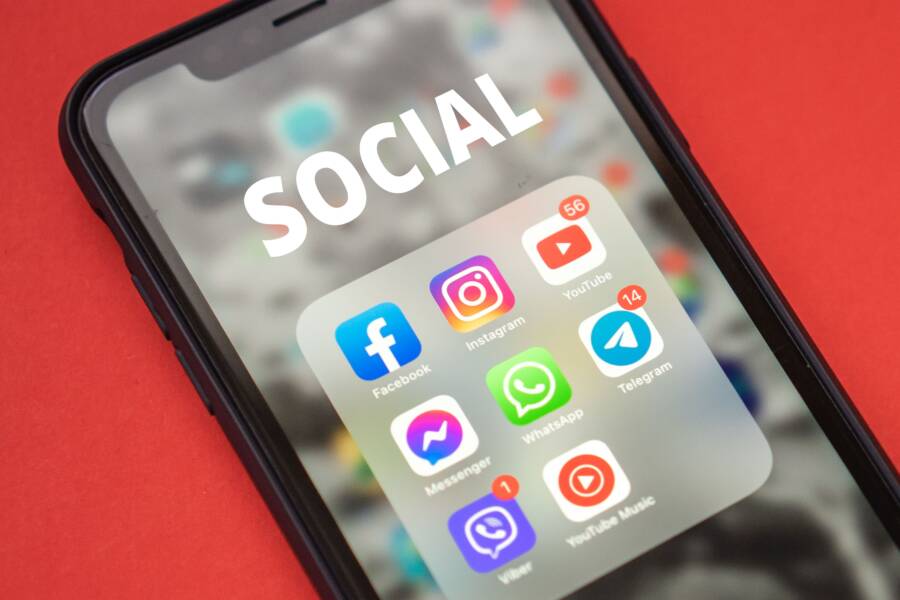
When you tap a link and your smartphone launches the wrong application, the experience disrupts your workflow. This happens because your device settings have lost the association between a specific web address and its intended program, often due to an app update or a system cache conflict.
You can fix this by clearing the default preferences or resetting the app associations in your settings menu. Whether you use an Android device or an iPhone, taking control of your software ensures that your links behave exactly as you expect them to.
Why Your Smartphone Forgets Your Default App Choices
Your smartphone occasionally loses track of your preferred apps because the software undergoes constant background changes. Every time you install an update for your operating system or a specific application, the phone re-evaluates its internal list of file associations. If the version numbers shift or the app package name changes slightly, your device treats it as a new installation. This process effectively resets your previous preferences to protect the integrity of the system and prevent broken links.
System Updates and Software Conflicts
Major updates to your smartphone software often rewrite the database that manages link handling. When your device restarts after an update, it clears temporary caches to keep performance stable. Sometimes this cleanup process wipes the lookup table where the phone stores your “Open with” choices. Because the operating system prioritizes a clean, functional state over user-specific tweaks, it reverts to factory settings for many link types.
App developers also contribute to this issue during frequent updates. When an application gains new features, the developer might change how the app responds to web addresses or file types. If the app’s manifest file—which tells the phone what links the app can handle—is modified, your smartphone treats it as an unfamiliar program. It removes your saved choice because it no longer recognizes the app as the same entity that was previously selected.
The Role of Secondary App Installations
Installing a new application that supports similar file types often triggers a reset. If you download a new browser or email client, your smartphone detects a potential conflict. It stops using your old default because it wants you to choose a program for the new, competing app. This mechanism helps the system manage multiple applications that claim to handle the same data.
Consider this table of common scenarios where your preferences might change:
Cache Corruption and User Errors
Sometimes the issue stems from corrupted data within the system cache. Your smartphone maintains a cache of metadata that tracks which apps are compatible with specific links. If this data becomes fragmented or corrupted, the system fails to retrieve your saved settings. The phone then defaults to the original system behavior rather than risking an error by trying to open an invalid link.
Accidental settings changes also occur more frequently than most users realize. You might have tapped a “Just Once” button instead of “Always” during a previous prompt. By selecting “Just Once,” you tell the device to keep asking for your preference every time. This creates the illusion that the phone has forgotten your choice, even though the device is simply following your most recent instruction to keep the option open.
Clearing Glitchy Settings on Android Devices
When your smartphone refuses to open links in the correct application, software conflicts are often the culprit. Temporary files or misconfigured system flags can trap your device in a state where it either ignores your link-opening preferences or defaults to the wrong program. Clearing these settings forces the operating system to re-evaluate how it handles web traffic and file associations, which usually resolves the issue.
Resetting App Preferences for a Fresh Start
If you find that many of your applications fail to open their respective links, a blanket reset of your preferences is the most effective solution. This action does not delete your personal data, photos, or installed apps. Instead, it resets all system-wide defaults to their factory states. This means the device forgets your previous choices for default browsers, media players, and mail clients.
To perform this reset, open your smartphone settings menu and locate the Apps or Application Manager section. Look for a menu icon, usually represented by three dots in the top right corner, and select the option to Reset App Preferences. Once you confirm this action, your phone will re-enable all disabled applications and remove any restrictions you previously placed on background data or notifications.
The primary benefit of this step is that it clears out stale associations. When you next tap a link that multiple apps can handle, your phone will prompt you again to choose your preferred program. Selecting “Always” after the reset reinstates your choice with a clean configuration, which typically clears away the glitchy behavior that caused your links to fail.
Managing Deep Link Permissions Manually
If you prefer a surgical approach rather than resetting every app on your smartphone, you can audit the permissions for specific applications. Many modern apps use deep links to direct web traffic into their mobile interface rather than opening a browser. If these permissions become corrupted or toggled off, the system will not route the link correctly.
Navigate to your app list within the settings menu and select the specific app that should be opening your links. Look for an option labeled “Open by default” or “Set as default.” Inside this menu, you will see a list of supported web addresses. Ensure the switch for “Open supported links” is toggled to the on position.
If you notice the setting is already enabled but still failing, tap the button to clear the defaults for that app. This effectively forces the system to forget the current path. Return to a link that should open in that app and tap it once more to re-establish the connection. By managing these settings individually, you maintain control over your device without disrupting the preferences for your other installed programs.
Troubleshooting Link Issues on iPhone
When a link fails to open in the correct app on your iPhone, the connection between the web address and your installed software is often broken. You can usually resolve this by forcing the operating system to recognize the app again. Since your smartphone relies on a specific registry to match links to programs, clearing out old data often restores normal function.
Removing and Reinstalling Misbehaving Apps
Sometimes, the internal configuration files within an application become corrupted or outdated. When this happens, your iPhone stops associating that app with specific web links, even if the app appears to work normally otherwise. Deleting the app clears its local metadata, which forces the operating system to discard the broken link handlers.
Locate the app icon on your home screen or in your App Library.
Long-press the icon until a menu appears.
Select Remove App and confirm your choice to delete it from the device.
Restart your iPhone to ensure all cached temporary files are cleared from the system memory.
Visit the App Store to download and reinstall the application.
Reinstalling the app effectively acts as a fresh registration process. Once the new version is on your smartphone, it communicates with the operating system to re-establish its capabilities. The next time you tap a relevant link, the system will check the updated manifest files. This often prompts the device to recognize the app as the correct handler for those web addresses once again.
If you previously saved settings for a specific link type, the reinstallation process helps the OS prioritize this fresh installation. This method works well because it clears away any hidden flags that might have told your phone to ignore the app for specific tasks. While it requires a few extra minutes of setup, it is a highly effective way to remove deep-seated software glitches that standard settings changes cannot fix. Always remember to sign back into your account after the installation finishes to restore your personal data and preferences.
Advanced Fixes When Simple Settings Fail
When standard adjustments and app-specific resets fail to solve persistent link-opening bugs, you might face deep-seated system inconsistencies. These issues often stem from corrupted configuration files or conflicting background services that standard menus cannot reach. While frustrating, advanced troubleshooting can help your smartphone regain control over how it routes web traffic and file associations.
When to Consider a Network or System Settings Reset
Resetting your network or system settings is a drastic move, so treat it as a final option after all other troubleshooting fails. This process wipes saved Wi-Fi passwords, Bluetooth device pairings, and VPN configurations. It also returns custom DNS settings and network preferences to their factory defaults. Because this action removes significant data that you must reconfigure manually, only use it when your link-opening problems happen across every application on your smartphone.
Before you proceed with a full reset, ensure you have backed up your essential data and remembered your network credentials. You should only initiate this process if you suspect a system-level communication breakdown is preventing your apps from interacting with the web browser properly.
Navigate to the System or General Management menu in your settings.
Select the option for Reset.
Choose Reset Network Settings (or Reset All Settings if a network reset provides no relief).
Confirm your choice and allow your phone to restart.
Once the device reboots, it clears the temporary connection caches that often house broken link handlers. You will need to reconnect to your Wi-Fi networks and re-pair your Bluetooth accessories. While this is time-consuming, it provides a clean slate for the operating system to rebuild its association database. If the problem persists after this, the underlying issue might be a corrupted firmware installation, which may require a complete factory restore or a visit to a professional service center.
Conclusion
Most issues where your smartphone fails to keep default app assignments stem from temporary software conflicts, cache corruption, or minor registration errors during system updates. These problems are rarely permanent hardware faults, and you can usually resolve them by clearing stored preferences or reinstalling the misbehaving application.
Maintaining a stable device relies on keeping your apps and operating system updated to prevent recurring link-handling errors. If a single application continues to ignore your settings, a surgical reset of that app often restores functionality without affecting the rest of your system.
If you continue to experience widespread issues after trying these fixes, consider checking for known bugs in your current OS version or reaching out to official support channels. Which specific app on your smartphone gives you the most trouble when opening external links?