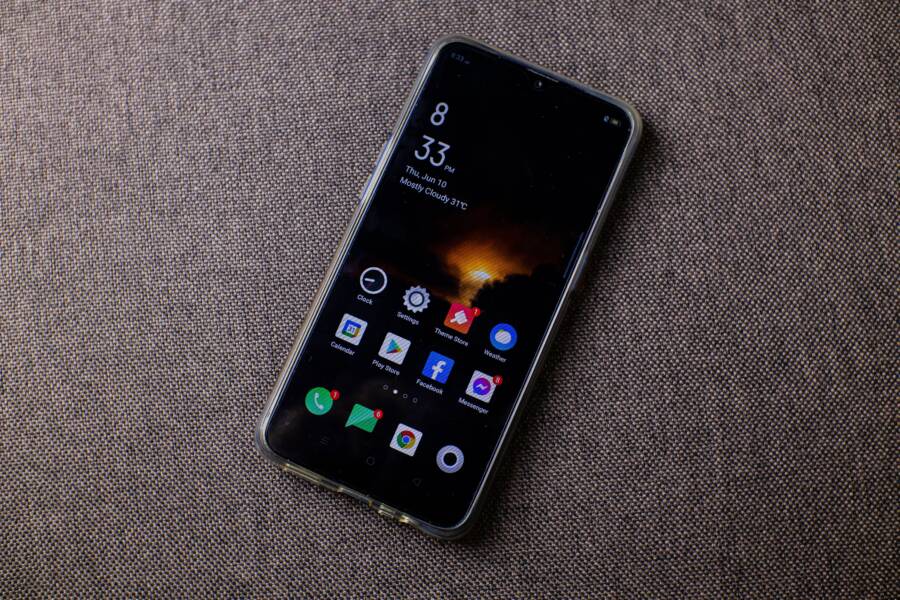
Your weather widget is frozen because of software glitches, location service conflicts, or outdated cache files. You can fix this issue on your smartphone by clearing the app data, toggling your location settings, or forcing a restart of the widget service.
These problems happen when your device struggles to pull live data from the server. By following a few quick troubleshooting steps, you will restore real-time updates and get your home screen back to normal.
The following sections walk you through the most effective ways to troubleshoot and repair your weather display.
Quick Fixes for a Frozen Weather Widget
When your weather widget stops updating, it often points to a minor software hiccup rather than a hardware failure. A frozen display usually occurs when the background process responsible for fetching local data encounters a temporary conflict within your smartphone operating system. Before you consider drastic measures like a factory reset or uninstalling core apps, try these straightforward adjustments. They resolve most synchronization errors by clearing volatile memory or re-establishing communication with external servers.
Restarting the Device to Clear Temporary Glitches
A simple restart remains the most effective first step because it forces the operating system to shut down all active background processes. During normal operation, your smartphone accumulates temporary cache files and system logs that can occasionally collide with one another. These conflicts often trap the widget in a loop where it fails to trigger a refresh request.
Turning your device off and on again clears this volatile memory and resets the communication bridge between your apps and the internal location services. Once the device boots up, the operating system reinitializes all services, which frequently clears the block that prevented the weather widget from updating. If the widget remains unresponsive after a power cycle, the underlying issue likely requires a more targeted adjustment to your connectivity settings.
Toggling Connectivity to Force a Data Refresh
Weather widgets rely on a stable link to a remote server to fetch current temperature readings and forecast data. If that link remains interrupted, the widget will display stale information or stop updating entirely. Toggling your network status acts as a signal to the operating system that it needs to re-authenticate and re-establish a data path to the server.
You can trigger this refresh process by using these steps:
Open your quick settings panel on your smartphone.
Tap the Airplane Mode icon to enable it, wait five seconds, and tap it again to disable it.
Observe the status bar to ensure your signal strength returns to full capacity.
Check the widget after a few moments to see if the current time and weather conditions update automatically.
If this does not work, switch between your current connection and an alternative one. For instance, if you are using mobile data, disable it and connect to a known stable Wi-Fi network. This switch forces the weather application to drop its current session and initiate a fresh request, which often bypasses any residual connection hang-ups. Moving from one network to another effectively clears the path for the widget to pull new data, returning your home screen to its expected functionality.
Deep Cleaning Your Weather App Data
When minor network toggles fail to wake up your widget, the problem often hides inside the local data storage on your smartphone. Applications store temporary information, known as a cache, to speed up loading times and minimize battery drain. Occasionally, these files become corrupted or conflict with recent updates, causing the weather display to get stuck on outdated information. Cleaning this data forces the application to request a fresh set of information from the source servers.
Clearing Corrupted Cache Files
You can delete these temporary files to resolve synchronization errors without erasing your actual user preferences, such as saved locations or notification settings. The steps vary slightly depending on your smartphone model, but the core settings menu remains consistent across most modern platforms.
Follow these steps to clear the application cache:
Open the Settings app on your smartphone.
Select the Apps or Application Manager section to view your full list of software.
Find your specific weather app in the list and tap it to open its detailed settings.
Tap on the Storage or Storage and Cache option.
Select the Clear Cache button to remove the temporary data.
Avoid tapping the button labeled Clear Storage or Clear Data unless you have already exhausted other options. That specific action resets the entire application to its factory state, which removes your saved cities and personal configurations. After clearing the cache, return to your home screen and wait a few moments. The widget should initiate a new data pull and display the current forecast shortly.
Updating the Weather App and System Software
Software versions must remain synchronized to perform correctly on your device. Weather apps rely on specific communication protocols provided by your smartphone operating system to function properly. When these components grow too far apart in version history, the app may lose its ability to fetch data or render the widget interface.
Check for updates by visiting the Google Play Store or Apple App Store on your smartphone. Search for the weather app; if an Update button appears, tap it to install the latest patches. These updates frequently include fixes for known bugs that cause widgets to freeze or display inaccurate readings.
In addition to the app itself, check your system settings for available operating system updates. Manufacturers release these updates to address security vulnerabilities and improve background process management. A system update ensures that the communication pathways your apps use to pull data are stable and responsive. Keeping both your apps and your operating system current is the best way to prevent future performance issues and keep your home screen information accurate.
Managing Location Services and Permissions
Weather widgets depend on accurate location data to provide relevant forecasts for your area. If the widget fails to update or shows weather for a location you left hours ago, your location permissions are often the culprit. Modern smartphone software includes strict privacy controls that occasionally block background apps from accessing GPS data to save power or protect your privacy. Adjusting these settings tells your device that the weather app needs constant or frequent access to your current position, allowing the widget to refresh correctly throughout the day.
Granting Necessary Permissions for Real-Time Updates
To keep your weather information current, your smartphone needs permission to track your position even when you are not actively using the app. If the permission is set to ask every time or deny, the widget will fail to pull data while the phone sits in your pocket.
You can check and update these permissions by following these steps:
Open your device settings menu and navigate to the list of installed applications.
Select your weather app from the list to view its specific settings.
Tap on the Permissions menu to see what data the app accesses.
Locate the Location setting and tap it to change the access level.
Choose Allow all the time or Allow while using the app.
Selecting Allow all the time is the best choice for a weather widget because it permits the app to refresh data in the background without requiring you to open it. If your device uses a specific battery-saver feature for location, ensure the app is listed as an exception. Without these specific permissions, the widget remains stuck in a loop, unable to request new data from the weather service.
Troubleshooting GPS and Location Accuracy
Sometimes the permissions are correct, yet the widget still shows stale information because the GPS signal is blocked or throttled. High-precision location requires a clear view of the sky, and moving into dense buildings or underground areas often prevents your smartphone from locking onto a stable signal. If the widget cannot determine your exact location, it stops updating to avoid displaying incorrect data for the wrong region.
Beyond physical obstructions, battery optimization modes frequently interfere with location reporting. Many smartphones aggressively kill background processes to extend battery life, which effectively silences the weather app while the screen is off. If your widget consistently fails to update until you manually unlock your phone, check your battery settings for power-saving restrictions.
You can improve accuracy by following these tips:
Toggle your primary location switch off and on in the quick settings panel to reset the radio connection.
Disable battery optimization for the weather app in your device settings to prevent the system from pausing its background updates.
Verify that your Wi-Fi or Bluetooth scanning is enabled, as these technologies help the phone determine your location quickly even when a clear GPS signal is unavailable indoors.
If you still notice a delay in updates, try opening the maps app on your phone. A successful location lock in a maps app signals to the system that the GPS hardware is functioning correctly, which often prompts the weather widget to perform a background refresh of its own. Keeping these location services active and unrestricted ensures your weather display remains a reliable source of information for your daily routine.
Replacing the Widget for a Fresh Start
Sometimes a weather widget becomes so corrupted that internal software patches or settings adjustments simply fail to restore it. If you have exhausted all other troubleshooting options on your smartphone, removing the widget and placing it back on your home screen is the most effective way to force a completely new instance of the application. This process clears away any persistent errors linked to the specific widget layout or its connection configuration.
Step-by-Step Guide to Removing and Adding Widgets
When you remove a widget, you do not delete the weather app itself, so your personal data remains safe within the main application. Follow these simple steps to perform a hard reset of your widget display:
Locate the frozen widget on your home screen.
Press and hold your finger down on the widget until a context menu appears.
Select the option labeled Remove, Delete, or the small minus icon, depending on your device interface.
Return to your home screen and find an empty space to perform a long press.
Tap on the Widgets menu that appears at the bottom or top of your screen.
Scroll through the list to find your weather app and select the widget style you prefer.
Drag the new widget onto your home screen and drop it into your desired location.
Once you add the fresh widget to your smartphone screen, the system triggers an immediate request for current data. This action bypasses the old, frozen instance that was previously stuck in a loop. Most users find that their weather updates return to normal immediately after this refresh. If the new widget still displays incorrect or outdated information, verify that the application has the correct permissions and network access required for background refreshing.
Conclusion
Restoring a frozen weather widget is usually straightforward if you follow the correct order of operations. Start by restarting your smartphone to clear temporary memory conflicts, then toggle your network connection to force a data refresh. If these simple steps fail, move on to clearing the app cache or verifying your location permissions to ensure the software has the necessary access to pull accurate forecasts.
These adjustments fix most synchronization errors that cause widgets to hang. If the display remains unresponsive after you attempt these steps, the issue might stem from a deeper system bug or an outdated application version. In such cases, removing and re-adding the widget is the most effective way to trigger a fresh connection. If you still encounter persistent problems, consider installing a reputable third-party weather app to see if the issue is limited to the system software.