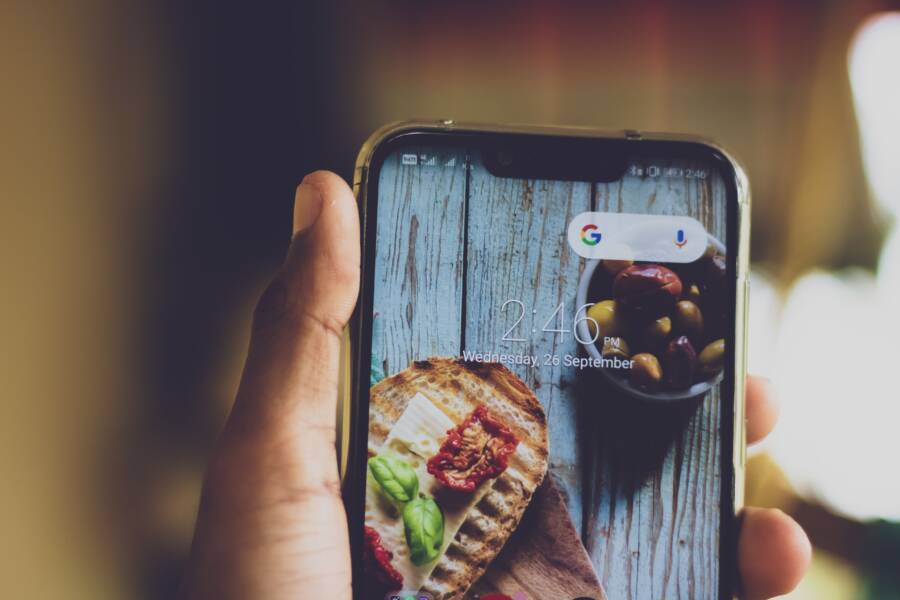
A frozen or misaligned lock screen clock on your smartphone is usually a simple software glitch, a date and time synchronization error, or a conflict caused by a third-party app. You can often fix this issue by toggling your automatic time settings or clearing the cache of your launcher application.
Modern devices handle complex background processes constantly, and occasional interface errors are common for any smartphone. If your clock display remains stuck or misplaced, a few targeted adjustments to your system settings will restore functionality.
Follow the troubleshooting steps below to identify the exact cause and return your display to normal.
Check Your Date and Time Settings
Your phone relies on a precise internal clock to display the correct time on your lock screen. When this data becomes desynchronized from the network or local towers, your clock often stops updating or shows an incorrect hour. Most modern smartphones manage these settings automatically by communicating with cellular providers. If the handshake between your device and the network fails, or if your location services provide conflicting information, the lock screen display will likely glitch. Verifying these configurations is the most effective way to resolve persistent timing errors.
Resetting the Time Sync Manually
Software occasionally gets stuck while trying to sync with external time servers. By forcing your smartphone to disconnect and reconnect, you prompt a fresh network handshake that often clears up display lags. This process effectively resets the communication loop between your device and the cellular tower.
To perform this manual reset, follow these steps:
Open your device settings menu and look for the General or System section.
Select the Date and Time category.
Toggle the switch for automatic time and date settings to the off position.
Wait for about ten seconds while the device registers the change.
Toggle the switch back to the on position to initiate a new connection.
After you toggle these settings, watch your lock screen for a moment. If the time corrects itself, the issue was a temporary communication stall. If the time remains off, you might need to adjust the settings again after toggling airplane mode. This forces your antenna to re-scan for local signals, providing your smartphone with a clean slate to pull accurate time data from the nearest tower.
Verifying Your Time Zone Settings
Automatic time settings depend heavily on your location to choose the correct time zone. If your location services are disabled or if your phone incorrectly identifies your current region, the clock will display the wrong time. This often happens if you travel across time zones or if your smartphone struggles to lock onto a GPS signal inside a building.
Check your current time zone status with these guidelines:
Location accuracy: Ensure that location services are active. Without precise positioning, the phone may revert to a default time zone that does not match your actual location.
Manual override: If you know your phone has the wrong time zone, turn off the automatic setting. Manually select your specific city or region from the provided list.
Network consistency: Sometimes the cellular network provides the wrong time zone data. If manual selection fixes the clock, leave it on manual until you arrive at a different region to prevent the error from returning.
An incorrect time zone setting creates a gap between your clock and reality. You might notice the time is exactly one or two hours off, which is a clear indicator that your time zone configuration is the culprit. Fixing this setting brings your lock screen clock back into alignment with your daily schedule.
Troubleshooting Software Glitches on Your Smartphone
When your lock screen clock remains frozen or shifts out of place, the underlying cause is often a minor conflict within the operating system or a stalled background process. Software interfaces require clean data to render UI elements correctly, and temporary memory buildup can interfere with these updates. Before you assume the hardware is damaged, you can resolve most display anomalies by clearing system caches through a restart or by installing the latest software updates.
Performing a Forced Restart
A forced restart is a quick way to terminate background tasks that might be hanging. Unlike a standard power cycle, this method clears the active memory and forces the operating system to reload all services, which often resolves temporary graphic glitches.
If you are using an iPhone, follow these steps to trigger a hard reset:
Press and quickly release the volume up button.
Press and quickly release the volume down button.
Press and hold the side power button until the Apple logo appears on the display, then release.
For standard Android devices, the process is slightly different but achieves the same result:
Locate the power button and the volume down button on the side of your device.
Press and hold both buttons simultaneously for approximately 10 to 15 seconds.
Wait for the phone to vibrate or show the manufacturer logo on the screen before letting go.
Once the device reboots, the system will re-initialize the lock screen service. Check your clock immediately after the phone powers back on to see if the interface has returned to its proper alignment.
Updating Your System Software
Manufacturers frequently release updates to fix bugs that affect how UI elements render on the lock screen. If your clock is misaligned, it is possible that an older version of your operating system is struggling to communicate with new app icons or background widgets. Keeping your smartphone current ensures that the system libraries responsible for time display and font scaling are functioning as intended.
Beyond simple performance improvements, updates often include specific patches for display-related issues. If a software bug is the root cause of your misaligned clock, a manual update is the most reliable way to overwrite the faulty code.
To check for available updates on your device, navigate to the Settings menu and look for the System or General tab. Most devices have a dedicated Software Update section that automatically scans for new packages over your Wi-Fi connection. If an update is waiting, install it and allow the phone to restart. This process replaces corrupted system files with stable versions, which frequently resolves lingering graphical errors and restores the default layout of your lock screen.
Identifying Apps That Interfere With Your Clock
Third-party applications occasionally conflict with your system interface, causing the lock screen clock to shift, freeze, or disappear. This problem usually occurs because a newly installed app demands display permissions or uses an overlay that forces the system to reorganize its default layout. You can narrow down the cause by isolating your software environment.
Testing in Safe Mode
Safe mode provides a diagnostic environment that disables every third-party application you installed on your smartphone. By running your device in this mode, you immediately see if the clock aligns correctly without interference from outside software. If the clock works perfectly in safe mode, you know a specific app is responsible for the misalignment.
Follow these steps to access safe mode on most Android devices:
Press and hold the power button until the power-off option appears on the screen.
Long-press the power-off icon or the restart option on your display.
Tap the safe mode prompt when it appears to confirm the selection.
Allow the smartphone to reboot.
Once the device restarts, you will see a badge on the bottom corner indicating it is in safe mode. Check your lock screen clock. If it looks correct, restart your smartphone normally to exit safe mode and then begin uninstalling apps one by one. Start with recently updated apps, launchers, or lock screen customization tools, as these are frequent culprits for interface conflicts.
Managing Custom Lock Screen Widgets
Many users customize their smartphones with widgets that show weather, battery life, or calendar events directly on the lock screen. While these tools add functionality, placing them too close to the clock often triggers a layout collision. The operating system tries to reserve space for both elements, but if the widget is too large or occupies the same grid area as the clock, the UI might shift the time display to an awkward position or overlap the text entirely.
You can resolve these visual errors by adjusting your widget placement:
Clear the space: Remove all widgets near the clock to see if the time snaps back to its default centered or left-aligned position.
Resize widgets: If your smartphone allows you to resize widgets, shrink them to leave a wider margin between the widget and the time display.
Check layout settings: Review the lock screen settings menu to ensure you have not enabled a view that forces widgets to push the clock upward or downward.
Remove redundant clocks: Some weather apps include a secondary clock widget. Having two clock sources active on the same screen often confuses the rendering engine.
Test these changes by locking and unlocking your smartphone after every adjustment. Removing a single overlapping widget frequently restores the clock to its intended location, proving that the software was simply struggling to render multiple objects in a confined space.
Solving Display and Resolution Conflicts
Display glitches often stem from a mismatch between your screen resolution settings and the actual pixel density of your display. When your smartphone fails to scale the lock screen interface correctly, the clock might appear truncated, off-center, or hidden behind other elements. You can usually resolve these conflicts by adjusting display scaling or font size settings, which forces the system to redraw the user interface.
Adjusting Display Scaling and Font Size
Most modern devices offer customizable scaling options to improve accessibility and visual comfort. If your display settings are set too high, the system tries to enlarge text and icons, which occasionally forces the lock screen clock out of its designated container. Reducing these settings back to the default level often provides the necessary clearance for the clock to render in its proper position.
Navigate to your display settings to find the scaling options:
Open the Settings menu and select the Display or Screen category.
Look for options labeled Font Size, Display Size, or Zoom.
Drag the slider toward the smaller end of the spectrum to reduce the footprint of UI elements.
Lock your smartphone and wake it again to verify if the clock layout returns to normal.
If your clock remains misaligned after these adjustments, try toggling the Bold Text option if your device supports it. Sometimes, enabling and then disabling bold text forces the system to re-render all fonts on the screen, clearing up temporary graphical errors that prevent the clock from snapping to the center or top of the display.
Resolving Overlays and Aspect Ratio Conflicts
Some smartphones include features like edge-to-edge displays or curved screens that require specific software handling to ensure content does not spill over the visible area. If an application forces your screen into a specific aspect ratio or applies an overlay to the lock screen, the clock rendering engine might fail to calculate the correct margins.
You can check for software-induced resolution issues by reviewing these common conflict points:
Display cutouts: Check if your phone has a setting to hide the notch or camera cutout. Sometimes, changing this setting from automatic to hidden and back again resets the coordinate system for the lock screen.
Full-screen overrides: Identify if any installed launcher apps are forcing a non-standard resolution for the lock screen. Disabling these custom launchers often reveals that the system clock works perfectly under the standard manufacturer interface.
Developer options: If you have enabled developer settings, check the Smallest Width value. Incorrect values here force the system to render in resolutions it does not support, which ruins the alignment of clocks and widgets. Reset these to the default manufacturer setting to restore normal behavior.
These display conflicts rarely indicate a hardware failure. Because your screen hardware is physically fixed, any shift or misalignment of the clock is almost certainly a software instruction error. By standardizing your display scaling and removing custom overlays, you give the operating system the clear parameters it needs to place the clock where it belongs.
Summary of Clock Alignment Solutions
Fixing a misaligned lock screen clock usually involves basic software adjustments rather than complex technical repairs. Most users resolve this issue by refreshing the time sync, clearing system cache, or checking for widget conflicts. If your smartphone continues to show an incorrect clock position, performing a forced restart or verifying display scaling settings often fixes the layout.
Recommended Troubleshooting Path
If you notice your lock screen clock is out of place, start with the most likely culprits. Follow this sequence to minimize time spent troubleshooting:
Toggle the automatic date and time setting in your system menu to force a network refresh.
Remove any third-party widgets near the clock to check for layout collisions.
Perform a forced restart on your smartphone to clear temporary memory and system bugs.
Check for pending operating system updates that address known interface rendering errors.
Reset display scaling or font size to the manufacturer default to ensure the system renders elements correctly.
When to Seek Professional Support
Sometimes, persistent display errors point to a deeper issue with the screen hardware or a corrupted partition in the operating system. If you have completed all software troubleshooting steps and the clock remains misaligned, consider a factory reset. Always back up your data before a factory reset, as this clears all internal files. If the problem persists after a full wipe, the issue might involve the physical screen assembly. Contact the manufacturer support center to check if your smartphone is covered under warranty for hardware defects.
Final Takeaways for Users
Your smartphone clock should remain centered and functional under normal operating conditions. Most alignment problems result from minor software glitches that disappear with a simple restart or setting update. By maintaining your device software and keeping your home screen clutter-free, you avoid the most common causes of these display anomalies. Regular maintenance helps keep your interface clean and accurate.