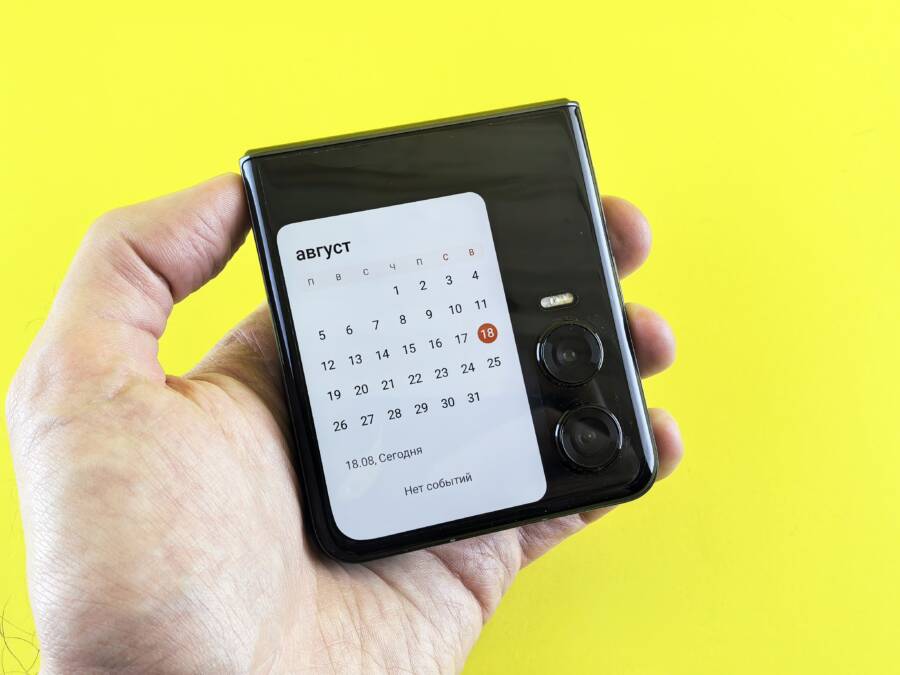
A frozen calendar widget creates a major inconvenience because you rely on your smartphone to keep your daily schedule organized. When appointments fail to appear or times don’t adjust, you miss critical events without warning.
This issue typically stems from background data restrictions or a temporary sync conflict between your account and the device. You can usually fix the problem by toggling the airplane mode on and off to reset your network connection or by verifying that background app refresh is active for your calendar provider.
Checking these settings often restores immediate functionality to your home screen. Keep reading to identify the specific cause of your sync delay and learn how to prevent it from happening again.
Why Your Calendar Widget Stops Updating
Your calendar widget often stops refreshing because your smartphone restricts its ability to access data. When the system prevents the application from communicating with the cloud, the widget shows stale information or remains blank. This behavior usually occurs to preserve battery life or manage limited system resources. Understanding the specific mechanisms behind these freezes helps you restore your schedule display.
Background Process Conflicts
Modern operating systems aggressively manage how apps behave when they are not actively open on your screen. When you activate battery-saver modes, your smartphone places strict limits on background data and location services to extend power. These modes often block the calendar app from fetching new event data from your server, which leaves your home screen widget stuck on old entries.
Applications require permission to run background tasks to stay current. If you deny these permissions, the widget cannot reach out to update your schedule unless you manually open the main app. You can often fix this by adjusting your device settings:
Navigate to your battery or power management settings.
Locate the list of restricted apps or battery optimization settings.
Find your calendar application and ensure it has permission for background activity.
Disable aggressive power-saving profiles if they interfere with your essential daily tools.
Some devices also feature a dedicated toggle for background app refresh. If this master switch is off, your widget will fail to pull updates regardless of individual app settings. Checking this general setting ensures the system allows your calendar to maintain a live connection.
Cache and Storage Overload
Temporary files often accumulate as your calendar app processes hundreds of events and reminders over time. This data is known as the cache, and it stores information locally so the app opens quickly without needing a network connection every time. A corrupted or overfilled cache often causes the application to lag, leading to a complete freeze of the widget interface.
Clearing the cache is a standard troubleshooting step because it forces the application to fetch fresh data from your account. This process removes broken temporary files that might block the update cycle. You can usually clear the cache through your device settings menu:
Open the settings app on your smartphone.
Select the section labeled Apps or Application Manager.
Find your specific calendar application in the installed list.
Tap on Storage and then choose the option to Clear Cache.
This action does not delete your actual calendar events or appointments, so your data remains safe. It simply cleans out the temporary clutter that prevents the widget from syncing correctly. After you clear the cache, the application rebuilds the necessary files and typically resumes normal updates within a few minutes. If the widget remains frozen after this step, you may need to force stop the app and restart it to reinitialize the sync process.
Step-by-Step Guide to Fixing Calendar Widgets
When your calendar widget stops displaying current events, the issue often relates to how your smartphone manages background data or sync authentication. You can resolve most display errors by adjusting power settings, refreshing your account link, or performing a simple UI reset. Follow these steps to restore your schedule visibility.
Adjusting Battery and Background Settings
Smartphone operating systems often prioritize battery life over background updates. This process involves aggressive power management that blocks applications from fetching data while the phone is idle. If the calendar widget remains blank, the system is likely restricting its background activity.
To fix this, you must change the battery optimization settings for your specific calendar app. Open your settings menu and locate the Apps or Battery section. Find your calendar application in the list and look for settings labeled Battery Optimization, Background Usage, or Battery Saver.
Change the setting from “Optimized” or “Restricted” to “Unrestricted.” This change forces the smartphone to allow the calendar to refresh its data whenever needed, regardless of your current battery level. After you save this setting, restart your phone to apply the changes to the background task scheduler.
Re-syncing Your Calendar Accounts
Sometimes the issue is not the battery but a broken link between your cloud server and the device. If your authentication token expires or the connection hangs, the widget stops receiving new information. Removing and re-adding your account acts as a hard reset for your data sync.
Navigate to your device settings and find the Accounts or Passwords section. Select the email account that you use for your calendar. You will see an option to remove the account or turn off calendar sync. Turn off the sync toggle, wait ten seconds, and then turn it back on.
If the widget still fails to show new events after you toggle the switch, choose the remove option to delete the account from your smartphone entirely. Add the account back by signing in through the same menu. This action forces the device to download a fresh copy of your event database, which often corrects deep-seated synchronization errors.
Refresh and Reinstall the Widget
If your software settings are correct but the display still shows old information, the widget interface itself may suffer from a temporary software glitch. Removing the widget and adding it back clears the local UI cache. This action triggers a new request for data that often forces the application to redraw its contents correctly.
Long-press the calendar widget on your home screen and select the remove or delete option. Once the widget is gone, return to your home screen menu to re-add it. Long-press on any empty space on your home screen, select Widgets, and find the calendar app again.
Drag your preferred calendar widget size back onto your home screen and configure your view settings as needed. This process refreshes the connection between the application and the home screen framework. Most users find that their appointments appear immediately after they re-add the widget to their device.
Advanced Troubleshooting for Persistent Issues
If your calendar widget remains unresponsive after you attempt basic fixes, a more systemic problem might exist. Persistent errors often hide within outdated software components or misaligned system settings that disrupt background services. You can address these deeper technical blockers by ensuring your smartphone operating system is current and verifying that your device time matches global standards.
Checking for Software and App Updates
Software bugs represent a frequent cause for broken calendar widgets. When developers update their code, they often resolve communication errors that prevent widgets from pulling fresh data. If your smartphone runs an older version of the operating system or uses an outdated app version, the widget might struggle to interpret sync commands correctly.
You should always verify that both your system software and the calendar application have the latest patches installed. Updates provide necessary security and stability improvements for your device.
Open the App Store or Google Play Store on your smartphone.
Search for your calendar app to see if an update button appears.
Navigate to your system settings menu to check for operating system updates.
Install any pending software updates and restart the device to apply the new files.
Keeping your software current ensures that your device maintains compatibility with the servers hosting your schedule. If your phone remains on an obsolete version, even perfectly configured settings might fail to restore your widget functionality.
Verifying Date and Time Synchronization
Your calendar relies on accurate time data to organize events and calculate when to refresh the display. If your smartphone deviates from the correct date or time, the sync logic becomes confused, and the app refuses to fetch new information. This prevents the widget from showing your upcoming schedule because the device perceives the network requests as invalid.
Most modern devices use a feature called automatic date and time settings to sync with network clocks. You should verify this setting is active to prevent manual offset errors:
Go to your device settings and select General or System.
Locate the Date and Time menu.
Ensure the toggle for Set Automatically or Use Network Time is enabled.
If the toggle was off, your phone might have drifted by several minutes or even days. Once you activate automatic sync, the device corrects its internal clock immediately. The calendar app typically resumes its normal refresh cycle within a few minutes after it recognizes the corrected time stamps. Keeping this setting enabled removes the risk of time-based sync conflicts in the future.
Comparing Native Calendar Apps vs Third-Party Widgets
Choosing between a native calendar widget and a third-party alternative often determines how reliably your schedule appears on your home screen. While built-in apps benefit from deep integration with the operating system, they sometimes suffer from rigid refresh cycles that fail when the system applies aggressive power-saving protocols. Third-party tools often provide different sync methods, which can bypass the specific bottlenecks that freeze stock widgets on your smartphone.
Performance and Resource Usage
Native calendar widgets remain tightly integrated with the system core, which allows them to share resources efficiently. However, this tight coupling becomes a liability when the operating system enforces strict battery management to keep your phone running longer. When the system identifies the main calendar as a high-drain service, it frequently suspends background data fetching. This action causes the widget to stop updating until you manually open the full application.
Many third-party calendar widgets focus on a lighter footprint by using independent sync services or streamlined data polling. Developers of these apps often optimize their widgets to perform small, frequent background checks rather than large, resource-intensive refreshes. This approach allows the widget to stay current even on devices with aggressive power settings that would otherwise suffocate a native app.
If you frequently deal with frozen displays, a third-party app might offer more stability because of these factors:
Specialized background task scheduling that ignores general battery restrictions.
Reduced data payload requirements, which consume less memory during the sync process.
Alternative API connections that communicate directly with your calendar server, bypassing the internal system scheduler.
User Experience and Customization
Third-party calendar widgets excel at providing visual variety and functional flexibility that stock apps rarely match. You can adjust font sizes, color schemes, and event density to suit your specific reading preferences. These customization features make it easier to view your schedule at a glance without squinting or scrolling through a cramped interface.
Reliability with these widgets hinges on your device permissions. Because third-party apps do not have the same default system privileges as native software, you must manually grant them extensive access to function correctly. Without these specific permissions, the widget cannot reach your calendar data or update in the background.
To ensure a third-party widget works as intended on your smartphone, you should verify these settings:
Grant permanent access to your calendar account under the privacy or permissions menu.
Enable background data usage specifically for the third-party app.
Exclude the app from battery optimization if the widget fails to update after you lock the screen.
While stock apps offer a simple, “set it and forget it” experience, they lack the personalization required for power users. If you prioritize visual clarity and want to avoid the common sync issues associated with native calendar limitations, a third-party alternative offers a viable path to a functional, up-to-date schedule.
Conclusion
Most calendar widget issues stem from simple background permission conflicts or temporary sync interruptions. You can resolve the vast majority of these display errors by adjusting battery optimization settings, toggling account sync, or refreshing the widget interface on your home screen.
Focus on these settings first to restore your schedule visibility without needing complex technical interventions. Maintaining an up-to-date operating system and accurate time settings also prevents recurring sync delays on your smartphone. Consistent maintenance keeps your daily planning reliable, so you stay organized throughout your busiest days.