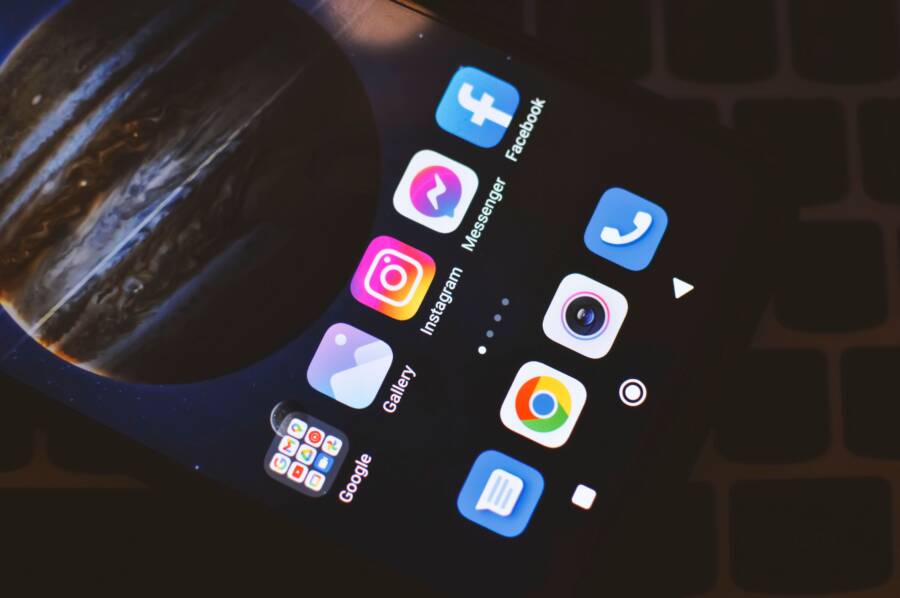
When your app drawer search stops working, it is usually a minor software glitch caused by a corrupted cache or a conflict within your phone launcher. You do not need to perform a factory reset to regain access to your installed apps.
Most users fix this issue by clearing the storage data for their launcher app or by checking for pending system updates. These quick steps often restore normal functionality to your smartphone within a few minutes.
Follow these troubleshooting procedures to identify the root cause and get your search bar working again.
Quick Fixes for App Drawer Search Issues
When the search bar inside your app drawer becomes unresponsive, you can often restore functionality without resorting to complex technical repairs. Software temporary files or minor background conflicts are the usual culprits behind this behavior. Addressing these glitches is straightforward for most smartphone users.
Performing a Soft Reset of Your Device
A soft reset is the most effective first step because it clears the temporary memory and stops background processes that may interfere with the system launcher. Many people confuse turning the screen off with a true restart. When you simply press the power button to turn off the screen, your smartphone stays active in a low-power state and keeps all current apps and system services running in the background. A full restart forces the operating system to shut down completely and reload everything from scratch, which clears out small errors in the cache or active memory.
Press and hold the power button on your device until the power menu appears on the screen.
Select the Restart option from the menu.
Wait for the phone to shut down and turn back on automatically.
Once your device finishes booting up, unlock it and wait about 30 seconds for all background services to stabilize.
Open your app drawer and attempt to use the search bar again to see if the issue is resolved.
If a simple restart does not solve the problem, the conflict likely resides within the system software or the launcher application itself. Since a restart refreshes the connection between your inputs and the launcher, it typically clears out basic glitches that occur after a long period of uptime.
Checking for Pending System Updates
Outdated system software is another common cause of search functionality failure. If your smartphone runs an older version of the operating system, it may contain known bugs that affect the home screen or app drawer performance. Manufacturers frequently release patches to fix these specific interface issues and improve stability. You can check for these updates through your device settings menu to ensure your phone has the latest fixes.
To check for available updates, follow these steps:
Open the Settings app on your smartphone.
Scroll down to find the System or Software Update section.
Tap on Check for Updates or Download and Install if a notification is already visible.
Follow the on-screen prompts if an update is found, then restart your phone once the installation finishes.
Installing the newest software version resolves compatibility conflicts between the system launcher and the core operating system. Always ensure your device has a stable internet connection and at least fifty percent battery life before starting a system update to prevent errors during the installation process. If the search bar remains broken after updating the software, you can proceed to clear the specific cache files for your launcher.
Clearing Cache and Data for Your Launcher
The search bar inside your app drawer relies on the system launcher to index your installed applications. When this index becomes corrupted, the search feature often stops returning results or fails to launch entirely. Resetting the launcher forces the smartphone to rebuild its internal database of your installed apps, which frequently resolves lingering interface bugs.
Identifying the System Launcher App
The app drawer is a core feature of your launcher, which acts as the home screen interface for your smartphone. Most manufacturers bundle this interface under a specific system name, such as “System Launcher,” “Pixel Launcher,” or “One UI Home.” You must locate this exact package in your settings to modify its storage state.
Open the Settings app on your smartphone.
Tap on Apps or Manage Apps to view the list of every program installed on your device.
Use the search icon at the top of the screen to look for “Launcher.”
If you do not see a result, look for the name of your specific phone brand followed by “Home” or “Launcher” (for example, “Samsung Experience Service” or “Moto App Launcher”).
Tap the correct app entry to open its dedicated info page, where you see options to manage battery, storage, and permissions.
Once you find the correct app, you gain access to the granular controls required to reset the interface behavior.
The Step-by-Step Clearing Process
Clearing the cache and data files removes temporary index files that may contain broken search pointers. You should start with the cache, as it is the least intrusive method. If that does not restore search functionality, clearing the storage data resets the launcher to its original factory state.
On the app info page for your launcher, tap on Storage or Storage and Cache.
Select Clear Cache first. This removes temporary files without touching your personal layout or settings.
Return to your home screen and check if the search bar works.
If the issue persists, return to the storage menu and select Clear Storage or Clear Data.
Be aware that clearing the storage data typically resets your home screen layout. Your widgets might disappear, folders will dissolve, and your app icons will revert to their default positions on the home screen. While this step is effective at fixing persistent search bugs, you may need to spend a few minutes reorganizing your apps afterward. Most users find that a clean slate is a fair trade-off for regaining a fully functional search bar on their smartphone.
Managing Third-Party Apps and Permissions
The search functionality on your smartphone relies on a clean, organized index of your installed applications. When you install new software, especially tools that modify your home screen or system interface, these apps may unintentionally block or interfere with the default search index. Managing these permissions is vital to keeping your navigation smooth and responsive.
Checking Recent App Installations
If your app drawer search stopped working shortly after you downloaded a new program, that application might be the source of your trouble. Some apps, particularly third-party launchers, icon packs, or security utilities, request broad permissions to monitor your system activity. Occasionally, these permissions conflict with the built-in search service of your smartphone.
To determine if a recent install is responsible, follow these steps:
Think back to when the search feature last worked correctly.
Uninstall any apps you added to your phone around that time.
Restart your device once the suspicious apps are removed.
Test the app drawer search to see if functionality returns.
Removing these programs is a safe diagnostic step because it eliminates potential software conflicts without affecting your core system files. If the search bar begins working again, you can choose to leave that app off your phone or check its settings for an option that might be disabling your search history.
Troubleshooting Search Indexing Permissions
Modern operating systems allow you to control which applications appear in your search results. Sometimes, a system update or an accidental toggle in your settings can restrict the search engine, causing it to ignore your installed apps. If the search bar is active but returns no results, your indexing permissions are likely the primary concern.
You can adjust these settings by visiting the dedicated search or app management area of your phone:
Open your device settings and select the Apps or Applications menu.
Look for an entry labeled App Search, Search Settings, or sometimes the name of your specific launcher.
Within this menu, check for a list of permissions or indexed apps.
Ensure the system is allowed to search your installed apps and, if applicable, your contacts or messages.
When the search system lacks the proper authorization to scan your application list, the search bar cannot display results. Granting or toggling these permissions off and back on again often prompts the operating system to rebuild the search index. This simple refresh frequently clears up persistent bugs that prevent your smartphone from locating your favorite programs.
Advanced Troubleshooting When Nothing Else Works
When you have exhausted standard cache clearing and permission checks, the problem often hides deep within the operating system or a third-party service. These persistent search failures usually indicate a conflict that standard settings menus cannot resolve. Before choosing extreme measures, use these diagnostic methods to isolate the software fault.
Using Safe Mode to Isolate Conflicts
Safe Mode is a diagnostic environment that loads only the core operating system and pre-installed factory software. It disables all third-party apps, allowing you to determine if a recently installed program is the cause of your search failure. If the search bar functions correctly while in this mode, you have confirmed that an external app is the culprit.
To enter Safe Mode on most Android devices, hold the power button until the power menu appears. Long-press the Restart or Power Off icon on your screen. A prompt will ask if you want to reboot into Safe Mode. Tap OK or Confirm. Once the phone restarts, you will see a small “Safe Mode” indicator in the corner of your screen.
Test the app drawer search while in this state. If it works, restart your phone normally and begin uninstalling your most recent apps one by one. You likely installed a launcher overlay or a search utility that is overwriting the system functionality. Finding the exact app can take time, but this approach avoids the need for a full device wipe.
When to Consider a Factory Reset
A factory reset is the final resort for fixing deep system corruption. You should only move forward with this step if the search bar remains broken in Safe Mode or after a full system update. A reset removes every bit of data, personal file, and preference on your smartphone, returning the internal storage to the exact state it was in when you bought the device.
Prioritize your data integrity before you start the process. Use the backup tools found in your settings menu to sync your photos, contacts, and app data to your cloud account. Ensure your device is plugged into a power source, as a battery drain during a reset can cause permanent system damage.
Check your specific model documentation for the factory reset location, as it is usually buried under the System or Reset Options menu. Once you confirm the reset, your phone will erase all partitions and reinstall the operating system. This clean install often clears deep-seated registry errors that prevent basic interface services like the app drawer from running. After the reset finishes, restore your data from your cloud backup and check the search bar immediately before installing any of your previous third-party applications.
Conclusion
Most search issues in your app drawer stem from minor software hiccups that you can resolve without professional help. Start by performing a standard restart to clear the temporary memory, then move to clearing the launcher cache if the problem persists. Investigating recent app installations helps eliminate conflicts that often trigger these navigation errors.
These glitches are rarely permanent and usually respond quickly to simple adjustments. You can restore your smartphone to full working order by following these methodical troubleshooting steps.