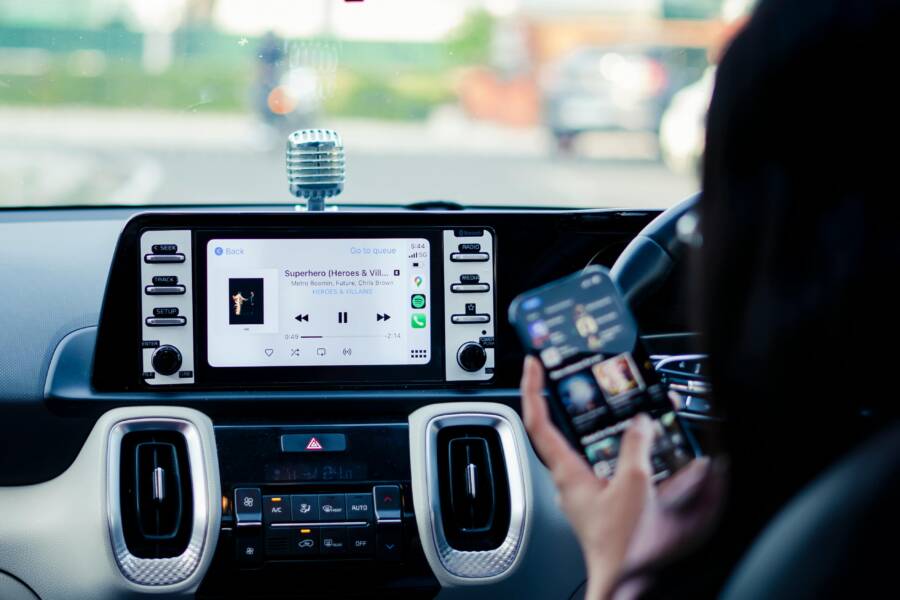
Are you trying to play Spotify or Maps in the car and suddenly the app panel vanishes from your screen? You’re not alone. When apps don’t show up on Android Auto or CarPlay, it’s easy to feel stuck, especially on a long drive or a busy morning commute.
This guide will walk you through quick checks and solid fixes that work for most people based on recent user reports. You’ll learn how to spot the common culprits, from cables to permissions, and how to approach each step with confidence. By the end, you’ll know whether the issue is on your phone, the car, or the app itself.
We’ll start with fast, no-tech steps that you can do in minutes. If those don’t do the trick, you’ll get a clear, step by step plan to dig deeper. The goal is to get the right apps back on the screen so you can continue your drive without fuss.
Think of this like a practical handheld checklist for both Android and iPhone users. You’ll see how simple tweaks to settings, cables, or firmware can restore visibility for the apps you rely on. And yes, this advice applies to most popular cars and infotainment systems, not just a handful of models.
If you want, share your phone model and car make, and I’ll tailor the quick checks to your setup. In most cases, a few tweaks restore the experience fast, letting you get back to a smoother, smarter drive with your smartphone by your side.
Start with These Quick Checks to Get Apps Showing Fast
When your car’s infotainment system doesn’t display apps from your phone, it can throw off a whole drive. These quick checks target the most common causes and often fix the problem in minutes. The goal is to restore visibility for the apps you rely on while keeping things simple and safe. You’ll work through practical steps that apply to both Android Auto and CarPlay, with a focus on fast, reliable results. Think of this as a fast, friendly toolkit for smartphone connectivity on the road.
Swap Your Cable and Try Another USB Port
Cable quality and port reliability are surprisingly often the culprit behind apps not showing up. Start with the easiest fix: swap cables and test different USB ports.
- Pick a good USB cable. Look for a braided or well-made cord with a sturdy connector. Avoid bargain cables that feel flimsy or have loose ends. A robust cable reduces data errors that can hide apps from your car system. If you have multiple cables, use the one that you know has worked before, or try a fresh cable from a reputable brand.
- Test different ports. If your car has more than one USB port, try others. Some vehicles provide a dedicated data port that can handle Android Auto or CarPlay more reliably than a charging-only port. In some cars, the ports near the center console work best; in others, the USB hub behind the dash is more stable. Switching ports can fix intermittent drops that prevent apps from loading.
- Why this fixes about half of wired issues. A good cable and the right port address two common pain points: data integrity and power delivery. When the connection is solid, the car system can see the phone consistently and load the apps you use every day. If you notice flickering connection or a blank app panel, a different cable or port is a quick, proven fix. For Android Auto specifics, see the official guidance on troubleshooting connection and cable issues. https://support.google.com/androidauto/answer/6348190?hl=en
- Quick test procedure:
- unplug the current cable, then reconnect with a fresh cable.
- try the primary USB port you normally use.
- if nothing changes, switch to an alternate port and reboot only the car display if needed.
- confirm the phone prompts to enable Android Auto or CarPlay, then check the app panel again.
- If you’re using CarPlay on an iPhone, a similar process applies. Try a different USB port and a known-good Lightning or USB-C cable. Apple’s support guide covers the basics and can help you verify compatibility and settings. https://support.apple.com/en-us/105109
Tip: Treat cables like the “keyboard” that types the message between phone and car. A poor keyboard slows everything down, including app visibility.
Restart Your Phone and Car Infotainment System
A restart can clear small software glitches that block app visibility. It refreshes the connection between phone and car without resetting everything.
- Step-by-step restart for wired connections:
- disconnect the USB cable.
- restart your phone fully. For most Android devices this means holding the power button and selecting restart; for iPhones, a standard device restart works best.
- restart the car’s infotainment system. Use the power button to turn the head unit off, wait about 10 seconds, then turn it back on.
- reconnect the phone with the USB cable and wait for the system to re-detect.
- What this accomplishes: it clears temporary bugs and reinitializes the data channel. If the apps still don’t show after a clean restart, try a longer power cycle on the car system or consult the car’s manual for a reset option.
- For a broader reference, see Android Auto’s troubleshooting steps and CarPlay’s reliability guidance. https://support.google.com/androidauto/answer/6348190?hl=en and https://support.apple.com/en-us/105109
If you use wireless Android Auto or wireless CarPlay, the same restart approach helps after disconnecting and re-pairing. A brief refresh can reestablish the right permissions and reconnect the app list to your head unit.
Enable Android Auto or CarPlay in Settings
Permissions and feature toggles are the last mile for app visibility. Enabling the feature in the right place and granting necessary permissions lets the car display the apps you expect.
- For Android Auto:
- Ensure your phone runs Android 9.0 (Pie) or newer and that you have the latest Android Auto experience. The system is built into the phone, so you don’t install a separate app from the Play Store. Check that Android Auto is enabled in your phone settings and that the necessary permissions are granted. If you run into issues, verify that your car is compatible with Android Auto and that you are on a supported carrier plan. For detailed steps, see Google’s support page on Android Auto setup and troubleshooting. https://support.google.com/androidauto/answer/6348190?hl=en
- For CarPlay on iPhone:
- Make sure your iPhone has the latest iOS version. In Settings, enable CarPlay and grant necessary permissions for apps you want to use from the car display. If CarPlay doesn’t appear, check that your vehicle supports CarPlay and that the connection method (wired or wireless) is correct. Apple’s CarPlay help page outlines the exact steps. https://support.apple.com/en-us/105109
- Quick checks to perform:
- Confirm the feature is enabled on the phone and in the car system.
- Verify that you’ve granted location, contacts, microphone, and notification permissions where prompted.
- Reconnect the phone after enabling the feature to ensure the head unit recognizes the change. If needed, forget the device in the car’s Bluetooth or car settings and re-pair.
Pro tip: After enabling CarPlay or Android Auto, keep your phone unlocked and the screen active for a moment to allow the car system to finish its handshake. This small step helps avoid a “no devices found” scenario.
Links for deeper setup and troubleshooting:
- Android Auto setup and troubleshooting guide: https://support.google.com/androidauto/answer/6348190?hl=en
- Apple CarPlay help and setup: https://support.apple.com/en-us/105109
If you’re still not seeing apps after these steps, the issue might be more involved. In that case, you’ll want to try more targeted fixes or contact support for your device or car system. But for many drivers, these quick checks restore visibility fast and keep the drive on track. For more on how to reset CarPlay when needed, you can consult a provider like Boss Audio for practical reset steps. https://www.bossaudio.com/blogs/news/how-to-reset-apple-carplay
External references and continued reading:
- CarPlay not working and how to fix it from Asurion and other tech guides. https://www.asurion.com/connect/tech-tips/apple-carplay-not-working-here-is-how-to-fix-it
- Apple CarPlay official help page. https://support.apple.com/en-us/105109
This section aims to give you a reliable, practical path to getting apps showing again on your car system. If you’d like, share the exact phone model and car make you’re working with, and I’ll tailor the quick checks to your setup for a precise, step-by-step plan.
Troubleshoot Android Auto When Apps Won’t Appear
If apps won’t show up on your car’s display, it can throw off a trip. This section gives you clear, practical steps to get Android Auto working again, with concrete paths to follow for updates, cache under the hood, and reliable reconnects. You’ll learn to verify settings on your phone and in the car, so you can diagnose where the problem lies and fix it fast.
Update Apps and Software on Your Android Phone
Keeping Android Auto, Google Play Services, and your phone’s OS up to date is the fastest route to a stable connection. Start with the Google Play Store to refresh the core components, then verify car updates manually if needed. Here’s how to get every piece current.
- Update Android Auto and Google Play Services
- Open the Google Play Store on your phone.
- Tap your profile icon in the top right and select Manage apps & devices.
- In theUpdates tab, find Android Auto and tap Update if available.
- Do the same for Google Play Services. If an update isn’t available, leave it as is for now.
- If you don’t see Android Auto in the Play Store, search for it directly and choose Update or Install.
- After updates finish, restart your phone to ensure the new code loads properly.
- Update the Android system (phone)
- Open Settings > System > Advanced > System update (path may vary by model).
- Tap Check for update and install any available releases.
- Restart the device after the update completes.
- Check for car firmware or infotainment updates
- Your car’s manual will describe how to check for software updates. This can involve navigating to the settings menu on the head unit or using the car manufacturer’s app.
- If an update is available, follow on-screen prompts to install it. Do not disconnect power during the process.
- Quick checks you can perform right away
- Confirm Android Auto is enabled in phone settings.
- Ensure necessary permissions are granted for location, microphone, and notifications.
- If updates are pending, apply them and test Android Auto again.
- Helpful references
- Android Auto setup and troubleshooting guide: https://support.google.com/androidauto/answer/6348190?hl=en
- How to update Android Auto: https://www.androidauthority.com/update-android-auto-3192602/
[Image: Close-up of a car dashboard with a modern touchscreen display (for visual context)] Photo by Jeffrey Paa Kwesi Opare
Clear Cache and Reconnect Your Car
A clogged cache or a stale pairing can keep apps from appearing. Clearing Android Auto data and re-pairing the phone with your car, both wired and wireless, resolves many visibility issues. Follow these steps to wipe and reset the connection gently.
- Clear Android Auto data and cache
- On your Android device, open Settings > Apps & notifications > App info > Android Auto.
- Tap Storage & cache, then choose Clear cache and Clear storage (or Clear data).
- Repeat for Google Play Services if you notice odd behavior.
- Forget the car and re-pair
- In the car’s head unit, go to Bluetooth or Android Auto connections and select the car, then choose Forget or Remove.
- On the phone, open Android Auto, go to Settings > Android Auto > Recommended cars or Connected cars, and remove the vehicle if present.
- Reconnect the phone to the car using the preferred method:
- Wired: use a fresh USB cable and plug into the data port.
- Wireless: re-pair via Bluetooth and reconnect to the head unit.
- Reconnect wired first, then wireless
- After re-pairing via USB, test if Android Auto shows the app panel. If it does, you can try a wireless connection as a secondary test.
- If you still don’t see apps, reboot both the phone and the head unit to complete the handshake.
- Quick path to a clean handshake
- Unplug, clear data, forget the car, reboot both devices, then reconnect fresh.
- Additional guidance
- For a step-by-step cache clearing guide, you can review practical guides like How to Clear Android Auto Cache: Easy Step-by-Step Guide and How to Clear Android Auto Cache: Step-by-Step Guide.
Image: A car interior with a clear, responsive touchscreen display Photo by Car Puride
[Helpful reads on cache and reset procedures]
- How to Clear Android Auto Cache: Easy Step-by-Step Guide: https://carpuride.com/blogs/news/how-to-clear-android-auto-cache
- How to Clear Android Auto Cache: Step-by-Step Guide: https://carpuride.com/blogs/news/how-to-clear-android-auto-cache
Pro tip: Keep the phone screen unlocked during the handshake. It helps the head unit recognize permissions and finalize the app list.
This approach often resolves the majority of visibility issues. If you’re still stuck, the problem may be more complex, and you’ll want to advance to targeted fixes or support from the car or phone maker.
Images help readers visualize the steps. If you’re including visuals, place an image after the section heading or near the points that describe resets and reconnects. Credit any image to the photographer and source as shown above.
Fix Apple CarPlay Issues on iPhone Step by Step
If CarPlay isn’t showing apps on your car’s display, you’re not alone. The fix is usually straightforward and can be done in a few minutes. In this section, you’ll get a clear, step by step approach tailored to iPhone users. You’ll learn how to verify settings, manage permissions, and reestablish a reliable connection so your favorite apps show up exactly when you need them.
Check CarPlay Settings and Siri Permissions
Start with the basics. CarPlay needs a few permissions enabled and a correctly configured setup on the iPhone. Make sure CarPlay is allowed on your device and that Siri can respond, even when the phone is locked. This combination makes the car system confident to fetch and display the apps you rely on during a drive.
- iPhone path to check:
- Open Settings > General > CarPlay. Confirm your car is listed and connected. If not, tap to add it and re-allow access.
- Ensure Siri is active and allowed on the lock screen. Go to Settings > Siri & Search and toggle on Listen for “Hey Siri”, Press Side Button to Siri, and Allow Siri When Locked.
- Validate app permissions that CarPlay may require, such as location, microphone, and notifications. You’ll often see prompts the first time you connect; approve them so the car can display and control apps.
- Quick confirmations:
- CarPlay appears in the list for this car in Settings.
- Siri can respond when your phone is locked.
- Apps you want available in CarPlay have the necessary permissions enabled on the iPhone.
- If CarPlay still refuses to show apps, try a quick reset of the CarPlay connection from the iPhone:
- Settings > General > CarPlay, then select your car and choose “Forget This Car.” Reconnect by pairing again.
For deeper guidance, Apple’s official CarPlay help page covers setup and troubleshooting: https://support.apple.com/en-us/105109
Photo
 Photo by Viralyft
Update iOS and Forget the Car Connection
If things still misbehave, a software refresh can fix stubborn glitches. Updating iOS and resetting the car connection resolves many visibility issues because it clears old handshake data and ensures both devices are speaking the same language.
- Update iPhone iOS:
- Go to Settings > General > Software Update.
- If an update is available, download and install it. A fresh iPhone OS often fixes compatibility quirks with CarPlay.
- After the update, restart your iPhone to ensure all new code is loaded.
- Forget and re-establish the CarPlay connection:
- In your car, open the CarPlay or Bluetooth settings and remove the iPhone from the list of paired devices.
- On the iPhone, go to Settings > General > CarPlay, choose your car, then select Forget This Car.
- Reconnect using a wired USB cable or set up wireless CarPlay if your car supports it. Follow prompts on both the phone and the head unit to reestablish the connection.
- When to push further:
- If the connection seems partially restored but some apps still don’t appear, consider a full device reboot. Turn off the car, disconnect, and reboot the iPhone. Then try reconnecting.
- Quick tip:
- Keep the iPhone unlocked during the initial handshake. This helps CarPlay complete the setup and reduces “no devices found” errors.
For broader guidance on resets and troubleshooting, you can review Apple’s support resources and related setup guides: https://support.apple.com/en-us/105109
If you’re using wireless CarPlay, the same forget and re-pair process applies. A clean handshake often solves stubborn app visibility issues and gets your smartphone back into the driver’s seat.
Update iOS and Forget the Car Connection (Illustrated Summary)
- Update iOS to the latest version.
- Forget the car in CarPlay settings.
- Reconnect via wired or wireless method.
- Verify Siri and CarPlay permissions are active.
- Test with a known-good cable and port if you’re wired.
For more context on CarPlay setup and troubleshooting, Apple’s official guide is a reliable resource: https://support.apple.com/en-us/105109
If you want a quick reference on the steps above, see Apple’s CarPlay help page for detailed instructions and version-specific notes: https://support.apple.com/en-us/105109
This section is designed to get Apple CarPlay back to showing your apps quickly. If you’re still stuck after these steps, we’ll move into targeted fixes tailored to more complex setups in the next parts.
Images and visuals are included to help you follow along. If you’re adding visuals, place them near the steps describing resets or re-pairing to improve comprehension.
External resources to explore (curated for clarity and usefulness):
- Apple CarPlay help and setup: https://support.apple.com/en-us/105109
- Use Siri in your car on iPhone: https://support.apple.com/guide/iphone/use-siri-in-your-car-iph0aa8c80e6/ios
If you’d like, share the exact iPhone model and car make you’re working with, and I’ll tailor the checks to your setup for a precise, step by step plan.
Handle Missing Specific Apps in Your Car Display
When your car screen goes blank for certain apps, it can feel like a roadblock during a normal drive. Apps vanish from Android Auto or CarPlay for a variety of reasons, from permissions and updates to cables and car firmware. This section breaks down practical, step by step ways to identify the culprit and restore visibility for the exact apps you rely on most. The goal is a reliable, repeatable process you can follow on any smartphone or head unit.
Start with the obvious checks that fix most cases
Before diving into deeper fixes, run through a quick sanity check. These small, fast steps catch the majority of missing-app issues and are safe to try on any setup.
- Confirm the app is compatible and enabled. Not every app is allowed to show on CarPlay or Android Auto. Revisit the compatibility notes for your car and phone. If an app isn’t in the launcher, it may be temporarily disabled on the phone.
- Ensure the phone has the latest app and system updates. A fresh update can restore app visibility without any configuration changes.
- Check the app’s permissions. Location, microphone, and notifications need to be accessible to the car interface. If you see prompts, grant them so the car can display and control the app.
- Reconnect with a fresh data handshake. For wired connections, unplug and reinsert the cable. For wireless connections, re-pair the devices. A clean handshake often resolves visibility gaps.
For more on Android Auto, see Google’s troubleshooting guidance on app visibility and data connection. https://support.google.com/androidauto/answer/6348190?hl=en
For CarPlay related checks, Apple’s setup and troubleshooting resources are a reliable reference. https://support.apple.com/en-us/105109
Check app availability in the car interface
Sometimes the issue isn’t a crash but a simple absence in the car’s app launcher. A few root causes are common across brands and systems.
- Apps temporarily disabled to save battery or reduce background activity. Some Android devices auto-disable apps you haven’t used in a while; re-enable them on the phone, then re-open the car launcher.
- Car profile or user switching. If the car has multiple user profiles, the app might be tied to a different profile. Switch to the correct profile and re-check the app list.
- App not granted for car access. On both Android Auto and CarPlay, the phone must grant the car access to certain data streams. If permissions were changed, re-authorize and re-test.
If you find an app is missing specifically on Android Auto, you can verify its status via Google’s guidance on app availability and launcher visibility. https://support.google.com/androidauto/answer/10007685?hl=en
If CarPlay isn’t listing a particular app, it may be tied to the iPhone’s own settings or to CarPlay permissions. Apple’s CarPlay help page covers these checks in detail. https://support.apple.com/en-us/105109
Update the core apps and system components
Outdated software can cause a disconnect between your phone and the car. Updating both sides reduces the chance of a mismatch that hides apps.
- Update Android Auto and Google Play Services on Android
- Open the Google Play Store, go to your profile, and pick Manage apps & devices.
- Update Android Auto and Google Play Services if updates are available.
- Restart your phone after updates. A fresh boot ensures new code loads correctly.
- Update the iPhone and CarPlay components on iOS
- On iPhone, go to Settings > General > Software Update and install any available update.
- Check your car’s infotainment system for firmware updates. Some vehicles require a USB update or a visit to the dealer for the latest system software.
- Quick checks after updates
- Reconnect the phone to the car. Ensure the app list refreshes and the desired apps appear.
- If updates aren’t available, test again after a short wait; sometimes the car needs a few minutes to re-scan the device.
If you want a practical overview of how updates affect Android Auto, see Android Auto update guidance. https://www.androidauthority.com/update-android-auto-3192602/
For CarPlay, Apple’s support resources describe the update process and post-update testing. https://support.apple.com/en-us/105109
Clear cache and re-pair the devices
A cluttered cache or stale pairing data can block app visibility. Clearing data and re-establishing the connection often clears the fog.
- Clear cache and storage for Android Auto
- On Android, go to Settings > Apps & notifications > Android Auto > Storage & cache. Tap Clear cache and Clear storage.
- Do the same for Google Play Services if you notice odd behavior.
- Re-pair the car and phone
- In the car, forget the device in Bluetooth or Android Auto connections, then re-pair.
- On the phone, open Android Auto settings and remove the vehicle from Connected cars, then reconnect.
- Start with a wired connection using a fresh USB cable. If that works, you can test a wireless connection afterward.
- Reboot both devices
- A full reboot of the phone and the head unit can finalize the handshake and refresh app visibility.
If you need a deeper walkthrough, consider resources that describe clearing Android Auto cache and re-pair steps in detail. https://carpuride.com/blogs/news/how-to-clear-android-auto-cache
Inspect the car’s firmware and infotainment compatibility
Not all infotainment systems get every update at the same time. Incompatibilities can hide apps that you expect to see.
- Check with the car maker’s app or manual. Some brands require specific versions to enable certain apps.
- Confirm you are using the right data port when wired. Some vehicles route Android Auto and CarPlay through a dedicated data port rather than a charging port.
- Consider a firmware update for the head unit. If the car’s software is out of date, the system may fail to initialize newer app protocols.
If you’re curious about why some apps aren’t available on Android Auto, Autoevolution provides a broad look at app availability and platform rules. https://www.autoevolution.com/news/why-some-apps-are-not-available-on-android-auto-212024.html
Troubleshooting by platform: targeted paths
Different systems have different quirks. Here is a concise, practical approach for the two most common platforms.
- Android Auto focused path
- Verify the app is listed in the Android Auto launcher.
- Ensure the app supports Android Auto and is allowed to run in the car environment.
- Revisit app permissions on the phone to ensure the car can access needed data.
- CarPlay focused path
- Confirm CarPlay is allowed and visible in Settings > General > CarPlay.
- Check that Siri is active and responsive, since voice and prompts often drive state changes.
- Reconnect with a known-good cable or re-establish wireless CarPlay if your car supports it.
For additional CarPlay troubleshooting, Apple’s official help page offers a clear, step-by-step guide. https://support.apple.com/en-us/105109
Real-world tips to keep apps visible on the road
- Keep a stable environment. A solid cable, steady power, and clean data connections reduce the odds of apps dropping from view.
- Avoid overloading the system. If you have many apps, some cars may deprioritize or hide less-used ones.
- Stay mindful of permissions. When you update apps or the OS, re-check the permissions who can access location, notifications, and microphone.
A practical reminder: treat the smartphone as the control center. Regular checks here prevent a long detour to fix a simple visibility issue.
Quick reference and further reading
- Android Auto help and setup guidance. https://support.google.com/androidauto/answer/6348190?hl=en
- Apple CarPlay help and setup. https://support.apple.com/en-us/105109
- Why some apps aren’t available on Android Auto. https://www.autoevolution.com/news/why-some-apps-are-not-available-on-android-auto-212024.html
If the issue remains after these steps, capture a few details such as the phone model, car make and model, and the exact apps that are missing. With that, you can tailor a precise plan for your setup. This is especially helpful for crossover cases where both wired and wireless connections behave differently.
Try Advanced Fixes If Basic Steps Fail
If the quick checks haven’t brought back your apps, it’s time to move beyond the basics. Advanced fixes target deeper causes like firmware mismatches, stubborn caches, and permission handshakes that can block app visibility. Treat this as a deliberate, methodical plan rather than a shot in the dark. A few careful adjustments can restore a stable connection without replacing hardware.
 Photo by Julia Avamotive
Update all core software and firmware in one sweep
Outdated software is a common culprit when apps vanish from the car screen. A coordinated update across the phone and car stack minimizes version mismatches.
- Android Auto path
- Update Android Auto, Google Play Services, and your phone’s OS.
- Check car infotainment firmware or head unit updates as well.
- After updates, reboot both devices and test the connection.
- Helpful resource: Android Auto setup and troubleshooting guidance. https://support.google.com/androidauto/answer/6348190?hl=en
- CarPlay path
- Update iOS on the iPhone and check for head unit firmware updates from the car maker.
- Re-pair after updates to ensure the handshake is fresh.
- Helpful resource: Apple CarPlay setup and troubleshooting. https://support.apple.com/en-us/105109
Why it helps: new code often fixes hidden bugs, improves compatibility with car hardware, and re-applies permissions that may have expired.
Clear deeper cache and perform a full re-pair
A residual cache or corrupted pairing can hide apps even after updates. A thorough wipe and fresh handshake usually resolves stubborn visibility issues.
- Android Auto
- Clear Android Auto storage and cache, then clear Google Play Services data if needed.
- Forget the car in the head unit, then re-pair via USB (wired) or Bluetooth (wireless).
- If needed, reboot both devices to finalize the handshake.
- Reference: How to Clear Android Auto Cache guides. https://carpuride.com/blogs/news/how-to-clear-android-auto-cache
- CarPlay
- Forget the car in CarPlay settings, then re-pair with a fresh cable or wireless setup.
- Ensure Siri and CarPlay permissions stay active during re-pair.
For more on cache and re-pair steps, see practical reset guides. https://carpuride.com/blogs/news/how-to-clear-android-auto-cache
Inspect permissions at a deeper level
Permissions can drift after updates or app installs, blocking data streams the car needs to display apps.
- On Android, confirm that Android Auto has location, microphone, notifications, and background activity enabled.
- On iPhone, ensure CarPlay has access to the required data streams and that Siri is allowed on the lock screen.
- If an app still won’t show, re-authorize its permissions within both the phone and the car’s settings, then re-test.
Helpful references for permissions and setup:
- Google’s Android Auto help and troubleshooting. https://support.google.com/androidauto/answer/6348190?hl=en
- Apple CarPlay help and setup. https://support.apple.com/en-us/105109
Verify car firmware compatibility and data ports
Not all cars handle every app protocol the same way. A mismatch here can keep certain apps hidden.
- Check if your head unit requires a specific USB port for data, not just charging.
- Look for a firmware requirement from the car maker that specifies compatible app versions.
- If possible, test with a different car or a different data cable to rule out port-specific issues.
A broader view on compatibility and app availability is worth a read. https://www.autoevolution.com/news/why-some-apps-are-not-available-on-android-auto-212024.html
Targeted fixes by platform: a quick guide
- Android Auto
- Confirm the app is listed in the Android Auto launcher and supports auto mode.
- Revisit app permissions on the phone to ensure the car can access needed data streams.
- Re-pair after a clean cache clear and firmware check.
- CarPlay
- Ensure CarPlay is allowed in Settings > General > CarPlay.
- Verify Siri is active; voice prompts often drive state changes.
- Reconnect with a known-good cable or re-establish wireless CarPlay.
For a concise CarPlay troubleshooting reference, Apple’s help page is reliable. https://support.apple.com/en-us/105109
Real-world tips to maintain long-term visibility
- Keep a stable setup. A solid cable, stable power, and clean data lines reduce glitches.
- Avoid overloading the system with too many apps. Some head units deprioritize rarely used ones.
- Recheck permissions after any app or OS update. Location, notifications, and microphone access matter.
Think of the smartphone as the control center. Regular checks here prevent longer detours to fix a simple visibility issue.
Quick reference and further reading
- Android Auto troubleshooting guide. https://support.google.com/androidauto/answer/6348190?hl=en
- CarPlay setup and troubleshooting. https://support.apple.com/en-us/105109
- Why some apps aren’t available on Android Auto. https://www.autoevolution.com/news/why-some-apps-are-not-available-on-android-auto-212024.html
If the issue persists after these advanced steps, gather details about your phone model, car make and model, and the missing apps. A precise plan for your setup becomes much easier to craft. This helps especially when wired and wireless connections behave differently.
Conclusion
Getting the apps you rely on back on your car’s screen is usually a straightforward sequence. Start with the basics, then move to deeper fixes if needed. A calm, patient approach saves driving time and reduces frustration.
Quick recap of the key steps
- Check that Android Auto or CarPlay is enabled on the phone and in the car, then update the phone OS and the car’s firmware if available.
- Use a good data USB cable and the correct USB port, or re-pair wireless connections.
- Clear cache and data for the relevant app and re-pair the device, then test visibility.
- Verify permissions for location, microphone, notifications, and app data streams on both devices.
- If needed, reset the CarPlay or Android Auto settings, and re-test with a single app to confirm basics first.
Keep this order in mind and follow each step in turn. A stable link between phone and head unit often restores a reliable app panel for a smoother drive. If you’re stuck, share your exact phone model and car make in the comments, and I’ll tailor a precise, 1‑page checklist for your setup. Your next drive should feel more confident and less interrupted. And if you’ve found a fix that works for you, drop it in the comments so others can benefit.