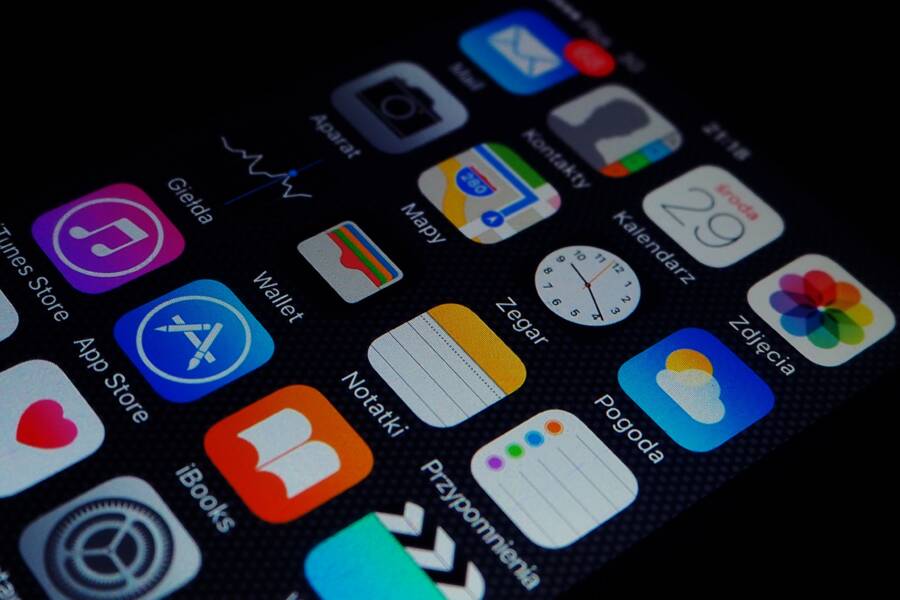
If your app icons are missing after a phone restore, your data is likely safe, and you are dealing with a simple synchronization error or a display glitch. You don’t need to worry about losing your apps because the system just needs a nudge to refresh its layout.
When you restore a smartphone from a backup, the device sometimes struggles to index the home screen correctly. This leaves you with a functional phone that hides your installed applications from view.
You can fix this problem by following the troubleshooting steps below to force the operating system to rebuild the icon cache.
Quick Fixes to Make Missing Icons Reappear on Your Smartphone
When your apps vanish after a restore, the issue is rarely a permanent loss of data. Most often, your smartphone just needs a signal to refresh its internal interface. The operating system holds a cached version of your screen layout, and a minor synchronization error can prevent it from displaying correctly. You can trigger this update through a few simple manual interventions that force the device to re-read its current state.
Restarting the Device to Refresh the System Cache
A standard reboot is the most reliable way to clear temporary files and resolve UI glitches on any smartphone. When you restore from a backup, the system often processes a massive amount of background data, which can occasionally stall the home screen launcher. This launcher is the specific service responsible for drawing your icons, folders, and widgets.
Turning your device off and on again forces the operating system to drop its current cached image of the home screen. During the boot process, the system performs a fresh scan of installed applications and cross-references them with the layout settings. If the icons were stuck in a temporary limbo, a clean restart usually clears the path for them to reappear in their proper positions.
To perform a proper refresh, follow these steps:
Press and hold the power button until the shutdown menu appears.
Select the option to power off your device completely.
Wait at least 30 seconds to ensure all volatile memory clears.
Press the power button again to restart the system.
Forcing a Home Screen Refresh
If a reboot does not bring your icons back, you can manually force the phone to redraw the interface. The home screen layout is sensitive to small changes, and adjusting a single element can prompt the OS to re-index the entire page. This manual interaction tricks the launcher into recognizing that it needs to update the visual display immediately.
You can try these methods to trigger that update:
Move a widget: If you have any widgets visible, tap and hold one, then drag it to a different position on the screen. This action forces the launcher to recalculate the grid and can pull the missing icons back into view.
Create a new folder: Drag one visible app icon on top of another to create a new folder. The process of modifying the layout structure forces a refresh of the entire home screen database.
Change the wallpaper: Go into your display settings and select a new background image. Applying a new visual layer often necessitates a full refresh of the icon overlay, which might resolve the display error.
Adjust icon grid settings: If your smartphone supports custom home screen grids, toggling between different layouts (such as 4×5 or 5×6) will force the system to reposition every icon currently on the screen.
These small adjustments serve as a nudge to the operating system. By modifying the layout, you provide the necessary input for the phone to stop ignoring the missing applications and correctly display them again.
Troubleshooting Cloud and Backup Sync Issues
Restoring a phone is usually a routine procedure, but interrupted data transfers often leave home screens looking incomplete. If your icons are missing after a restore, the synchronization process between your device and the cloud service likely encountered a bottleneck. A smartphone relies on constant background communication to pull app data, metadata, and shortcut placement from the backup file. When this communication is broken, the device may prioritize system functions over restoring your custom icon layout, leaving you with gaps in your app library.
Checking Your Network Connection Stability
A stable internet connection is the backbone of any successful backup restoration. If your Wi-Fi signal drops or experiences high latency while the smartphone downloads app data, the process may stall before it places your icons on the home screen. A weak or inconsistent connection causes the OS to pause the restoration of non-essential UI elements to conserve bandwidth for critical system files. This often results in a phone that is technically restored but lacks the shortcuts for your installed applications.
You should verify your network status by performing these checks:
Move your smartphone closer to the wireless router to rule out signal interference or distance issues.
Disable any active VPN services, as these can throttle connection speeds or block the handshake required for cloud synchronization.
Check if other devices on the same network can access cloud-based content without interruption.
Toggle Airplane Mode on and off to force the modem to re-establish a fresh handshake with your Wi-Fi access point.
If the connection is unstable, the restoration process might leave the app database in a corrupted state. Once you reach a stronger signal area, the phone typically resumes the download. If it does not, you may need to initiate a manual sync within your cloud settings to push the missing data to the device.
Verifying Account Authentication After Restoring
Missing icons occasionally indicate that a specific app requires manual re-authentication before the system allows it to occupy space on your home screen. Some security-focused applications remain hidden or appear greyed out after a restore because they block access until you confirm your identity. This is a common safety feature on a modern smartphone, as it prevents unauthorized users from accessing sensitive data stored within the app after a factory reset.
Look for these signs that your apps are waiting for a login:
Icons might be missing from the home screen but remain visible in the full application list or app drawer.
Apps might show a pending status or a cloud icon, which indicates they require a re-download or account verification.
Notifications from specific services might appear, prompting you to log in to your account to restore functionality.
Navigate to the settings menu of your account or the primary application store on your smartphone. Verify that your credentials are valid and that you have granted all necessary permissions for the system to restore your data. Once you sign in and confirm your account status, the system typically triggers a refresh that populates the missing icons back into their designated folders or grid slots. If the icons remain absent, restarting the app store client often clears the pending lock and allows the layout to finish syncing.
Deep Cleaning: Resolving Hidden App Library and Folder Glitches
Sometimes the software responsible for organizing your home screen becomes misaligned after a restore. When your smartphone fails to display icons, it often keeps them buried within the internal database of the app library or misplaces them inside invisible folders. This glitch is essentially a filing error where the system knows the app exists but forgets where to place the shortcut on your screen. You can resolve these issues by forcing the system to clear its custom layout and rebuild the grid from scratch.
Resetting the Home Screen Layout to Default
Resetting your home screen layout clears all folders, custom pages, and widget placements, returning the interface to its factory-fresh state. Because this process removes your personal organization, use it as a last resort if standard reboots and manual interface nudges fail to reveal your missing apps. When you perform this reset, your smartphone automatically pulls all installed applications out of hidden folders and arranges them in alphabetical order across your home screens.
Follow these steps to reset the layout on your device:
Open the Settings app on your smartphone.
Tap on General or System settings depending on your specific model.
Look for an option labeled Transfer or Reset.
Select Reset to view the list of available system modifications.
Tap on Reset Home Screen Layout to confirm the action.
After you select this option, the system requires a moment to process the change. Once the reset completes, return to your home screen. You will notice that all your app icons now appear in their default locations, and any custom folders you created before the restore are gone. While this takes a few minutes to reorganize, it effectively breaks the cycle of hidden or invisible icons that often plague a corrupted post-restore interface.
If you still notice missing icons after the reset, verify the App Library search function. Swipe to your final home screen page to reach the library, then type the name of the missing app into the search bar. If the app appears there, you can tap and hold the icon to drag it back onto your primary home screen. This confirms the app is installed correctly and simply needed a manual shortcut replacement to function as intended.
Advanced Solutions When Icons Still Fail to Appear
If your home screen remains blank after you try basic refreshes and account re-authentication, the issue often stems from a deeper software conflict. Sometimes the operating system fails to link the underlying app data to the visual icon. When this happens, simple interface tweaks are not enough to fix the problem. You must take more direct action to force the smartphone to recognize these applications again.
Reinstalling Stubborn Apps Manually
When specific icons refuse to show up, the quickest path to a resolution is a manual reinstall. Even if the app data exists in your storage, the shortcut or icon package might have failed during the initial restore. Searching for the app in the official store forces the device to verify the package and re-register the icon with the home screen manager.
First, open the application store on your smartphone. Search for the name of the missing app exactly as it appeared before your restore. Once the app page loads, you will typically see an install or cloud download button. Tapping this initiates a fresh download of the icon and its associated shortcut files. This process overwrites the broken link with a new, functional one.
Many users find this step clears the blockages for other apps as well. If you have several missing icons, perform this action for each one individually. The system will quickly associate the newly downloaded file with your existing data, meaning you will not lose your saved settings or account login information inside the app. If the store shows the app as already installed, look for an option to “Open” the app directly from the store page. Often, triggering the app from this menu forces the system to recognize the icon, causing it to pop back onto your home screen instantly.
Contacting Manufacturer Support for Persistent Bugs
If you have tried every troubleshooting step and the icons still do not appear, your smartphone might have a deeper firmware issue. Persistent icon disappearance after a full restore sometimes points to a corrupted system partition or a bug in the specific OS version you are running. Professional support representatives have access to diagnostic tools that can identify whether the problem lies with the operating system build or the hardware itself.
Reach out to the manufacturer if you notice these specific symptoms:
The issue persists even after you perform a second factory reset.
Other system icons, such as Settings or the App Store, are missing as well.
The device displays frequent error messages regarding system launcher crashes.
Before you contact support, gather your device model number and the current software version. Be ready to explain that you have already attempted a reset and verified your network connection. This information allows the support agent to skip the basic troubleshooting scripts and focus on advanced solutions. They may suggest a forced firmware update or provide instructions on how to use a computer-based repair utility to re-flash the operating system. This method is the final way to clear out deeply embedded bugs that prevent your icons from displaying correctly.
Conclusion
Missing app icons after a restore indicate a minor sync error rather than permanent data loss. You can usually resolve this by forcing a system refresh through a device reboot, a manual layout change, or by re-authenticating your cloud account. If the display remains empty, reinstalling specific apps or resetting the home screen layout provides a reliable way to force the smartphone to rebuild its icon cache.
To prevent this issue during future backups, verify your network stability before starting the process and keep your operating system updated. Maintaining sufficient free storage space also helps the device process new data without stalling. If you take these precautions, your phone will manage its application layout more effectively, allowing you to avoid the frustration of empty home screens after a restore.