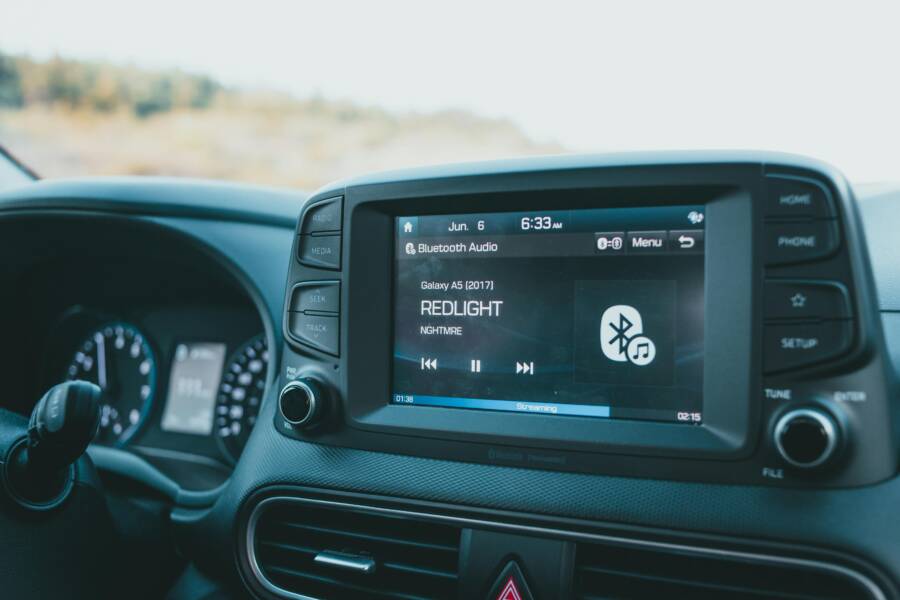
Ever been stuck with no audio when your phone tries to talk to the car stereo? This guide cuts through the confusion and gives practical, actionable steps you can try right away. We’ll cover quick fixes for Bluetooth, USB or AUX, Android Auto, and CarPlay so you’re back to listening fast.
First, you’ll get quick wins that don’t require deep tech know‑how. Rebooting the phone and head unit, re pairing devices, and swapping in a solid USB cable can fix most routing hiccups. If wireless is involved, ensure the phone and car support stable 5 GHz Wi Fi and that nothing else in the car zaps the signal.
If those steps don’t solve things, we’ll dive deeper. We’ll walk through checking permissions, updating apps and firmware, and testing with another smartphone to isolate the fault. You’ll learn how to read the signs that point to Bluetooth versus USB versus the car’s head unit.
By the end you’ll know how to restore reliable audio routing between your smartphone and car stereo, whether you’re using Bluetooth audio, Android Auto, or CarPlay. This guide aims to save time and frustration, helping you get back to worry free listening on the road.
Understand why audio routing fails between your phone and car stereo
Audio routing between a phone and a car stereo can feel like a dance with many moving parts. When one step goes wrong, the whole flow falters. In this section, you’ll get a clear map of why sound might not reach the car speakers, plus practical checks you can perform before you call tech support. Think of it as a quick diagnostic playbook for Bluetooth, USB, Android Auto, and CarPlay.
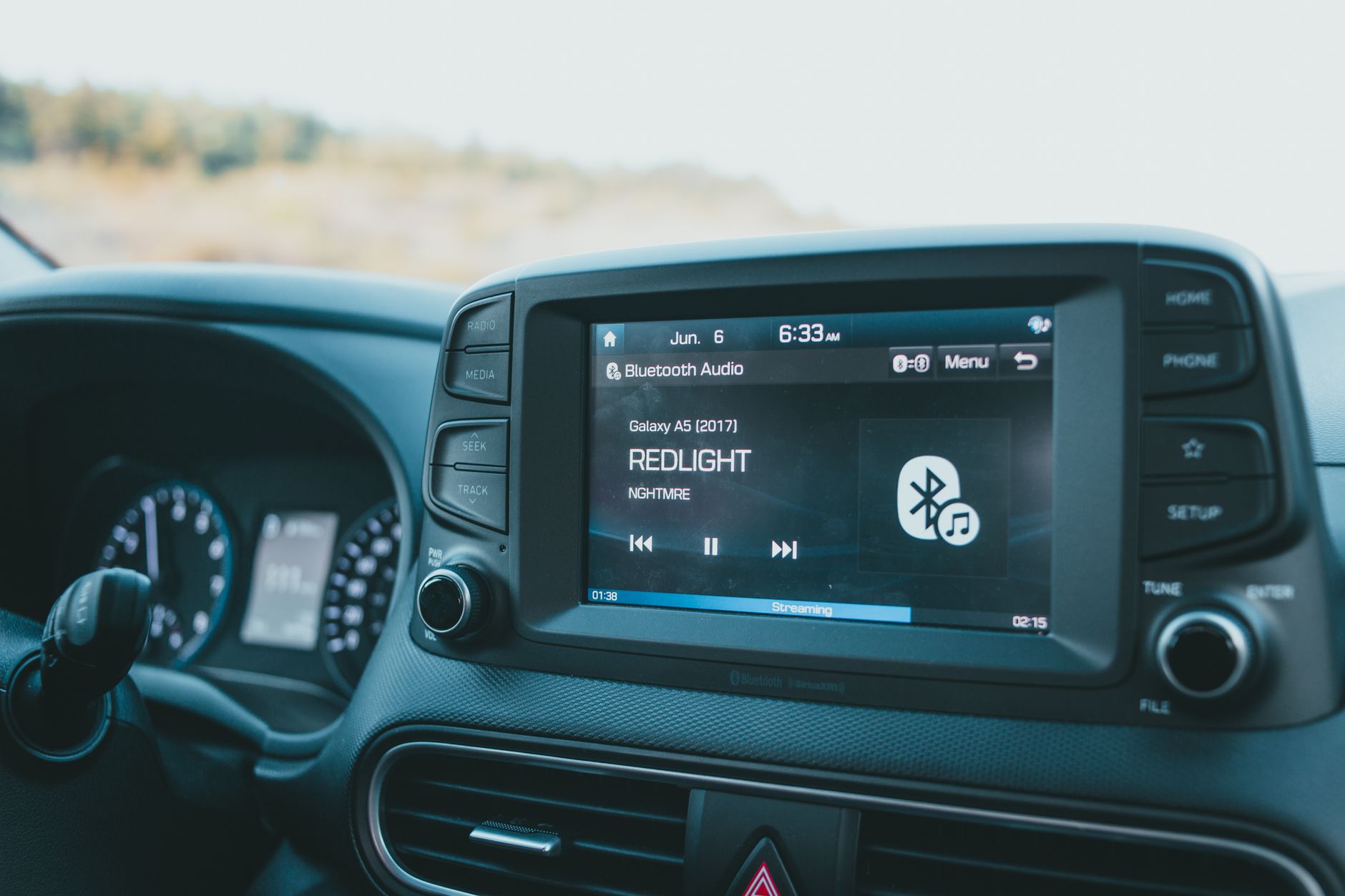
Photo by Erik Mclean
Common causes of audio routing problems
No need to overthink this. Most issues come down to a few familiar culprits. Here are the typical troublemakers you’ll likely recognize, along with concrete examples and quick actions:
- Wrong output device selected on the phone or car head unit
- Example: Your phone shows it’s connected to Bluetooth, but the car’s system still plays music through the phone’s speaker. Action: recheck the active audio output in both devices and switch to the car if needed.
- Outdated apps or OS on the phone or head unit firmware
- Example: After a software update, Android Auto stops routing audio, or CarPlay briefly goes silent. Action: update the phone OS, the car’s head unit firmware, and the car’s apps.
- Misconfigured settings or permissions
- Example: Apps lack microphone or media access, or Bluetooth profiles aren’t allowed to handle audio. Action: revisit app permissions and ensure the correct profile (A2DP for audio, HFP for calls) is active.
- Loose or worn cables and poor connections
- Example: A USB cable that’s frayed or loose creates intermittent audio or no sound at all. Action: swap in a high-quality cable, re-seat connectors, and try wireless if possible.
- Temporary glitches after updates
- Example: A minor OS hiccup after a recent update causes the audio path to reset. Action: reboot both the phone and the head unit, then re-pair.
- Interference and power saving modes
- Example: Power saving on the phone or a nearby device throttles Bluetooth, causing dropouts. Action: disable aggressive power saving for the relevant apps and Bluetooth.
If you want a deeper dive on fixes that address these causes, this Android Auto and CarPlay troubleshooting guide is a solid companion: links below offer practical steps and real-world scenarios. Android Auto problems and how to fix them and Wireless CarPlay & Android Auto Disconnects Explained (and How to Fix Them) provide user-tested tips you can apply alongside the steps here. If you’re troubleshooting a specific audio routing issue after an update, you’ll find helpful context in the Android audio routing documentation: Routing between devices.
Key takeaway: start with the simplest likely cause, then methodically rule out each option. A quick re-pair, a fresh cable, or a small setting tweak can save you a lot of time.
How phones and car systems decide where sound comes from
Audio routing is essentially a path and a priority list. Your devices decide where sound should come from based on what’s active, what’s available, and what the system deems primary at that moment. Here’s a plain-language way to understand it:
- Output pathways are chosen by priority
- Bluetooth is preferred for hands-free calls and music streaming when the car is connected. If a wired path becomes available (USB or AUX), some systems switch automatically, but many still favor Bluetooth for call audio.
- Android Auto and CarPlay manage audio paths
- Android Auto treats the phone as the source for most media and navigation sounds, routing through the car’s speakers via Bluetooth, USB, or wired connections depending on what’s connected. CarPlay does something similar for iPhone users, but it can lock to a specific output once the connection is established.
- Practical checks you can perform
- On the phone: look at the Bluetooth icon and the media app’s output selector. If you see the car’s name, the main path is set. If not, switch to the car and test playback.
- On the car: open the head unit’s audio settings and verify the active input. Some cars show a separate “Sound” or “Media” menu where you can confirm the current path.
- Safe, hands-free approach
- If you’re using Android Auto, make sure the USB cable is high quality and seated firmly. If you’re on CarPlay, ensure the iPhone is unlocked and that CarPlay is allowed from the car’s settings.
- Quick tips to confirm the active output
- Play a song, then pause and switch output on the phone to “Car” or the car’s device name.
- Notice if the head unit mirrors the phone’s app like Spotify or Apple Music. If it doesn’t, the app may be routing audio differently than the system path.
- In Android Auto, use the app switcher to confirm which app is currently playing audio, then verify the car’s display shows the same source.
If you want a more technical breakdown, the Android source documentation on combined audio routing gives a clear picture of how devices share audio focus and how focus events influence what you hear in the car: Combined audio device routing.
Software glitches vs hardware issues
A lot of audio routing trouble comes down to software, but hardware can play a stubborn role too. Here’s how to tell them apart and what to do next.
- Software glitches
- Indicators: the same app or feature misbehaves across multiple cars, or the issue appears after a software update. The problem often comes and goes with an app or OS patch.
- How to verify: test the same phone with another car or with a Bluetooth speaker. If the problem follows the app or OS version, it’s likely software. Clearing app data, reinstalling, or updating to the latest version can fix it.
- Quick moves: update the phone OS and the car’s firmware, reset the Bluetooth connection, and re-pair devices. If you’re using Android Auto, clear the app’s cache and verify permissions.
- Hardware problems
- Indicators: a physical cable feels loose, port is dirty, or the Bluetooth module in the head unit shows signs of wear. You’ll often hear crackling, static, or complete loss of connection that doesn’t respond to software resets.
- How to verify: try a different cable or another car with the same phone. If the issue follows the cable, port, or head unit, it’s hardware related.
- Quick moves: replace the cable with a high-quality one, clean the ports with a soft brush or compressed air, and test with another device to isolate the fault.
When you’re unsure which path is faulty, a simple method helps you triage quickly: reproduce the problem with a second smartphone. If the second device behaves the same way, the car system or cable is likely the culprit. If the second device works fine, the issue is probably in the original phone or its apps.
For a deeper look at how audio focus works in Android powered systems, the official Android documentation on audio focus and routing is a reliable resource: Audio Focus and Routing between devices.
Images and illustrations can help you visualize the path. A car dashboard with a Bluetooth audio display is a great quick reference to explain where sound travels. If you’re writing this for an audience that benefits from visuals, include a simple diagram showing the phone, Bluetooth, car head unit, and connected apps. This helps readers spot what to check first.
Takeaway: distinguish between software hiccups and hardware wear. Start with a clean software slate—updates, resets, and re-pairing—and then verify the physical link if problems persist.
—
If you want to explore practical, step-by-step fixes that readers can try on their own, consider adding a short “Try this first” checklist at the end of this section. It should include items like rebooting devices, re-pairing Bluetooth, testing with a different USB cable, and confirming app permissions. Readers will appreciate a compact, actionable guide they can skim and act on quickly.
Potential external references you can weave into the section:
- 7 Bluetooth Audio Connection Issues and How to Fix Them: tips that align with common culprits above. 7 Bluetooth Audio Connection Issues and How to Fix Them
- Android Auto problems and fixes: a broad set of practical steps. Android Auto problems and how to fix them
- Wireless CarPlay & Android Auto disconnects explained: context on wireless routing paths. Wireless CarPlay & Android Auto Disconnects Explained (and How to Fix Them)
If you’d like, I can tailor this section further to emphasize smartphones used in family cars or focus on particular brands and head units you see most often.
Quick fixes you can try today
When audio routing between your phone and the car stereo goes off the rails, you want fast, reliable steps you can perform right away. These quick fixes focus on the most common culprits and require no special tools. Start with the simplest checks and work your way to a targeted fix. If you read the section below, you’ll have a clear path to restore audio through Bluetooth, USB, Android Auto, or CarPlay.
 Photo by Mike Bird
Check basics: volume, sources, and updates
Before you dive deeper, confirm the obvious. Both your phone and the car stereo should have their volumes up and not muted. Check that the car is set to the correct audio source, whether it’s Bluetooth, USB, or wireless Android Auto/CarPlay. Keep an eye on those phrases you’ll recognize:
- On the phone: “Bluetooth on” or “CarPlay/Wireless Android Auto” active.
- On the car head unit: the current input shows Bluetooth, USB, or Wireless CarPlay/Android Auto as the active path.
If audio is still off, verify software freshness. Update the phone’s OS, the car head unit firmware, and the car’s apps when available. If you’re using Android Auto, update both the Android Auto app and your phone’s OS; for CarPlay, ensure the iPhone is running the latest iOS and that CarPlay is allowed in the car’s settings.
Quick checks you can perform now
- Confirm the active Bluetooth device matches your car.
- Switch to CarPlay or Wireless Android Auto if you’re on Bluetooth and suspect a path miscommunication.
- Re-check the app you’re using for playback to ensure it has media output permissions.
Tip: if you’re troubleshooting after a software update, a fresh cable and a quick re-pair often solve the majority of issues. For more on common Bluetooth hiccups and fixes, see resources like “7 Bluetooth Audio Connection Issues and How to Fix Them” and related Android Auto guidance. 7 Bluetooth Audio Connection Issues and How to Fix Them and Android Auto problems and how to fix them.
Key takeaway: start simple. A quick volume check and a clean source switch often resolves the problem without touching settings.
Restart devices and reseat connections
If the basics check out but the issue persists, a controlled restart can clear stubborn routing problems. Follow this order for the cleanest reset:
- Restart the phone
- Power off completely, wait a few seconds, then power back on.
- After boot, re-enable Bluetooth and test audio with a quick song.
- Restart the car head unit
- If your head unit has a restart option, use it. If not, a full engine cycle (turn off, wait 10–15 seconds, restart) often works.
- After the head unit comes back up, reselect the audio source (Bluetooth, USB, or Wireless CarPlay/Android Auto).
- Re-pair or re-connect
- Bluetooth path: remove the car from the phone’s paired devices, then re-pair. For USB, unplug and re-insert the cable firmly.
- For Android Auto or CarPlay: forget the car in the Android Auto or CarPlay menu, then re-establish the connection with the car.
Testing after each action is crucial. After you re-pair, try playing audio from a different app to confirm the path is now stable. If you use Android Auto, launch the app and confirm the car display mirrors the app’s output. If CarPlay, check that the iPhone remains unlocked during connection and that CarPlay is allowed.
If you’re curious about wireless behavior, wireless CarPlay and Android Auto can behave differently from wired paths. A quick consult of the official guides can help you understand the flow and expectations. For more context, explore discussions about no media audio in Android Auto and related fixes: No media audio – Android Auto Community.
Restart path testing: confirm each route works
After the resets, test each route individually to isolate the fault:
- Bluetooth audio path: play music from a Bluetooth-connected app and verify both the sound and controls route correctly to the car speakers.
- USB cable path: if you have a wired connection, confirm media plays through USB and not the phone speaker. Use a high-quality cable and ensure the connector seats firmly.
- Android Auto or CarPlay path: if you’re using Android Auto, run a quick navigation and media test through the car display. For CarPlay, test a music stream or a podcast and confirm the car speakers output.
If a specific path remains flaky, focus your next steps on that route. For persistent Bluetooth issues, a clean re-pair and a reset of Bluetooth settings on the phone can help. If the problem follows a USB path, try a different USB port or alternate cable.
Helpful hint: when you test, use a familiar app like Spotify or Apple Music so you can quickly confirm whether the app’s output matches what the car displays. If the app shows playback but the car doesn’t, the issue is likely in the car’s Bluetooth or output routing rather than the app.
Reset audio output on your phone
Sometimes the simplest fix is also the most effective. Resetting the phone’s audio output ensures the device recognizes the car as the primary audio sink again. Keep it brief and straightforward:
- Switch the output away from the car
- On Android: go to the quick settings or media output menu and select a different sink, like the phone’s speaker.
- On iPhone: use the AirPlay or Bluetooth menu to momentarily switch away from the car.
- Re-select the car as the default output
- Reconnect via Bluetooth, USB, or Wireless CarPlay/Android Auto.
- Confirm the car shows as the active output in both the car’s head unit and the phone’s media controls.
- Test playback
- Start a quick track and listen for the car speakers. If you hear audio, you’re back in the rhythm. If not, repeat the pairing step or try a different route (for example, switch from Bluetooth to USB).
If you encounter a repeatable issue after a reset, check app permissions and output profiles. Some apps require explicit media access to route audio correctly through Bluetooth. For Android powered cars, reviewing the Android Auto app permissions and the routing configuration can prevent future hiccups. For more on how to manage audio routing on Android, see the Android developer guides on routing between devices and audio focus. Routing between devices and Audio Focus.
Pro tip: keeping a spare high-quality USB cable in the glove box can save you when the one in use shows signs of wear. A solid cable reduces the chance of intermittent audio or dropouts when you travel.
Would you like a compact, actionable checklist you can print or bookmark? A short “Try this first” guide can fit neatly at the end of this section, outlining reboot, re-pair, new cable, and permission checks for quick, on-the-road fixes.
External references you might find helpful
- 7 Bluetooth Audio Connection Issues and How to Fix Them: practical tips aligned with common culprits above. 7 Bluetooth Audio Connection Issues and How to Fix Them
- Android Auto problems and fixes: broad, actionable steps. Android Auto problems and how to fix them
- Wireless CarPlay & Android Auto disconnects explained: background on wireless routing paths. Wireless CarPlay & Android Auto Disconnects Explained (and How to Fix Them)
If you want, I can tailor these quick fixes to your most common setup—family cars, or specific head units you see most often. You can also pair this with a simple, at-a-glance troubleshooting checklist readers can use on the road.
Step-by-step fixes by connection type
When audio routing between your smartphone and the car stereo acts up, the path to a solid fix should be clear and fast. This section breaks down fixes by connection type, so you can tackle the problem where it originates. You’ll find practical, minimal steps you can perform on the road or at home. Think of it as a playbook you can skim for a quick win or drill into for a thorough reset. Throughout, keep in mind that a well‑nested approach—starting with the simplest fix—usually yields the best results.
Bluetooth routing issues
Bluetooth is convenient, but it can misbehave in a busy car environment. Here’s a concise guide to get you back on track.
- Forget and re pair
- If the phone shows a Bluetooth connection but the car still plays through the phone’s speaker, re pair both devices. Remove the car from the phone’s paired list, then pair again from scratch.
- Pro tip: perform a quick test after pairing by playing a track before you close the settings.
- Ensure devices are discoverable
- Make sure both devices are in pairing mode or at least visible to each other. A hidden device will stall the initial connection.
- Check for interference
- Wireless clutter in the cabin or nearby devices can cause dropouts. Move devices away from strong WiFi routers or dense electronic gear when testing.
- Test calls to reset audio mode
- Place a hands‑free call and then switch back to media playback. If calls come through but media doesn’t, reselect the car as the audio path.
- Quick checklist
- Reboot the phone and head unit.
- Delete old Bluetooth pairings you no longer use.
- Re-pair the car, then test with a familiar app like Spotify.
- Confirm the car’s head unit shows Bluetooth as the active input.
External references you can consult for deeper Bluetooth guidance include practical, user‑tested fixes such as “7 Bluetooth Audio Connection Issues and How to Fix Them,” which aligns with common pairing problems, and Android Auto related tips that cover audio paths and resets. 7 Bluetooth Audio Connection Issues and How to Fix Them
- The root cause often boils down to misaligned profiles. Make sure the car uses A2DP for media and HFP for calls. If the car defaults to a hands‑free profile for everything, music won’t route correctly.
- If wireless CarPlay or Android Auto is also in use, switch to a wired path briefly to test whether the Bluetooth link is the bottleneck.
Key takeaway: Bluetooth issues usually come from pairing, interference, or output selection. A clean re pairing often clears the fog.
USB or AUX cable problems
A solid cable and clean ports make all the difference for wired audio paths. Here’s how to verify and fix common USB or AUX issues.
- Inspect the cable and ports
- Look for frayed cables or loose fittings. A worn USB cable can cause intermittent playback or no audio at all. Clean the USB or AUX ports on the car and phone with a soft brush or compressed air to remove dust.
- Test with another cable
- If possible, borrow a known good cable to confirm whether the original is the fault. A quick swap can save hours of troubleshooting.
- Ensure the correct input is selected on the car
- The head unit should show USB or AUX as the active input. Some cars auto switch, others require manual selection. If the unit is still on Bluetooth even with a USB cable inserted, switch the input and test again.
- Confirm the phone is outputting to USB/AUX
- On Android, you may need to set the connected device as the default media output. On iPhone, ensure the device is selected as the audio output in the control center or car settings.
- Port cleanliness and physical fit
- A dusty port or a loose connector can kill audio. Clean ports and push the connector in firmly to ensure a solid mechanical connection.
If you want a quick, visual reference to common USB/aux problems, a few short videos walk through how to diagnose port issues and faulty cables. For example, “Car Aux Not Working? Fix It” and other practical walk-throughs provide quick, tangible steps. Car Aux Not Working? Expert Troubleshooting Guide & Fixes
- A tip for mobile audio tests: use a familiar music app and listen for the same output path on the head unit after swapping cables.
- If the port or the connector feels loose, consider a higher quality, shielded cable to reduce noise and ensure a stable connection.
Takeaway: wired paths are usually more stable than wireless, but they demand a clean, well‑seated connection. If the audio path is stubborn, swapping even a modestly priced cable can solve the issue.
Android Auto wired or wireless fixes
Android Auto can route audio through different paths, and the cause of no sound can vary between wired and wireless modes. Here are targeted steps to fix both scenarios.
- Enable Android Auto
- Ensure Android Auto is enabled in the car’s settings and visible on the head unit. Some cars require you to grant permission on the phone the first time you connect.
- Clear cache and data
- If playback hiccups persist, clear Android Auto’s cache and data from the phone. This resets preferences without removing your saved preferences in the system.
- Reset app defaults
- Reassign default actions for media apps if the car seems to misroute audio. For example, set Spotify as the preferred media source in Android Auto when testing.
- Test both wired and wireless modes
- If both modes fail, focus on core settings: USB cable quality and car radio firmware. If wireless fails, ensure the head unit supports 5 GHz Wi Fi and that the phone’s hotspot or guest networks aren’t interfering.
- Permissions and car radio settings
- It helps to verify that Android Auto has all the necessary permissions (location, microphone, storage) and that the car’s radio is set to auto or to the correct input when testing.
For deeper context on Android Auto audio routing, see official Android developer guidance on routing and audio focus. Routing between devices and Audio Focus
- If you notice a software hiccup after an update, a fresh cable and a clean re pair often fix the issue.
- When testing, use a familiar app like Google Maps for nav prompts and a streaming app for media to confirm consistent routing.
Helpful resource: Android Auto problems and how to fix them can guide you through many typical faults. Android Auto problems and how to fix them
Summary: wired connections tend to be steadier but may require a precise cable and input selection. Wireless paths can be sensitive to interference and permissions, demanding a thorough check of app settings and car radio stability.
Apple CarPlay wired or wireless fixes
CarPlay behaves differently depending on whether you’re connected via cable or wireless. Here’s how to approach both modes with a focus on permissions and setup.
- CarPlay behavior in wired vs wireless
- Wired CarPlay typically relies on the iPhone as the audio source and transmits through the USB port. Wireless CarPlay uses Wi Fi to transmit audio and data. If audio stops, it might be a fallback from the car’s head unit or a misrouted path on the iPhone.
- Permissions and setup
- For CarPlay, ensure CarPlay is allowed in the car’s settings and the iPhone is unlocked during connection. If you see a lag or no sound, check the CarPlay permission prompts on the phone.
- Wi Fi setup for wireless CarPlay
- Wireless CarPlay requires a secure 5 GHz network path when possible. Confirm the car’s head unit supports it and that the network is stable.
- Unpair and re pair
- If you see persistent audio issues, unpair CarPlay from the iPhone and the car, then re pair. For wired CarPlay, disconnect and reconnect the USB cable firmly.
- Simple test after reconnecting
- After re pairing, play a song or a short video to confirm the car speakers output sound properly.
If you want a quick sanity check after reconnecting, try playing a song from Apple Music and confirm the output on the car speakers. This confirms both the connection and the selected output path.
- For more context on Apple CarPlay issues and fixes, a range of community discussions and troubleshooting guides offer practical steps. Apple CarPlay audio not working
- If you’re dealing with intermittent wireless CarPlay audio, check that the car supports stable wireless CarPlay, and reset the network path between the iPhone and head unit. Forums and car specific guides can help you pinpoint model‑specific quirks. Wireless CarPlay intermittently has no sound – Lightning Forum
- In many cases a clean re pairing resolves stubborn issues. If you’re unsure where the fault lies, starting with CarPlay permissions in iPhone settings and testing both wired and wireless modes is a reliable approach.
Final quick recap for this section
- Bluetooth: re pair, check interference, ensure correct output, test calls to reset audio mode.
- USB/AUX: inspect cable, swap cables, verify input on the car, confirm output is through USB/AUX, keep ports clean.
- Android Auto: enable, clear cache/data, reset defaults, test wired and wireless paths, confirm permissions and car radio settings.
- CarPlay: understand wired vs wireless behavior, verify iPhone permissions, set up Wi Fi for wireless CarPlay, unpair and re pair, then test with a simple track.
If you’d like, I can tailor these fixes to your most common car models or brand head units and add quick‑start checklists readers can print or save for on‑the‑road use. For a broader troubleshooting path, the linked guides below offer practical steps to complement what you read here:
- Bluetooth and general car audio fixes: 7 Bluetooth Audio Connection Issues and How to Fix Them
- Android Auto audio troubleshooting: Android Auto problems and how to fix them
- Wireless CarPlay and Android Auto behavior: Wireless CarPlay & Android Auto Disconnects Explained (and How to Fix Them)
Would you like me to weave in a compact, on‑the‑road checklist readers can print or bookmark, covering the exact steps from each connection type? The checklist could sit at the end of this section for quick reference.
Preventive tips to avoid future audio routing headaches
Keeping audio routing smooth between your phone and the car stereo takes a few smart habits. These preventive tips help you stay ahead of glitches before they become roadblock moments. Think of them as routine maintenance for your car’s sound path. A little proactive care saves you time, stress, and stale silence on the road. Keep your smartphone in mind as a daily tool you rely on to stay connected, guided, and entertained.
Use quality cables and keep ports clean
A stable hard connection starts with quality hardware. If you frequently switch between wireless and wired routes, invest in robust USB cables that support data transfer and charging. Look for cables labeled for Android Auto or CarPlay use, and avoid ultra-cheap adapters that don’t reliably carry audio data. A good USB cable reduces dropouts and keeps the path consistent, especially on longer trips.
- Choose cables with full data support and durable connectors.
- When using USB, keep ports free of dust and lint. A soft brush or compressed air can remove debris that creates crackling or intermittent connections.
- Regularly inspect ports on both the phone and head unit. If a connector feels loose or wobbly, replace the cable or adapter.
If you prefer wireless, prevent static and dropouts by ensuring the car and phone support stable networks (5 GHz when possible) and that no other device in the car competes for bandwidth. A clean, reliable physical path reduces the risk of routing hiccups when you need music the most.
Helpful context: for wired and wireless fixes, many readers find value in keeping a spare high-quality USB cable in the glove box. A fixed, well-seated connection matters as much as the source app you’re playing.
External resources you can skim for practical cable care and port maintenance:
- USB Cable for Android Auto: Tips for Seamless Connectivity. This guide covers selecting reliable cables and keeping ports clean for best results. https://www.anker.com/blogs/cables/usb-cable-for-android-auto
Keep software and apps up to date
Software updates are often the quiet heroes behind reliable audio routing. They fix bugs, improve compatibility, and smooth out edge cases that cause routing to stumble.
- Update your phone’s OS regularly. A fresh system update can fix audio path handoffs between Bluetooth, USB, and wireless modes.
- Update the car head unit firmware when available. Car manufacturers push fixes that address how the head unit handles inputs and outputs.
- Update apps involved in media playback and car integration, including Android Auto and CarPlay components. App updates often include tweaks to how audio focus is managed and how routing choices are made.
Why this matters: updates close gaps that cause misrouting or brief audio blackouts after changes in the ecosystem. When both sides are current, the chance of a mismatch drops sharply. For many readers, staying current with software reduces the need for deeper, time-consuming troubleshooting.
One practical tip is to set devices to auto-update overnight when possible. This keeps your daily drives free from unexpected changes that interrupt music, navigation prompts, or calls.
External references for broader context on updates and routing:
- Android Auto problems and how to fix them. https://www.androidauthority.com/android-auto-problems-fixes-3168245/
Manage paired devices and permissions
A lean, well-managed pairing list prevents stale connections from creeping into your daily routine. When too many devices are stored in memory, cars can struggle to decide which source to trust for audio. Clean up regularly and fine tune permissions so the car can access audio and notifications smoothly.
- Keep only the devices you actually use paired with the car. If a spare phone, tablet, or smartwatch never travels with you, remove it from the car’s device list.
- Review app permissions on your phone. Ensure media output permissions (A2DP for music) and input permissions (HFP for calls) are enabled for the apps you rely on in the car.
- For Android Auto, confirm the car’s system allows the Android Auto app to manage media playback. For CarPlay, ensure the iPhone has permission prompts accepted and that CarPlay is allowed in the vehicle settings.
Why this helps: a tightly curated set of paired devices reduces routing ambiguity. It makes it easier for the car to pick the correct audio path, especially when you switch between Bluetooth, USB, and wireless modes.
External references on permissions and pairing practices:
- 7 Bluetooth Audio Connection Issues and How to Fix Them. https://mobileaudioconcepts.com.au/seven-common-causes-of-bluetooth-audio-connection-issues-and-how-to-fix-them/
Know when to reset the head unit and seek help
There are times when a factory reset or professional assistance is the quickest path back to reliable sound. Recognize the signs early and act decisively.
- Signs you might need a reset or expert help:
- The head unit fails to boot normally or repeatedly ignores input selections.
- Audio output remains stuck on a single path despite multiple re-pairs and fresh cables.
- Persistent Bluetooth or USB errors that reappear after software updates.
- Safe reset steps you can perform:
- Park the car, back up any saved presets or radio stations if the head unit stores them locally.
- Follow the car’s manual to perform a factory reset or use the head unit’s restart option if available.
- After reset, reconfigure the basic settings and re-pair devices. Test each path (Bluetooth, USB, Android Auto, CarPlay) with a quick audio sample.
- When to contact support:
- If a reset does not resolve the issue, or if the problem recurs after updates, a dealership or authorized service center is a good next step. They can check for hardware faults or head unit anomalies that may require professional tools.
If you’re unsure which path is faulty, try a quick second device. If another smartphone exhibits the same behavior, the car system or cable is likely to blame. If the second device works fine, the issue is probably in the original phone or its apps.
Helpful external references for reset guidance and professional help:
- How to Reset Car Radio: Step-by-Step Guide. https://carlosrepairsridge.com/blog/how-to-reset-car-radio-step-by-step-guide/
Putting it into practice, a simple three-step plan helps you stay ahead:
- Keep software and firmware current on all components.
- Maintain a clean pairing list and verify app permissions.
- When in doubt, perform a safe reset and re-pair, then test each path.
Would you like a compact, printable checklist that readers can keep in their car for quick reference? It could cover the exact steps from each connection type and be easy to skim on the road.
External references you might find helpful for this section:
- Common car audio problems and fixes. https://www.limitlesselectronics.com/common-car-audio-problems-and-how-to-fix-them-with-limitless-electronics/
- Apple CarPlay audio not working. https://www.macheforum.com/site/threads/apple-carplay-audio-not-working.37202/
This preventive section is designed to keep you singing along rather than staring at a dead dashboard. By staying current, pruning unused devices, and maintaining clean connections, you’ll reduce the chances of future routing headaches. If you want, I can tailor these tips to your most common car models or head units and weave in a quick-start checklist readers can print or bookmark for on-the-road use.
Conclusion
Fixing audio routing between a smartphone and a car stereo starts with simple checks and methodical testing. Begin by confirming the active path on both devices, then reboot and re-pair if the sound still won’t reach the car speakers. Move to swap cables or reselect the input, and test each route—Bluetooth, USB, Android Auto, and CarPlay—to isolate the fault.
Keep the smartphone and car system up to date. Software updates often fix routing bugs, improve compatibility, and reduce dropouts. Use a high quality USB cable for wired paths and keep ports clean to prevent noise or loose connections. When issues persist, reset app data or permissions and try a second smartphone to verify whether the problem follows the device or stays with the car.
With regular maintenance, you’ll reduce friction and keep music, navigation prompts, and hands free calls flowing smoothly. A well-tuned setup means fewer trips to the manual and more time enjoying the road. Your next road trip will be easier and more enjoyable.