What If the Only Thing Between You and the Life You Deserve Is a Hidden Wealth Code Waiting to Be Activated
>>> Open the Door <<<

Why does CarPlay show a black screen even though it’s connected? Many drivers hit this snag first thing in the morning, right after the engine starts or when they need navigation and music the most. The frustration is real: you expect a seamless link to your iPhone, and instead you’re staring at a blank screen during a ride.
This guide cuts through the noise with practical, proven fixes you can try from the top down. It covers both wired and wireless CarPlay so you can fix things whether you plug in or pair over Bluetooth and Wi Fi. You’ll find simple checks you can do in minutes, followed by steps that address common culprits like software glitches, settings blocks, and car system quirks. The tips are based on real user reports and official guidance, so you’re not chasing vague ideas you’ll never apply.
By the end, you’ll have a clear path to bring back navigation, hands free calling, and your favorite tunes. You’ll know which fixes to try first, and how to verify that the connection is stable across reset cycles and updates. If the problem is stubborn, you’ll be equipped with deeper steps that may involve firmware checks or re pairing, all explained in easy, bite sized actions. This post is for anyone with a compatible car and an iPhone who wants CarPlay to work the moment they start their car, not after a long diagnostic. Remember, your smartphone is the bridge to the car’s infotainment, so it deserves a straightforward fix plan.
Common Causes Behind CarPlay Black Screen After Connection
When CarPlay shows a black screen after you connect, it can feel like a roadblock just when you need directions, messages, or music. The fix isn’t always one click. Often the problem lies in a mix of software quirks, hardware hiccups, and settings that quietly block the display. Below are the major culprits and practical steps to confirm or rule them out quickly.
He Was Drowning in Bills and Burnout Until a Simple Daily Ritual Rewired His Brain for Wealth in Less Than a Week
>>> Start Your Shift Today <<<

Software Glitches on iPhone or Car System
Software glitches are the most common reason CarPlay goes dark after you connect. A recent iPhone update can introduce bugs that disrupt the display while leaving audio and controls intact. In some cases, the car’s infotainment system needs an update to stay compatible with the phone’s software, and misalignment can cause a blank screen.
Temporary glitches also show up during startup or after a fresh pairing. A quick restart often clears these hiccups and reestablishes a solid handoff between your phone and the car. If you recently updated iOS or the car’s firmware, a reboot can be the difference between a stubborn black screen and a stable connection. If you still see the issue after a restart, try resetting the car’s infotainment unit or re-pairing CarPlay from scratch.
To reduce future interruptions, keep iPhone and car system software up to date and monitor for any symptom patterns after updates. If a reboot resolves the problem now, it may be a temporary compatibility glitch that will improve with a follow-up update from Apple or the vehicle maker.
Connection and Cable Problems
Cables, ports, and power delivery are frequent trouble spots for wired CarPlay. A loose or frayed USB cable can interrupt data transfer to the car’s display, leaving you with sound but no image. Non-Apple certified or damaged cables are more prone to this issue, so stick with a high-quality, Apple-certified cable where possible. The car’s USB port matters too; some ports are optimized for charging and may not provide enough power for stable CarPlay operation, especially on longer drives.
Wireless CarPlay isn’t immune to connection problems either. Bluetooth or WiFi interference can raise a layer of instability that makes the screen go black or freeze. Weak or unstable wireless signals can also cause momentary drops in the display. If you notice the problem on wireless CarPlay, try moving closer to the car’s head unit, turning off other Bluetooth devices nearby, or temporarily disabling WiFi hotspots on nearby devices to reduce interference.
A simple test helps: swap in a known good cable for wired connections, or re-pair wireless CarPlay after forgetting the car in your iPhone settings. If the screen returns after these steps, the culprit was likely the cabling or a short in the connection path.
Hidden Settings Restrictions
Sometimes the issue isn’t the hardware or the cable but a setting on the iPhone that blocks CarPlay. Screen Time restrictions, Content & Privacy restrictions, or even Siri being disabled can prevent CarPlay from displaying correctly, even though audio streams and controls might still work.
Check these settings to ensure CarPlay has permission to display and operate:
- Screen Time > Content & Privacy Restrictions: Make sure CarPlay is allowed.
- Siri is required for CarPlay to function smoothly, so ensure Siri is enabled in Settings > Siri.
- In some cases, removing the car from General > CarPlay and re-adding it helps reset any hidden blocks.
If CarPlay was previously allowed but suddenly shows a blank screen, toggling these controls off and back on can re-sync permissions. After adjusting restrictions, reconnect CarPlay to verify the display comes back.
There Is a Frequency That the Wealthiest Families Have Used for Generations and Most People Will Never Know It Exists
>>> Open the Door <<<

Hardware or Power Supply Faults
Less common, but still possible, are hardware faults that affect CarPlay performance. A weak car battery or a failing infotainment unit can create symptoms that look like a software issue. If the car’s electrical system isn’t delivering stable power, the head unit may boot slowly or fail to render the CarPlay display correctly.
Other hardware factors include faults in the car’s USB port or the infotainment module itself. In wireless setups, a poor antenna signal or failing radio hardware can also cause intermittent black screens. If you have access to another car with CarPlay, test there to confirm whether the problem follows your iPhone or stays with the vehicle. If it’s the car, a service visit for the infotainment system may be needed.
If the problem remains after checking software, cables, and settings, consider a deeper diagnostic that tests power delivery and hardware health. In many cases, a straightforward reset of the head unit or a firmware reinstall can restore normal behavior without mid-drive surprises.
Quick Fixes to Restore Your CarPlay Display Fast
When CarPlay goes blank after you connect, it can throw off your whole drive. The good news is most issues resolve quickly with a few straightforward checks. This section focuses on fast, practical fixes you can apply whether you’re using wired CarPlay or wireless CarPlay. Follow these steps in order for the best chance of a clean, stable display without a trip to the dealer.
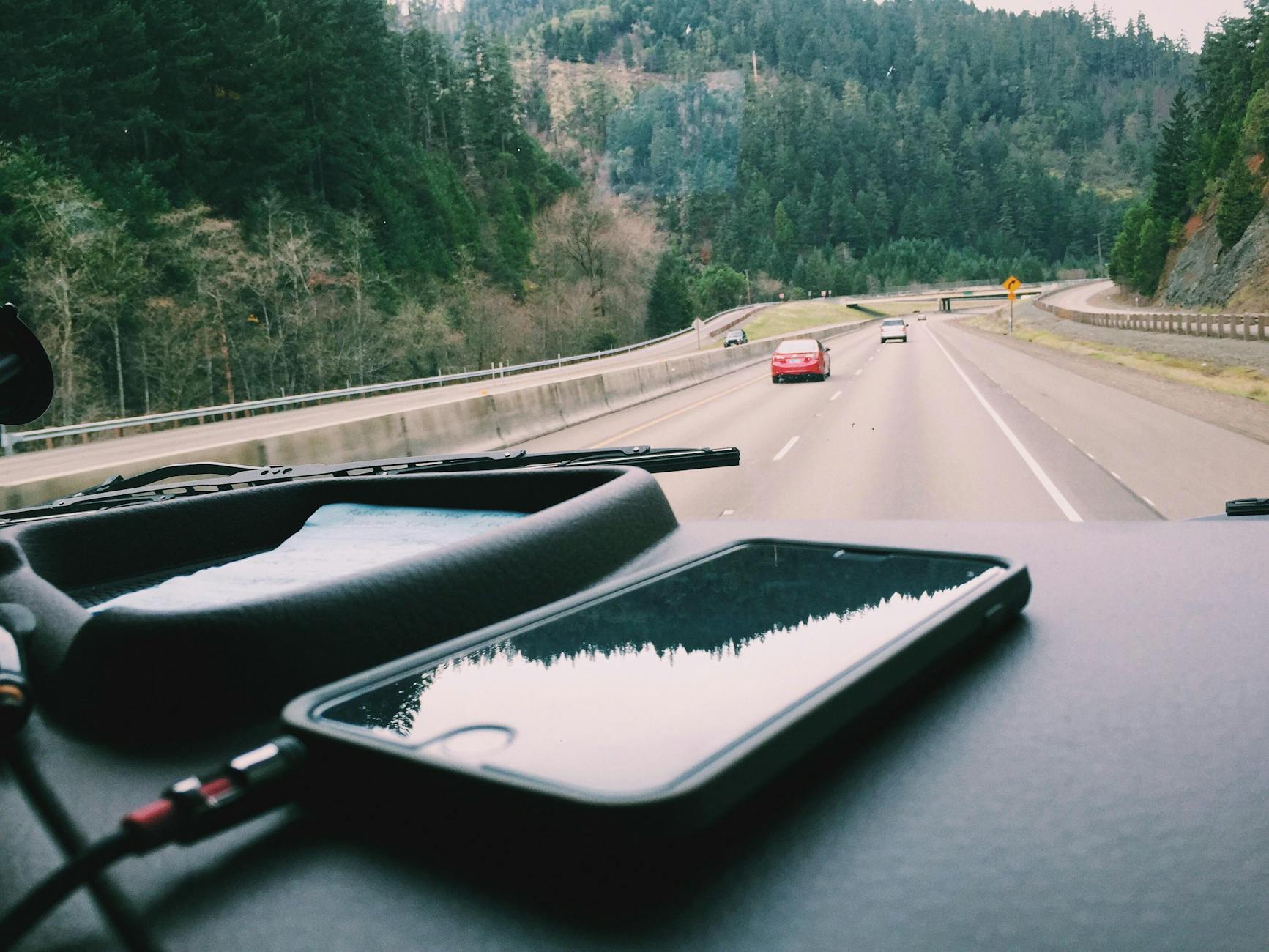 Photo by Snapwire
Reconnect Your iPhone and Restart Everything
If the screen just won’t show CarPlay after you connect, a reset often clears temporary glitches. This approach is quick and safe, and it works whether you’re wired or wireless.
- Unplug and replug (wired CarPlay): Disconnect the USB cable from both the iPhone and the car, wait 30 seconds, then reconnect. Check the connection at the car’s USB port and try a different port if available.
- Reboot the iPhone: Hold the side button and one volume button until the power-off slider appears. Slide to power off, wait 20–30 seconds, then turn the iPhone back on.
- Restart the car’s infotainment system: Power off the car completely, wait a few minutes, and then start the car again. If your car allows, you can also restart the head unit from its menu.
Why this helps: resets often clear transient software glitches that block the CarPlay display while leaving audio and basic controls intact. After the restart, reconnect CarPlay and verify the screen returns to normal. If the black screen persists, move to the next fixes and consider re-pairing CarPlay from scratch.
Swap to a Genuine Apple Cable
Cables matter more than you might think. A high-quality Apple-certified cable ensures reliable data transfer and proper power delivery, both essential for a stable CarPlay display.
- Use an Apple-certified cable: Avoid third-party or low-quality cables, which can deliver insufficient power or inconsistent data signals.
- Test multiple USB ports: Some car ports are optimized for charging rather than data transfer. Try a different port near the infotainment system, or the one labeled for data if your car provides options.
- If wired CarPlay still fails: Swap cables again with a known-good one, and recheck both ends for any signs of wear or damage.
Why this helps: non-certified cables can introduce intermittent disconnects or slow data, which manifest as a black screen or frozen CarPlay. A fresh, certified cable reduces variables and often restores a stable connection quickly. If wireless CarPlay is your route, consider moving closer to the head unit and minimizing interference from nearby Bluetooth devices as a parallel check.
Caption: A clean USB-C or Lightning cable connection can restore CarPlay clarity. Credit: Photo by Snapwire
There Is a Frequency That the Wealthiest Families Have Used for Generations and Most People Will Never Know It Exists
>>> Open the Door <<<
If you still see the black screen after trying these two fixes, there are a few more steps you can take, including checking iPhone permissions and updating software. The goal is a smooth, reliable link between the iPhone and the car, so you can get back to navigation, calls, and music without fuss.
Deeper Troubleshooting Steps for Persistent Black Screen
When the CarPlay display stays dark even after you connect, it can feel like a stubborn roadblock. These deeper steps focus on underlying issues that often trip people up, from tight software quirks to car system quirks. The goal is to restore a reliable link between your iPhone and the vehicle without a full dealer visit. Follow these precise actions in order to rule out common causes and lock in a stable CarPlay experience for both wired and wireless setups. If you’ve been fighting a recurring black screen, these steps help you move from guesswork to targeted fixes.
Check and Fix iPhone Settings
Sometimes the problem sits in iPhone permissions or restrictions rather than the car. Start here to ensure CarPlay and related features have the green light to display and operate.
- Navigate to Settings > Screen Time > Content Restrictions and confirm that CarPlay is allowed. If it isn’t, enable it.
- Ensure Siri is enabled, since CarPlay relies on voice commands for many tasks. Go to Settings > Siri and verify it’s on.
- If CarPlay stopped showing up, remove the car from the available devices list and re-add it. Go to Settings > General > CarPlay, select the car, and choose Forget This Car. Then reconnect from scratch.
- After adjusting permissions, reconnect CarPlay. If the display still won’t show, a quick restart of your iPhone can help: power off, wait a moment, then turn it back on.
Smartphone behavior can surprise you here. A quick refresh on the iPhone often clears a hidden block that prevents CarPlay from rendering content on the head unit.
Update iOS and Car Firmware
Keeping both sides up to date is one of the strongest moves against persistent black screens. Software mismatches are a frequent culprit.
- How to check for iPhone updates: open the Settings app, tap General, then Software Update. If an update is available, tap Download and Install and follow the prompts. Your phone will restart when finished.
- For car firmware, consult your car’s manual or contact the dealer. Many brands deliver updates through the car’s infotainment system, a brand app, or a USB update. Some updates require the vehicle to be parked and connected to stable Wi-Fi or a wired connection.
- If you’re unsure about the update path, start with the iPhone. Once iOS is current, test CarPlay again. If the problem persists, check the car’s update status and apply the recommended firmware version.
A note on compatibility: firmware updates can fix display quirks and improve data handoffs between iPhone and head unit. Don’t skip them, especially after a recent iOS upgrade.
Reset CarPlay Connections Fully
A full reset can clear stubborn misconfigurations that a simple reconnect misses. This step re-establishes the pairing between the iPhone and the car, and it helps both wired and wireless CarPlay.
- Remove the car from the iPhone’s CarPlay list: on the iPhone, go to Settings > General > CarPlay, pick your car, and choose Forget This Car.
- Remove the iPhone from the car’s memory: use the car’s infotainment menu to delete the iPhone from its paired devices.
- For wireless CarPlay, reduce Bluetooth device clutter: disable or forget other nearby Bluetooth devices that might interfere with the initial pairing.
- After removing both sides, restart both devices: reboot the iPhone and the car’s infotainment system, then re-pair CarPlay from scratch.
- If you’re using a cable, try a fresh Apple-certified cable during the re-pair.
A clean slate often reveals whether the issue was a stale pairing or a deeper software glitch. If the screen still won’t display after this reset, proceed to the next step for more diagnostics.
If you want more actionable checks or want to pin down whether a specific port or signal is failing, keep reading. The goal is a reliable CarPlay experience that feels like a natural part of your driving routine. In the sections ahead, you’ll find practical steps to isolate the culprit and verify a stable connection.
Advanced Fixes and When to Call for Help
When the usual quick fixes fail, it’s time to take a deeper, more structured approach. This section covers practical power-user moves, how to test smartly, and when it’s wise to involve a professional. You’ll learn how to rule out software, network, and hardware issues with confidence, and you’ll know what evidence to gather before a service visit.
Disable VPN and Clear Cache on Your Smartphone
VPN apps can interfere with CarPlay by routing traffic in ways that confuse the car’s infotainment system. The simplest route is to turn off any active VPN and tidy up app data that might be conflicting.
- Turn off VPN: Open the VPN app or go to Settings > VPN and switch it off. If the VPN stays on, disable it from the iPhone’s quick settings or remove the profile from the device.
- Offload or reset apps if needed: On iPhone, navigate to Settings > General > iPhone Storage. Select a navigation or CarPlay related app and choose Offload App to free space while keeping data, or Delete App to remove it completely. Reinstall later from the App Store.
- Re-test CarPlay: After disabling VPN and cleaning up apps, reconnect CarPlay. If it still shows a black screen, move to the next step.
- Extra note: If the VPN keeps reactivating, disable Connect on Demand in the VPN settings, or perform a quick restart of the iPhone and the car. If problems persist, removing the VPN profile and restarting the devices often resolves the conflict.
Why this helps: VPNs can create routing quirks or port blocks that confuse CarPlay handshakes. Clearing space and refreshing related apps reduces the chance of stale data causing a display issue.
Factory Reset iPhone as Final Step
If you’ve exhausted all other routes, a clean slate on the iPhone can rule out persistent conflicts between iOS and the car’s head unit. This is a last step before you bring the car in for service.
- Back up first: Use iCloud or a local Mac/PC backup to save photos, messages, and app data.
- Prepare for reset: Make sure you have a record of important settings, especially Wi Fi passwords and Bluetooth pairings.
- Factory reset steps: Open Settings > General > Transfer or Reset iPhone > Erase All Content and Settings. Confirm and let the device erase. When it restarts, set up the iPhone as new or restore from a backup.
- Reconnect CarPlay: After the iPhone is reset, pair CarPlay again from scratch. If you still see a black screen, the issue may be in the car or with a hardware component.
- Post reset checks: Update iOS to the latest version before reconnecting CarPlay, and test with a known good cable if you’re using wired CarPlay.
Why this helps: a full reset clears deep software conflicts that small resets miss. It often resolves stubborn issues that hide behind routine glitches.
Signs Your Car Needs Professional Repair
Some symptoms point to issues beyond simple fixes. If the CarPlay display remains blank after all the steps above, or you notice other strange behavior, you may be facing a hardware or vehicle electrical problem.
- Persistent black screen after repeated resets and re-pairing.
- Car infotainment unit boots slowly or shows error codes.
- USB ports feel loose, damaged, or deliver inconsistent power.
- Wireless CarPlay drops out frequently despite a strong signal, or the antenna shows signs of wear.
- The battery or electrical system shows other symptoms like dim headlights or warning lights.
If you observe these signs, schedule a diagnostic with a qualified technician. When the problem is easy to reproduce only inside a specific car, it’s almost always better to have the head unit or the car’s electrical system checked in person. Bring a clear report of what you tried and the conditions under which the issue occurs, so the technician can reproduce it quickly.
Tips for preparing before you visit:
- Note the car model, infotainment system version, and the exact CarPlay behavior.
- Record when the issue occurs (start of trip, after software update, after warmup, etc.).
- Bring a known-good iPhone and a spare USB cable for wired CarPlay tests.
This approach helps avoid unnecessary replacements and speeds up a professional diagnosis.
Conclusion
Fixing a CarPlay black screen after connecting is usually a matter of narrowing down the most likely culprits and moving methodically through a short checklist. Start with the quick wins and then move to deeper steps if needed. Most drivers get back to maps and hands free calls in minutes.
Quick recap of the fixes in order
- Check the cable and ports for wired CarPlay, or re-pair and re-test wireless connections.
- Restart the iPhone and the car’s infotainment system, then reconnect.
- Update iPhone iOS and the car firmware, focusing on the latest stable releases.
- Review CarPlay and Siri permissions, remove and re-add the car if necessary.
- Clear temporary data, reset network settings, and test with a known good cable or another iPhone.
- If the issue persists, perform a full reset on the iPhone as a last resort and re-pair CarPlay.
Prevention helps too. Use a high quality, Apple certified cable and keep software on both sides current. Avoid multiple Bluetooth devices during pairing, and periodically check for infotainment updates from the car maker. A simple habit of restarting devices after updates can prevent many glitches in daily use.
If you still encounter a dark CarPlay screen after trying these steps, share what you tested in the comments. Your experience helps others avoid detours and keeps driving safer, with maps and calls ready the moment you start your trip. Have you found a fix that worked for you recently, or a tip you’d recommend to fellow drivers? Share your results and report back.
He Was Drowning in Bills and Burnout Until a Simple Daily Ritual Rewired His Brain for Wealth in Less Than a Week
>>> Start Your Shift Today <<<