Are you frustrated by your phone losing connection to the car screen, whether you’re using a USB link or a wireless setup like Android Auto or CarPlay? This guide covers both wired and wireless drops so you can get back to navigation, music, and hands free calls without repeated reconnects.
Most disconnections come from common culprits: bad cables, dirty ports, or simple software glitches. You’ll find practical steps that work for both Android and iPhone ecosystems, from swapping cables and cleaning sockets to rebooting devices and updating firmware.
Follow a clear, step by step plan that starts with hardware checks, then software tweaks, and finally targeted fixes for your setup. Whether you rely on Android Auto, Apple CarPlay, Bluetooth, or Wi Fi, you’ll learn fast ways to stabilize connections and keep your car system humming smoothly.
Why the phone keeps disconnecting from the car screen
When your phone keeps dropping the connection to the car display, it disrupts navigation, music, and hands-free calls. The issue can occur with wired USB connections, wireless setups like CarPlay or Android Auto, or even Bluetooth links. In this section, we break down the typical signs you’re facing a dropout and the main culprits behind these stubborn disconnects. The goal is to help you spot patterns quickly and start with fixes that actually solve the problem.
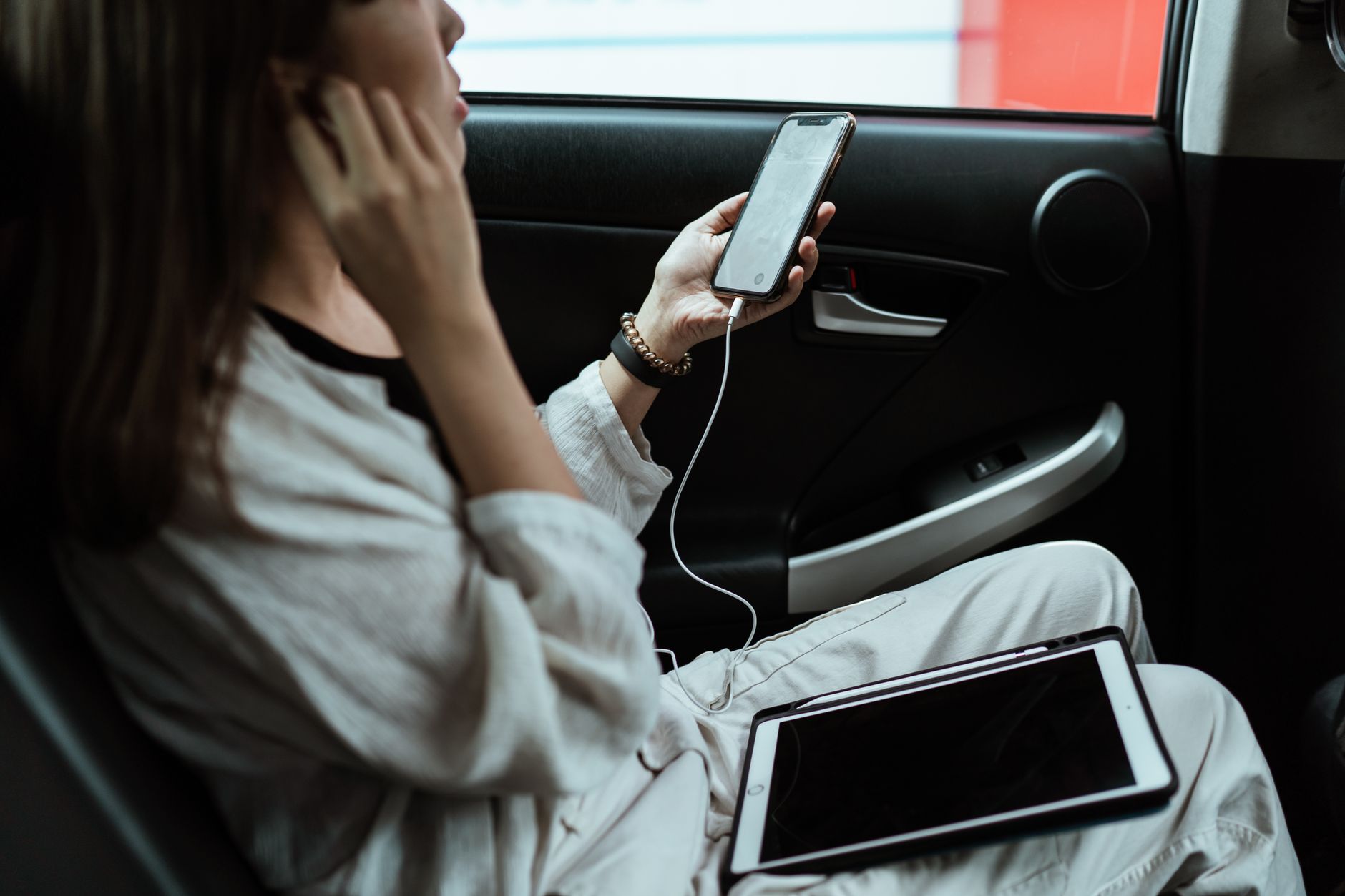 Photo by Ketut Subiyanto
Common signs of a dropout
A dropout shows up in small, telltale ways. You might see the car screen say “no connection” or “no device connected”. Temporary freezes are common, where the display lingers on a screen you recognize from the car’s system but doesn’t respond to taps or voice commands. Music might pause unexpectedly, then resume after a moment, or the navigation panel could disappear and reappear minutes later. In some cases, the phone reverts back to regular phone mode, ending the current app session.
Timing matters too. Do drops happen at the same point in every drive, like after you’ve been using CarPlay or Android Auto for a minute? Do you notice more drops when you’re on a call, or after a recent firmware update to your car’s head unit or your phone? Concrete patterns like these help you separate a simple cable nuisance from a deeper software or hardware fault.
To help you verify what’s happening, keep a quick diary for a week. Note:
- When the drop occurs (start of trip, mid-drive, after a call)
- What app you’re using (maps, music, messaging)
- Whether the issue is wired or wireless
- Any recent changes (new cable, OS update, head unit firmware)
If you’re seeing frequent disconnections with multiple apps and different connections, you likely have a hardware or software bottleneck that needs targeted fixes. For wired users, a bad cable often shows up as sporadic drops; for wireless users, the issue is usually a flaky link or power saving setting.
Top causes behind dropouts
Disconnected moments usually point to a few repeatable culprits. Understanding each one helps you tackle the problem fast without hunting in the dark.
- Poor or charging-only USB cables and dirty or damaged USB ports
- A cable that only charges or one with internal fraying can fail under data load. If the head unit can’t read the data signal reliably, the system will drop the connection. Clean both ends of the USB port and try a known good data cable. If you notice fewer drops with a different cable, the original is the culprit.
- If you see corrosion or lint in the car port, remove it gently with a soft brush or compressed air. A dirty port disrupts data transmission, especially with high-speed USB connections.
- Mismatched or outdated software on the phone or car
- Software that’s out of date can create compatibility gaps. Check for the latest firmware for your head unit and the latest OS updates for your phone. If there’s a known bug, a quick update or a rollback to a stable version may fix it.
- Some cars require specific app versions to maintain a stable link. Confirm compatibility notes from the vehicle manufacturer or head unit maker.
- Power saving or incorrect app permissions on the phone
- Power saving modes can throttle background activity or kill background connections, which hurts auto linking. Disable power saving for the car app or put the phone on a mid-level performance setting when driving.
- App permissions matter too. Ensure the car connection app has permission to run in the background, access location, and use Bluetooth or Wi Fi as needed. Without these permissions, the link may drop once the screen locks.
- Flaky Bluetooth or Wi Fi links for wireless setups
- Wireless CarPlay and Android Auto rely on a mix of Bluetooth for discovery and Wi Fi for data transfer. Interference from other devices or weak signals can cause drops. If you notice a pattern near certain devices or areas, this is a sign the wireless link is unstable.
- Interference from other cars nearby, wireless earbuds, or home Wi Fi networks on the same channel can also play a role. Reducing busy networks around you can help.
- Head unit faults or firmware mismatches
- The problem might lie in the car’s head unit itself. A misbehaving radio module or a firmware mismatch with your phone’s OS can cause repeated drops. In some cases, performing a factory reset on the head unit or applying a recommended firmware update from the manufacturer resolves the issue.
For readers seeking extra guidance on these topics, community guides and reputable sources cover common fixes and diagnostics. For example, articles outlining how to address wireless CarPlay and Android Auto drops offer practical tips that align with the items above, including cable checks and software updates. You can explore these insights here: Wireless CarPlay & Android Auto Disconnects Explained (and How to Fix Them) and similar resources from other tech outlets such as ZDNet and Android Authority. These references help validate a methodical approach to troubleshooting rather than guessing.
If you want to dive deeper into the most common problems and quick fixes, this roundup from industry sources is worth a look: Android Auto keeps disconnecting? Here’s how you can try to fix it and 5 reasons your Android Auto keeps disconnecting – and how to fix it today. These articles emphasize checking connections first and then moving to software or settings adjustments, which matches the approach you’ll see in this guide.
To keep this practical and grounded in real-world steps, always start with the simplest fix: swap the cable, clean the port, and restart the devices. If the problem persists, move to firmware checks and permissions, then consider a more involved head unit update or service check. For wireless setups, reduce interference and test with a different phone to see if the problem is specific to one device.
- Related reading: If you want to know how to resolve Android Auto problems in a car, see trusted guidance from the car maker or head unit manufacturer. These sources offer model-specific steps that can save time during diagnostics. For more context on wireless issues, the ATOTO guide and other tech outlets provide practical fixes you can apply today.
By understanding these common causes and recognizing the patterns, you can quickly determine whether you should start with a simple cable swap or a deeper software update. The key is to stay systematic and patient, because most disconnects have a straightforward root cause that you can fix in under an hour with the right steps.
References and further reading
- Wireless CarPlay & Android Auto Disconnects Explained (and How to Fix Them), ATOTO
- Android Auto keeps disconnecting? Here’s how you can try to fix it, Android Authority
- 5 reasons your Android Auto keeps disconnecting – and how to fix it today, ZDNet
If you’d like, I can tailor the troubleshooting flow to your exact setup. Tell me your head unit model, phone model, and whether you’re wired or wireless, and I’ll map out a targeted step-by-step plan.
Hardware checks you can do now
This section walks you through practical, quick checks you can perform on your hardware to stabilize a flaky connection between your smartphone and the car’s display. Start with simple cable and port checks, then verify the head unit’s status. A little hands-on testing often reveals whether the problem is a faulty cable, a dirty port, or a firmware mismatch. If you’re in a hurry, perform these steps in the order listed to maximize your odds of an immediate fix.
Wired connections: cables and USB ports
A data capable USB cable is essential for Android Auto and CarPlay. If you’re using a charging-only cable, don’t expect stable data transmission. Always opt for a high quality data cable, preferably the original from your phone or a well-rated alternative. If a different cable reduces or eliminates the disconnects, the issue was the cable itself. Test with a known good cable to confirm the root cause.
- Use the original or a high quality data cable for data transfer.
- Avoid charging-only cables that cannot reliably carry data.
- If you have another USB cable on hand, swap it to verify whether the problem is cable related.
- When in doubt, test on a different USB port if your car head unit offers more than one. Some ports are optimized for data, others are primarily for charging.
- A quick check for data integrity: connect, try to start navigation or streaming, and observe whether the connection holds for a full minute or more. If the link drops within 20 seconds, cable or port quality is likely at fault.
For additional guidance on choosing a compatible USB cable and optimizing data performance, see articles like USB Cable for Android Auto: Tips for Seamless Connectivity and related guidance from Android Auto resources. These references reinforce the idea that a solid data cable is a foundational step before diving into more complex fixes. USB Cable for Android Auto: Tips for Seamless Connectivity
If you want a broader read on common cable problems and fixes, you can explore practical tips from other outlets as well. A well-rounded view helps you confirm if you’re dealing with a widespread issue or a unique edge case. For example, you can check out car connectivity guides that cover cable quality, port behavior, and data signaling. Android Auto keeps disconnecting? Here’s how you can try to fix it
Pro tip: keep a dedicated “car kit” of cables in your glove box. Label the data cables and keep a spare in case one wears out. Consistency helps reduce the time you spend diagnosing.
Ports, cleanliness, and compatibility
Dust, lint, and corrosion in USB ports can ruin data transmission. Clean ports carefully and inspect them for telltale debris. A dry brush or compressed air can do the job, but only if you’re confident you won’t damage the contacts.
- Inspect both ends of the cable and the car’s USB ports for lint or corrosion.
- Gently clean with a dry brush or use compressed air if safe for your port design.
- Some cars provide multiple data ports. If one port is finicky, try another to rule out a port-specific issue.
- USB-C versus USB-A: USB-C ports can provide higher data speeds but may be more sensitive to dirty connectors. If you have the option, test both types on compatible car ports to see which yields a steadier connection.
- Vehicle quirks: certain makes and models have known quirks with specific cable types or port configurations. If you know your car brand, a quick check of model-specific guidance can save time.
Keep in mind that a dirty port is a common culprit. Even a small amount of dust can disrupt high-speed data transfer, which makes the link drop under load. If you notice erratic behavior when you wiggle the cable near the port, cleaning is a good next step before deeper diagnostics.
For practical how-to visuals on cleaning USB ports safely, you can explore tutorial content that demonstrates safe techniques and common pitfalls. A video guide on cleaning USB-C ports provides step-by-step safety tips that work well for car ports too. How to Clean a USB-C Port | Step-by-Step Guide
If you want a more hands-on, model-agnostic approach to port maintenance, sites that address general electronics port care offer helpful tips. Just remember to keep any cleaning tools specifically designed for delicate connectors to avoid damage. For a broad discussion on safe maintenance, consider reputable electronics repair guidance. Whats the best way to clean and maintain the USB-C port?
Head unit status and firmware
Your car’s infotainment system may need updates or a reset. Firmware updates can resolve compatibility gaps that appear after OS updates on the phone or after a major head unit release. Start by checking the vehicle’s settings or owner manual for firmware updates and the recommended reset steps.
- Check for firmware updates in the car’s settings menu or from the manufacturer’s support site. A simple update can fix a host of issues.
- If the head unit feels stuck or unresponsive, perform a soft reset. Many systems support a reboot without erasing user data.
- After a phone OS update or app update, the head unit may require alignment with the latest software. Look for compatibility notes from the car maker or head unit vendor.
- In some cases, dealer updates are the most reliable route to fix persistent compatibility problems. If you recently updated your phone or the head unit and the issue started afterward, a dealer update might be the quickest path to a solution.
A soft reset of the head unit is often enough to reestablish a clean communication channel between devices. If you’re unsure how to perform a reset, the owner manual or manufacturer support site is the fastest reference. In some setups, a factory reset is a last resort when all other fixes fail. It’s rarely necessary, but it can resolve stubborn firmware mismatches.
In cases where the OS or app on the phone recently changed, you may benefit from checking posted guidance and release notes from the car maker. These notes often include specific steps for re-syncing CarPlay or Android Auto after updates. For a broader view on head unit resets and updates, see resources that cover updating car software. Updating car software – Android Auto Community
If you want to explore a deeper look at head unit resets and the broader fix flow, consider a reset-focused guide from major automakers. These guides outline when a reset is appropriate and how to complete it without losing essential settings. How to Completely Reset Android Auto
Dealer updates can be a practical route when you face persistent issues after a phone OS update or a major head unit update. If you’re comfortable with a service visit, ask for a software compatibility check and a reflash if needed.
Additional reading on software and firmware alignment across devices can help you plan your next steps. For example, a guided exploration of how wireless and wired links behave after updates provides concrete steps to reestablish a stable connection. How to Fix Wireless CarPlay & Android Auto drops – ATOTO
Putting it all together, the goal is to reestablish a clean, stable link by ensuring both sides are on compatible, current software. A simple firmware update or a soft reset often beats more invasive fixes, especially if the problem coincides with a recent OS change on the phone.
If you’d like, I can tailor the troubleshooting flow to your exact setup. Tell me your head unit model, phone model, and whether you’re wired or wireless, and I’ll map out a targeted step-by-step plan.
Software fixes that restore the link
When hardware checks and cable swaps don’t fully solve the issue, software fixes can restore a stable connection between your phone and the car screen. This section covers practical, copy-tested steps you can apply across Android Auto and Apple CarPlay. You’ll find clear actions, quick checklists, and reputable references to back up each move. Think of it as the software tune-up that makes the hardware sing again.
Update everything you can
Incompatibilities often appear after updates. Keeping software current reduces the odds of a stubborn disconnect. Start with a high-output update plan for both devices and the car system.
- Update the phone OS: Check for the latest Android or iOS updates. A fresh patch can fix underlying bugs that break data links.
- Update the Android Auto / CarPlay apps: Make sure the app on your phone is the latest version. If you’re using wired or wireless CarPlay or Android Auto, updates smooth out compatibility gaps.
- Update the head unit firmware: Head unit firmware can drift out of sync with mobile OS changes. Check the car maker’s site or your dealer for the latest firmware notes and install instructions.
- Simple update checklist:
- On the phone, go to Settings > System updates (Android) or Settings > General > Software Update (iPhone).
- Open the Google Play Store or App Store; update Android Auto or CarPlay-related apps.
- In the car, access Settings > Firmware Update (or consult the manual) and apply any available updates.
- Reboot both phone and head unit after updates.
- Quick validation: after updates, reconnect and run maps, music, and calls to verify the link stays solid.
For deeper guidance on updating Android Auto, CarPlay, and head unit firmware, see reputable guides like the Android Authority’s update steps and related discussions from automaker support pages. You can start here for Android Auto updates: How to update Android Auto and for CarPlay related context from manufacturer guidance: Updating car software – Android Auto Community. Also consider model-specific firmware notes from your car maker’s support portal.
Re pair and reset connections
Sometimes the simplest fix is to start fresh. Re pairing eliminates stale data that can trap the link in a bad state.
- Remove the car from the phone’s Bluetooth and CarPlay/AA pairings:
- Android: Settings > Bluetooth, tap the car name, and choose Forget. Then open Android Auto settings and remove the vehicle from your connected devices.
- iPhone: Settings > Bluetooth, tap the car, and choose Forget This Device. Then Settings > General > CarPlay, select the car and Forget This Car.
- Rebuild the connection from scratch:
- For Android Auto: Download or open Android Auto, connect the phone to the car with a cable, grant prompts, and complete the setup as if new.
- For CarPlay: Connect with a wired USB if you typically use wireless, or start wireless pairing from the car’s screen and on the iPhone.
- Note on wired and wireless: even if you only use cables, removing the car from Bluetooth can clear pathing issues that interfere with data channels.
- Quick validation steps:
- Reconnect the cable and start the car.
- Launch a map app and test voice commands.
- Switch to a music app and place a test call.
- If the problem persists, repeat the reset and try a different port or cable to rule out a port-specific issue.
Refer to practical reset guides from Android Auto and CarPlay communities for model- and device-specific steps. For a detailed reset walkthrough that includes Bluetooth and CarPlay re-pairing, check resources like ATOTO’s wireless CarPlay and Android Auto disconnects guide: Wireless CarPlay & Android Auto Disconnects Explained (and How to Fix Them). If you’re troubleshooting Apple CarPlay with a Subaru or similar, you might find community threads useful as a quick reference.
Permissions and battery optimization
Permissions and battery management can quietly undermine a stable link. Ensure the necessary permissions stay active and that power saving won’t throttle the car app in the background.
- Android permissions to review:
- Location, contacts, microphone, notifications, and background activity for Android Auto.
- Projection permissions and any app-specific allowances in Settings > Apps > Android Auto.
- Battery optimization:
- Disable battery optimization for Android Auto so it remains active in the background during drives.
- On iPhone, ensure CarPlay remains allowed when locked and check Screen Time restrictions that could block CarPlay in certain conditions.
- Simple path to review these settings:
- Android: Settings > Apps > Android Auto > Battery > Allow background activity; Settings > Apps > Android Auto > Permissions; Settings > Battery > Battery optimization > All apps > Android Auto > Don’t optimize.
- iPhone: Settings > CarPlay > Allow CarPlay While Locked; Settings > Screen Time > Content & Privacy Restrictions (if CarPlay is blocked, adjust accordingly).
- Quick validation: after adjusting, reboot the phone and head unit, then perform a short drive with navigation active to verify background activity.
For a structured overview on how to manage permissions and battery optimization in practice, you can reference how-tos that cover Android Auto and CarPlay settings in one place. A recent, practical summary is available in Android Auto troubleshooting guides and iPhone CarPlay assistance articles.
Clear cache and data for Android Auto or CarPlay
Clearing app data or cache can resolve stubborn glitches by forcing a fresh start, though it may require re pairing.
- Android Auto cache/data clear:
- Go to Settings > Apps > Android Auto > Storage > Clear Cache; if issues persist, choose Clear Data (note this will reset preferences and might require re-login or re-setup).
- After clearing, reconnect the car and grant the necessary permissions again.
- CarPlay reset on iPhone:
- If CarPlay behaves oddly, you can reset by forgetting the car in CarPlay settings and re-adding it. This resets the CarPlay connection without erasing your phone data.
- What to back up before clearing data:
- Saved preferences within the Android Auto app.
- Any custom maps or offline data used within your car apps.
- A quick note of your typical settings so you can reapply them after the reset.
- Quick validation:
- Clear cache or data, then reboot the phone.
- Reconnect to the car and re-authorize permissions.
- Open maps and music to ensure smooth operation.
If you want a quick visual reference for clearing Android Auto data and re pairing CarPlay on iPhone, there are step-by-step guides from tech outlets and YouTube walkthroughs that walk through the exact taps to perform in each OS.
External links can provide model- and app-specific nuance. For example, a guide on clearing CarPlay settings and re-connecting from LifeWire covers Apple CarPlay troubleshooting basics, which pairs well with Android Auto data clearing steps: Is Your CarPlay Cutting Out? Master the Fixes You Need Now. For broader Android Auto cache and reset techniques, How-To Geek offers practical tricks to fix disconnects, including cache clearing and re-pairing steps: Android Auto Disconnecting? 6 Tricks to Try Before Giving Up.
If you’d like, share your phone model and head unit, wired or wireless setup, and I’ll tailor a targeted, model-specific sequence.
External links referenced in this section:
- Wireless CarPlay & Android Auto Disconnects Explained (ATOTO): https://www.atotodirect.com/en-au/blogs/guides/wireless-carplay-android-auto-disconnects-explained-and-how-to-fix-them
- Android Auto Not Working? 5 Easy Fixes (YouTube style guide): https://www.youtube.com/watch?v=tmtaptduuI4
- Apple CarPlay Not Working? 5 Easy Fixes (YouTube style guide): https://www.youtube.com/watch?v=_RUZ5Kh2jy4
- Is Your CarPlay Cutting Out? Master the Fixes You Need Now (LifeWire): https://lifewire.com/fix-apple-carplay-disconnecting-7494976
Wireless connections and interference
Wireless connections between your smartphone and the car screen can feel fragile, especially in busy wireless environments. In this section, you’ll learn how Bluetooth and Wi Fi work together for CarPlay and Android Auto, what interference looks like in real life, and practical steps to minimize dropouts. The goal is to give you a clear, actionable plan to stabilize wireless links without diving into heavy theory. A few small changes can make a big difference when you’re on the road.
 Photo by Erik Mclean
Bluetooth and Wi Fi basics
When your car uses wireless projection, Bluetooth often handles the initial device discovery while Wi Fi carries the data stream for CarPlay or Android Auto. Some cars require both radios to be on for the smoothest experience. If you notice drops, a simple reset can help: turn Bluetooth and Wi Fi off, then back on, and re-pair the phone. This can clear stale handshakes and refresh the link.
- If your car only uses Bluetooth for discovery, ensure the data path through Wi Fi is also active when needed.
- In some setups, keeping both radios enabled yields better stability, particularly during maps streaming or video playback. If you have control over the settings, try enabling both and testing for a few drives.
- Minimize interference by turning off other nearby Bluetooth or Wi Fi devices during setup. A neighbor’s device can steal air time and cause hiccups.
- A quick pairing reminder: forget the car on the phone, then re-pair from scratch. This clean slate helps prevent old profiles from causing confusion.
For further reading on wireless fixes and verification steps, see resources that explain how wireless CarPlay and Android Auto operate and how to fix common drops. See articles like Wireless CarPlay & Android Auto Disconnects Explained (and How to Fix Them) for context on how interference and signal paths interact. https://www.atotodirect.com/en-au/blogs/guides/wireless-carplay-android-auto-disconnects-explained-and-how-to-fix-them
Interference and pairing clean up
Interference is the enemy of a stable wireless link. Quiet environments with a single active device are ideal for testing. If the car and phone can pair cleanly in a low-traffic setting but drop when you drive in a busy area, you’re likely contending with signal crowding.
- Clear old pairings from both ends. Remove the car from the phone’s Bluetooth list and remove the phone from the car’s memory. Then attempt a fresh pairing.
- Avoid other devices actively pairing during setup. If someone nearby is trying to pair a Bluetooth device, it can create radio contention and disrupt the handshake.
- Reconnect in a controlled test. After removing old pairings, connect with only your phone and the car. Leave other devices out of the equation for a clean baseline test.
If you want practical guidance on clearing pairings and re connecting, you’ll find step-by-step references in trusted guides. For example, Android Auto and CarPlay communities often share model-specific reset sequences to help you re-sync quickly. A recent, practical overview can be found here: https://www.atotodirect.com/blogs/guides/wireless-carplay-android-auto-disconnects-explained-and-how-to-fix-them
Test across devices and cars
To isolate the source of a dropout, test the same phone with a different car, or a different phone with the same car. If the issue follows the phone, the problem is phone-side. If it follows the car, the head unit or its firmware is the likely culprit. If the issue is unique to a specific pairing, you’re likely facing a compatibility or profile issue with that pairing.
- Decide with a simple test tree:
- Test Phone A with Car X. Note if drops occur and under what conditions.
- Test Phone A with Car Y. Compare results with step 1.
- Test Phone B with Car X. See if problems repeat.
- If Phone A works with Car X but not with Car Y, the issue may be the car head unit or its firmware.
- If Phone B fails with Car X, the problem could be the phone or its pairing profile.
- Use a clean test environment each time to avoid stray interference from other devices.
Having a small, repeatable test routine helps you quickly identify the likely source. If you’re curious about how to conduct these checks, you can review guidance from experts who discuss testing across devices and cars to pinpoint the root cause. For a useful overview, see guidance from reputable sources like ATOTO and Android Authority. https://www.atotodirect.com/blogs/guides/wireless-carplay-android-auto-disconnects-explained-and-how-to-fix-them
Practical tips to reduce interference
Wireless CarPlay and Android Auto rely on a mix of Bluetooth for discovery and Wi Fi for data transport. Interference can come from other cars, nearby Wi Fi networks, or even household devices on the 2.4 GHz band. Here are practical moves:
- Keep the driving area free of other Bluetooth or Wi Fi devices when testing. A quick pause on smartwatches, wireless headphones, and home routers can help.
- If possible, use the 5 GHz band for Wi Fi connections when testing, as it tends to be less crowded than 2.4 GHz in busy environments.
- Turn off battery saver modes on your smartphone during testing. These modes can throttle the apps that keep the connection alive.
- Retrain voice assistants if you notice drops during commands. Recalibration often resolves minor glitches.
If you want to explore interference in depth, Dell’s guide on recognizing and reducing wireless signal problems is a solid reference. https://www.dell.com/support/kbdoc/en-us/000150359/how-to-identify-and-reduce-wireless-signal-interference
Quick checklists you can reuse
Use these as a compact reference during a session. They help you stay focused and avoid skipping a critical step.
- Quick reset: power cycle the phone and car, then toggle Bluetooth and Wi Fi off and on.
- Pairing hygiene: forget the car, re-pair from scratch, and keep other devices off during setup.
- Cable sanity check: if you still use wireless in the car, confirm there are no stray cables accidentally connected that could introduce noise or misrouting.
- Firmware snapshot: note the current versions of phone OS, car head unit firmware, and Bluetooth/Wi Fi modules before updating.
For further guidance on quick fixes that tend to resolve 90 percent of wireless disconnects, explore Android Auto and CarPlay troubleshooting resources. A practical roundup from reputable outlets emphasizes starting with connections and then moving to software or settings adjustments. https://www.androidauthority.com/android-auto-keeps-disconnecting-3390002/
When to seek deeper help
If you’ve tried the above steps and still experience drops, there are model-specific paths you can take. Some cars require a dealer firmware update or reflash to re-sync with a newer phone OS. If you share your head unit model, phone model, and whether you’re wired or wireless, I can map out a targeted sequence tailored to your setup.
References and further reading
- Wireless CarPlay & Android Auto Disconnects Explained (and How to Fix Them), ATOTO
- Android Auto Disconnecting? 6 Tricks to Try Before Giving Up, Tech Yahoo
- How to Check for WiFi Interference and Reduce Wireless Signal Problems, Dell
- Android Auto keeps disconnecting? Here’s how you can try to fix it, Android Authority
If you’d like, I can tailor a targeted flow for your exact setup. Tell me your head unit model, phone model, and whether you’re wired or wireless, and I’ll map out a step-by-step plan.
A clear, step by step troubleshooting flow
When your phone keeps disconnecting from the car screen, a calm, methodical flow makes all the difference. This section lays out a practical, repeatable sequence you can follow for both wired and wireless setups. Start with the simplest fixes and move toward targeted software and hardware checks. The goal is to restore a stable link so you can navigate, stream, and take calls without constant reconnects.
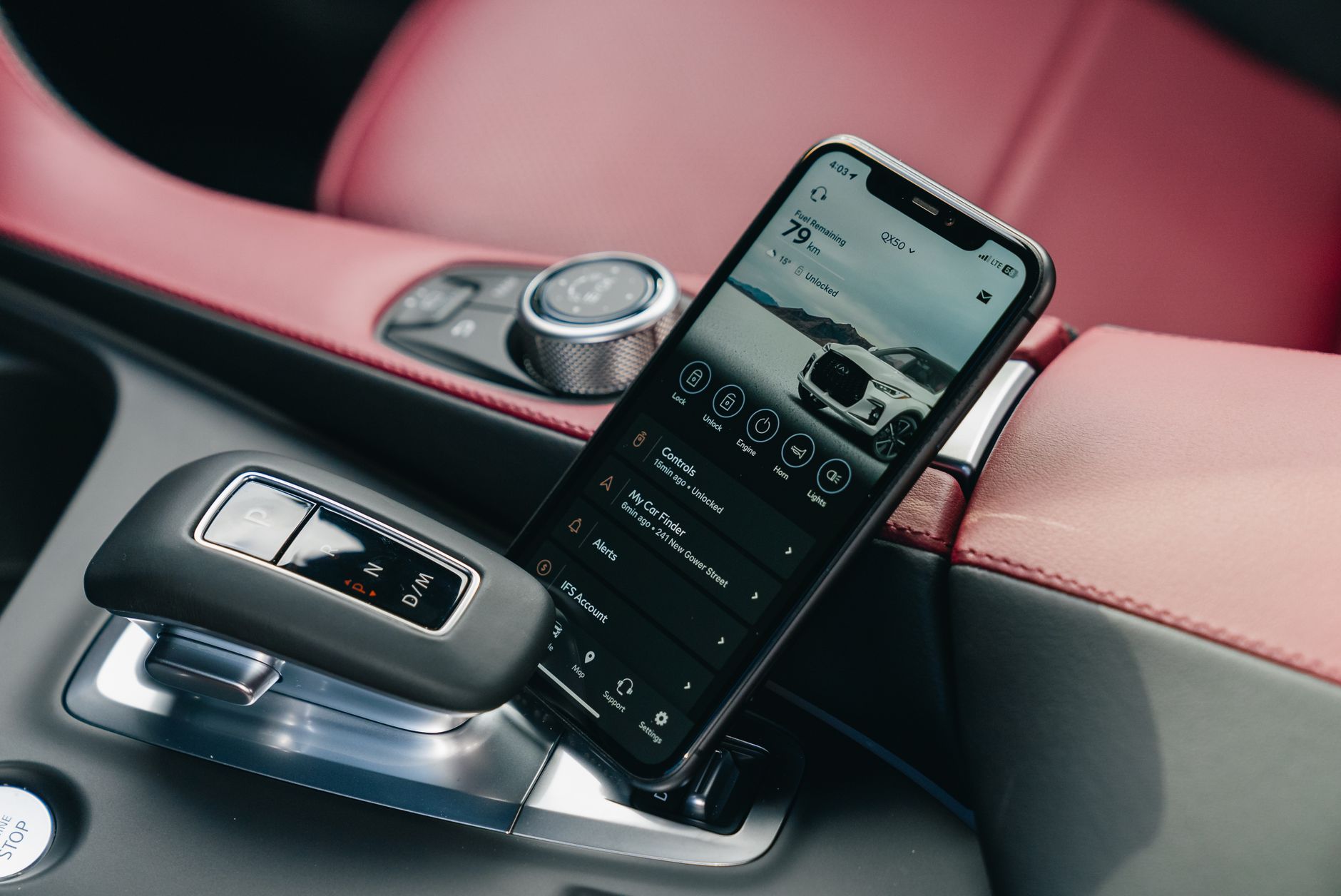 Photo by Erik Mclean
7 step troubleshooting checklist
Follow these seven steps in order. After each step, observe what changes and where drops still happen. This keeps you focused on the root cause.
- Inspect cable and port
- Look for frayed ends, bent pins, or visible wear on the data cable and USB ports. If you see any damage, swap in a known good data cable. A poor cable often causes sporadic drops under load.
- Reboot the phone
- A quick restart clears background processes that might hijack the data channel. After reboot, test CarPlay or Android Auto with a fresh connection.
- Reboot the head unit
- A soft reset of the car’s infotainment system can re-establish clean handshakes. Wait for the unit to come back online before testing again.
- Update software
- Check for updates on the phone, the car’s head unit, and any relevant apps. Updates fix compatibility issues that cause drops after OS changes.
- Re pair the connection
- Remove and re-create the pairing between the phone and the car. This eliminates stale profiles that block data channels. Reconnect as if it’s a new setup.
- Check permissions and battery optimization
- Ensure necessary permissions are allowed in the phone settings and that battery optimization won’t throttle the car app in the background. A blocked background process can kill the data link.
- Test wired first, then wireless
- If you’re using wired CarPlay or Android Auto, start there. If it remains stable, test wireless to see if the issue is specific to one path. Observing behavior across both paths helps isolate the fault.
Key takeaways from this checklist: a solid data cable and clean ports are foundational, software alignment matters, and a fresh pairing often resolves stubborn issues. If the problem persists after these steps, you’re ready to diagnose deeper with a simple decision path.
What to test if the problem persists
When the basic fixes don’t hold, use a straightforward decision tree to pinpoint where the fault lies. This approach avoids blind trial and error.
- If a different phone works, your phone is at fault
- The issue likely stems from the original phone’s configuration, permissions, or a flaky app. Test with another phone to confirm.
- If the same phone fails in multiple cars, the head unit or its settings may be at fault
- This suggests a compatibility or firmware issue with the car’s infotainment system. Check for head unit updates or factory reset options as advised by the manufacturer.
- If no phone works in a single car, the problem likely lies with the car or dealer hardware
- The head unit, USB hub, or diagnostics related to the vehicle’s system could be the culprit. A service visit or dealer firmware reflash may be needed.
As you work through this path, document what changes when you swap cars, cables, or phones. A simple table helps keep track:
- Phone works in Car A but not Car B: head unit/firmware or pairing profile in Car B is the likely issue.
- Phone A works in Car B but not Car C: test with another phone in Car B to confirm whether Car B is the common factor.
- No phone works in Car D: dealer hardware or wiring harness in Car D is suspect.
To deepen your understanding, you can review practical guides from reputable outlets that tackle fast wins and deeper fixes. For instance, guidance on wireless CarPlay and Android Auto drops often covers the same principles of checking cables, updating software, and re-pairing. See resources like ATOTO’s Wireless CarPlay & Android Auto Disconnects Explained for context, along with general Android Auto troubleshooting tips from Android Authority. These references help verify a methodical approach rather than guesswork.
- Wireless CarPlay & Android Auto Disconnects Explained (ATOTO)
https://www.atotodirect.com/en-au/blogs/guides/wireless-carplay-android-auto-disconnects-explained-and-how-to-fix-them - Android Auto keeps disconnecting? Here’s how you can try to fix it, Android Authority
https://www.androidauthority.com/android-auto-keeps-disconnecting-3390002/
If you want a model-specific plan, share your head unit model, phone model, and whether you’re wired or wireless. I’ll map out a targeted sequence tailored to your setup. For quick reference on common wireless fixes, you can also review the ATOTO guide linked above and Android Authority’s practical tips.
Photo by Erik Mclean Photo Credit: Pexels
When to seek professional help and what to expect
Dealing with persistent phone to car screen disconnections can be frustrating. If small tweaks and DIY fixes aren’t sticking, it’s time to bring in a professional. This section explains when to escalate, what a shop will typically do, and how to prepare so you can expect a smooth, transparent process. You’ll get a clear sense of what to ask for and how to verify the fix, without guesswork.
What signs indicate you should go to a dealer or repair shop
Some problems respond well to home fixes, but certain patterns point to hardware or firmware that needs expert attention. Consider professional help if you notice:
- Drops across multiple cars or a wide range of cables and devices. If the same symptoms repeat with different setups, a fault in the head unit, USB hub, or vehicle electronics is likely. A dealer can run specialized diagnostics that aren’t practical at home.
- Recurrent failures after routine fixes. If swapping cables, cleaning ports, rebooting, or resetting doesn’t improve reliability, it’s a red flag that a deeper issue is present.
- Suspected port or head unit faults. Visible damage, corrosion, or inconsistent data signaling in the car’s ports, or a head unit that misbehaves after updates, warrants professional assessment.
- Firmware or software alignment problems. When both the phone and head unit have recent updates and still fight to stay connected, a dealer may need to perform a compatibility check and, if required, a reflash or targeted firmware update.
If you’re unsure whether your situation qualifies, consider a quick consultation with a repair shop. They can often tell you whether the fix is within standard consumer troubleshooting or requires a more thorough service.
For broader guidance on when to seek professional help, review sources that lay out diagnostic paths and service expectations. Examples cover how shops approach Android Auto or CarPlay disconnections and what you should expect during a diagnostic session. See references like Ford’s guidance on Android Auto issues and GMC support articles for common head unit problems. These resources help you set realistic expectations for the service process.
- Ford guidance on Android Auto issues: What should I do if I am having issues using Android Auto with SYNC?
- GMC support: How to Resolve Android Auto Problems
If you decide to visit a shop, bring key information so the technician can reproduce and verify the fix quickly. A concise problem diary helps a technician understand patterns you’ve observed and the steps you’ve already tried.
Tips to prepare for a visit:
- Document your setup. Note head unit model, phone model, wired or wireless connection, and any accessories in use.
- List symptoms with timestamps. Include when the drop occurs, what app you’re using, and whether the link dies during a call, navigation, or playback.
- Note recent changes. Mention OS updates, head unit firmware updates, or new cables.
- Bring your usual cables and the car’s charging setup, so the tech can test under your preferred conditions.
If you want a deeper reading on when to seek professional help, reliable sources discuss practical thresholds for service and what to expect from a dealership or independent shop. You can start with dealer-focused guidance and general troubleshooting resources to align expectations before you go in.
What a dealer or repair shop can do
Once you hand the car to a technician, a typical service path focuses on restoring a reliable link through targeted diagnostics and tested fixes. Expect a structured flow that starts with noninvasive steps and progresses to more involved repairs if needed.
- Firmware updates and resets. The shop will check for the latest head unit firmware and perform resets as recommended by the manufacturer. This often resolves compatibility gaps that show up after OS updates on your phone.
- Diagnostic tests. Expect a head unit and vehicle systems diagnostic to identify port faults, firmware mismatches, or data stream anomalies. The goal is to confirm whether the issue is a port, a module, or a broader electronics fault.
- Replacement of faulty ports or head unit components. If a port shows corrosion or data pins are damaged, the tech may replace the port or, in more severe cases, swap the head unit.
- Re-flash or reprogramming. If the software on the head unit or the vehicle’s infotainment controller is out of sync with your phone OS, a reflash can realign them and eliminate repeated drops.
- Documentation and test verification. A reputable shop will document the exact symptoms, the steps performed, and the outcome. After service, they should re-test with Maps, music, and hands-free calls to confirm stability.
How to verify the fix after service:
- Reconnect the phone and perform a typical drive test. Check for stability during navigation, streaming, and calls.
- Run a mixed scenario. Use a wired connection for a while, then switch to wireless if you use CarPlay or Android Auto wirelessly. Confirm no drops across both paths.
- Confirm settings align with manufacturer guidance. If the shop cleared or changed settings, double-check permissions, battery optimization, and background activity allowances on your phone.
- Ask for a brief report. Request notes on what was found, what was replaced or updated, and any settings changes you should monitor after leaving the shop.
If you’d like a quick path to model-specific service options, model- and manufacturer-provided guides can help. For example, model-based references from automakers outline recommended steps for re-syncing CarPlay or Android Auto after updates, and dealer service notes often include steps for software compatibility checks and re-flashes. Reviewing these can help you speak the language of the technician and set clear expectations.
External resources you can consult for a sense of typical repair workflows include:
- How to Resolve Android Auto Problems | GMC Support
- Android Auto Connection Problems | Step-by-Step Guidance from a repair-focused outlet
- ATOTO guide on Wireless CarPlay and Android Auto disconnects
These references illuminate common service paths and the reasons behind them. If you want, I can tailor a model-specific service plan once you share your head unit and phone details.
Conclusion
Most phone to car screen disconnects come down to a simple order of fixes: start with hardware checks, then push through software updates, and finish with a structured troubleshooting flow. A solid data cable, clean ports, and a quick reboot of both devices resolve the majority of drops. Keeping the head unit and the phone on the latest software reduces compatibility glitches and makes the flow more predictable. If you’re dealing with wireless links, minimize interference and test across different environments to pinpoint the source. If you want tailored help for your smartphone setup, share your head unit model, phone model, and whether you’re wired or wireless, and I’ll map out a precise plan. Your experiences and questions are welcome—drop them below so others can benefit too.