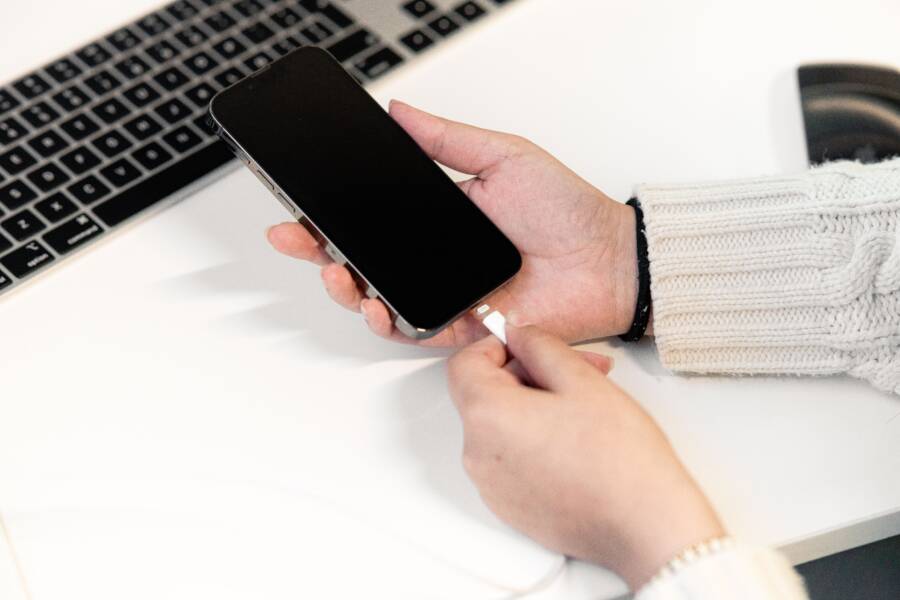
Your smartphone loses charge on standby because active background processes, syncing services, and poor signal strength constantly wake the hardware. While software often runs hidden tasks to keep your apps ready, these operations consume more power than necessary when you are not using the device.
You can fix this drain by restricting background app activity, disabling unnecessary location services, and managing your connectivity settings. These adjustments allow your device to enter a true low power state when the screen is off. The following steps provide a clear path to reclaim your battery life and stop the persistent power loss.
Identifying What Causes Your Smartphone Battery to Drain While Idle
Your smartphone often consumes energy even when the screen is dark and you are not interacting with it. Several hidden processes dictate this behavior, turning your pocket device into an active background operator. Recognizing these patterns is the first step toward extending your standby time.
How Background Apps and Syncing Impact Power
Many applications continue to run small tasks after you close them. These processes check for updates, upload usage data, or maintain connections to servers. Push notifications rely on this constant activity, as your device must periodically ping a server to see if a message or alert exists. This active state prevents the hardware from entering a deep sleep mode, which is necessary for power efficiency.
Data syncing further complicates this consumption. Many users have multiple accounts—email, social media, and cloud storage—that constantly refresh data in the background. Each sync event requires the device to power up its wireless radios and process data, even if nothing has changed. If you have ten apps doing this simultaneously throughout the day, the cumulative impact on your battery is significant.
Consider these common culprits for unnecessary background activity:
Email clients that check for new messages every few minutes.
Social media apps that sync your feed continuously to show new content immediately upon opening.
Cloud backup services that attempt to upload photos the moment they are captured.
Weather widgets that update location and temperature data in the background hourly.
You can mitigate this by reviewing your app settings. Most operating systems allow you to toggle background refresh off for non-essential applications. Prioritizing which apps actually need to provide instant updates will keep your smartphone in a true idle state for much longer.
The Role of Poor Cellular Reception
A smartphone acts like a persistent communicator that refuses to lose contact with the nearest cellular tower. When your signal strength drops, the device increases its broadcast power to maintain a stable link. This requires significantly more energy than holding a strong connection. In areas with one or two bars of reception, the modem operates at peak capacity, which rapidly depletes the battery even if you do not touch the screen.
Searching for a signal is one of the most taxing activities a device performs. If you are in a location with dead zones or fluctuating coverage, your phone continuously scans for a better network, switching between bands or towers. This process forces the internal processor to stay awake and active. If you notice your device feels warm while sitting in your pocket, it is likely working overtime to fight for a cellular connection.
Managing this behavior often involves adjusting how your device handles network searches. If you know you will be in an area with poor service for several hours, switching to Airplane Mode prevents the modem from wasting power on failed search attempts. Once you reach a location with a strong, reliable signal, the device can return to its standard power-saving state without excessive strain.
Essential Settings to Fix Rapid Battery Drain on Standby
A smartphone often stays active even when you think it is resting. Many devices keep background tasks running to provide instant updates, but this prevents the processor from entering a deep sleep state. By adjusting a few specific settings, you can stop these unnecessary operations and significantly improve your standby time.
Managing Background Activity and App Permissions
Most operating systems include a dedicated menu to monitor power consumption. This section shows you exactly which apps consume the most energy over a 24-hour period. If you notice an app you rarely use at the top of this list, it is likely refreshing data or running processes while the phone sits in your pocket.
You should audit your installed software to identify these hidden power drains. On most devices, you can access this by navigating to your battery settings menu. From there, you can view a list of apps ranked by their power usage. If an app shows high background activity, restrict its permission to run tasks when not in use.
Open your device settings and select the battery or power management section.
Locate the list of apps that displays power consumption percentages.
Tap on any app that shows disproportionately high usage during standby.
Select the option to restrict or disable background activity for that specific app.
Removing background permissions for non-essential apps does not prevent them from working when you open them. It simply stops them from waking the hardware to sync data while you are away from the screen. This small adjustment preserves capacity for apps that actually require real-time alerts, like messaging or navigation software.
Adjusting Location Services and Push Notifications
Location tracking is one of the most consistent contributors to battery drain. Many apps request permission to access your GPS data even when they are not actively running. Constant location pings force your smartphone to wake up, turn on the GPS chip, and communicate with satellites, all of which consume significant power.
Review your location permissions to see which apps have persistent access. Change these settings to “While Using” rather than “Always.” If an app does not need your location to function, disable the permission entirely. This prevents the phone from performing unnecessary location lookups while it is supposedly on standby.
Push notifications also contribute to this problem because they require the phone to maintain an active data connection. Every time you receive a notification, the screen lights up and the processor engages to handle the alert. You can manage this flow by limiting notifications to only the most important applications.
Turn off notifications for games, shopping apps, or social media platforms that do not require an immediate response.
Use a summary mode if your device offers one to group notifications into periodic batches.
Disable non-essential widget refreshes on your home screen to reduce the number of times the device pulls fresh data.
Simplifying your notification feed reduces the number of times your phone wakes up throughout the day. By silencing trivial alerts and restricting location access, you allow your device to remain in a low-power state for longer periods. This approach keeps your smartphone responsive when you need it while preventing energy loss during idle time.
Advanced Troubleshooting for Persistent Battery Issues
If basic software adjustments fail to stop your phone from losing power while idle, the battery hardware itself may be reaching the end of its life cycle. Batteries are chemical components that lose the ability to hold a charge over time. Understanding your device health metrics helps you distinguish between software conflicts and physical degradation.
Interpreting Battery Health and When to Seek a Replacement
Modern operating systems include built-in diagnostics that report the current maximum capacity of your battery compared to when the device was new. You can find this percentage in your battery settings menu under a label like Battery Health or Battery Usage. If this number drops below 80 percent, your battery is likely degraded and will struggle to maintain power throughout the day, even during standby.
A healthy battery is one that stays close to its original design capacity for at least two years of standard use. When the chemical capacity falls significantly, the voltage output becomes unstable. This forces the processor to work harder to manage power, which creates a cycle of rapid drain and device heat.
Check your health metrics for these specific indicators:
Maximum capacity showing below 80 percent suggests physical wear that software fixes cannot resolve.
Service recommendations or warning icons appearing in the battery menu notify you that the operating system has detected hardware degradation.
Sudden drops in percentage, where the phone jumps from 30 percent to 10 percent in minutes, indicate that the cells can no longer provide consistent voltage.
If your device displays these signs, software optimization is no longer the solution. You should consider a battery replacement to restore your smartphone to its intended performance. Replacing the battery is often more cost-effective than purchasing a new device, as it effectively resets the power capacity to its factory standard.
Look for authorized service providers if you decide to replace the component. While third-party options exist, batteries have strict safety requirements and specific firmware coding on many modern models. Using an authorized service ensures that the new battery is calibrated correctly to your device power management system. This guarantees that your phone accurately tracks its charge level and continues to manage standby power properly after the repair.
Common Questions About Standby Battery Loss
Battery drain during idle periods confuses many owners because a device should logically consume very little power when not in use. You might wonder if your battery is failing or if certain settings are working against you. Clarifying these frequent concerns helps you determine if your smartphone requires technical intervention or just a minor configuration update.
Does turning off Wi-Fi and Bluetooth help?
Many people assume that disabling wireless radios saves massive amounts of battery power during standby. In reality, modern smartphones manage these connections efficiently when they are idle. Turning off Wi-Fi or Bluetooth provides a marginal gain in battery life, but the impact is usually negligible unless you are in a location with a weak signal.
When you leave these features active, your device uses low-energy protocols to maintain status. If you are in a building with stable Wi-Fi, keeping the connection active is often better than forcing the device to switch to cellular data. Cellular modems generally consume more power than Wi-Fi radios. You should prioritize finding a stable network connection over disabling wireless features entirely.
Will force closing apps improve idle performance?
A common misconception is that clearing every app from your recent tasks menu keeps your battery from draining. You might think that closing apps frees up resources, but mobile operating systems are designed to manage memory and background tasks automatically. Force closing apps often forces the system to reload them from scratch the next time you open them, which uses more processing power and battery than simply letting them stay in a suspended state.
Your smartphone manages resources by putting background apps into a low-power freeze. This state consumes almost zero energy. If you manually close an app, you stop this efficiency. Only force close an application if it is frozen, behaving erratically, or causing the device to heat up unexpectedly.
How do I know if the battery is truly defective?
Distinguishing between a software conflict and a physical battery failure requires looking at your usage data. A defective battery usually shows signs of erratic behavior that software settings cannot fix. You might notice the percentage dropping rapidly while the screen is off, or the device might shut down suddenly even when it reports having 20 percent or more charge remaining.
Check these signs to gauge the health of your power cells:
The battery level jumps significantly after a restart or when you plug in the charger.
Your device becomes unusually hot while sitting idle on a table.
The battery health menu reports a maximum capacity below 80 percent.
You experience frequent, unexplained reboots during standard tasks.
If your smartphone shows these symptoms, physical degradation is the likely culprit. Software tweaks can optimize your power usage, but they cannot restore the chemical capacity of an aging battery. Replacing the battery is the only way to return your device to its original, reliable performance levels.
Conclusion
Most battery drain on standby stems from background processes and poor cellular connectivity rather than hardware defects. By restricting app permissions and managing location services, you give your smartphone the room to enter a true low-power state.
Regularly auditing your settings ensures that only essential services consume energy while the screen is off. If these adjustments do not solve the drain, check your battery health metrics to determine if a physical replacement is necessary to restore long-term performance.