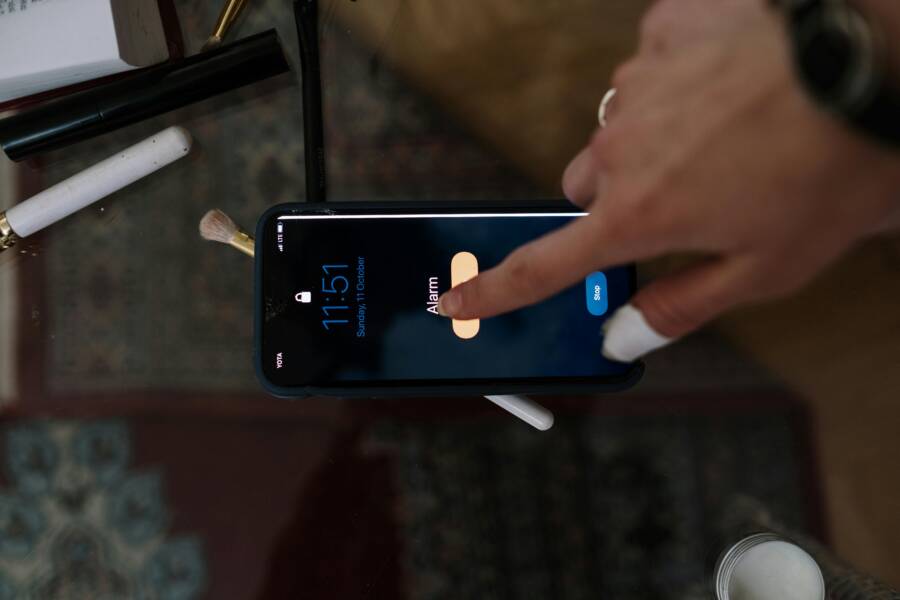
You can automate your morning by using the built-in Shortcuts app on your iPhone or the Modes and Routines feature on Android. These tools trigger a series of actions, such as adjusting your lights, reading your calendar, or playing music, the moment you wake up.
Setting up these automations reduces decision fatigue and saves you valuable time. Your smartphone manages these repetitive tasks for you, so you can focus your energy on your morning instead of your settings.
Follow these steps to configure your own routine and take control of your morning.
Why You Should Automate Your Morning Routine
Automating your morning habits changes how your day begins. Instead of relying on willpower when you wake up, you use your smartphone to handle the heavy lifting. This approach removes the need to make constant choices early in the morning. When your device manages the small details, you gain mental space for the tasks that truly matter.
Reducing Decision Fatigue Before You Even Wake Up
Decision fatigue occurs when the quality of your choices drops after a long day of making them. Mornings are often the first casualty of this effect because your brain is still adjusting to being awake. Friction during this time leads to hesitation, which often results in procrastination. If you spend your first hour debating which news app to open or checking the weather across three different sites, you exhaust your mental energy before you start your actual work.
Automation removes these small obstacles by forcing a set sequence of events. You do not have to think about adjusting the lights or starting your coffee when your smartphone does it for you. This creates a positive start regardless of how groggy you feel. By removing the need to choose, you save your brain power for important decisions that occur later in the day. A set routine transforms a chaotic morning into a predictable series of events that occur without your manual input.
How Automation Keeps You Focused on Your Goals
Distractions are everywhere the moment you unlock your screen. It is easy to fall into a cycle of checking social media feeds or clearing out junk mail right after you wake up. These habits pull your focus away from your own objectives and onto the needs of others. Automation helps you avoid this trap by batching your tasks and controlling the environment of your smartphone.
You can configure your device to show only the information you need, such as your calendar or a specific project list. This structure limits the temptation to scroll through apps that do not serve your long-term goals. Consider these ways to stay on track:
- Set a specific time for your phone to display your daily to-do list instead of notifications.
- Enable a quiet mode that blocks non-essential alerts until you finish your morning tasks.
- Launch a specific focus app that keeps you centered on your work while you drink your coffee.
By creating these boundaries, you protect your attention. You start your day with purpose instead of reacting to every notification that arrives. This intentional start ensures your focus remains on the goals that move you forward.
How to Set Up Automated Routines on iPhone
You set up automated routines on your smartphone through the Shortcuts app. This application acts as the control center for your morning tasks. By connecting your favorite apps and settings into a single trigger, you save time every day.
Configuring Your First Automation in the Shortcuts App
Open the Shortcuts app on your iPhone and tap the Automation tab at the bottom of your screen. This area shows all your active tasks and allows you to build new ones. Tap the plus sign in the top right corner to start a new sequence.
Select the Create Personal Automation button to begin. You choose a trigger, which is the event that starts your morning routine. A common choice is Time of Day, where you pick a specific hour to wake up. Make sure the option labeled Run Immediately is selected. This setting allows your smartphone to perform the actions without asking for your permission every single time.
After you set your trigger, hit Next to choose your actions. You can search for specific apps or system settings. Select an action like Set Volume or Open App. You can add as many steps as you need for your morning. Once you finish adding your actions, tap Done to save the routine. Your smartphone now follows this sequence every day at your chosen time.
Adding Smart Home Actions to Your Morning Flow
You can link your smartphone to smart home devices to build a complete morning experience. This connection allows your phone to control your physical environment the moment you wake up. The process involves adding HomeKit-enabled devices, such as lights, thermostats, or blinds, to your automation steps.
Start by editing the automation you created in the previous section. Within the Actions menu, search for the Home category. You will see a list of your configured smart accessories. Select the Control Home option to add a specific device to your sequence. You can set your smart lights to turn on at a soft brightness or adjust your bedroom temperature to a warmer setting.
Consider this sequence to improve your morning mood:
- Your lights slowly fade in to mimic a natural sunrise.
- The thermostat adjusts to a comfortable temperature for getting out of bed.
- Your smart speaker plays a morning briefing or a radio station.
This combination of settings creates a quiet, guided start to your day. You do not need to walk around your house to flip switches or adjust dials. Your smartphone coordinates these devices as soon as your wake-up time occurs. This level of control keeps your attention on your morning goals rather than managing your home equipment. Test each action by tapping the play button in the bottom corner of the editor to verify your settings work as you intended.
How to Create Morning Routines on Android
Android devices use the built-in Modes and Routines feature to manage your daily schedule. This system acts as an internal controller, adjusting your hardware settings and application behavior based on specific triggers. You configure these automations through the Settings menu to ensure your phone is ready the moment you wake up.
Utilizing Modes and Routines for a Personalized Wake-Up
You can program your smartphone to modify its configuration automatically. Start by opening the Settings app and selecting Modes and Routines. Tap the plus icon to build a new routine, then select “Wake up” or create a custom trigger based on a specific time.
After setting your trigger, tap the “Then” section to add actions. You can customize your device state with these specific steps:
- Select “Sounds and vibration” to set your phone to sound or vibrate, or to adjust the volume levels for media and notifications.
- Choose “Display” to change your brightness settings, enable eye comfort shields, or toggle dark mode.
- Use “Notifications” to filter which apps can alert you or to turn on Do Not Disturb mode until your morning tasks are complete.
You can add multiple actions to a single routine. For example, your smartphone can lower your ringtone, increase screen brightness, and open your calendar app simultaneously. Save the routine once you confirm the sequence. Your phone now follows these instructions every morning, which removes the need for manual adjustments.
Using Google Assistant to Voice-Trigger Your Routine
Fixed time schedules work well, but you might occasionally wake up early or late. Google Assistant bridges this gap by allowing you to launch routines on demand using voice commands. You can link your existing automation to a custom phrase, making your morning flow responsive to your actual wake time.
Open the Google Home app or the Google app on your smartphone to manage your routines. Tap the Routines button and create a new personal routine. Instead of choosing a time trigger, select “Add starter” and choose “When I say to Google Assistant.” Type a phrase like “Start my morning” or “Good morning” as your command.
Next, add the actions you want to occur. You can include smart home devices, weather reports, news briefings, or calendar summaries in this voice-activated list. Save the routine and test it by speaking your chosen phrase to your smartphone.
This voice-trigger method offers flexibility for people with shifting schedules. You no longer need to edit your time-based routine when your sleep cycle changes. Simply speak your command, and your smartphone executes your custom morning sequence regardless of the hour.
Essential Automation Ideas to Boost Your Productivity
Automating your morning routine turns repetitive manual tasks into background processes. When your smartphone handles the mundane details, you save time and mental energy for your primary goals. These practical ideas help you turn your device into a reliable personal assistant.
Use Location-Based Triggers for Commuting
You can trigger specific actions based on your physical location. When you leave your home, your smartphone detects the change and adjusts your settings accordingly. This removes the need to manually toggle connectivity or volume levels before you head out the door.
Create a location-based automation to start your favorite podcast as soon as you step into your car. In addition, you can set your device to enable high-accuracy maps or navigation apps when you arrive at a specific coordinates near your office. You might also turn off your smart home lights and lock the front door automatically when your phone exits your home radius. These small adjustments provide a smooth transition from your home environment to your workday.
Automate Content Preparation for Daily Tasks
Reading your schedule or news briefings manually often leads to distractions. Instead, configure your smartphone to prepare your most important data in one place. You can set a trigger to pull your calendar events, task lists, and weather reports into a single summary screen.
Consider these ways to prepare your data:
- Set a morning trigger that pulls your calendar events and displays them as a notification or a locked screen widget.
- Configure a routine to fetch the top headlines from your chosen news source while you get dressed.
- Automate the generation of a daily task list from your project management software so it is ready when you open your screen.
This data collection ensures you stay informed without needing to search for information across multiple apps. You start your day with a clear view of your obligations. This preparation minimizes the time spent browsing and maximizes the time spent working.
Manage Digital Wellbeing and Connectivity Limits
Constant notifications break your focus before you start your day. Use your smartphone to enforce boundaries by automating your connectivity settings. You can schedule a period of restricted access that prioritizes your peace of mind.
Set a routine to keep your device in a restricted mode until a specific time. During this block, you can allow calls from family members while blocking social media and email alerts. Once your morning routine concludes, your smartphone can automatically disable this restriction and reconnect your non-essential notifications. This approach protects your focus during your most productive hours. You remain in control of your digital environment instead of reacting to every incoming ping.
Troubleshooting Common Automation Issues
Most automation problems result from simple configuration errors or permission conflicts on your smartphone. When a routine fails to trigger, check your notification settings and software permissions first. These settings often reset after system updates or app modifications. If your automation doesn’t run, verify that the trigger conditions still match your current device state.
Resolving Trigger Failures
Triggers rely on precise data inputs. If your routine uses a time-based trigger, check that your device clock remains accurate and the Do Not Disturb mode isn’t suppressing the action. Sometimes, the operating system pauses background processes to save battery, which prevents your routine from firing on time. Ensure your smartphone allows the automation app to run without battery restrictions.
You should also verify that your chosen trigger is active. Open your automation settings and confirm the toggle is turned on. If the trigger depends on your location, check that your location services are active for that specific app. You might need to update the location boundary if you moved or if your signal is weak in your bedroom.
Fixing Broken Action Sequences
If your routine starts but misses specific steps, the issue usually lies within the action sequence. A common cause is a missing app dependency. For example, if your routine opens a news app that is not installed or requires an update, the entire sequence stops. Remove that specific action from the list and test the remaining steps to identify the culprit.
Another frequent problem involves conflicting commands. If your smartphone attempts to change the volume and play music at the exact same moment, the system might ignore one of the requests. Add a short delay between conflicting actions to give the processor time to complete each task. Most automation platforms allow you to insert a wait command of a few seconds between individual steps.
Managing Permissions and Security Settings
Automations often require elevated permissions to control hardware or access personal data. Your smartphone will block any attempt to modify system settings if the app lacks the necessary authorization. Check your system privacy settings to ensure the automation app has permission to access your location, calendar, and smart home devices.
Periodically, you must re-authenticate your accounts. If your routine pulls data from your email or calendar, a password change or a session timeout will break the link. Open the specific service within your automation app to see if it displays a warning about account credentials. Re-linking the service usually fixes the problem immediately.
If you continue to experience failures, clear the cache for your automation app in the system settings. This removes temporary data files that might be corrupted. Always restart your smartphone after making these adjustments to ensure the changes take effect across the entire system.
Conclusion
Setting up an automated morning routine removes the mental burden of repetitive daily decisions. Once you configure your smartphone to handle these tasks, the system runs in the background with zero additional effort from you.
Start by choosing one simple action that saves you time, such as adjusting your lights or opening your calendar. Expand your routine slowly as you identify other habits that benefit from automation. Your technology exists to serve your goals, not the other way around.