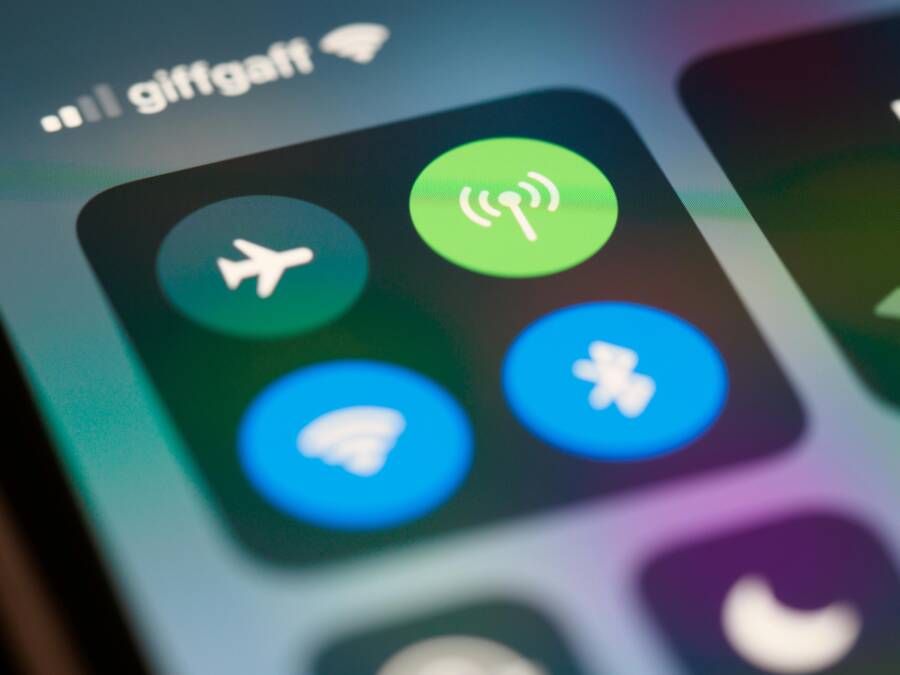
Constant notifications disrupt your workflow and fragment your attention throughout the day. You can reclaim your focus by creating a dedicated Work Mode on your smartphone.
This setup silences non-essential noise while ensuring important communication from colleagues or family still reaches you. By configuring the built-in settings on your device, you gain control over your time and productivity.
Why You Need a Dedicated Work Mode for Your Smartphone
Your smartphone is a portal to both your professional and personal worlds. Without clear boundaries, these worlds collide, leading to fragmented attention and reduced output. A dedicated work mode isolates your tasks, allowing you to focus on high-priority items without the constant friction of irrelevant alerts. By adjusting the settings on your smartphone, you regain control over your environment and build a more productive day.
The Hidden Cost of Constant Notifications
Every alert creates a miniature disruption that pulls your mind away from the task at hand. When you receive a social media notification or a non-urgent email, your brain must pause what it is doing to process that new information. This process is called context switching. Each time you switch contexts, you lose time as your brain attempts to re-engage with the original project.
These frequent interruptions prevent you from entering a flow state, which is that peak period where work feels fluid and efficient. Even after you return to your original task, your brain remains occupied with the previous interruption for several seconds or minutes. This phenomenon leads to significant mental fatigue by the end of the day. You might feel as though you worked hard for eight hours, but the constant fragmented effort means you achieved far less than your potential allows.
How Focus Modes Transform Your Digital Environment
A standard Do Not Disturb setting is often too blunt for effective work. While it silences all incoming calls and texts, it lacks the nuance needed to handle a complex professional schedule. A custom work mode on your smartphone offers a sophisticated alternative by letting you curate exactly what gets through to you. You can whitelist specific contacts like your manager or teammates while blocking social media apps and distracting game alerts.
These modes allow you to define clear boundaries that protect your peak hours. You can automate the activation of these settings to align with your office hours or study blocks. Once configured, your smartphone becomes a tool that serves your schedule rather than a distraction that dictates your priorities. You no longer have to manually toggle silent switches or worry about missing an important update. Instead, your device remains ready when needed but stays quiet when you require deep focus.
Step by Step Guide to Setting Up Your Custom Work Profile
Creating a custom work profile on your smartphone allows you to separate professional obligations from your personal life. You can configure specific settings to suppress non-essential alerts during set hours. This transformation turns your device into a focused tool rather than a constant source of distraction. Follow these steps to tailor your experience for maximum output and minimal stress.
Configuring App Permissions and Notification Filters
Total control starts with deciding which applications deserve your attention while you work. Most modern mobile operating systems provide a filter menu within their focus or work modes. Start by selecting the apps that are essential for your daily tasks, such as email, calendar, or project management software. Every other application, like social media or games, stays silenced until your workday ends.
You should also designate specific contacts for an allow-list. This step ensures that urgent messages from your manager or family reach you even when the mode is active.
- Open your device settings and navigate to the Focus or Work Mode section.
- Select the option to customize notifications for apps and people.
- Tap on the apps icon to manually choose which programs can push alerts.
- Add important individuals to your allowed contacts list to bypass the silence filters for calls and texts.
Reviewing these permissions periodically helps you adjust to changing work demands. If you find yourself ignoring certain alerts, remove those apps from your allowed list to maintain your focus.
Setting Automated Triggers Based on Time or Location
Manual activation of your work mode often leads to inconsistency. You might forget to turn it on during a busy morning or fail to disable it at the end of the day. Automation removes this human error by syncing your smartphone with your daily routine.
Your device tracks your location or follows a clock-based schedule to toggle the mode automatically. If you work from a physical office, location-based triggers are highly effective. The phone detects when you arrive at your workplace and activates your preferred settings. When you leave the building, the phone returns to your normal notification profile.
Alternatively, use a time-based trigger if your work hours follow a predictable pattern. Setting the mode to activate at 9:00 AM and deactivate at 5:00 PM keeps your professional boundaries consistent every day.
- To set a time trigger, choose the Add Schedule option within your work mode settings.
- Pick the days of the week you want the mode to run.
- Select the specific start and end times for your shift.
- To set a location trigger, select the Location option and define the boundaries of your office or workspace on the map.
These automated triggers ensure your device respects your time without requiring extra effort from you. Your smartphone handles the transition quietly, so you remain focused on your primary responsibilities.
Best Practices for Maintaining Your Focus Habits
A functional work mode on your smartphone is not a set-it-and-forget-it feature. Your priorities shift, projects change, and new apps enter your daily routine. Without regular updates, your carefully configured focus settings become less effective. These practices keep your device working for you rather than against you.
Refining Your Notification Strategy Over Time
Set a recurring calendar reminder to audit your focus settings once a month. This audit prevents notification drift, where unimportant alerts slowly creep back into your work blocks. During this check, look at the list of allowed apps and contacts. You likely added a group chat or a specific project management tool during a busy week that you no longer need during deep work hours.
Remove any application that demands attention without providing immediate value. If you notice yourself manually silencing an app frequently, it belongs on your blocked list. This simple habit keeps your smartphone quiet and ensures only essential updates break your concentration.
You should also re-evaluate your notification categories. Modern operating systems allow you to choose which specific types of alerts you see. You might allow email notifications for urgent messages but block them for newsletters or marketing updates. Refining these small details makes your focus mode more precise and prevents you from missing the information that truly matters to your career.
Managing Social Boundaries with Your Smartphone
Clear boundaries with others protect your focus as much as blocking apps. When you enter a deep work session, tell your colleagues or family that you are unavailable for a set period. Use the built-in status features on messaging platforms to signal your availability. Many professional apps allow you to set a custom status that shows others you are currently focused on a task.
If you use your smartphone for communication, take advantage of auto-replies. Some focus modes allow you to send a pre-written text to anyone who tries to reach you. You can inform them that you are in a deep work phase and will check your messages at a specific time. This sets a clear expectation and prevents people from feeling ignored when you don’t respond right away.
Professionalism requires honesty about your capacity. It is better to communicate that you are busy now but will respond at 3:00 PM than to leave people wondering when they will hear from you. This approach builds trust with your team while keeping your attention on the work that requires your best energy. Your smartphone assists this process by automating those boundary signals for you.
Frequently Asked Questions About Managing Digital Focus
Users often have specific concerns when they start using custom work modes on their smartphone. You might wonder if you will miss critical alerts or how these settings affect your battery life. These answers address the most common uncertainties about balancing connectivity with deep work.
Does Do Not Disturb Affect My Alarm Settings?
Most modern systems treat alarms as a separate priority from your notifications. An alarm will still sound even if you have a strict work mode active on your smartphone. You don’t need to worry about waking up late or missing a scheduled reminder because your phone is in silent mode. Always check your alarm volume settings separately to be sure.
Can I Allow Specific Contacts While Blocking Everyone Else?
Yes, you have full control over who gets through to you during your workday. You can set up an allow-list that includes your manager, spouse, or clients. Once you configure this, the smartphone will only vibrate or ring when those specific people contact you. All other calls and texts remain silent until you deactivate the mode.
Will Using Focus Modes Drain My Phone Battery?
Using these modes actually saves battery power throughout the day. By silencing non-essential apps, you reduce the number of times your screen lights up and your phone vibrates for unwanted alerts. Background processes for apps like social media also stay limited when they are not in your allowed list. Your smartphone operates more efficiently when it isn’t constantly processing incoming data from every installed application.
What Happens to My Notifications After Work Mode Ends?
Your smartphone stores all missed notifications while your work mode is active. Once you turn off the mode, your screen shows a summary of everything you missed. You can then review these items when you have the capacity to address them. This queue system ensures that you don’t lose information, but it keeps the noise out of your productive hours.
How Can I Sync My Work Mode Across Multiple Devices?
Most operating systems include an option to share focus status across all devices linked to your account. When you toggle your work mode on your smartphone, your tablet or laptop automatically enters the same state. This feature keeps your digital environment consistent across your entire professional setup. Check your account settings to verify that focus synchronization is enabled.
Conclusion
Your smartphone is a tool that serves your needs, not a device that dictates your daily schedule. By applying these custom filters and automated triggers, you reclaim the quiet necessary for deep, focused work.
Take a few minutes today to adjust your notification settings. Once you define these boundaries, you will notice a significant improvement in your ability to finish tasks without constant, fragmented distractions. Your time is valuable, so start your custom setup now.