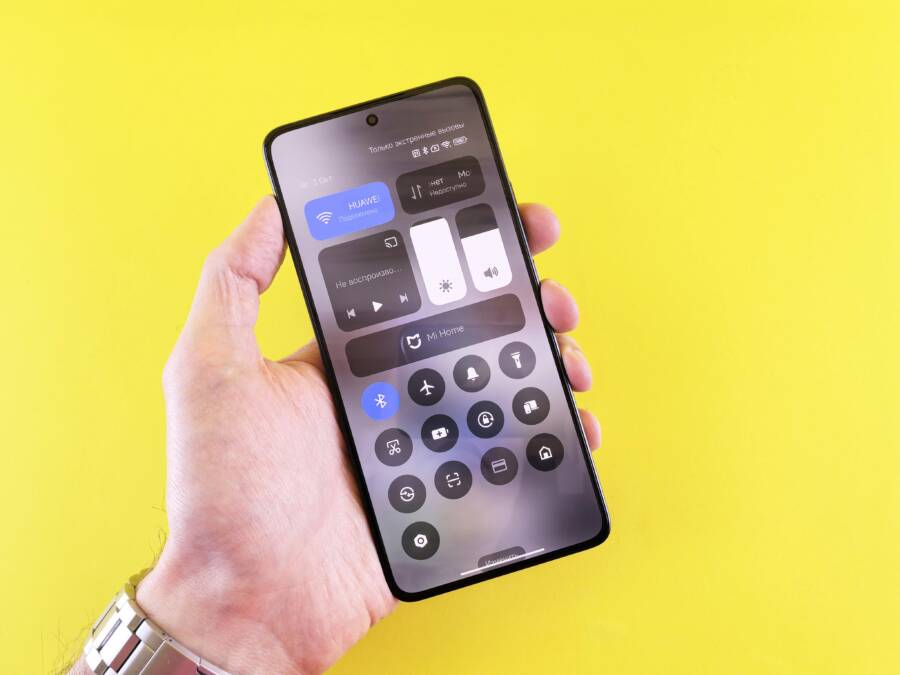
Yes, you can customize notification sounds for specific apps on your smartphone. While the exact menus differ between iOS and Android, both systems allow you to assign unique tones to your most important alerts.
This simple change helps you filter digital noise throughout your day. By setting distinct sounds for messages, emails, or work alerts, you can identify urgent notifications without looking at your screen. You save time and stay focused on your current task instead of checking every vibration.
The following steps explain how to adjust these settings on your device. Whether you need quiet alerts for social media or loud pings for work, you will find exactly how to organize your notifications below.
How to Set Unique Sounds for Apps on Your iPhone
You can tailor your notification experience on your smartphone by assigning specific sounds to individual apps and contacts. This level of control helps you prioritize information. When your phone pings, you instantly know if the alert requires an immediate response or if it can wait. Follow the steps below to configure your device.
Changing Alert Tones for Text Messages and Calls
Customizing tones for specific contacts is a practical way to manage your communication. You can create a clear distinction between work-related pings and personal messages. Setting these alerts ensures you never miss a vital update from a boss or client while keeping personal notifications separate.
- Open the Contacts app on your smartphone and select the person you want to customize.
- Tap the Edit button in the top right corner of the screen.
- Select the Ringtone or Text Tone option.
- Choose a unique sound from your library and tap Done.
- Save your changes to apply the new tone to that specific contact.
After you finish these steps, every call or message from this contact triggers the unique sound you selected. This method works well for people who receive hundreds of notifications daily. By assigning louder or distinct tones to important individuals, you reduce the need to check your phone constantly.
Using Focus Modes to Filter Notifications
Focus modes offer a way to silence non-essential app alerts while allowing important ones to come through. This feature acts as a secondary layer to your custom sounds. You can build a workspace where only specific communication channels remain active.
To set up a focus mode, navigate to Settings and select Focus. You can create a new profile for work or personal time. Inside each profile, choose the Apps tab to select which software can send notifications. You can also permit specific people to reach you even when others are silenced.
When you activate a focus mode, your smartphone hides alerts from apps like social media or games. This helps you maintain deep concentration on your tasks. You can toggle these modes manually in the Control Center or schedule them to turn on at specific times during your day. Using focus modes alongside unique sounds provides a comprehensive way to manage your digital environment.
Personalizing Notification Sounds on Android Devices
Android offers granular control over how your smartphone alerts you to new activity. Rather than relying on a single tone for all incoming traffic, you can differentiate between app alerts to manage your attention effectively. This process centers on notification channels, a system that groups similar alerts so you can adjust their sounds, importance, and behavior independently.
Using Android Notification Categories
Notification channels represent the backbone of alert customization on your device. When an app sends a notification, it sorts that alert into a specific category or channel. Developers create these channels to separate different types of updates, such as direct messages, group chats, or promotional announcements. By accessing these settings, you gain the ability to assign unique sounds to each specific alert type.
You can modify these settings by following these steps:
- Open your smartphone Settings and select Apps or Notifications.
- Find and tap the specific app you want to configure.
- Select Notification categories or Notification settings to see the full list of available channels.
- Tap the text of a category to adjust its behavior, sound, and importance.
- Select Sound to choose a new tone from your library and save your changes.
This approach provides a clear advantage when you want to ignore low-priority updates while keeping vital alerts active. For example, you can set a loud, distinct tone for direct messages while muting or using a subtle sound for group threads within the same app. Adjusting these settings takes only a few moments, yet it makes a significant difference in how you interact with your smartphone during the day.
Third Party Apps for Custom Sound Management
Sometimes the native options within your smartphone feel too restrictive for your specific needs. If you find the default configuration lacking or difficult to navigate, you might consider third-party tools. Many users turn to notification managers available on the app store to gain better control over complex rules.
These applications allow for more advanced customization, such as time-based sound profiles or auto-reply logic. They often simplify the process by providing a unified interface for all your apps. While Android gives you powerful built-in tools for most daily needs, these external solutions exist for users who require extra flexibility in how they handle their digital traffic. Always check the developer reputation and permissions before installing tools that require access to your system notifications.
Comparison of Sound Customization Options
Every smartphone provides different methods for managing audio alerts. Choosing the right approach depends on your specific needs, such as whether you want full control over every app or prefer a simpler, contact-based system. Understanding these options helps you avoid unnecessary distractions while staying connected to important updates.
Native System Tools vs. Third-Party Apps
Most modern devices include robust sound settings. On iOS, you primarily focus on contact groups and system-wide focus modes. Android devices offer deeper, category-based settings that allow you to modify sound behavior for specific types of notifications within a single app. These built-in tools are often sufficient for most users because they don’t require extra software or account permissions.
Third-party apps provide extra utility if your needs exceed these native features. These external tools allow for time-based profiles, automatic volume adjustments, or complex rules that the base operating system lacks. You should compare them based on your technical comfort level and how much time you want to spend configuring your settings.
Balancing Control and Convenience
You should aim for a setup that is easy to maintain. Spending hours creating complex rules for every single application often leads to notification fatigue. Instead, focus on identifying the three or four apps that genuinely require your immediate attention. Assign a distinct sound to those, and keep the rest at a neutral volume or silenced during work hours.
If you find yourself constantly adjusting settings, your current configuration might be too complicated. Simplify your approach by relying on built-in focus modes first. These modes allow you to switch between predefined sound profiles without reconfiguring individual apps. Only add third-party managers if your smartphone lacks the specific automation features you need for your daily workflow.
Common Questions About App Notification Sounds
Many people want to refine how their smartphone alerts them throughout the day. While the basic steps for changing sounds are simple, users often encounter specific hurdles when trying to tailor these settings. These questions cover frequent concerns about managing audio alerts on both iPhone and Android devices.
Can I set different notification sounds for every single app?
Both iOS and Android allow you to customize sounds for many apps, but the degree of control varies. Android users generally have more freedom because the operating system uses notification channels to group different types of alerts within one app. You can assign a specific sound to direct messages while choosing a different tone for general news updates or marketing blasts from that same software.
iPhone users also enjoy this capability for many apps, but the settings exist within the app itself or through the system settings menu. Some older or simpler apps may only allow you to toggle sound on or off without providing a library of custom tones. If an app does not appear in your notification sound settings, the developer likely restricted that feature.
Why do some apps ignore my custom sound settings?
If your smartphone seems to override your chosen tones, an app update or a system conflict is usually responsible. Occasionally, an app developer resets the default notification behavior during an update, which forces your device back to the manufacturer default sound. You can fix this by navigating to your notification settings and re-selecting your preferred tone.
Focus modes also cause this behavior by design. If you set up a Do Not Disturb or Work profile, your phone silences custom sounds to match your current schedule. Check your Focus settings if you notice your phone stays quiet during certain times of the day.
Do custom sounds impact my battery life?
Changing your notification sounds has a negligible impact on battery performance. The sound files themselves are very small, and your processor handles them quickly when an alert triggers. While a constant stream of notifications will drain your battery, the specific tone you choose does not change that outcome.
You might want to avoid extremely long audio clips for your notifications. While these do not damage your battery, they can become annoying after several repetitions. Choose shorter, clear sounds that grab your attention without cluttering your environment with unnecessary noise.
Will custom sounds reset if I upgrade my phone?
Moving to a new device often wipes your local notification preferences unless you use a backup service. If you restore your smartphone from a cloud backup, most of your settings usually carry over correctly. However, you should still verify your alerts after setting up a new device because some apps require you to re-link your notification preferences.
If you find that your settings did not migrate, manually update your most critical apps first. This ensures that your work-related or urgent personal alerts remain distinct as you transition to your new hardware. Taking a few minutes to reconfigure your primary alerts prevents missed messages during the changeover.
Conclusion
You now have the power to define how your smartphone interrupts your day. By assigning distinct sounds to your most important apps, you stop reacting to every single ping. This shift turns a noisy device into a focused tool that only demands attention when a priority alert arrives.
A quiet phone is often just as productive as a customized one. If you find yourself overwhelmed, don’t hesitate to mute non-essential apps entirely or rely on built-in focus modes. Your goal is to regain control over your attention.
Take a few minutes today to adjust your settings. A few simple changes to your notification sounds will drastically reduce your daily stress.