Camera uploads pausing in the background can slow back ups, leave new photos waiting, and make memories feel unsafe. On Android and iOS, popular apps like Google Photos, iCloud Photos, OneDrive, and Samsung Gallery sometimes stop syncing without a clear reason. This guide walks you through quick checks, in app settings, and what to fix before calling for help.
First, we’ll cover the basics you should check right away. Make sure the app has permission to access photos, storage, and the internet, that it’s signed in correctly, and that backup or sync is turned on in both the app and the phone’s settings. A flaky internet connection or low storage on the device often triggers pauses that hide behind a simple fix.
If you’re still seeing gaps, it’s time to tune the details. Look for power saving modes that limit background activity, update the app, and clear cache if needed. It’s also smart to choose one reliable backup path for your smartphone, so you don’t end up with duplicates or missed files. Quick win: toggle backup off and back on, then restart the phone to refresh the connection and get uploads flowing again.
Why Camera Uploads Pause in the Background and How to Fix It on Your Phone
When you snap photos, the last thing you want is a paused backup. Background uploads can stall for several reasons, from a weak connection to OS rules that curb what apps can do without your active involvement. This section breaks down the main culprits and how to address them so your memories stay safely backed up without you having to babysit the process.
Common causes that affect both Android and iOS
Background uploads rely on steady conditions. Here are the typical culprits that slow or pause backups, with practical fixes you can apply quickly:
- Weak internet connection
- A flaky Wi‑Fi signal or spotty cellular data can halt transfers. Ensure your phone has a stable connection, or switch to a stronger network when you expect to back up new photos.
- Full storage on the device or in the cloud
- If your phone’s storage is nearly full, new photos can’t be saved or uploaded. Check both local space and your cloud account’s available quota.
- Large photo queues
- If you’ve got thousands of photos waiting to back up, the process can take a long time or stall. Start with a smaller batch or pause new captures until the queue clears.
- Backup/sync feature turned off
- Sometimes the setting gets toggled off by mistake. Confirm that the backup feature is enabled in both the app and the system settings.
- Power saving modes
- Battery saver or low power modes often restrict background activity. Disable these modes when you want uploads to run in the background.
- OS updates and background task limits
- System updates can tighten how apps run in the background. After an update, you may need to re‑grant permissions or adjust settings to restore background uploads.
- Background data restrictions
- Some phones limit data for apps running in the background. Make sure the camera upload app has permission to use mobile data if you rely on cellular networks.
In practice, a quick win is to confirm the app is allowed to run in the background, verify backup is ON, and ensure you’re connected to a reliable network. If you recently updated your phone, recheck permissions and background data settings to match the new OS rules.
How OS behavior affects background uploads
Smartphones manage power and resources by design. That management can slow or pause uploads until you open the app again. Here’s what to know in plain terms for both major platforms:
- Android Doze and App Standby
- Doze limits app activity when your device is idle, aiming to save battery. App Standby further reduces activity for rarely used apps. Both can pause camera uploads until you wake the device or open the app.
- iOS background refresh rules
- iOS applies strict limits on what apps can do in the background. Background refresh allows some updates, but many actions are paused if the app isn’t active. This means uploads may slow or stop unless you bring the app to the foreground.
These controls exist to protect battery life and data usage. The consequence for your photo backups is that uploads can stall during idle periods and resume only after you interact with the app or your device wakes up.
Impact of app updates on uploads
App updates can change how backups work in subtle but meaningful ways. A simple rename or a hidden toggle can impact your backups without you realizing it.
- Feature name changes can confuse settings
- A switch from “Camera Upload” to “Gallery Sync” might appear the same, but the underlying permissions and behavior could shift. After an update, double‑check which feature is active.
- Permissions and background behavior can reset
- Updates may reset background data permissions or re‑enable restrictions. It’s common to need to reauthorize the app to run in the background or to re‑enable background sync.
How to verify after an update
- Open the app and review backup/sync settings to confirm they’re turned ON.
- Check that the app has permission to access photos, storage, and the internet.
- Ensure background data usage is allowed in the device settings.
- Confirm you’re on the correct backup path and that it matches your expectations (for example, Camera Upload vs Gallery Sync).
Example scenario
- After an update, you notice your photos no longer back up automatically. You find the setting labeled “Gallery Sync” is off. Turn it ON, ensure background data is allowed, and perform a manual sync to confirm the feature is functioning again.
This approach keeps your workflow predictable. You’ll know exactly where to look if a new update changes how uploads behave, and you won’t be surprised by missing backups when you most expect them.
Quick checks you can do right now to fix background uploads
If background camera uploads keep stalling, you don’t need to wait for a service rep. Try these practical checks you can perform in minutes. They cover connectivity, settings, storage, and background activity so you can get back to snapping and backing up your memories.
Test your internet connection and data settings
A stable connection is the backbone of backups. Start by confirming you have a reliable Wi Fi or mobile data connection. If you’re on cellular data, make sure uploads aren’t blocked and data saver modes aren’t throttling them.
- Check your current network status in the control center or settings.
- If possible, switch to a stronger network. Try a different Wi Fi network or move closer to the router.
- Disable data saver temporarily to test if it’s limiting app traffic.
- If you use a VPN, disable it for a quick test to see if it’s slowing uploads.
A quick test is to take a new photo and watch for it to back up over the current connection. If it uploads normally, the issue may be a flaky network or a saver mode that’s exercising too much caution.
Make sure the backup feature is turned on
Backup needs to be enabled both in the app and on the device. If it was off, turning it on can restore smooth uploads without further tweaks.
- Open the photo or cloud app and locate the backup or camera upload option.
- Enable the feature if it’s off.
- Perform a test by taking a new photo and waiting a moment to see if it backs up automatically.
- If you’re using multiple backup paths, pick one reliable option to avoid duplicates or missed files.
If the feature is already on, toggle it off for 30 seconds and then back on. This simple reset often clears minor glitches.
Check storage space on your device and in the cloud
Backups cannot proceed if there’s no free space. Check both local storage and cloud quotas to confirm you have room for new files.
- On your phone, check available storage in Settings > Storage.
- Sign in to your cloud account (Google Drive, iCloud, OneDrive, etc.) and verify free space.
- If space is tight, delete unnecessary files or offload them to another location.
- Consider purchasing additional cloud storage if you routinely run low.
In apps like Google Photos or iCloud Photos, you can typically see storage status from the account section. If space is low, freeing up even a little can clear the backlog and resume timely uploads.
Ensure background activity is allowed
Background activity is often restricted by power saving settings or OS policies. Make sure the camera upload app is allowed to run in the background.
- On Android, review battery optimization and background activity permissions.
- Go to Settings > Apps > [App name] > Battery > Allow background activity or Unrestricted.
- If present, check Background usage limits and set your app to Never sleeping.
- On iPhone, verify Background App Refresh is enabled for the cloud app.
- Open Settings > [App name] > Background App Refresh and ensure it’s on.
- If you recently updated the OS, recheck these permissions as updates can reset them.
- A quick sanity check: force close the app and reopen, then test a new backup.
If you still see pauses after these steps, consider a restart of the device. A clean reboot clears stuck background tasks and refreshes connections.
By following these checks in sequence, you’ll pinpoint whether the pause comes from the network, a misconfigured backup setting, storage pressure, or tight OS rules. A well-tuned smartphone, a stable connection, and a clear backup path let your photos flow to the cloud with minimal fuss. Remember to test with a fresh photo after each adjustment to confirm the change.
Step by step fixes inside apps and system settings
Backups can pause for many reasons, from app permissions to power saving rules. This section gives you practical, copyable steps for the most common backup apps. Follow these fixes in order to restore smooth background uploads on your smartphone.
In app backup and sync settings (example apps)
Copy these quick steps to verify and re enable backups after an update. If you see a rename like Camera Upload or Gallery Sync, the path is similar.
- Google Photos
- Open Google Photos and tap your profile picture in the top right.
- Go to Settings > Backup & sync and turn it ON.
- Ensure backups are set to a reliable option (Wi Fi only or Wi Fi and mobile data as you prefer).
- If uploads paused after an update, toggle Backup & sync OFF, wait 20 seconds, then ON again.
- Test with a new photo to confirm it backs up automatically.
- If you don’t see backups resume, check: battery saver, data saver, and background activity permissions under Settings > Apps > Google Photos.
- After an OS update, recheck these permissions and the backup path to match the new settings.
- iCloud Photos (iOS)
- Open Settings and tap your name, then iCloud > Photos.
- Make sure iCloud Photos is ON.
- If background uploads stall, leave the Photos app open for a moment or adjust settings under Settings > Photos to optimize how images are uploaded.
- If an update hides the switch, search for Background App Refresh and ensure Photos is allowed.
- Take a fresh photo and monitor uploads to confirm the behavior.
- OneDrive
- Open OneDrive and tap your profile picture, then Settings.
- Find Camera Upload or Auto upload and turn it ON.
- Choose the upload destination folder and set preferences (include video, upload using Wi Fi only, etc.).
- If an update changes the label, look for a similar toggle under camera or media upload.
- After enabling, test by taking a photo and reviewing the upload progress.
- Samsung Gallery (Samsung devices)
- Open Samsung Gallery and tap the menu icon.
- Go to Settings > Sync and backup and turn on Sync.
- Check that Backup to Samsung Cloud is enabled if you rely on Samsung’s service.
- Ensure Samsung Account is signed in and that you’re connected to Wi Fi.
- Do a quick test by capturing a photo and confirming it backs up.
If you ever notice a renamed option after an update, search for a related term like “Upload,” “Sync,” or “Backup” within the app’s settings. When in doubt, a quick toggle off and back on often clears the issue.
System permissions and background activity
Background work depends on system permissions and power rules. Here’s how to ensure the backup apps are allowed to run in the background on both platforms.
- Android
- Battery optimization
- Go to Settings > Apps & notifications > [App name] > Battery > Allow background activity or Turn off Battery optimization for the app.
- Background data
- Settings > Apps > [App name] > Mobile data & Wi Fi > Allow background data usage.
- App permission checks
- Settings > Apps > [App name] > Permissions. Ensure Storage, Photos, and Internet are allowed.
- Do not restrict all background work
- If you see “Restricted data usage” or similar, set it to allow uninterrupted data.
- Battery optimization
- iOS
- Background App Refresh
- Settings > General > Background App Refresh. Enable for the backup app.
- Location and privacy
- Settings > Privacy > Location Services. For photo organization, set to While Using Location.
- App permissions
- Settings > [App name]. Confirm access to Photos and Cellular Data if needed.
- OS updates
- After an update, recheck permissions since some rules reset.
- Background App Refresh
Unrestricted background data helps the camera backup app work as you expect. If you notice pauses, re check these settings and run a test backup after each change.
Location services and triggers for background uploads
Location data can improve how backups are organized, but it should not compromise privacy. Use location triggers judiciously to keep backups timely without oversharing.
- Why location helps
- Some apps can tag photos by the place they were taken and push updates when you enter new areas. This can streamline organization and ensure backups occur in the right context.
- Privacy guardrails
- Use the minimal setting that still works: set to “While Using the App” on Android or “While Using” on iOS. Avoid “Always” unless the app specifically needs it for a feature you use often.
- Platform specific steps
- Android
- Android location controls live in Settings > Location > App permissions. Find the backup app and set Location to While using the app.
- If you’re worried about privacy, disable location for the app when you’re not actively backing up, then enable it again during a backup window.
- iOS
- Settings > Privacy > Location Services. Tap the backup app and choose While Using the App.
- Consider turning off Location Services when you don’t need them. You still get location data when you actively use the app for backups.
- Android
- Practical tip
- If you notice delays in backups after a long trip, enabling location data briefly can help catch up, but revert to minimal access afterward to protect privacy.
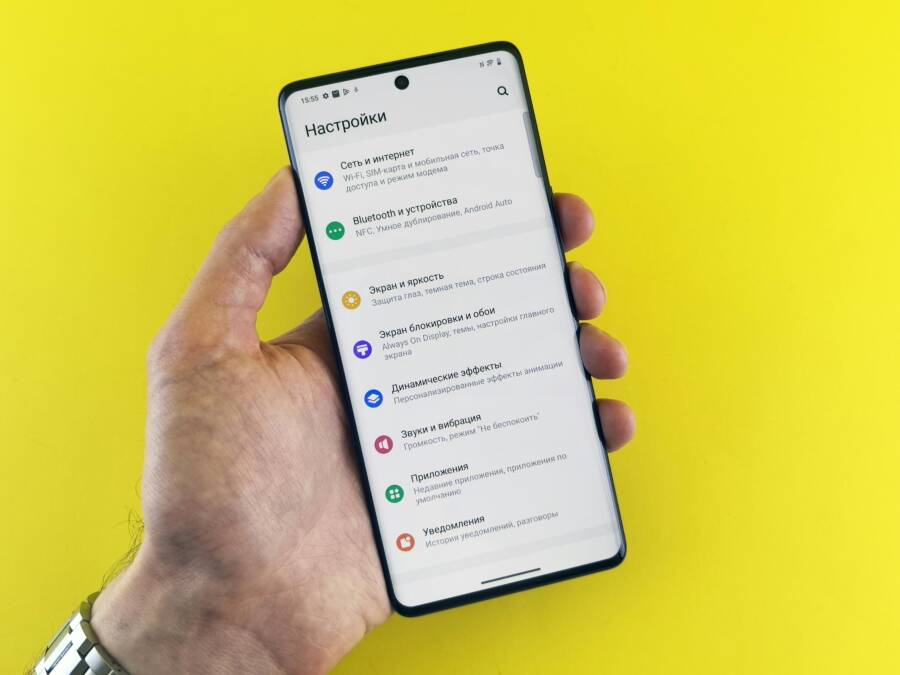
Images can visually illustrate the settings path. For example, a screenshot of the backup settings section in Google Photos or iCloud Photos helps readers follow along easily.
Images

Photo by Andrey Matveev
Advanced fixes if uploads still pause after changes
If you’ve updated apps or the OS and uploads still stall, it’s time for deeper troubleshooting. These advanced fixes address stubborn issues that basic checks often miss. Follow them in order, testing after each step to confirm progress. A clean backup path and a well-tuned device can keep your memories streaming to the cloud without manual intervention.
 Photo by Kelvin Valerio
Update apps and the phone OS, then reinstall the app
Keeping software current removes a long list of small glitches that accumulate over time. Here’s a concise checklist to follow:
- Check for updates
- On your phone, open the app store and look for updates to the camera backup app. Don’t skip OS updates either; sometimes a system patch is needed for background work.
- Install updates
- Install all available updates. After installation, restart the device to ensure the changes take effect.
- Reinstall the app (with a safe backup)
- If problems persist, back up your photos locally or to another service, then uninstall the backup app. Reinstall from the official store, sign in, and re‑enable backup.
- Why reinstall? It clears corrupted cache, resets internal flags, and applies fresh permissions. A clean install can resolve stubborn issues that updates alone can’t fix.
Safe backup reminder
- Before removing an app, back up your current photos to a trusted location. This protects your memories if something goes wrong during the reinstall.
Clear cache or reset app preferences
Cache corruption and misconfigured preferences are a common source of stuck uploads. Clearing cache or resetting preferences restores a clean slate without losing your actual files.
- When to clear cache
- If you notice delayed or missing backups after an update, clearing cache can remove stale data that confuses the sync engine.
- How to clear cache
- Android: Settings > Apps > [Backup App] > Storage > Clear cache.
- iOS: Offload the app, then reinstall to remove cached data without deleting your photos.
- How to reset app preferences
- Android only: Settings > Apps > Menu (three dots) > Reset app preferences. This restores all permission prompts and default behavior without removing your files.
- Why this helps
- Clearing cache forces the app to re-fetch lists and re-evaluate the backup queue. Resetting preferences eliminates misapplied permissions or disabled background rules that linger after updates.
Tip: After clearing cache or resetting, run a quick manual backup with a new photo. This confirms the connection is healthy and the backup path is correctly set.
Try a different upload method or service as a workaround
If the primary backup path keeps stalling, a temporary workaround can keep your latest shots safe while you troubleshoot the primary app.
- Manual uploads
- Use the web interface or another device to upload new photos manually. This avoids queue pressure and keeps your memories safe.
- Alternate cloud service
- Temporarily switch to a different service for automatic uploads. This helps you maintain a backup while you diagnose the original app.
- Multi cloud managers as a last resort
- If you rely on more than one service, a multi-cloud manager can route new photos to several destinations. Use this sparingly, since it adds another layer of complexity that could complicate later syncing.
- When to switch back
- If you notice improvements with the alternative path, it may signal a deeper issue with the primary app. Revisit settings after a day or two.
Practical note
- Keep the rest of your workflow intact. Don’t delete original files while you test different services. The goal is to preserve every new photo as you troubleshoot.
By applying these advanced steps, you can push through persistent pauses and restore reliable, hands-off backups. If the issue remains, you may be facing a device-specific bug or a carrier restriction, which can require direct support from the app team or your device maker.
When to contact support and what to report
If background camera uploads keep stalling after you’ve tried the quick fixes, it’s time to reach support. Knowing what to report speeds up the help you get and reduces back-and-forth. Use these guidelines to communicate clearly and get a targeted solution faster.
When to reach out to support
- You’ve performed the standard checks (permissions, backup on, stable network, enough storage) and uploads still pause or lag.
- The issue started after a specific event, such as aOS update, app update, or a new device setup.
- You see consistent, reproducible pauses even after resetting settings and testing a fresh photo.
- You use a multi‑path backup (more than one cloud service) and one path works while another stalls.
- You rely on automatic backups for important memories and want a dedicated fix path to prevent data gaps.
In these cases, contacting support can help you confirm if there is a known bug, a carrier restriction, or a device‑specific setting that needs attention. Include brief context about your device model and OS version so the agent can reproduce the issue more quickly.
What to report in your message
- A concise description of the problem
- Example: “Camera uploads pause after I take new photos, even though backup is ON and I’m connected to Wi Fi.”
- The exact app and version
- Include the app name (for example, Google Photos, iCloud Photos, OneDrive) and the version number from the app store.
- Your device and OS details
- Model, Android or iOS version, and any recent OS updates.
- Steps you’ve already tried
- List the fixes you completed (toggle backup, check storage, verify background activity, restart, reinstall if needed).
- Evidence of the behavior
- A brief sequence: what you did, what you expected, what happened, and how long the pause lasts.
- Backup path and settings
- Which backup path you use (primary cloud, secondary service) and whether you’ve changed it recently.
- Any recent changes
- OS updates, app updates, new network or VPN use, or changes to power saving settings.
What not to overlook when reporting
- Mention any error messages verbatim
- Include screenshot or a short screen recording if allowed
- Note if the issue affects only one app or multiple backup apps
- Confirm whether the problem occurs on both Wi Fi and mobile data
How to structure your support request for speed
- Start with a crisp summary: “Background uploads pause on Android device after latest update.”
- Follow with the checklist: device model, OS version, app version, and a short reproduction
- Attach relevant files: screenshots, a short video, or a log if the app provides one
- End with your preferred outcome: a reliable path for automatic backups and a confidence that the issue is resolved
Practical tips to include in the body
- Include a recent test: take a photo and note whether it backs up automatically within a minute.
- State the backup path you want to keep and any temporary workarounds you’re using.
- If you suspect a bug, mention the exact moment the pause begins (for example, after a specific app update or OS patch).
By presenting a clear, structured report, you help support teams see the root cause faster. You reduce back and forth and get back to capturing memories with minimal interruption.
Conclusion
Troubleshooting camera uploads that pause in the background is about clear checks, steady settings, and a calm testing routine. A well‑tuned smartphone with stable network access keeps memories safe without manual input. Keep the backup path simple and recheck permissions after any OS or app update to prevent surprise pauses. If you stay methodical and test after each change, you’ll restore reliable, hands‑off backups.
Printable checklist
- Confirm the backup feature is ON in both the app and device settings
- Verify a stable internet connection and test with a fresh photo
- Check storage space on the phone and in the cloud
- Ensure background activity is allowed for the backup app
- Review permissions after any OS or app update
- Restart the device after changes to refresh connections
Monitor results over a few days
- Run a small batch test each day
- Note any timing changes or new pauses
- If issues persist, consider a reinstall or an alternate backup path temporarily
If you’ve followed these steps, you should see uploads resume smoothly. Share any lessons learned or questions in the comments so others can benefit from your experience.