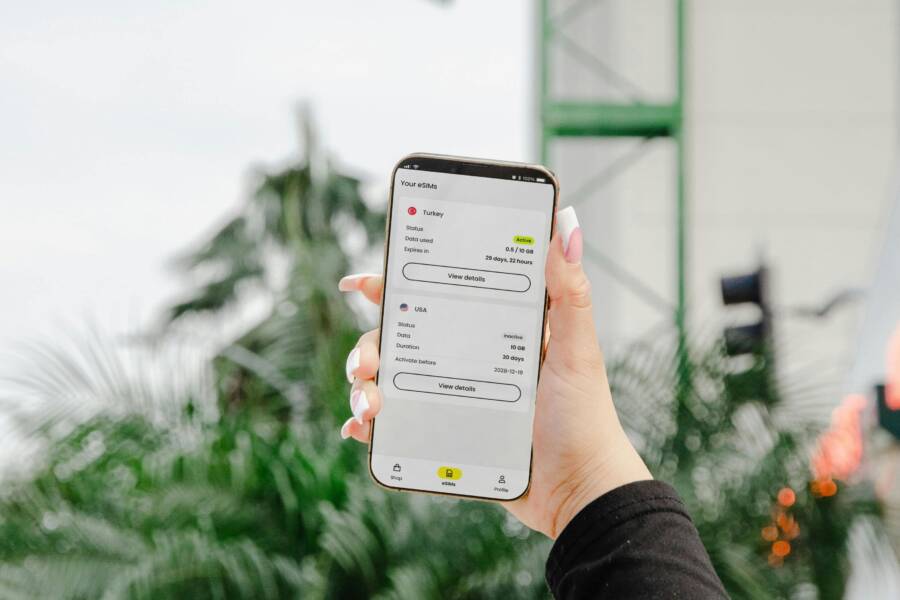
Picture this: you’re out and want to save photos to iCloud, Google Drive, or Dropbox, but every upload stalls when you’re on cellular data. It works fine on WiFi, which is both frustrating and confusing. The problem isn’t the cloud service, it’s how your phone talks to the network.
In this guide you’ll find simple, step by step fixes that work on both Android and iPhone. We’ll cover common culprits like data saver modes, battery limits, APN quirks, and VPN interference. Each fix takes just a few minutes and aims to restore normal uploads over cellular without turning your phone into a data hog.
You’ll learn how to empower your cloud apps to use cellular data, identify when background tasks are blocked, and adjust settings so uploads resume reliably when you’re away from WiFi. By the end, you’ll have a clear path to keeping your files safe in the cloud, no matter which network you’re on.
Think of this as a quick, practical toolbox. We’ll explain the core reasons this happens and give you concrete, actionable steps you can apply today. With these tweaks, your smartphone becomes a more dependable ally for everyday backups and file transfers.
Why Cloud Uploads Fail Only on Mobile Data, Not WiFi
When you’re on the move, cloud uploads can stall even though your WiFi works fine. The culprit isn’t the cloud service itself but how your phone handles cellular data. Systems built to save you money and battery can curb background activity, and that single change can keep big uploads from finishing. The good news is you can adjust settings to get reliable uploads again without draining your data plan. Below are the main areas to check and fix.
Data Saver and Low Data Mode Stop Uploads in Background
Both Android and iOS include modes designed to cut back on data use in the background. On Android, the feature is called Data Saver. It blocks most background data on cellular, unless you explicitly whitelist an app. That means cloud apps like Google Drive, Dropbox, and iCloud may not back up files until you lift the restriction. On iPhone, Low Data Mode does the same job for cellular connections, and it also affects background refreshes and auto-downloads. The effect is similar on iPadOS, and per-app controls let you tailor which apps are allowed to run in the background.
What this means for cloud backups: if your data saver is on and you haven’t whitelisted your cloud apps, uploads will pause in the background. Even with the policy in place, you can still upload over WiFi. If you notice a sudden stop in cellular uploads but WiFi works, check the whitelist or disable data saver temporarily to confirm the cause. A quick test is to try a manual upload while data saver is off; if it completes, you’ve pinpointed the setting.
Tips to fix quickly:
- On Android, go to Settings > Network & internet > Data usage > Data saver and toggle it off or add cloud apps to the whitelist.
- On iOS, go to Settings > Cellular > Cellular Data Options > Low Data Mode and turn it off, then test a backup. If you need data savings later, re-enable and selectively allow apps.
- Check both devices and cloud apps you rely on, since Drive, Dropbox, and iCloud behave the same under these rules.
Battery Saver Limits Cloud Apps on Cellular
Power modes are blunt tools that prioritize battery life over constant connectivity. Android Battery Saver reduces background activity and refreshes, and it tends to apply more restrictions when you’re using cellular data. This slows or pauses cloud uploads as the system conserves energy. On iOS, Low Power Mode dampens background tasks, including app refreshes, auto-downloads, and certain background processes. It also affects location services, which can indirectly impact when a backup starts.
Because battery saving often targets cellular activity first, you may see normal WiFi uploads but stalled cellular backups when these modes are active. If you frequently back up on the move, consider turning battery saver off during uploads or scheduling backups for periods when you’re plugged in or on a stable power source.
What to do:
- Android: Open Settings > Battery > Battery Saver and switch off during uploads. If you must keep it on, whitelist cloud apps so they can run in the background.
- iOS: Open Settings > Battery > Low Power Mode and toggle off while you’re actively backing up. You can re-enable afterward if needed.
- If you notice a pattern, pair battery saver adjustments with data saver settings for a more reliable cellular backup window.
Network Settings Glitches: APN, IPv6, and MTU Issues
Sometimes the problem is not the app but the network configuration. A few common culprits show up more on cellular than on WiFi:
- APN (Access Point Name): The APN tells your phone how to connect to the carrier’s data network. If it’s misconfigured or cached incorrectly, cloud uploads can fail to establish or stay stable. A typical symptom is a “no connection” message for cloud apps even when you’re online.
- IPv6 and IPv4 compatibility: Some cloud services still work best with IPv4. If your carrier uses IPv6 by default and your cloud servers don’t fully support it, uploads can stall or slow down.
- MTU (Maximum Transmission Unit): If the MTU setting is too high, large packets used by big file uploads may fragment or get dropped on the cellular path, causing slow or failed transfers.
How to approach these issues:
- APN: Check your carrier’s recommended APN settings and reset to automatic if possible. If problems persist, contact support or compare settings with another SIM to confirm if the issue is device or carrier related.
- IPv6: In some phones, you can toggle IPv6 off in advanced network settings. If a cloud service struggles, try disabling IPv6 temporarily to test whether the uploads resume.
- MTU: Access the APN or advanced network settings and adjust MTU to a lower value such as 1420–1460. Test a large backup after each change.
Tip: After making adjustments, perform a controlled test by uploading a representative file over cellular. Compare the result with a same-sized file over WiFi to spot the difference quickly.
VPNs, Permissions, and Carrier Throttling Get in the Way
Several other factors can complicate cellular uploads:
- VPNs: A VPN reroutes your traffic and adds encryption overhead. While helpful for privacy, it can slow uploads, especially for large files like photos and videos. Some VPNs also route traffic in a way that clouds apps don’t like, causing timeouts or intermittent failures.
- App permissions: Cloud apps need storage and photo access to upload files. If an app loses permission after an update or change in settings, uploads can stall. Check that each cloud app has the required permissions to access photos, media, and files.
- Carrier throttling: After you hit a monthly data cap, carriers often slow down uploads more aggressively than downloads. The effect is most noticeable with large transfers like cloud backups, especially on streaming-like tasks.
What to do:
- VPNs: Temporarily disconnect or switch to a split-tunnel configuration that allows cloud apps to bypass the VPN for uploads. If you must keep a VPN, look for one that supports split tunneling for cloud services.
- Permissions: On Android, go to Settings > Apps > [App] > Permissions and ensure Storage and Photos are allowed. On iOS, go to Settings > Privacy > Photos and ensure the cloud app can access your photos, and check Files & Folders permissions as well.
- Throttling: When possible, perform large backups on WiFi or schedule them for off-peak times when data speeds are higher. If you rely on cellular, consider a plan with higher data limits or a carrier that offers higher speeds for uploads.
Key takeaway: if your uploads stall only on cellular, start with the simplest checks—data saver, battery saver, and permissions—before diving into network and carrier settings. Each layer can block access, and often the fix is a quick toggle or permission reset. By keeping these areas in mind, you’ll keep your cloud backups moving smoothly, no matter which network you’re on.
Quick Universal Checks to Try First
When cloud uploads stall on cellular data, the fastest path to a fix is often a few small, universal checks. These checks apply to both Android and iPhone, and they help you rule out the most common blockers before you dive into network or carrier settings. Think of them as the first round of diagnostics you can perform on your smartphone. They’re quick, reversible, and often immediately effective.
Test Uploads: WiFi Works, Cellular Fails?
Begin by confirming the issue with a simple, side-by-side test. Use a small photo or a brisk set of pixels that isn’t sensitive to size. Upload this image first over your WiFi network, then switch to cellular data and attempt the same upload. If the WiFi success is clear but cellular still fails, you’ve pinpointed a cellular path problem rather than a cloud service issue. This quick test helps you avoid chasing phantom problems.
- Use a small file to keep test times short.
- Try both iCloud and other cloud services like Google Drive or Dropbox if you rely on more than one.
- If cellular works for other tasks but not for cloud uploads, focus on device-level settings rather than the app itself.
What you’re looking for is a consistent pattern: cellular consistently fails while WiFi succeeds. If both networks fail, the issue is likely with the app or the account, not the network. In that case, move to the next steps or test with a different cloud service to confirm where the fault lies. Conducting this simple two-network test gives you a clear starting point and saves time later.
Free Up Storage and Grant Permissions
Cloud uploads depend on two critical resources: available storage on the device and proper app permissions. If storage is tight or an app lacks the necessary permissions to access photos and files, uploads can stall on cellular data. Start with a straightforward check of space, then verify permissions for the cloud apps you rely on.
- Check device storage: aim for more than 10% free space. When space dips below this threshold, uploads can slow or pause as apps struggle to write to the device.
- Grant per-app permissions: cloud apps need access to photos, files, and media to upload. If an update changed permissions, or you installed a new cloud app, recheck and reenable the necessary rights.
On Android, you’ll typically verify storage in Settings > Storage and review app permissions under Settings > Apps > [Your Cloud App] > Permissions. On iPhone, check storage under Settings > General > iPhone Storage, and review permissions under Settings > Privacy & Security for Photos, Files and Folders, and Cellular Data. Also confirm that each cloud app has background data access enabled so uploads can proceed even when the app isn’t open.
- If space is low, delete or offload unused apps, videos, and photos you don’t need immediately.
- For permissions, ensure Storage or Photos and Files access is set to Allow or Read and Write as appropriate. Re-run a test upload after making changes.
Extra tip: background data and unrestricted data usage matter. In the per-app settings on Android, enable Background data; on iOS, ensure Cellular Data Options allow the app to use cellular data in the background. A quick test after adjusting permissions helps confirm the fix. Adapting these steps to your device keeps cloud uploads moving, even when you’re away from WiFi.
Step-by-Step Fixes for Android Phones
When cloud uploads stall on cellular data, a few quick adjustments can restore reliability. This section lays out practical, Android-focused fixes you can apply in minutes. Each step targets a common blocker, from app permissions to network quirks, so you can get your files moving again without overhauling your setup.
 Photo by Jacob
Disable Data Saver, Battery Saver, and Optimize Permissions
Data Saver and Battery Saver are handy for saving money and extending battery, but they can block background uploads. On Android, Data Saver stops most background data unless you whitelist apps. Battery Saver tightens up background activities, which can pause cloud backups when you’re on cellular.
Start with a quick audit of these settings and then test a backup to confirm if the issue is resolved. If you rely on cloud backups on the go, keep Data Saver off or create an allowlist for Drive, Dropbox, or other cloud apps.
- Settings path: Network > Data usage > Data saver off; Battery > Saver off; Apps > Drive > Permissions on.
- After turning off, run a small upload to verify it completes over cellular.
- If you must keep these features on, whitelist the cloud apps so they can run in the background.
Reset APN Settings and Tweak IPv6
APN settings control how your phone connects to the carrier’s data network. A misconfigured APN can disrupt uploads, especially on cellular. IPv6 can also cause issues with some cloud services that still favor IPv4 in certain conditions. A reset to default APN and a test with IPv4 can quickly confirm if the network path is to blame.
- APN reset: Settings > Network > Mobile network > APN > Reset to default.
- Protocol tweak: Ensure the APN protocol is set to IPv4 (or IPv4/IPv6 if you need both).
- Test: After resetting, perform a large upload over cellular to gauge stability.
Tip: If you’re unsure about the correct APN values, check your carrier’s official guide or contact support. Sometimes another SIM shows whether the issue is device specific or carrier related.
Clear Cache, Turn Off VPN, Adjust MTU, and Check Data
A few under-the-hood toggles can unblock stubborn uploads. Clearing app caches frees space and resets some background heuristics. A VPN can add overhead that slows large transfers, and MTU settings affect packet sizes on cellular paths. Finally, keep an eye on data usage to ensure you haven’t hit throttling thresholds.
- Clear cache: Apps > Storage > Clear Cache for the cloud app you use.
- VPN: If you’re using a VPN, disable it to test uploads. If you need a VPN, consider split tunneling for cloud services.
- MTU: ##4636## to access MTU settings or check advanced network options; try lowering MTU to 1420–1460 and test.
- Data usage: Monitor usage to see if throttling is active or if a specific app consumes more than its share during backups.
- After changes, reattempt a cellular upload and compare with the same file on WiFi.
These steps address common bottlenecks that block large transfers. If the issue persists, you can combine these with APN or IPv6 adjustments for a thorough return to normal service.
Key takeaway: start with cache clearing and permissions, then rule out VPN and MTU issues. A quick sequence often fixes most cellular upload stalls without digging into complex network rules. Keep the cloud apps authorized and ready to run in the background, and your smartphone becomes a dependable companion for backups on the go.
Step-by-Step Fixes for iPhone
When cloud uploads fail on cellular data, a few precise tweaks on your iPhone can restore reliability. This section walks you through practical, easy-to-follow steps that fix the most common culprits. You’ll learn how to free up background activity for your cloud apps, adjust network and permission settings, and test the results so your files land in the cloud even when you’re offline from WiFi. Think of this as a quick, hands-on playbook you can run on your smartphone to keep backups moving.
Turn Off Low Data Mode and Low Power Mode
Low Data Mode and Low Power Mode are built to save data and extend battery life, but they can quietly throttle cloud uploads in the background. On iPhone, Low Data Mode reduces the amount of data your apps can use over cellular, and Low Power Mode slows background tasks, which can stall large transfers like photo or video uploads to iCloud or other clouds. If you notice uploads pause when you’re away from WiFi, a fast check of these toggles can often fix the issue.
What to do:
- Go to Settings > Cellular > Cellular Data Options > Low Data Mode and switch it off.
- Go to Settings > Battery > Low Power Mode and switch it off.
- After turning them off, run a small backup over cellular to confirm the change. If you need to save data later, you can re-enable these features and selectively allow apps.
Why this helps: once these modes are off, your cloud apps get a clearer path to use cellular data for uploads without automatic throttling. You’ll rarely need to keep them disabled for long, just long enough to complete the backfill.
Reset Network, Manage Permissions and Background Refresh
Network quirks and outdated permissions are common culprits. Clearing network settings can reset misconfigurations that block cloud traffic. At the same time, ensuring the cloud apps have the right permissions and background refresh settings guarantees uploads can proceed even when the app isn’t foreground.
What to do:
- Reset network settings: Settings > General > Transfer or Reset iPhone > Reset > Reset Network Settings. This does not erase personal data but removes saved WiFi networks and VPNs.
- Manage photos permissions: Settings > Photos and ensure cellular data use is allowed for the cloud app you rely on. If you use iCloud Photos, verify it’s enabled under Settings > [Your Name] > iCloud > Photos.
- Enable background refresh for WiFi and cellular: Settings > General > Background App Refresh and set it to Wi-Fi & Cellular. Then confirm the cloud app is allowed to refresh in the background.
Why this helps: fresh network settings remove stubborn stalls, and proper permissions plus background activity ensure uploads aren’t blocked when you switch between networks or open the app briefly.
Clear App Data, Disable VPN, and Check Carrier Settings
If an app stores stale data or if your network path is altered by a VPN or carrier settings, cloud uploads can stall. Clearing app data gives the app a clean slate, while disabling VPN lets you confirm whether the VPN was the bottleneck. Checking carrier settings helps ensure your iPhone speaks the right language on your network.
What to do:
- Clear app data or offload: Settings > General > iPhone Storage. Offload the cloud app if available, then reinstall later to reclaim space and reset its data.
- Disable VPN: if you have a VPN installed, turn it off. If you need VPN access later, test with it off first to confirm uploads return to normal.
- Check carrier data settings: Settings > Cellular > Cellular Data Network. Make sure the APN and related options reflect your carrier’s recommended values; if unsure, contact support or compare with a known-good SIM.
Why this helps: a clean app state prevents corrupted caches from blocking transfers, and a direct test with VPN off isolates whether the tunnel is the issue.
If you want to keep your cloud backups predictable on the go, these quick checks give you a reliable starting point. Your smartphone can manage big transfers more smoothly once you confirm data usage permissions, reset network paths when needed, and rule out VPN as the culprit. After these steps, you should have a clear picture of where the bottleneck sits and how to fix it without hunting through menus for hours.
Prevent Upload Issues and What to Do Next
When cloud uploads stall on cellular data, you’ll want a clear, repeatable process to diagnose and fix the problem. This section outlines practical steps you can take right away, plus a quick plan to prevent future hiccups. Think of it as a compact playbook for getting your files safely into the cloud no matter which network you’re on.
Start with the basics: quick checks you can trust
A fast, reliable way to diagnose is to run a couple of simple tests. If uploads work on WiFi but not on cellular, the issue is likely network or device settings rather than the cloud service itself. Use a small file for testing and compare results across apps you rely on. If the same file uploads over cellular after a few tweaks, you’ve pinpointed the culprit.
- Confirm two-network behavior: small backup on WiFi succeeds, same file on cellular fails.
- Try multiple cloud services to rule out a single service issue.
- If cellular fails across services, focus on device settings rather than the app itself.
Data saver and battery saver: know when they block uploads
Background activity is essential for timely backups. Data saver modes and power-saving features are common culprits. They limit background data or throttle tasks to save battery or data.
- Data saver (Android): blocks background data unless apps are whitelisted. Add your cloud apps to the allowlist.
- Low data mode (iOS): reduces data use and can slow or pause background refreshes. Turn it off temporarily to test.
- Battery saver / Low power mode: slows background tasks, which can delay uploads. Disable during backups if you frequently upload on the go.
What to do:
- Disable data saver or low data mode during a backup window.
- Whitelist cloud apps so they can run in the background when needed.
- Re-enable after the backup if you want ongoing data savings.
Permissions and background activity: ensure the right access
Uploads fail when apps lack the necessary permissions or when background refresh is blocked.
- Check per-app permissions on Android and iOS to ensure access to photos, files, and storage.
- Enable background app refresh so uploads proceed even when the app isn’t open.
- Verify that the cloud app has permission to use cellular data in the background.
What to do:
- Regrant storage, photos, and files access as needed.
- Allow background data usage for the cloud app.
- Run a test backup after adjusting permissions.
Network nudges: APN, IPv6, and MTU basics
If the network path is misconfigured, cloud uploads may stall on cellular.
- APN: Ensure the carrier’s APN settings are correct or reset to automatic.
- IPv6 vs IPv4: Some services perform better on IPv4; temporarily test with IPv6 disabled if you suspect issues.
- MTU: Lower MTU values can help large uploads travel more reliably over cellular.
What to do:
- Reset APN to default if you suspect a misconfiguration.
- Toggle IPv6 off if you notice slow uploads with large files.
- Adjust MTU to a lower range (for example 1420–1460) and test.
VPNs and carrier throttling: isolate the bottleneck
A VPN can add overhead and cause timeouts on large transfers. Carrier throttling can also affect big backups after you pass data caps.
- VPN: disconnect to test, or switch to split tunneling for cloud services.
- Throttling: schedule large backups for off-peak times or use a plan with higher upload speeds.
What to do:
- Run a test with VPN off to see if uploads improve.
- If you must use a VPN, enable split tunneling for cloud traffic.
- When possible, perform large backups on WiFi or during times with better network performance.
How to test and prevent: a simple, repeatable routine
A solid routine prevents recurring issues and helps you move quickly when trouble hits.
- Do a baseline test: two backups, one on WiFi and one on cellular, with a small file.
- Log the results: note which settings were changed and the outcome of the test.
- Schedule regular checks: a monthly quick test keeps you ahead of problems.
- Keep a small set of trusted cloud apps whitelisted for background data.
What to do next if problems persist
If the issue continues after the above steps, broaden the check to include device health and account status.
- Update apps and OS: ensure you’re on the latest version to avoid known bugs.
- Free up space: aim for extra headroom on the device, since low storage can slow or block backups.
- Test with another smartphone: if possible, swap the SIM or use another device to determine whether the problem is device- or carrier-related.
- Contact support: reach out to the cloud service, carrier, or device maker with the steps you’ve tried. A data-led report speeds up diagnosis.
Key takeaway: start with the simplest toggles—data saver, battery saver, and permissions—and then move to network and VPN considerations. A methodical approach saves time and keeps your smartphone backing up files reliably, even when you’re away from WiFi.
Conclusion
Keeping cloud uploads reliable on cellular data comes down to a few simple, repeatable checks. Start with the basics like data saver and battery saver, then confirm that cloud apps have the right permissions and are allowed to run in the background. These quick toggles often fix the majority of stalls without touching complex network settings.
If the issue persists, test the path by resetting network settings on your device and temporarily disabling any VPN. These steps isolate whether the bottleneck is the network or the app. On most phones, once you clear caches and adjust per app permissions, uploads resume smoothly over cellular, especially when you schedule backups during lighter data usage periods.
Your smartphone becomes a dependable tool for backups once you adopt a small, repeatable routine. Do a two-network test, log what you changed, and repeat monthly to stay ahead of problems. Share in the comments what worked for you and which tweak made the biggest difference. If you found this guide helpful, subscribe for more practical tips that keep your cloud data safe on the go.