He Was Drowning in Bills and Burnout Until a Simple Daily Ritual Rewired His Brain for Wealth in Less Than a Week
>>> Start Your Shift Today <<<

If you suspect someone knows your phone passcode, act quickly. Your data, apps, and personal safety could be at stake, so the sooner you respond the better. This quick guide covers immediate steps, how to spot signs, and long term habits to keep your smartphone secure.
First, change your passcode right away and enable biometrics. On iOS and Android, pick a strong code that isn’t easy to guess and add fingerprint or facial recognition as a backup. Then turn on two factor authentication for your most important accounts, so a second verification step protects you even if a password is known.
Next, review your devices and accounts for unfamiliar access. Remove any devices you don’t recognize from your Apple or Google accounts, and check for unusual sign ins. Turn on Find My or Find My Device so you can locate or remotely wipe your phone if needed. If you fear compromise, consider a remote wipe to protect sensitive data.
Long term habits matter. Use a password manager to store unique, strong passwords and keep your software up to date. Limit app installs to official stores and review permissions regularly. Keep carrier security in place with a PIN or passcode for your account. Remember, swift action today protects your smartphone and your privacy tomorrow.
He Was Drowning in Bills and Burnout Until a Simple Daily Ritual Rewired His Brain for Wealth in Less Than a Week
>>> Start Your Shift Today <<<
Signs your passcode might be known
If you suspect someone knows your phone passcode, act fast. Early signs can be subtle but meaningful. Look for unusual prompts, unfamiliar activity, or access to apps and accounts you didn’t authorize. Treat these signals as a warning flag for possible unauthorized access. This section breaks down concrete indicators, why they matter, and how they tie back to someone else using your device.
Photo by RDNE Stock project on Pexels
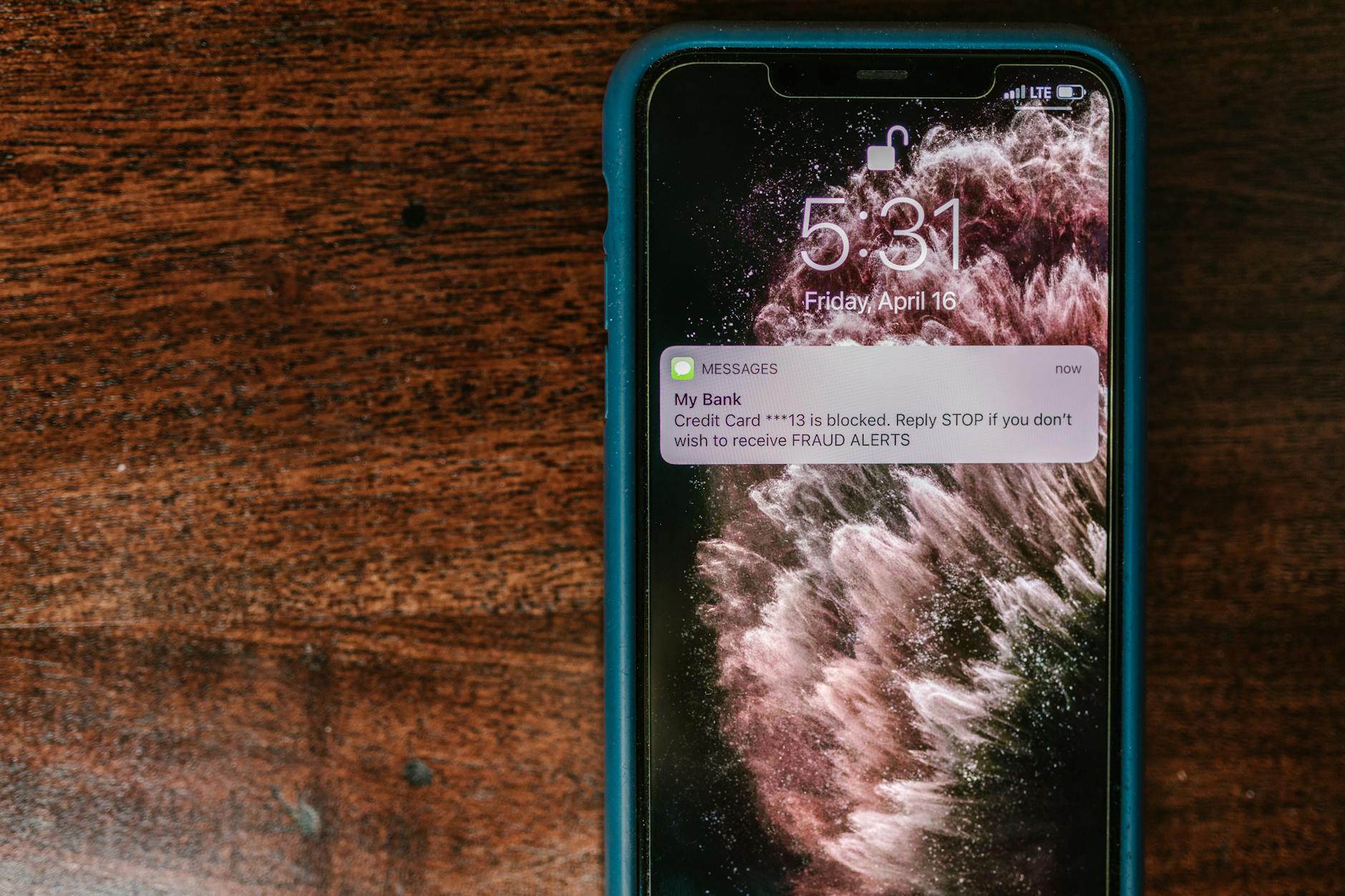 Photo by RDNE Stock project
Red flags that your passcode is known
- Unexpected passcode prompts or repeated lockouts: If you’re prompted to enter a passcode more often than usual or you see repeated lockouts, it could mean someone attempts to access your device with your code. These prompts are not normal if you haven’t tried to unlock the phone yourself.
- Strange verification codes showing up: Receiving verification codes for sign-ins you didn’t initiate points to someone trying to access your accounts. A sudden flood of codes or codes for services you rarely use should raise a flag.
- New apps or settings you didn’t enable: Apps appearing on your home screen or in settings without your action can indicate remote management or unauthorized installation. This is especially true if they request heavy permissions.
- Faster battery drain or data usage: If the battery depletes rapidly or data spikes without a clear reason, it could be background activity running on your device.
- Being locked out of accounts or services: If you can’t sign in to popular apps or you receive notices about password changes you didn’t request, an intruder may have gained footholds in your accounts.
- Unfamiliar device activity in your accounts: Sign-ins from devices you don’t recognize or new sessions on services like email, cloud storage, or social apps can signal compromise.
- Changes to security settings you didn’t make: Adjustments to security questions, backup options, or recovery emails without your knowledge are red flags.
- Unusual push notifications: Alerts about login attempts, new device connections, or security events that you did not trigger should never be ignored.
Why these signals matter: They point to someone else waking into your digital life. A passcode breach often comes with account access, which enables broader data exposure. The moment you notice any of these signs, treat it as a serious risk and start a protective sequence.
Quick checks you can perform on iPhone and Android
- Review active sessions and devices: Check which devices are signed into your accounts. On iPhone, look at your Apple ID devices list; on Android, review your Google account devices. If you see an unfamiliar device, remove it.
- Inspect recent sign-ins: Look for recent sign-ins to key apps and services. If you spot a login from a location you don’t recognize, it’s a red flag.
- Verify app permissions: Open settings and review permissions for apps. Revoke any that seem excessive or unnecessary.
- Look for unfamiliar profiles or device management: In settings, search for anything that resembles “device management,” “profiles,” or “work profile.” Remove anything you didn’t install.
- Run a quick security scan: Use the built-in security features or trusted security apps to scan for malware or unusual activity on your device.
- Confirm Find My features: Ensure Find My (iPhone) or Find My Device (Android) is enabled. This helps you locate, lock, or wipe your phone remotely if needed.
- Check passcodes used in sensitive apps: Review password entries in sensitive apps and services. If you notice reuse or weak codes, update them.
- Review recent app installations: If you see apps you didn’t install, remove them and run a security check on the device.
- Inspect network activity: Look for unusual data usage that doesn’t match your typical pattern. Unknown connections can indicate remote control or data exfiltration.
- Confirm two-factor authentication status: Make sure 2FA is enabled on your most important accounts for an extra layer of protection.
Helpful resources you can consult:
- See devices with account access for Google accounts to verify signed-in devices. Review signed-in devices
- Apple’s guidance on monitoring who has access to your iPhone or iPad. See who has access to your iPhone or iPad
- Quick steps to use two-factor authentication on Apple IDs. Two-factor authentication for Apple Account
Image by RDNE Stock project on Pexels
Photo by RDNE Stock project
What to look for in app behavior and device management
- Unfamiliar profiles or mobile device management: Some attackers push profiles to phones to gain control. If you see profiles you didn’t authorize, remove them and reset your device.
- Hidden or suspicious apps: Anything that hides in a folder or runs in the background can be a tool for mischief. Uninstall suspicious apps and run a scan.
- Sudden changes to notification settings: Malicious apps may alter alerts to avoid detection. Reconfigure notifications to keep you informed.
- New shortcuts or widgets you didn’t add: These can indicate a compromised device or remote access.
Incorporating these checks into your routine creates a safer baseline. A proactive approach keeps your data safer and makes it harder for a would-be intruder to stay hidden.
For deeper guidance on recognizing and responding to a hacked phone, consider trusted sources like Forbes or Dashlane. They offer practical steps and clear checklists you can apply right away. 6 Signs Your Phone Is Hacked — And What To Do Next | How to Know If Your Phone Is Hacked
Quick checks you can perform on iPhone and Android (alternative quick-start guide)
- Check recent security events in your accounts: Go to your account’s security page and review recent activity. If you see something unfamiliar, take action immediately.
- Review device access in security settings: Confirm which devices have access and revoke any that look unfamiliar.
- Verify Find My features are on: Make sure Locate functionality is enabled so you can act quickly if needed.
- Ensure 2FA is enabled for important services: This adds a critical barrier even if a password is known.
If you want to go deeper, Apple’s and Google’s official support pages provide step-by-step instructions that align with what you’re doing now. Use them as a trusted reference to reinforce your setup. Turn on 2-Step Verification – iPhone & iPad | Two-factor authentication for Apple Account
Note: Always tailor these checks to your daily routines. A smartphone is more than a device; it’s a gateway to your life. Keeping a clear head and following a simple set of checks makes a big difference.
Photo by RDNE Stock project on Pexels
Photo by RDNE Stock project
What to do immediately after you notice signs
- Act fast to minimize risk: Swift action caps potential damage. Do not delay.
- Change your passcode first: Create a strong, unique code you don’t use elsewhere.
- Enable biometric security: Add fingerprint or face unlock as a backup so access isn’t solely passcode based.
- Turn on 2FA for important accounts: Prioritize email, banking, social, and cloud services.
- Enable Find My devices for remote actions: Use Find My iPhone or Find My Device to locate, lock, or wipe if needed.
- Review and reset related accounts: After you change passcodes, audit accounts for suspicious activity and revoke any unfamiliar access.
- Document dates and signs: Keep a simple log of when you noticed signs and what actions you took.
- Do not share the issue publicly yet: Focus on securing your data first, then inform those who may be affected if necessary.
Immediate action checklist you can download and print:
- Change passcodes across critical services
- Activate 2FA on primary accounts
- Enable Find My features on your devices
- Review active sessions and connected devices
- Run a trusted security scan
- Reset any compromised apps or permissions
If you want extra guidance on protecting your phone, see independent resources from reputable outlets that explain what to do when you suspect a hack. How to Tell If Your Phone Is Hacked | How to Enable Stolen Device Protection on iPhone & Android
Step-by-step actions to secure your phone now
If you suspect someone knows your phone passcode, you need a straightforward, fast plan. This section outlines practical, repeatable steps you can take today to lock down your data, restore control, and reduce risk. Follow each subsection in order to build a stronger shield around your personal information.
Change your passcode and enable biometrics
Start by changing your passcode to a new, unique combination you haven’t used before. Aim for a code that is long and non-obvious, mixing numbers, letters, or a random passcode if your device allows it. Then enable biometric security as a secondary layer where available.
- On iPhone: go to Settings > Face ID & Passcode or Touch ID & Passcode. Turn on Face ID or Touch ID if you haven’t already, and choose a robust passcode. If you have Face ID, ensure attention awareness is enabled for added security. After updating, test that biometrics unlock reliably by locking and unlocking your device a few times.
- Set a strong passcode that you don’t reuse elsewhere. Avoid birthdays, simple sequences, or easily guessed numbers.
- On Android: open Settings > Security > Screen lock or Biometrics. Select a secure screen lock (PIN or password is recommended if you must use a pattern), then add fingerprint or face unlock where supported. Check that the biometrics work consistently by locking the screen and unlocking with your chosen method.
Tips to reinforce security
- Do not reuse old codes across accounts.
- Avoid obvious numbers like 1234, 0000, or your birth year.
- Test biometrics in different lighting or situations to confirm reliability.
- Pair biometrics with two-factor authentication on critical apps to add a second layer of protection.
For deeper guidance on setting up Face ID, Touch ID, or fingerprint unlock, consult reputable official guidance:
- Apple: Set up Face ID on iPhone and Use a passcode with your iPhone, iPad, or iPod touch
- Google: Set up Fingerprint Unlock on Pixel phones
Further reading:
- Learn how to change a passcode on iPhone with official Apple support instructions
- Set up fingerprint unlock on Android devices with Google’s Pixel help
Turn on two-factor authentication and review accounts
Two-factor authentication (2FA) adds a crucial barrier. Even if someone knows your password or passcode, a second verification step stops most unauthorized access. Enable 2FA on key accounts like email, social media, banking, and cloud services, then review security settings.
What to do
- Email and social accounts: turn on 2FA and choose an authentication method you trust. Consider authenticator apps over text messages to reduce SIM swap risk.
- Banking and financial apps: enable 2FA and review security options, including backup codes and recovery methods.
- Other critical services: streaming, cloud storage, and work-related accounts should have 2FA enabled where available.
Concrete steps
- Open each account’s security or privacy settings.
- Enable two-factor authentication and choose an authentication method (authenticator app, hardware key, or SMS as a backup).
- Save recovery codes in a password manager or print them and store them securely.
- Review recent activity, devices, and security questions. Remove unfamiliar devices or sessions.
- Update backup contact options to trusted email addresses or phone numbers.
Useful resources and official guides
- Apple account 2FA guidance for Apple IDs
- Google 2-Step Verification setup for Google accounts
- General overview and setup guidance from Mashable and other tech outlets for multiple platforms
Why this matters: 2FA creates a second line of defense. If someone knows your password, they still need the second factor to sign in.
Use Find My Device or Find My iPhone and consider remote wipe
Find My services let you locate, lock, or erase your device remotely if needed. Enabling these features early gives you options should the device go missing or show signs of compromise.
What to enable
- iPhone: Turn on Find My iPhone, and enable sending last location. Consider enabling Erase and Send Last Location in case the device cannot be recovered.
- Android: Enable Find My Device in Settings > Security > Find My Device, and allow location sharing. You can lock the device remotely or erase it if necessary.
Caveats and best practices
- Remote wipe should be a last resort. Ensure you have a current iCloud or Google account backup so you don’t lose essential data.
- Check that data on the device backs up automatically to iCloud or Google Photos/Drive, depending on your platform.
- Act quickly if you suspect compromise. The sooner you lock or erase, the less data an intruder can access.
How to perform remote actions
- Locate: Use Find My iPhone or Find My Device to view the device location.
- Lock: Immediately lock the device to prevent further access.
- Erase: If you cannot recover the device, wipe all data and restore from a backup later.
Official help and tips
- Find My iPhone and erase device guidance from Apple Support
- Find My Device remote wipe and locating steps from Google Support
In practice, pairing Find My with a strong passcode and 2FA creates a fast, reliable response path when risk is detected.
External resources for implementation
She Pressed Play on a Strange Audio Track and Within Days Her Financial Reality Started Shifting in Ways She Could Not Explain
>>> See How It Works <<<

- Learn how to locate, secure, or erase a lost Android device
- Erase a device in Find My on iPhone
- Find and manage devices with Find My Device on Android
By preparing these safeguards, you gain confidence that you can act decisively. The goal is to protect your data now to prevent leaks later. Staying proactive with these steps makes it harder for attackers to stay hidden.
Long-term security habits to prevent future exposure
Building lasting defenses means forming steady habits that keep your data safe long after the initial scare. This section outlines practical, repeatable practices you can adopt now to minimize risk and quickly rebound if something goes wrong. Think of it as a security routine you perform every few days, not a one-off fix. A well-tortured smartphone habit becomes a reliable shield against future exposure.
Choose strong passcodes and use biometrics
Strong passcodes are the foundation of phone security. Aim for long, unique codes that avoid common guesses like birthdays or simple sequences. When possible, mix numbers with letters or use a random alphanumeric code. On many phones you can create a longer, more complex passcode than a four- or six-digit PIN, which significantly raises the difficulty for anyone trying to guess it.
Biometrics should complement, not replace, a strong passcode. Use fingerprint or facial recognition as a convenient backup, but keep the passcode as the primary defense. If biometrics fail or you suspect tampering, you’ll still have the long code to fall back on. This combination offers both quick access and robust protection, so your data isn’t left exposed if one method is compromised.
- Don’t reuse passcodes across services. If one service is breached, others stay safer.
- Test biometrics in various conditions (lighting, background, gloves) to ensure reliability.
- Pair biometrics with two-factor authentication on critical apps for an extra shield.
For deeper guidance on passcodes and unlocking methods, see how PINs and passwords compare, plus expert tips on choosing the most secure method for your device. PINs vs Passwords: Which is More Secure?
If you’re curious about which unlock method might be best for your device, patterns, pins, and prints are discussed in depth by industry analyses. Patterns, PINs and Prints: Which Device Unlock Method Is Best?
Wired notes why pattern passwords are not strong enough on phones. Consider that as you choose your method. Why you should never use pattern passwords on your phone
Keep software updated and manage app permissions
Regular software updates close security gaps and fix bugs that attackers might exploit. Turn on automatic updates whenever possible, so your device stays current without your manual intervention. Beyond the OS, keep apps up to date, too. Each update can include critical patches that strengthen defenses and reduce exposure.
Managing app permissions is another key habit. Review what each app can access—camera, mic, location, contacts, and storage—and revoke anything that isn’t essential. Limiting these permissions reduces the attack surface and makes it harder for any malicious software to harvest sensitive data without you noticing.
- Schedule a monthly permission audit. Revoke unnecessary access and disable background data for apps that don’t need it.
- Prefer apps from official stores. They are more likely to go through security reviews.
- Keep the device’s security settings aligned with best practices from trusted sources.
Automation and centralized controls help. Use your device’s built-in features or credible security tools to monitor app behavior and alert you to unusual permission changes. For up-to-date guidance on keeping your device and apps current, refer to official recommendations and security briefs. Keep Your Device’s Operating System and Applications Up to Date | CISA
For managing app permissions specifically, see guidance from trusted security authorities. Manage Application Permissions for Privacy and Security
Use a password manager and practice good password hygiene
A password manager simplifies creating and storing unique, strong passwords for every account. It helps you avoid reusing credentials and makes it practical to use long, random phrases that are hard to guess. With a manager, you only need to remember one master password, plus you can enable two-factor authentication on the manager itself for an added layer of protection.
Key practices
- Generate long, random phrases for each service. A password manager can convert a passphrase into a unique entry for every site.
- Enable 2FA for the password manager. This ensures that even if someone obtains your master password, they still face a second hurdle.
- Use different recovery methods and store backup codes securely in your manager or a physical safe place.
If you want a clear guide on adopting a password manager, start with trusted resources that explain setup, benefits, and best practices. Why You Need a Password Manager: Benefits and Features Explained
For practical how-tos, reliable tutorials cover installation, syncing, and using autofill safely. How to Use A Password Manager: Setup, Benefits & Best Practices
The Electronic Frontier Foundation also offers thoughtful guidance on choosing a password manager. Choosing a Password Manager
Active, ongoing password hygiene matters. Regularly review your saved credentials, remove unused accounts, and rotate credentials for sensitive services. Combine this with 2FA on the manager and on critical sites to create a strong chain of defense.
Tips for building strong master passwords
- Use a long, memorable passphrase rather than a single word.
- Include a mix of uppercase and lowercase letters, numbers, and symbols where allowed.
- Avoid obvious phrases or patterns you might reuse elsewhere.
Maintain a security-forward mindset in daily life
Long-term security is about small, consistent actions. Build a routine that includes quick checks and updates rather than waiting for a crisis. A few smart habits can make the difference between a minor incident and a major data breach.
- Schedule quarterly reviews of your security settings, device backups, and 2FA status.
- Maintain current backups in a trusted cloud service or encrypted local storage.
- Keep your smartphone covered with a screen lock and automatic lock timer to minimize the window of vulnerability.
Staying informed helps, too. Follow reputable outlets for ongoing guidance on evolving threats and defense strategies. Trusted sources offer practical steps you can apply right away.
If you want more context on how to act quickly after a suspected breach, explore step-by-step guides from reputable outlets. 6 Signs Your Phone Is Hacked — And What To Do Next
For device-specific protections, see official help pages on enabling stolen device protection and related features. Two-factor authentication for Apple Account | Turn on 2-Step Verification – iPhone & iPad
Incorporate these long-term habits into your everyday routine, and you’ll reduce the chances of future exposure. A calm, steady approach to security keeps your data safer and your digital life more predictable. For readers who want a quick-start checklist, you can print the immediate actions as a reminder and add ongoing reminders for quarterly reviews. This small investment of time pays off with lasting peace of mind.
Ongoing monitoring and when to escalate
After you’ve taken immediate steps to secure your data, the work shifts to steady monitoring and knowing when to escalate. Ongoing vigilance helps you catch tampering early, minimize damage, and restore trust in your devices and accounts. Think of it as a routine checkup for your digital life: regular, focused, and actionable. Below, you’ll find practical monitoring actions and a clear escalation plan if you still suspect unauthorized access. Throughout, use your smartphone as the anchor for your security habits, but remember the same checks apply to your laptop and tablet as well.
How to monitor for signs of compromise
Proactive monitoring reduces the guesswork. Set up a lightweight, repeatable routine you perform every week. Start with a quick triage of accounts, devices, and data flows.
- Review account activity and sign-in history: Look for logins from unfamiliar locations or devices across key services like email, cloud storage, and social apps. If you spot something unfamiliar, flag it for deeper review. On iPhone, you can check device activity through your Apple ID settings; on Android, review sign-ins in your Google account. If you see a device you don’t recognize, remove it immediately.
- Check for unfamiliar devices and profiles: In your account settings, confirm which devices are linked to your accounts. Remove anything you don’t recognize. Also search for device management profiles or work profiles you didn’t install; these can grant remote control over your phone.
- Watch for data spikes and unusual battery drain: A sudden surge in data usage or faster battery drain can indicate background activity. Compare current patterns to your typical baseline to spot anomalies.
- Monitor message and code activity: Unexpected verification codes or security prompts can signal an attempt to access your accounts. If codes arrive for actions you didn’t initiate, treat it as a red flag.
- Check SIM status with your carrier: Ask your carrier to review recent SIM changes and request alerts for SIM swaps or new device activations. A SIM change can bypass weaker defenses if you rely solely on SMS for 2FA.
- Review security alerts in key accounts: Enable and monitor security alerts for email, financial services, and cloud storage. Alerts can warn you about new devices, password changes, or suspicious login attempts.
- Confirm two-factor authentication (2FA) remains in place: Ensure 2FA is active on critical accounts and consider using an authenticator app or hardware key rather than SMS when possible. See official setup guidance for Apple IDs and Google accounts for robust 2FA configurations.
Why this matters: these checks help you distinguish normal activity from a possible intrusion. The moment you notice something off, you have a trail to follow and a plan to act.
Helpful references you can consult as you monitor:
- Review signed-in devices in Google accounts: https://support.google.com/accounts/answer/3067630?hl=en&co=GENIE.Platform%3DiOS
- See who has access to your iPhone or iPad: https://support.apple.com/guide/personal-safety/see-who-has-access-to-your-iphone-or-ipads-ipsb8deced49/web
- Two-factor authentication for Apple Account: https://support.apple.com/en-us/102660
In addition, keep an eye on SIM swap risk signals. SIM swap scams have become more common, and detecting unusual carrier activity early can stop a breach before it spreads. For practical steps and awareness, these resources are useful:
- SIM Card Swap Scams – National Cybersecurity Alliance: https://www.staysafeonline.org/articles/sim-card-swap-scams
- SIM swapping exposed: what is it and how to stay safe by ESET: https://www.eset.com/blog/en/home-topics/privacy-and-identity-protection/sim-swapping-exposed-stay-safe/
As you review, remember that a compromised device often correlates with account compromise. A smart, methodical review of both device status and account activity creates a safety net that’s hard to bypass.
What to do if you still suspect unauthorized access
If monitoring reveals persistent signs or you still doubt your control, follow a structured escalation plan. Acting decisively protects your data and your peace of mind.
- Contact your carrier to flag SIM risk immediately: Ask for a temporary hold or security flag on your account if you suspect a SIM swap. This helps prevent an attacker from moving your number to a new SIM.
- Change passwords again and strengthen them: Use a password manager to generate unique, long codes for each service. Avoid reusing passwords across sites.
- Consider a factory reset if necessary: If you believe the device has been deeply compromised and you cannot remove the intruder, a factory reset can remove malicious software. Back up only essential data first and reinstall apps from trusted sources.
- Notify important services and review access: Contact critical services such as email, banking, and cloud storage to review recent activity and revoke unfamiliar sessions. Re-enroll these accounts with updated 2FA methods.
- Involve law enforcement when appropriate: If you’ve suffered financial loss, identity theft, or persistent targeted attack, file a report with the proper authorities. Document signs, dates, and actions taken to support any investigation.
- Consider a professional security service: If the breach is sophisticated, a security professional can help you assess the scope, clean the device, and reinforce defenses. They can also help with credit monitoring and identity remediation if needed.
When to escalate most urgently:
He Was Drowning in Bills and Burnout Until a Simple Daily Ritual Rewired His Brain for Wealth in Less Than a Week
>>> Start Your Shift Today <<<
- You experience a confirmed SIM swap or rapid changes to your mobile service.
- You cannot regain access to critical accounts after repeated password resets.
- You notice financial fraud or stolen identities tied to your accounts.
- Your device shows persistent, hard-to-remove malware or remote-control symptoms.
If you want more step by step guidance on escalation, reputable outlets offer practical checklists and decision trees. For example, trusted sources outline precise actions for iPhone and Android users and provide concrete steps for reporting incidents. See resources like Asurion’s phone hack guidance for a structured approach and official government and security provider tips for reporting cyber incidents.
- Has your phone been hacked? Here is a practical, step by step guide from Asurion: https://www.asurion.com/connect/tech-tips/what-to-do-if-your-phone-has-been-hacked/
- Criminal divisions and reporting channels for cybercrime help you understand official pathways to take when needed: https://www.justice.gov/criminal/criminal-ccips/reporting-computer-internet-related-or-intellectual-property-crime
In practice, escalation is about ensuring you have control back. If a trusted contact cannot verify your identity or you cannot regain access after a reset, involve a security professional. They can help you assess the scope, replace compromised credentials, and restore secure configurations.
Examples of clean-room actions you can take immediately if you suspect unauthorized access:
- Lock down devices and accounts with strong, unique credentials.
- Remove unfamiliar devices from all major accounts and revoke suspicious app permissions.
- Enable Find My features and prepare for remote actions if needed.
- Maintain a clear incident log with dates, actions taken, and what you observed.
For ongoing protection, combine a quick escalation with a steady, long-term routine. The combination keeps risk low and your data safer.
If you want additional guidance from experts, see these reliable sources that translate high level concepts into actionable steps:
- Forbes on signs your phone is hacked and what to do next: https://www.forbes.com/sites/technology/article/how-to-know-if-your-phone-is-hacked/
- Apple and Google official guides for authentication and device protection: https://support.apple.com/en-us/102660 and https://support.google.com/accounts/answer/185839?hl=en&co=GENIE.Platform%3DiOS
By following a clear escalation path, you regain control quickly and reduce the chance of a longer breach. You’ll also set a strong precedent for how you respond to future security concerns, keeping your digital life safer without overreacting.
Conclusion
If you think someone knows your phone passcode, act fast and lock down access with a new passcode, biometrics, and 2FA on your key accounts. Regularly review devices, sign-in activity, and app permissions, and enable Find My or Find My Device to stay in control. Maintain strong security habits over time by using a password manager and keeping software up to date on your smartphone. Review your device security today and consider enabling 2FA and a password manager for ongoing protection; keeping a smartphone secure reduces risk for all connected accounts.
He Was Drowning in Bills and Burnout Until a Simple Daily Ritual Rewired His Brain for Wealth in Less Than a Week
>>> Start Your Shift Today <<<