She Pressed Play on a Strange Audio Track and Within Days Her Financial Reality Started Shifting in Ways She Could Not Explain
>>> See How It Works <<<

Are you running out of space on your phone even after deleting a ton of files?
Moving apps and files to an SD card can free up precious internal storage, letting you keep more photos, videos, and apps without buying a new device. This guide focuses on Android phones since iPhones don’t support SD cards, and it works on most Android models with the right options enabled.
First, you’ll learn what’s possible on newer Android versions. Some devices let you move apps to the SD card directly, while others rely on formats like Adoptable Storage that merge the card with internal storage. Either way, you can extend your phone’s capacity without sacrificing performance, as long as you pick the method that suits your device.
Next, I’ll walk you through moving your files. Photos, videos, documents, and music are easy to relocate using a file manager or a dedicated app. A simple copy or move action to the SD card can instantly free space for new memories and apps. If you’d rather have new files saved straight away, many camera apps let you choose the SD card as the default storage location.
Finally, I’ll cover advanced options and caveats. Some apps may not move, and the format options can erase data on the card, so back up first. For power users, there are developer options that may enable more app movements, though not every device supports this. By following these steps, your device and your smartphone experience stay smooth, with more room for what matters most.
She Pressed Play on a Strange Audio Track and Within Days Her Financial Reality Started Shifting in Ways She Could Not Explain
>>> See How It Works <<<
In short, moving to an SD card is a practical way to reclaim space, improve performance, and keep your essential tools at hand.
How to Move Apps and Files to an SD Card on Android Phones
Before diving into the specifics of which phones work best with SD cards, it helps to know what’s possible on different devices. Some models let you move apps to the SD card, while others rely on formats like adoptable storage that merge the card with internal storage. Understanding these options will save you time and prevent data loss when you expand your phone’s capacity.
Android Phones That Work Best with SD Cards
Samsung, OnePlus and Pixel devices vary widely in how they handle app moves and storage expansion. On many Samsung models, you can use an SD card for files and media, but moving most apps to the card is not officially supported on flagship lines. This means you’ll typically store apps on internal storage while using the card for photos, videos, and documents. For more flexible storage, some mid-range Samsung models still offer microSD slots with capacities up to 1TB, which is plenty for large media libraries. Learn more about Samsung’s approach to app moves and adoptable storage in this overview of how to manage storage on Samsung devices.
Google Pixel phones have moved away from expandable storage. As of recent Pixel lines, including the latest releases, there is no microSD slot, so you cannot move apps or data to an SD card. If you rely on external storage, you’ll need to store media on cloud services or use USB-C/OTG drives for portable storage. For Pixel users who want maximum flexibility, external options remain the primary path rather than internal SD card expansion. See Pixel storage limitations and alternatives in this detailed guide.
OnePlus keeps a mixed record. Some OnePlus models still offer microSD support, but many recent devices use a shared SIM/microSD slot, which means you must choose between a second SIM or an SD card. When an SD card is available, it can serve as portable storage for photos and files, and a few models may allow limited app storage under certain conditions. If you’re hoping to move apps, check your specific OnePlus model’s settings, as adoptable storage is not universally supported.
No matter which brand you choose, here are practical tips to optimize storage on phones that support SD cards:
- Use a high-speed card: aim for UHS-I, Class 10 or better for smooth performance.
- Back up first: formatting or adopting storage can erase data.
- Separate needs: reserve the SD card for media and documents, not critical apps when possible.
If you want a quick reference, this Android Authority guide covers moving apps to an SD card on Android and offers practical steps for devices that support the feature. It’s a solid starting point for a hands-on, device-specific walkthrough. You can also review adoptable storage concepts on official Android documentation to understand how the system handles an SD card as internal storage.
Links:
- How to move apps to an SD card on Android: https://www.androidauthority.com/how-to-move-apps-to-sd-card-706902/
- Adoptable storage basics: https://source.android.com/docs/core/storage/adoptable
For readers evaluating hardware now, consider mid-range Samsung models if you want a robust SD card ecosystem, while Pixel fans will need to adapt to a no-slot reality. OnePlus may offer more flexibility on select models, but always verify the current device’s storage options before buying. Links:
- Best Android phones with expandable storage: https://www.androidcentral.com/best-android-phones-expandable-storage
- Pixel SD card slot status for current models: https://www.androidheadlines.com/2025/03/does-the-google-pixel-9a-have-a-microsd-card-slot.html
Note: always back up data before changing storage configurations. If you plan to adopt the SD card as internal storage, ensure your data is safe and you understand how the card will be encrypted and tied to your device. For readers seeking the fastest card options, research top-rated high-speed microSD cards suitable for Android devices. For guidance on reliable picks, you can review current reviews from Engadget, ZDNet, and TechGearLab, which test real-world speeds across popular brands. Links:
- The best microSD cards in 2025: https://www.engadget.com/computing/accessories/best-microsd-card-130038282.html
- The best memory card of 2025: https://www.techgearlab.com/topics/electronics/best-memory-card
By choosing the right device and card, you can reclaim space without compromising performance. Always verify your phone’s storage options and back up before attempting any adoptable storage or app moves. For readers who want a practical checklist, keep this section handy as you plan your next upgrade or storage refresh.
Prepare Your SD Card the Right Way
Before you move apps and files, set up the SD card so it performs reliably and fits your needs. A well-prepared card minimizes headaches and keeps your data safe. Think of this step as laying a solid foundation for a smoother Android experience.
Understand your storage options
Android devices offer a couple of different paths for using an SD card, and the right choice depends on your model and what you want to achieve.
- Dedicated storage for media and files: This is the simplest approach. You keep apps on internal storage for speed and reliability, while the SD card takes care of photos, videos, documents, and music. This setup is common on many Samsung and OnePlus models.
- Adoptable (internal) storage: Some devices format the SD card to behave like internal storage. Apps can be installed there, and the system uses the card as part of the device’s memory. This can boost available space, but the card becomes encrypted to that device and won’t mount on another phone. Back up thoroughly before enabling this option.
If your device supports Adoptable Storage, read the official guidance to understand formatting implications and data encryption. And if your device does not support it, you’ll still benefit from a well-structured setup that separates media from apps for easier management. For a quick reference on how different models handle SD cards, check device-specific guides and official Android help articles. See Android Help’s Get started with an SD card for foundational steps, and explore adoptable storage concepts in developer documentation for deeper context.
- External links for deeper reading:
- Get started with an SD card – Android Help
- How to format an SD card on Android (for broader context)
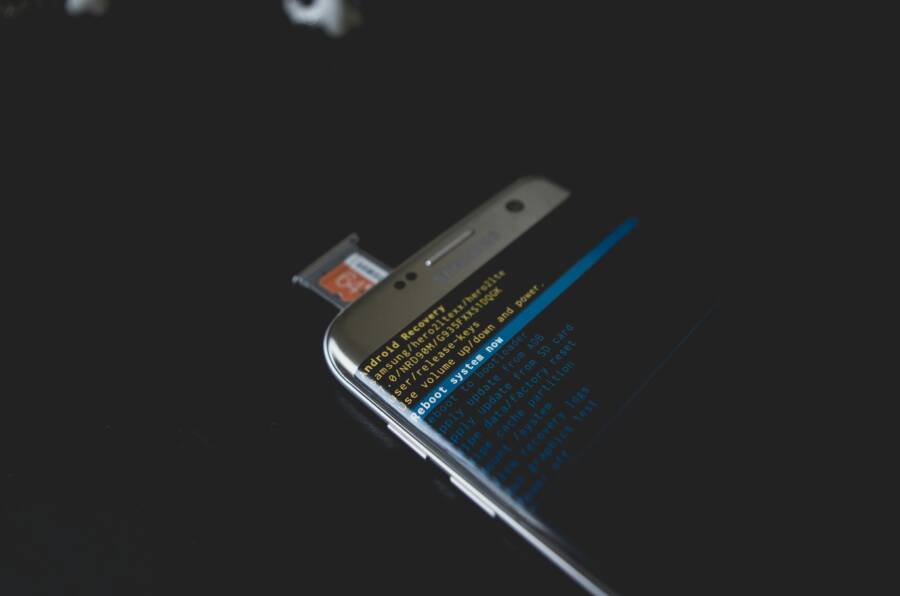
 Photo by Kelvin Valerio
Caption: A smartphone ready to use an SD card, with the card visible in the tray.
Choosing the right microSD card
The card you pick matters as much as the device you put it in. Speed, capacity, and durability all affect everyday use, especially when you want apps to load quickly and media to stream smoothly.
- Speed matters: Look for UHS-I cards with a high Class or Video Speed Class rating. A fast card minimizes stuttering when you record 4K video or run apps from the SD card.
- Capacity fits your needs: If you store large video files or a growing music library, a 256 GB or 512 GB card might be worth it. For general photo storage, 128 GB is usually enough.
- Endurance and reliability: For long-term use, choose reputable brands with good endurance ratings. This helps the card survive everyday wear and tear.
Useful reading and recommendations:
- The Best microSD Cards for Android
- How to choose a card based on speed classes and device compatibility
Formatting the card correctly
Formatting is not a one-size-fits-all step. The format you choose affects compatibility and how the system uses the card.
- If you’re using the card for general media storage, format it as exFAT or FAT32 depending on capacity and device support. For most modern Android devices, exFAT works well for large cards.
- If you plan to adopt the card as internal storage, you’ll go through the device’s setup flow that formats the card as part of the internal memory. This step encrypts the card and binds it to your device, so make sure you have a backup before proceeding.
- Don’t format the card on a computer unless the device needs a specific format; in most cases, formatting from the phone ensures compatibility with your apps and files.
Helpful guides on formatting and adoptable storage:
- How to format an SD card on Android
- How to use an SD card as internal storage on Android
Back up before you format or adopt
Adoptable storage and some formatting steps can erase data. A quick backup now saves you from headaches later.
- Back up photos and videos to a trusted cloud service or an external drive.
- Save important documents and app data if possible. Some apps store data in their own folders that won’t migrate automatically.
- If you’re planning to adopt the card as internal storage, keep a copy of the card’s contents elsewhere until you confirm that everything you need is accessible again after the change.
- Backup tips:
- Use a cloud backup for photos and documents.
- Copy essential media to a computer or external drive.
- Verify you can access backed-up items on another device.
Practical tips for everyday use
A well-prepared SD card simplifies daily life. Here are quick wins.
- Keep media on the card by default when possible. Many camera apps allow you to set the SD card as the default storage location.
- When moving apps is supported on your device, move only lightweight or non-core apps to the card to avoid performance bottlenecks.
- Periodically check card health. If you notice slowdowns, hiccups, or frequent errors, consider reformatting or swapping to a new card.
- Quick-start checklist:
- Confirm your device supports SD cards and identify the supported formats.
- Choose a fast, reliable card with ample capacity.
- Back up data before formatting or enabling adoptable storage.
- Decide which types of data live on the card (media, documents, apps).
External links for quick setup and validation:
- Get started with an SD card – Android Help
- The Best microSD Cards for Android
A practical walkthrough: quick scenarios
- Scenario 1: You want media to live on the card
- Insert the card and format if needed.
- Set camera and download destinations to the SD card.
- Move existing media folders from internal storage to the card.
- Scenario 2: You want to keep apps on internal storage, but store large files on the card
- Leave core apps on internal memory.
- Move large documents and offline maps to the SD card.
- Use a file manager to verify that the card is the default location for new files.
- Scenario 3: You plan to adopt the card as internal storage
- Ensure you have a full backup.
- Follow the on-screen prompts to format and encrypt the card.
- Reinstall essential apps and verify data accessibility.
- Quick reference resources:
- How to move apps to an SD card on Android
- Adoptable storage basics
By taking the time to prepare your SD card correctly, you set up a smoother path to reclaim space and improve your device’s responsiveness. You’ll enjoy more room for photos, videos, and apps without giving up speed or reliability. For most users, a well-chosen card and thoughtful storage plan deliver the best balance of performance and practicality.
Simple Steps to Move Apps to Your SD Card
If you’re finding your internal storage creeping toward full, moving select apps to an SD card can help reclaim space without sacrificing essential functions. Not every device or OS version supports this feature, so it’s smart to know what to expect and where to look in your settings. Along with app moves, organizing media and documents on the card keeps your phone lean and responsive. Remember, always back up important data before making storage changes, especially when formats or adoptable storage are involved.
What to Do If an App Won’t Move
App movement is not a universal capability. Some devices restrict moving core or system apps, while others disable app moves when the SD card is mounted as portable storage. If you encounter an app that won’t shift, check these factors first. A misalignment between the Android version and device policy can block the move, so confirm your model’s storage options. If you’re unsure, a quick reset can help. Try clearing the app cache and then restart your phone; this can resolve temporary glitches that block the move. If the problem persists, consult device-specific guides or support forums for model-specific instructions, like the official guidance from Google on moving apps to SD card. For practical steps and refreshed device policies, see:
- Android Authority: How to move apps to an SD card on Android
- Google Support: Moving apps to SD card
Transfer Files and Media to SD Card Easily
Organizing your SD card from the start makes moving files painless and quick. A tidy card means faster access to photos, videos, and documents, and it helps keep your internal storage free for apps and essential data. Think of it as labeling shelves in a closet so you can grab what you need in a snap. In this section, you’ll learn practical setup steps that keep your files organized and easy to back up.
Organize Files on SD Card for Quick Access
When you first mount the SD card, set up a simple folder structure that mirrors how you use your phone. Create core folders like DCIM for photos, Downloads for downloaded files, and a dedicated Documents or Media folder for other files. Pin these folders to the home screen or your file manager’s main view so you can reach them in one tap. A clean layout reduces time spent searching and minimizes accidental data loss.
She Pressed Play on a Strange Audio Track and Within Days Her Financial Reality Started Shifting in Ways She Could Not Explain
>>> See How It Works <<<
Use a file manager to keep things tidy. Apps such as Google Files or your device’s built-in manager make it easy to move items into the SD card with a couple of taps. Create new folders as you go, and organize by category: images, videos, audio, and documents. This approach is especially helpful when you’re transferring large media libraries or offloading apps that don’t require instant access.
Keep a simple naming convention. Short, descriptive names like “Camera_Pics_2025” or “Offline_Maps” help you locate files without opening each item. If you shoot a lot of video, consider date-based folders (YYYY-MM-DD) to keep sequences in order. Regularly review the card, moving outdated files to an archive or cloud storage to maintain speed and space.
To speed up daily tasks, pin frequently used folders in your file manager. This small tweak saves time during quick transfers or when you need to access a specific file while on the go. If you want more guided steps, check out the Google Files guide on moving files to an SD card and.Android Help’s SD card getting started overview for quick setup tips:
- Move or copy files to your SD card: https://support.google.com/files/answer/9712028?hl=en&ref_topic=9747183
- Get started with an SD card: https://support.google.com/android/answer/9064284?hl=en
- Android Help: Get started with an SD card (general setup)
 Photo by Leeloo The First
Go Advanced: Use SD Card as Internal Storage
Using an SD card as internal storage can be tempting when you need a quick boost in capacity. It’s not a universal win, though; the approach comes with real caveats. This section outlines the risks and when you should avoid this method, so you can decide if it fits your needs without compromising reliability.
Risks and When to Avoid This Method
Card failure can corrupt data and cause apps or media to disappear or behave unpredictably. Slower speeds on budget cards lead to noticeable slowdowns when loading apps or switching between tasks. System updates can also affect how adoptable storage behaves, sometimes forcing a reconfiguration that disrupts access to apps and files. For casual users, the risk-to-reward ratio is often unfavorable when the card is the primary home for apps. If you rely on your phone for critical work or on-device security, avoid adopting the card as internal storage and keep essential apps on internal memory. Instead, use the SD card for media, documents, and secondary files. If you still want to explore, research device-specific guidance and user reports on long-term performance and failure rates. For deeper reading, see discussions on SD card use as internal storage and official adoptable storage guidance.
- https://xdaforums.com/t/pros-cons-sd-card-as-internal-storage.4635994/
- https://source.android.com/docs/core/storage/adoptable
Photos:
Photo by Kelvin Valerio
Best Practices and Quick Fixes for Problems
This section bundles practical guidelines to keep SD card storage smooth and reliable. You’ll find straightforward best practices, plus fast fixes for the most common hiccups. Use these tips to minimize surprises and keep your Android phone responsive while you move apps and files.
Pick the right storage plan for your device
Not all Android devices handle SD cards the same way. Start with a storage plan that matches your usage:
- Dedicated media storage: Keep apps on internal storage for speed, move photos, videos, downloads, and documents to the SD card. This setup is common on many Samsung and OnePlus models.
- Adoptable storage considerations: If your device supports adopting the SD card as internal storage, weigh the benefits of more space against the card being encrypted and bound to that device. This path can boost available space but comes with data migration caveats.
If you’re unsure, view device-specific guides and official Android help articles to confirm what’s supported. For foundational steps, you can review Get started with an SD card and the basics of adoptable storage. See:
- Get started with an SD card – Android Help
- How to format an SD card on Android (for broader context)
Image: A close look at an SD card ready for use in a smartphone.
Photo by Andrey Matveev, https://www.pexels.com/@zeleboba
Use high-quality, fast cards
The card affects responsiveness as much as space. A slow card can bottleneck performance when apps run from the card or when you’re recording video.
- Speed matters: choose UHS-I class 10 or better, with Video Speed Class ratings for video.
- Capacity that fits your habits: 128 GB is usually enough for media, 256–512 GB suits large libraries.
- Reliability matters: pick trusted brands with good endurance ratings.
This careful selection reduces the chance of random read/write errors and helps apps load more smoothly when moved to the card. For deeper guidance on choosing the right card, see recommended microSD cards for Android.
Back up before you format or adopt
Adoptable storage and some formatting steps can erase data. A quick backup now saves headaches later.
- Back up photos and videos to cloud storage or a computer.
- Save important documents and app data when possible; some apps store data in places that don’t migrate automatically.
- If adopting the card as internal storage, keep a copy of the card’s contents elsewhere until you confirm access after changes.
Backup practice keeps your memories safe and makes recovery painless if something goes wrong.
Keep a clean, organized SD card
A tidy card pays off in speed and ease of use.
- Create a simple folder structure at the start: DCIM for photos, Downloads for pulled content, Documents or Media for other files.
- Use a consistent naming scheme, such as Camera_Pics_2025 or Offline_Maps, to locate items quickly.
- Pin frequently used folders in your file manager for fast access.
An orderly card reduces search time and helps you back up or transfer files efficiently. For quick setup ideas, see the Files by Google guidance on moving files to an SD card and Android Help’s SD card overview.
Image: Smartphone and memory card setup.
Photo by Leeloo The First, https://www.pexels.com/@leeloothefirst
Manage app moves with care
If your device supports moving apps, do it selectively.
- Move lightweight or non-core apps first. Avoid moving system apps or essential tools that run frequently.
- Test one app at a time. After moving, verify performance and stability before proceeding.
- Be prepared to revert. If the card is slow or unreliable, move apps back to internal storage.
If an app won’t move, double-check Android version compatibility and device policy. You can review Google’s guidance on moving apps to SD card for reference and look at support threads for device-specific nuances.
Beware the limitations and caveats of adoptable storage
Adoptable storage can free space, but it binds the card to your device.
- Data encryption ties the card to the phone. It won’t mount on another device.
- Card speed becomes critical; slow cards translate into lag when loading apps from the card.
- Not all devices support adoptable storage, and updates can alter behavior.
If you’re not sure whether adoptable storage is right for you, use it for media and documents rather than primary apps. For official background, review Android’s adoptable storage guidance.
Quick fixes for common problems
- App won’t move: Ensure your device supports app moves, check the card is mounted correctly, and confirm the Android version is compatible. Clearing cache and rebooting can clear temporary faults.
- Card not recognized: Remount the card, reinsert it, and verify formatting. If needed, format the card from the phone rather than a PC to ensure compatibility.
- Slow performance: Use a faster card, verify there are no errors, and consider moving only a subset of apps to avoid bottlenecks.
- Data not showing after move: Recheck the destination folders, and ensure the app data has migrated as intended. If needed, re-sync from cloud backups.
For device-specific guidance, consult official help articles and trusted guides like Android Authority and Google Support.
Practical setup checklist
- Confirm SD card compatibility and supported formats for your device.
- Choose a fast, reliable card with ample capacity.
- Back up before formatting or enabling adoptable storage.
- Decide which data goes on the card (media, documents, apps).
- Keep a routine to check card health and reformat if needed.
These steps reduce surprises and help you reclaim internal storage with confidence.
Quick reference resources
- Move or copy files to your SD card — Files by Google
- Get started with an SD card — Android Help
- Android help: SD card overview and best practices
For further reading, explore device-specific guidance and user reviews on long-term SD card performance. The following resources offer practical insights and real-world testing:
- How to move apps to an SD card on Android — Android Authority
- Moving files to SD card — Google Files support
- Moving apps to SD card on Android 12 and later — Google Play Help threads
Images and visuals are included to illustrate typical setups and real-world use.
Image: Close-up of a mobile phone with a SIM card and memory card on a bright surface.
Photo by Andrey Matveev, https://www.pexels.com/@zeleboba
Thousands of People Were Struggling With Money Until They Discovered This One Ancient Secret Hidden in Sound
>>> Unlock It Now <<<

Conclusion
Moving apps and files to an SD card can be a practical way to reclaim space on your smartphone, but success depends on your model and Android version. Start by mapping out what you can move: apps only where supported, and media, downloads, and documents on the card to maximize internal speed for essential tasks. Always check your phone model first to confirm whether adoptable storage or app moves are available and safe.
Back up before you change anything. If you plan to adopt the card as internal storage, understand the encryption and how data stays tied to that device. For everyday use, organize the card with a simple folder structure and a clear naming scheme so you can find files quickly. If you want faster access, keep core apps on internal memory and reserve the SD card for media and large files.
A few smart precautions can save headaches later: use a fast card from a trusted brand, back up regularly, and monitor card health. Cloud backups complement local storage by keeping precious memories safe even if the card fails. Have you tried moving items on your current device yet, smartphone in hand? Share your experience in the comments and tell us what worked best for you.
She Pressed Play on a Strange Audio Track and Within Days Her Financial Reality Started Shifting in Ways She Could Not Explain
>>> See How It Works <<<