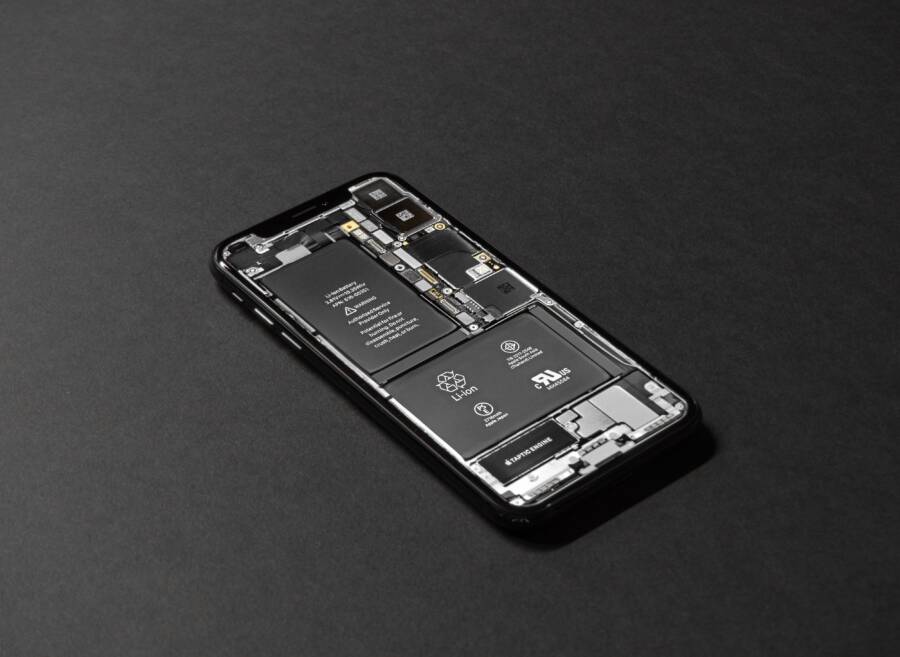
Your smartphone loses power while idle because background tasks, such as syncing data or refreshing apps, continue to run even when you aren’t using the screen. These processes keep the processor active and drain energy throughout the day.
You can stop this unnecessary consumption by identifying which apps are active in the background. Following these simple adjustments helps you reclaim your battery life and keeps your device ready when you need it most.
Uncovering Why Your Battery Drops Fast While Idle
Your smartphone often loses charge while sitting on a desk because it is rarely truly inactive. Even when the screen is dark, the processor handles a variety of hidden tasks that consume energy. These operations run in the background to ensure your device remains up to date, but they frequently drain the battery faster than necessary. You can restore your standby time by understanding how specific software functions and hardware limitations interact with your power levels.
The Silent Drain of Background Apps
Many apps continue to fetch new data or ping remote servers long after you close them. Social media platforms, email clients, and news aggregators perform these updates to keep your feeds current. When dozens of apps attempt to refresh content simultaneously, the processor wakes up frequently to manage these requests. Each wake cycle draws power, and over several hours, these minor pulses significantly reduce your total charge.
Location services act as another common culprit for energy loss. Apps often request your GPS coordinates to provide localized weather updates, relevant advertisements, or check-in features. If you allow constant access to your location, the smartphone must keep its radio hardware active to triangulate your position through cell towers or satellites.
You can control these behaviors through your device settings to keep your battery from draining:
Open your device settings menu to locate the battery usage section.
Review the list of apps sorted by their energy consumption over the last 24 hours.
Restrict background activity for apps that you do not need to update in real time.
Adjust location permissions to allow access only while you are actively using the application.
Signal Strength and Connectivity Issues
A weak cellular signal often causes a more severe power drain than any software process. Your smartphone constantly scans for the strongest available tower to maintain a stable connection for calls and data. When you are in an area with poor coverage, the internal modem increases its transmit power to reach a distant or obstructed tower. This process forces the device to exert significant effort just to keep a single bar of service on the display.
The modem stays in a high-power state throughout this search, which depletes the battery rapidly during idle periods. If you frequently see only one or two bars, your phone is likely working overtime to maintain that weak link. Switching to Wi-Fi whenever possible provides a more efficient alternative. When you connect to a stable network, the cellular modem can enter a low-power mode because it no longer needs to hunt for a distant signal. Enabling airplane mode in areas with zero coverage also stops the constant searching behavior, which preserves your battery until you reach a location with better reception.
Simple Steps to Stop Your Smartphone From Draining Power
Your battery loss often stems from software settings that favor constant updates over energy efficiency. By taking control of how your device manages background tasks and location data, you can extend your charge significantly throughout the day. These adjustments require only a few minutes and provide immediate relief for your battery.
Managing Background Refresh and App Activity
Background app refresh allows software to download new data, such as emails or feed updates, while you aren’t using the app. This constant activity wakes the processor repeatedly, which consumes energy even when the screen is dark. You can stop this drain by limiting which apps have permission to fetch data in the background.
Navigate to the General section of your system settings.
Select the option for Background App Refresh.
Toggle off the feature for apps that do not require real-time updates, such as shopping sites, games, or offline tools.
Keep the feature enabled only for messaging or email apps if you must receive instant notifications.
Restricting these permissions forces the smartphone to pause data retrieval until you manually open the app. This approach prevents the device from performing dozens of tiny, power-hungry tasks while it sits in your pocket or on your desk. You will notice that your battery stays steady for much longer periods.
Optimizing Location Services and Push Alerts
Location services are another primary cause of idle battery drain. Many apps track your coordinates constantly to provide weather reports or local suggestions, which requires the device to use GPS or cellular triangulation. You should restrict these apps to access your location only when you are actively using them.
Check your Privacy settings to view a list of all apps with location access.
Change settings from Always to While Using for any application that does not need your position in the background.
Remove location permissions entirely from apps that do not serve a clear purpose with your physical coordinates.
Push notifications also contribute to battery depletion by keeping the device in a high-alert state. When an app sends a notification, the screen lights up and the processor processes the request. Review your notification list and disable alerts for apps that are not essential. If you do not need an immediate ping from a news site or a social media game, turn off its ability to send notifications. This change stops the device from waking up unnecessarily, which preserves your power during idle hours.
When Hardware Might Be the Problem
Battery drain during idle periods sometimes stems from physical degradation rather than software activity. Lithium-ion batteries have a finite lifespan, and their ability to hold a charge fades as the chemical components age. If your smartphone exhibits rapid percentage drops or shuts down unexpectedly at low power levels, the hardware itself likely requires attention. Identifying these issues early helps you distinguish between inefficient apps and a battery that needs a replacement.
Checking Your Battery Health Statistics
Modern operating systems provide detailed tools to monitor your battery performance. These menus show exactly which apps consume the most energy over specific timeframes. Accessing this data helps you isolate the cause of your drain.
Follow these steps to inspect your battery usage:
Open your system settings menu.
Select the option labeled Battery or Device Care.
Tap on the battery usage graph or the list of apps sorted by consumption.
Review the breakdown to identify programs using high percentages of power while in the background.
The usage screen displays the total battery drain for each application. If a specific app consistently appears at the top of this list, it is a primary candidate for removal or restriction. Look for apps with a high percentage of background usage relative to the time you spent actually using them.
Pay attention to your battery health percentage as well. Most smartphones include a setting that reports the maximum capacity of the battery compared to when it was new. If this number falls below 80 percent, the battery is unable to hold a full charge and will drain significantly faster than a healthy unit. Once the capacity drops this low, software optimizations offer limited relief, and a physical battery replacement becomes the only way to restore your normal standby time.
Comparing Smart Settings for Better Battery Longevity
Your smartphone includes built-in energy management features that automatically adjust performance based on your habits. These settings often prioritize a balance between battery life and system responsiveness. Understanding how these features interact with your daily routine helps you choose the right mode for your specific needs. Most modern devices allow you to toggle between performance, power saving, and adaptive modes to suit your environment.
Performance and Battery Saver Modes
Performance mode pushes your hardware to its full potential by increasing screen brightness, processor clock speeds, and background sync frequency. This setting is useful for gaming or heavy media editing, but it depletes your battery rapidly when the device sits idle. You should switch to this mode only when you are actively using demanding software.
Battery saver mode serves as the direct opposite by limiting background processes, lowering display brightness, and reducing the CPU clock speed. This mode significantly slows down energy consumption while the device rests. Most users benefit from enabling this feature once the battery hits a certain threshold, such as 20 percent. Some operating systems even allow you to schedule this mode to turn on at specific times during the day.
Adaptive and Intelligent Charging
Adaptive features monitor your usage patterns to decide when to provide power to specific tasks. These intelligent settings often learn your schedule to determine when you typically charge your device. By analyzing your behavior, the smartphone can delay full charging cycles until just before you usually wake up or unplug the cable. This approach reduces the time the battery spends at 100 percent capacity, which lowers chemical stress on the internal cells over time.
You can compare these settings to decide which fits your lifestyle:
Selecting the Right Balance
Choosing the correct setting depends on your proximity to a power outlet. If you work at a desk with a charger nearby, you might prefer performance modes to keep your apps responsive. However, if you are traveling or out for the day, switching to an adaptive or power-saving profile is necessary to reach the evening hours. Check your settings menu daily to ensure your smartphone remains in the most efficient mode for your current situation.
If you notice your battery consistently falls short, consider testing different power profiles for one week to see which aligns best with your needs. Most users find that adaptive settings offer the best results for general tasks, while manual power-saving remains the most effective tool for extending standby time during long idle periods.
Conclusion
Many factors cause a smartphone to lose power while idle, but you can correct most of these issues with simple setting changes. By limiting background activity, disabling unnecessary location tracking, and ensuring a strong cellular connection, you restore your device to its expected standby performance.
Monitor your battery usage statistics over the next 24 hours to see how these adjustments affect your daily consumption. If you notice specific apps still draining power despite your changes, delete or replace them to protect your charge.
Taking control of these settings helps your smartphone stay ready throughout the day. Consistent maintenance ensures your battery remains efficient and reliable for years to come.