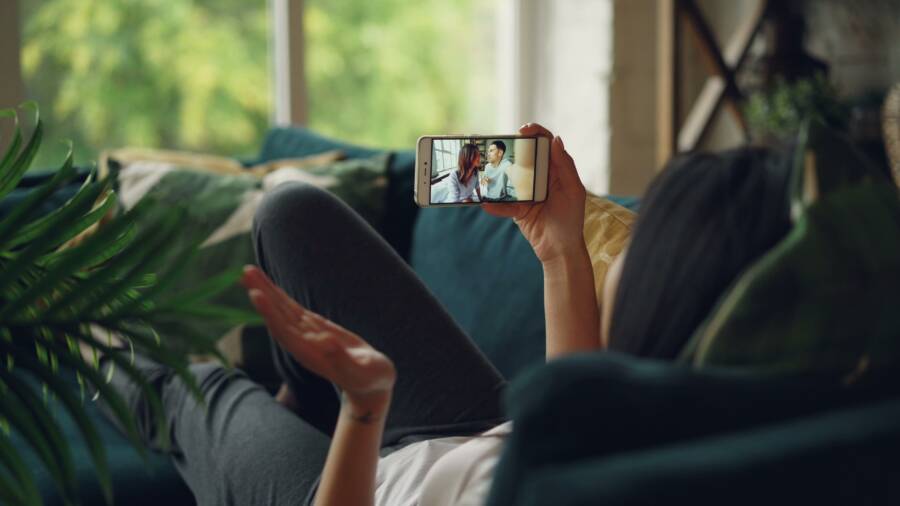
A phone that dims while you watch videos usually needs a longer screen timeout, a change to its battery or display settings, or an app-specific fix. The steps differ between Android and iPhone, but both follow a safe troubleshooting path that starts with checking screen timeout, battery saver, and adaptive brightness settings.
Repeated dimming can also point to heat, battery limits, a faulty light or proximity sensor, or a problem with one video app rather than the smartphone itself. Start by comparing playback in another app, then check system settings and let the phone cool before testing again.
How to Fix a Phone That Dims During Videos
A phone screen that dims during playback usually responds to the screen timeout, battery-saving settings, automatic brightness, or heat protection. Start with the timeout setting, then test brightness and power controls if the screen still darkens.
Check whether the screen timeout is causing the problem
Some video players keep the display awake while playback is active. However, a browser, embedded video player, paused video, or certain streaming apps may not send that signal to the operating system. When that happens, your smartphone follows its regular screen timeout and dims before eventually locking.
On Android, open Settings > Display > Screen timeout. Depending on the manufacturer and software version, the option may appear as Sleep, Screen sleep, or a similar label. Choose a longer period, such as 10 or 30 minutes, for testing.
On an iPhone, go to Settings > Display & Brightness > Auto-Lock. Select a longer duration, then return to the video. Menu names and available time periods can vary slightly after software updates, but the setting is usually under display controls.
Use this simple test:
Select a longer screen timeout or Auto-Lock period.
Start a video in the app where the dimming occurs.
Keep your hands off the screen.
Compare the time before dimming with the timeout you selected.
If the display dims at roughly the selected time, the timeout is causing the problem. You can keep a longer setting while watching videos, but disabling Auto-Lock or screen timeout permanently can drain the battery and leave the phone unlocked. Restore a shorter duration after testing if you don’t need the extra time.
If the screen dims much sooner than the selected timeout, the video app may be failing to keep the display awake. Test the same clip in another app, such as a dedicated streaming app instead of a web browser. A problem limited to one player points to that app’s settings, cache, update status, or playback behavior.
Rule out brightness, battery, and heat controls
Automatic brightness can make a screen look dim even when the phone hasn’t reached its timeout. On Android, check Settings > Display > Adaptive brightness or Auto-brightness. On an iPhone, open Settings > Accessibility > Display & Text Size, then review Auto-Brightness. Turn the feature off temporarily and test the video again.
Battery controls can also reduce display brightness. Disable Battery Saver on Android through Settings > Battery, or turn off Low Power Mode on an iPhone under Settings > Battery. Control Center may also provide a quick toggle, depending on your device.
Heat creates a separate limit. During long, high-resolution playback, gaming, charging, or use in direct sunlight, the phone may lower brightness to protect its internal components. Raising the brightness manually won’t override that protection for long.
Before testing again, remove a thick case, close demanding apps, lower the video’s quality, and move out of direct sunlight. Stop charging temporarily if the device feels hot, then let it cool naturally on a hard surface. Never put a hot phone in a refrigerator or freezer, because condensation and rapid temperature changes can damage the device.
Why Your Phone Dims During Videos Even When the Display Settings Look Right
A phone can dim during playback even when screen timeout and brightness settings appear correct. The cause is often a video app that fails to keep the display awake, an attention feature that misreads your viewing conditions, or heat protection that temporarily limits brightness.
Compare playback in different apps before changing more settings. That quick test shows whether the problem belongs to the smartphone itself or to one video player.
The video app may not be keeping the screen awake
Video apps don’t all communicate with the operating system in the same way. YouTube and Netflix usually keep the screen awake during active playback, while a browser-based player may follow the phone’s normal timeout. Social media clips can behave differently again, especially when a video is embedded in a feed or stops playing after you stop scrolling.
Downloaded videos also depend on the app that opens them. A file played in VLC or another media player may stay active, while the same file opened through a basic gallery app may allow the screen to dim. Embedded players on websites can lose their awake-screen status after an ad, a pause, a full-screen change, or a temporary playback error.
If dimming happens before the timeout you selected, troubleshoot the affected app in this order:
Update the app through the Google Play Store or App Store.
Force close it, then open it again.
On Android, open Settings > Apps, select the app, choose Storage, and tap Clear cache. Menu names can vary by phone.
Sign out and back in if playback preferences or account data seem corrupted.
Play the same video in another supported app or browser.
Clearing an Android app’s cache removes temporary files, but it usually doesn’t delete your account or saved videos. Avoid tapping Clear data unless you’re prepared to sign in again and reset the app.
If the video works normally in another player, the screen timeout is probably not the main problem. The original app may have a bug, a playback setting, or an intentional screen behavior.
Some apps allow the screen to dim when playback is paused, when a clip is muted, or when the app is running in the background. That behavior may be intentional rather than a fault. A third-party screen-awake app can prevent timeout problems, but use it cautiously because keeping the display active increases battery drain and can add heat.
Automatic brightness and screen attention features can override expectations
Automatic brightness changes the display based on light readings, so the screen may look dim even though the timeout has not started. Android phones commonly call this Adaptive brightness or Auto-brightness. On a Pixel, check Settings > Display > Adaptive brightness. Samsung phones usually place a similar option under Settings > Display > Adaptive brightness.
Some devices also use the front camera to decide whether you are looking at the screen. Pixel phones may offer Screen attention under Settings > Display, while Samsung phones may provide Keep screen on while viewing under display or motion settings. On an iPhone with Face ID, Attention Aware Features can use the TrueDepth camera to detect whether you’re looking at the phone.
Run a controlled test rather than changing several settings at once:
Move to evenly lit indoor conditions and play the same video.
Wipe the area around the front camera and ambient light sensor with a soft, dry cloth.
Remove a screen protector that covers or sits too close to the sensor area.
Temporarily turn off adaptive brightness or the relevant screen attention feature.
Replay the video and compare the brightness and timeout behavior.
A poorly aligned screen protector can interfere with light or proximity sensors. The front camera should also remain uncovered, especially when you test attention-based features. Privacy-conscious users can disable those features during testing and turn them back on afterward.
If brightness changes when you move between rooms, automatic brightness is the likely cause. If the screen dims only when the phone stops recognizing your face, check the attention setting instead. These features affect display behavior, but they don’t always explain a sharp brightness drop during demanding playback.
Dimming can be a heat or battery protection response
A smartphone may lower screen brightness when its internal temperature rises. High-resolution streaming, gaming, fast charging, weak cellular service, and direct sunlight can all increase heat. The processor works harder during demanding video playback, while charging and poor reception add more load.
Heat-related dimming can occur even when you set brightness to maximum. The phone reduces brightness to protect the battery and other internal components, so a longer screen timeout won’t solve it.
Check for these signs while the problem occurs:
The phone feels hot around the back, camera area, or charging port.
A temperature warning appears.
Charging pauses or resumes after the phone cools.
The battery drains faster than usual during playback.
Performance slows, the screen stutters, or the phone closes an app.
Stop charging while you test, remove a thick case, close demanding background apps, and move away from direct sunlight. Lowering video quality can also reduce processing demand. Place the phone on a hard surface and let it cool naturally before restarting playback.
Don’t put a hot phone in a refrigerator or freezer. Rapid temperature changes can create condensation and damage internal parts. If the phone stays hot during ordinary video playback, shows repeated temperature warnings, or drains unusually fast, check its battery condition and contact the manufacturer or a qualified repair provider.
Heat protection is temporary and may override manual brightness controls. Once the phone returns to a safe temperature, normal brightness usually comes back without changing the display settings.
Android Settings That Can Stop the Screen From Dimming While Watching Videos
Android gives you several controls that affect screen brightness and awake time. Start with the display settings, then test battery restrictions if the screen still dims during active playback. The correct fix depends on whether the phone is timing out, lowering brightness automatically, or limiting the video app to save power.
Change Android screen timeout and brightness controls
Open Settings > Display > Screen timeout and choose 5 minutes or 10 minutes for testing. Some phones call this option Sleep, Screen sleep, or Screen timeout duration. Samsung, Motorola, OnePlus, Xiaomi, and other manufacturers may place it under a slightly different display menu.
The screen timeout controls how long the display stays on when the phone detects no activity. It doesn’t directly control brightness. If the video app fails to tell Android that playback is active, the phone may begin dimming when the selected timeout expires.
Next, open Settings > Display > Adaptive brightness. Some Android phones use the name Auto-brightness. This setting changes the brightness level according to ambient light, so it can make the screen appear darker even while the display remains active.
Screen timeout controls when the screen sleeps, while adaptive brightness controls how bright the screen looks. Changing one may not fix the other.
For a clear test, turn off adaptive brightness temporarily, set the timeout to 5 or 10 minutes, and play the same video without touching the screen. If the display dims at the new timeout, the app may not be keeping the screen awake. If it darkens sooner but the phone remains active, brightness control, heat protection, or battery saving is more likely.
Also check the video’s own playback controls. Some apps dim the screen after a video is paused, muted, minimized, or left idle. Resume playback and test again before changing more Android settings.
Turn off Android battery restrictions for testing
Battery controls can affect video playback and screen-awake behavior. Battery Saver may reduce performance or lower brightness, while Extreme Battery Saver can pause apps and limit their background activity. App battery optimization and background restrictions may also interfere when Android decides the video app is using too much power.
Start with Settings > Battery and turn off Battery Saver. If your phone offers Extreme Battery Saver, disable it for the test as well. Then open Settings > Apps, select the video app, and look for App battery usage, Battery, or Battery optimization.
Use the normal battery setting first. You don’t need to allow unrestricted battery use for every app. If the problem continues, temporarily allow normal background activity for the affected video app, then replay the same video. Restore the previous setting if it makes no difference, since relaxed restrictions can increase battery use.
A downloaded video can help separate network problems from phone settings. Streaming over weak cellular service makes a smartphone work harder, which can increase battery drain and heat. Download the same video over Wi-Fi, enable airplane mode if the app supports offline playback, and compare the screen behavior.
If offline playback works normally, poor reception or continuous network activity may be contributing to heat or power loss. If the screen still dims at the same point, focus on display settings, the app, or the phone’s thermal controls.
Check Samsung, Pixel, and manufacturer-specific options
Android settings vary by manufacturer, so the same feature may use different names. Samsung phones commonly include Screen timeout under Settings > Display and may offer Keep screen on while viewing under display or motion-related settings. The attention feature uses the front camera to help keep the screen awake while you look at it.
Pixel phones may include Screen attention under Settings > Display, along with the standard Screen timeout control. Depending on the model and Android version, the option may be unavailable or placed under another display section.
Motorola, OnePlus, Xiaomi, and other brands can add extra display, motion, or battery tools. When the menu path is unclear, use the search box in Settings and try these terms:
screen timeoutkeep screen onadaptive brightnessbattery saver
Search results can take you directly to the relevant control, even when the manufacturer has renamed the menu.
Avoid making a third-party screen-awake app your first solution. These apps may use an overlay to keep the display active, and overlays can create extra battery drain or privacy concerns. Some also require broad permissions that are unnecessary for video playback. First identify whether the timeout, brightness, battery setting, or video app is causing the problem, then change only the setting that addresses it.
iPhone Settings to Prevent Dimming During Video Playback
On an iPhone, video dimming usually comes from Auto-Lock, automatic brightness, Low Power Mode, attention detection, heat protection, or one problem app. Test one setting at a time so you can identify the cause without changing controls you still need.
Adjust Auto-Lock, brightness, and Low Power Mode
Auto-Lock controls how long your iPhone waits before locking after it detects no activity. It doesn’t set the screen’s brightness. Open Settings > Display & Brightness > Auto-Lock, then select 5 Minutes for a practical test. You can choose Never briefly if you need to confirm that Auto-Lock is responsible, but return to a shorter setting afterward to reduce battery drain and avoid leaving your phone unlocked.
If the screen becomes darker while the video continues playing, check automatic brightness. Go to Settings > Accessibility > Display & Text Size and temporarily turn off Auto-Brightness. Play the same video, then raise the brightness manually with the Control Center slider. This separates a brightness change from an actual screen timeout.
Keep the brightness below maximum during long viewing sessions, especially in a warm room, direct sunlight, or while charging. A smartphone can lower the display brightness automatically when its temperature rises, and manual brightness won’t permanently override that protection.
Low Power Mode can also change how the iPhone manages performance and battery use. When the battery is low, open Settings > Battery and turn off Low Power Mode for testing. If the dimming stops, battery-saving controls may have affected playback or display behavior. Turn Low Power Mode back on when you need extra battery life, particularly after you finish watching the video.
Test Attention Aware Features and the front sensor area
On iPhone models with Face ID, Attention Aware Features can keep the display from dimming when the TrueDepth camera detects that you’re looking at the screen. Find the control under Settings > Face ID & Passcode, then switch Attention Aware Features off and on during testing.
The feature may misread your attention when the camera area is covered, the phone sits at an unusual angle, or lighting makes face detection difficult. Clean the top of the display with a soft, dry cloth. If you use a screen protector, check that it isn’t misaligned over the front sensor area, then remove it temporarily if needed.
Attention Aware Features and Auto-Lock perform different jobs. Attention detection can delay dimming when you look at the iPhone, but it doesn’t replace a suitable Auto-Lock setting. If Auto-Lock is too short, the phone may still dim or lock when it can’t confirm that you’re watching.
Check for iPhone heat protection and app-specific bugs
iOS can reduce display brightness when the iPhone becomes too warm. Remove the case, stop charging during playback, close demanding apps, and move the phone away from direct sunlight. Weak cellular service can also increase power use, so test over Wi-Fi when possible. Let the iPhone cool naturally before starting the video again.
If only one app causes the problem, update it through the App Store and test playback again. Reinstall the app if updating doesn’t help, then compare the same video in Safari or another supported player. A normal result in another app points to an app-specific playback issue rather than an iPhone display setting.
Some services use DRM, and some players intentionally allow the screen to dim when playback pauses, an ad appears, or the app loses focus. In those cases, changing Auto-Lock may not force the app to keep the display awake.
What to Do When Your Phone Still Dims After Every Setting Change
If your phone still dims after you adjust screen timeout, brightness, battery settings, and video app controls, stop changing settings at random. A controlled test can show whether the cause is the app, network, charger, temperature, sensor, or display hardware.
Use a simple test to separate software from hardware problems
Start with a local video stored on your phone. Play it with the phone unplugged, then repeat the test while connected to a known-good charger and cable. Next, compare the same type of playback over Wi-Fi and cellular data. Weak cellular reception can increase power use and heat, which may trigger brightness limits during streaming.
Test more than one video app as well. For example, compare a downloaded file in a media player with a video in YouTube, Netflix, a web browser, or another supported app. Change the phone’s orientation too. Play one video in portrait mode and then in landscape mode, keeping the brightness and other settings unchanged.
Record what happens each time:
Does the screen dim after a predictable timer?
Does it dim only when the phone becomes warm?
Does the problem appear only when the phone is connected to a charger?
Does it happen near the top sensor area or when a case or screen protector covers that area?
Does the brightness change at random?
Does the issue affect every app or only one video player?
Consistent results make diagnosis easier. For example, dimming at nearly the same time during every test points toward a timeout or app behavior issue. Dimming only when the phone heats up points toward thermal protection. A random brightness change across multiple apps may indicate a sensor, battery, display, or system problem.
A screen recording may not show the problem accurately. The recording captures the image produced by the operating system, but it doesn’t always capture a physical brightness reduction caused by the display hardware or heat protection. If the recording looks normal while the phone appears darker in person, use a second phone to record the screen or describe the timing in your notes.
Update, reset, or reinstall in the right order
Use the lowest-risk fixes first. Update both the phone’s operating system and the video app, then restart the device before testing again. An update can correct a playback bug, repair display management behavior, or change how an app communicates with the screen timeout system.
If one app remains affected, reset that app. On Android, clear its cache through Settings > Apps, then select the app’s storage options. On an iPhone, delete and reinstall the app if updating doesn’t help. Reinstallation can remove damaged local files, but you may need to sign in again or redownload offline videos.
Reset other settings only when the test points in that direction:
Reset the affected app when playback fails in one app.
Reset display settings when brightness or timeout behavior affects several apps.
Reset network settings when streaming over Wi-Fi or cellular produces different results.
Back up your phone before considering a factory reset.
A factory reset erases personal data, apps, accounts, photos that aren’t synced, and other stored content. Treat it as the last software step, not the first response to a dimming screen. Confirm that your backup completed, and make sure you know your Apple Account or Google Account password before starting the reset.
Also review what changed before the problem appeared. Did the dimming start after a system update, or after you installed a screen filter, battery manager, custom launcher, or accessibility tool? Temporarily remove or disable the recent addition, then repeat the same video test. If the problem began immediately after an update and continues after a restart and app reinstall, document the phone model, software version, app name, and exact timing before contacting support.
Know when the issue needs service or a battery check
Settings usually won’t fix a screen that dims while the phone is cool, flickers suddenly, develops a green or pink tint, or changes brightness after a drop. Touch problems, unexpected shutdowns, rapid battery drain, and dimming after liquid exposure also point beyond normal video controls.
Contact qualified service if you notice any of these warning signs:
The phone dims during ordinary use while it remains cool.
The display flickers or shows a green, pink, or uneven tint.
Touch input becomes unreliable.
The phone shuts down without warning.
Brightness changes after a fall or contact with liquid.
The battery drains unusually fast or the back panel begins to lift.
Stop using and charging the phone if the battery swells, the device produces smoke, smells like it is burning, or becomes unusually hot. Move it away from flammable materials and seek qualified service. Don’t open the phone or replace its battery yourself unless you have the proper training and equipment. A damaged lithium-ion battery can cause injury or fire.
On an iPhone, check Settings > Battery > Battery Health & Charging for battery capacity and service recommendations. The exact information varies by model and iOS version. On Android, open the manufacturer’s support or diagnostics tool when available. Samsung Members, Pixel support tools, and other manufacturer utilities may offer hardware tests, although menu names differ by device.
A repair technician can test the battery, display, temperature sensors, ambient light sensor, and charging system. Bring your test notes because the pattern often helps separate a software fault from physical damage.
Common questions about screen dimming during videos
Why does the phone dim but not lock?
Dimming often happens shortly before the screen timeout expires. The phone lowers brightness to warn you that it is about to lock, while playback or a brief touch may keep the device active. If the screen dims at a predictable time, check Auto-Lock or Screen timeout. If it dims only when the phone becomes hot, heat protection is more likely.
Why does it happen only on YouTube or Netflix?
Each app controls playback and screen-awake behavior differently. One app may stop requesting an active display after an update, an advertisement, a pause, or a full-screen change. Update the affected app, reinstall it if needed, and compare the same video in another supported player.
Can a screen timeout be disabled safely?
You can temporarily select Never on some phones, but leaving the display active uses more battery and can leave your phone unlocked. Use the setting only as a diagnostic test or during a specific viewing session. Restore a shorter timeout afterward.
Does charging make dimming worse?
Charging can make dimming worse when it raises the phone’s temperature, especially during high-resolution streaming, fast charging, or use in direct sunlight. Test the video unplugged with the case removed. Heat-related dimming is a protection response, while dimming from inactivity usually involves a timeout or app behavior issue.
Can a screen protector block the sensor?
Yes. A poorly aligned protector, thick case, or dirt near the top of the display can interfere with the ambient light or proximity sensor. Clean the sensor area and remove the protector temporarily if the issue occurs near the top of the screen.
Should a screen-awake app be installed?
Use one only after you identify an app-specific timeout problem. These tools can increase battery drain, add heat, require overlays, or request permissions that aren’t needed for video playback. A system or app update is a safer first fix.
Conclusion
Start by identifying why your phone dims: a timeout, brightness control, battery mode, app behavior, heat, or a possible hardware fault. Adjust the matching setting on Android or iPhone, then test the same video in another app. If the smartphone feels hot, stop charging, remove its case, and let it cool naturally. Seek service if dimming comes with flickering, unusual battery drain, damage, swelling, or unexpected shutdowns.
A longer screen timeout can fix dimming caused by inactivity, but it cannot override thermal protection. After testing, choose the shortest comfortable Auto-Lock or screen timeout so your phone remains convenient without unnecessary battery drain or privacy risk.