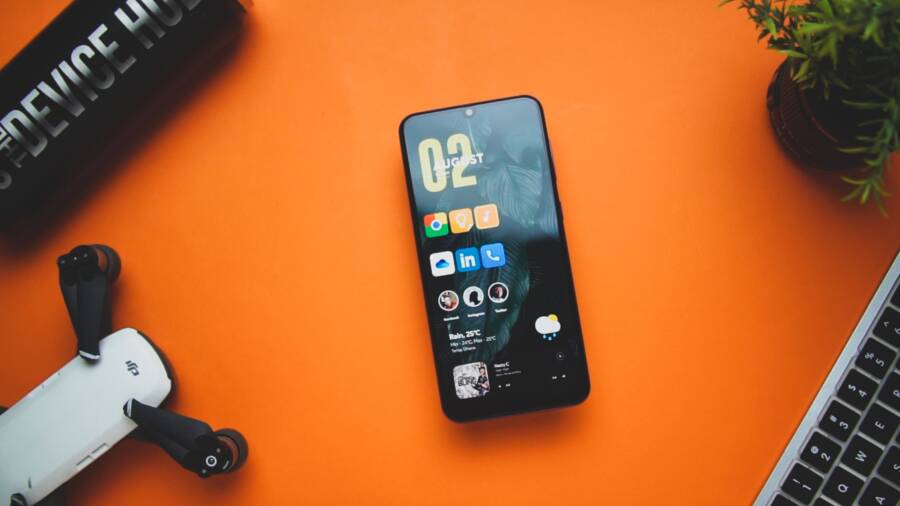
Restart the phone, then update the operating system and app launcher. If the app drawer still opens slowly, clear the launcher’s cache, free storage space, reduce background activity, and test whether a recently installed app is causing the delay.
A slow app drawer usually comes from low storage, too many background processes, corrupted launcher cache, outdated software, or hardware that struggles with newer apps. These problems can affect any smartphone, but the fix often takes only a few minutes and won’t delete your installed apps or personal files. Avoid clearing launcher data unless necessary, because that may reset your home screen layout and preferences. The steps below explain how to check each likely cause, with menu names that may vary slightly between Samsung Galaxy, Google Pixel, Motorola, OnePlus, and other Android brands. Start with the quickest fixes before changing advanced settings.
How to Fix a Phone That Cannot Keep the App Drawer From Opening Slowly
Start with a normal restart and determine whether the delay affects only the app drawer or the entire phone. This quick check separates a temporary software problem from issues involving storage, heat, memory, battery health, or system updates.
Restart the phone and test the app drawer before changing settings
Press and hold the phone’s power button until the power menu appears, then tap Restart. On some Android phones, you may need to press the power button and volume-up button together. Confirm the restart if prompted, then wait until the lock screen appears and the home screen finishes loading.
A restart clears temporary memory and stops background processes that may have become stuck. For example, an app that failed to close properly could keep using system resources and slow the launcher. Restarting gives Android a clean session without deleting your apps, photos, or personal files.
Don’t judge the result while the phone is still starting. Wait until icons, widgets, notifications, and system services have loaded, then open the app drawer several times. Test it after a minute or two of normal use as well, since a delay that returns immediately may point to a persistent launcher or performance problem.
Pay attention to whether the app drawer is the only slow feature. A launcher-specific delay may appear as a short pause before icons or the app list appears. Wider phone lag usually affects other actions too, such as:
Delayed keyboard response when you type in a message or search box.
Settings opening slowly or freezing when you scroll.
Recent apps taking several seconds to appear.
Notifications arriving late or the notification shade responding slowly.
If the smartphone feels responsive everywhere except the drawer, move on to launcher-focused checks. If the whole interface remains sluggish after restarting, investigate the phone’s available storage, temperature, battery condition, memory use, and pending software updates.
Check whether the launcher or the whole phone is slowing down
Test several parts of Android before changing launcher settings. Open Settings, search for a menu, swipe down to view the notification shade, and open the recent-apps screen. Then return to the home screen and open the app drawer repeatedly.
The results help identify the source:
If only the drawer is affected, focus on the app that controls the home screen. Common examples include Samsung One UI Home, Pixel Launcher, the Motorola launcher, and third-party launchers such as Nova Launcher. Their menu names and behavior differ, but no single brand is always responsible for a slow app drawer.
When every screen responds slowly, avoid treating the launcher as the only cause. Check how much storage remains, whether the phone feels unusually hot, whether the battery drains quickly, and whether Android has an available update. A nearly full phone or a device under heavy heat can slow several interface functions at once, including app searches and notifications.
This comparison prevents unnecessary changes. You can target the launcher when the problem is isolated, or address broader performance pressure when the entire smartphone feels delayed.
Clear Launcher Cache and Repair Common Home Screen Problems
When the app drawer remains slow after a restart, simplify the home screen and clear the launcher’s temporary cache. Open Settings > Apps, select the launcher, choose Storage and cache, then tap Clear cache. On Samsung phones, this may appear under One UI Home; on Google Pixel devices, look for Pixel Launcher.
Clearing the cache removes temporary files without deleting installed apps or personal data. Avoid Clear storage or Clear data at first, because those options can reset your icon arrangement, folders, widgets, and launcher preferences. After clearing the cache, restart your smartphone and test the app drawer before making more changes.
Remove heavy widgets, live wallpapers, and crowded home screen pages
Widgets refresh information directly on the home screen, so several active widgets can keep the launcher busy. Weather widgets may update location and forecasts, while social media, finance, news, and battery widgets can refresh feeds, prices, alerts, or device statistics throughout the day.
Animated wallpapers and large icon packs can add more work during screen transitions. Several home screen pages also require the launcher to track more icons, folders, widgets, and visual effects. A phone with limited memory may show the delay most clearly when opening the app drawer or swiping between pages.
Remove or disable one item at a time, then test the drawer for a few minutes. This approach helps identify the cause instead of changing everything at once. Start with items that refresh often, such as:
Weather and location-based widgets.
Social media or news feed widgets.
Finance widgets that display stock or market data.
Battery, device-monitoring, or cleaning widgets.
Animated wallpapers and heavily customized icon packs.
If removing one weather widget makes the drawer respond normally, you have found a strong suspect. Keep the widget disabled while testing other fixes, then add it back later to confirm the result. If the slowdown returns, choose a less frequently refreshing widget or place it on a simpler page.
A simpler home screen makes troubleshooting more reliable because you can connect each change with a clear performance result.
You can also remove empty pages, reduce transition effects, and keep frequently used apps on one or two pages. This layout doesn’t permanently limit your smartphone. Restore your preferred widgets and wallpaper after the app drawer works properly, adding each item separately so a slowdown is easy to trace.
Update the launcher, operating system, and Google components
An outdated launcher or system component can cause animation delays, crashes, memory leaks, and compatibility problems with newer apps. First, open the Google Play Store, tap your profile picture, choose Manage apps & device, and install available updates. Look for your launcher and related components, such as Google, Android System WebView, and Google Play services, when updates are offered.
Next, open Settings > System > Software update or Settings > Software update. The wording varies by manufacturer. Check Google Play system update in the security or system settings as well, because some Android phones update core components separately from the main operating system.
Before installing a major update, back up important photos, contacts, and files. Use a reliable Wi-Fi connection and charge the phone to a safe level, preferably while connected to a charger. After every update finishes, restart the device and wait for the home screen to load completely.
Open the app drawer several times after the restart. If an update fixed a launcher bug or compatibility issue, the delay should improve without changing your layout. If the problem continues, clear the launcher cache again and test the home screen with unnecessary widgets and visual effects disabled.
Free Storage and Reduce the Background Load That Makes the App Drawer Lag
A slow app drawer often improves after you remove recent apps, reduce background activity, and free enough storage for Android to work normally. Start with changes that are easy to reverse, then use Safe Mode to test whether a downloaded app is interfering with the launcher.
Find and remove apps that interfere with the home screen
Some apps run services over the home screen, monitor gestures, refresh content, or add extra animation. These tasks can compete with the launcher whenever you open the app drawer, especially on a smartphone with limited memory or storage.
Common troublemakers include:
Third-party launchers that replace Samsung One UI Home, Pixel Launcher, or another built-in launcher.
Icon packs that process large numbers of custom icons whenever the drawer refreshes.
Animated wallpaper apps that render motion continuously.
Accessibility tools that monitor screen content, gestures, or controls.
Screen filters and dimming overlays that remain active above other apps.
Floating widgets, chat bubbles, edge panels, and shortcut tools.
Poorly optimized apps that consume excessive memory or keep restarting background services.
Start with anything you installed or updated shortly before the app drawer became slow. Open Settings > Apps, select the suspected app, and choose Uninstall. If you can’t remove it, look for Disable, Force stop, or the app’s own setting for reducing background activity. Restart the phone after making a change, then open the drawer several times.
Remove or disable one item at a time. If you change five settings at once, you won’t know which app caused the problem. Pay close attention to launchers, animated wallpapers, accessibility services, and overlay tools because they interact directly with the user interface.
If the app drawer works normally after removing a recent download, reinstall other removed items one at a time. Stop when the lag returns, then remove the app that triggered it.
Android Safe Mode provides a useful diagnostic test because it temporarily prevents most downloaded apps from running. The exact button steps differ by manufacturer and Android version, but the usual process is to open the power menu, press and hold Power off, and select Safe Mode when the prompt appears. Some phones require you to turn the device off, then hold a volume button while it starts.
Once Safe Mode loads, check for the Safe Mode label near the edge of the screen and open the app drawer. The phone may look different because downloaded launchers, widgets, wallpapers, and other apps are disabled. If the drawer becomes responsive, a recently installed app is the likely cause.
Restart the phone normally to leave Safe Mode. Then uninstall recent apps one at a time, restarting and testing after each removal. If the drawer remains slow in Safe Mode, the cause is more likely to involve the launcher, system software, storage, heat, or the phone’s hardware.
Keep the phone cool and check battery or performance limits
Heat can make Android reduce the processor’s speed to protect the phone. This thermal throttling can make animations stutter, delay app loading, and cause the app drawer to pause before displaying icons.
Before testing performance, remove the case temporarily and stop demanding activities such as gaming, recording video, or extended camera use. Avoid judging the result while the phone is charging, especially if you are using it at the same time. Let the device return to room temperature, then restart the app drawer test.
Battery controls can also change how the interface feels. Battery Saver and Extreme Power Saving modes may limit background activity, reduce animation, or restrict processor performance on some models. Open Settings > Battery and turn these modes off temporarily, then test the drawer under normal conditions. You can turn them back on after troubleshooting.
An older battery may explain slow performance across the entire phone, particularly when the device also drains quickly, shuts down unexpectedly, or struggles under light use. Check Settings > Battery for battery health, diagnostics, or service recommendations. Menu names vary, and some Android phones don’t provide a built-in battery health percentage.
If the phone feels hot during ordinary use, has a damaged back panel, or shows a swollen battery, stop using it and seek professional service. Don’t charge or continue using a phone with a swollen or damaged battery, because physical battery damage can create a fire and injury risk.
Adjust Animations, Reset the Launcher, or Try a Different Home App
If the app drawer still lags after clearing the cache and reducing background activity, adjust Android’s animation settings. You can also reset the launcher, but clear its data only after protecting your layout. Testing a reputable alternative launcher can then show whether the original home app is causing the delay.
Use animation settings to make app drawer transitions feel quicker
Android includes three animation controls in Developer options. Search Settings for Window animation scale, Transition animation scale, and Animator duration scale. If Developer options aren’t visible, open Settings > About phone, find Build number, and tap it several times until Android enables the menu. The exact steps vary by phone.
These settings control different visual effects:
Window animation scale controls how windows open and close.
Transition animation scale controls movement between screens and interface views.
Animator duration scale controls the timing of animated elements, such as menus and loading effects.
Set each option to 0.5x, then test the app drawer. You can also turn them off temporarily to check whether animations are creating the impression of a delay. If the interface feels harsh or abrupt, return the settings to 1x, which is the standard speed.
Lower animation scales improve perceived speed, but they don’t make a large app list load faster or increase the phone’s processing power.
This distinction matters. Perceived speed describes how quickly the interface appears to respond, while actual performance describes how long the smartphone takes to read app information and launch an app. If icons still appear late after animations are disabled, the launcher has a deeper performance issue.
Reset the launcher carefully without losing your layout by surprise
Clearing the launcher’s cache removes temporary files. Clearing storage, data, or app data is different because it can return the launcher to its default state. Installed apps usually remain on the phone, but the reset may remove folders, shortcuts, widgets, icon positions, and custom home screen pages.
Before using Clear storage or Clear data, protect your current setup:
Take screenshots of every home screen page, including folders and widget placement.
Write down the names of important widgets and the apps connected to them.
Check whether the launcher or phone offers a backup option, then confirm that important launcher data is included.
Clear the data only after you understand what the reset will remove.
Afterward, open Settings > Apps > Default apps > Home app and select the correct launcher. Menu names differ by manufacturer, so use Settings search if necessary. Test the app drawer before restoring every widget or shortcut. If the drawer works normally, add items gradually until you identify any feature that brings the lag back.
Test a trusted alternative launcher to confirm the source of the delay
Install a different home app from the official Google Play Store, and choose a launcher with a strong developer history and clear privacy information. Review its requested permissions before completing setup. Avoid unknown launchers that request access to contacts, messages, accessibility controls, or other data without a clear reason.
If the alternative launcher opens the app drawer smoothly, the original launcher may have corrupted settings, a compatibility problem, or a software bug. A third-party launcher can also offer more customization and faster-feeling transitions, but it may use more battery, omit Samsung or Pixel features, or behave differently after an Android update.
Use the alternative as a diagnostic test first. If both launchers remain slow, focus on storage, heat, system software, or aging hardware rather than replacing the home app.
Know When a Factory Reset or Hardware Service Is the Right Next Step
A factory reset is worth considering when software troubleshooting has failed, but it should be a controlled test rather than a first response. It can remove damaged settings and app data, while hardware service is the better choice when the phone shows physical or system-wide performance problems.
What a factory reset can and cannot fix
A factory reset erases user data, installed apps, accounts, settings, and launcher customizations. It can remove corrupted launcher data, bad home screen settings, persistent app conflicts, and some unwanted software that survives normal troubleshooting. After the reset, the app drawer starts with the phone’s original software configuration.
However, resetting a phone won’t repair worn flash storage, a failing battery, limited RAM, or a processor that struggles with current software. It also won’t create more physical storage or improve a device that has reached its hardware limits. If the app drawer remains slow before you reinstall anything, the reset has helped rule out downloaded apps and corrupted settings, but it hasn’t fixed the underlying performance problem.
Use a simple before-and-after test so the result is measurable:
Record the current delay by opening the app drawer several times. Note whether the whole smartphone lags, whether the phone feels hot, and how much free storage remains.
Back up photos, contacts, messages, authentication codes, and other important data. Then perform the factory reset through the phone’s system settings.
During setup, install all available Android and Google Play system updates. Restart the phone after updates finish.
Test the app drawer with no extra apps, custom widgets, animated wallpapers, or restored launcher settings.
Add apps gradually, testing the drawer after each small group. If the lag returns after one app or setting, remove that recent change and test again.
A clean app drawer that remains fast points to an app, setting, or launcher configuration. A clean setup that still lags points toward storage wear, heat, memory limits, system faults, or aging hardware.
When slow app drawer performance means the phone needs repair or replacement
Some symptoms require more than launcher troubleshooting. Stop using the phone and seek professional help if it has a swollen battery, repeated unexpected shutdowns, a burning smell, liquid damage, or severe overheating. Don’t charge a device with a swollen battery or continue using one that becomes dangerously hot during ordinary tasks.
Repair is also appropriate when the phone shows physical damage, charging problems, screen separation, or sudden performance changes after a drop or liquid exposure. A technician can inspect the battery, charging system, storage, and mainboard. Back up your data first if the phone still works safely.
Replacement may cost less than repeated resets when an older smartphone has very little free storage, low RAM, and system-wide lag. Consider the device’s condition, repair quote, remaining software support, battery replacement cost, and your daily needs. A phone that struggles with basic tasks, receives few security updates, and needs several repairs may no longer justify the expense.
Before replacing it, compare the likely repair cost with the price of a reliable replacement. A battery service can make sense when the phone otherwise runs well. Storage failure, extensive liquid damage, or a major board repair often changes that calculation. Performance should improve after a reset and clean setup; if it doesn’t, treat that result as evidence that the problem is beyond the app drawer.
Common Questions About a Slow Android App Drawer
A slow Android app drawer usually points to a recent software change, limited system resources, or a launcher problem. Check what changed before the delay started, then test one adjustment at a time so you can identify the cause without resetting the entire phone.
Why did my app drawer become slow all of a sudden?
A sudden slowdown often follows an app update, Android system update, or launcher update. The update may introduce a bug, rebuild the app index, or create compatibility issues with widgets, icon packs, or other home screen tools. The delay may also appear after installing a new launcher, adding a widget, or changing the wallpaper.
Storage is another common cause. When the phone’s internal storage is nearly full, Android has less room for temporary files and routine background work. This can affect the app drawer, app searches, animations, and other parts of the interface.
Heat and stuck background processes can produce similar symptoms. A smartphone may reduce processor speed when it becomes hot, while a failed app or service may continue using memory and processing power after you close it.
Review what happened shortly before the problem began:
Did Android or the launcher install an update?
Did you add a widget, wallpaper, icon pack, or third-party launcher?
Did you install an app that runs constantly in the background?
Did the phone become unusually hot?
Did available storage drop to a very low level?
Start by restarting the phone and checking Settings > Storage, Settings > Battery, and the list of recently updated apps. If the delay began immediately after one change, undo that change first. This approach is more useful than clearing every app’s data or performing a factory reset without knowing what triggered the slowdown.
Will clearing the launcher cache delete my apps or photos?
No. Clearing the launcher cache normally removes temporary files only, so it shouldn’t delete your installed apps, photos, videos, contacts, or personal documents. Android can rebuild those temporary files the next time the launcher runs.
Open Settings > Apps, select the launcher, choose Storage and cache, and tap Clear cache. The launcher may be called One UI Home, Pixel Launcher, Moto App Launcher, or another name based on your phone.
Be careful when selecting the next option. Clear storage, Clear data, or Clear app data is different from clearing the cache. Those commands may reset the home screen and remove folders, shortcuts, widgets, icon positions, and launcher preferences. Your apps usually remain installed, but rebuilding your layout can take time.
Before clearing launcher data, take screenshots of each home screen page and check whether your phone offers a launcher backup. Use the cache option first, restart the phone, and test the app drawer. Only reset the launcher data when the cache does not help and you have protected the layout you want to keep.
Can too many installed apps make the app drawer slow?
A large app list can increase the work required to index apps and render the drawer, especially on an older phone with limited memory or slower storage. However, the number of installed apps isn’t always the main cause. Many apps remain inactive, while a smaller number of poorly optimized apps can create more trouble through frequent background activity.
Start by uninstalling apps you no longer use, particularly those installed shortly before the slowdown. Remove one or two at a time, restart the phone, and test the drawer after each change. This gives you a clearer result than deleting a large group at once.
Pay close attention to apps that refresh content, use location services, display overlays, or run accessibility features. A weather widget, social media service, animated wallpaper, or third-party launcher may keep the home screen busy even when you aren’t actively using it.
After removing unused apps, restart the phone and test the drawer before restoring widgets or customizations. If the drawer remains slow with fewer apps, focus on background activity, storage space, heat, and the launcher itself rather than the raw app count.
Should I install a phone cleaner or RAM booster?
Aggressive phone cleaner and RAM booster apps usually aren’t the best solution for a slow app drawer. Android already manages memory, stops inactive processes, and gives resources to the apps that need them. Force-closing everything can make the phone work harder because it must reload those apps later.
Some cleaner tools also run continuously in the background. They may close useful processes, display frequent ads, send notifications, or scan files repeatedly. That extra activity can add load instead of improving the launcher.
Use Android’s built-in tools instead. Check Settings > Storage to remove large files and unused apps, then open Settings > Battery to find apps with unusually high background use. Play Store’s built-in app management tools can also help you remove apps you no longer need.
A cleaner app may be useful only when you have a specific, trusted purpose and understand its permissions. For ordinary app drawer lag, removing the cause is safer than adding another process that promises to speed up the phone.
Why is the app drawer still slow after every fix?
Persistent lag across the app drawer, settings, keyboard, and recent-apps screen may indicate a wider phone problem. Possible causes include failing internal storage, an aging battery, repeated overheating, limited hardware, or damaged system software.
Back up your photos, contacts, messages, authentication codes, and other important data before trying advanced repairs. If your manufacturer provides a diagnostic tool, run tests for storage, battery health, temperature, and general performance.
A clean factory reset can help identify corrupted settings or a damaged launcher configuration. Test the app drawer before restoring every app and widget. If it remains slow on a freshly reset phone, downloaded apps are unlikely to be responsible.
Seek qualified service when the phone overheats during ordinary use, shuts down unexpectedly, has a swollen battery, shows physical damage, or performs poorly immediately after a reset. Those warning signs point beyond a simple launcher issue, and continued troubleshooting may waste time or put your data at risk.
Conclusion
Fixing a slow phone app drawer works best when you follow a measured order. Restart and test the phone first, then clear the launcher cache, remove heavy widgets or live wallpapers, update Android and launcher components, and free storage space. If the lag continues, use Safe Mode to identify a problem app, then adjust animation settings to improve responsiveness.
The best fix depends on whether the delay affects only the home launcher or the entire smartphone. Reset the launcher or perform a factory reset only after simpler checks fail, and back up your data before either reset. Seek repair if the phone overheats, has battery or storage symptoms, or crashes repeatedly.
Memorable takeaway: test the cause first, reset the phone last.