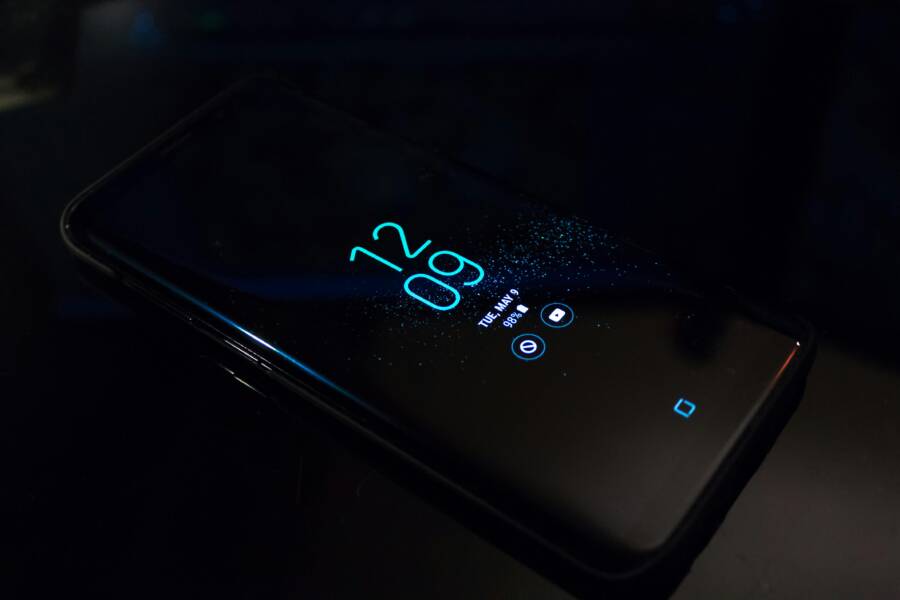
Are you confident that what you see on your phone’s lock screen stays private, even when you’re in a crowded place or sharing your screen? The truth is a quick glance can reveal more than you intend, from message content to app previews. In this post, you’ll learn practical ways to remove sensitive info from your lock screen on both Android and iPhone, so you control what others can see.
Lock screen privacy matters because it protects personal details, finances, and conversations from curious eyes. A simple setting change can prevent message previews or contact names from popping up when your phone is locked. By the end, you’ll know exactly how to adjust your device to keep what matters private without sacrificing convenience.
On Android devices, you’ll find per app options and global toggles that let you hide content or suppress notifications on the lock screen. This gives you the flexibility to show only icons or to silence everything until you unlock. With iPhone, you’ll focus on notification previews and access controls that limit what appears without unlocking.
This guide uses clear, actionable steps you can apply today. We’ll cover a quick check of your current settings, the fastest ways to hide previews, and how to balance privacy with easy access for the apps you trust. By applying these tips, you’ll improve your overall phone privacy while keeping your everyday smartphone use smooth and simple.
Why lock screen privacy matters
Your lock screen is the first line of defense for personal data. A quick glance should not reveal sensitive details to strangers in line at the store, a coworker in a shared space, or a friend borrowing your phone for a moment. This section explains why protecting what appears on the lock screen matters, and how small tweaks can make a big difference in everyday usability. Think of it as a quick guide to keeping personal information out of sight while staying practical for daily use.
What information is commonly visible on lock screens
- Message previews: Some apps show the first line of a text or chat notification. A short preview can reveal private plans, financial details, or sensitive topics. You can control whether these previews appear at all.
- Calendar events: A scheduled meeting or personal appointment might be visible as a header or title. Hidden events reduce the chance a stranger glimpses your day.
- Caller and contact info: Names, contact photos, and call details can leak who you’re talking to or planning to meet.
- App shortcuts and icons: Lock screens often display quick access to apps or shortcuts. These can hint at your routines or interests.
- Notifications with content: Email, banking, and ride-hailing apps may push notifications that reveal sensitive content.
- System status and device status: Battery level, network status, and recent activity sometimes appear, offering clues about your routines.
To keep things private, you don’t have to disable every feature. Instead, adjust what shows up and when. For example, you can turn off message previews while leaving basic icons or notifications visible. This keeps the lock screen functional for quick access without exposing private details. If you want a quick reference for Apple’s approach, you can review how to control what information is shown on the iPhone lock screen in their official support guide. Control access to information on the iPhone Lock Screen
Real world risks of exposure
When a phone slips from a pocket or gets left in a shared space, what’s on the lock screen can become a reading target for the wrong eyes. A lost device in a taxi, a bench at the mall, or a conference breakout room can quickly turn into a privacy headache. Even casual scenarios carry risk: a quick glance at a friend’s phone to check a schedule, a coworker borrowing your device for a moment, or leaving your phone on a table in a coffee shop. The risk isn’t just about someone reading a single message; it’s about building a pattern that reveals your personal life over time.
Lock screen exposure can also have practical consequences. If a notification shows a banking alert, a password reset prompt, or a work email subject, it can hint at financial status or professional obligations. Small leaks add up. A pattern of leaks can reveal routines, contacts, and preferences that you may not want widely known. It’s not about paranoia; it’s about staying in control of what others see in public spaces. For a deeper look at how Android handles lock screen privacy and recent concerns, you can read industry coverage that highlights practical safety steps. A recent Android lock screen issue prompted guidance on how to limit what appears on the lock screen. Massive Android lock screen bug and safety tips
Even if you rarely lose your phone, think about shared environments. A friend’s car, a gym locker, or a hotel lobby all present chances for unintended exposure. The goal is not to hide every alert but to minimize sensitive glimpses. When you tighten what is visible, you reduce the chance someone can piece together a picture of your life from routine device interactions. It’s a practical step toward keeping personal information private without slowing down how you use your device.
How OS updates change privacy options
Both Android and iPhone update their software with adjustable privacy controls for the lock screen. Major updates often reorganize settings, rename options, or add new toggles that affect what appears before unlocking. These changes can restore some previously hidden controls or introduce new, easier ways to manage what others see. Keeping your OS up to date ensures you have the latest privacy options and security fixes, so your device remains resilient against evolving threats.
When a new update lands, take a quick privacy check. Look for sections like “Notifications,” “Lock Screen,” or “Privacy” in the settings. You may find clearer controls for message previews, sensitive content visibility, and app-specific lock screen behavior. For context, latest coverage and official guidance provide examples of how these updates can improve or adjust lock screen privacy on both platforms. For instance, Apple’s ongoing refinements to lock screen controls are documented in their support guides, which cover how to manage what information appears on the lock screen across iOS versions. Control access to information on the iPhone Lock Screen
Staying current with updates also means adopting new features that help you balance privacy with convenience. Android’s ecosystem typically adds or tweaks privacy options in major releases, often including clearer per-app controls and smarter notification handling. If you want a sense of how Android has evolved in this area, you can explore updates and feature previews from official channels and trusted tech outlets. Stay organized and express yourself with Android 16’s updates
In short, OS updates are not just about new looks; they refresh the privacy toolbox. By keeping your device updated, you ensure you have the latest knobs to fine-tune lock screen visibility. It’s a practical habit that pays off in daily privacy and smoother use of your smartphone. For broader context on how privacy features are discussed in the tech media, you can check articles that compare lock screen security across platforms. How secure is your phone’s lock screen?
External links provided here are for reference and further reading. Use them as a starting point to explore the specifics of your device and OS version, since the exact steps can vary by model and software update.
Hide sensitive info on the lock screen
Protecting what appears on your lock screen is not about hiding your entire phone. It’s about preventing casual glances from turning into data leaks. This section walks you through practical, device-friendly steps to minimize what others can see without making your smartphone harder to use. You’ll learn how to hide notification content, curb calendar and personal data exposure, control quick access features, and manage per-app privacy options. The goal is clear: keep sensitive details out of sight while preserving the convenience you rely on every day.
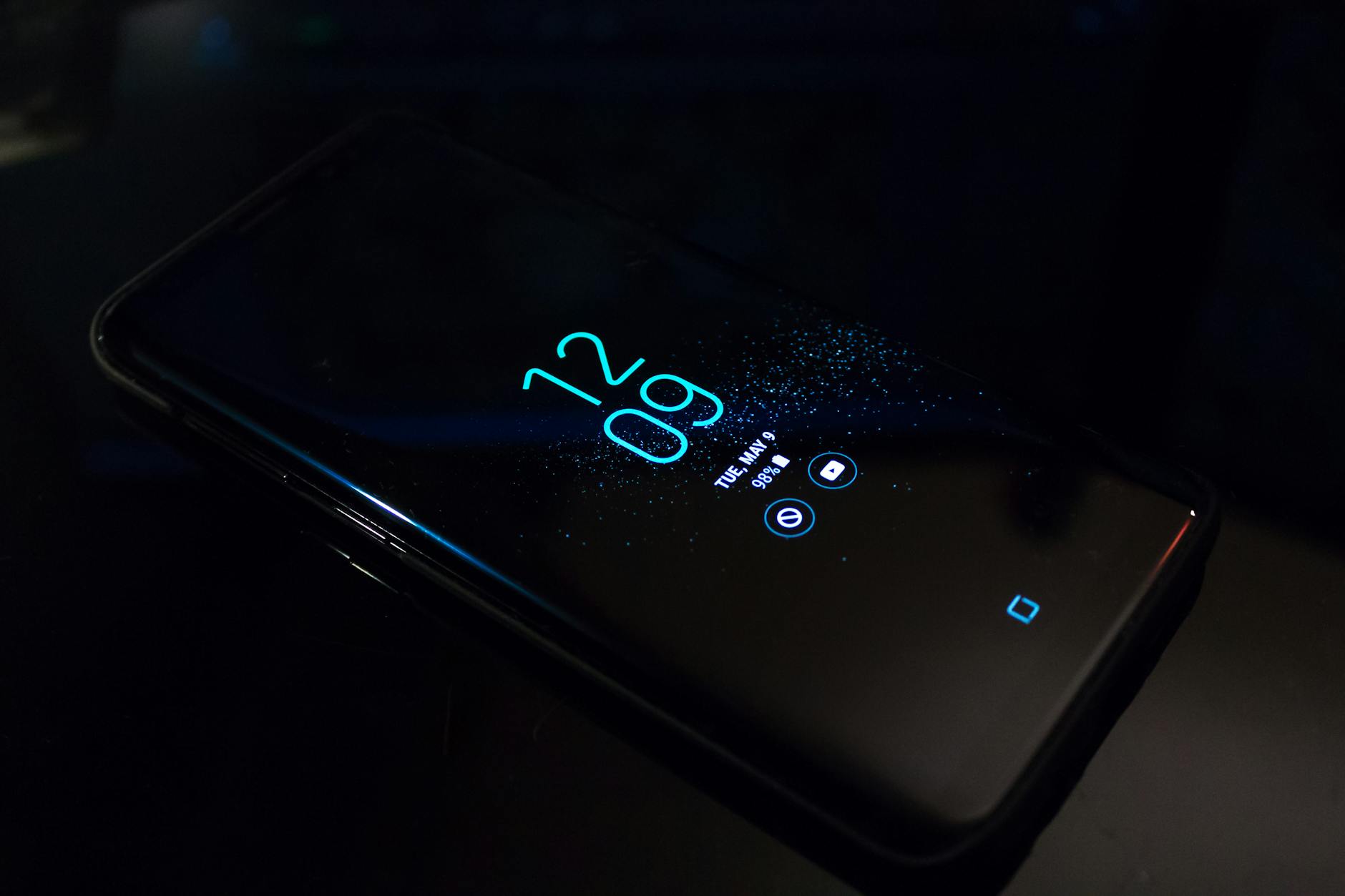
Photo by Noah Erickson
Hide notification content on the lock screen
Most Android devices let you decide what a locked screen can reveal. The simplest approach is to show only that a notification arrived, not the actual content. Start with these general steps, which work on many recent Android builds:
- Open your phone’s Settings and look for Notifications or Lock screen settings.
- Find the option labeled something like “Notifications on lock screen,” “On lock screen,” or “Show notifications on the lock screen.”
- Choose one of these options:
- Don’t show any notifications for the lock screen, which prevents previews entirely.
- Hide sensitive content or Show minimal content so you only see an icon or a short alert.
- If you want apps to still notify you, but not reveal content, adjust per-app settings by going to Settings > Apps > [App] > Notifications and turning off “Show on lock screen” for specific apps.
Brand variations exist. Samsung One UI and Pixel devices handle the toggles slightly differently, but the core idea remains the same: limit what content gets shown when the screen is locked. For a quick reference on how Apple handles lock screen previews on iPhone, see Apple’s guide on controlling access to lock screen information. Control access to information on the iPhone Lock Screen
Why this matters: previews can leak messages from family, work, or financial apps. Keeping previews off reduces the chance a passerby reads sensitive details during a quick glance. If you want to see how other users manage previews on Android, a few guides walk through hiding content while still getting alerts. For example, Google help articles cover how to control notifications on Android and what that looks like on lock screens. Control notifications on Android
Tip: if you don’t want to mute alerts entirely, opt for “Hide sensitive content” and keep the notification icon visible. This gives you a heads up without exposing the message. Your smartphone stays usable, and your privacy stays intact.
Limit calendar and other personal data on the lock screen
Calendar events on the lock screen can reveal your day at a glance. The fix is straightforward: disable or minimize calendar content on the lock screen, and consider using app-specific privacy controls when needed.
- Go to Settings > Lock screen or Lock screen & AOD / Lock screen & notifications.
- Tap the option that controls lock screen content or calendar visibility.
- Turn off showing calendar details and widgets on the lock screen. If your device offers separate controls for each app, disable Calendar’s lock screen content specifically.
- If your device supports per-app lock screen notifications, turn off “Show on lock screen” for Calendar at the app level.
If you’d rather keep some calendar visibility, look for a setting labeled “Show event details” or “Calendar notifications on lock screen” and set it to a minimal state. Android devices from different manufacturers tailor these paths, but the underlying principle is the same: reduce the level of detail shown while locked.
Alternative approach (where available): use a private space or a separate profile to keep sensitive calendars and reminders away from the main lock screen. Android’s Private Space can isolate apps and data, making it harder for anyone who borrows your device to see your calendar. If you’re curious about how Private Space compares with other secure folders, this comparison can help you decide which route fits your privacy needs. Hide sensitive apps with private space – Android Help
Real-world note: calendar previews tie directly to your daily routine. Reducing their visibility reduces the chance a casual observer reconstructs your schedule. If you’re using a Galaxy device, you may also find calendar content settings under Settings > Lock screen > Calendar so you can tailor what shows up.
Control quick settings and camera access from the lock screen
Quick settings and camera access on the lock screen are convenient, but they can leak information if someone swipes down or taps the screen while it’s locked. The goal here is to minimize what attackers can interact with before you unlock.
- Disable or restrict quick settings on the lock screen. Look for options like “Show quick settings on lock screen,” “Use device controls,” or “Lock network & security.” Turn these off so the lock screen cannot open the quick settings panel.
- Disable direct camera access from the lock screen if your device offers that option. Some phones hide or restrict camera access behind the unlock process.
- If your OS offers a Secure Lock Settings area, check there for any toggles that let you block or limit lock screen controls.
Brand-specific notes help. Pixel devices often label this under Display or Lock screen settings, with a separate toggle for quick settings on the lock screen. Samsung One UI may place it under Lock screen or Secure lock settings, sometimes as “Lock network & security” or “Hide lock screen controls.” If you don’t find the exact label, search for “lock screen controls” or “privacy on lock screen” in Settings.
Why it matters: a quick swipe can reveal device status, camera, or controls that could be misused in a crowded space. For deeper guidance on preventing quick settings exposure, check community discussions and official help pages that cover how to restrict lock screen access. Disable Quick settings access from the lock screen
If you’d rather see the camera locked down specifically, many OEMs offer a toggle to require authentication before using the camera from the lock screen. This adds a layer of protection without slowing down your everyday use.
Per-app and device features
Lock screen privacy isn’t just about global toggles. Per-app controls and built-in features can shield your most sensitive apps without turning off notifications entirely.
- Per-app notification controls: For messaging apps, email, and banking apps, decide whether to show on the lock screen or to hide content. On some devices you can choose to show the app name and icon, but not the content.
- Secure Folder or Private Space: If you want a dedicated private area for sensitive apps and data, use Secure Folder on Samsung devices or Private Space on other Android phones. These features isolate apps and data behind an additional authentication step.
- Device features that impact lock screen privacy: Some devices let you hide existence of private spaces, or require extra authentication to access them. Check Security or Privacy sections for those options.
For a quick glance at how some large apps behave on the lock screen, consider testing a couple of key apps you rely on daily. Messaging apps may offer more granular controls than email, and banking apps often have tighter restrictions by design. If you’re exploring Samsung devices, Secure Folder is a popular choice to keep sensitive data separate from your main workspace. Secure Folder and What is Secure Folder and how to use it? provide a good starting point.
Beyond built-in features, you can test how well your setup holds up in real life. For instance, keep a set of non-sensitive notifications visible and ensure sensitive apps stay shielded, then adjust as needed. A final check is to review per-app settings for the big players you rely on—messaging, email, and banking—so you’re not surprised when you unlock your phone.
Images and practical checks help readers visualize the changes. A quick walkthrough with your own device or a short screencast can demonstrate how these toggles translate to real-world privacy. If you want to see broader context on how private folders and per-app controls compare, the Android Police discussion on Android Private Space versus Samsung Secure Folder offers useful insights. I tried Android Private Space and Samsung Secure Folder
In summary, combine global lock screen controls with per-app privacy settings to tailor a privacy posture that fits your day. The goal is to keep sensitive content out of sight while preserving the quick access you need for trusted apps.
Images used in this section
- Photo by Noah Erickson on Pexels: Close-up of a smartphone in the dark displaying digital clock and notifications. This image helps readers visualize the lock screen context and the moment when privacy matters most.
Photo by Noah Erickson
External resources for deeper reading
- Android Help: Hide sensitive apps with private space. This guidance helps you decide whether a separate space is right for you. Hide sensitive apps with private space – Android Help
- Samsung Secure Folder overview for private data: A practical way to store data securely on Galaxy devices. Secure Folder
- Samsung’s guidance on using Secure Folder and related privacy features: What is the Secure Folder and how do I use it?
If you’d like, I can tailor these steps to your exact phone model. Tell me your device brand and model, and I’ll map out the precise taps.
Hide sensitive info on the lock screen
Controlling what appears on your lock screen helps protect your privacy in everyday moments. This section breaks down practical steps to hide previews, limit data exposure, and keep your most sensitive apps and codes away from prying eyes. You’ll learn how to tailor the lock screen to your needs without sacrificing the quick access you rely on. And yes, these tweaks apply to the smartphone you carry every day, whether you use Android or iPhone.
 Photo by Safwan C K
Turn off notification previews
Disabling previews is the fastest way to prevent sensitive content from flashing on the lock screen. Here’s how to approach it on iPhone, with tips you can apply to Android where applicable.
- iPhone settings for notifications:
- Open Settings > Notifications > Show Previews.
- Choose Always (shows previews), When Unlocked (shows previews only after unlocking), or Never (never shows previews).
- For extra privacy, set previews to When Unlocked or Never depending on your daily needs.
- Per-app control:
- Go to Settings > Notifications > select an app (Messages, Mail, WhatsApp, etc.).
- Set Show Previews to the preferred option.
- Accessibility fine-tuning:
- If you rely on assistive features, you can adjust text size or contrast to make previews less conspicuous, but the core privacy outcome comes from the Show Previews setting.
- Android parallel:
- Settings paths vary by manufacturer, but the goal is the same: restrict or hide lock screen content while keeping alerts. Look for options like “Notifications on lock screen” or per-app notification settings to disable content.
For Apple users, Apple’s official guide explains how to control what information is shown on the lock screen. See the article: Change notification settings on iPhone. You can review the current guidance here: Change notification settings on iPhone.
If you want a quick sanity check, test a couple of apps by sending yourself notifications and locking the device to confirm previews are hidden or visible as intended.
Manage lock screen widgets and notifications
Widgets and quick alerts on the lock screen are convenient, but they can spill personal data. Here’s how to balance usefulness with privacy.
- Trim widgets that show personal data:
- On iPhone, Edit the Lock Screen by long-pressing the lock screen, then customize which widgets appear and what data they show.
- On Android, look for lock screen or home screen widget settings and remove or restrict widgets that show sensitive details.
- Control which apps can push lock screen alerts:
- iPhone: Settings > Notifications > per-app controls. Set apps to show alerts, banners, or none on the lock screen. Turn off content previews if needed.
- Android: Settings > Apps & notifications > Notifications > Lock screen. Choose whether to show all, hidden content, or only the app icon for each app.
- Practical tip:
- Keep only non-sensitive widgets on the lock screen. For example, calendar entries can be hidden or shown in a minimal form, while weather or music controls can stay accessible if they don’t reveal personal details.
- Accessibility and usability:
- If you rely on voice assistants or screen readers, ensure the settings respect your needs without exposing sensitive data aloud or onscreen.
In practice, you want a lock screen that signals essential status at a glance but does not reveal who you spoke to or what you scheduled. If you’re curious about how Apple handles widget privacy on the lock screen, you can explore further with the official guidance on lock screen features and privacy. See Turn on Lock Screen features on iPhone: Turn on Lock Screen features on iPhone.
Real-world example: a user keeps a few non-sensitive widgets like weather and reminders on the lock screen, but removes personal calendar details and sensitive app widgets. This keeps the screen informative without exposing private plans or messages.
Secure two-factor codes and sensitive apps
Two-factor codes and sensitive apps deserve extra protection on your lock screen. The goal is to mask or shield these items behind the main authentication wall.
- Mask or move codes and alerts:
- If a code or short snippet from an app appears on the lock screen, consider moving it behind a stronger unlock barrier. For iPhone, ensure that the app’s lock screen behavior requires device unlock for sensitive data.
- App-specific privacy settings:
- Look for per-app privacy options within the app itself. Banking apps, password managers, and secure note apps often offer their own lock screen behavior controls.
- For iPhone, you can use the App Privacy settings to restrict what an app can show on the lock screen even when the device is locked.
- General approach:
- Keep highly sensitive items out of the lock screen, and rely on the main unlock method to access them. This may involve using a strong passcode, Face ID, or Touch ID.
Apple’s guidance and credible coverage emphasize that you can lock and hide apps from the lock screen with dedicated controls. For specifics, see Lock or hide an app on iPhone: Lock or hide an app on iPhone.
If you want to explore broader iOS privacy options, iOS 18 privacy and security settings offer more choices for protecting sensitive data. A reference article covers practical steps to tighten your device privacy: iOS 18 settings to lock down your privacy and security.
Keep Face ID and authentication options private
Biometric unlock is convenient, but it should not expose private information on the lock screen. Manage what the biometric system can access and keep security strong.
- What the lock screen can access:
- On iPhone, Settings > Face ID & Passcode (or Touch ID & Passcode) to enable or disable items like Today View, Control Center, and access to the camera or wallet from the lock screen.
- Use the toggle to require authentication for access to sensitive features when unlocked is not possible.
- Limit what appears before authentication:
- Disable showing full message previews, or require authentication for hidden items to reveal content.
- Restrict access to notifications and widgets that could leak information without unlocking.
- General best practice:
- Keep a strong passcode in addition to biometrics. Don’t reuse simple codes and consider long passphrases if supported by your device.
For deeper details, Apple’s guide explains how to control access to lock screen information and what each toggle does: Control access to information on the iPhone Lock Screen
If you want a quick read on privacy features tied to Face ID, a recent overview highlights how these options intersect with lock screen privacy. See the article: Turn on Lock Screen features on iPhone for practical steps.
Images and quick checks help readers visualize the changes. Consider testing your settings by locking the screen and sending a few test notifications to confirm previews and access controls behave as you expect.
References and additional reading
- Change notification settings on iPhone: Apple Support. Change notification settings on iPhone
- How to Disable Lock Screen Notification Previews on iPhone and iPad: MacRumors. How to Disable Lock Screen Notification Previews on iPhone and iPad
- How to Hide Notifications on Lock Screen iPhone: Clario guide. How to Hide Notifications on Lock Screen iPhone
- Lock or hide an app on iPhone: Apple Support. Lock or hide an app on iPhone
- iOS 18 privacy and security settings overview: Help Net Security. iOS 18 settings to lock down your privacy and security
If you’d like, I can tailor these steps to your exact device model. Tell me your device brand and model, and I’ll map out the precise taps.
Step by step setup for Android and iPhone
When privacy matters, a quick, concrete checklist can save you from unwanted glimpses. In this section, you’ll find straightforward, no-fluss steps to hide lock screen information on both Android and iPhone. These guided steps are designed to be practical for everyday use, whether you’re at a coffee shop, a gym locker room, or sharing a ride with a friend. Think of your smartphone as a window you can tilt, not a display you must leave wide open.
Android: quick step by step
Hiding lock screen details on Android is often a two-layer process. First, you set global rules for what appears on the lock screen. Then you tailor per-app settings so the most sensitive apps stay quiet until you unlock. The goal is simple: keep previews minimal while still getting essential alerts.
- Open Settings and locate Notifications or Lock screen settings.
- Find the option for lock screen notifications, often labeled as “Notifications on lock screen,” “On lock screen,” or similar.
- Choose your preferred level of visibility:
- Don’t show any notifications on the lock screen.
- Hide sensitive content or show minimal content so you only see an icon or a short alert.
- Apply per-app tweaks if needed:
- Go to Settings > Apps > [App] > Notifications.
- Turn off “Show on lock screen” for apps that reveal sensitive info, like banking or messaging apps.
- If your device supports it, use a private space or separate profile for extra privacy. This isolates sensitive apps from the main lock screen.
Brand variations exist, but the core idea stays the same. Pixel, Samsung, and other major makers provide similar toggles under Lock screen or Notifications sections. For a quick reference on how Android handles per-app privacy, see the general guidance on controlling notifications on Android. This is often the fastest way to start reducing lock screen content without losing alert visibility. Control notifications on Android
Practical tip: if you want to keep alerts but shrink content, select “Hide sensitive content.” You’ll still see the notification icon and a minimal prompt, but no private text.
If you want stronger separation, consider using Secure Folder or a Private Space. These features let you keep highly sensitive apps and data out of the main lock screen, which is especially useful on shared devices. For more on this approach, explore Android’s guidance on private spaces. Hide sensitive apps with private space – Android Help
As you apply these steps, test by locking your device and having a trusted contact send you messages. Verify that previews are hidden or visible as you configured. If you want a broader view of how different brands implement lock screen privacy, a look at device-specific examples can help you fine tune the setup for your phone. Remember that updates can shift exact paths, so a quick check in Settings after major OS releases is a good habit.
For additional context, you can review how to disable notification previews on Android and similar guidance from reputable sources. These references can help you compare approaches and choose the right mix for your daily use. How to Hide Notifications on Android Lock Screen
Smartphone tip: keep the lock screen clean with only non-sensitive alerts. This reduces distractions while maintaining quick access to the essentials.
iPhone: quick step by step
iPhone privacy on the lock screen centers on notification previews and widget visibility. The steps below focus on making previews optional and keeping sensitive data tucked away behind authentication. The process is straightforward and applies across recent iOS versions.
- Open Settings and tap Notifications.
- For a global approach:
- Tap Show Previews.
- Choose Always, When Unlocked, or Never. For stronger privacy, select Never or When Unlocked.
- Apply per-app controls:
- In Settings > Notifications, select individual apps (Messages, Mail, WhatsApp, etc.).
- Set Show Previews to Never or When Unlocked, depending on your privacy needs.
- Adjust lock screen widgets:
- Long-press the lock screen, choose Customize, and remove or limit widgets that display personal data.
- Review lock screen access:
- Go to Settings > Face ID & Passcode (or Touch ID & Passcode) and disable or limit features accessible from the lock screen, such as Today View, Control Center, or camera access until you unlock.
Apple provides clear guidance on controlling what information appears on the lock screen. For an official reference, explore the control options Apple lists for lock screen information. Control access to information on the iPhone Lock Screen
If you want to fine tune privacy further, consider how iOS 18 enhancements expand control over lock screen data. This can include more granular per-app settings and improved widget management. iOS 18 privacy and security settings overview
Practical tips for iPhone:
- Turn off previews for sensitive apps like Messages or Mail when you’re in busy spaces.
- Use a consistent passcode and enable Face ID or Touch ID for quick secure access.
- Disable lock screen access to sensitive widgets and the camera, if your workflow allows.
Real-world sanity checks help ensure your settings work as intended. Lock your iPhone, then simulate an incoming message or email to confirm whether previews appear. If previews still show, revisit Settings > Notifications > Show Previews and adjust accordingly.
For a quick reference on notifications and lock screen behavior, you can review Apple’s official steps for changing notification settings. Change notification settings on iPhone
In addition, you can explore how to lock or hide apps from the lock screen for additional protection. Lock or hide an app on iPhone
Smartphone note: these steps keep your everyday usage smooth while protecting sensitive data. It’s often enough to disable previews globally and then selectively permit non-sensitive alerts for trusted apps.
Testing your changes
A quick validation ensures your privacy tweaks actually work. Use a simple, repeatable checklist so you can reproduce results any time you install a system update or switch devices.
- Lock the device and confirm the lock screen shows only necessary status indicators (time, battery, signal).
- Send test notifications from several apps, including messaging, email, and banking.
- Observe whether previews appear. If they do, adjust per-app or global settings until previews are hidden or shown only after unlocking.
- Check widgets and quick actions. Ensure they either show non-sensitive data or none at all if you prefer.
- Perform a final double-check with an actual scenario, like a friend borrowing your phone briefly or leaving it in a public space, to confirm sensitive content stays hidden.
If you want extra assurance, review the latest official guidance for each platform and compare how brands customize lock screen privacy. For Android, a common reference is the Android Help page on lock screen controls, and for iPhone, Apple’s lock screen information controls provide a solid baseline. Control notifications on Android | Control access to information on the iPhone Lock Screen
Quick recap of the core ideas:
- Global controls reduce lock screen clutter.
- Per-app settings shield sensitive apps.
- Widgets and quick actions are neutral or minimized.
- Regular checks help you stay ahead of updates that shift options.
By following these steps, you’ll maintain practical ease of use while keeping sensitive information out of sight. If you’d like, I can tailor these steps to your exact device model. Tell me your device brand and model, and I’ll map out the precise taps.
Best practices and ongoing privacy maintenance
Keeping lock screen privacy in good shape is an ongoing practice, not a one-time tweak. This section outlines practical, repeatable steps you can follow to maintain strong privacy over time. Think of it as a lightweight privacy maintenance routine you perform alongside your regular device checks. You’ll learn how to stay ahead of OS changes, avoid common missteps, and respond calmly if something does leak onto the lock screen. Throughout, you’ll find quick actions you can apply today, plus reliable references for deeper reading.
Regularly review settings after OS updates
Software updates often shuffle menus, rename toggles, or add new privacy controls. A setting you relied on yesterday might move or disappear, or a new option could change how much content appears on the lock screen. That’s why a quick post-update audit matters more than you might think. It only takes a few minutes and pays off in consistent privacy protection.
What to do after an update:
- Open your device’s Settings and navigate to Privacy, Notifications, and Lock screen sections. Look for new or relocated controls related to lock screen content, previews, and per-app behavior.
- Revisit message previews and notification content visibility. Decide whether to show previews at all, show only when unlocked, or hide content entirely.
- Check per-app lock screen settings. Banking apps, messaging apps, and email clients are the typical culprits for leaking content. Tighten their lock screen behavior if needed.
- If you use a private space or work profile, verify that privacy boundaries remain intact after the update. Updates can reset or alter profiles and their permissions.
- Review biometric and passcode requirements in tandem with visibility settings. A stronger unlock method can complement lock screen privacy, especially after major updates.
Rely on official and credible sources to validate the changes introduced by the update. Apple’s and Google’s guidance on lock screen information and notifications remains a reliable baseline. For example, Apple provides clear steps to control what appears on the lock screen and how to manage previews, which you can compare against your device’s current options. Control access to information on the iPhone Lock Screen
If you’re on Android, you’ll find per-app controls and global options that you might need to re-tune after an update. Control notifications on Android
Real-world tip: set a reminder to review these settings within a week of any major update and again after cumulative patches. The small time investment prevents bigger privacy gaps over time. For a broader context on how updates influence privacy controls, consider credible tech coverage that tracks platform changes across Android and iPhone ecosystems. How secure is your phone’s lock screen?
If you want a quick reality check, perform a short test with a non-sensitive notification after an update to confirm previews and content visibility align with your preferred setup.
Avoid risky apps and widgets
Your lock screen should give you quick access without exposing sensitive data. That means prioritizing trusted apps and limiting widgets that display private information. A careful approach to apps and widgets reduces the chance of accidental exposure in busy public spaces.
Guiding principles:
- Favor apps from reputable developers with strong privacy practices. Check app permissions and review recent privacy-related disclosures from the developer.
- Minimize lock screen widgets that show personal data. If a widget reveals calendar entries, messages, or location data, remove or restrict it from the lock screen.
- Prefer per-app controls over global changes when possible. If an app supports locking or hiding content, use those features instead of broad, blanket restrictions that degrade usability.
When choosing what to display, simulate everyday scenarios. For example, a weather widget is typically low-risk, while a calendar widget can reveal your day at a glance. Test how each widget behaves when the device is locked. If you’re curious about broader widget privacy guidance, widget development best practices for mobile apps can be insightful. They emphasize careful handling of data in lightweight UI components across iOS and Android. Mobile Widget Development Best Practices
If you share your phone with others or rely on a private space for sensitive apps, consider using Secure Folder on Samsung devices or a similar feature that isolates apps from the main lock screen. These tools let you keep sensitive data out of the lock screen while still providing fast access to non-sensitive functions. For more on private spaces and their role in lock screen privacy, see Android guidance on private space. Hide sensitive apps with private space – Android Help
Real-world tip: periodically audit your lock screen widgets and per-app visibility. Remove any widget that you wouldn’t want a stranger to see at a glance. If you want a quick comparison of how different apps behave on the lock screen, you can explore real-user discussions and official guidance about per-app lock screen behavior. Control notifications on Android
What to do if you suspect data exposure
If you notice sensitive information briefly visible on the lock screen, stay calm and run through a practical response plan. Quick action helps limit potential exposure and preserves trust in your device’s privacy.
A practical response plan:
- Stop and assess what appeared. Note which app or notification was involved and when it happened.
- Review app permissions and per-app lock screen settings. Revoke or tighten access to lock screen content for the app in question if needed.
- Change passwords for any accounts that could be at risk. Focus on financial, email, and other high-sensitivity accounts first.
- Enable stronger unlock methods if you rely on biometric options. A robust passcode plus biometrics adds a solid barrier to content exposure.
- Run a quick security audit. Check recent app activity, devices signed in to your accounts, and recent login alerts.
In cases where a blur or leak occurred, you should also consider enabling alerts for unusual account activity and reviewing device security posture. Apple’s and Google’s official guidance on lock screen privacy remains the best starting point when you want to understand how to respond to exposure on iPhone or Android. If you’d like to revisit Apple’s controls, see their guide on controlling lock screen information. Control access to information on the iPhone Lock Screen
If your exposure involves a system-level feature or a broader security concern, community and analyst coverage can provide practical steps you can take right away. For example, content on how to protect your data against theft and guidance from consumer protection involves both device settings and safe usage habits. Protect your personal data against theft How To Protect Your Phone From Hackers
In short, respond calmly, check permissions, and tighten per-app controls. This approach minimizes risk and helps you restore a privacy posture quickly after any incident.
Overall, ongoing privacy maintenance hinges on regular checks, cautious app choices, and ready responses. By keeping these practices in your routine, you’ll reduce the chances of sensitive information leaking from your lock screen and keep your digital life more private without slowing you down.
External resources for deeper reading
- Control access to information on the iPhone Lock Screen: Apple Support. Control access to information on the iPhone Lock Screen
- Android notifications and lock screen controls: Google Support. Control notifications on Android
- iOS privacy and security settings overview: Help Net Security. iOS 18 privacy and security settings overview
If you’d like, I can tailor these steps to your exact device model. Tell me your device brand and model, and I’ll map out the precise taps.
Conclusion
A private lock screen is a small habit with big payoff for your smartphone privacy. By applying global and per app controls, hiding previews, and limiting widgets, you keep sensitive data out of sight without slowing down daily use. The key actions are clear: tighten content visibility, enable strong unlock methods, and test your settings after OS updates.
Keep a simple routine to review your privacy posture every few months and after major updates. A quick check keeps you confident in your protections and ready to adjust as new features arrive. If you found this guide helpful, share your setup in the comments and tell us which change made the biggest difference to your day.