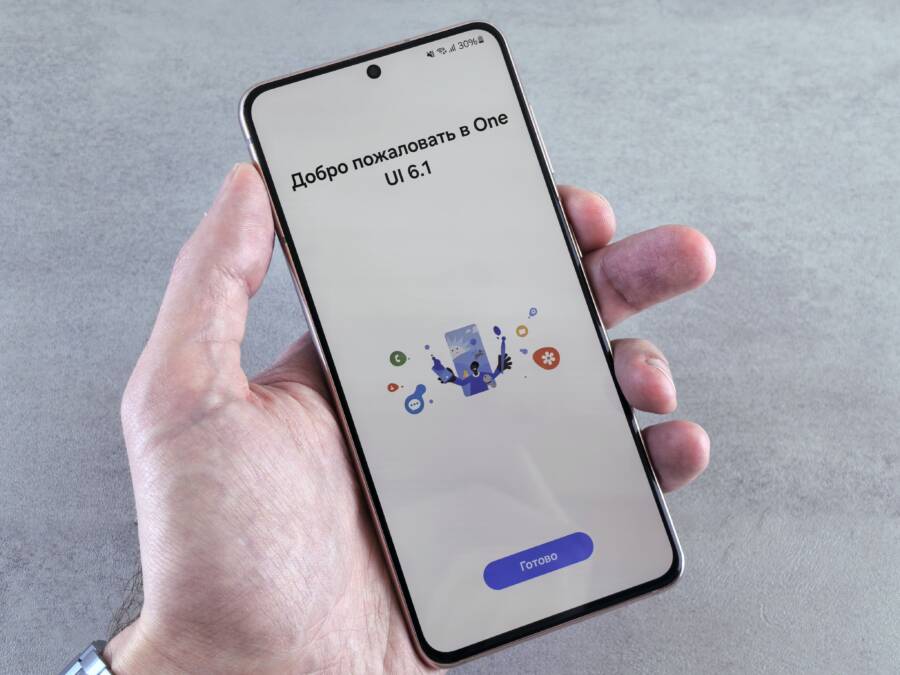
A phone trapped in a continuous reboot cycle during setup is frustrating, but it is rarely a sign of permanent hardware failure. You can usually resolve this issue by addressing corrupted software or an incomplete system update that triggered the loop.
Most of these incidents happen because the smartphone encounters a conflict while trying to register services or initialize the operating system for the first time. The device struggles to finish the boot sequence, reverts to the start, and begins the process again.
Since the phone is not yet fully configured, you cannot access standard settings menus to fix the problem. You must rely on recovery modes or forced factory resets to clear the corrupted cache partition.
Follow these steps to diagnose the software glitch and restore your smartphone to working order.
Quick Fixes to Stop Your Smartphone From Restarting
When your smartphone enters a continuous reboot loop, the initial impulse is often to assume the hardware is broken. However, many of these power cycles occur because of unstable voltage or software conflicts that prevent the operating system from initializing. By isolating the power supply and managing how the device handles the startup process, you can often bypass the loop without professional intervention.
Check Your Power and Charging Source
An unstable power supply is a frequent cause of reboot loops. If your smartphone does not receive a steady stream of electricity, the system can crash the moment it demands peak power during the boot sequence. This happens because the device attempts to initialize the processor and radio components, but the voltage drops below a functional threshold, forcing the phone to shut down and try again.
You should always use the original wall charger and cable that came with your phone. Manufacturers design these components to provide specific wattage and amperage levels required for stable operation. Many people mistakenly connect their phones to USB ports on a computer, a television, or a generic third-party hub. These sources often fail to provide consistent power, especially when the device is struggling to move past the initial boot stage.
If you are using a wall adapter, try switching to a different power outlet in your home to rule out wiring issues. If the phone still restarts, replace the charging cable entirely, as internal fraying might cause intermittent power connectivity that you cannot see from the outside. Using a high-quality, manufacturer-approved power source helps the smartphone complete its internal startup tasks without unexpected interruptions.
Performing a Forced Restart During the Setup Loop
A forced restart is different from a standard power cycle because it instructs the hardware to cut off all power and clear temporary registers instantly. While a normal shutdown relies on the operating system to save state and close processes, a forced restart bypasses the software layer. This action stops the device from attempting to load the corrupted data that keeps it trapped in the reboot loop.
The button combinations required to trigger this state vary by manufacturer and model. You generally need to hold the physical keys for ten to twenty seconds until the screen goes completely black.
For most modern Android devices, press and hold both the Power button and the Volume Down button at the same time. Keep holding them until you see the logo appear or the screen flashes.
If you own an iPhone, press and quickly release the Volume Up button, press and quickly release the Volume Down button, and then press and hold the Side button until the Apple logo appears.
Some older models require you to hold the Power and Home buttons simultaneously until the system force-closes.
Once the screen turns off and the device attempts to restart, pay attention to the display. If the phone proceeds to the home screen or the setup menu, the forced restart successfully cleared the stuck process. If the phone begins to reboot again, the issue likely resides in the system partition, and you may need to look into recovery mode options to address the deeper software error.
Advanced Software Troubleshooting for Setup Loops
When standard restarts fail to resolve a reboot loop, the issue likely lies within the system cache or corrupted configuration files. These files accumulate during the initial setup phase of your smartphone. Clearing the system partition allows the operating system to discard temporary data that conflicts with the boot process. This procedure targets specific areas of storage without touching your personal photos, contacts, or documents.
Using Recovery Mode to Clear System Cache
Recovery mode is a specialized, restricted environment built into the firmware of your smartphone. It exists outside the main operating system, which allows it to function even when the device is unable to load the primary interface. Entering this mode is a safe method to manage system files because it does not trigger a full data erasure. You should approach this carefully by following the button sequences specific to your hardware manufacturer.
To enter recovery mode, turn off your smartphone completely. While the device is off, press and hold the power button in combination with the volume keys. Each brand utilizes a different button layout, so check the manufacturer website if your device does not boot into a text-based menu after ten seconds. Once you see the recovery screen, navigate the menu using the volume buttons to highlight options and the power button to confirm your selection.
Select the option labeled wipe cache partition. After the process finishes, choose reboot system now to restart your device. The system will rebuild the necessary cache files from scratch during this second boot attempt. This action resolves conflicts caused by outdated or corrupted temporary data without affecting your apps or media.
Factory Resetting Your Device as a Final Resort
A factory reset is the most effective way to address deep software errors, but it is also the most drastic. This process returns your smartphone to the state it was in when it left the factory. Every file, downloaded application, and custom preference is permanently deleted during this procedure. You should only perform a factory reset if you have exhausted all other troubleshooting steps, including clearing the cache partition and testing different power sources.
If you decide to proceed, navigate to the recovery mode menu as described in the previous section. Select the option labeled wipe data or factory reset. Confirm your choice when the system prompts you, as this action cannot be undone. Once the smartphone finishes the reset, it will restart automatically.
Your device will present the original welcome screen, requiring you to perform the initial setup again. While this is inconvenient, it clears away any persistent software bugs that blocked your phone from completing the boot process. After the reset, ensure you download only trusted applications from official stores to minimize the risk of software conflicts recurring.
Determining If Your Smartphone Has Hardware Damage
You can often distinguish between software glitches and physical hardware failure by observing how the device behaves during the reboot cycle. If a smartphone consistently fails to power on or displays abnormal screen artifacts, the cause might be a physical fault rather than a system error. Understanding these physical indicators helps you decide whether to continue troubleshooting or seek professional repair services.
Identifying Physical Damage Indicators
Visual evidence is the most reliable way to spot hardware problems on your device. Inspect the exterior of your smartphone for signs of accidental damage that could affect internal components. Even minor impacts can loosen display connectors or cause internal short circuits that trigger recurring reboots.
Cracks or pressure points on the screen often indicate underlying digitizer or display panel damage.
Bulging in the chassis or a display that appears pushed out from the frame suggests a swollen battery.
Dents or deep scratches on the corners may indicate internal damage to the motherboard or ribbon cables.
Liquid exposure signs, such as discoloration in the charging port or cloudiness beneath the camera lens, confirm internal oxidation.
If you notice any of these signs, the reboot loop might result from a damaged component sending erroneous signals to the processor. Professional diagnostics are necessary when internal hardware integrity is in question.
Assessing Charging Port and Battery Functionality
The charging port and the battery are two common points of failure for any smartphone. If these parts sustain damage, the device cannot maintain a steady power flow, which leads to immediate reboots when the system tries to pull current for the startup process. You can test these components by checking for loose connections or irregularities in power intake.
Check if your charging cable wiggles excessively when plugged into the port. A loose connection often means the pins inside the port are bent or broken, preventing a stable electrical link. If the port looks clean but the device still cycles, the internal battery might lack the capacity to sustain the voltage required to boot the operating system.
Batteries that have reached the end of their lifespan or sustained heat damage cannot provide enough power for the initial startup phase. If your device only reboots while disconnected from a power source but stays on while plugged into a charger, the battery is likely failing. Replacing a degraded battery is a standard repair that often resolves persistent power cycling issues.
When to Seek Professional Repair
Not every reboot loop has a software solution. If you have already attempted a factory reset through recovery mode and the device still exhibits a continuous loop, the issue is likely a failure of the NAND flash storage or the logic board. These components are sensitive to drops, liquid, and age-related wear.
You should consult a professional technician if the device displays persistent vertical lines, distorted colors, or remains unresponsive to all button combinations. Attempting to force software fixes on damaged hardware can sometimes cause further instability. A repair shop can run a diagnostic test to confirm if the motherboard or storage chip requires replacement, providing a clear path forward for your smartphone.
When to Contact Professional Support
Technical troubleshooting has limits, especially when you encounter persistent hardware failure. You should reach out to a professional repair service if your DIY attempts yield no progress after several cycles of hard resets and cache wipes. Certain indicators suggest that the problem is beyond your reach, requiring specialized tools or component replacement that you cannot perform at home.
Signs of Hardware Failure
Persistent reboots often point to internal defects rather than software conflicts. You should consult a technician if the device exhibits physical symptoms that standard software fixes cannot address. Watch for these common signs of hardware malfunction:
You see flickering, dead pixels, or vertical lines on the display during the boot process.
The phone feels unusually hot to the touch even when it is not actively running apps or charging.
The charging port shows signs of corrosion, debris, or damage that prevents a reliable connection to your charger.
The device shuts down immediately when you unplug the power cable, which usually points to a completely dead battery cell.
If you suspect physical damage, do not attempt to open the case yourself. Professional shops have the proper equipment to test the motherboard for short circuits or damaged internal ribbon cables without causing further harm to your smartphone.
Warranty and Manufacturer Support
Before paying for an out-of-pocket repair, check if your smartphone is still covered under the manufacturer’s warranty. Many reboot issues caused by faulty components, such as a defective NAND flash chip or a failing power management integrated circuit, are covered under standard service agreements.
If your device is less than a year old, or if you purchased an extended protection plan, contact the manufacturer directly. They can provide official diagnostic steps or authorize a repair at an authorized service center. Always check your purchase receipt or the account dashboard on the manufacturer website to confirm your current warranty status. Providing them with your device serial number or IMEI helps them verify your coverage and determine the next steps for a professional evaluation.
Data Recovery Considerations
Repairing a smartphone that remains stuck in a reboot loop often involves procedures that risk data loss, such as a factory reset. If you have important photos, contacts, or documents stored on the device that you have not backed up, inform the technician about this before they begin any work.
Specialized data recovery services use advanced extraction methods to bypass the operating system and pull information directly from the storage chip. Keep in mind that these services are expensive and not always successful, depending on the severity of the hardware damage. If your data is vital, avoid trying any further manual resets, as these can overwrite the very sectors you are trying to save. Professional technicians have the necessary experience to prioritize data integrity while they assess the underlying cause of your reboot cycle.
Conclusion
Most reboot loops occur because of minor software conflicts or unstable power sources during the initial setup phase. You can typically resolve these issues by performing a forced restart, clearing the system cache partition, or ensuring your device draws consistent electricity from an official wall adapter.
Stay calm if your smartphone does not immediately respond to these initial troubleshooting steps. Persistent loops often point to deeper configuration errors that a full factory reset will effectively clear.
If the device continues to restart after a factory reset, a hardware component like the battery or logic board is likely failing. In that case, contact the manufacturer to discuss warranty options or visit a professional repair shop to restore your smartphone to a fully operational state.