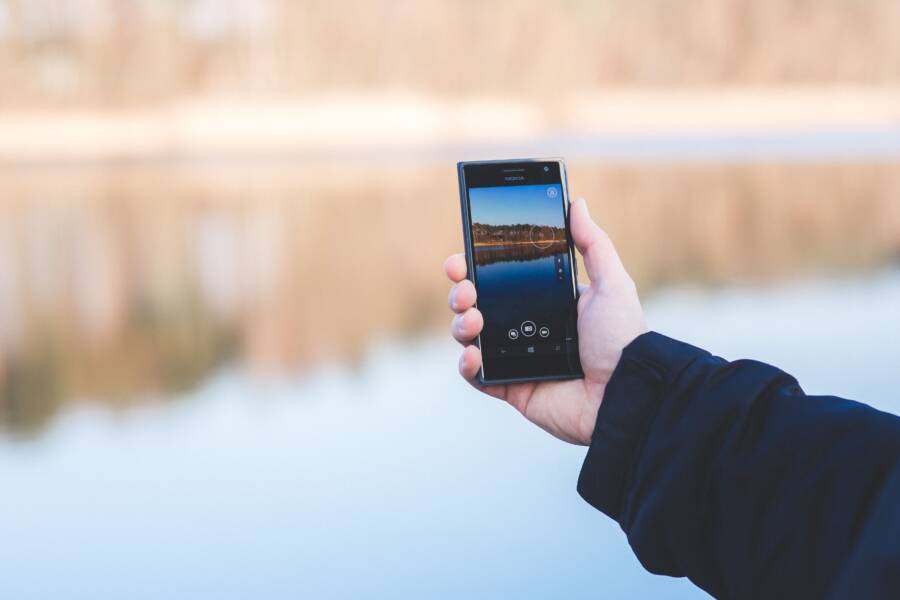
If your screen dims the moment you stop touching it, you are likely dealing with an aggressive battery-saving setting. Most smartphones include built-in power management tools that reduce brightness to save energy, but these defaults often feel too restrictive for everyday use.
You can easily regain control of your device by adjusting the sleep timer and display settings. Understanding how your smartphone handles power is the key to stopping this cycle of constant dimming and restoring a natural flow to your screen time.
Here are the specific steps to modify your display preferences and keep your screen active for as long as you need.
Understanding Why Your Smartphone Screen Dims So Quickly
Your display brightness changes frequently because modern software prioritizes power efficiency above all else. When your screen loses intensity or goes dark faster than you expect, it is rarely a hardware defect. Instead, your smartphone settings are likely working exactly as designed to preserve your charge throughout the day. Identifying the specific trigger for this behavior allows you to regain control over your viewing experience while still maintaining healthy battery life.
The Role of Battery Saver Modes
Low power mode and battery saver settings function by restricting background processes and lowering display performance. When your battery level drops below a certain threshold, such as 20 percent, your phone automatically implements these constraints. Reducing the backlight intensity is the most effective way to lower energy consumption, so your device chooses this action to keep you running for a few more hours.
Many users accidentally enable these modes while troubleshooting other issues or trying to extend their daily usage. Once active, these settings force the screen to dim significantly and reduce the screen timeout duration to mere seconds. You might notice the display becomes uncomfortably dark or turns off almost immediately after you stop scrolling.
Check your battery settings menu to see if these restrictions are currently toggled on. If you prefer to maintain full brightness, you can disable the automatic trigger or manually turn off battery saver mode when you reach a power outlet. Remember that keeping this mode active constantly will keep your display dimmed regardless of how much charge remains.
Adaptive Brightness and Ambient Light Sensors
Modern handsets use a front-facing ambient light sensor to adjust your screen brightness based on the surrounding environment. This sensor measures the intensity of the light in your current location, then signals the system to raise or lower the backlight accordingly. Problems arise when the sensor receives incorrect data, causing it to misinterpret your environment and dim the display prematurely.
A shadow falling across the top of your smartphone can trigger the sensor to think you have moved into a dark room. Conversely, a bright light source pointed directly at the sensor might cause it to fluctuate unexpectedly. This mechanism functions differently than your screen timeout settings, which control how long the display stays awake before locking. While timeout settings rely on your touch input, adaptive brightness relies entirely on light levels.
If you find that your screen dims in situations where the light remains consistent, try these adjustments to stabilize the brightness:
Clean the top section of your display where the ambient light sensor sits to remove dust or smudges that might block readings.
Toggle the adaptive brightness setting off and on to reset the software calibration.
Manually adjust the slider to your preferred brightness level while adaptive brightness is active, which helps the system learn your specific preferences over time.
By understanding these two primary factors, you can distinguish between a phone that is actively trying to save power and one that is simply misreading your environment. Adjusting these settings usually provides a permanent fix for screens that seem to dim without a clear reason.
Adjusting Timeout Settings on iPhone and Android
You control how long your smartphone screen stays active before it locks. Adjusting this duration prevents the display from going dark while you are reading a long article or following a cooking recipe. While both iPhone and Android devices offer this feature, the menus and naming conventions differ slightly.
How to Change Display Settings on iOS
Apple centralizes screen behavior controls within the Settings app. To adjust the interval before your iPhone locks, follow these steps:
Open the Settings app on your iPhone.
Scroll down and select Display and Brightness.
Tap on the Auto-Lock option.
You will see several time increments ranging from 30 seconds to 5 minutes. You can also select Never if you want the screen to stay on indefinitely until you manually press the side button. If you choose the Never option, keep in mind that your battery will drain significantly faster because the screen remains fully illuminated. Most users find that 2 minutes offers a practical balance between convenience and power efficiency.
Note that if you have Low Power Mode enabled, your Auto-Lock will be locked to 30 seconds to preserve battery life. You cannot change this duration until you turn off Low Power Mode or charge your device above the necessary threshold.
How to Modify Sleep Timers on Android Devices
Android manufacturers often customize their menu layouts, meaning the location of screen timeout settings varies between brands. Despite these differences, the primary setting remains consistent across most devices.
Open your system settings and use the search bar at the top to look for “Screen timeout.” This is the fastest way to find the setting on any phone, including Samsung, Pixel, and Motorola models. If you prefer to navigate manually, look in the following locations:
Display menu: This is the most common location for timeout controls. Look for sub-menus labeled Screen timeout or Sleep.
Battery menu: Some manufacturers bury these settings inside power management sections to encourage better battery habits.
Advanced display settings: Occasionally, you might find the option hidden under an Advanced drop-down menu within the Display section.
Once you locate the menu, select your preferred duration. Common options include 15 seconds, 30 seconds, 1 minute, 2 minutes, 5 minutes, and 10 minutes. If your smartphone screen dims too quickly despite these settings, verify that a third-party battery optimizer app is not overriding your system preferences. These external tools sometimes force a shorter timeout period even after you have configured your display settings to be more permissive.
Troubleshooting Advanced Display Issues
Persistent screen dimming sometimes originates from deeper software conflicts or outdated system files. When basic settings fail to resolve the issue, you must look at how third-party applications and the operating system communicate with your display hardware. Pinpointing these hidden variables allows you to stabilize your viewing experience without resorting to drastic measures.
Checking Third-Party App Interference
Specific categories of applications often request permission to manage your display output. E-readers, video players, and gaming apps frequently override system-level brightness and timeout settings to provide a specific visual experience. If you notice your smartphone screen dims specifically while using certain apps, that application likely dictates the display behavior.
These apps sometimes fail to revert your settings to the system default after you close them. To identify if a specific app is the culprit, monitor whether the dimming happens exclusively within one program. You can try the following steps to regain control:
Check for app updates in the App Store or Google Play Store, as developers frequently release patches to fix display management bugs.
Review the specific permissions granted to the application, specifically looking for settings related to display overlay or brightness control.
Uninstall and reinstall the app if the behavior continues, which often clears out corrupted local configuration files.
Test your device in Safe Mode to see if the dimming persists, as this disables third-party software and helps confirm if an external app is responsible.
When to Perform a System Update or Reset
Software bugs occasionally disrupt the communication between your hardware sensors and the operating system. If your screen behavior remains erratic across multiple apps, the core OS might need an update to address a known display glitch. Manufacturers regularly release patches that improve power management stability and sensor calibration.
You should check for pending updates in your settings menu before attempting complex troubleshooting. An OS update often resolves performance issues by refreshing the drivers that control how your smartphone handles light input and screen power.
If your device continues to exhibit abnormal dimming after a software update, verify that you have not accidentally modified a developer setting or an accessibility feature. You might be tempted to reset the entire phone, but avoid this as a first step because it deletes your personal data and takes significant time to restore. Most display issues stem from a simple toggle or a buggy application rather than a critical system failure. Focus on isolating the specific behavior first, as most display problems respond well to minor adjustments rather than a complete system wipe.
Balancing Battery Life and Display Comfort
Managing the tension between a bright, readable screen and a long-lasting battery is a common struggle for every smartphone user. High brightness levels and long screen timeout periods deplete your battery quickly, yet these settings provide the best viewing experience. You do not have to choose between a dead phone by noon and a screen that is too dim to read. By finding the right middle ground, you extend your daily usage while keeping your display comfortable for your eyes.
Optimizing Brightness for Daily Use
Most people set their screen brightness higher than they actually need for typical lighting conditions. High brightness drains your battery because the backlight requires significant power to keep pixels illuminated. Instead of keeping the slider at maximum, try finding the lowest level that remains clear for your environment.
You can often save power by taking these actions:
Turn off auto-brightness if you notice your phone constantly over-brightens in indoor lighting.
Use a manual brightness level that is comfortable for 90 percent of your tasks.
Increase the brightness briefly when you are outdoors, then lower it when you return inside.
Your eyes adjust to lower light levels faster than you might expect. By keeping your display slightly dimmer, you reduce the power draw on your processor and backlight. This simple habit keeps your battery healthy for the duration of the day.
Finding the Right Timeout Balance
The screen timeout setting is the most overlooked factor in battery management. If your screen stays on for five or ten minutes after you set it down, the backlight wastes energy during every idle moment. However, a setting that is too short makes it frustrating to read articles or follow instructions.
Finding the optimal duration for your usage style is important:
If you switch between these tasks often, keep the timeout at one minute as a baseline. This prevents the screen from going dark while you read a short paragraph, yet it shuts off quickly enough to save power when you get distracted. You can always tap the screen to keep it active during longer reading sessions.
Leveraging Dark Mode to Save Energy
Dark mode is a powerful tool if your smartphone uses an OLED or AMOLED display. These screens create images by lighting up individual pixels. When a pixel displays black, it turns off completely, consuming zero power. By switching your interface to a dark theme, you save a noticeable amount of battery life throughout the day.
This approach offers two benefits for your display comfort:
It reduces eye strain in low-light environments by limiting the total amount of white light hitting your eyes.
It lowers the overall energy demand, allowing you to use a slightly higher brightness level without draining the battery as fast.
Check your display settings to see if you can schedule dark mode to turn on automatically at sunset. This provides a balance where your phone is bright and easy to read during the day, yet power-efficient and gentle on your eyes at night. By combining these settings, you maintain a responsive, comfortable display that lasts until your day ends.
Conclusion
Most cases of a screen dimming too quickly stem from power management settings rather than hardware damage. Adjusting your sleep timer, disabling battery saver modes, or recalibrating your adaptive brightness usually solves the problem.
Taking control of these settings helps you stop the cycle of constant dimming. You can now easily balance battery longevity with a display that stays active exactly as long as you need it to.
Tailoring your smartphone behavior to match your personal usage habits creates a more responsive and frustration-free experience every time you pick up your device.