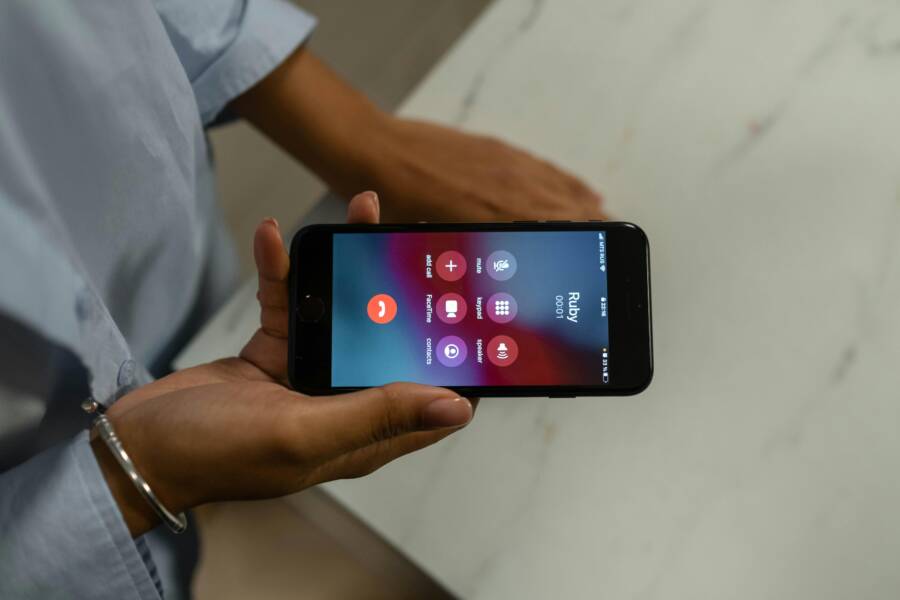
Ever wondered why your lock screen sometimes shows the wrong caller name when a call comes in? This mix up can happen on both Android and iPhone and it can feel oddly persistent, especially when you rely on a quick glance to decide whether to answer.
There are a few common culprits behind the issue. Carrier CNAM data can be outdated, third party lookup apps may override local contacts, and contact sync problems can cause names to drift. Spoofing or glitches in old software can also blur the line between real and mislabeled calls. This guide walks you through practical, step by step fixes you can follow on your smartphone to get the correct name back on your lock screen.
You’ll learn how to verify and clean up your contacts, review or disable apps that look up names, refresh carrier data, and know when to involve your mobile carrier. By the end, you’ll have a clear path to a more reliable lock screen experience, plus tips to prevent future mix ups. This is all practical, approachable help for everyday smartphone use.
What causes a wrong caller name on the lock screen?
When your phone shows a caller name that doesn’t match the number or a name you recognize, it can be frustrating. Several factors can cause this, and understanding them helps you fix the issue quickly. Below you’ll find four common causes, plus practical steps to verify and correct them.
 Photo by cottonbro studio
Carrier CNAM and branded calling
CNAM, or Caller ID Name, is a label that carriers attach to your phone number so recipients see a name when you call. Branded calling takes that a step further by letting businesses display a company name alongside the number. In practice, CNAM lives in the carrier’s network and is sent through the signaling path when a call arrives.
The key point is that CNAM data is not stored on your device. It’s managed by carriers and third-party CNAM providers. Networks gather names in bulk from subscriber records and business registrations, then push the name out to other networks. That process can be uneven. Names can be outdated if a business rebrands, if a contact changes, or if data isn’t refreshed promptly across all carriers.
Because CNAM depends on the network, you might see a different or outdated name on different devices or on different days. Sometimes a name shows up correctly on one phone but not on another, especially if the caller is using a VoIP line or a regional carrier with slower CNAM updates.
What you can do: check with your carrier to refresh or update the CNAM entry for the number in question. In many cases, carriers can re-apply the intended display name, which then propagates to most devices. If you’re troubleshooting, ask your carrier to verify that CNAM data for the caller’s number is up to date. For more context, see resources about CNAM setup and how it works, including Help Center explanations from providers like SIP.US and Hiya.
- CNAM explained and set up: https://support.sip.us/hc/en-us/articles/360015059391-CNAM-Explained-and-How-to-Set-Up/subscription.html
- Beyond CNAM and how it affects display names: https://blog.hiya.com/cnam-how-it-works
- Overview of why CNAM may not reflect updates immediately: https://www.kixie.com/sales-blog/how-caller-id-display-name-works-and-why-it-s-important-for-your-business/
Third party caller ID and spam lookup apps
Apps such as Truecaller and Hiya can override the name shown by the network. They run a local lookup database on your device or fetch data from the cloud to identify callers. If your phone receives a call from a number that’s listed in one of these apps, the app may display a different name than the network CNAM.
You can identify if an app is affecting the display by a few signs:
- The name changes after you install a caller ID app and persists across calls from unfamiliar numbers.
- The app shows a warning or banner when a call comes in, or you see a dedicated “ID” screen before the system CNAM appears.
- Uninstalling or disabling the app changes the lock screen name back to the CNAM display.
To fix this on the receiver’s device, you can:
- Disable or remove the app’s caller ID feature. On Android, go to the app settings and turn off Caller ID or Call Identification. On iPhone, check Settings > Phone > Call Blocking & Identification and toggle off the app’s permission if needed.
- Uninstall the app temporarily to confirm the influence, then reinstall if you still want ID features but with corrected data.
- If you rely on a specific app for spam blocking, configure it to avoid overriding the standard CNAM for trusted contacts.
For further reading, explore comparisons between Hiya and Truecaller, and how they work on iPhone and Android:
- Best Caller ID App: Hiya vs Truecaller: https://blog.hiya.com/best-caller-id-app-filter-block-spam-phone-calls-hiya-vs-truecaller/
- How Truecaller works on iPhone: https://support.truecaller.com/support/solutions/articles/81000392452-how-does-truecaller-work-in-iphone-
- Change your Truecaller name: https://support.truecaller.com/support/solutions/articles/81000392586-how-do-i-change-my-name-in-truecaller-
Contact and sync issues on the receiver’s device
Even when the network provides the right CNAM, a mismatched name can appear due to problems on the phone itself. Wrong contacts or slow contact synchronization can cause a name from a saved contact to show up instead of the CNAM. This often happens when a contact is saved with a nickname or a different display name, or when a recent contact is paired with a new number.
A few quick checks can resolve these issues:
- Inspect recent calls to see which name was associated with the number when you last answered.
- Review the contact list for the same number under multiple entries or with different spellings.
- Confirm that contact sync is up to date. If you use cloud sync, ensure the account is logged in and syncing correctly.
- Test by saving the number as a new contact with the preferred display name and calling the number from another line to compare if CNAM updates.
If you notice inconsistent behavior across devices, it may be worth reviewing the sync settings for your cloud accounts and ensuring your contact database is clean and deduplicated.
Caller ID spoofing and scams
Spoofing is when a caller fakes the name or number that appears on your device. It’s a common tactic used in scams and can cause a fake name to appear on the lock screen. Spoofed calls can still originate from legitimate numbers, so verification is essential.
What you can do:
- Treat unexpected or suspicious calls with caution. If something feels off, hang up and verify through a known channel.
- Consider enabling spam protection features offered by your carrier or a trusted caller ID app to flag potential spoofed calls.
- If you suspect spoofing, report it to your carrier or relevant regulators in your country. Reporting helps track patterns and protect others.
For more on spoofing indicators and how to respond, review carrier and regulator guidance on identifying spoofed calls.
External sources provide practical context on CNAM and spoofing, including CNAM explanations and how to set up CNAM with your carrier, and app-based ID comparisons:
- CNAM Explained and How to Set Up: https://support.sip.us/hc/en-us/articles/360015059391-CNAM-Explained-and-How-to-Set-Up/subscription.html
- Beyond CNAM (Caller ID Name): https://blog.hiya.com/cnam-how-it-works
- How Truecaller works on iPhone: https://support.truecaller.com/support/solutions/articles/81000392452-how-does-truecaller-work-in-iphone-
By understanding these factors, you gain a clear path to diagnosing why a wrong caller name shows up on the lock screen. In many cases, a quick carrier check, a review of third party apps, a look at contact syncing, and awareness of spoofing will bring back the correct display name. If issues persist, you can combine steps from the sections above to methodically isolate the cause and apply a lasting fix.
Fixes for Android phones when the lock screen shows the wrong name
When your Android phone displays a name that doesn’t match the number or the contact you expect, it can feel like guesswork every time your screen lights up. This section offers practical, easy-to-follow fixes tailored to Android devices. We’ll start by cleaning up your contacts, then move through disabling lookups, handling third party apps, refreshing network data, and updating CNAM if your carrier supports it. Each step is designed to restore accurate lock screen caller names without a lot of drama.
Check and clean up the receiver’s contacts
Begin by confirming that the number in question is correctly stored on your device. Open your Contacts app and search for the number. If you find the wrong entry, edit it or delete it to prevent mislabeling. When the name is incorrect, save the correct version right away. If the number isn’t in Contacts at all, add a fresh entry with the preferred display name and save it.
Tips to avoid future mix ups:
- Create a dedicated contact with the exact display name you want on the lock screen.
- If you share a device, consider labeling numbers with initials or business names to prevent confusion.
- Regularly deduplicate your address book to minimize conflicting spellings or multiple entries for the same number.
If you need a quick reference, guides on cleaning up contacts and ensuring they display correctly can help. For deeper context, see resources on CNAM and contact management:
- CNAM explained and set up: https://support.sip.us/hc/en-us/articles/360015059391-CNAM-Explained-and-How-to-Set-Up/subscription.html
- GuidingTech on Android contact name fixes: https://www.guidingtech.com/fix-android-contact-names-not-showing-incoming-calls/
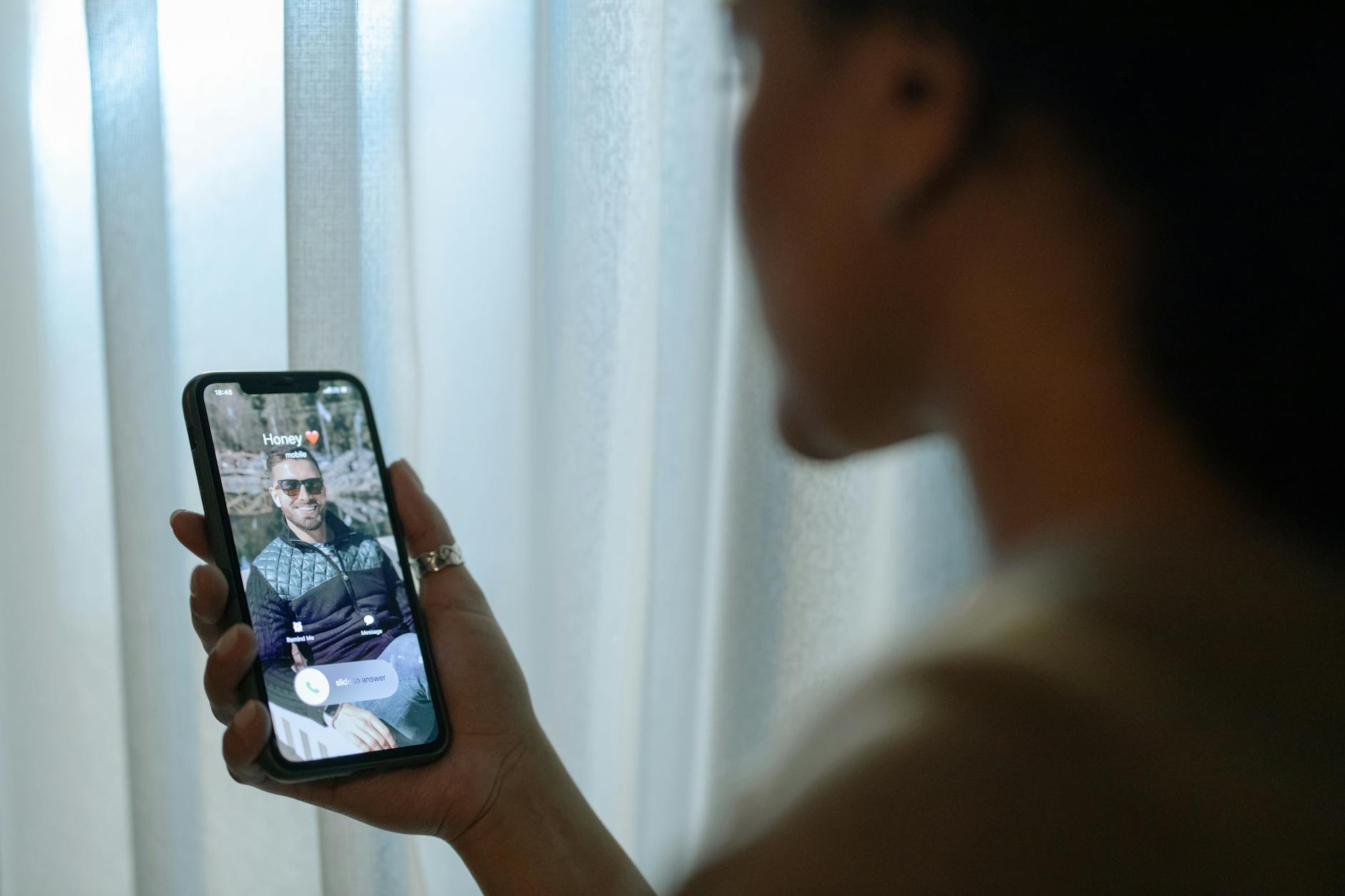 Photo by cottonbro studio
Turn off look up and caller ID features in the Phone app
Android’s default Phone app often uses a combination of CNAM data from the carrier and local lookups. If a lookup feature is enabled, it can override the name shown on the lock screen. Disable these features to rely on your saved contacts and CNAM rather than a lookup database.
How to disable:
- Open the Phone app, go to Settings.
- Look for options like Caller ID, ID & Spam, or Look up. Turn off the feature that shows caller information beyond your contacts.
- If you don’t see a direct toggle, check the app’s Permissions and disable access to the contacts or the ID lookup function.
What this achieves:
- Fewer overrides from lookup services.
- Your lock screen name aligns with your stored contacts and any CNAM data your carrier provides.
For further reading on turning off lookup and spam protection, see:
- Use caller ID and spam protection in Google Phone app: https://support.google.com/phoneapp/answer/3459196?hl=en-gb
Disable or remove third party caller ID apps
Apps like Truecaller or Hiya can replace the name shown on incoming calls. If these apps are active, they pull data from their databases and may override CNAM. Disabling or removing them often resolves mismatches on the lock screen.
What to do:
- Disable the app’s caller ID feature in the app settings. On Android, open the app, locate Caller ID or Call Identification, and switch it off.
- If needed, uninstall the app temporarily to confirm its impact.
- If you still want ID features, configure the app to avoid overriding CNAM for numbers that are in your Contacts.
Further context on how these apps compare and how they work with Android and iPhone:
- Best Caller ID App: Hiya vs Truecaller: https://blog.hiya.com/best-caller-id-app-filter-block-spam-phone-calls-hiya-vs-truecaller/
- How Truecaller works on iPhone: https://support.truecaller.com/support/solutions/articles/81000392452-how-does-truecaller-work-in-iphone-
Contact and sync issues on the receiver’s device
Even with correct CNAM on the network, the phone can display a wrong name if Contacts are out of date or misaligned with the number. Duplicates, nicknames, and recent changes can cause this problem.
Quick checks:
- Review recent calls to see which name was associated with the number when you last answered.
- Search Contacts for the same number under different entries or spellings.
- Ensure contact sync is up to date. If you use cloud sync, confirm the account is logged in and syncing properly.
- Save the number as a new contact with the preferred display name and place a test call from another line to compare CNAM behavior.
If you notice inconsistent results across devices, revisit cloud sync settings and consider deduplicating your contact database.
For broader context on syncing and CNAM behavior, you can explore CNAM explanations and related guidance here:
- CNAM Explained and How to Set Up: https://support.sip.us/hc/en-us/articles/360015059391-CNAM-Explained-and-How-to-Set-Up/subscription.html
Caller ID spoofing and scams
Spoofing remains a common cause of incorrect lock screen names. A caller may use a different label to appear more convincing, even if the number is legitimate. Treat unfamiliar calls with caution and verify through a trusted channel.
What you can do:
- Enable carrier spam protection features to flag suspicious calls.
- Block or report spoofed numbers to your carrier or relevant authorities if you suspect a scam.
- If you’re unsure about a name, contact the person through a known channel to confirm.
Helpful notes about spoofing indicators and how carriers handle the issue can be found in carrier and regulator guidance. For a deeper look at spoofing indicators, review related resources on CNAM and spoofing:
- CNAM Explained and How to Set Up: https://support.sip.us/hc/en-us/articles/360015059391-CNAM-Explained-and-How-to-Set-Up/subscription.html
- Beyond CNAM (Caller ID Name): https://blog.hiya.com/cnam-how-it-works
By following these steps, you can identify whether the wrong lock screen name is caused by a local contact issue, a third party app, or CNAM data from the carrier. In many cases, a quick review of the contacts, a toggle of lookup features, and a bit of unit testing with a known number will restore the correct display name on your smartphone. If problems persist, combine the steps above to isolate the cause and apply a lasting fix.
Fixing Wrong Caller Names on Lock Screen for Android and iPhone
When a call comes in, your lock screen should instantly show who’s calling. If it doesn’t, you’re left guessing and possibly missing important calls. This section focuses on practical fixes for iPhone users specifically, while keeping the guidance aligned with the broader Android tips in this article. Follow these steps to restore correct caller names on your lock screen and keep your smartphone experience smooth.
Check contacts and call history for errors
Review recent calls and saved numbers to spot misentries that cause wrong names to appear. Start by scanning your call log for numbers that are saved under a different name or spelling. If you find a mismatch, re-save the number with the display name you want to appear on the lock screen. You can also merge duplicates to avoid conflicting entries. On iPhone, this means editing the contact card so one entry represents the number and the correct name consistently across devices. After making edits, test by calling the number from a different line if possible, or have a friend call you to confirm the change.
- Pro tip: create a dedicated contact with the exact display name you want for frequent callers.
- Pro tip: if you share your device, label numbers with clear identifiers like initials or business names to prevent confusion.
- Pro tip: deduplicate your address book regularly to minimize conflicting spellings.
To reinforce these practices, consider these resources on CNAM and contact management:
- CNAM explained and set up: https://support.sip.us/hc/en-us/articles/360015059391-CNAM-Explained-and-How-to-Set-Up/subscription.html
- GuidingTech on Android contact name fixes: https://www.guidingtech.com/fix-android-contact-names-not-showing-incoming-calls/
Manage Siri and Look Up features
Siri suggestions and Look Up data can influence the names shown for incoming calls. If Siri or related lookup features surface alternate names, the lock screen may display those labels instead of your saved contacts. Adjust these features to restore control over how names appear.
- On iPhone, you can disable or limit Siri suggestions by visiting Settings > Siri & Search and turning off suggestions where they may affect contact display.
- Review Look Up and contact information access through Settings > Privacy > Contacts to ensure your contacts feed isn’t overridden by a lookup service.
- If you want to keep suggestions but reduce interference, set specific preferences so trusted contacts always show their saved names.
For deeper context on Siri suggestions and lock screen data, you can explore:
- Turn Siri Suggestions on or off on iPhone: https://support.apple.com/guide/iphone/turn-siri-suggestions-on-or-off-iph6f94af287/ios
- Control access to information on the iPhone Lock Screen: https://support.apple.com/guide/iphone/control-access-information-lock-screen-iph9a2a69136/ios
Update carrier settings and iOS
Carrier data can drift, so keeping your iPhone up to date helps ensure CNAM and related display information are current. Check for carrier updates and install them when available.
- Go to Settings > General > About to see if a carrier update is offered. If you see an update, install it.
- After updating, restart your iPhone and place a test call to confirm the correct name appears on the lock screen.
Carrier updates can fix a range of display issues, including CNAM mislabeling and delayed name propagation. For more on CNAM basics and how CNAM updates propagate, see:
- CNAM explained and how to set up: https://support.sip.us/hc/en-us/articles/360015059391-CNAM-Explained-and-How-to-Set-Up/subscription.html
- Why CNAM updates may not reflect immediately: https://www.kixie.com/sales-blog/how-caller-id-display-name-works-and-why-it-s-important-for-your-business/
Reset network settings and test
If the wrong name persists, resetting network settings can clear misconfigurations that upset CNAM or contact lookups. This step is a bit more drastic, so back up personal data first.
- On iPhone, go to Settings > General > Transfer or Reset iPhone > Reset > Reset Network Settings. You’ll reconnect to Wi-Fi and cellular networks after the reset.
- After the reset, make a few test calls to verify whether the lock screen name updates correctly.
If you need backup guidance, consult Apple support documents or your carrier’s recommendations. After testing, re-establish any network preferences you rely on, such as saved Wi-Fi networks and VPNs.
Request CNAM updates through the carrier
If your carrier’s CNAM data for a caller is still wrong, contact the carrier to request an update. Provide precise information so the carrier can locate the right record and apply the correct display name.
- Prepare the caller’s number, the intended name, and any supporting details (business name, spelling, region).
- Ask for confirmation on when the update will propagate across networks and devices.
- Expect some delay while CNAM data propagates through the carrier network and into devices.
Carriers vary in how quickly updates take effect. You can supplement this with CNAM-related guidance from reliable sources to understand what to expect during the update cycle:
- Why Does My Caller ID Show a Wrong Name: https://www.calilio.com/blogs/why-caller-id-shows-wrong-name
- Fix iPhone caller ID that’s not working: https://www.asurion.com/connect/tech-tips/iphone-caller-id-not-working/
What this means for your iPhone: a quick trip to the carrier can resolve CNAM discrepancies that aren’t caused by your device. If you’re unsure where to start, your carrier’s support site often provides CNAM-specific contact information and typical turnaround times.
Additional reading on CNAM and CNAM-related issues helps you build a solid baseline for future checks:
- CNAM Explained and How to Set Up: https://support.sip.us/hc/en-us/articles/360015059391-CNAM-Explained-and-How-to-Set-Up/subscription.html
- Beyond CNAM (Caller ID Name): https://blog.hiya.com/cnam-how-it-works
This set of steps equips you to diagnose why a wrong caller name shows on your iPhone lock screen. In many cases, a targeted carrier update, a clean contact list, and a quick test call restore the correct display name. If the issue lingers, you can combine these actions to isolate the root cause and apply a lasting fix.
Prevent future issues and best practices
Keeping lock screen caller names accurate across Android and iPhone isn’t a one-time fix. It’s a set of habits that minimizes drift, reduces reliance on a single data source, and protects you from scams. Think of it as tuning your smartphone’s address book and network signals so you always know who’s calling at a quick glance. Below you’ll find practical, repeatable steps you can adopt today to prevent future mislabeling.
Use branded or verified calling where available
Branded or verified calling adds a trusted label to the caller ID that travels with the call. When a business displays its brand name and a verified status, you’re more likely to recognize the number and answer promptly. For you, that means fewer missed calls from legitimate numbers and less confusion on the lock screen.
- Benefits at a glance: higher trust, clearer identification, and improved answer rates. Branded calling can include a logo and reason for calling, which reinforces the caller’s legitimacy.
- Setup steps with the carrier: contact your mobile carrier or the CNAM provider you use and request branded caller ID for the numbers you want to display. They’ll confirm eligibility, necessary registrations, and any service fees. After the carrier updates CNAM or BCID data, the new display should propagate across compatible networks and devices.
- Quick reference: if you want to dive deeper into how branded calling works on iOS and Android, check out credible explanations and setup guides from providers like Hiya and Dialpad. These resources explain who can use branded calling, what it shows, and how to coordinate with partner providers to enable it. For a practical overview, see Branded Calling resources from respected providers: Branded Calling help and setup and Hiya Branded Call.
Why this matters for you: branded calling reduces the chances that a mislabeling occurs because the display name comes from a verified source rather than a generic CNAM or an in-device lookup. It creates a consistent expectation for names across networks, which is especially helpful if you manage a business line or frequently contact clients.
Regularly review saved contacts and app permissions
A simple quarterly health check keeps your lock screen accurate and your privacy intact. Review saved contacts for duplicates or inconsistent spellings and audit apps that have access to your contacts or call information. Small changes now prevent bigger mix-ups later.
- Quick quarterly routine: skim recent calls, ensure each number maps to the intended name, and deduplicate entries. If you use a shared device, agree on a naming convention that’s clear to everyone.
- Steps to review app permissions:
- On Android: open Settings > Privacy > Permission manager. Look for permissions related to Contacts, Call logs, and Phone. Revoke or limit access for apps that don’t need it.
- On iPhone: go to Settings > Privacy > Contacts and Settings > Privacy > Microphone or Location as needed. Review third party apps that might override CNAM with their own data.
- For both platforms: periodically verify which apps provide Caller ID or Lookup services, and turn off or limit access if necessary.
- Why it helps: fewer sources competing to label numbers means your device relies more on your own contacts and CNAM data from your carrier. When you want a trusted fallback, you can switch back quickly.
For practical guidance on permissions management, see:
- Change app permissions on your Android phone: https://support.google.com/android/answer/9431959?hl=en
- Review Your Android Phone’s App Permissions: https://securityplanner.consumerreports.org/tool/review-android-app-permissions
- Control app tracking permissions on iPhone: https://support.apple.com/guide/iphone/control-app-tracking-permissions-iph4f4cbd242/ios
Be mindful of spoofing and scams
Spoofing remains a top threat, and it’s easy to mistake a fake label for a real caller. Knowing the signs helps you react swiftly and protect your personal data.
- Quick signs of spoofing: the name doesn’t match the number you saved, the call comes from an unfamiliar area code, or the voice claims to be from a bank or government agency but asks for sensitive information.
- Action plan if you suspect spoofing:
- Do not share sensitive info. Hang up and verify through a known channel.
- Use built-in spam protection or a trusted caller ID app to flag suspicious calls.
- Report suspicious numbers to your carrier or the relevant regulator.
- Emphasize reporting over engagement: reporting helps track patterns and warn others, and many carriers maintain dedicated spoofing hotlines.
To deepen your understanding of how spoofing interacts with CNAM and branded calling, review carrier guidance and independent explanations:
- CNAM Explained and How to Set Up: https://support.sip.us/hc/en-us/articles/360015059391-CNAM-Explained-and-How-to-Set-Up/subscription.html
- Beyond CNAM (Caller ID Name): https://blog.hiya.com/cnam-how-it-works
Why this matters for you: staying alert to spoofing protects not just your data, but everyone you call. A cautious approach reduces the risk of disclosing personal information during a fraudulent call.
Additional reading on spoofing indicators and protection strategies:
- Why Does My Caller ID Show a Wrong Name: https://www.calilio.com/blogs/why-caller-id-shows-wrong-name
- Fix iPhone caller ID that’s not working: https://www.asurion.com/connect/tech-tips/iphone-caller-id-not-working
By following these best practices, you create a robust defense against future mislabels. A mix of trusted branding, careful contact management, and vigilance against spoofing gives you a reliable lock screen experience that you can depend on every day.
References and further reading from trusted sources can deepen your understanding and offer practical steps tailored to your carrier and device. For quick context on CNAM and branded calling across ecosystems, see these additional resources:
- Branded Calling and CNAM setup guides: Branded Calling Help, Branded Caller ID overview
- Trusted reviews comparing caller ID apps and how they operate on iPhone and Android: Hiya vs Truecaller
In practice, a small routine keeps you shielded from most common issues. A branded display where available, regular contact hygiene, and smart caution about spoofing together create a smoother, more predictable smartphone experience. For your next steps, try the quarterly contact review this weekend, plus a quick check of any branded calling options with your carrier. Your lock screen will thank you.
One last quick plan if nothing else works
If you’ve tried the fixes above and the lock screen still shows the wrong caller name, there’s a final, practical plan to try. This approach focuses on small, repeatable checks that don’t require deep technical knowledge. Think of it as a quick triage that can be completed in under 20 minutes. The goal is to restore reliable basic identification while you pursue longer term solutions with your carrier or device vendor.
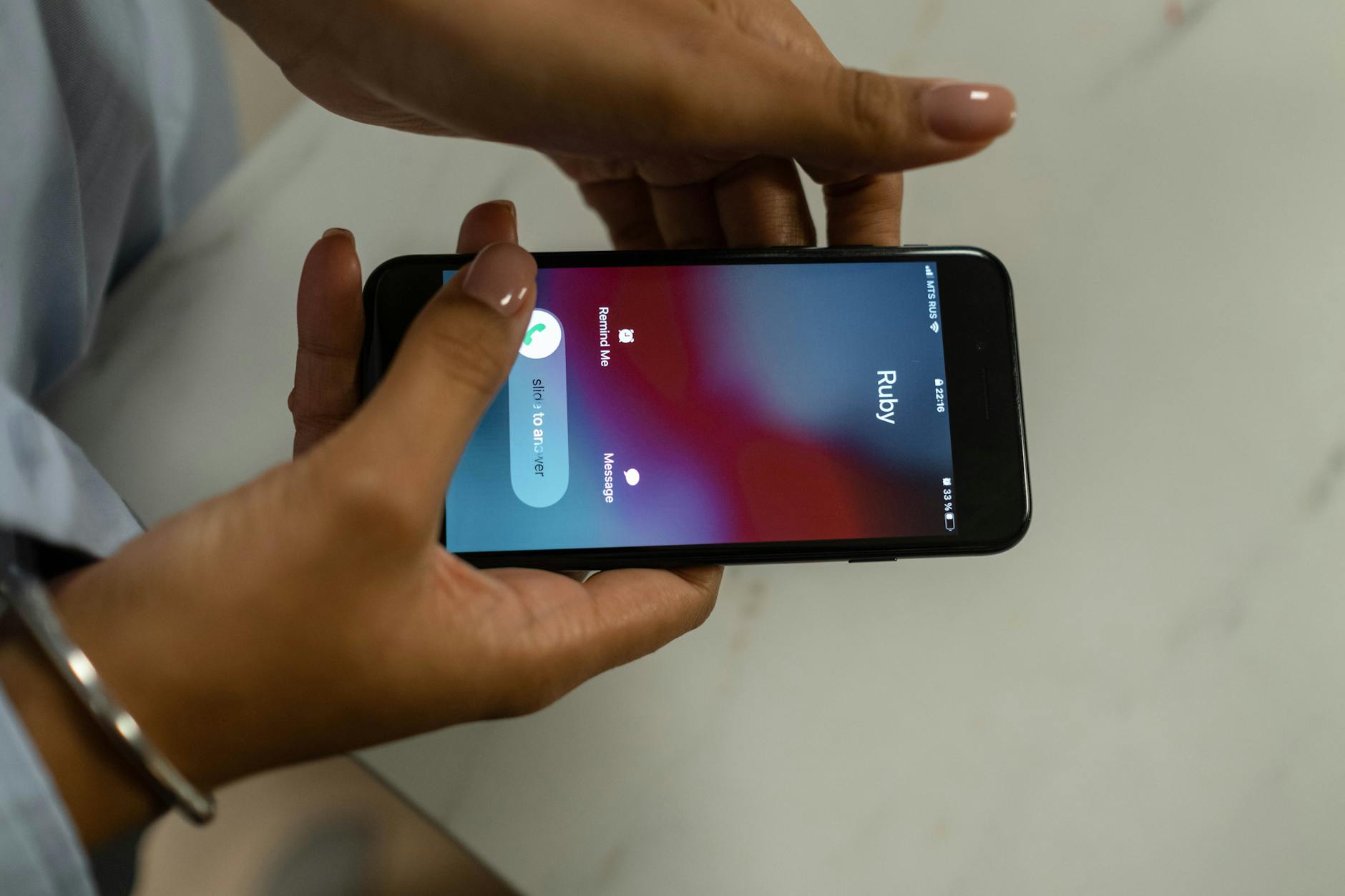 Photo by cottonbro studio
Temporary solutions for lock screen name
If the name on your lock screen seems off, you can rely on the exact saved contact name on your device as a stable fallback. This reduces confusion while you await a CNAM update from your carrier or a permanent app adjustment.
- Confirm the number is saved in Contacts with the exact display name you want shown on the lock screen. If the current entry is wrong, edit it or create a new, correctly labeled contact.
- For frequent callers, keep a dedicated contact card with the precise name you want displayed. This makes it easier to recognize at a glance.
- If you share a device, consider adding a descriptor in the contact name (for example, “J. Smith – Office” vs “John Smith”) to prevent mixups when multiple names look similar.
- When you’re unsure if CNAM data will catch up, you can rely on the saved contact name as the default. If a caller’s CNAM matches later, your device will still prioritize your saved name while you test updates.
If you want a deeper dive into CNAM basics and contact management, these resources offer practical context:
- CNAM explained and set up: https://support.sip.us/hc/en-us/articles/360015059391-CNAM-Explained-and-How-to-Set-Up/subscription.html
- Lifewire on Android contact name fixes: https://lifewire.com/change-caller-id-name-on-android-5186874
Related reading: Best practices for CNAM and branded calling
Communicate with the caller to verify identity
A quick, proactive step can save you from falling for spoofed or mislabeled calls. If a name looks odd, ask the caller to confirm their identity before you proceed. This is especially important for unfamiliar numbers.
- Simple script you can copy:
- “Hi, this is [Your Name]. I don’t recognize your name with this number. Who is this and what company are you calling from?”
- If they identify themselves, you can confirm the contact record you have on file and proceed.
- If the caller hesitates or avoids specifics, end the call politely and verify through a known channel.
- For frequent contacts, you can pre-share a quick identity check so they know to expect this step when calling you.
If you want quick guidance on verifying caller identity and related tips, you can review:
- Why Caller ID shows the wrong name and how to fix it: https://firstorion.com/why-caller-id-shows-the-wrong-name-and-how-to-fix-it/
In certain cases, a brief confirmation can prevent you from engaging with spoofed or outdated entries. It’s a simple safeguard that protects your information and time.
Quick testing checklist after changes
After you apply any adjustment, run a short test to confirm the lock screen shows the correct name. Use a trusted contact and a different line if possible to simulate how CNAM updates propagate.
- Call from a known contact to see if the name matches your saved entry.
- If you have another SIM or carrier line, test the number from that line as well.
- Note any differences between devices if you share a family plan or have multiple phones in use.
This quick validation helps you catch drift early and prevent longer debugging sessions.
For broader context on verifying caller identity and common mislabeling causes, explore:
- Why Does My Caller ID Show the Wrong Name: https://www.calilio.com/blogs/why-caller-id-shows-wrong-name
By keeping these steps in your toolbox, you’ll have a reliable, repeatable plan to tighten up lock screen names. If issues persist, you can combine these quick checks with the more in-depth steps covered earlier to isolate the root cause and apply a lasting fix. This approach helps you maintain a calm, confident smartphone experience every day.
Conclusion
A reliable lock screen name comes from clean contacts, controlled lookups, and up-to-date CNAM data. Start by checking your saved contacts for duplicates or wrong entries, then review any third party caller ID apps and disable overrides if needed. Refresh carrier data on your iPhone or the carrier updates on Android, and reach out to your carrier when changes don’t propagate. If the issue persists, apply the quick tests with a known number to confirm the fix and keep monitoring for any drift.
Try the steps in this order, and share the results in the comments so others can see what worked for you. Your smartphone will feel more predictable after this small routine, and you’ll answer with confidence next time a call arrives.