There Is a Frequency That the Wealthiest Families Have Used for Generations and Most People Will Never Know It Exists
>>> Open the Door <<<

Have you ever been on a call or navigating without warning only to see your phone show 50 percent and then power off anyway? That frustrating moment is more common than you think, and it disrupts both daily routines and important tasks. You’re not alone, and there’s a clear pattern behind why it happens.
In this guide we’ll unpack the main culprits behind a phone that dies while the battery indicator still reads high. Expect explanations about aging battery cells, misread gauges, temperature effects, and software quirks that can cause a sudden shutdown. You’ll learn how to tell which issue is likely affecting your device and what steps you can take to fix it without jumping straight to a costly replacement.
We’ll walk through practical fixes you can try right away, whether you own an Android or an iPhone. Simple checks like updating software, testing battery health, and calibrating the gauge can make a noticeable difference. If needed, we’ll cover when it’s time to seek professional help or replace the battery. By the end, you’ll have a clear, actionable plan to get your smartphone back to reliable daily use, with steps that feel doable and grounded in recent user reports and tech-site guidance.
Section: Spot the Top Causes of Random Phone Shutdowns
When your phone shuts down unexpectedly, it can be tempting to chalk it up to one mysterious flaw. In reality, several common culprits often stack up, especially when the battery gauge reads fine. Below are the top causes to consider, along with quick indicators and practical fixes. Think of this as a diagnostic map you can follow before deciding on a battery replacement or a trip to the repair shop.
He Was Drowning in Bills and Burnout Until a Simple Daily Ritual Rewired His Brain for Wealth in Less Than a Week
>>> Start Your Shift Today <<<

Battery Health Gone Bad
Batteries degrade with time. As cells lose capacity, they can fail to deliver power quickly, causing a shutdown even when the display still shows a healthy percentage. This mismatch happens because the gauge is reading a number that no longer reflects the actual energy available. On Android, check the health status by going to Settings > Battery > Health. On iPhone, open Settings > Battery > Health to view the Maximum Capacity and Peak Performance Capability. If health is under 80%, replacement is strongly advised. Regular battery calibration won’t fix aging cells, but it helps the gauge stay accurate for a while longer. For more context on when to replace, see trusted guidance from consumer tech resources.
- Quick tip: If you notice rapid battery drain or unexpected shutdowns after minor tasks, the issue is often tied to old cells rather than software.
- When to act: Replace the battery if health is under 80% or if the device still dies at a mid-range percent despite calibration.
Overheating Triggers Shutdowns
Overheating is a common trigger for sudden shutdowns. Apps running in the background, direct sun exposure, or a fast charger can push temperatures beyond safe limits. Signs include a warm back, sluggish performance, and the screen feeling unusually sluggish before the device powers off. To cool it quickly, remove it from heat sources, disable or close power-hungry apps, and switch to a lower brightness profile. If you’re charging, unplug the device for a while and allow the battery to cool before resuming. Consistent overheating can damage components, so address it early.
- Quick tip: Use task manager or battery settings to identify apps consuming the most power.
- When to act: If the device heats up during normal use or while charging, take action immediately.
Software and App Glitches
Software issues often masquerade as battery or hardware problems. An outdated OS, buggy apps, or even malware can cause a device to shut down unexpectedly. Start with a system update; manufacturers routinely fix power management flaws in newer builds. Review installed apps for recent updates or suspicious behavior, and consider uninstalling recent additions to test stability. A malware scan or a factory reset may be necessary in extreme cases, but back up data first. Regular maintenance keeps software glitches from triggering a shutdown.
- Quick tip: Reinstall critical apps one by one to pinpoint problematic software.
- When to act: If updates don’t help and you notice abnormal app behavior or rapid battery drain, investigate software issues.
Links for reference and deeper reading:
- Why does my phone keep turning off? Asurion insights and practical fixes
- How to stop your phone from turning off by itself (ITarian guide)
- Why Phones Randomly Shut Off & How to Fix It (NSYS Group)
Easy Universal Fixes to Stop Shutdowns Now
If your smartphone shuts down while the battery still reads high, you’re not alone. Some fixes work across both Android and iPhone models, and they don’t require an expert. This section covers two practical, universal steps you can take right away. Think of these as quick checks that address common triggers such as software quirks, heat, and simple power management misreads. By following these steps, you can often restore reliability without costly replacements or complicated tinkering.
Restart and Cool Down Your Device
A full restart can clear stuck processes and reset power management while giving the battery gauge a chance to recalibrate in a safe environment. Start by powering off completely, then wait 30 seconds before turning the device back on. If your phone feels hot, let it cool in a shaded spot for a few minutes before you power it up again. On Android, a force restart is sometimes needed when the device is unresponsive; this is done by holding the power button plus a volume key for several seconds until the device reboots. On iPhone, a force restart procedure varies by model, but it essentially forces a fresh boot without data loss. After reboot, aim for a lower ambient temperature and a momentary reduction in background activity to reduce heat during startup. If the device cools and stays responsive, you’ve likely resolved the immediate issue.
- Quick tip: Check the screen brightness and close battery-hungry apps before resuming heavy tasks.
- When to act: Use a full restart if the phone freezes or shuts down during normal use, and the normal restart option isn’t responsive.
For more precise steps, see how to perform a hard restart on an Android phone and the official force restart guidance from Apple. These guides walk you through model-specific button sequences to trigger a clean reboot if the device is unresponsive.
How to Hard Restart an Android Phone
Force restart iPhone
Update Your Phone’s Software
Software updates fix bugs that can cause unexpected shutdowns and improve power management. Start by checking for available updates on both platforms, then install any that show up. On Android, go to Settings > System > Advanced > System update (paths vary by manufacturer) and follow the prompts. On iPhone, open Settings > General > Software Update and install any available updates. After updating, reboot once more to ensure the new code runs cleanly. Updates often include better battery profiling and fixes for power spikes that can briefly misreport charge levels.
- Quick tip: After updating, monitor battery behavior for a day. If issues persist, a subsequent OS patch may be released.
- When to act: Apply updates promptly when they address known power management bugs or improve device stability.
Keeping your OS current is one of the best ways to prevent random shutdowns caused by software glitches. If you’d like a deeper dive, see resources on Android and iOS update procedures and how updates can impact battery health.
How to Update or Upgrade Your Phone’s OS Version – Android
How to Update Your Phone — iPhone and Android
Android-Specific Steps to Fix Battery Drain Lies
If your Android phone shuts down even when the gauge looks healthy, you’re not chasing a single culprit. Often a mix of stubborn apps, background processes, and wonky power reporting causes the issue. In this section, you’ll learn concrete, Android-focused steps to pinpoint the real drains and reset the balance without a costly fix. We’ll cover how to read battery usage, how to test in safe mode, and when a full system reset becomes the right move.
Hunt Down Power-Hungry Apps
Start by checking which apps sap power from the battery. On Android, you can view battery usage stats to see exact culprits and the percent each app consumes. For a quick guide to reading these stats, see how to check app usage on Android to figure out which apps you spend the most battery, data, and time on. If you identify a rogue app, try force stopping it or uninstalling it, then recheck power usage over the next day. If the drain persists, a temporary switch to safe mode helps isolate software problems. Safe mode runs the device with only essential apps, so you can determine if third-party software is the root cause. For a practical safe mode overview, see Safe Mode on Android and how it helps isolate battery hogs. If the problem still bites after a clean boot, a deeper check of background services may be needed.
- Quick tip: Look for apps that run in the background even when you aren’t using them and disable any that aren’t essential.
- When to act: If you notice one or two apps hogging battery consistently, address them first before broad changes.
Relevant reading: How to check your app usage stats on Android to identify battery drains.
https://www.businessinsider.com/tech-reference/how-to-check-app-usage-on-android
For deeper isolation steps, Safe Mode can reveal if a rogue app is the culprit. AndroidCentral discusses using Safe Mode to isolate battery-hogging apps.
https://forums.androidcentral.com/threads/safe-mode-to-isolate-battery-hogging-apps.598948/
Run a Full System Reset if Needed
If software conflicts and stubborn apps refuse to cooperate, a factory reset can restore a clean slate. Before you proceed, back up all data—photos, messages, and app data—so nothing valuable is lost. Then follow the Android factory reset steps provided by trusted sources. A typical path involves Settings > System > Reset > Factory data reset, but paths can vary by manufacturer. Do this only if you’ve exhausted other options and the device still shows unreliable power behavior. After the reset, reinstall essential apps gradually and monitor battery performance to confirm the issue is resolved. If you’re unsure how to back up or reset, start with a step-by-step guide on how to factory reset your Android and what to back up first.
- Quick tip: Backups are critical; consider storing important items to a cloud service or a local computer.
- When to act: Choose a full reset only if multiple software fixes fail to improve reliability and you’ve confirmed the issue isn’t hardware, such as a failing battery.
Useful reference: How to factory reset your Android to start fresh.
https://www.asurion.com/connect/tech-tips/how-to-reset-android-phone-to-factory-settings/
For backing up before a reset, see guidance on what to back up before factory resetting an Android phone.
https://www.quora.com/What-should-I-backup-before-factory-resetting-an-Android
If you want practical community-tested tips on when a full reset helps, check this AndroidCentral discussion.
https://forums.androidcentral.com/threads/just-do-a-full-reset-if-you-are-getting-poor-battery-life-please.516803/
There Is a Frequency That the Wealthiest Families Have Used for Generations and Most People Will Never Know It Exists
>>> Open the Door <<<
iPhone Fixes for Unexpected Power Offs
If your iPhone seems to shut down unexpectedly even when the battery gauge reads high, you’re not imagining things. A mix of aging hardware, software quirks, and usage patterns can fool the battery indicator while the device loses power. In this section, you’ll find two practical, low-friction fixes that work across many models. These steps aim to restore reliable behavior without a trip to the shop.
Reset Settings Without Losing Data
Resetting all settings on your iPhone can clear misconfigurations that affect power management without erasing your data. This is gentler than a full factory reset because it leaves your photos, messages, and apps intact. To perform the reset, go to Settings > General > Reset All Settings. The device simply restores system defaults for network, display, and app preferences, which can fix anomalies that cause early or unexpected shutdowns. After the reset, you’ll need to re-enter Wi‑Fi passwords and tweak a few preferences, but your data stays safe. This approach often resolves issues caused by corrupted settings that confuse the battery gauge or power management routines. For a deeper understanding, see discussions about resetting iPhone without data loss and related guidance from Apple communities.
- In practice: If you notice status bars misreporting or odd background behavior after an update, this reset can re-synchronize how the device reads power.
- When to act: Use this option when software misconfigurations are suspected but you want to avoid a full data wipe.

Photo by Harry Tucker
Check and Replace the Battery
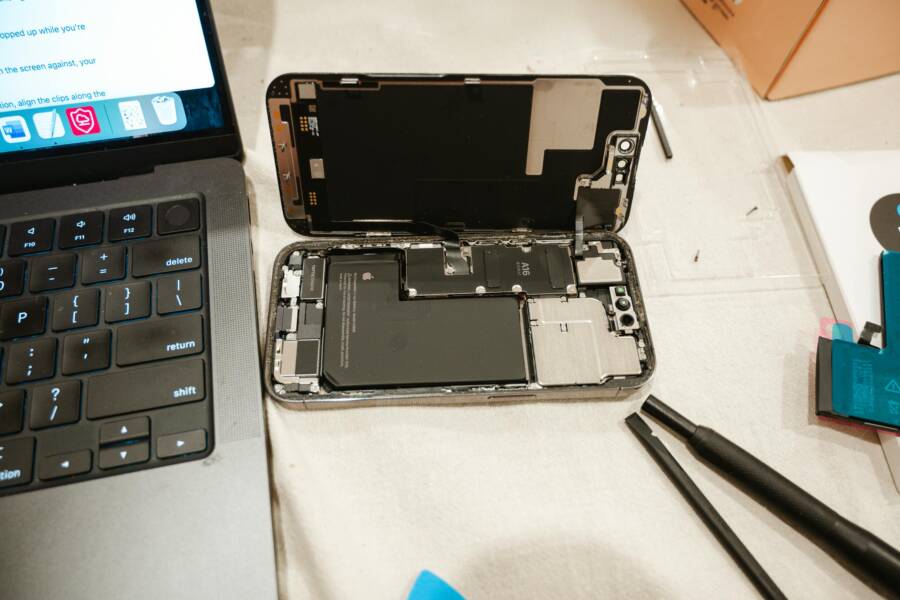
Battery health is often the decisive factor behind shutdowns that happen with a high charge reading. As cells age, they lose capacity and can fail to deliver power consistently. On an iPhone, you can check health status by going to Settings > Battery > Battery Health to view Maximum Capacity and Peak Performance. If the maximum capacity drifts below about 80 percent, it’s typically time to replace the battery. Replacement can restore accurate gauge readings and reliable power delivery. If you’re unsure, schedule a visit to an Apple Store or an authorized Apple repair provider for a diagnostic. They can perform capacity tests and, if needed, replace the battery with an official part. While you consider options, compare estimates and look for service that honors your device’s warranty or AppleCare if applicable. For more details, see Apple Support on battery and performance and reputable guides on battery replacement.
- Quick tip: If the device shuts down under moderate load despite a reasonable gauge, a fresh battery often resolves the issue.
- When to act: Replace the battery when health is under 80 percent or if the device still powers off at mid-range charge after calibration and software fixes.
- Apple Support: iPhone battery and performance: https://support.apple.com/en-us/101575
- MacPaw guide: How to check battery health on iPhone: https://macpaw.com/how-to/check-battery-health-iphone
- If you want a broader read, see a practical guide from iPhone battery health resources: https://support.apple.com/guide/iphone/understand-iphone-battery-usage-health–iphd453d043a/ios
This section keeps you focused on what to test first. If a new battery is required, you’ll gain a more predictable read on charge levels and longer, steadier runtimes. For a quick context, Apple’s battery health guidance is a solid baseline to rely on during the decision process. For a deeper look at the official stance on iPhone battery health, visit Apple’s battery usage and health article.
- Apple battery and performance: https://support.apple.com/en-us/101575
Prevent Future Shutdowns and Know When to Get Help
When your phone dies at a high battery reading, it can feel like a ticking clock. The good news is you can reduce the chances of a sudden shutdown by tackling the most common causes head-on. This section lays out practical, model-agnostic steps you can take now, plus clear signs that it’s time to consult a professional. Think of it as a preventative playbook to keep your smartphone performing reliably, day in and day out.
Monitor Battery Health and Gauge Accuracy
A healthy battery is the foundation of reliable power. If the cells lose capacity, the device may run out of juice even when the display reads a high percentage. Start by checking battery health and the device’s power metrics. On many Android models, you can inspect battery health in Settings > Battery or Battery Health, while iPhone users should navigate to Settings > Battery > Battery Health to view Maximum Capacity and Peak Performance. If health sits below 80 percent, plan for a replacement. While calibrating the gauge can help in the short term, aging cells eventually require fresh chemistry to restore reliable power delivery. Practically, this means you’ll see fewer mismatches between the gauge and the actual charge after a replacement. For additional guidance, trusted consumer tech resources offer practical thresholds and replacement considerations.
- Quick takeaway: A sagging health percentage paired with unexpected mid-charge shutdowns is a strong signal to replace the battery.
- When to act: Replace the battery if health is under 80 percent or if the device still powers off at mid-range charge after calibration and software fixes.
Tip: Regularly review how long your phone holds a charge after updates or major app changes. If you notice a sudden drop in reliability, it’s often a sign to test the battery’s health. For a deeper read, see guidance on when to replace an Android battery and related iPhone health notes.
Keep Your Device Cool and Limit Heat Sources
Heat accelerates battery wear and can push a device into a shutdown to protect itself. Common culprits include heavy games, long video streams, direct sun, and certain charging setups. If you notice warmth during normal use or while charging, take action: move to shade, unplug and cool the device, and reduce brightness or background activity. After cooling, resume light tasks first and reintroduce heavy tasks gradually. Reducing heat not only helps prevent shutdowns today but can extend overall battery life over time.
- Quick tip: Use battery usage stats to identify heat-generating apps and close or uninstall them if they aren’t essential.
- When to act: If the phone frequently overheats during routine tasks or while charging, address it immediately.
If you want a quick reference, see practical guidance on overheating and battery performance from reliable tech sources.
Tidy Up Software and App Behavior
Software glitches and poorly behaving apps can imitate hardware issues. An outdated OS, buggy firmware, or a mischievous app can cause the phone to shut down unexpectedly. Start with a software refresh: install all available updates, as power management improvements often come with new builds. After updating, monitor how the device behaves for a day or two. If problems persist, review installed apps for recent changes and test stability by temporarily removing suspicious software. In extreme cases, a reset may be warranted, but always back up first. Regular maintenance—keeping software up to date and trimming aggressive background tasks—greatly reduces the chance of a spurious shutdown.
- Quick takeaway: Software hygiene is a powerful shield against random power-offs.
- When to act: If updates don’t help and you see abnormal app behavior or fast battery drain, start narrowing down the culprit.
For deeper context, compare steps across platforms with guides that detail updating OS versions and their impact on battery behavior. Below are some targeted resources to keep handy as you troubleshoot.
- How to hard restart an Android phone: a model-specific reboot path to recover from a frozen state
- Force restart iPhone: model-specific reboot instructions to recover from unresponsiveness
Know When to Seek Professional Help
If you’ve exhausted practical fixes and your device still shuts down at moderate or high charge, it’s time to bring in support. A professional diagnosis can determine whether you’re facing a battery health issue, a hardware fault, or a software anomaly that requires a more advanced fix. Before you visit a shop, gather a few essentials: a recent battery usage pattern, a summary of symptom timelines, and a list of apps most often responsible for heavy power use. This information helps technicians pinpoint the cause quickly and can save you time and money. In some cases, replacing the battery is the simplest, most effective solution, while in others, a deeper repair or replacement may be needed.
There Is a Frequency That the Wealthiest Families Have Used for Generations and Most People Will Never Know It Exists
>>> Open the Door <<<
- Quick note: If your device is under warranty or covered by a service plan, check the terms before paying out of pocket.
- When to act: See a professional if multiple software fixes fail, the device continues to shut down at varying charge levels, or you notice hardware signposts such as swelling, unusual heat, or physical damage.
Trusted service providers can run official diagnostics and verify battery health with precise capacity tests. If you’re weighing options, compare estimates and ask about warranty coverage and part authenticity. In many cases, a confirmed battery replacement restores accurate charge reporting and stable performance.
External references and further reading
- If you’re unsure when to replace, see guidance from Asurion on recognizing Android battery degradation and the signs that point to a replacement.
https://www.asurion.com/connect/tech-tips/signs-you-need-to-replace-your-android-phone-battery/ - For iPhone users, Apple’s guidance covers battery health and performance and helps explain when a replacement is likely needed.
https://support.apple.com/en-us/120745
By following these checks and knowing when to seek expert help, you’ll reduce the chance of future shutdowns and keep your smartphone ready for daily tasks. This proactive approach protects your data, maintains productivity, and minimizes the cost and hassle of unexpected outages. If you want more hands-on steps, you can pair these checks with model-specific guides and factory reset advice when software issues are suspected. When in doubt, a quick professional diagnostic is a small investment that can spare bigger headaches down the road.
Conclusion
Many shutdowns stem from aging batteries, overheating, software glitches, or misread gauges. The most common causes to check first are battery health, temperature, and recent app behavior. A quick calibration and a gentle software refresh can fix most issues at home.
Start with the easy steps in order: restart and let the device cool, update the software, then review battery usage for power hogs. If the problem persists, test in safe mode on Android or reset settings on iPhone to rule out rogue apps or misconfigurations. If you still see power loss at mid or high charge, consider a battery health check and, if needed, a replacement. These steps apply across models and often resolve the issue without a repair shop.
Share your experience in the comments or on social media to help others. If one fix works for you, tell us which step made the biggest difference. This approach keeps your smartphone reliable, protects data, and minimizes downtime.
Thanks for reading. For ongoing wins, keep software up to date and monitor battery health monthly; small, regular checks prevent big outages.
She Pressed Play on a Strange Audio Track and Within Days Her Financial Reality Started Shifting in Ways She Could Not Explain
>>> See How It Works <<<
