He Was Drowning in Bills and Burnout Until a Simple Daily Ritual Rewired His Brain for Wealth in Less Than a Week
>>> Start Your Shift Today <<<

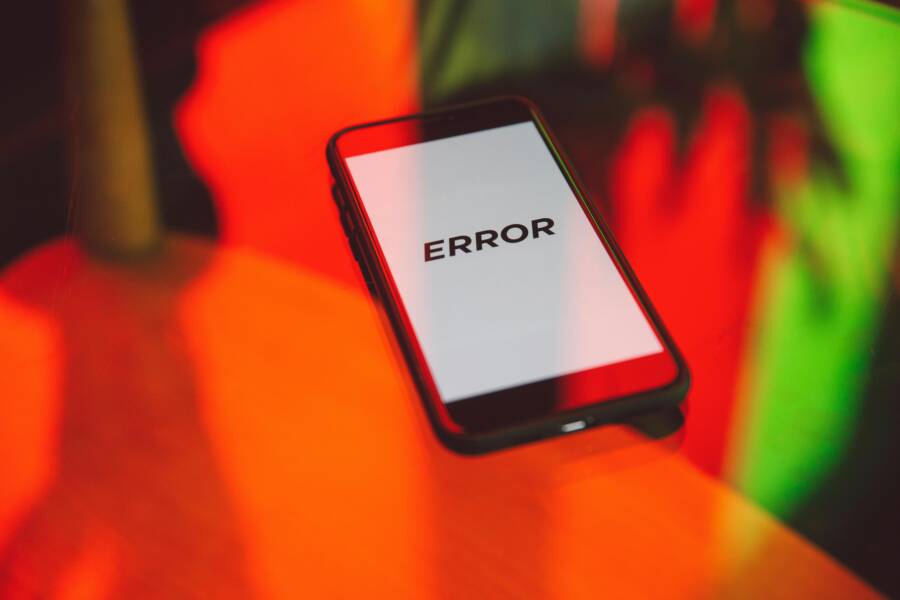
Have you ever watched your battery percentage drop to zero and your phone dies within minutes, even though you just charged it? That unreliable reading is more common than you might think, and it can be a real hassle when you rely on your device for daily life. In this post you’ll learn why a phone can show a wrong battery percentage and how to fix it quickly.
We’ll cover the main causes in plain terms: software glitches, aging batteries, and apps that drift the numbers. Whether you use an Android device or an iPhone, the fixes share a simple goal—to recalibrate the battery and restore trust in the readout. You’ll discover practical steps you can take now to reduce stress, extend battery life, and avoid guessing at how much power you have left.
This guide walks you through a step by step approach for both platforms. You’ll find quick checks like health status and settings adjustments, plus a few hands on calibration tricks that often solve the problem without a trip to the repair shop. By the end you’ll know when a misreading is a sign of deeper wear and when it’s just a temporary glitch. With a few deliberate tweaks, your phone will show a clearer picture of its remaining power and keep you moving through the day.
Spot the Signs of Inaccurate Battery Readings
Battery readings that don’t reflect real power can disrupt your day. Knowing what to look for helps you catch misreads early and prevent unexpected shutdowns. In this section, you’ll learn the telltale signs, what they mean, and how to verify if the numbers you see are trustworthy.
He Was Drowning in Bills and Burnout Until a Simple Daily Ritual Rewired His Brain for Wealth in Less Than a Week
>>> Start Your Shift Today <<<
 Photo by Polina Zimmerman
How to Check Battery Health on Your Phone
Understanding your battery health is the first step to spotting inaccurate readings. Here’s a concise guide for both major platforms.
- Android
- Use a reputable health app such as AccuBattery. It provides estimated capacity, wear level, and charging behavior.
- You can also access a built-in check with the dial code
*#*#4636#*#*to view basic battery details on many devices. - If the app shows a lower maximum capacity than your device’s age would suggest, expect some drift in displayed percentage.
- iPhone
- Open Settings > Battery > Battery Health to see Maximum Capacity and Peak Performance Capability.
- If Health is below 80%, the phone may throttle performance to protect the battery. Consider a replacement or planned charging adjustments.
- Regularly review usage patterns and notes in the battery health section for changes over time.
What does 80% health mean and why does it matter? In practical terms, a battery at 80% capacity has lost about 20% of its original storage. This typically translates to shorter daily endurance and a higher chance of misreadings during heavy use or after a reset. For Android, third-party apps give a more granular view of wear and draw. For iPhone, Apple’s built-in metrics provide clear guidance on whether you should plan a battery replacement or adjust charge habits. See official guidance on iPhone battery usage and health for deeper context.
- Android health resources you can explore include detailed guides on checking battery health via apps and system settings. For a broader look, this Android Police overview explains how battery capacity can drift and how to interpret health metrics.
- iPhone health references from Apple explain how Battery Health relates to performance and what steps to take when health declines.
Where to learn more:
- Android battery health guidance: https://www.androidpolice.com/android-check-battery-health/
- iPhone battery usage and health: https://support.apple.com/guide/iphone/understand-iphone-battery-usage-health–iphd453d043a/ios
Key signs to watch for that point to inaccurate readings
- Sudden jumps in percentage after a reboot
- Rapid drop in charge level without heavy usage
- Phone dies earlier than test results suggest
- Charging behavior that doesn’t align with the voltage and current reported by health apps
If you notice any of these signs, run a quick cross-check: compare the readout with a trusted health app, perform a full charge-discharge cycle, and observe the discharge rate under a controlled workload. This simple sanity check often reveals whether the problem is a misread rather than battery wear.
- For Android users, additional practical tips include calibrating by fully charging to 100% and then letting the battery drain to near 0% before charging again. This helps align the software indicator with real capacity.
- For iPhone users, keep the software up to date. Apple often improves battery reporting accuracy with iOS updates, and a fresh update can reduce misreadings.
If you want a quick, reliable starting point, consider checking Maximum Battery Capacity in the iPhone Battery Health section and review any notes about Peak Performance. If the health percentage remains suspiciously high but your device shows quick power loss, it may be time to recalibrate or seek service.
Remember, accurate readings build trust. When you can trust the numbers, you can plan charging, manage app usage, and decide when it’s time for a battery replacement. For more on how each platform handles battery health, see the official guides linked above.
Images and further reading
- For Android, see the practical guide on checking battery health via apps and system tools.
- For iPhone, review Apple’s battery health resources to understand what the numbers mean in real life.
Easy Fixes That Work on Any Phone
When your battery percentage reads oddly or misleads you about remaining power, simple, universal fixes can restore trust in the readout. These quick wins apply to both Android and iPhone, so you can get back to normal faster without hunting for a repair shop. Below are two practical fixes that tend to make the biggest difference: a reboot plus update cycle, and using proper chargers with smart charging habits to prevent heat buildup.
Restart and Update for Instant Improvement
A fresh restart clears minor software glitches that can misreport battery level. It also kicks in any pending updates that improve power management and battery readouts. Start with the basics: shut down your device completely, then power it back on after 30 seconds. On most Android phones, hold the power button, tap Restart, and wait for the device to reboot. For iPhone, press and release the volume up button, press and release the volume down button, then hold the side button until the Apple logo appears.
Next, check for updates. Android users should go to Settings > System > Software Update and install any available updates. iPhone users should open Settings > General > Software Update and install any pending iOS updates. Updates often include fixes for battery indicators and charging behavior. A quick reboot after updating helps the system apply changes cleanly. If the issue persists, repeat the update check a day later to confirm the rollout finished on your device. For more on iPhone battery health and related updates, see Apple’s official guidance.
External resources:
- If you’re troubleshooting on iPhone, you can refer to Apple’s support article on forcing a restart and update steps for charging and health checks: https://support.apple.com/en-ca/guide/iphone/iph8903c3ee6/ios
Key takeaway: a simple restart paired with the latest software can resolve most misreadings without extra tools. Beyond that, staying current with updates helps ensure the battery readout reflects real capacity and charging behavior.
Switch to Official Chargers and Cool Spots
Cheap or counterfeit chargers can introduce voltage fluctuations that confuse the battery meter. Always use the original charger and a certified cable, or a trusted, well-made replacement. If you notice odd charging behavior — the percentage jumps, or it charges unusually slowly — switch to an official charger to rule out power anomalies. Also, keep the phone in a cool spot while charging. Heat is a well known accelerant of battery wear and can skew readings.
Practical tips:
- Inspect cables and adapters for wear. Replace frayed or bent cables right away.
- Avoid charging in direct sunlight or on soft surfaces that trap heat.
- If you’re in a warm environment, use a fan or move to shade while charging.
For additional context on the risks of counterfeit chargers and safe charging practices, you can explore industry guidance and consumer safety resources:
- EMC Tech overview on risks from counterfeit phone chargers: https://www.emctech.com.au/risks-counterfeit-phone-chargers/
Takeaway: using official or certified charging gear reduces the chance of voltage irregularities that skew battery percentage readings. Pair this with charging in a cooler environment, and you’ll see more consistent numbers and better overall battery health.
Calibrate Battery on Android Phones Step by Step
When your phone shows a misleading battery percentage, the culprit is often apps nibbling in the background or misreported power usage. The aim here is to quickly identify those power hogs and tame them. This section walks you through practical steps to spot and stop battery-draining apps, using both built-in controls and reputable tools. You’ll learn how to restrain or remove the offenders so your readings stay honest and your device lasts longer between charges.
 Photo by Andrey Matveev
Find and Stop Battery-Draining Apps
Spotting which apps drain power is the first line of defense. Start with built-in menus, then if needed move to trusted third-party tools. The goal is to see which apps run in the background and how much juice they consume.
- Check your battery usage screen: most Android devices show a breakdown of apps by how much battery they used in the last 24 hours or since last charge. Look for apps with unusually high drain relative to their activity.
- Inspect background activity: some apps run continuously, fetch data, or play minor tasks in the background. If you notice an app draining more power than its usage justifies, consider restricting its background activity or forcing a stop.
- Use a reputable battery health app: apps like AccuBattery provide deeper insights into wear, charging behavior, and estimated capacity. They can help you spot if a high drain is tied to a battery that’s wearing out or a misreporting app.
- Uninstall or restrict: if an app is not essential, uninstall it. If you must keep it, restrict background work, disable auto-start, or force stop it when not in use. This can dramatically reduce misreadings caused by constant polling or location tracking.
- Review data-heavy apps: streaming, maps, and social apps often wake the device more than you realize. If you don’t need real-time updates, switch to less aggressive settings inside the app.
Quick takeaways: identify the top drainers, disable unnecessary background activity, and replace or limit aggressive apps. If you’re unsure about a particular app, tend to err on the side of caution and monitor power for a day after changes.
For more on spotting energy hogs, see:
What If the Only Thing Between You and the Life You Deserve Is a Hidden Wealth Code Waiting to Be Activated
>>> Open the Door <<<

- How to see which apps are draining your phone’s battery on Android: https://www.androidpolice.com/how-to-find-apps-draining-phone-battery/
- Ways to stop apps from running in the background on Android: https://lifewire.com/stop-apps-from-running-in-the-background-on-android-4777510
If you want a quick energy audit, start with the top three culprits you use most daily. Restrict their background activity, then monitor how quickly the battery settles. A clean slate often clears up misreadings and improves overall battery life. In many cases, this simple cleanup is enough to restore trust in your battery indicator without a reboot.
When you’re done, revisit the battery usage screen after a full charge to confirm the readout aligns with actual consumption. If the readout remains inconsistent, the issue may lie with the battery itself or the calibration process rather than apps. For additional context on battery usage and health, you can explore these sources:
- I found this helpful overview from ZDNet on identifying apps that drain Android batteries: https://www.zdnet.com/article/how-to-find-out-what-apps-are-draining-your-android-battery/
- A practical guide on stopping background activity and extending battery life from Lifewire: https://lifewire.com/stop-apps-from-running-in-the-background-on-android-4777510
Key takeaway: frequently, the users who notice the biggest improvement are those who tame background tasks and tighten app permissions. A careful audit of running apps often yields a more accurate battery percentage and longer screen-on time.
Fix Battery Percentage Errors on iPhone
If your iPhone shows a battery percentage that doesn’t seem to match the charge left, one simple setting adjustment can help. This section explains how disabling Optimized Battery Charging can improve accuracy in many cases. It’s quick to try and doesn’t require tools. After the change, monitor a full charge and discharge to see if the readout aligns better with real usage.
Disable Optimized Charging for Better Accuracy
Go to Settings > Battery > Battery Health and toggle off Optimized Battery Charging. This feature learns your daily charging habits to slow aging, but it can cause the percentage to appear less accurate during certain cycles. By turning it off, the iPhone uses a straightforward charging profile, often restoring more reliable readings. If you keep the feature off, consider occasionally re-enabling it to extend battery life while keeping an eye on how the readout behaves. For more context, see Apple’s guide on Optimize iPhone battery charging. https://support.apple.com/en-us/guide/iphone/optimize-battery-charging-iph9202bbd07/ios
When to Replace the Battery or Get Pro Help
If your smartphone isn’t giving you a clear picture of its power, you may wonder whether a simple calibration will fix it or if a battery replacement is in order. This section helps you decide when to push through with a self-service fix and when to seek professional help. You’ll find practical signals, quick checks, and honest guidance so you don’t waste time chasing ghosts or paying for an unnecessary repair.
Recognize the Signs That Time Has Come
Battery symptoms aren’t always dramatic. Often they creep up, then suddenly feel obvious. Watch for:
- Sudden shutdowns even with a seemingly full readout.
- Rapid power loss during light use.
- Readouts that jump around, especially after a reboot.
- Very slow charging or an unusually warm phone during charging.
If you notice these, it’s wise to treat them as red flags. They can indicate aging cells, a failing battery gauge, or software quirks. For iPhone users, a battery health reading below a certain threshold often signals it’s time to plan a replacement. Android users can rely on built-in health indicators or reputable apps to gauge wear and capacity. See official guidance on iPhone battery health for more context.
- Quick check on Android: use a trusted health app to compare its readings with the device’s own indicator. If the wear level is high, expect more drift in the percentage readout. For deeper insight, explore Android’s battery health resources.
- Quick check on iPhone: open Settings > Battery > Battery Health to see Maximum Capacity and Peak Performance. If Health is low, plan for replacement or adjust charging habits.
When you’re unsure, run a controlled test: fully charge, then discharge to near 0% while watching the readout, then recharge. If the percentage swings don’t align with actual usage, it’s time to consider replacement or professional help.
For further context on when to replace a battery, see:
- How to know when it’s time to replace your iPhone battery from Asurion
- How to know when to replace your Android phone battery from Asurion
Assess Whether You Can Do It Yourself or Need a Pro
Battery replacement ranges from simple to complex depending on the model and whether the battery is user-removable. If you’re comfortable with small repairs, some devices let you swap in a new cell at home with the right tools. However, non-removable batteries on many phones require careful disassembly and a calibrated setup afterward. When in doubt, a pro can prevent accidental damage and ensure the new battery is safely installed.
- DIY route: suitable for older models with user-accessible batteries and clear online tutorials.
- Pro route: recommended for sealed designs, water resistance seals, or if you’re seeing other symptoms like screen artifacts or nonfunctional buttons after a suspected battery issue.
If you want a reliable benchmark, consider a professional health check before you buy a replacement. A technician can confirm whether the issue is a worn battery or a faulty gauge and can test charging circuitry and the power management chip. For iPhone users, Apple’s guidance and local service options provide a straightforward path to diagnosis and replacement when needed.
Helpful resources:
- How to know when to replace your iPhone battery (Asurion)
- When to replace your iPhone battery discussions and user questions (Apple discussions)
- When to replace your phone battery guidance (general consumer guidance)
Weigh the Costs and Timing
Battery replacements vary by model, region, and whether you choose an OEM part or a reputable third party. Before you decide, consider:
- The device’s age and daily use pattern. If a phone is several years old, a replacement might extend life meaningfully, or it may be a sign to upgrade.
- The total cost of replacement versus a newer device. If you’re due for an upgrade soon, factoring in resale value can alter the decision.
- The impact on performance. A worn battery can throttle performance to protect the device; a replacement often restores peak performance and endurance.
If you’re curious about typical timelines, you’ll find practical breakdowns in official battery health guides and independent service providers. For iPhone owners, Apple’s battery guidance and third-party repair resources offer current expectations on cost and service.
For a clear view of options, see:
- How to know when to replace your iPhone battery (Asurion)
- When you should replace your phone battery (CellPhoneRepair resource)
Steps to Take if You Decide to Replace
If you choose replacement, here’s a concise checklist to keep things smooth:
- Back up all data. A new battery swap should not erase data, but it’s a safety net.
- Confirm your model and battery type. Use only a compatible battery from a trusted source.
- Choose the service path. DIY if you have the right tools and instructions, or a reputable repair shop or manufacturer service for a guaranteed install.
- After installation, calibrate the new battery. A full 0% to 100% discharge cycle helps the gauge learn the new capacity.
- Monitor performance for a week. Check for consistent charging, stable temperatures, and trustworthy percentage readouts.
Helpful references:
- iPhone battery replacement guidance from Asurion
- Battery health testing and service options from reputable repair providers
Quick Tips to Extend Life Before Replacing
While you’re deciding, you can still get more mileage from your current pack with simple habits:
She Pressed Play on a Strange Audio Track and Within Days Her Financial Reality Started Shifting in Ways She Could Not Explain
>>> See How It Works <<<

- Keep charge between about 20% and 80% when possible.
- Avoid heat during charging; charged devices perform best in cooler, ventilated spaces.
- Use a certified charger and avoid makeshift cables and adapters.
- Update your software regularly to ensure battery management is up to date.
When you’re ready to move forward, you’ll have a clear plan. A well-timed replacement can restore real endurance and a trustworthy readout, while delaying when the battery has already degraded too far can lead to stubborn misreadings and performance issues.
External resources for deeper reading:
- How to know when to replace your iPhone battery (Asurion)
- How to know when to replace your Android phone battery (Asurion)
- iPhone battery health and charging guidance (Apple Support)
Conclusion
A misreading battery gauge is annoying but solvable with a simple, ordered approach. Start with the basics: reboot your phone, install any pending updates, and test with a trusted charger. These steps fix most software glitches that skew the readout and set the stage for accurate calibration.
Next, fix the health picture. On iPhone, check Battery Health and, if needed, disable Optimized Charging temporarily to see if readings stabilize. On Android, use a trusted health app to cross check the device’s own indicators and spot wear patterns. If the numbers still drift, run a full charge cycle a few times to retrain the gauge.
Then tune charging habits and background activity. Use official chargers, keep the device cool while charging, and trim power-hungry apps that run in the background. This reduces heat and voltage fluctuations that distort the percentage readout. A well-managed device is more predictable in daily use.
If you still notice odd jumps or early shutdowns, weigh the battery’s age and planned replacement. A new battery or professional service can restore real endurance and a reliable readout. A quick at‑a‑glance calibration when you replace the pack can lock in accuracy for the long haul.
Have you tried these steps yet, and which one made the biggest difference for your smartphone? Share your experience, and tell us what model you use, so others can learn from real-world results. A small tweak today can save a big headache tomorrow. smartphone users, take charge of your charge.
He Was Drowning in Bills and Burnout Until a Simple Daily Ritual Rewired His Brain for Wealth in Less Than a Week
>>> Start Your Shift Today <<<