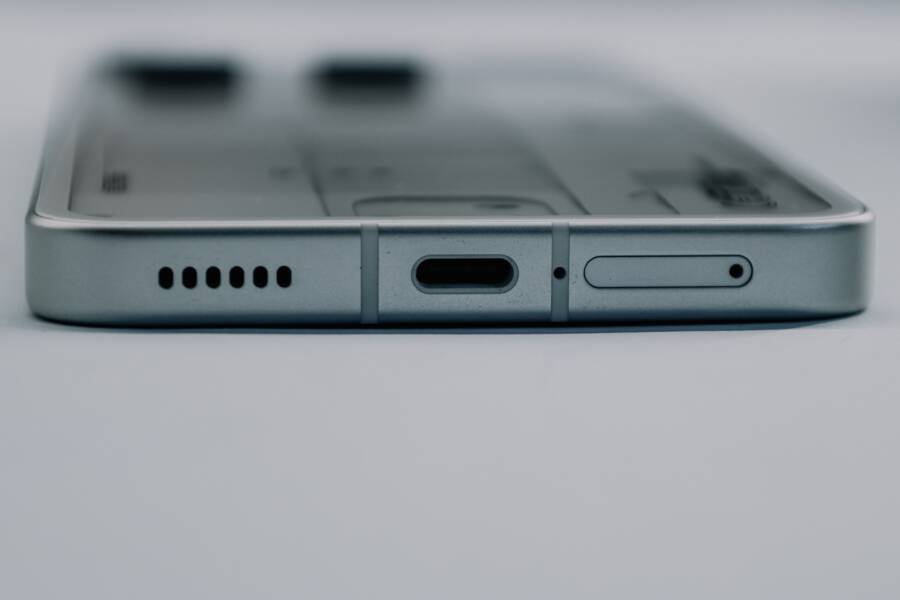
Turn off your phone, disconnect the charging cable, and let the charging port cool and dry. Then remove visible lint with a soft, dry brush or a gentle burst of air, but don’t force the charger back into the port.
The dust warning is a safety feature that can block charging when your smartphone detects debris, moisture, excess heat, or a faulty cable. The alert may appear under different names or settings on Android phones, Samsung Galaxy devices, Google Pixel phones, and iPhones, so the right fix can vary by model.
Start with the safest cleaning and drying steps, then check the cable, port, and device settings if the warning remains.
How to Fix a Phone That Keeps Warning About Dust in the Charging Port
If the dust warning remains after the charging port looks clean, stop reconnecting the cable and troubleshoot the phone, cable, and port separately. A persistent alert can result from trapped lint, moisture, corrosion, a damaged cable, excess heat, or a sensor that has not reset.
Let the Phone Cool and Dry Completely
Turn off the phone and unplug the charger. Place it in a dry, well-ventilated area for at least 30 minutes. If the phone was exposed to water, humidity, sweat, or condensation, give it several hours before testing the port again.
Avoid using a hair dryer, heater, or direct sunlight. High heat can damage the battery, screen, adhesives, or charging components. Also, don’t bury the phone in rice because small particles can enter the port.
After the phone dries, inspect the charging port under a bright light. Look for compacted lint along the bottom and side walls. Use a soft, dry brush designed for electronics, and work gently around the opening without scraping the contacts.
A port can look clean while a thin layer of moisture or lint still interrupts the charging connection.
Test a Different Cable and Power Adapter
A damaged or contaminated cable can trigger a dust or moisture warning even when the phone’s port is fine. Check the connector for bent metal, discoloration, fraying, or residue. If the connector feels loose inside the port, stop using that cable.
Test the phone with a compatible, undamaged cable and a reliable power adapter. Use a wall outlet rather than a computer, car charger, or low-quality accessory during testing. If the warning appears with one cable only, replace the cable instead of cleaning the phone repeatedly.
For USB-C phones, turn the connector over and test it again. A faulty contact on one side can cause charging problems. However, don’t force the plug into the port or wiggle it while connected.
Restart the Phone and Check for System Errors
A restart can clear a temporary sensor error after the port has dried. Turn the phone off completely, wait several seconds, and turn it back on. Then connect the charger once, using the replacement cable you tested.
On some Samsung Galaxy phones, a USB moisture warning can remain after the port is dry because the USB system process has stored the alert. Menu names vary by software version, but you can try this path:
Open Settings and select Apps.
Tap the filter or menu option, then enable Show system apps.
Search for USBSettings or USB Settings.
Open Storage, then tap Clear cache.
Restart the phone and test charging again.
Clearing the cache doesn’t erase your photos, messages, or installed apps. Don’t clear app data unless the manufacturer’s support instructions tell you to do so.
On an iPhone, a liquid-detection alert should disappear after the connector and port dry. iOS may offer an emergency override, but use it only when you need power and accept the risk of corrosion or charging damage.
Use Wireless Charging While You Troubleshoot
If the phone supports wireless charging, use it temporarily instead of repeatedly inserting a cable. This keeps the charging port disconnected while you determine whether the problem comes from the port, cable, or charging circuit.
Remove thick cases and place the phone correctly on a compatible wireless charger. Wireless charging may not work if the phone is too hot, the charger is incompatible, or the phone has internal damage.
If the warning returns with every known-good cable after the port is clean and dry, arrange a professional inspection. A technician can check for corrosion, bent contacts, debris below the visible opening, or a damaged charging-port assembly. Stop charging by cable if the port smells burnt, becomes hot, sparks, or shows green or white residue.
Why the Charging Port Keeps Detecting Dust, Moisture, or Debris
A phone dust warning can continue even when the port looks clean because the charging system reacts to abnormal electrical contact, not just visible dirt. Moisture, compacted lint, residue on the plug, heat, or a damaged accessory can all make the smartphone detect a possible charging risk.
The alert usually clears after the phone dries, cools, and connects to a reliable cable. If it returns with several known-good accessories, the charging port itself may need inspection.
How to Tell Whether the Cable or Wall Charger Is Causing the Alert
Isolate the accessories before assuming the phone has a hardware problem. Turn off the phone, disconnect the current charger, and inspect the cable connector under a bright light. Test with a dry, undamaged cable that matches your phone, then connect it to a different wall adapter and a different household outlet.
Change one part at a time when possible. This makes it easier to identify the source of the warning:
Connect the replacement cable to the original wall adapter.
If the alert remains, use the replacement cable with a different, reliable adapter.
Test that setup in another wall outlet.
Stop testing if the phone or connector becomes unusually warm.
A frayed cable, bent plug, or dirty connector can interrupt the connection and cause repeated dust or moisture detection. Corrosion may appear as green, white, or dark residue on the metal contacts. Low-quality or poorly manufactured accessories can also deliver unstable power, especially if charging starts and stops.
Stop using any cable that feels hot, smells burnt, shows corrosion, or repeatedly disconnects while charging. Don’t scrub the connector with water or insert metal tools into the port. Replace the cable if its plug is damaged or contaminated.
If one cable triggers the warning while another compatible cable charges normally, the accessory is the more likely cause.
Wireless charging can provide a temporary way to power a compatible phone while you check the port. Remove any thick case, keep the phone and charging pad dry, and place the phone correctly on the pad. Wireless charging bypasses the cable connection, but it doesn’t repair a damaged or contaminated port.
What a Repeated Warning Says About the Charging Port Itself
A warning that appears with multiple known-good cables points more strongly to the phone’s charging port, its contacts, or related charging hardware. The same is true when the connector feels loose, charging works only at one angle, or the cable disconnects with light movement.
Use a flashlight to inspect the opening without inserting anything. Visible bent pins, green or white corrosion, or debris packed below the port’s edge can indicate physical damage or liquid exposure. A warning that returns after every restart also deserves attention, especially if the phone has already had enough time to dry.
Don’t bend contacts back into place or scrape corrosion from the port. Even a small tool can break a contact, damage insulation, or push debris deeper into the charging assembly. Liquid damage can also continue beneath the visible surface after the outside appears dry.
Arrange a professional inspection when the alert remains after a full drying period, the port has contacted liquid, or the phone becomes hot while charging. A technician can check the connector and charging circuitry without forcing a cable into a potentially damaged port. Until then, use wireless charging if supported and avoid repeated cable tests.
Device-Specific Fixes for Android Phones, Samsung Galaxy, Google Pixel, and iPhone
The same charging-port warning can have different wording and reset steps on each smartphone. Use the instructions for your model, but always disconnect the cable and let the port dry before changing settings or testing another accessory.
Samsung Galaxy and Other Android Phones
Samsung Galaxy devices may show a moisture or debris warning when the USB-C port detects liquid, lint, residue, or an unsafe electrical connection. Wired charging can stop until the phone determines that the port is safe. Other Android brands may use messages such as “Check your charging port” or “Liquid or debris detected.”
After cleaning and drying the phone, restart it and check whether the warning disappears. Connect a compatible, dry cable only after the port has had enough time to dry. If the message returns, disconnect the cable again instead of repeatedly forcing the phone to charge.
A warning that remains with a completely dry port may come from a stored USB notification or a temporary system error. Depending on the Android version and manufacturer, check Settings > Apps > Show system apps and look for USBSettings, USB Settings, or a similar USB system service. If the option appears, open Storage and choose Clear cache, then restart the phone.
Menu names vary between Samsung One UI versions and other Android interfaces. Avoid clearing app data unless the manufacturer directs you to do so, and don’t disable moisture or debris detection as a permanent fix. The warning protects the charging contacts from short circuits and corrosion.
Some Android phones support wireless charging, while others support USB OTG accessories. However, don’t connect a cable, USB drive, adapter, or OTG accessory while the alert is active. Wireless charging is safer for compatible models, provided the phone and charger are dry.
Google Pixel Phones
Google Pixel phones can display a “Liquid or debris in USB port” warning and may pause USB-C charging. The message can appear after contact with water, high humidity, pocket lint, or a contaminated cable. Pixel’s charging protection is designed to prevent power from reaching a port that may have an unsafe connection.
Disconnect the cable as soon as the alert appears. Place the phone with the USB-C port facing downward in a dry, well-ventilated area, then wait before testing it again. Keep the port uncovered, and don’t insert tissue, cotton swabs, or metal tools into the opening.
Once the port is dry, try one known-good USB-C cable. If the alert keeps appearing after cleaning and drying, check the cable for residue or damage before assuming the Pixel has a hardware fault. You can also restart the phone to clear a temporary system error.
Install Android system updates only after the phone has enough battery power and the port is safe to use. An update may correct a software glitch that causes repeated notifications, but it can’t remove physical lint, dry liquid, or repair corroded contacts.
Persistent alerts after a full drying period need professional attention. Contact Google support or an authorized repair provider, particularly if the port is loose, charging works only at an angle, or the phone becomes hot when connected.
iPhone Models With Liquid Detection Alerts
iPhones usually show a liquid detection alert for the Lightning or USB-C connector, rather than a literal dust warning. The same safety precautions apply because charging while liquid remains on the contacts can cause corrosion or permanent charging problems.
Disconnect the cable immediately and leave the iPhone in a dry area with the connector facing downward. Wait at least 30 minutes before trying the cable again. If the alert returns, allow up to 24 hours for the connector to dry completely before testing it further.
Don’t use a hair dryer, compressed air, rice, or a sharp object to dry the port. These methods can push moisture or debris farther inside, damage delicate contacts, or leave particles behind. Keep the cable disconnected until the alert clears.
iOS may offer an Emergency Override option. Treat it as a last resort because charging while the connector is wet can corrode the contacts. If you need power during the drying period, use MagSafe or a Qi wireless charger when the iPhone model supports it, and make sure the back of the phone is dry before placing it on the charger.
What to Do When the Dust Warning Will Not Go Away
If the phone dust warning remains after the port has dried and you have tested a known-good cable, stop forcing wired charging. The next step depends on the cause, the phone’s condition, and the likely repair cost. A smartphone with harmless lint needs a different response than one with corrosion or a damaged charging assembly.
How to Decide Between a Cleaning, Repair, Warranty Claim, or Replacement
Use careful home cleaning when the warning started after pocket lint, humidity, or brief moisture exposure, and the phone otherwise works normally. Turn the phone off, inspect the port under bright light, and remove only loose debris with a soft, dry electronics brush. If a compatible cable fits securely and charging works normally afterward, no repair may be necessary.
Contact the manufacturer or an authorized repair provider when the phone is still under warranty, has liquid damage, or shows signs of a hardware fault. Arrange service if the warning appears with several reliable cables, the port feels loose, charging works only at an angle, or the phone becomes hot during charging.
Liquid damage needs extra care because accidental liquid exposure may not be covered by a standard warranty. Before approving any work, ask whether the inspection has a fee, whether the warranty applies, and how much the repair estimate will cost. Request these details before the technician opens the phone or begins a paid repair.
Replacement usually makes sense only when repair costs approach the phone’s current value. It may also be the better choice when the required parts are unavailable, the battery is failing, or other components already need service. A charging-port repair can restore wired charging, but it may not be economical on an older device with several problems.
Use this simple guide:
Clean the port at home when the issue followed lint or humidity and charging remains normal.
Request warranty or authorized service for liquid exposure, repeated warnings, or suspected hardware damage.
Replace the smartphone when repair is too expensive, parts cannot be sourced, or several major components are failing.
A persistent warning is a reason to diagnose the phone, not to override its charging protection repeatedly.
Common Mistakes That Make Charging-Port Warnings Worse
Most charging-port warnings become harder to clear when you keep testing the phone before finding the cause. Protect the port first, then troubleshoot one factor at a time.
Forcing the Cable or Repeatedly Testing the Port
Pushing the charger into a dusty, wet, or damaged port can compact debris and bend the internal contacts. Reconnecting the cable every few minutes also keeps disturbing the same unsafe connection.
Disconnect the charger when the warning appears. After cleaning and drying the port, test it once with a compatible, undamaged cable. If the alert returns, stop wired charging until you identify the cause.
A loose connection, charging that works only at one angle, or a hot connector points to a possible hardware problem. Those symptoms need professional inspection rather than more force.
Using Sharp Tools, Cotton Swabs, or Excessive Air
Paper clips, pins, SIM ejector tools, and other metal objects can scratch contacts or create a short circuit. Cotton swabs may leave fibers inside the opening, while wooden picks can break and push debris farther into the port.
Use a soft, dry electronics brush around the port entrance instead. Hold the smartphone with the opening facing downward so loose particles can fall out. If debris remains packed inside, a repair technician can remove it with the right tools.
Avoid forceful compressed air. A strong blast can drive lint or moisture deeper into the charging assembly.
Applying Heat, Water, Rice, or an Emergency Override
A hair dryer, heater, or direct sunlight can damage the battery, adhesives, and internal components. Water may spread residue, and rice can leave particles inside the port. Use a dry, ventilated location instead.
Some phones offer an emergency charging override after detecting moisture. Use it only when you accept the risk of corrosion or charging damage, and never treat it as a permanent fix.
A warning that returns with several dry, reliable cables usually needs diagnosis, not repeated cleaning.
Also avoid clearing system data or disabling charging protection without manufacturer guidance. These actions may hide the alert while leaving moisture, corrosion, or physical damage unresolved.
How to Prevent Another Dust Warning in the Charging Port
Preventing another phone dust warning starts with keeping the charging port dry, clean, and free from compacted pocket lint. Good charging habits also protect the cable and contacts, so the warning is less likely to return after you fix it.
Keep Lint and Debris Away From the Port
Pocket lint is one of the most common causes of repeated charging-port warnings. It can collect inside the port, compress against the connector, and interfere with the electrical contacts.
Store your smartphone in a clean pocket or bag compartment when you aren’t using it. Avoid placing it on dusty surfaces with the charging port facing downward. Inspect the opening under a bright light every few weeks, especially if the cable no longer fits as far as it once did.
Use a soft, dry electronics brush to remove loose particles before they become compacted. Don’t scrape the port or insert paper, cotton swabs, pins, or other objects. A protective port plug can reduce dust exposure, but remove it before charging and keep the plug itself clean and dry.
Keep the Phone and Cable Dry
Moisture can come from rain, sweat, high humidity, bathroom condensation, or a damp pocket. A charging port may trigger a warning even when you can’t see liquid inside.
Keep the phone away from water while the cable is connected. Dry your hands before plugging it in, and let the phone return to room temperature after moving between very cold and warm environments. Condensation can form inside the port when temperatures change quickly.
Clean the cable connector with a dry, lint-free cloth when needed. Never rinse the connector or apply household cleaners. Store the cable where its plug won’t contact wet surfaces or loose debris.
Use Charging Accessories Carefully
Choose a compatible cable and a reliable power adapter from a reputable manufacturer. Replace any cable with a bent connector, frayed insulation, discoloration, loose fit, or unusual heat.
Avoid charging the phone under blankets or in direct sunlight. Excess heat can interrupt charging and may contribute to protective warnings. Keep the adapter and cable free from strain, and unplug the cable by holding its connector instead of pulling the cord.
Before connecting your phone, check that both the port and cable are dry. This quick inspection takes seconds and can prevent moisture, residue, and lint from becoming another charging problem.
Frequently Asked Questions About Dust and Charging-Port Warnings
Charging-port alerts can be confusing because the message may mention dust, moisture, debris, or liquid detection. These questions cover the most common situations and the safest response for each one.
Why does my phone show a dust warning when the port looks clean?
The charging system detects an unsafe electrical connection, not only visible dust. A small amount of pocket lint, moisture, residue, corrosion, or a damaged cable can trigger the warning.
Heat can also affect charging protection. Turn off the phone, disconnect the cable, and let the port dry in a well-ventilated area. If the alert returns with more than one known-good cable, the port or charging hardware may need inspection.
How long should I wait before charging after the warning appears?
Wait at least 30 minutes after minor humidity or condensation. If the phone contacted water, sweat, or another liquid, leave it disconnected for several hours. An iPhone liquid-detection alert may take up to 24 hours to clear.
Keep the phone at room temperature with the charging port facing downward. Don’t use a hair dryer, heater, direct sunlight, rice, or a sharp object to speed up drying.
Can I override a dust or moisture warning to charge my phone?
Some phones provide an emergency charging option, but you should use it only when you accept the risk of corrosion or charging damage. Power can pass through wet or contaminated contacts and cause a short circuit.
If you need power, use wireless charging when your smartphone supports it. Keep the back of the device and the wireless charger dry, and remove a thick case if it interferes with charging.
Can a charging cable cause the dust warning?
Yes. A dirty, bent, corroded, frayed, or poorly manufactured cable can create unstable contact and trigger the alert. Test one compatible cable that is dry and undamaged, then try a reliable wall adapter.
If the warning appears with one cable but not another, replace the faulty cable. Stop using any accessory that becomes hot, smells burnt, disconnects repeatedly, or shows green, white, or dark residue.
Is it safe to clean the charging port with compressed air?
Avoid forceful compressed air because it can push lint or moisture deeper into the charging assembly. Metal tools, cotton swabs, paper, and wooden picks can also damage contacts or leave fibers behind.
Use a soft, dry electronics brush around the port opening. If debris remains packed inside, have a technician clean it rather than forcing an object into the port.
When should I get professional help?
Arrange an inspection when the warning remains after the phone dries, the alert appears with several reliable cables, or the connector feels loose. Charging that works only at one angle also suggests physical damage.
Stop wired charging immediately if the phone becomes unusually hot, smells burnt, sparks, or shows corrosion. A technician can check for liquid damage, bent contacts, debris below the visible opening, or a damaged charging-port assembly.
Conclusion
Fixing a phone dust warning starts with the correct order: unplug the phone, power it down, inspect the port and cable, let moisture evaporate, gently remove loose lint, and test one known-good accessory. This approach helps separate a dirty port from a faulty cable or a temporary sensor error.
If the warning returns after the smartphone is fully dry, packed debris, a damaged cable, corrosion, a faulty sensor, or a failing charging port may be responsible. Don’t bypass the warning or use metal tools inside the port.
Seek professional service if the alert persists, the phone heats up, liquid damage is suspected, or wired charging fails.