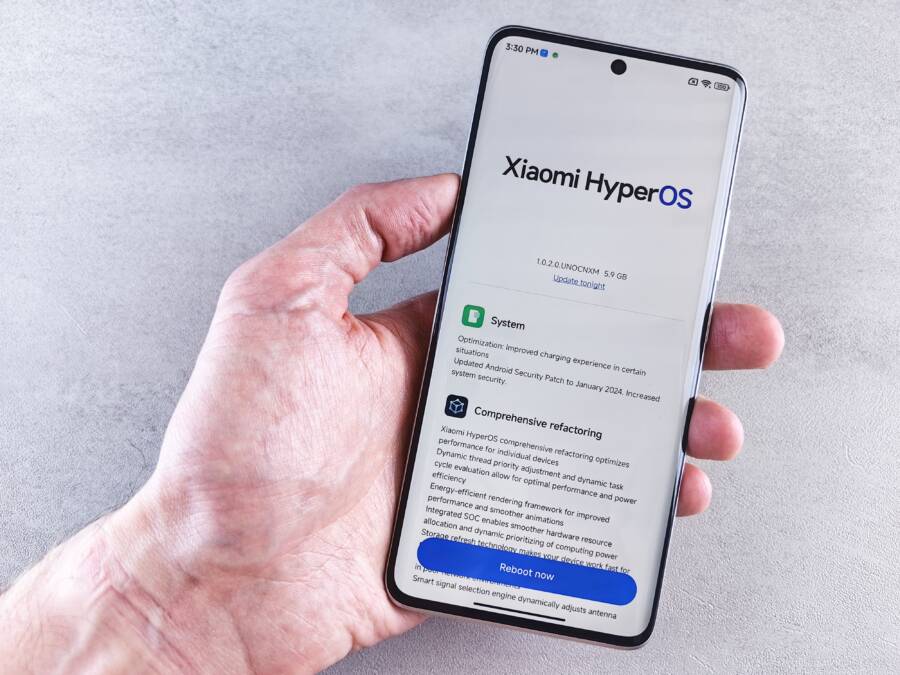
A phone that freezes near the end of a software update usually needs a simple restart, more available storage, or a clean update attempt. Common causes include a damaged update download, weak battery power, an unstable Wi-Fi connection, or a system process that stopped responding. Keep the phone connected to its charger and wait briefly if the progress screen is still changing, since interrupting an active installation can create more problems.
If the screen remains stuck, try a force restart before using recovery tools, and don’t erase the device as a first step. The safest fix depends on whether you’re using an iPhone or an Android smartphone, because the button combination and recovery options differ by manufacturer. The steps below start with the least disruptive solutions, then explain when you may need a computer, recovery mode, or professional support. Begin by checking whether the phone is still responding before forcing a restart.
Why a Phone Software Update Freezes Near the End
A phone software update often appears stuck near the end because the final stage handles more than the progress bar shows. The smartphone may be verifying files, replacing system components, optimizing apps, or preparing a restart. These tasks can take several minutes without visible progress.
Before forcing a restart, keep the phone connected to power and watch for signs of activity. A changing temperature, occasional vibration, screen refresh, or brief logo change can indicate that the update is still working.
The progress bar does not show every update task
Update screens usually display a simple percentage, even though several processes run behind it. Near the end, the phone may complete file verification, apply security changes, rebuild system indexes, and optimize installed applications.
As a result, the percentage can remain unchanged while the phone continues working. The final few percent may take longer than the earlier portion, especially after a major iOS or Android release.
A frozen percentage does not always mean a frozen phone. The screen can stop moving while background installation tasks continue.
Low storage can interrupt the final installation stage
The update package needs temporary space while the phone extracts and installs new files. A device may have enough room to download the update but lack enough working space to finish installation.
This problem is more common when storage is nearly full. Large videos, offline downloads, app caches, and duplicate photos can leave too little room for temporary system files. The phone may pause near completion rather than display a clear storage warning.
If the update repeatedly stops at a similar percentage, check available storage after the phone starts again. Removing unused apps or large media files can prevent the same failure during the next update attempt.
A damaged download or interrupted connection can cause errors
A weak Wi-Fi connection can corrupt or interrupt the update download. Although the installation usually happens on the phone, the device may still need to verify the downloaded package before it can finish. A damaged file can make that verification fail repeatedly.
Battery protection can also pause an update. Phones may delay installation when the battery is low, the charger is disconnected, or the device becomes too hot. Background apps, security software, and a temporary system error can create similar delays.
Older hardware may take longer to optimize applications after an update. Therefore, a smartphone with limited storage, an aging battery, or a slower processor can appear stuck even when the process is moving slowly. If the screen shows no change and the phone remains unresponsive well beyond a reasonable wait, a force restart is the next safer step.
How to Fix a Phone That Cannot Keep the Software Update From Freezing Near the End
When a phone repeatedly freezes near the end of an update, clear enough storage for installation and remove any incomplete update file. These steps address two common causes without erasing your personal data or resetting the device.
Free up storage before trying the update again
A software update needs temporary working space after it downloads. Your phone may have enough room to save the update but not enough to unpack its files, replace system components, and finish the installation. Leave several gigabytes of free storage before trying again, since the exact requirement varies by iPhone model, Android phone, and update size.
On an iPhone, open Settings > General > iPhone Storage. Review the recommendations and sort the list by size. On Android, open Settings > Storage or Settings > Battery and device care > Storage, depending on the manufacturer. Remove large items that you can replace or download again, such as:
Recorded videos and large photo files
Downloaded movies, music, podcasts, and maps
Files in the Downloads folder
Unused games and apps
Duplicate media and old message attachments
Before deleting photos or important documents, confirm that they exist in a current cloud backup. Check iCloud Photos, Google Photos, OneDrive, or another backup service from its app or website. A file that appears on one device isn’t automatically safe unless the upload has finished and you can access it from the backup account.
After removing personal files, empty the relevant Recently Deleted, Trash, or Recycle Bin folder. Deleted photos and files can continue using storage until that folder is cleared. Android file managers, Google Photos, and iPhone Photos each handle deleted items separately, so check more than one location when necessary.
Deleting a video removes your personal file. Clearing an app cache is different: it removes temporary data created by an app and usually doesn’t delete your account, saved documents, or photos. You can clear a cache for a large app through its storage settings, but avoid selecting “Clear data” unless you understand that it may sign you out or remove local app content.
Retry the update after clearing a damaged download
A failed or incomplete update package can cause the same freeze every time you retry. Removing that file forces the phone to download a fresh copy instead of reusing damaged installation data.
On an iPhone, open Settings > General > iPhone Storage and look for an item named iOS, iOS Update, or a similar software update entry. Tap it, choose Delete Update, and confirm. If no update file appears, the download may already have been removed, or the phone may need a restart before the storage list refreshes.
Android menu names vary by manufacturer and software version. Look under Settings > System > Software update, Settings > Software update, or Settings > About phone > Software update first. Some Android phones provide a cache option through Settings > Apps, where you select Show system apps, open Software update, System update, or a similarly named service, then choose Storage and cache > Clear cache. Some models also offer Clear data for the update service, but use that only when the manufacturer’s support instructions recommend it.
Clearing an update service cache removes temporary update files. It doesn’t normally remove your photos, contacts, or installed apps, but the menu and available options differ by Android manufacturer.
Once the old download is gone, restart the smartphone. Connect it to reliable Wi-Fi, plug it into a charger, and reopen the official software update screen in Settings. Don’t download system files from third-party websites or attempt an update through an unofficial tool. If the same percentage causes another freeze, the problem may involve storage health, the battery, the operating system, or the update server rather than the download itself.
Use Recovery Tools When a Force Restart Does Not Work
If a force restart leaves your phone stuck near the end of the update, use the manufacturer’s recovery process before attempting a factory reset. These tools can repair or reinstall system software, but the available steps depend on the phone model and whether the update process still recognizes the device.
iPhone update recovery without erasing personal data first
An iPhone can often reinstall the latest iOS version through recovery mode without deleting your personal data. You need a USB cable and a Mac or Windows computer with Finder, Apple Devices, or the latest version of iTunes.
Connect the iPhone to the computer, then open Finder, Apple Devices, or iTunes.
Enter recovery mode using the sequence for your model:
iPhone 8 or later, including iPhone SE (2nd and 3rd generation): Press and quickly release Volume Up, press and quickly release Volume Down, then press and hold the Side button until the recovery screen appears.
iPhone 7 and iPhone 7 Plus: Press and hold the Side button and Volume Down button together until the recovery screen appears.
iPhone 6s or earlier, including the original iPhone SE: Press and hold the Home button and Side or Top button together until the recovery screen appears.
When the computer displays the recovery options, choose Update.
Allow the computer to download and install iOS. Keep the iPhone connected, even if the screen appears unchanged or the download takes time.
Update attempts to repair iOS while preserving your data. Restore erases the iPhone and reinstalls iOS, so it isn’t the first option when you still want to protect your photos, messages, and other personal content.
If the computer doesn’t detect the iPhone, try a different cable and another USB port. Connect the cable directly to the computer rather than through a hub or adapter. Also update macOS, the Apple Devices app, or iTunes before trying recovery mode again. If another computer detects the phone, the original computer or its software may be the problem.
Android recovery options for Samsung, Pixel, and other brands
Android recovery screens and button combinations vary by manufacturer, model, and software version. Check the exact model’s official support guide before holding buttons or selecting a recovery command, because a sequence that works on one smartphone may open a different menu on another.
Samsung provides computer-based recovery through Smart Switch for supported devices. Install the current Smart Switch version from Samsung, connect the phone with a USB cable, and look for options such as Emergency Software Recovery or device recovery. If Smart Switch doesn’t offer recovery for your model, don’t force an unrelated procedure.
Google also provides official Pixel repair and update tools for compatible devices, including the Pixel Update and Software Repair tool. Follow Google’s on-screen instructions and read the data-loss warning before starting. Availability and recovery behavior can vary by Pixel model and software condition.
For Motorola, OnePlus, Xiaomi, Sony, and other brands, use the manufacturer’s official repair tool or contact an authorized service center. Avoid random firmware files and unofficial recovery guides when the phone contains important data.
Do not select Wipe data, Factory reset, or a similarly named command unless you accept losing local data. A locked bootloader, rooted phone, or unofficial ROM can also prevent standard recovery tools from working. Those devices may need specialized assistance from the manufacturer or a qualified repair technician.
Prevent the Next Update From Freezing and Protect Your Data
Prepare your phone before starting another software update. A current backup, enough free storage, stable power, and reliable Wi-Fi reduce the risk of another failed installation and give you a recovery option if something goes wrong.
Back up your phone before installing an update
A software update usually preserves your personal data, but a failed installation can leave the smartphone unable to start normally. Create a fresh backup before retrying, especially if the phone has already frozen once.
For an iPhone, check Settings > [your name] > iCloud > iCloud Backup, then tap Back Up Now. You can also create an encrypted backup with Finder on a Mac or Apple Devices on Windows. An encrypted computer backup can include saved passwords, Wi-Fi settings, health data, and call history.
On Android, open Settings > Google > Backup and review the last backup time. Samsung users can also use Samsung Cloud for supported data or Smart Switch to copy content to a computer. Photos and videos need separate attention, so confirm that Google Photos, iCloud Photos, OneDrive, or another service has finished uploading.
Open your backup account from another device or a web browser when possible. That check confirms the files are actually available rather than merely queued for upload.
A backup that only exists on the phone cannot protect you if the phone fails to start.
Prepare the phone for a safer update
Before downloading the update, remove unnecessary files and leave several gigabytes of free storage. Also install the update when you have time to monitor the phone, rather than just before work, travel, or an important call.
Use a trusted Wi-Fi network and connect the phone to its charger. Avoid updating over unstable public Wi-Fi, through a loose charging cable, or while the device feels unusually hot. Keep the phone near the router and pause large downloads on other devices if the connection is unreliable.
Restart the smartphone before beginning the update. This closes stalled apps and clears temporary system activity that could interfere with installation. Afterward, check that you know the phone’s passcode and have access to the Apple Account or Google Account linked to the device.
Finally, don’t interrupt the process because the percentage pauses. Keep the charger connected and wait unless the screen shows an error or the phone remains completely unresponsive for an extended period. These precautions protect your data and make the next update attempt more predictable.
When the Update Freeze Means the Phone Needs Professional Repair
A phone needs professional repair when it remains unresponsive after a force restart, cannot enter its official recovery tools, or repeatedly fails during the same update. At that point, the cause may involve failing storage, a damaged battery, charging hardware, or a deeper system fault that ordinary troubleshooting cannot resolve.
Signs that home troubleshooting has reached its limit
Stop trying random button combinations or firmware files when you notice any of these signs:
The phone shows only a logo, black screen, or update screen after several restart attempts.
A computer cannot detect the device through a known-good cable and USB port.
Official recovery software reports a hardware error or fails during installation.
The smartphone overheats, shuts down, or restarts in a repeated loop.
The update freezes at the same point after you free storage and redownload the package.
The phone has physical damage, liquid exposure, a swollen battery, or a loose charging port.
Repeated update failures often point beyond a damaged download. Internal storage can develop errors, while an aging battery may fail to provide stable power during installation. A repair technician can test these components instead of repeatedly reinstalling the operating system.
Choose an authorized repair provider when possible
Contact the phone manufacturer or an authorized service center first, especially if the device is still under warranty or covered by an extended protection plan. Apple, Samsung, Google, and other manufacturers can check service eligibility and use approved diagnostic tools.
Before handing over the phone, explain exactly what happened. Mention the update version, the percentage where it stopped, any error message, recent drops or liquid contact, and every recovery step you tried. Also ask whether the proposed repair will erase local data.
A factory reset may restore the phone, but it cannot recover files that were never backed up.
If the data matters more than the device, ask about data-preserving repair before approving a reset or replacement. A reputable technician should explain the risks, provide a written estimate, and avoid requesting your account password unless you remain present to enter it.
Common Questions About a Phone Stuck During an Update
A phone that stops near the end of an update may still be processing files, or it may need a restart. The safest choice depends on whether the screen shows activity, responds to touch, or remains unchanged for an unusually long time.
How long should I wait before restarting the phone?
There isn’t one waiting period that applies to every phone. Update size, phone age, storage speed, processor performance, and model all affect installation time. A major operating system upgrade on an older smartphone can take much longer than a small security update on a newer model.
Keep the phone connected to its charger while you watch for signs of progress. A changing animation, occasional vibration, refreshed screen, changing percentage, or moderate warmth suggests that the installation may still be running. In that situation, avoid pressing buttons repeatedly or disconnecting the cable.
However, a force restart becomes reasonable when the screen stays exactly the same for an unusually long period and the phone doesn’t respond to taps or buttons. The longer the phone remains completely unresponsive, the less likely the pause is a normal installation delay.
Judge the phone by its activity, not by a fixed number of minutes. A moving animation or changing temperature can indicate ongoing work, even when the percentage remains unchanged.
Before restarting, check that the phone isn’t waiting for a passcode, confirmation, or connection prompt. If the device displays an error message, follow that message instead of repeatedly restarting it. Use the button combination for the exact iPhone or Android model, since the procedure differs between manufacturers.
Will a force restart or recovery update erase my data?
A force restart normally doesn’t erase personal data. It simply cuts off the current operating process and starts the phone again. Photos, contacts, messages, apps, and account information should remain intact, although the interrupted update may require another installation attempt.
When supported, the Update option in recovery mode is designed to reinstall or repair the operating system while preserving personal data. On an iPhone, for example, a computer may offer Update and Restore after the device enters recovery mode. Choose Update first when you want to protect the data on the phone.
Read every recovery prompt before selecting an option. Restore, Factory reset, Wipe data, and similar commands erase the phone. A firmware flash can also erase personal files, depending on the tool, device, and procedure. Modified software, an unlocked bootloader, or a damaged system can change the expected result.
If the phone boots normally after a restart, create a backup before trying the update again. Confirm that photos and other important files are available in iCloud, Google Photos, a computer backup, or another storage location.
What if the phone keeps freezing after every update attempt?
Repeated freezing usually requires more than another restart. First, free storage and remove any incomplete update package if the phone can reach its settings. Then restart the device and download the update again through the official software update screen using reliable Wi-Fi and a charger.
If the same freeze returns, use the manufacturer’s computer-assisted recovery tool. Examples include Finder or Apple Devices for an iPhone, Samsung Smart Switch for supported Galaxy models, and Google’s official Pixel repair tool for compatible devices. Follow the model-specific instructions and review all data-loss warnings.
Contact the manufacturer or an authorized repair provider when official recovery also fails. Freezing after storage cleanup, a fresh download, and computer recovery can indicate failing internal storage, battery or charging problems, modified software, or an update compatibility issue. Those causes require different testing, so continued retries may waste time or increase the risk of data loss.
Conclusion
Keep the phone powered, cool, and connected to its charger while you wait briefly for the update to progress. If the screen remains unchanged and the smartphone is unresponsive, force restart it before clearing storage and retrying the update over stable Wi-Fi.
Back up your data whenever possible, then use the manufacturer’s official recovery software if the update freezes again. Seek professional help before choosing Restore, Factory reset, or any other option that erases the device. Never install firmware intended for a different phone model.
Many update freezes can be fixed without losing photos, messages, or apps. Let data protection guide each step, especially before using recovery or reset tools.