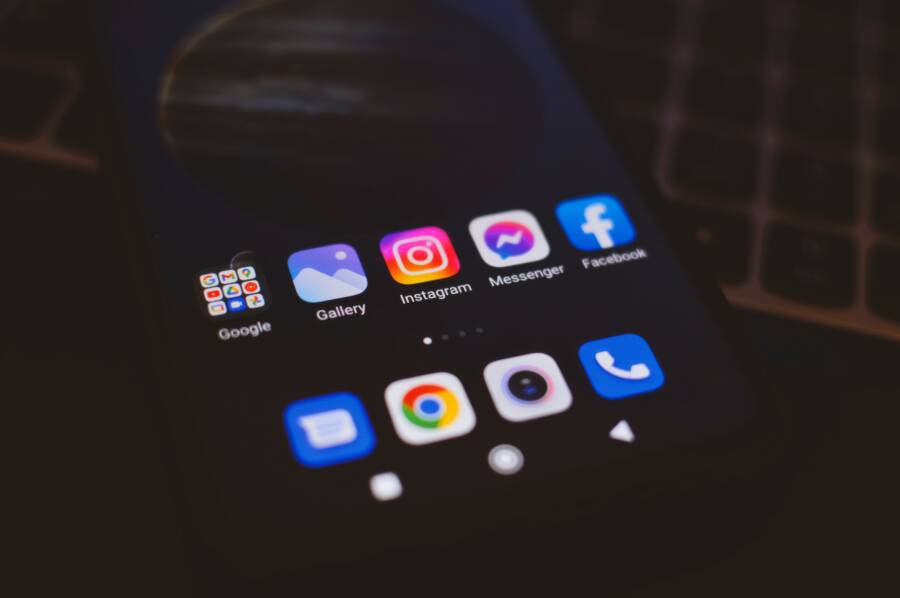
A cluttered home screen leads to a cluttered mind. You likely feel overwhelmed when you unlock your smartphone and see dozens of badges, folders, and icons competing for your attention.
The goal of a distraction-free layout is to reclaim your focus by limiting your interface to the tools you truly need. By removing visual noise, you improve your daily productivity and reduce the stress of constant notifications.
Follow these steps to simplify your interface and gain control over your digital habits.
Why a Minimalist Smartphone Layout Matters for Your Brain
Your brain reacts to your smartphone as a source of constant, high-speed information. Every icon on your home screen is a visual command that triggers a potential action. When your screen is full of colorful badges and crowded grids, your mind struggles to filter out the noise. Simplifying this space helps you reclaim control over your attention.
The Science Behind Digital Distraction
Modern apps rely on variable rewards to keep you engaged. When you see a red notification badge, your brain releases dopamine in anticipation of a reward. This chemical surge reinforces the habit of checking your device. Even if you only glance at a screen, your brain enters a state of high alert.
Frequent alerts force your mind into constant cognitive task switching. Every time a chime sounds or a light flashes, your attention shifts from your current work to the notification. This mental jumping prevents deep concentration. Your prefrontal cortex must work hard to refocus after each interruption. A simplified interface removes these triggers. By hiding unnecessary apps, you stop the loop of visual cues that demand your attention. You create a environment where your phone serves your goals instead of hijacking your focus.
Benefits of a Curated Mobile Experience
A minimalist home screen provides immediate relief from digital pressure. You save time, reduce daily stress, and improve your relationship with your technology. Because your brain processes fewer inputs, you feel calmer when you interact with your device.
Here are the primary advantages of keeping your interface sparse:
- You gain hours of time by avoiding aimless scrolling through app grids.
- Your battery lasts longer because you limit the number of apps running background processes.
- You experience less anxiety since you no longer face a barrage of red notification badges.
- Your focus remains sharp because you only interact with tools that add value to your day.
When you limit your home screen to essential tools, you effectively gatekeep your own focus. You turn a reactive device into a passive tool. You choose when to engage with communication or information rather than responding to every signal from your pocket. This shift in control reduces the friction between you and your actual priorities. By stripping away the visual clutter, you make it easier to complete tasks without the constant pull of digital distraction.
Step-by-Step Guide to Simplifying Your Android or iPhone Layout
A cleaner screen starts with decisive action. You must remove the apps that clutter your daily view to reclaim your focus. When your home screen contains only the tools you actually use, your smartphone becomes a productive ally instead of a source of constant distraction.
Removing Unused Apps and Managing Hidden Spaces
Audit your device by identifying apps you haven’t opened in over a month. These programs often sit on your home screen and take up space without offering value. Deleting them is the most effective way to clear visual noise.
On an iPhone, long-press any app icon and select Remove App, then choose Delete App to erase it completely. Android users can follow a similar path by long-pressing an icon and selecting Uninstall or the App Info menu. If you aren’t ready to delete an app but want it off your main screen, move it to the library.
The iPhone App Library automatically organizes your apps into categories and keeps your home screen clear of clutter. You can remove an app from your home screen by selecting Remove from Home Screen during the long-press process. This keeps the app installed on your phone while hiding it from your primary view. Android offers a similar experience through the App Drawer. Simply drag an icon from the home screen and drop it into the App Drawer or into the Remove zone at the top of the display. This ensures your primary screen remains reserved for your most essential tools.
Group Your Tools into Functional Folders
Grouping related apps reduces the number of icons competing for your attention. When you organize by category, your brain stops scanning the entire screen for a specific task. You know exactly where to look for specific types of information.
Create folders for broad categories like Productivity, Finance, and Health. Productivity folders should hold your calendar, notes, and task lists. Finance folders house your bank and payment apps. Health folders include your fitness trackers and meditation guides. Limit yourself to a maximum of four or five folders on your home screen. This prevents the folders themselves from creating a new form of visual chaos.
Place these folders along the bottom row of your screen or inside the dock for easy access. Keep your most used apps outside of folders on the main screen to avoid extra taps. By grouping your secondary tools, you move them out of your immediate field of vision while keeping them accessible for whenever you truly need them. This strategy keeps your smartphone interface quiet and intentional.
Advanced Techniques to Reduce Screen Time Further
Taking control of your attention requires moving beyond basic organization. When you optimize the display and reduce the constant barrage of visual feedback, you make your smartphone less rewarding to check. These advanced tweaks change how your brain interprets signals from the glass in your hand.
Using Grayscale Mode for Less Visual Stimulation
Color is a primary driver of mobile addiction. App developers use vibrant icons and red notification badges to trigger a dopamine response in your brain. By switching your screen to grayscale, you remove these visual rewards and make the interface feel dull.
Most modern devices include a built-in accessibility feature to activate this mode. On an iPhone, navigate to the Accessibility settings, select Display & Text Size, and toggle on Color Filters to choose Grayscale. Android users can often find this within the Accessibility or Digital Wellbeing menus, sometimes labeled as Bedtime Mode or Grayscale.
Without the saturated colors, your brain no longer receives the same immediate satisfaction when you unlock the device. The apps look like simple lists rather than glowing enticements. This change makes social media feeds and gaming apps significantly less stimulating. You will find that you spend less time mindlessly scrolling because the experience no longer provides the same visual pleasure.
Hiding Search Bars and Using Widgets Wisely
The search bar on your home screen is a constant invitation to look up unnecessary information. It sits at the top or bottom of your view, waiting for a stray thought to turn into a wasted ten minutes of browsing. If your phone allows, remove the search widget entirely to create more friction. You can still reach search functions through your app library or a secondary screen if you actually need them.
Widgets are helpful for quick information, but they can easily become sources of distraction. A weather widget is useful, yet a news feed or a social media update widget pulls you into a consumption loop. Follow these principles to keep your widgets intentional:
- Stick to static information: Choose tools like a simple calendar view, a basic task list, or a weather clock that provide specific data without refreshing constantly.
- Limit total widget count: Keep your screen to one or two widgets at most to prevent overcrowding.
- Avoid dynamic feeds: Delete any widget that displays headlines, trending topics, or social updates from friends.
- Prioritize functionality: Only keep widgets that help you complete a task, such as a note-taking shortcut or a project timer.
By curating these elements, you transform your home screen into a tool for action rather than a portal for passive content. Your goal is to see only the items that help you achieve your daily objectives. When you minimize the visual noise, you stay focused on your priorities instead of getting caught in a cycle of digital reactivity.
Maintaining Your New Digital Environment
You must treat your smartphone home screen like a physical room to prevent clutter from returning. Digital environments naturally attract digital mess as you install new tools, save random files, or ignore notification settings. A clean screen requires consistent oversight to remain a functional asset for your productivity.
Establishing a Weekly Cleanup Routine
Set aside five minutes each Sunday to audit your device. This short period allows you to reset your interface before the work week begins. Start by checking your home screen for any rogue apps that appeared during the week.
If you find icons you rarely touch, move them to your app library or uninstall them. Check your folders to see if they hold redundant tools. Often, we add a second or third note-taking app, which creates confusion and indecision. Pick one tool for each task and stick to it. Finally, verify that your notification settings remain restricted. Software updates sometimes reset your preferences, so confirming your settings keeps the distraction levels low.
Managing New App Installations
The biggest threat to a clean layout is the impulsive installation of new software. Before you add a new app, consider if it solves a specific problem or adds significant value to your life. If you install an app to solve a temporary issue, uninstall it immediately after you finish the task.
Place new apps into their designated folders right away rather than letting them clutter your primary home screen. If you find yourself checking a new app repeatedly for entertainment, move the icon to the last page of your phone. Adding physical distance between your finger and the icon acts as a guardrail against impulsive use.
Auditing Notification Permissions
Apps constantly request permission to alert you. These alerts break your focus and bring back the visual noise you worked so hard to remove. Revisit your notification settings every month to ensure you only receive alerts from essential services.
Review your list of apps with these criteria:
- Keep alerts for direct communication tools that you use for work or family.
- Turn off alerts for social media, games, and news apps to stop the endless loop of visual prompts.
- Disable lock screen previews if you prefer to keep your information private and your focus clear.
By narrowing down who gets your attention, you regain control over how your smartphone operates throughout the day. This simple audit forces apps to stay in the background where they belong, rather than vying for your attention every time you check the time.
Frequently Asked Questions About Minimalist Phone Setups
Moving toward a simplified interface often raises practical questions for new users. The process of modifying your smartphone setup is straightforward once you understand the basic mechanics and trade-offs.
Will a minimalist setup prevent me from receiving important calls or messages?
No, simplifying your home screen doesn’t block incoming communications. A minimalist smartphone setup changes how you access your apps rather than restricting network functionality. You still receive phone calls, text messages, and alerts unless you manually toggle those settings in your notification menu. Many users find that they actually respond to messages more quickly because they stop wasting time on irrelevant apps.
Is it possible to revert to my original home screen layout?
Yes, you can return to your previous setup at any time. Minimalism is a personal choice, not a permanent software change. If you use a standard Android or iPhone interface, your apps remain in the app library or drawer even after you remove them from the home screen. You can drag them back to your main page whenever you need them again.
Should I worry about missing app updates if they are hidden?
Your smartphone continues to update apps in the background regardless of where they appear on your interface. Hiding an icon doesn’t stop the software from functioning or communicating with the developer servers. If you delete an app entirely, it will no longer update, but you can download it again from the app store if necessary.
How do I handle emergency or essential tools with a limited layout?
Keep your most important tools, such as your dialer, map app, or camera, on your dock or main home screen. The goal is to provide fast access to things you use for safety or work. Everything else can live in the library or folders. You can still use the global search feature on your phone to open any app instantly by typing its name.
Are there specific launcher apps that help with minimalism?
Android users have many options for custom launchers that enforce a minimalist aesthetic by default. These tools automatically hide icons or present a text-based interface. iPhone users rely on focus modes and home screen hiding features to achieve a similar result without external software. Both platforms provide the control needed to reach a distraction-free state.
How do I stop myself from adding new apps back to the home screen?
Discipline plays a major role in maintaining your setup. Whenever you install a new app, decide whether it serves a true purpose. If you don’t need it every day, keep it out of sight. A weekly check of your home screen helps you identify and remove apps that crept back into your daily view. This simple habit keeps your focus intact over the long term.
Conclusion
A clean home screen is more than a visual preference. It is a functional boundary that protects your focus from the constant demands of your smartphone. By reducing the number of icons and disabling visual triggers, you shift your device from a reactive distraction into a productive asset.
Start your transition today with one small change. Remove your most distracting app from the home screen or group your tools into a single, organized folder. Once you simplify the interface, you will find it easier to keep your attention on your true priorities. Your phone is a tool for your life, not the master of your time.