He Was Drowning in Bills and Burnout Until a Simple Daily Ritual Rewired His Brain for Wealth in Less Than a Week
>>> Start Your Shift Today <<<

Is your phone slowing down at the worst moments, like mid-scroll or everyday tasks? You’re not imagining it. This guide shows you exactly how to check what is slowing down your phone and how to speed it up without buying a new device.
We’ll cover the common culprits, from crowded apps to full storage, background processes, and aging hardware. You’ll get a clear, step by step plan to identify the real problem and fix it, so your device feels responsive again.
By the end, you’ll know practical tweaks that improve phone performance and keep it fast longer. This includes simple checks you can do today and smart habits that protect speed over time. If you’re ready to reclaim smooth performance, this guide is for you.
Quick checks you can run in minutes to speed up any phone
When your phone starts to feel sluggish, you want fast, practical checks you can do in under a few minutes. This section covers three highly effective quick wins. They address the most common culprits and require minimal effort. You’ll gain momentum quickly and set the stage for longer-term improvements.
There Is a Frequency That the Wealthiest Families Have Used for Generations and Most People Will Never Know It Exists
>>> Open the Door <<<

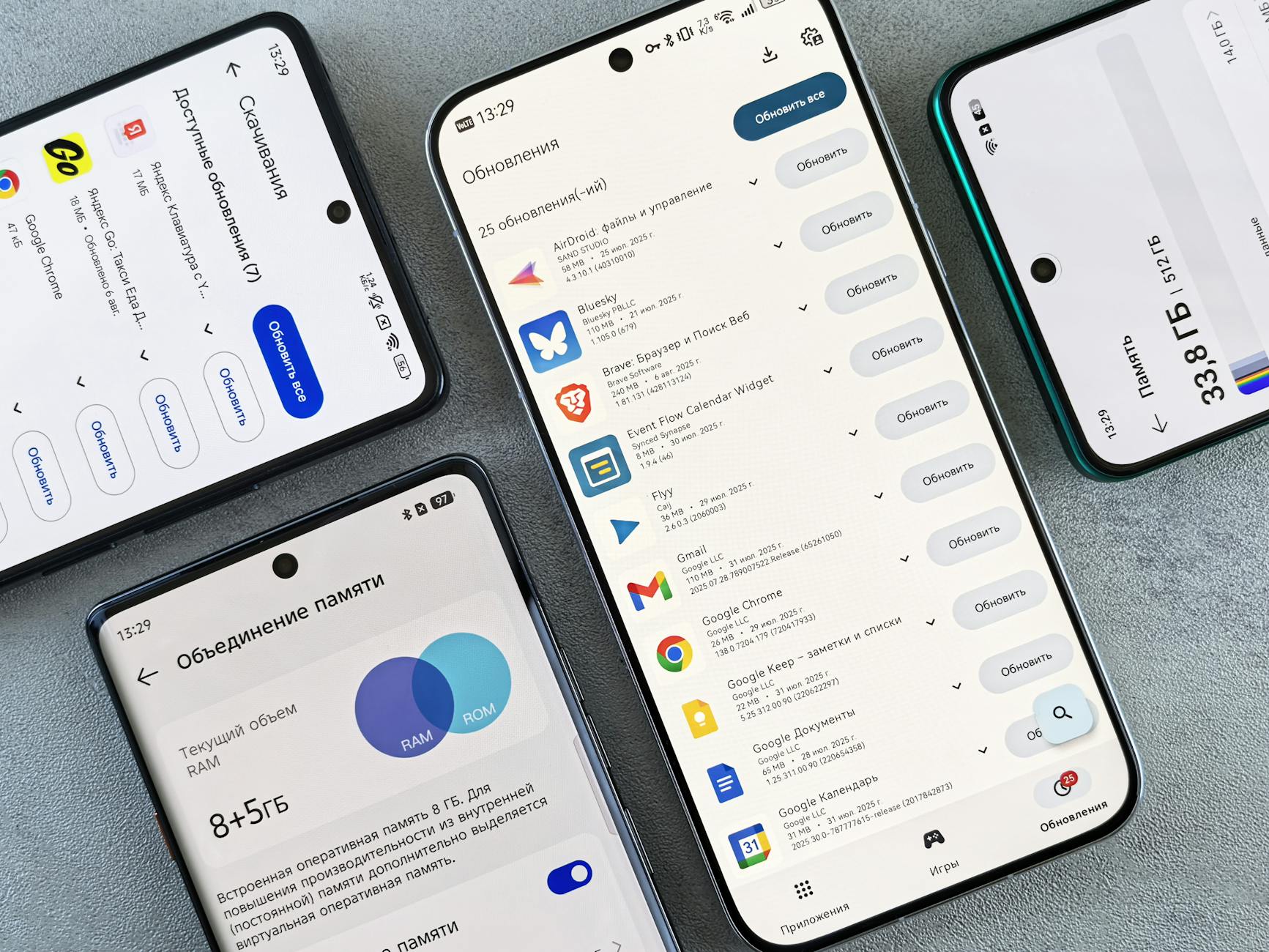
Photo by Andrey Matveev
Free up storage and close unused apps
Your phone runs more slowly when storage is tight or apps stay open in the background. Start by checking available space, then remove large or unused files. Clear app caches to reclaim quick, temporary storage, and limit background processes where possible.
- Check available storage: open Settings > Storage and note how much space is free.
- Remove large files: delete or offload videos, movies, and old screenshots you don’t need.
- Clear app caches: on Android, go to Settings > Apps > Storage > Clear cache; on iPhone, offload unused apps to reclaim space without losing data.
- Reduce background activity: close apps you aren’t using and disable unnecessary background refresh.
Pro tip: Clearing cache frees space without touching personal data. If you want a deeper dive, see Android Help for freeing up space: https://support.google.com/android/answer/7431795?hl=en
Restart and rule out temporary glitches
A quick restart clears memory and stops rogue tasks that drip away performance. It’s one of the fastest and simplest ways to feel an instant boost.
- Android: press and hold the power button, then choose Restart.
- iPhone: press and hold the side button and a volume button, then slide to power off; wait a few seconds and power back on.
- After the restart, open a few apps and observe if the responsiveness improves.
Why it helps: restarts flush temporary data and stop processes that linger in the background. If a restart doesn’t fix the slowdown, move on to software updates.
For additional guidance, this quick set of fixes covers slow phones across Android and iPhone: https://www.bitdefender.com/en-us/blog/hotforsecurity/why-is-my-phone-so-slow-quick-fixes-for-android-iphone
Update OS and apps
Software updates fix bugs, improve compatibility, and optimize performance. Keeping both the OS and individual apps current is one of the most effective speed upgrades you can apply.
- Check OS updates: Settings > System > Software Update (Android) or Settings > General > Software Update (iPhone).
- Update apps: open the app store, update all or review recently updated apps for issues.
- What to expect after updating: improved stability, better battery life, and fewer glitches.
If you’re unsure where to start, see a practical guide on speeding up slow Android devices: https://www.cnet.com/tech/mobile/how-to-speed-up-your-slow-android-phone-and-save-money-this-black-friday/ and a quick Android tuning overview: https://www.avast.com/c-how-to-speed-up-android
This fast diagnostics checklist keeps you moving without overwhelming you with every tweak. Use these steps as a baseline, then apply deeper optimizations as needed.
How to read performance indicators and spot the real slowdown
When your device feels slow, the cause isn’t always obvious. Reading performance indicators helps you separate myth from fact. This section shows what the numbers mean, what to look for in real usage, and how to verify a slowdown with simple checks. Think of these indicators as a quick health check for your smartphone. They guide you to the root problem without guesswork.
CPU and RAM usage indicators
High CPU or RAM use usually means your phone is juggling more tasks than it can handle smoothly. This can cause lag, stutters, and longer app loads. Look for sustained high CPU load or many apps in the background consuming memory. Built-in tools show these metrics, making it easy to spot bottlenecks. On Android, you can use the Developer Options to view running processes; on iPhone, check Battery Health and Activity in Settings. For practical tips on monitoring RAM on Android, see this guide: https://www.wikihow.com/Check-the-RAM-on-Android. For more monitoring options, explore Android system monitor apps: https://techviral.net/best-android-system-monitor-apps/. If you’re curious about RAM usage insights, this Quora discussion explains how to see memory usage on Android: https://www.quora.com/Is-there-a-way-to-see-how-much-RAM-my-Android-smartphone-is-using.
Storage speed and health
Storage is another major speed factor. When storage is full or slow, app launches and file access feel sluggish. Degraded storage health can also trigger slower reads and writes, affecting overall responsiveness. Check how much free space remains and run a quick storage test if your device supports diagnostics. On iPhone, you can see storage details under Settings > General > iPhone Storage; Android users can view Storage in Settings and run basic checks. For a guided diagnostic approach, consider this article on running diagnostics on iPhone and Android: https://www.pcmag.com/how-to/run-diagnostics-on-your-iphone-or-android-phone. You can also watch a quick explainer on storage type and speed in Android: https://www.youtube.com/watch?v=QckCTwUpfgo. To manage iPhone storage, Apple’s guidance is a solid starting point: https://support.apple.com/en-us/108429.
Battery health versus performance
Aging batteries can throttle performance to preserve life. If your device slows down when the battery is weaker, it’s a common culprit. Check battery health in settings or review the official guidance from Apple for iPhone performance and battery aging. If battery health is the issue, practical steps include replacing the battery, enabling optimized charging, or using Low Power Mode to reduce strain. Learn more from Apple’s iPhone battery and performance article: https://support.apple.com/en-us/101575. For a broader view on how battery throttling works and how to address it, see TechRepublic’s overview: https://www.techrepublic.com/article/how-to-turn-off-battery-throttling-on-your-iphone/. If you’re evaluating whether battery health is the root cause, this discussion helps frame the impact: https://www.quora.com/Does-decreased-battery-health-affect-performance-and-display-colors-I-have-an-iPhone-7-on-79-battery-health.
Software culprits: apps and updates that slow you down
If your phone starts to feel laggy, the answer often lies in the software you’ve installed and the updates you’ve applied. Apps run in the background, updates introduce new features or bugs, and old versions can drift from optimal performance. This section highlights common software culprits and what to do next, with quick tests you can run to confirm the impact of each factor.
 Photo by Szabó Viktor
Identify heavy apps and background processes
Some apps hog CPU, memory, or battery, leaving the rest of the system slowed down. Start by checking which apps use the most resources and test your phone with and without them to confirm the impact. On Android, inspect running processes in Developer Options; on iPhone, review Battery Health and Activity. If you spot culprits, try forcing a close, limiting background refresh, or uninstalling the offenders.
- Quick test: disable or force stop a few suspected apps, then use your phone for a while and compare responsiveness.
- If you want deeper insights, check battery or memory usage data in the OS settings and reduce background activity where possible.
- Consider a lightweight alternative for any resource hogs.
As a practical reference, see guidance on identifying apps draining battery power: How to see which apps are draining your phone’s battery
She Pressed Play on a Strange Audio Track and Within Days Her Financial Reality Started Shifting in Ways She Could Not Explain
>>> See How It Works <<<

Update apps and patch issues
Keeping the OS and apps current is one of the simplest speed fixes. Updates fix bugs, close security gaps, and improve compatibility. If an update causes slowdowns, you can roll back or reinstall a problematic version after confirming the issue with the developer.
- When to update: apply updates after a brief pause to observe how new versions behave during typical usage.
- If bugs appear post-update: roll back to a previous version when possible, then report the issue to the developer.
- Reinstall option: uninstall the app, then reinstall the latest stable version.
For practical guidance on rolling back apps and addressing update issues, see articles on rolling back to an older app version: How to roll back to an older version of an app on Android
Safe mode and last resort fixes
Safe mode isolates software problems by preventing third-party apps from running. If performance improves in safe mode, a rogue app is likely the cause. Safe mode is a solid first step before a factory reset, which should be a last resort after other fixes fail.
- How to use safe mode: restart in safe mode according to your device maker’s instructions, then test with regular tasks.
- Interpreting results: if speed returns to normal in safe mode, remove the problematic app or update it.
- When to reset: only after you’ve identified and removed troublesome apps or after all other options fail.
For step-by-step safe mode instructions, see guides like Find problem apps by rebooting to safe mode on Android: Find problem apps by rebooting to safe mode on Android and general safe mode tips: Android Safe Mode: How to Turn It Off and On
Images and practical tips can help visualize the process. If you want a quick summary of safe mode insights, this handy explainer covers the concept and next steps: How to use Android’s Safe Mode to identify problem apps
When a factory reset becomes necessary, approach it calmly. Back up important data first, then reset only after confirming the slowdown is software related and not hardware related. You can revisit the updated versions after reset to verify stability. For a broader view, explore quick fixes that address common slowdowns across Android and iPhone: Why Is My Phone So Slow? + Quick Fixes for Android & iPhone
If you need a practical blueprint, use the sections above as a baseline. Deep optimizations can follow after you confirm which software acts as the bottleneck.
Practical optimization steps that actually make a difference
Speeding up a laggy phone isn’t about heroic hacks. It’s about targeted, practical steps that reduce friction and keep everyday tasks flowing. Below are three focused actions you can take right now. Each step builds on what you already do with your device, so you won’t feel overwhelmed. Think of these as fast wins that compound over time, making your smartphone feel noticeably snappier in daily use.
He Was Drowning in Bills and Burnout Until a Simple Daily Ritual Rewired His Brain for Wealth in Less Than a Week
>>> Start Your Shift Today <<<
Limit motion and animations
Animations can make transitions feel smooth but they also consume CPU cycles and memory. Turning them down or off can dramatically improve perceived speed, especially on older devices. Here are quick, safe adjustments you can make:
- Enable developer options on Android and set Window/Transition/Animator scale to 0.5x or off.
- On iPhone, reduce motion in Accessibility settings to cut parallax and animation effects.
- After changing, test common tasks like opening apps and switching between screens to feel the difference.
Why it helps: fewer frames to render means quicker perceived responses, so you notice speed even if real processing power hasn’t changed. If you’d like a deeper look, here’s a practical read on this tweak: https://www.zdnet.com/article/changing-this-one-setting-on-my-android-phone-doubled-the-speed-literally/
Clear caches and manage data
App caches store temporary files to speed things up, but they can also become bloated and slow things down. Clearing caches frees up space and refreshes app data without deleting your personal files. Use caution with resets and back up anything important first.
- Android: Settings > Apps > [Your App] > Storage > Clear cache.
- iPhone: Offload unused apps to reclaim space without losing data.
- After clearing, monitor app response for a few days to confirm improvements.
Tip: cache clearing is most effective when your device is cluttered with many apps and large caches. It won’t erase personal documents, but it can remove stale data that bogs down launches. For a straightforward guide, see How to clear app cache on your phone: https://www.asurion.com/connect/tech-tips/clear-app-cache-on-phone/
Free up space with smart storage practices
Storage pressure is a common culprit behind slowdowns, especially on devices with limited free space. Smart storage habits keep your phone responsive longer.
- Offload or back up photos and videos to the cloud or a computer.
- Move large files to a separate storage device or delete duplicates.
- Regularly review downloaded files, especially large video clips, and delete or archive what you don’t need.
Concrete example: set up automatic photo backups to the cloud, then use an offline movie or music library that’s stored in the cloud. This approach keeps your device lean and fast. If you want a quick read on practical storage strategies, check this guide: https://www.compareandrecycle.co.uk/blog/how-to-free-up-storage-on-your-iphone-or-android
These three steps form a solid foundation. When you combine them with the broader checks in this guide, you’ll notice faster app launches, smoother scrolling, and a more responsive phone in everyday use.
When to replace or upgrade your device
If you’re weighing whether your current device still fits your needs, this section helps you spot the moments when a upgrade makes sense. You’ll learn clear signals from speed to security, and practical ways to choose the right phone without overpaying. Think of it as a quick decision checklist for the next purchase.
Signs a upgrade is worth it
A newer device is worth considering when the speed gap, battery life, and storage hindrances start to impact daily tasks. If apps take longer to launch, you notice frequent crashes, or you can’t store your photos and videos without constant juggling, that’s a real signal. Outdated security updates and incompatible apps also justify an upgrade. If you’re frequently searching for workarounds just to get through the day, it’s time to evaluate a replacement. For readers facing these pain points, this article outlines practical indicators that a new phone can restore confidence in performance: https://www.bgr.com/2040803/signs-its-time-for-new-phone/
Smart ways to choose a new phone
Choosing a new device should align with your actual needs and budget, not just the latest hype. Start by mapping tasks to specs: a faster processor and more RAM help with smooth multitasking, while ample storage prevents constant offloading. Consider software support, security updates, and the ecosystem you prefer. Use a realistic budget, then compare models that meet your core requirements rather than chasing every feature. For a structured buying guide, check out this practical overview: https://www.cnet.com/tech/mobile/shopping-for-a-new-iphone-or-android-phone-read-this-before-you-buy/
Conclusion
You’ve got practical steps to quickly identify what slows down your smartphone and keep it responsive longer. Start with fast checks, then read the indicators to target the real bottlenecks. The path blends quick fixes with smarter habits that compound over time, so it stays smooth in everyday use. Remember, small, consistent tweaks beat big one off changes every time.
Printable quick checklist
- Free up storage and close unused apps
- Restart to clear temporary glitches
- Update OS and key apps
- Limit motion and clear caches
- Back up data and manage large files
If you test these steps on your smartphone and share the results, you help others solve the same issues faster. Have questions or want personalized tips based on your device model? Leave a comment and I’ll tailor recommendations.
He Was Drowning in Bills and Burnout Until a Simple Daily Ritual Rewired His Brain for Wealth in Less Than a Week
>>> Start Your Shift Today <<<