How to Use Phone Notifications as Smart Reminders (iPhone & Android)
Ever forget your keys, a meeting, or a task tucked in the back of your mind amid a busy day? You’re not alone. Your phone can become a reliable partner when it acts as a smart reminder, not just a notification sink.
In this post we’ll show you how to use your phone notifications as smart reminders that fit your life. No extra apps required, just the features you already have at your fingertips. You’ll see how simple prompts can save time, build steady habits, and keep you on track.
The core idea is about turning alerts into action. When your notifications are timely and organized, they replace mental clutter with clear next steps. You’ll learn practical setups for both iPhone and Android that align with real daily rhythms rather than feeling intrusive or noisy.
Key benefits come into focus quickly. First, saving time by reducing constant app-switching and decision fatigue. Second, reinforcing good habits with consistent nudges instead of sporadic motivation. Third, staying on track for deadlines, routines, and personal goals without juggling calendars or notes.
This guide breaks down practical steps into easy segments. You’ll get quick wins you can implement today, plus longer tweaks that compound over a week. By the end, you’ll see how smartphone reminders can adapt to your routine, not the other way around.
If you’re ready to simplify your day, this approach makes notification management feel natural. It’s about making your phone work smarter for you, so you can focus on what truly matters.
Key takeaways: turn alerts into clear tasks, tailor reminders to your day, and use simple rules to keep consistent momentum.
Why Phone Notifications Make the Best Smart Reminders
Smart reminders should feel invisible yet action oriented. When done right, phone notifications act like a personal assistant that is always with you, ready to nudge you toward the next step. This section explains why notifications outperform traditional methods and how they fit into a busy day. You’ll see concrete wins and practical ideas you can apply today, with links to trusted sources for deeper reading.
Notifications vs. Traditional Methods
Notifications win because they combine portability, immediacy, and context in one compact package. A reminder pops up exactly when you need it, without forcing you to pause and hunt for a sticky note or calendar entry. With a smartphone, you can set up reminders that travel with you, synchronize across devices, and adapt as your day changes.
Here are 3–4 specific wins you can start using now:
- Location-based triggers: Remind yourself to pick up groceries when you’re near the store, or to grab a charger when you’ve left the house. This leverages your physical context to reduce cognitive load.
- Repeats that stick: Daily, weekly, or custom repetition helps habits form without manual re-entry. Over time, small nudges become automatic behaviors.
- Quick actions from the alert: A single tap can mark a task as done, snooze, or open a related app for immediate follow-up. This minimizes friction and keeps momentum.
- Multi-task support: Notifications appear while you’re using other apps, so you can save a task or note without breaking your current flow.
Pros and cons at a glance:
| Pros | Cons |
|---|---|
| Portable and always with you | Can be ignored if notifications are too noisy |
| Instant prompts reduce decision fatigue | Overuse leads to notification fatigue |
| Context-aware (location, time) | Settings can be complex to tailor |
| Cross-device synchronization | Requires consistent device permissions and updates |
For further perspective, research highlights how interactive notifications can function as more than reminders, acting as light interactions that sustain engagement over time. If you want to dive deeper, see the discussion on notification use in modern smartphones and how it supports behavior change. Learn more about interactive notifications. You can also explore how reminders influence routine behavior in smartphone studies. Smartphone-based study reminders provide useful context for everyday uses.
Real Benefits for Your Daily Routine
Phone notifications translate into real, tangible improvements in how you move through a day. They simplify planning, cut down on wasted time, and reinforce consistent actions without relying on motivation alone. By thinking about your current pain points, you can tailor reminders to eliminate friction.
Work life becomes smoother when you use notifications to manage tasks, deadlines, and meetings:
- Task scoping on the fly: Set quick reminders for what to do next in a project, so you never lose momentum during crunch times.
- Meeting prep on autopilot: A notification can surface a checklist or documents you need before a call, reducing last minute scrambling.
- Focus blocks that stick: Time-bound prompts help you start and finish focused work sessions, minimizing context switching.
At home, reminders can streamline daily routines:
- chore rotations at home*: A gentle nudge to start a laundry cycle or clean a specific area helps keep the household running smoothly.
- recurring errands*: Repeating reminders for weekly shopping lists or refilling household supplies keeps you from wandering the store without a plan.
Health and wellness also benefit from timely reminders:
- Hydration and movement*: Short alerts to drink water or stand up every hour support long-term health goals.
- Medication and supplements*: Reliable prompts help maintain routines that people often forget during busy days.
Ultimately, these prompts reduce friction and build momentum. A well-tuned system helps you accomplish more with less mental overhead. Think about your own pain points—where do you stumble most? Use those as the guiding signals when you set up notifications.
If you’d like more context on how users interact with notifications in real life, check out practical discussions on traditional methods versus smartphone reminders. You can read about why some people still prefer paper notes and how digital prompts compare in everyday tasks. Why people stick to traditional reminders and a broader look at reminder strategies. Don’t miss important notifications without losing peace of mind.
Remember, the goal is to replace scattered mental reminders with clear, actionable prompts. A few well-placed notifications can transform your day from reactive to purposeful. And with smartphone features always within reach, you don’t have to search for your next step—you just act on it.
Set Up Basic Smart Reminders Fast
Smart reminders don’t have to be complicated. In this section, you’ll learn quick, practical setups that turn everyday notifications into reliable prompts. We’ll cover a fast iPhone workflow and a focused Android approach so you can start today without extra apps. The goal is to make reminders feel natural, almost invisible, yet always actionable.
iPhone Setup in 5 Steps
Getting your reminders dialed in on iPhone is a breeze when you follow a simple sequence. Here’s a fast, repeatable method you can apply right away.
- Open the Reminders app and create a new task. Give it a concise description that states the exact next action, such as “Call vendor at 2 PM” or “Water plants after lunch.”
- Pick a time for the reminder. Use a precise time or a time window if your schedule varies. This helps your brain predict when to act rather than guess.
- Toggle notification options. Ensure the alert is set to a date and time, and enable any preferred alert style. If you want, add a second alert as a backup for important tasks.
- Save the reminder. Double-check the due date and time to confirm it aligns with your day.
- Add a smart list option. Use a smart list or saved view to group reminders by context, such as “Work Today” or “Household.” This keeps related tasks together and easy to scan.
Tips for a smoother setup:
- Use short, action-oriented descriptions. If the task is to “Prepare for meeting,” add the exact deliverables you need, like “Slides 12–15 ready.”
- Combine reminders with location if helpful. For example, “Grab umbrella when leaving for work” leverages your location to trigger at the right moment.
- Keep a small batch of high-priority reminders. Too many prompts can become noise; focus on tasks that truly require timely action.
If you want official guidance on iPhone Reminders, Apple’s support resources provide step-by-step instructions and cloud sync options to keep reminders consistent across devices. See practical setups and tips here: Use Reminders on your iPhone, iPad, or iPod touch. For creating reminders directly on iPhone, use this guide: Create reminders on iPhone. To ensure reminders stay in sync across devices, set up iCloud for Reminders here: Set up iCloud for Reminders on all your devices.
A quick real-world example:
- You have a weekly report due Friday at 4 PM. Create a reminder with the title “Submit weekly report,” set the time for Friday at 3:45 PM, and add a second alert 15 minutes before. Add the reminder to a smart list named “Work Today.” This lets you see the task alongside related items and act when the alert fires.
Why this works:
- Focused prompts reduce decision fatigue. Short, precise actions keep your brain from dithering.
- Timed alerts align with natural work rhythms. You’re nudged just before you need to act, not after you’ve forgotten.
Android Quick Start Guide
Android offers flexible options for quick, reliable reminders that work across apps and devices. The goal is to establish a fast, repeatable pattern that you can adapt to your daily routine.
- Decide on the tool: Google Tasks or Reminders. Both let you create notes, set a time, and enable alerts. Choose the one you already use to minimize friction.
- Create a clear note. State the exact action in a single line, for example, “Email the client with the proposal” or “Prepare budget spillover plan.”
- Set a precise time. If your day is variable, use multiple reminders or a daily alarm style to catch different moments.
- Enable alerts. Make sure notifications are allowed and not silenced by Do Not Disturb during critical windows.
- Use a home screen widget. A widget provides a snapshot of today’s tasks and quick actions without opening an app. Place it where you naturally glance during your routine.
A practical workflow you can apply now:
- In Google Tasks, create a task with a short description and add a due date and time. Enable notification alerts and pin the task to a specific list like “Today” or “High Priority.”
- In Reminders (Google’s version or built-in), create a reminder with a concise title. Attach a due date and a time, then enable a reminder alert. If you use multiple reminders, set a backup alert a few minutes later to ensure you don’t miss it.
- Add a home screen widget to surface reminders at a glance. Widgets reduce the time spent opening apps and checking status.
What to keep in mind:
- Consistency matters. Use the same naming convention for related tasks so you can scan quickly.
- Start with a small set of reminders. As you trust the system, you can expand gradually to cover more routines.
For iPhone users curious about cross-device reliability, Apple’s Reminders setup guidance expands on how to keep reminders in sync via iCloud. If you’re exploring the full setup, visit the official resources here: Use Reminders on your iPhone, iPad, or iPod touch and Create reminders on iPhone. For broader cross-device syncing with Reminders, see Set up iCloud for Reminders on all your devices.
A simple Android example:
- You’re preparing for a weekly team stand-up. Create a reminder titled “Stand-up agenda ready” with a time 10 minutes before the meeting, set to repeat on weekdays, and add it to the “Work” list. Add the Reminders widget to the home screen so you see today’s prompts at a glance.
Key takeaways for both ecosystems:
- Start with short, action-focused prompts. Clarity beats cleverness here.
- Use time-based reminders for tasks that must happen by a deadline.
- Leverage widgets or smart lists to keep a high-signal view of what’s next.
- Keep the setup lean. You can always expand later as you gain confidence.
Additional resources you can consult as you refine your setup:
- Apple Reminders onboarding and guidance to keep prompts consistent across devices: Use Reminders on your iPhone, iPad, or iPod touch and Create reminders on iPhone.
- For a broader view on cross-device reminder syncing with iCloud: Set up iCloud for Reminders on all your devices.
By adopting these quick-start steps, you’ll transform your phone into a capable reminder assistant. The goal is to reduce mental load while keeping your day moving smoothly.
Trigger Reminders by Location Like Magic
Location aware reminders feel almost magical at first. They catch you at just the right moment, nudging you to act without you thinking about it. In this section, you’ll learn how to turn your phone into a location savvy assistant. We’ll cover iPhone location alerts and practical Android tricks that keep you moving smoothly through the day. Think of it as a smart way to let your surroundings cue your next step, so you don’t have to rely on memory alone. Along the way, you’ll see real, easy-to-apply steps you can implement today.
Enable iPhone Location Alerts
Location based reminders on iPhone are one of the simplest, most powerful ways to stay on top of tasks that hinge on where you are. If you frequently forget to pick up groceries near the store or need to remember a delivery when you pull into your driveway, this feature helps you stay aligned with your actual environment.
To make location alerts work, start with the Reminders app. Create a reminder that includes a clear action and attach a location. Then choose whether you want to be reminded when you arrive or when you leave that place, and set a practical radius so the alert fires at the right moment. A quick test ensures the setup behaves as expected in your real world.
Key setup steps:
- Create a new reminder with a specific action, like “Grab groceries at the store” or “Return library books when I reach home.”
- Add a location by choosing a place or entering an address, then select arrive or leave.
- Adjust the radius to something practical. A small radius helps when you’re near a store, but a larger radius might be better for big venues like airports.
- Schedule a backup alert if the task is time sensitive. It’s a safety net that catches missed triggers.
- Do a quick field test. Leave your usual spot and walk back in to confirm the reminder fires as you cross the boundary.
Practical tips to refine your location alerts:
- Use precise, outcome focused wording. For example, “Buy almond milk at Safeway” is clearer than “Grocery run.”
- Pair location alerts with time based reminders when you have rigid deadlines. This reduces the chance of missing a task if you roam off track.
- Keep rational radii. If you find the alert triggers too early, shrink the radius a bit; if it fires too late, enlarge it slightly.
If you’d like official guidance, Apple provides step by step instructions and cloud syncing to keep reminders consistent across devices. You can learn more here: Use Reminders on your iPhone, iPad, or iPod touch. The guide covers how to turn on Location Services and set location based alerts, ensuring your reminders travel with you across devices. See the official resource for full details: https://support.apple.com/en-us/102484. For practical, user focused steps, this MacRumors guide walks through the location based reminder flow inside iOS: How to Create a Location Based Reminder on Your iPhone. It’s a quick read that helps you visualize the process end to end: https://www.macrumors.com/how-to/create-location-based-reminder-ios/. If you want a quick start with minimal friction, MakeUseOf lays out a straightforward set of steps to set location alerts in iPhone Reminders: How to Set Up Location Alerts in iPhone Reminders. You can visit: https://www.makeuseof.com/tag/set-location-alerts-iphone-reminders/. Finally, a broader look at personal task reminders across apps is helpful, including location based options: Location Reminders for Personal Tasks on Android and iOS alternatives, from Any.do. See: https://support.any.do/en/articles/8635391-location-reminders-for-personal-tasks.
Real world use cases to consider:
- Morning routine: Leave the house with a reminder to grab keys and wallet as you pass the door.
- Errand runs: Add a location alert for the grocery store to trigger once you’re near the entrance.
- Local errands: Turn a routine like “return borrowed items” into a precise cue when you’re near the post office or neighbor’s house.
Why location alerts matter:
- They cut down on mental notes. You remove the cognitive load of remembering every step.
- They stay with you across devices. If you forget your watch or tablet, your iPhone can still prompt you at the right time.
If you want to explore more about how location based prompts fit into broader reminder strategies, you can check out the linked guides from Apple and popular how to sites. They provide clear visuals and screenshots that simplify the setup process and help you troubleshoot radius and trigger timing.
Android Nearby Reminder Tricks
Android users have several reliable paths for nearby reminders. The platform provides flexible options that work across Google services and third party apps. The goal here is to create a fast, repeatable workflow that keeps you on track without adding friction. You can mix and match tools as your habits evolve, but start with a simple pattern that you can expand later.
Start with a reliable tool choice. Google Tasks and Google Reminders (the built in app on many devices) both support location based prompts and time based alerts. Pick the one you already use to minimize setup time. If you prefer a lightweight approach, you might lean on a widget that shows today’s tasks at a glance.
Core steps to set up Android nearby reminders:
- Create a concise note. Write a single action that’s easy to scan fast, like “Pickup prescription after work” or “Drop off package on the way home.”
- Attach a location. Choose a place or use a recent location to trigger when you are near it. You can add multiple locations for a single task if needed.
- Set a precise time or a time window. If your day is variable, a time window helps you avoid missing the trigger.
- Enable alerts. Make sure notifications are allowed and that Do Not Disturb won’t mute critical reminders during key moments.
- Use a home screen widget. A widget offers a quick glance at today’s tasks and one tap to act, which saves you time hunting through apps.
A practical workflow you can adopt now:
- In Google Tasks, create a task with a short description and set a due date and time. Toggle notification alerts and pin the task to a list like “Today” or “High Priority.” A location based cue can be added if you’re near a specific store or workplace.
- In Reminders (Google or device built in), craft a reminder with a concise title. Attach the due date and time, then enable a reminder alert. If you use multiple reminders, set a backup alert a few minutes later to ensure you don’t miss it.
- Add a home screen widget to surface reminders at a glance. Widgets reduce the time spent opening apps and checking status.
Tips to sharpen Android reminders:
- Use consistent naming for related tasks so scanning is fast.
- Start small. A handful of high impact reminders is better than a long list that becomes noise.
- Combine location with time when possible. A near term deadline plus a nearby location increases the odds you’ll act.
If you want to dig deeper, the Android ecosystem offers extensive guidance on staying in sync across devices and services. Use the official resources to explore cross device reminder setups that fit your hardware and preferences.
By using these location aware prompts, you can keep daily tasks tightly aligned with where you are. It’s a simple concept with big payoff: fewer missed tasks, less cognitive load, and a smoother day. If you’d like to see a quick, concrete example for Android that mirrors common real world routines, try this approach: set a reminder titled “Stand up and stretch” to fire 10 minutes before a planned meeting, with a location trigger near your desk, and keep the widget on your home screen for fast access.
A few additional considerations:
- Check your privacy settings. Location sharing improves prompts but comes with data considerations.
- Review permissions after OS updates. A change in settings can silence location based alerts if not re enabled.
- Refresh your reminders periodically. If your routines shift, update the triggers so they stay useful.
External resources to expand your understanding:
- For iPhone reminders beyond location based prompts, the official Apple guide remains a trustworthy starting point: Use Reminders on your iPhone, iPad, or iPod touch. https://support.apple.com/en-us/102484
- Want a quick read on setting location alerts for iPhone reminders: How to Set Up Location Alerts in iPhone Reminders by MakeUseOf: https://www.makeuseof.com/tag/set-location-alerts-iphone-reminders/
- A practical walkthrough on location based reminders across Android and iOS can be found here: Location Reminders for Personal Tasks by Any.do: https://support.any.do/en/articles/8635391-location-reminders-for-personal-tasks
Wrap up this section by remembering that the best location based reminders stay out of your way while staying incredibly useful. They should feel natural, almost invisible, yet always ready to prompt the next action. If you take the time to tune the radius and wording, you’ll notice a real difference in how smoothly your day unfolds. The more you test, the more you’ll trust these prompts to guide you through tasks and routines without pulling your attention away from what matters most.
Build Recurring Reminders for Habits That Stick
Habits form when prompts show up at just the right moment and repeat with predictability. Recurring reminders automate the nudge, turning small actions into consistent routines. In this section, you’ll learn practical ways to set up repeat patterns that align with real life, plus how to end or adjust repeats as needed. By choosing the right frequency and end conditions, you create a reliable backbone for daily and weekly habits without extra mental effort.
Schedule Repeats That Fit Your Life
Custom frequencies are the backbone of sustainable reminders. Here’s how to craft repeats that feel natural on both iPhone and Android, including how to wind them down when a habit ends or shifts.
- iPhone: Start with a clear reminder and pick a repeat cadence that matches your routine. For example, set “Water plants” to repeat every 3 days during spring, or “Stretch before bed” daily. If the habit is seasonal or temporary, use an end date to automatically stop the repeats. In Reminders, you can adjust the repeat to daily, weekly, monthly, or a custom pattern, and you can add an end date so the task fades out when the period ends. This keeps your list clean and focused.
- Android: In Google Tasks or Reminders, choose a cadence that mirrors how often you want the action. Daily, every weekday, or a custom interval works well for habits like quick workouts or journaling. If the habit is temporary, set an end date or an expiration for the repeat. You can also attach due times to create a predictable rhythm that your brain learns to anticipate.
Tips to make repeats stick:
- Start with a minimal set. Pick 2–3 core habits you want to anchor first, then expand.
- Pair repetition with a cue. Tie the reminder to a daily trigger like after breakfast or before bedtime.
- Use a sensible end condition. If a habit ends, closing the loop with an end date avoids clutter.
Real-world example:
- You want a weekday morning routine that includes a quick 5-minute workout. Create a daily reminder for “5-minute workout” with a time each morning and set it to repeat Monday through Friday. If you later decide to relax on weekends, adjust the repeat pattern accordingly.
Why end dates matter:
- They prevent your task list from growing stale with outdated prompts.
- They help you evaluate the value of a habit before continuing a longer commitment.
Official guidance can help you get this right. For iPhone users, Apple’s Reminders guide explains how to create recurring tasks and how to maintain synchronization across devices. See: Use Reminders on your iPhone, iPad, or iPod touch.
If you’re curious about practical setups from real users, explore how others structure repeating reminders in iPhone Reminders and how subtasks can support longer routines. These insights can spark ideas for your own templates. For example, you might read about breaking a daily habit into subtasks like “Warm up,” “Breathing,” and “Stretch” to build momentum over time.
Key takeaways for scheduling repeats:
- Begin with a small, high-value set of habits.
- Choose a cadence that matches your natural day.
- Use end dates to keep your reminders relevant and tidy.
Tie into Your Calendar for Seamless Flow
A calendar that talks to your reminders creates a smoother day. When reminders align with your calendar events, you avoid double booking and reduce the friction of switching between apps. This section covers how to synchronize reminders with your calendar and how to share lists with family or teammates for a unified routine.
- Sync reminders with events. If you have a recurring workout, a work block, or a family activity, linking the reminder to a calendar event helps you see the full picture at a glance. You’ll notice fewer clashes and more reliable momentum.
- Shared lists for family. When multiple people rely on the same routines, shared reminders ensure everyone stays in the loop. For tasks like packing for a trip, grocery runs, or after-dinner chores, a shared list keeps responsibilities visible and accountable.
Practical steps to connect reminders with your calendar:
- Create a reminder and set it to appear alongside a calendar event. On iPhone, you can have related reminders show up near the time of an event, helping you act right after a meeting or before a known deadline.
- Use shared lists for family or team tasks. With a common list, everyone can see the next actions and mark them complete, which reduces miscommunication.
- Review regularly. A quick weekly review ensures your calendars and reminders still reflect current priorities and schedules.
Why calendar integration matters:
- It reduces cognitive load by centralizing timing information.
- It improves accountability when multiple people share responsibilities.
- It helps you keep a realistic view of what you can accomplish in a day.
Useful resources to broaden your setup:
- For iPhone users, Apple’s Reminders guidance also covers how to keep prompts in sync across devices, which is essential for calendar alignment: Use Reminders on your iPhone, iPad, or iPod touch.
In practice, a well-tied calendar and reminder system lets you see what’s next at a glance. A simple example is a weekly team stand-up reminder that is automatically added to your calendar as an event, and includes a linked checklist that teammates can tick off before the call. The result is a smoother flow from preparation to participation.
Key takeaways for calendar integration:
- Synchronize reminders with related events for context.
- Use shared lists to coordinate with family or teammates.
- Schedule a quick weekly review to keep everything aligned.
Link Apps for Next-Level Smart Notifications
Smart notifications can be more than simple alerts. When they act as timely prompts, they become a quiet, reliable assistant that keeps you moving through your day. This section highlights practical apps known for strong notification features, plus how to set up built-in phone tools to automate reminders. You’ll discover quick wins you can implement today and avoid notification fatigue.
 Photo by ready made
Top Reminder Apps with Strong Notifications
For busy days, a robust reminder app can turn scattered tasks into a clean, prioritized list. Look for apps that offer location-based alerts, repeat reminders, and easy on-device rehearsals of your workflow. Two standout choices are Todoist and a few of its capable alternatives. Todoist can surface location reminders and repeats on the free plan, which keeps the barrier to entry low while you test essential configurations.
- Todoist: A long-standing favorite for personal and small team use. Its reminders feature supports recurring prompts, smart due dates, and cross-device sync. Location reminders let you trigger tasks by entering or arriving at a place. If you’re starting small, you can rely on the free tier to test how repeats and location prompts fit your routine. Learn more in their introduction to reminders and pricing pages:
- Introduction to reminders: “Add a recurring reminder, so you get notifications about your tasks on a regular basis.” (Todoist)
- Pricing: Free tier options with core reminders functionality
- Location reminders in Todoist: Set a location reminder that pops up when you arrive or leave a place
- Todoist homepage: general overview and credibility
- Free-tiers worth testing: Many users find that the free Todoist plan covers the essential reminder flows they need, making it a practical first step before upgrading.
- Alternatives worth exploring: If you want to compare experiences or try different notification styles, search for other apps that emphasize habit-forming repeats and smart prompts.
Tip: When evaluating reminder apps, prioritize how well they handle context. A strong notification system should reveal the next action in one glance, not require you to dive into menus every time. For a smooth transition, start with Todoist’s reminders and observe how often location-based prompts and recurring tasks actually improve your day.
For those who want deeper background, here are official sources to explore:
- Todoist – Introduction to reminders: https://www.todoist.com/help/articles/introduction-to-reminders-9PezfU
- Todoist – Pricing: https://www.todoist.com/pricing
- Todoist – Location reminders: https://www.todoist.com/help/articles/use-location-reminders-in-todoist-uGcwH2AJ6
- Todoist – Home page and feature overview: https://www.todoist.com/
Why this matters for your workflow
- Location aware prompts reduce back-and-forth memory load.
- Repeats reinforce habits without daily re-entry.
- Cross-device sync keeps you on track, whether you’re in the office or on the go.
Automate with Phone Built-ins
Automation built into your phone can cut friction dramatically. The fastest path to reliable reminders is to lean on your device’s native routines or shortcuts. The goal is a lightweight setup that feels almost invisible while you act on the prompt.
- Shortcuts on iPhone: Use the Shortcuts app to trigger reminders based on situations like weather changes, daily routines, or specific times. A simple example is a weather check reminder that nudges you to review the forecast before stepping out. This is a practical starting point for anyone who wants a tiny yet meaningful automation that improves daily planning.
- Routine automations on Android: Android’s native routines or Google Assistant routines can push reminders at certain times or when you begin a routine. A weather check prompt in the morning can become a standard part of your wake-up flow, keeping you aware of daily conditions without opening multiple apps.
Two quick, practical examples you can implement today:
- iPhone weather reminder: Create a short shortcut that fetches the day’s forecast and then nudges you to plan what to wear or prepare for the day. This can run automatically at a set time or when the weather changes beyond a threshold.
- Android morning routine: Set a routine that triggers a reminder to review your calendar, glance at today’s tasks, and start a focused work block. Tie this to the moment you unlock your phone in the morning to keep it natural.
Tips to make built-in automations effective
- Start small with one or two simple prompts. You’ll get a quick win without feeling overwhelmed.
- Use descriptive action phrases. Instead of a vague note, specify the next action, such as “Check calendar for meetings at 9 AM.”
- Test and adjust. A minor tweak in timing or phrasing can dramatically improve responsiveness.
Recommended resources to help you expand beyond basics:
- Apple Shortcuts guide for automating reminders and actions: official Apple support page (various shortcuts)
- Android automation ideas with Google Assistant routines and built-in reminders: official Android help resources
- Practical examples and user-tested workflows that show how to weave reminders into daily routines
Smart shortcuts and routines work best when they feel like a natural part of your day. They reduce decision fatigue and keep you aligned without intrusive prompts.
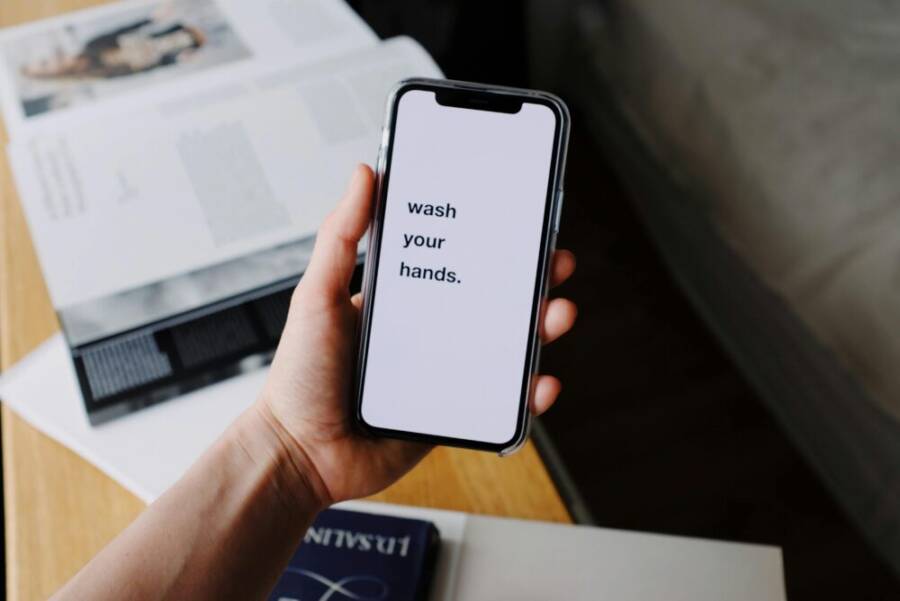
Images and visuals can help readers picturing what a well-tuned notification system looks like. Consider an image showing a person glancing at a phone with a simple reminder on the screen to reinforce the concept of light, actionable nudges. If you use an image, credit it accordingly (see caption convention above).
External references and further reading
- Apple support: Use Reminders on your iPhone, iPad, or iPod touch
- MakeUseOf: How to Set Location Alerts in iPhone Reminders
- Any.do: Location Reminders for Personal Tasks (Android and iOS)
By pairing strong apps with smart built-in automations, you can craft a notification system that feels helpful, not noisy. The aim is to keep prompts lean, precise, and actionable so you move steadily toward your goals. In the next section, we’ll explore how to fine-tune location based prompts so they stay useful without becoming distractions.
Avoid Burnout with Smart Notification Habits
Notifications should help you move forward, not pull you into a constant ping-ping cycle. In this section, you’ll learn practical ways to tune sounds, priorities, and quiet times so alerts support focus rather than demand attention. With the right settings, your smartphone becomes a calm, reliable ally that nudges you toward action without draining your energy.
Customize Sounds and Priorities
By giving each type of alert its own tone and importance, you create a quick, mental map of what needs your attention now and what can wait. The goal is to reduce cognitive load while keeping critical prompts visible.
- Use unique tones for critical tasks and low-priority updates. A sharp, high-priority ping should signal tasks that require immediate action, while softer sounds can mark routine reminders or informational alerts.
- Limit total alert types. Too many distinct sounds can become noise rather than clarity. Aim for 3 to 4 sound profiles, then reuse them consistently.
- Pair sound with context. When a notification comes with a location cue or a time window, the sound helps your brain classify the moment at a glance.
- Keep the volume appropriate. Loud alerts are useful in noisy environments but can startle you later. Consider a predictable volume during your core work hours.
If you want deeper guidance on how to manage sounds across devices, Apple provides official settings to customize alerts on iPhone. Explore the basics here: Change notification settings on iPhone. You’ll find steps to tailor which apps can alert you and how they sound. For broader control across devices, you can review how to set up notifications so they stay aligned on all your Apple devices. See Apple support resources for detailed instructions and tips.
In addition, you may encounter discussions about per-app notification sounds in user forums. While experiences differ, the core idea remains: consistency matters more than complexity. A straightforward scheme helps you avoid the overwhelm that comes with too many bells and whistles.
Practical takeaway:
- Craft a minimal sound palette and map each alert type to a specific action or priority. This makes it easier to decide what to do at a glance.
External reading to broaden your understanding:
- Apple support: Change notification settings on iPhone
- Apple guide: Use Reminders on your iPhone to keep prompts in sync
Master Focus and Quiet Times
A steady rhythm hinges on dedicated focus periods and quiet times. When notifications respect those boundaries, you protect deep work and rest just as much as you protect your schedule.
- Activate iOS Focus modes. Focus helps divert non essential alerts during work, study, or personal downtime. You can tailor which apps can interrupt you, set auto replies, and create different profiles for different parts of your day.
- Use Android Do Not Disturb setups. DND lets you silence most alerts while still allowing crucial calls or messages from specific people or apps. It’s a simple way to prevent burnout from endless pings while staying reachable for real emergencies.
- Create predictable windows. Establish daily blocks for deep work and for rest. For example, set a morning focus from 9 to 11 and an evening wind down from 8 to 9. During these periods, keep notifications limited to essential items only.
- Schedule automatic switches. Use rules that switch Focus or Do Not Disturb automatically based on time, location, or activity. This reduces decision fatigue and keeps your day flowing.
iOS Focus enables you to carve out dedicated lanes for work, family time, or personal wellness. Android users can adopt Do Not Disturb schedules to achieve a similar balance. Both approaches help avoid notification fatigue, making it easier to stay productive without feeling drained. If you’re unsure where to start, begin with a single focus profile for work and a separate one for personal time, then expand as you grow more comfortable.
For guidance on iPhone Focus and Android Do Not Disturb:
- iOS Focus modes setup guide
- Android Do Not Disturb schedules and focus modes
Practical implementation example:
- Work Focus: Allow notifications from your calendar, email, and a task app only. Silence social media and games.
- Personal Focus: Permit urgent messages from family and close colleagues, while muting work apps.
External resources to deepen your setup:
- Apple Support: Use Focus on iPhone
- Android Help: Do Not Disturb and Focus modes
By pairing distinct notification sounds with focused work periods and quiet times, you reduce burnout without missing critical prompts. The result is a calmer day where you act on the right things at the right moment. For readers who want a quick check, test a 48 hour cycle: one day with standard alerts, the next with Focus or DND enabled during core hours, then compare energy and momentum. You’ll likely feel a noticeable difference in how much mental space your phone prompts occupy.
Conclusion
Smart reminders turn your phone into a reliable helper, not a noise source. Start with the Basics by fitting one small prompt into your day and build from there. Location, repeats, apps, and habits form the core framework you can rely on.
A practical path is to keep it simple at first. Pick one action, set a precise time, and test how you respond. Then add location based prompts and recurring schedules as you grow more confident. These steps keep your workflow smooth without drowning you in alerts.
Over time, your reminders become a natural part of your routine. The goal is a lightweight system that nudges you toward action, not a flood of notifications. When the prompts stay relevant and predictable, you act more often without extra effort.
Looking ahead, AI smarter pings will tailor reminders even more to your patterns. For now, focus on clarity and consistency. A clear message, a definite next step, and a sensible cadence deliver real value.
If this resonated, share your win in the comments. Tell us which one reminder you started with today and how it changed your day. Your example could help others cut through the noise and stay on track with confidence.