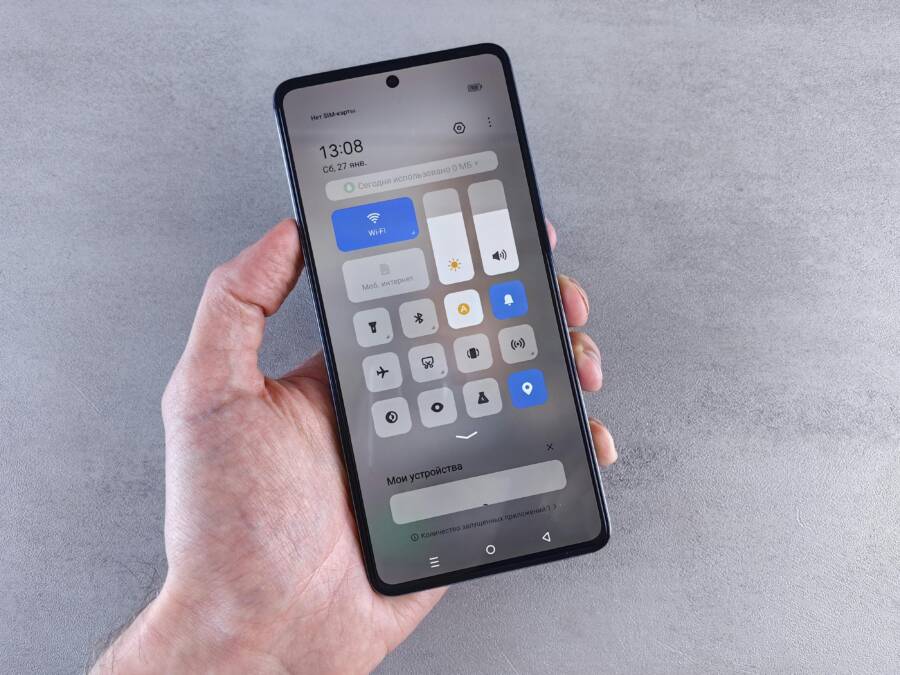
You’ve missed that urgent message from a friend or a ride confirmation from Uber, haven’t you? Your battery saver kicked in quietly, and suddenly important apps fall silent. It happens on both Android and iPhone when power runs low.
Battery saver saves energy by limiting background activity on your smartphone. It pauses network checks, delays syncs, and even closes apps. Messaging apps like WhatsApp can’t ping for new texts, and ride-sharing services skip updates until you open them.
The result stings. Notifications arrive late or not at all. You stay in the dark during key moments.
Good news exists. You can keep those apps running without draining your battery fast. Simple tweaks let critical notifications through while other apps sleep.
This guide covers it all step by step. We’ll explain the main causes first. Then share quick ways to turn off battery saver. You’ll learn Android whitelisting to exempt apps, iPhone workarounds like background refresh tweaks, and extra tips to balance power use.
These methods work on most devices. No need for extra apps or root access. Just follow along, and test changes one by one.
Your smartphone battery lasts longer overall this way. Prioritize just 3-5 key apps, and stay connected.
Ready to stop missing those alerts?
Understand Why Battery Saver Limits Apps on Your Phone
Battery saver turns on when your smartphone battery drops low. It cuts power use by blocking apps from running in the background. This keeps your device alive longer, but it stops notifications from apps you need. Think of it like a strict night watchman who locks most doors, letting only a few through. On Android and iPhone, these limits hit differently. Let’s break it down by platform so you see exactly what triggers the blocks.
Common Triggers on Android Phones
Android’s Battery Saver mode activates at 15% or 5% battery, depending on your settings. It ramps up restrictions on data use and CPU tasks for background apps. Adaptive power saving takes it further; it learns your habits and limits apps you rarely open.
Key triggers include:
- Doze mode: Kicks in when your phone sits idle. It defers network access and jobs, as detailed in Android’s official Doze guide.
- App standby buckets: Rarely used apps get the harshest cuts on syncs and alarms.
- Background limits: Apps can’t freely check servers or process data without user interaction.
Your messaging or ride apps go quiet until you wake the screen. Samsung devices add extra layers with their own optimization tools. Turn these off for key apps later to fix it.
How iPhone Low Power Mode Affects Apps
iPhone’s Low Power Mode hits at 20% battery and works system-wide. No per-app exemptions exist, so it impacts everything equally. It stops background app refresh, cuts automatic downloads, and slows processor speed.
Main effects show up as:
- Delayed email fetch and app updates.
- Paused visual effects and some downloads.
- Push notifications often arrive, but with possible lags during heavy restrictions.
Apple explains it clearly in their Low Power Mode support page. Your smartphone stays responsive for calls and texts, but apps like fitness trackers or delivery services skip updates. This blanket approach saves juice fast on your iPhone.
Turn Off Battery Saver Mode in Seconds on Any Phone
Battery saver or low power modes can quietly mute important alerts. If you’ve ever missed a message while a phone drinks power, you know why turning this off quickly matters. In this section, you’ll find straightforward, fast toggle steps for Android and iPhone. They’re designed to be followed in moments, so you stay connected when you need it most. We’ll keep the steps simple, with quick checks to confirm the setting is off. A few taps can restore essential app notifications without sacrificing battery life for the rest of the day.
Android Quick Toggle Steps
If you’re sprinting for a quick fix, start with the fastest route: the notification shade. Swipe down once or twice to reveal the quick settings tiles, then tap Battery Saver or Power Saver to toggle it off. If your device hides the toggle, you can reach the full path: Settings > Battery > Battery Saver. On some Androids, you’ll find Power saving under Device care or Device maintenance. After turning it off, run a quick test by opening a few key apps to verify you’re getting updates in real time. For deeper control, you can add an app-specific exemption later. Learn more about Android power management here: https://support.google.com/android/answer/7664692?hl=en
iPhone Control Center and Settings Method
For iPhone users, the fastest route is through Control Center if you’ve added a battery control. Open Control Center and tap the Battery Saver or Low Power Mode button to disable it. If you don’t see the option, add Low Power Mode to Control Center: Settings > Control Center > customize controls, then add Low Power Mode. If you prefer, go to Settings > Battery and switch Off. After turning it off, test key apps to ensure notifications arrive promptly. This method balances power use with timely updates. More details are available from Apple’s support page: https://support.apple.com/en-us/101604
Whitelist Key Apps on Android to Ignore Battery Limits
If you want reliable notifications and timely updates, you need to whitelist essential apps from battery optimization. This section walks you through the exact steps to exempt important apps on Android, so they can run in the background even when power saving is on. You’ll learn a clean, repeatable process you can apply to any device, without third party apps or root access. Think of it as giving your go-to apps a express lane while the rest stay in energy-saving mode. Follow these steps, test after each one, and keep a short list of essential apps ready for quick reference.
Step-by-Step App Exemption Process
- Open your device Settings and locate Battery or Battery Optimization.
- Tap to view all apps under the optimization screen. If your device uses “App power management” or “Reserve cap mode,” select that option.
- Find the critical apps you rely on for messages, rides, or alerts (for example, your messaging app, ride-hailing service, or email client).
- Change the status from “Optimized” to “Not optimized” or “Not restricted.” On some devices you’ll need to choose “Ignore battery optimization” or add the app to a whitelist.
- Confirm any prompts about background activity or notifications.
- Repeat for each essential app.
- Reboot the phone or simply reopen a few key apps to verify real-time updates.
- If your device uses Adaptive Battery, ensure it remains enabled for overall efficiency while your chosen apps stay exempt.
- Periodically review the exemptions after system updates or app updates, as changes can reset settings.
- Create a simple note listing your whitelisted apps for quick reference during future tweaks.
- When in doubt, consult the manufacturer’s support page for exact terminology used on your model. For further guidance, see the Android optimization overview and related threads.
References and deeper reading: Android’s battery optimization guidance and related discussions provide detail on how to request or confirm exemptions, and how foreground services interact with these settings. https://support.google.com/android/thread/95011040/disable-battery-optimization-through-request-ignore-battery-optimizations?hl=en
Handle Brand Differences Like Samsung or Pixel
Android devices vary in how they label and manage battery optimization. A quick, brand-aware approach helps you whitelist without getting tangled in menus. Below is a concise guide to the common routes for Samsung and Pixel devices, plus a mental model you can apply to other brands.
- Samsung: Look for Battery or Device care, then Battery > Deep sleep apps or Unused apps exemptions. You may also see a dedicated “ignore battery optimization” option in One UI recovery paths. For many Samsung users, the key is to navigate to the app’s Battery setting and disable “Put app to sleep” or enable “Allow background activity” within the battery optimization screen. Helpful resource from Samsung and community discussions offer model-specific steps.
- Pixel (Google): Pixel devices follow the standard Android flow but sometimes place options under Battery > Adaptive Battery or Battery Optimization per app. Turn off optimization for the essential apps or set them to “Not optimized” to ensure background activity and timely notifications.
Brand-specific notes and quick actions can prevent wasted hours hunting menus. Always confirm the exemption by reopening the app and testing notifications. The goal is a stable stream of alerts from key apps while the rest stay in sleep mode.
| Brand | Typical Path | Key Tip |
|---|---|---|
| Samsung | Settings > Battery and device care > Battery > App power management / Unused apps | Look for “ignore optimization” or per-app allowances; disable aggressive sleep for core apps |
| Pixel (Google) | Settings > Battery > Adaptive Battery / Battery optimization per app | Set essential apps to not optimized; verify after updates |
For more brand-specific instructions and updated paths, see user discussions and official support pages. You can also explore how other brands handle foreground services and notification permissions to maintain reliability. Links: Samsung battery optimization overview and Pixel battery optimization guidance provide practical steps you can adapt to your device. https://www.samsung.com/us/support/galaxy-battery/optimization/ https://support.google.com/pixelphone/thread/299966895/turn-off-battery-optimization-for-an-app?hl=en
iPhone Workarounds to Keep Apps Active During Low Power Mode
When your battery dips low, Low Power Mode on the iPhone slows down background activity to stretch life. That can mute important alerts from apps you rely on. The good news is you can keep critical apps awake without turning off Low Power Mode entirely. Below are practical workarounds that balance power savings with reliable notifications. These tips work for most recent iPhone models and integrate smoothly with your daily workflow.
Set Up Background App Refresh for Specific Apps
Targeted background refresh can help essential apps stay up to date while you conserve energy. Start by checking which apps actually need data in the background, then allow them to refresh more often even when Low Power Mode is on. Open Settings, tap General, then Background App Refresh. Select Wi-Fi or Wi-Fi & Cellular Data, and turn on Background App Refresh for your priority apps only. For each app, verify that Fetch or Push is enabled so you get timely updates without draining battery on every app. If you notice delays, adjust the refresh frequency or switch to a manual refresh for less critical apps. For deeper control, use Shortcuts to automate when these apps refresh during low battery windows. Helpful reference on how Background App Refresh operates and what it means for battery life: Business Insider.
- Practical tip: prioritize messaging, email, maps, and ride-share apps so you never miss urgent updates.
Use Shortcuts to Control Low Power Mode Auto-On
Automation can ensure Low Power Mode activates or deactivates in sync with your routine, while leaving key apps responsive. Build a Shortcuts automation that enables Low Power Mode when you’re away from home and disables it when you reach a certain location or plug in at night. In Shortcuts, create a personal automation with the trigger you prefer, such as Battery Level, Location, or Time of Day. Add actions to set Low Power Mode, and then include conditional steps to run only for your essential apps. This approach keeps power savings intact without forcing all apps into sleep. See how others automate Low Power Mode for efficiency and reliability: an example guide on automating low power mode on iPhone.
- Real-world example: when Battery Level drops below 20%, enable Low Power Mode and ensure your messaging app remains active by checking its refresh setting in Background App Refresh. Learn more about iPhone automation options and best practices: MacRumors guide.
Troubleshoot and Prevent Future Blocks on Your Smartphone
When battery saver kicks in, essential apps can lose their edge. You might miss messages, ride updates, or crucial alerts just because power management is doing its job a little too aggressively. This section gives you a practical, step-by-step approach to diagnose why blocks happen and how to prevent them in the future. The goal is clear: keep critical notifications flowing while still preserving battery life.
 Photo by Andrey Matveev
Quick sanity check: confirm which apps are affected
Start with a simple test. Note which apps stop sending alerts under low power conditions and which ones continue. If only a handful of apps are affected, you’re looking at app-specific settings. If many apps are quiet, the system-wide battery saver is the culprit. Create a short list of the apps that matter most for you, then focus on those first.
- Check notification behavior when you toggle power saving on and off.
- Observe if essential apps always run in the background or only in certain scenarios.
- If the issue mirrors a recent update, consider whether the update changed background behavior.
Android: common causes and fixes you can implement now
Android devices use several power-saving features that can mute background activity. Understanding these helps you pinpoint the culprit and fix it quickly.
- Doze and App Standby: These modes reduce background work when the device is idle. Some apps might be deferred from syncing or receiving updates until maintenance windows. You can learn more about Doze and App Standby in the official Android developer guide. This resource explains how background tasks get restricted and how to design your apps to cope with these limits.
Link: https://developer.android.com/training/monitoring-device-state/doze-standby - Per-app battery optimization: Many devices offer per-app controls that can block background activity. If a key app is set to “Optimized,” it may miss updates. You can review and disable optimization for individual apps.
- Adaptive Battery: This feature learns usage patterns and may tighten restrictions on apps it deems less important. If you rely on certain apps, ensure they remain exempt from heavy optimization where appropriate.
Link: https://support.google.com/pixelphone/answer/7015477?hl=en
If you want a guided path, start with the Android optimization overview and then move to per-app exemptions. You can adjust settings in Settings > Battery > Battery optimization (or a similar path depending on your device). After changes, test three key apps to confirm real-time updates resume. For broader context, see the Android Doze guidance linked above.
iPhone: Low Power Mode and its pervasiveness
iPhone users face a blanket approach with Low Power Mode that can suppress background updates across apps. The fix often requires targeted adjustments rather than a full battery saver off switch.
- Enable background activity for priority apps: In Settings, use General > Background App Refresh to allow select apps to fetch data even when Low Power Mode is on. Limit refresh to Wi-Fi or Wi-Fi + Cellular for critical apps.
- Use automation to manage power only when needed: Shortcuts can be used to toggle Low Power Mode based on time, location, or battery level, keeping essential apps responsive during low battery windows.
Example approach: when battery drops below 20%, enable Low Power Mode but ensure messaging apps still refresh. - Verify per-app refresh settings after updates: Updates can reset preferences, so recheck the Background App Refresh for your must-have apps.
For more context on how Background App Refresh operates and its impact on battery life, see practical explanations from industry sources. It’s useful to balance timely updates with overall power usage.
Whitelisting and exemptions: practical, repeatable steps
The most reliable way to prevent blocks is to set up exemptions for the apps you rely on most. This approach keeps essential notifications active while the rest stay conservative with power.
- Android exemption workflow (repeat for every core app):
- Open Settings > Battery or Battery Optimization.
- View all apps and select the critical app.
- Change from Optimized to Not optimized or add to a whitelist.
- Confirm prompts about background activity and notifications.
- Reboot or re-open key apps to test.
- Brand-aware tips for Samsung and Pixel:
- Samsung: Look under Battery > Device care or Battery > App power management. Seek options like “Ignore battery optimization” or “Allow background activity” for essential apps.
- Pixel: Settings > Battery > Adaptive Battery / Battery optimization per app. Set essential apps to not optimized.
If you want deeper brand specifics, you can explore dedicated guidance from official support pages and community threads. These paths help you avoid getting lost in menus and focus on what matters for notifications.
A practical testing checklist to prevent future blocks
Establish a simple, repeatable routine to keep notifications flowing.
- After every OS or app update, re-check battery optimization settings for key apps.
- Schedule a quick test daily: open three essential apps and confirm real-time updates for 5 minutes.
- Create a short reference list of whitelisted apps and keep it handy for quick tweaks when system prompts appear after updates.
- Periodically review device-specific notes from the manufacturer to stay aligned with new features or changes.
Additional resources and credible guidance
- Android Doze and App Standby explain the core behaviors that impact background tasks.
Link: https://developer.android.com/training/monitoring-device-state/doze-standby - Pixel adaptive battery guidance offers practical steps for maintaining background activity for critical apps.
Link: https://support.google.com/pixelphone/answer/7015477?hl=en - For iPhone users, background refresh considerations help balance updates with battery life.
Link: https://support.apple.com/en-us/HT204109
Taking these steps creates a predictable, repeatable approach to keep essential apps alive in low power conditions. With thoughtful exemptions and smart automations, you gain reliable notifications without sacrificing your battery life.
Conclusion
Stopping battery saver from blocking essential apps is about balance. Turn off saver when you need real time alerts, then tighten the rest. This keeps your most important apps awake while the rest slumbers.
Whitelisting on Android gives your key apps an express lane. Exempt them from optimization, test notifications, and re-check after updates. The goal is reliable updates without draining power for every app.
On iPhone, manage Low Power Mode with targeted per app refresh. Enable Background App Refresh for the apps you rely on most, and automate power needs where it makes sense. Your priority apps stay responsive, even as you save juice.
A practical mindset helps. Start with a quick audit of your top 3 to 5 apps. Disable saver, verify alerts, then re-enable protections for everything else. This approach preserves battery life while keeping your most used tools ready to go.
If you’re unsure where to begin, test changes one by one. A small adjustment now prevents bigger misses later. Your smartphone should work for you, not against you, during busy moments.
Take action today: try the steps above, and note which app you saved from silence. Share your results in the comments so others can learn from your setup. With careful exemptions and smart automation, you gain reliable notifications and a healthier battery life. Your phone works for you now.