She Pressed Play on a Strange Audio Track and Within Days Her Financial Reality Started Shifting in Ways She Could Not Explain
>>> See How It Works <<<

Have you ever tried to use a phone that’s locked to an old account, and felt stuck at the start? This happens when account credentials or ownership details aren’t available anymore, or when a device gets reset without proper disassociation. The result is a frustrating roadblock that stops you from setting up the phone the way you want.
In this guide you’ll learn safe, legal steps to regain access. You’ll see how to verify ownership, contact the right support channels, and follow official processes to remove the old account. The goal is a clean, responsive device you can use again without compromising your privacy.
Here’s what you’ll walk away with: practical steps that work for both Apple and Android devices, a clear checklist to prove ownership, and tips to stay safe during the process. We’ll keep the language simple and the steps actionable, so you can move from roadblock to ready-to-use phone with confidence.
Understand the lock: activation lock, account ties, and what to expect
When you encounter a phone that refuses to set up because of a previous account, it can feel like a locked door with no key. This section explains the core concepts behind those locks, how they affect access, and what you should expect as you work toward a legitimate solution. You’ll understand Activation Lock on Apple devices and FRP on Android, plus the practical implications for regaining use of the device.
Thousands of People Were Struggling With Money Until They Discovered This One Ancient Secret Hidden in Sound
>>> Unlock It Now <<<

 Photo by Safwan C K: https://www.pexels.com/@safwanck
What activation lock and FRP mean for your phone
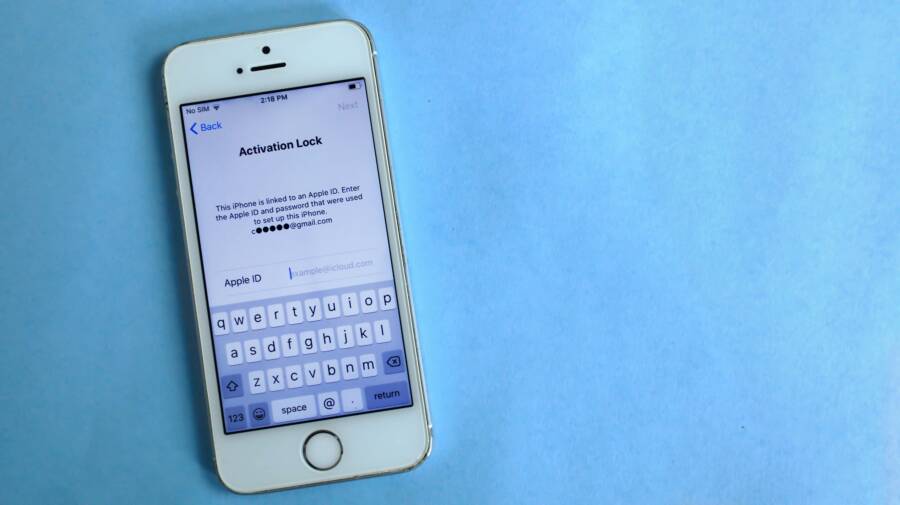
Activation Lock and FRP are built to protect your device if it’s lost or reset without permission. Here’s the plain-language version:
- Activation Lock (Apple devices): When Find My is turned on, the phone locks to the original Apple ID. If someone erases the device, they still need that Apple ID and password to reactivate it. This is meant to prevent unauthorized use.
- How it affects you: If you don’t know the Apple ID and password tied to the device, you’ll likely see an Activation Lock screen and cannot complete setup.
- Quick note: Apple provides official steps to remove Activation Lock when you’re the rightful owner, or you’re working with an organization’s device. See Apple Support for details on removing Activation Lock.
- Learn more: Activation Lock for iPhone and iPad
- Google FRP (Android): Factory Reset Protection ties the device to the Google account that was last used on it. If the device is reset, it asks for that Google account to unlock and continue setup.
- How it affects you: Without the correct Google account credentials, you’ll encounter a screen asking for the previous account to verify ownership.
- Quick note: The official guidance emphasizes adding your own Google account and using the device protection features to prevent unauthorized use.
- Learn more: Help prevent others from using your device without permission
These protections operate at a high level to deter theft and unauthorized use. They are not roadblocks you should try to bypass; they are ownership safeguards. Rely on official channels and documented procedures to prove ownership and regain access.
Scenarios you might face with an old account
Owners often forget or lose access to the credentials tied to a device. Here are common situations you may recognize:
- Forgot the Apple ID or Google account: You know the device info but can’t recall the login details. You’ll need to recover or reset the account.
- Changed email or phone number: The recovery options you expect aren’t available because the contact methods moved with the account.
- Account tied to a former owner: The device was handed down or sold, but the new user can’t dissociate the old account.
- Device previously used by a company or school: IT departments control the account and may need to release the device from their system.
- Device reset without disassociation: A reset wiped the device, but the lock remains because the original account is still linked.
In each case, the path forward is clear and legitimate: verify ownership, contact the right support channel, and follow official steps to remove or transfer the lock. If you’re unsure which scenario fits, start with the basics of ownership proof and move through the official processes step by step.
Why you should act carefully and legally
Taking shortcuts to bypass Activation Lock or FRP can lead to serious risks. You might encounter illegal unlock services that claim to remove locks quickly or covertly. These options often come with:
- Hidden fees and data risk
- Exposure to malware or phishing
- Potentially voided warranties or future updates
- Legal concerns if the device isn’t yours or you lack proper authorization
Choosing legal routes keeps your privacy intact and protects you from scams. It also aligns with seller agreements and corporate policies if the device is owned by a business or educational institution. Official support channels exist to help you reclaim access without compromising safety.
- For Apple users, start with official resources on Activation Lock removal. Official guidance outlines the steps you need to take if you’re the rightful owner or an authorized administrator.
- See: How to remove Activation Lock
- See: Remove a device from Find Devices on iCloud.com
- For Android users, use the official account recovery and device protection guidance. It explains how to verify ownership and what to do if the device is tied to a Google account.
- See: Help prevent others from using your device without permission
If you’re ever unsure, consult the official support pages and consider contacting the device manufacturer or your mobile carrier for advice. These channels can guide you through the proper verification process and help you avoid common pitfalls.
For more context on the official processes, you can explore Apple’s Activation Lock safety information and Google’s guidance on device protection. These resources provide step-by-step instructions and critical cautions to prevent misuse.
There Is a Frequency That the Wealthiest Families Have Used for Generations and Most People Will Never Know It Exists
>>> Open the Door <<<

- Apple Activation Lock overview
- Apple remove Activation Lock
- Google FRP protection overview
And if you want a broader view of how these protections fit into device security, Apple’s Activation Lock security guide offers a deeper look into the security model behind these features.
- Activation Lock security
Remember, the aim is to resolve the lock lawfully and restore full control over your device without compromising your data or safety.
External resources you may find helpful:
- Apple Activation Lock overview
- Apple remove Activation Lock
- Google FRP protection overview
- Prevent others from using your device without permission
- How to remove Activation Lock from Apple devices
Sources linked here are provided to help you locate official guidance quickly. If you’d like, I can tailor the next sections to align with any particular device model or carrier policies you’re dealing with.
Prepare and verify ownership before attempting unlock
Before you even attempt to unlock a phone tied to an old account, take a moment to confirm you have legitimate ownership. This step may feel like a hurdle, but it protects your data, your device, and your peace of mind. By gathering proof and working through official channels, you keep the process safe, transparent, and more likely to succeed. Think of it as building a solid foundation for the unlock as you would for any major repair or upgrade. The following subsections walk you through practical ways to prove ownership, check status with the right service, and avoid scams along the way. If you’re currently rummaging through old receipts and emails, this section will help you organize what you need and where to look.
Gather proof of purchase and ownership
Having clear, official proof makes the difference when you reach out for help. Start by collecting documents that show you own the device or have the right to request its removal from a prior account. Here’s a concise checklist:
- Receipt or invoice from the original purchase
- Box with the IMEI or serial number visible
- Carrier records showing the device was activated on your line
- Original purchase email or receipt from a retailer
- Any device registration or warranty documentation on file
When you share these documents with support, it’s wise to redact sensitive data. Blur or black out personal identifiers like payment card numbers, full addresses, or extraneous account IDs. Focus on the device model, IMEI or serial number, purchase date, and the payer name. If you’re sending screenshots, crop them so only essential details show. This keeps your data safe while giving the support team what they need to verify ownership quickly.
If you’re unsure what counts as official ownership proof for your device, start with the Apple or Google support portals and attach any item that clearly ties you to the device. In many cases, a combination of an original receipt and an IMEI on the box suffices to establish legitimacy. For a carrier-based path, you can also cite activation records that show the device was on your account.
- When you have Apple equipment, consider including a screenshot of Find My activation status or the device’s purchase history from Apple if available.
- For Android devices, carrier activation records or a bill of sale can be highly persuasive alongside the IMEI.
If you want to dive deeper into official guidance on ownership verification, Apple’s support pages provide clear steps for proving ownership in Activation Lock scenarios, and Google’s guidance covers how to verify account ownership in FRP cases.
- Apple support on removing Activation Lock: https://support.apple.com/en-us/108934
- Activation Lock overview and related guidance: https://support.apple.com/en-us/108794
These resources help you map your documents to the official process, so you don’t waste time chasing the wrong path.
Check the account status and unlock options with the service
Once you’ve assembled proof, the next move is to verify the account status and explore the legitimate unlock routes. The exact steps depend on whether you’re dealing with an Apple ID or a Google account. Here’s a practical approach you can follow:
- Apple ID recovery and Find My status: Start by attempting to recover any known Apple ID or reset the password using the official recovery flow. If Find My is on the device, ensure it is correctly linked to an account you control. Apple’s official pages outline how to remove Activation Lock when you’re the rightful owner or an authorized administrator. You can begin here to understand the available options and what information you’ll need to provide:
- How to remove Activation Lock: https://support.apple.com/en-us/108934
- Activation Lock for iPhone and iPad: https://support.apple.com/en-us/108794
- Google account recovery and FRP status: For Android devices, go through the official account recovery process. If the device is tied to a Google account, you’ll want to verify ownership and understand what to do if you can’t access the original account. Google’s official guidance covers recovery options and the steps you’ll take once you regain access:
- Recovering administrator access to your account: https://support.google.com/a/answer/33561?hl=en
- Guide to Google Account Recovery: https://support.google.com/accounts/community-guide/270148091/guide-to-google-account-recovery-detailed-steps?hl=en
- Check linked devices and payment information: Review any devices linked to the same account and ensure there are no unknown devices in your history. For Apple users, this means checking where your Apple ID is signed in and what devices are associated. For Google users, inspect account activity and payment methods tied to the account. If there are unfamiliar entries, contact support to verify legitimacy and proceed with removing or transferring the lock to your control.
If you’re unsure which route applies, start with the official recovery channels and follow the prompts. This keeps you aligned with the device maker’s safety standards and helps you avoid questionable third-party services. In some cases, you may need to provide proof of ownership along with a formal request to the device maker or carrier. Using official portals reduces the risk of scams and helps set realistic expectations for the timeline and required documentation.
- For Apple users, official guidance can lead you through the exact steps to remove Activation Lock when you own the device or are authorized by an organization. See: How to remove Activation Lock and Activation Lock overview.
- For Android users, official guidance centers on account recovery and device protection. See: Help prevent others from using your device without permission.
If you want more context on the official processes, Apple’s Activation Lock safety information and Google’s device protection guidance are solid starting points. They explain how the protections work and what you should prepare before you contact support.
- Apple Activation Lock overview: https://support.apple.com/en-us/108794
- Google FRP protection overview: (link provided in the Google guidance above)
Early preparation pays off. It shortens turnarounds, reduces back-and-forth, and makes the path to normal usage smoother. When you combine solid ownership proof with official recovery steps, you stand on solid ground.
Assess the device status to avoid scams
As you move through the legal unlock process, stay alert to potential scams. The market is full of services that promise quick unlocks but deliver little or cause more trouble. Here’s how to keep your course safe and straightforward:
- Be wary of third party unlock services that promise to bypass Activation Lock or FRP without verification. These offers often come with hidden fees, data risks, or malware. Always prefer official channels or carrier-backed options.
- Verify legitimacy before sharing any data. Use official support pages and confirm the exact steps you’ll take with the device. If something feels off, pause and contact the manufacturer or carrier directly through their official site.
- Check device history with the carrier or the manufacturer. A quick look at activation records, service history, and ownership status can reveal whether the device is legitimately yours. If the history shows conflicting ownership or suspicious activity, it’s a red flag.
To help you spot dubious offers, rely on official resources and documented procedures. For example, Apple’s Activation Lock pages emphasize that removal must occur through legitimate ownership processes, not through unverified unlock services. Google’s FRP guidance similarly directs users to recover or reset accounts through official channels rather than third party tools.
If you want to explore trusted sources, you can review pages like Apple’s Activation Lock overview and Google’s FRP protection guidance for concrete steps and cautions. These pages, plus carrier support portals, provide a clear framework for legitimate action.
- Apple Activation Lock overview: https://support.apple.com/en-us/108794
- Google FRP protection overview: https://support.google.com/accounts/answer/6099933
A practical tip: before you agree to any paid service, confirm whether your device is already eligible for a no-cost unlock through your carrier or maker. In many cases, carriers offer official unlock options after meeting basic requirements such as device age, account status, or contract terms. Starting with your carrier’s official unlock portal is usually the fastest, safest route.
- How to unlock your phone from the major carriers (overview and official portals) can be found via carrier support pages and the Linked Resources in official guidance.
If you’d like a quick, concrete example, imagine you’re facing an iPhone with Activation Lock. Gather proof of purchase and confirm Find My is disabled or can be managed by you. Then, contact Apple Support through the official channel with your documents. They’ll guide you through a structured process that may involve confirming ownership, signing in to your Apple ID, and providing account recovery details. The same approach applies to an Android device with Google FRP, but you’ll interact with Google’s account recovery flow and possibly your carrier for device-specific steps.
In short, keep the process anchored in official guidance, verify every step with the proper support channel, and avoid shortcuts that could compromise your data or the device’s status.
External resources you may find helpful:
- Apple Activation Lock overview
- Apple remove Activation Lock
- Google FRP protection overview
- Prevent others from using your device without permission
- How to remove Activation Lock from Apple devices
These resources provide direct paths to official procedures and critical cautions to prevent misuse. If you’d like, I can tailor the next sections to align with a specific device model or carrier policy you’re dealing with.
Unlock options by platform and official routes
When a phone is tied to an old account, the path to access it again can vary. This section lays out the official, safe routes you can take on Apple and Android devices, plus what to expect when dealing with carriers. The goal is to help you regain control without risking your data or device status.
 Photo by Jakub Zerdzicki: https://www.pexels.com/@jakubzerdzicki
Apple devices: remove activation lock through Apple ID and account recovery
If you own the account or can recover it, follow the official steps to remove Activation Lock. The process hinges on proving ownership and having access to the associated Apple ID and trusted devices.
- Start with a trusted device. Sign in to iCloud or the device you previously used and navigate to Find My or Apple ID account settings.
- Use the official recovery flow. If you remember the Apple ID but forgot the password, use the password reset steps and then disable Find My if the device is ready to be reset for transfer or reuse.
- Two factor authentication (2FA) matters. If your account has 2FA enabled, you’ll verify your identity via a trusted device or trusted phone number during the sign-in or recovery process.
- Recovery email helps. If you’ve tied a recovery email to your Apple ID, use it to receive verification codes or password reset instructions.
- If access to the account or trusted devices is lost, you still have options. Contact Apple Support, provide proof of purchase and ownership, and follow their guided steps to reestablish control or transfer ownership to a new account.
Official guidance and steps you can follow:
- How to remove Activation Lock
- Activation Lock for iPhone and iPad
Pro tip: If the device is owned by a business or school, involve the IT admin or device administrator. They can initiate removal through their management console.
Further official resources:
- Apple Activation Lock overview
- Apple remove Activation Lock
- Remove a device from Find Devices on iCloud.com
If you’re unsure which path fits, start with the official recovery channels and work through the prompts. These routes are designed to verify ownership and prevent misuse.
She Pressed Play on a Strange Audio Track and Within Days Her Financial Reality Started Shifting in Ways She Could Not Explain
>>> See How It Works <<<
Android devices: Google account recovery and FRP
Android devices use Factory Reset Protection (FRP) to tie the device to the Google account last used on it. Recovery hinges on regaining access to that account and following official steps to regain control.
Key steps to try:
- Google account recovery. If you remember the email but not the password, use the Google account recovery flow to verify your identity and regain access. Once signed in, you can re‑establish device protection with your own account.
- FRP status check. If the device asks for the original Google account after a reset, use the official recovery options to prove ownership and remove the link to the prior account.
- When credentials are recoverable, proceed with the standard account recovery prompts. If you regain access, set up a fresh device protection plan so you don’t face this issue again.
Official guidance and steps you can follow:
- Recovering administrator access to your Google account
- Guide to Google Account Recovery
Notes and limits:
- If you cannot recover the original Google account, you may need to contact Google Support or the device manufacturer for further verification steps.
- Some steps require access to a linked phone or backup email. Without those, you’ll need to go through the standard verification process and may have to provide purchase details.
Helpful resources:
- Help prevent others from using your device without permission
- Google FRP protection overview
If you’re unsure, begin with the official recovery flow and follow the prompts. This keeps you aligned with Google’s safety standards and avoids risky third party tools.
Carrier and official unlocks
Carriers can unlock a device or release it from the account after you provide the necessary proof of ownership and meet policy requirements. This path is often faster and more reliable, especially when the device is tied to a specific plan or carrier account.
What to expect:
- Proof of ownership. You’ll typically need a purchase receipt, device IMEI/serial number, and proof that the device is currently associated with your account or account family.
- Timelines. Unlocks can take anywhere from a few hours to a few business days depending on the carrier and your account status.
- Costs. Some carriers offer unlocks at no charge after meeting contract or device requirements; others may charge a one time fee or require the device to be paid off.
- How to start. Visit your carrier’s official unlock page, submit the required details, and follow the steps provided. If needed, you can also contact customer service for live assistance.
Carrier examples and pathways:
- T-Mobile device unlock
- Verizon unlock guidance and switching options
- AT&T unlock policies and submission steps
Official resources:
- T-Mobile device unlock
- SIM Unlock Policy | Unlock Your Mobile Wireless Device | T-Mobile
- Learn how to unlock AT&T phones or devices
- Switch to T-Mobile from Verizon or AT&T and Bring Your Phone
This route is often the most straightforward when the device is tied to a carrier account. It also helps confirm that the device is intended for use on a different network.
Beware of third party unlock services
Third party unlock services promise quick results, but they come with real risks. These services can bypass official protections but often at a steep cost to your data and device security.
Risks and red flags:
- Hidden fees that surface late in the process
- Malware, phishing, or data exposure
- Warranties or software updates being voided
- Legal concerns if the device isn’t yours or you lack proper authorization
Best practices:
- Always use official channels first. Carrier unlocks and manufacturer account recovery are the safest paths.
- If something feels off, pause. Reach out to the device maker or carrier directly through their official site or support line.
- Verify legitimacy before sharing any sensitive data. Use official links and confirm the exact steps you will take with the device.
How to spot unreliable services:
- They promise to bypass protections without your credentials.
- They request payment before any verification steps.
- They pressure you to share personal information outside official portals.
Trusted sources to guide you:
- Apple Activation Lock overview
- Apple remove Activation Lock
- Google FRP protection overview
If you want a sanity check, compare any third party offer against the official processes outlined above. In most cases, legitimate unlocks come from Apple, Google, or the device carrier.
Practical example:
- For an iPhone with Activation Lock, gather proofs like the original purchase receipt and a screenshot showing Find My status, then contact Apple Support through the official channel with your documents. They’ll guide you through the steps to verify ownership and remove the lock.
- For an Android device with Google FRP, go through the Google account recovery flow, and if needed, involve the carrier’s unlock process to complete the official steps.
External resources you may find helpful:
- Apple Activation Lock overview
- Apple remove Activation Lock
- Google FRP protection overview
- Prevent others from using your device without permission
- How to remove Activation Lock from Apple devices
If you’d like, I can tailor the next sections to align with a specific device model or carrier policy you’re dealing with.
What to do if unlock is not possible or you hit a dead end
When the lock seems unbreakable, a calm, stepwise approach saves time and protects your data. This section outlines practical paths you can follow if you simply cannot unlock the device through standard channels or if the official process stalls. You’ll find real-world steps for documenting ownership, maneuvering through official recovery options, and planning a secure path forward. Think of this as your safety net, designed to keep you moving without compromising privacy or legality. Along the way, you’ll see how to handle data thoughtfully, whether you stay with Apple, switch to Android, or involve a carrier.
 Photo by Pixabay: https://www.pexels.com/@pixabay
Backing up data you can still access
If the device is locked but you can still access some apps or services, back up what you can now. This saves memories and important files before you make changes. Focus on photos, contacts, messages, and any offline documents. Here are practical ways to capture what you have:
- Photos and videos: Use cloud backups such as iCloud Photos or Google Photos when possible. If the device won’t complete a full backup, try a quick manual sync to the cloud from a connected Wi‑Fi network.
- Contacts and calendars: Enable syncing to your existing cloud account or export vCard files from apps you still can access.
- Files and documents: Save locally to a computer or external drive whenever feasible. If the device supports USB or wireless file transfer, copy critical items before attempting any reset.
- App data and messages: For essential conversations, check whether the app offers its own cloud sync. Some apps let you export chat histories or settings to a file you can later reimport.
If you can’t complete a direct backup on the phone itself, look for alternative options:
- Use a computer to extract data from the device through official software tools from Apple or Google.
- Check if any connected services (email, cloud storage) still hold copies of your files.
- Consider staged backups over several days if full backup isn’t possible at once.
Organize your backups with a simple file structure. For example:
- Photos: /Backup/Photos/Year_Month
- Contacts: /Backup/Contacts
- Messages: /Backup/Messages
- Documents: /Backup/Documents
Link to official backup guidance and ownership verification:
- Apple support on removing Activation Lock: https://support.apple.com/en-us/108934
- Google account recovery and FRP protection overview: https://support.google.com/accounts/answer/6099933
If you’re unsure what to back up first, start with photos and contacts. They are the hardest to recreate, and losing them hurts more than you might expect.
Setting up a new account and device transfer
When the old account cannot be used to unlock the device, a clean start with a new account is often the most reliable path. You can still move many data types over if you have access to the necessary apps or services. Here’s a clear, step-by-step approach to setting up fresh and transferring what you can.
- Create a new account on the device platform
- For Apple devices, set up a new Apple ID if you don’t already have one. Use this account to sign in and enable iCloud backups for new data.
- For Android devices, create a new Google account and sign in. This becomes the anchor for many apps and services.
- Transfer essential data from the old device or cloud services
- Photos and videos: Enable cloud backups in the new account and import from existing cloud storage if you still have access to those files.
- Contacts and calendars: Import from your old cloud backups or export vCard files from any accessible app and import them to the new account.
- Apps and app data: Some apps offer built-in cloud sync or account-based data transfer. Look for a “Move data to another account” or “Sign in with existing account” option in the apps you use most.
- Move common apps and services with care
- Messaging apps: Sign in with the new account if supported, and look for built-in export/import features for chats.
- Email and productivity tools: Reconnect to the new account, reconfigure settings, and re-download any offline files if available.
- Photos and media: Re-upload locally saved media to the new cloud storage, then organize to recreate your prior structure.
Official routes you can rely on:
- Copy apps and data from an iPhone to a new Android device: https://support.google.com/android/answer/13626960?hl=en
- Reset your phone and set up with a verification code from Android to iPhone transfer: https://support.apple.com/en-us/120035
- Switch from an iPhone to a Pixel phone: https://support.google.com/pixelphone/answer/14852552?hl=en
If you’re moving between ecosystems, plan the transition in stages. Start with data you know you can recover, then re‑install essential apps and reconfigure services. A thoughtful transfer reduces friction and keeps your workflow intact.
Data loss and privacy concerns
Even with careful steps, data loss can occur. Understanding the risks helps you act decisively and protect your privacy. Here’s what to know and how to respond.
- Data loss risks: You may lose app data, local files, or offline content during resets or transfers. Sensitive information can inadvertently wander if backups or cloud services aren’t properly secured.
- Minimize data loss: Prioritize backing up critical items first. Remove unnecessary apps and files only after ensuring you have a solid recovery path for the essentials.
- Secure wipe if needed: If you decide to wipe the device for a fresh start, use official tools and verify factory reset steps. Double-check that you have a successful backup of important data before wiping.
- Privacy checks after setup: Review app permissions, disable unnecessary data sharing, and enable two factor authentication on new accounts. Check permissions for location, contacts, and camera access to avoid surprises.
Practical privacy steps you can take now:
- Review linked accounts and devices on both Apple ID and Google account.
- Remove old payment methods and unknown devices from your accounts.
- Enable strong passwords and two factor authentication; use a password manager to store credentials securely.
Official guidance and best practices:
- How to Remove Your Personal Information Before You Get Rid of Your Phone: https://consumer.ftc.gov/articles/how-remove-your-personal-information-you-get-rid-your-phone
- Understanding data wiping standards and best practices: https://des3tech.com/blog/data-wiping-standards-compared/
- Security considerations after factory resets and data remnants: https://cmdocdestruction.com/the-risks-of-factory-resets-on-your-phone-and-how-to-ensure-data-security/
A practical note: plan for the long term. After you set up a new account and restore essential data, schedule a lightweight monthly backup. Regular backups prevent future headaches if you encounter another lock or device issue.
External resources you may find helpful:
- Apple Activation Lock overview
- Google FRP protection overview
- How to remove Activation Lock from Apple devices
This section helps you approach a locked device with a practical, lawful mindset. If you want, I can tailor these steps to a specific device model or carrier policy you’re dealing with, so the guidance matches your situation precisely.
Conclusion
Locking to an old account is a roadblock not worth guessing your way through. The safest path is to prove rightful ownership, use official recovery steps, and stay within channels Apple, Google, and your carrier provide. Each platform has clear routes that protect your data and work toward removing the lock without risking your device status.
Key takeaways in plain language:
- Gather solid proof of purchase and ownership, then start with official account recovery or activation lock tools.
- Follow the platform’s guided steps and, if needed, involve the device maker or carrier for proper verification.
- Be wary of third party unlocks and shady services that promise quick results; they often expose you to scams or data risk.
- After you regain access, set up your smartphone with strong security like two factor authentication and a fresh backup plan to prevent future lockouts.
If you’re facing a dead end, go back to official pages and re-run through the verification steps. Keep your data safe, stay within legal routes, and plan ahead with regular backups. Your smartphone can be usable again with the right, legitimate steps.
Downloadable quick checklist
- Prove ownership: receipt, IMEI, box, activation records
- Verify recovery option: Apple ID or Google account recovery, FRP or Activation Lock status
- Contact official support: use Apple Support or Google Help, involve your carrier if needed
- Prepare data backups: photos, contacts, messages, documents
- Set up a new account securely: strong password, two factor authentication, updated recovery options
Smartphone tip: store critical proofs in a secure cloud folder and a dedicated local backup so you can retrieve them quickly if you ever need to verify ownership again.
She Pressed Play on a Strange Audio Track and Within Days Her Financial Reality Started Shifting in Ways She Could Not Explain
>>> See How It Works <<<