Thousands of People Were Struggling With Money Until They Discovered This One Ancient Secret Hidden in Sound
>>> Unlock It Now <<<

On a busy day you reach for your smartphone and realize you’re locked out after too many pattern attempts. This security step keeps your data safe, but it can feel like a roadblock if you’re in a rush. This guide shows simple, no expert skills needed fixes like signing in with your Google account, using Find My Device, or performing a safe reset if necessary; iPhones use different steps, so I’ll note those where relevant. By the end, you’ll know exactly what to do to regain access quickly and confidently.
What Causes the ‘Too Many Pattern Attempts’ Error
When your Android device shows a message about too many pattern attempts, it usually means the system has detected repeated, unauthorized access attempts. This is a protective measure designed to keep your data safe. Understanding why this happens helps you pick the right path to regain access without risking data loss. Below, you’ll find the main reasons behind the lockout and how they manifest on most devices.
Repeated failed unlock attempts trigger a security lock
The most common cause is simple: too many incorrect patterns in a short period. Android treats rapid consecutive failures as a potential security threat. The device then locks you out to prevent brute-force guessing. This isn’t just about being clumsy; it’s a built-in defense mechanism. If you see a countdown or a message that you can’t try again for a while, that’s the system telling you to pause and verify your identity in another way. For context, many users report that the lockout appears after a handful of incorrect tries and leads to a temporary block rather than an immediate data wipe. See user discussions for reference: https://support.google.com/android/thread/229863246/phone-blocked-after-too-many-pattern-attempts?hl=en.
Account verification becomes necessary after repeated failures
After a certain number of failed attempts, Google’s sign-in verification often kicks in. The device may prompt you to sign in with the Google account linked to the phone. This step helps confirm you are the legitimate owner. If you can’t provide the correct credentials, you’ll stay locked out. This safeguard is designed to prevent thieves from using a stolen device, but it also means you need to recall your Google account details or use account recovery options to proceed. If you’ve seen messages about recovering access after data erasure or pattern failures, it aligns with this verification process: https://support.google.com/android/thread/233197228/recover-needed-after-data-erased-due-to-many-unlock-pattern-attempts?hl=en.
She Pressed Play on a Strange Audio Track and Within Days Her Financial Reality Started Shifting in Ways She Could Not Explain
>>> See How It Works <<<

Some devices consider the lockout a precursor to a data wipe in extreme cases
In scenarios with persistent unlock failures or when a factory reset is somehow triggered, the system may erase certain locally stored data as a precaution. This is not universal, but it can occur if protective settings interpret repeated failed attempts as a high-risk scenario. If you’ve seen references to data erasure following multiple unlock pattern attempts, it’s a reminder to proceed carefully and use the official recovery flow to minimize data loss: https://support.google.com/android/thread/233197228/recover-needed-after-data-erased-due-to-many-unlock-pattern-attempts?hl=en.
Post-restart prompts can renew the lockout pressure
Sometimes a device that restarts will prompt for the pattern again and refuse correct inputs, effectively restarting the lock sequence. This can feel like a fresh block, even if you had accessed the phone previously. If you encounter this, it usually means the system is enforcing a new boot-time check before granting access. Users often report this behavior when the device asks for a pattern after a restart but won’t accept it, signaling the enforcement of the lockout policy: https://support.google.com/android/thread/31815498/my-phone-asks-for-pattern-after-restart-but-doesn-t-accept-it?hl=en.
The lockout can happen during device restoration or changes in security settings
If you recently updated your device, restored from a backup, or changed security settings, the pattern lock can behave differently. Some updates recalibrate the lockout thresholds or require re-authentication to confirm you’re the rightful owner. While this isn’t the typical path, it explains why a normal unlock attempt might suddenly trigger a stricter prompt. In these cases, following the official recovery steps provided by Google and the device maker ensures you regain access with minimal risk.
Encrypted devices tighten access after failures
On devices with full-disk encryption, repeated failed attempts can feel more severe because the underlying security layer protects the data more aggressively. While the hardware and software work together to prevent unauthorized access, this combination increases the importance of using the correct credentials or available recovery options. If you’re locked out due to encryption-related checks, you’ll typically follow the same recovery processes while keeping data safety in mind.
Summary of common triggers:
- Multiple incorrect pattern attempts in quick succession
- Google account verification requirement after failures
- Strong security responses that may lead to data erasure in extreme cases
- Restart or update events that reinitiate the unlock flow
- Security settings or encryption complications after changes
Takeaways:
- Don’t rush through unlock attempts. A pause can reset certain timers and reduce risk of a prolonged lockout.
- Have your Google account credentials ready, or prepare to use your account recovery options.
- If you suspect data loss is possible, follow official recovery steps rather than attempting ad hoc fixes.
External resources for deeper context:
- Phone blocked after too many pattern attempts: https://support.google.com/android/thread/229863246/phone-blocked-after-too-many-pattern-attempts?hl=en
- Recover needed after data erased due to many unlock pattern attempts: https://support.google.com/android/thread/233197228/recover-needed-after-data-erased-due-to-many-unlock-pattern-attempts?hl=en
- My phone asks for pattern after restart but doesn’t accept it: https://support.google.com/android/thread/31815498/my-phone-asks-for-pattern-after-restart-but-doesn-t-accept-it?hl=en
Next up, we’ll walk through practical steps to regain access without risking your data.
Unlock with Google Account or Smart Lock First
When you’re locked out after too many pattern attempts, your quickest path back to your data often starts with two built‑in safety nets: signing in with your Google account and using Google Smart Lock (now called extended lock) features. This section covers practical steps you can take right away, so you regain access without losing anything important. We’ll keep things simple and actionable, with clear steps and quick checks you can perform on your smartphone.
Step-by-Step Google ‘Forgot Pattern’ Method
If you’ve forgotten the pattern, tapping “Forgot pattern” is usually the first move. After you confirm your Google account credentials, you’ll be prompted to create a new pattern, PIN, or password. Here’s how to navigate the flow smoothly:
- Start by tapping “Forgot pattern” on the lock screen.
- Enter the Google account email and password linked to the device.
- If you successfully sign in, you’ll reach the screen to set a new unlock method.
- Create a new pattern or switch to a PIN or password for easier access next time.
- If you’re on Android 9 or newer and the verification fails, re-enter carefully or use account recovery options to proceed.
- If you choose a different unlock type, keep the new method simple and memorable.
Troubleshooting quick checks:
- If the system says the account doesn’t match the device, double‑check the email address you used.
- If you’re asked to recover your account, follow Google’s recovery steps rather than forcing another attempt.
- If the device shows a data erase warning, proceed with caution and use official recovery paths only.
- If you can’t remember your Google password, use the account recovery tool to reset it.
For further context, see: “Can’t unlock your Android device” on Google’s help site, which explains when and how to erase or recover access through your Google account. You can also explore a detailed guide on how to unlock with Gmail from other trusted sources. https://support.google.com/android/answer/7663172?hl=en
If you still run into trouble, a quick recap is to verify the correct Google account, follow the on‑screen prompts, and keep patience as the system revalidates your identity. This flow is designed to protect your data while giving you a clear path back into your device.
Check and Use Smart Lock Features
Smart Lock, or Extended Lock, is built to make your life easier when you’re in trusted environments. Before you need it, you should know what’s configured and how to trigger it when you’re locked out. Here’s how to make the most of it:
- Trusted places: If you’ve set up a location like home or work, your phone can stay unlocked when you’re there. Ensure the location is saved accurately in settings so you aren’t surprised by a lock when you move between spots.
- Voice match and hands‑free access: If you’ve enabled voice or on‑screen voice match, you may unlock by speaking a simple phrase when you’re in a trusted scenario.
- Near devices: When your phone is near a paired, trusted device, unlocking can be easier without entering a pattern again.
How to verify and trigger Smart Lock now:
- Open Settings and locate Security or Lock screen settings.
- Look for “Smart Lock” or “Extend Unlock” and review the current trusted options.
- Confirm which trusted places, devices, or voice match are active.
- If you want to test without a pattern, exit the lock screen area and move into a trusted environment to see if the phone remains unlocked.
- For Android versions that support it, you may adjust or disable certain extensions, like voice match, if they’re not reliable in your daily routine.
Benefits in daily use are clear: fewer interruptions, quicker access in safe environments, and a smoother overall experience. If you’re evaluating whether to enable Smart Lock, keep privacy in mind and restrict access to trusted places you genuinely frequent. To learn more about setting up trusted places and other extended unlock options, review Google’s official guides, including trusted places and how to keep your device accessible in safe contexts. Links: Choose when your Android phone can stay unlocked and Set up Trusted places on your Android device. Also see the broader overview of how Smart Lock works and how to turn it off if needed: What is Google Smart Lock and How to Turn It Off.
Use Find My Device for Remote Unlock
When you’re locked out after too many pattern attempts, Find My Device (Google’s remote management tool) can be a lifesaver. It lets you locate, lock, or erase a device from another location, and in some cases it offers a way to regain access without a full reset. This section explains how to use Find My Device to unlock your Android device safely and with minimal data risk.
Prerequisites to use Find My Device for unlocking
Before you can unlock remotely, a few conditions must be in place. Your device must be linked to a Google account and have Find My Device enabled. The phone also needs to be online, either via mobile data or Wi-Fi, and have location services active. If these basics aren’t set up in advance, remote unlock options won’t work as intended.
Quick checks:
- Confirm the device is signed in to a Google account that you can access.
- Ensure Find My Device is enabled in Settings > Security > Find My Device.
- Verify the device is powered on and connected to the internet.
For more details on the official Find My Device features and setup, see Google’s guide on finding, securing, or erasing a lost Android device. Find, secure, or erase a lost Android device
How Find My Device helps during a lockout
Find My Device provides several remote actions that can help you regain control without immediately erasing data. The most relevant options when you’re facing a pattern lock are:
- Lock remotely with a new password. This locks the device and allows you to set a temporary password that you can use to unlock locally.
- Locate the device to confirm you’re targeting the right phone if you own multiple devices.
- If the device is truly unreachable, you can use the remote lock to prevent further unauthorized access while you figure out credentials.
In practice, the remote lock feature can offer a clean path back to the device if you remember your Google password or have access to the associated account recovery options.
For additional context on remote device actions and common recovery paths, you can consult Google’s support resources on locking and erasing a device. Can’t unlock your Android device
Step-by-step: using Find My Device to regain access
If Find My Device is already set up on your phone, these steps can help you regain access without a factory reset:
He Was Drowning in Bills and Burnout Until a Simple Daily Ritual Rewired His Brain for Wealth in Less Than a Week
>>> Start Your Shift Today <<<

- On a computer or another smartphone, open a browser and sign in to your Google account that’s linked to the locked device.
- Go to Find My Device and select your device from the list.
- Choose the Lock option. If prompted, create a new temporary password that you will use to unlock the phone.
- Go back to the locked phone and enter the new temporary password on the lock screen.
- Once unlocked, immediately set a new pattern, PIN, or password you’ll remember. If possible, choose a backup unlock method as well.
If you don’t see the Lock option, you may still be able to secure the device or prepare for a safer next step via the same Find My Device interface. The key is to ensure the device has network access and is signed in to the correct Google account.
For a broader overview of unlocking remotely and related steps, see practical guides and official support discussions about remote unlocking. Unlock remotely locked device – Android Community
What to do if Find My Device can’t unlock the device
Find My Device is powerful, but it isn’t a silver bullet for every scenario. If the device cannot communicate with Google servers due to network issues, or if the account credentials aren’t accessible, remote unlock may not work. In those cases you’ll need to pursue alternative official recovery options.
Consider these alternatives in parallel with Find My Device:
- Use Google account recovery to regain access to the linked account. Unlock your Android device to verify it’s you
- Review official instructions on erasing the device if necessary. This will remove all data and set up the device anew. Erase your phone from another device
If erasing becomes unavoidable, you’ll still have the chance to restore backed-up data from your Google account after the reset. Details are in Google’s official guidance. Can’t unlock your Android device
Practical tips to maximize success with Find My Device
- Keep your Google account credentials up to date and easy to access in a trusted location. If you’re away from your usual devices, having quick access to your account recovery options helps a lot.
- Regularly check that Find My Device is enabled on all important devices. A quick once-a-month audit can save a lot of headaches.
- Maintain a stable network connection on the locked device. A weak or intermittent connection can stall remote actions.
In most cases, Find My Device is the fastest route back to your data when you’re locked out by too many pattern attempts. It provides a controlled, official path that respects your privacy while giving you a reliable remedy.
For further context on general remote device management and secure options, you can consult additional reputable guides. Phone blocked for 24 hours after too many failed pattern attempts
Factory Reset as Your Last Resort Fix
When all other options fail, a factory reset can restore access to your device. It erases all user data and returns the phone to its original state, so think of it as a last resort. Before you proceed, make sure you’ve tried the safer recovery paths described earlier. If you don’t have a recent backup, you should weigh the impact of losing personal data against regaining control of the device. This section walks you through the recovery route and what to expect after the reset.
Boot into Recovery Mode for Reset
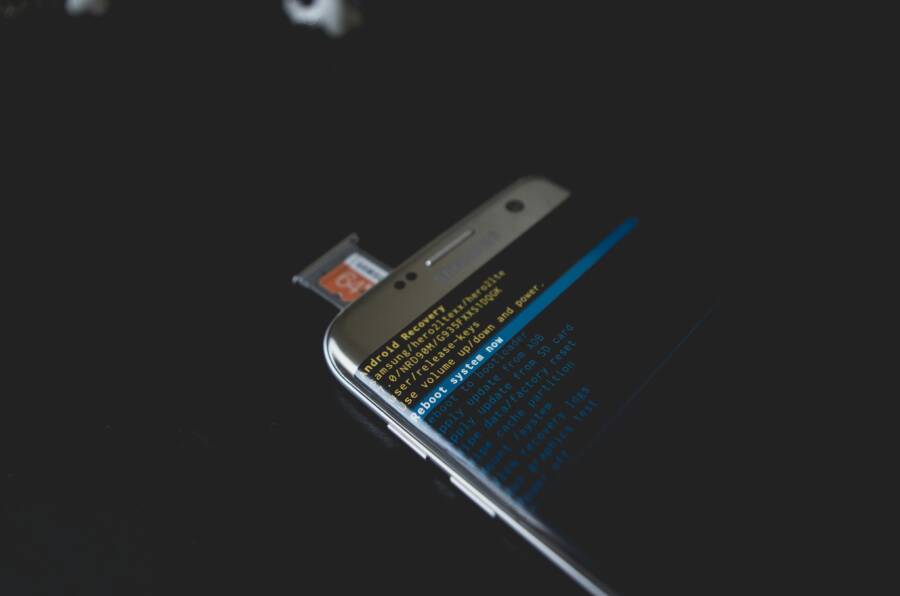
Entering recovery mode is the official way to perform a data reset. The exact button combo varies by brand, so follow the model-specific steps below and proceed with caution. In general, you’ll use a combination of the power button and volume buttons to access the recovery menu, then choose “Wipe data/factory reset” and confirm. After the reset completes, the phone reboots to its initial setup screen.
- Samsung and many newer devices: Power off, then press and hold Volume Up + Bixby (or Volume Up + Power) until the recovery menu appears.
- Google Pixel and many stock Android devices: Power off, then hold Power + Volume Down to boot into the bootloader, then choose Recovery.
- OnePlus, Xiaomi, and similar brands: Power off, press and hold Power + Volume Up or Power + Volume Down as directed by the manufacturer.
- Navigate with the volume keys and select with the power button. Choose “Yes” to confirm the data wipe.
What happens next
- The device reverts to factory settings. You’ll land at the initial setup screen.
- Reconnect to your Google account during setup to restore supported data from the cloud.
- If you’ve backed up locally, you can restore apps and settings from the previous backup.
Safety notes
- A factory reset permanently deletes apps, accounts, and data not saved to the cloud or a removable SD card. Ensure backups are current when possible.
- If you’re using a device with encryption, the reset will erase the encryption keys along with local data, preventing access to stored files.
- If you’re unsure about the correct button sequence, consult the manufacturer’s support page or a trusted guide for your exact model.
Images to aid the process
 Photo by Kelvin Valerio
Prevent Future ‘Too Many Pattern Attempts’ Locks
A pattern lock is a strong line of defense, but it can become a roadblock if you forget it or misremember a stroke. The goal of this section is to help you reduce the chances of future blocks while keeping your data safe. Below are practical, low‑risk strategies you can implement now. Think of them as smart habits that minimize the risk of another lockout without compromising security.
She Pressed Play on a Strange Audio Track and Within Days Her Financial Reality Started Shifting in Ways She Could Not Explain
>>> See How It Works <<<
Make pattern mistakes less likely with smarter unlock habits
The simplest safeguard is to slow down and use a consistent approach to unlocking. Rushing through patterns increases the odds of errors, which can trigger longer lockouts. Instead, consider these habits:
- Practice deliberate drawing: use a light, steady motion and avoid gliding quickly across the screen.
- Pick a pattern you can reliably reproduce and that is not easily visible to others.
- Reserve a backup unlock method in case you truly forget the pattern. A PIN or password can be easier to remember and reduces repeated failed attempts.
If you want to reduce accidental input, you can also adjust the screen timeout so you’re not forced to hurry through the unlock as soon as the screen wakes. Some devices offer an “Extend Unlock” option that can keep the device accessible longer in trusted situations. Use this feature judiciously, and only in environments you control. For more on how Extend Unlock works, see Motorola’s guidance on preventing repetitive unlocking: https://en-us.support.motorola.com/app/answers/detail/a_id/171739/~/prevent-repetitive-unlocking-%28extend-lock%29
Set up reliable, memorable backup unlock methods
Having a backup unlock method is not a failure; it’s prudent planning. If you forget a pattern, a backup credential helps you get back in without a frantic scramble. Consider these best practices:
- Use a PIN or password you can recall without writing it down everywhere.
- Keep a secure, separate record for recovery options rather than storing them in plain sight on the device.
- Prefer a backup method that you can use even when biometric options are unavailable.
Google provides safe, official pathways when you need to regain access. If you ever forget the pattern, the “Forgot pattern” flow guides you to sign in with the Google account associated with the device. This process is designed to protect your data while offering a clear route back to your phone. Learn more through Google’s support resources on unlocking and account verification: https://support.google.com/android/answer/7663172?hl=en
Use Smart Lock thoughtfully to reduce unlock interruptions
Smart Lock, also known as Extend Unlock in some contexts, keeps your phone unlocked in trusted situations. It’s a convenient feature, but it must be configured with care to avoid unnecessary risk. Here’s how to optimize it:
- Trusted places: Set up dependable locations like “Home” and “Work.” This reduces lockouts when you’re in safe zones.
- Trusted devices: Pair the phone with a device you always carry with you, such as a car’s audio system or a smartwatch, to minimize unlock prompts.
- Voice match with caution: If you rely on voice unlock, test it in quiet environments to ensure it’s reliable and not accidentally triggered by others.
Before enabling Smart Lock, review what’s active in Settings > Security > Smart Lock (or Extend Unlock). If you find any option that you don’t need or don’t trust in daily use, disable it. For further guidance on setting up trusted contexts, see Google’s and Motorola’s official resources on Smart Lock and Extend Unlock. You can also read about the tradeoffs between privacy and convenience in Android unlock security: https://theinscribermag.com/data-privacy-vs-convenience-navigating-the-trade-offs-of-android-unlock-security/
Keep your Google account accessible and ready for recovery
In many cases, regaining access after too many pattern attempts hinges on your ability to verify ownership with your Google account. If you rely on this recovery path, keep a few points in mind:
- Ensure you can access the Google account tied to the device. If the password is forgotten, set up a recovery option that you can reach.
- After a verification step, promptly update your unlock method to reduce future lock events.
- If you suspect the account has been compromised, go through Google’s account recovery flow before attempting another unlock.
Google’s official guidance outlines the steps for erasing or recovering access through your Google account when needed: https://support.google.com/android/answer/7663172?hl=en
Prepare a quick, safe backup plan for backups and data safety
A device reset is a last resort, but having recent backups makes it less painful. To stay ahead of potential lockouts, maintain:
- Regular cloud backups of photos, apps, and settings through your Google account.
- Local backups on a trusted computer or external drive, if your workflow allows.
- A reminder to review backup status every few weeks so you’re not surprised by data gaps after a reset.
If a lockout seems likely to trigger data erasure, you’ll want to act quickly to secure a restore path from your cloud backups. Google’s and your device maker’s guidance can help you prepare for this scenario. For an overview of remote backup and recovery options, you might find practical discussions and official tips helpful: https://support.google.com/android/answer/7663172?hl=en
Quick takeaways to prevent future lockouts
- Don’t rush the unlock process; take your time and use a stable pattern or backup method.
- Enable and configure Smart Lock in a controlled, private environment.
- Keep your Google account ready for verification and account recovery.
- Maintain regular backups so a reset doesn’t mean data loss.
External resources for deeper context:
- Prevent repetitive unlocking (Extend Lock) guide from Motorola support: https://en-us.support.motorola.com/app/answers/detail/a_id/171739/~/prevent-repetitive-unlocking-%28extend-lock%29
- Google’s guidance on unlocking and account verification: https://support.google.com/android/answer/7663172?hl=en
By adopting these practices, you reduce the odds of facing another frustrating “Too Many Pattern Attempts” lock while keeping your data safe and accessible. If you’re ready, the next section will walk you through concrete steps to regain access without a factory reset in common scenarios.
Conclusion
If you’re facing the too many pattern attempts lock, you have solid, supported routes from Google to get back in without losing data. The main reset options are straightforward: use the Forgot pattern flow to verify your Google account, sign in on another device when prompted, and set a fresh unlock method. If you can reach your Google account, this path keeps your data intact and preserves the smartphone’s security posture. When remote help is needed, Find My Device offers a safe way to lock or erase if credentials aren’t accessible, and a factory reset remains the last resort after you’ve weighed backup options.
Recovery works best when you combine prevention with a clear reset plan. Keep a current backup in the cloud, confirm your Google account details, and set a simple backup unlock method you can remember. Smart habits, like slow, deliberate pattern drawing and regular checks of Smart Lock settings, reduce future blocks. Being prepared with trusted contexts helps you avoid repeat lockouts and saves time during busy days.
If you tried a step and it helped, drop a note in the comments to share what worked for you. Your experience can guide others through this common hiccup with confidence. For those planning ahead, think about a quick backup routine and a trusted unlock setup you can rely on in a pinch. With the right approach, easy phone access is within reach again, and your smartphone can stay ready for daily use.
There Is a Frequency That the Wealthiest Families Have Used for Generations and Most People Will Never Know It Exists
>>> Open the Door <<<
