Popups from Bluetooth pairing requests can ruin a call, interrupt a workout, or ruin a moment of quiet when your headphones buzz to connect. Both Android and iPhone users face this irritation, and the cause is usually simple, not sinister. In this guide you’ll find clear causes, fast fixes you can try right away, and steps tailored to Android and iPhone devices. You’ll also get practical prevention tips to keep these alerts from returning. Ready to take back control of your phone’s Bluetooth? Tired of constant Bluetooth alerts?

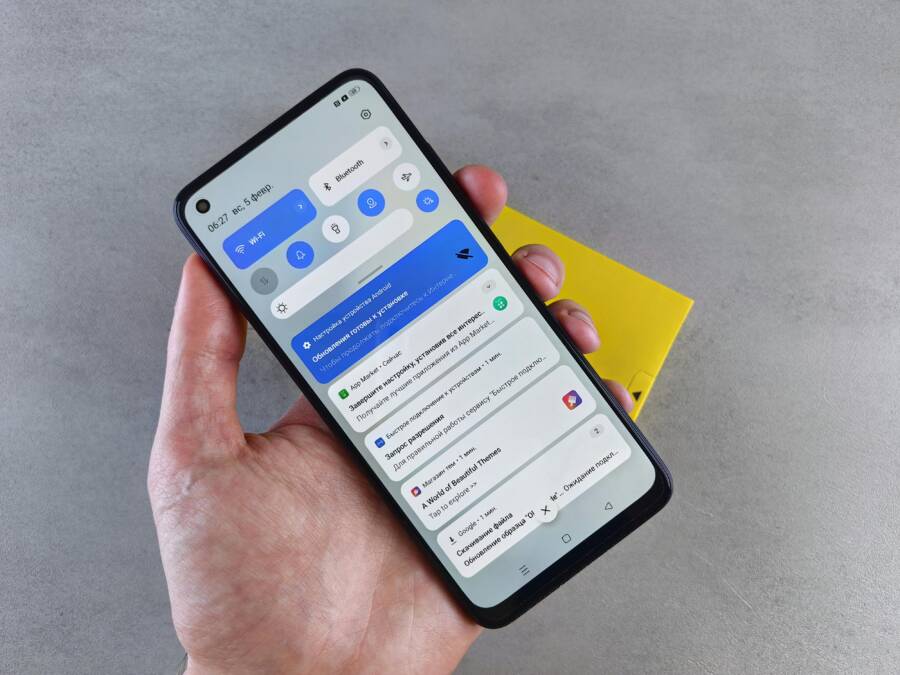
Photo by Brett Jordan
What Causes Repeated Bluetooth Pairing Requests on Your Phone
Bluetooth pairing prompts usually come from a few predictable sources. Understanding them helps you pick the right fix without guessing.
- Your phone keeps scanning for nearby devices. When Bluetooth is on, the phone looks for signals. If it finds several devices, it may prompt you to pair with one that appears suddenly, even if you didn’t try to connect. This happens a lot in crowded places or around a car with a phone’s hands free system.
- Nearby gadgets broadcast signals. Earbuds, car audio systems, smart speakers, or fitness bands can repeatedly “announce” themselves. If your phone has remembered a device but the connection is flaky, it may ping you to confirm pairing again and again.
- Old cached pairings linger. If a device was once paired but isn’t actively connected, your phone might still try to re-establish the link. When the device reappears, you get a pairing prompt you didn’t expect.
- Software bugs or outdated OS. Sometimes the fault lies in the code that handles Bluetooth. A bug can cause repeated prompts until you update either the system or the affected app.
- Apps request Bluetooth access. Some apps use Bluetooth to track activity, stream data, or control hardware. If an app holds a permission but isn’t functioning well, it can trigger repeated pairing requests.
These causes affect most users and can quickly overwhelm you if you don’t know what to disable or reset. The good news is that most issues are reversible with a few straightforward steps.
Quick Fixes to Stop Popups Right Away
If you’re staring at a persistent pairing prompt, start with these fast, platform-neutral steps. They address the common culprits without diving into deeper settings.
Restart your phone. A quick reboot clears temporary glitches that can trigger stray pairing prompts. Expect a clean slate after the device boots.
Turn Bluetooth off then back on. This breaks stray connection attempts and resets the scanning state. After re-enabling, stay mindful of nearby devices that might register again.
Forget all paired devices. Go to Bluetooth settings and remove devices you no longer use or recognize. Reconnect only when you need them. You’ll likely see fewer prompts after fresh pairing.
Temporarily disable location services if linked. Some prompts rely on location data for device discovery. Turning off location temporarily can reduce unwanted popups.
Clear Bluetooth cache and related data. On most phones you don’t clear Bluetooth cache directly, but you can clear app caches that handle Bluetooth tasks or reboot after clearing app caches in recovery mode for Android. This resets background information and can stop stubborn prompts.
These steps work on both Android and iPhone. If the prompts fade away after one of them, you’ve identified the issue. If not, move to the more in-depth steps next.
Restart and Toggle Bluetooth Basics
Restarting is often all you need to reset the Bluetooth stack on your phone.
- Android: Hold the power button, choose Restart. After reboot, pull down the quick settings panel and toggle Bluetooth off, then on.
- iPhone: For most models, press and hold the side button along with either volume button, then slide to power off. After the device restarts, open Control Center and toggle Bluetooth off then on.
A quick toggle can clear a stuck scan. In crowded environments, enabling airplane mode for a moment can force a full reset of wireless radios, including Bluetooth. If the problem persists, you’ll want to proceed with more steps.
Forget Devices and Clear Cache
- Android: Go to Settings > Bluetooth. Tap each known device and choose Forget. Do this for anything you no longer use. Then reboot if you can.
- iPhone: Open Settings > Bluetooth. Tap the “i” next to each device and choose Forget This Device. After cleaning up, restart the phone.
After you remove old or unknown devices, re-pair only the devices you plan to use. This often stops new prompts from reappearing. If issues continue, the problem may lie with an app or a deeper system setting.
Advanced Steps for Android and iPhone Users
If simple fixes don’t help, these platform-specific steps tackle deeper causes. Align the steps with your device model and OS version.
Troubleshoot on Android Phones
Enable developer options. Tap Build number in Settings > About phone seven times. You’ll see a message that developer options are enabled.
Check Bluetooth related settings. In developer options, look for settings like Bluetooth HCI snoop log or scanning apps. Turn off any that you don’t recognize or need. These features can keep Bluetooth in a constant scan mode, triggering prompts.
Reset network settings. This step clears saved network and Bluetooth preferences without erasing personal data. It often stops repeated prompts caused by conflicting network profiles.
Review app permissions. Apps like fitness trackers or wireless audio apps may request Bluetooth access. Update or remove apps that misbehave or have outdated permissions.
Uninstall suspects. If you’ve recently added a Bluetooth accessory app or a device, uninstall it to test whether it’s the source of the issue. Then reintroduce it only after confirming it won’t cause prompts.
These steps are precise and targeted. They focus on the software layer rather than hardware. If the prompts still appear after trying them, reach out to the device maker or your carrier for a deeper check.
Fix It on Your iPhone
Reset network settings. Go to Settings > General > Transfer or Reset iPhone > Reset > Reset Network Settings. This returns wireless configurations to default. You’ll need to re-connect Wi-Fi networks and re-pair Bluetooth devices.
Turn off auto-join for known networks. In some cases, iOS tries to rejoin networks automatically and triggers related prompts. Disable Auto-Join for networks you don’t use often to reduce triggers.
Update iOS. Install the latest version for your device. Updates often fix Bluetooth issues and improve device compatibility.
Review devices in Bluetooth list. In Settings > Bluetooth, remove unfamiliar or unused devices. Then re-pair only the devices you need.
Review privacy controls. Some versions give you control over which apps can use Bluetooth. Tighten access for apps that don’t need constant Bluetooth use.
These steps are practical and safe. They tackle both the software stack and how your iPhone interacts with external devices.
Prevent Bluetooth Pairing Popups in the Future
Bringing this under control requires a few proactive habits. Use these strategies to reduce the odds of another round of popups.
- Limit scanning in settings. If your device lets you tune scan frequency or visibility, lower it. Fewer scans mean fewer prompts.
- Pair only trusted devices. Keep a clean list of accessories you actually use. Regularly review and remove ones you no longer rely on.
- Keep software up to date. OS and app updates include fixes for Bluetooth issues and better device compatibility.
- Use airplane mode in crowds or events. When many devices share airspace, temporary air mode can prevent a flood of pairing prompts.
- Review app permissions weekly. Check which apps have Bluetooth access and revoke it if the app doesn’t need it all the time.
- Set up routines to auto-off. Short automation that turns off Bluetooth after a workout or at night can prevent repeated prompts.
- When in doubt, contact support. If prompts persist after trying the above, reach out to the device maker or a repair professional. There could be a hardware issue or a deeper software conflict.
With these habits in place, you’ll see fewer interruptions. The goal is to keep Bluetooth quiet until you choose to connect.
Conclusion
Quick fixes stop most pairing prompts right away, and platform specific tips handle the rest. Simple steps like restarting, toggling Bluetooth, and forgetting devices solve many cases. For stubborn issues, Android and iPhone specific solutions go deeper but stay easy to follow. Preventive habits turn Bluetooth from a nuisance into a reliable tool again.
Try the steps today and note which ones work for you. Share your results in the comments so others can benefit. Bookmark this guide for later, and consider subscribing for practical tech help that keeps your smartphone in your control. You deserve smooth, predictable Bluetooth behavior every day. Take charge now and enjoy fewer interruptions with your trusted devices.