If you’ve ever tried to connect your earbuds or a car system only to see two identical devices pinging back at you, you know the tangle this creates. Duplicate entries clutter the Bluetooth list, so you might pick the wrong one or fail to connect at all. This problem appears on both Android and iOS phones and can come back annoyingly often. The main culprits are failed pairings, cache buildup, and occasional software glitches. This guide gives you easy, step by step fixes that work fast. Bluetooth devices listed twice on your phone is a frustrating hassle, but it isn’t permanent. By following these steps you’ll clear most duplicates and get back to everyday use quickly.
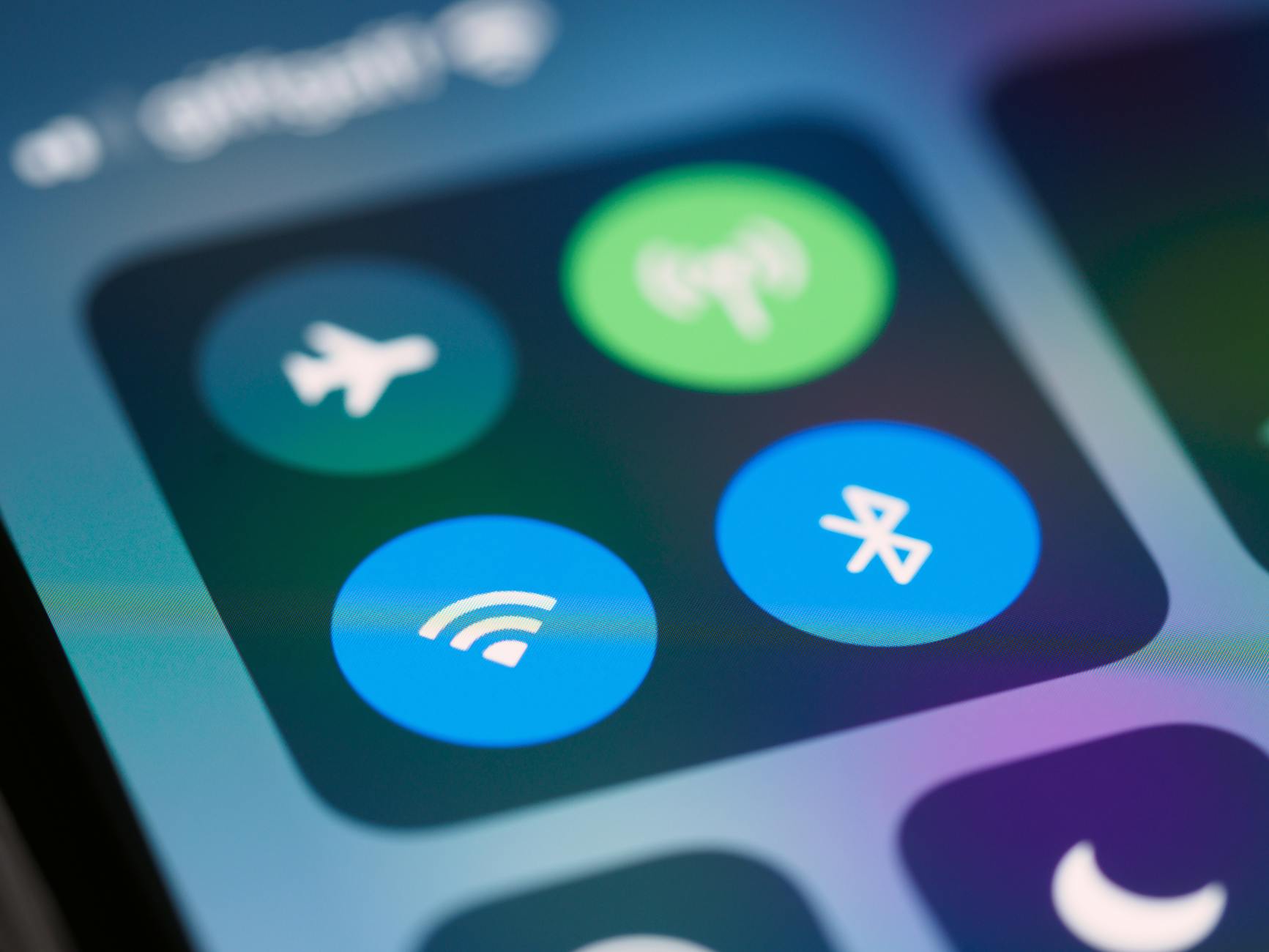
Photo by Brett Jordan
Introduction tip: A quick check before you start. If you’ve noticed your Bluetooth list doubling up after a software update or after using a new device, you’re not alone. The goal here is to restore a clean, simple list that only shows devices you actually use. The steps below are written for practical, real world use and are designed to minimize any risk to your phone.
Why Bluetooth Devices Show Up Twice on Your Phone
Duplicated entries pop up for several plain reasons. Understanding the root cause helps you pick the right fix and prevents future repeats. Here’s what typically causes the issue, with a quick real life example for each.
- Repeated pairing attempts create ghosts. When you try to connect and the pair fails, the system may leave behind a hidden entry. Later, when you attempt a new pairing, the ghost entry resurfaces and shows up beside the real device.
- Bluetooth cache holds old data. The cache stores recent connections so your phone can reconnect fast. Over time it can accumulate duplicates, especially after many connections with different models or multiple profiles.
- Software bugs and glitches. An update, a firmware change in a headset, or a conflict with a companion app can cause the device list to duplicate. These issues are more likely when you install new software or try a new device soon after an OS update.
- Multiple profiles confuse the list. Some devices, like car systems or headphones with multipoint pairing, expose more than one profile. Your phone may treat each profile as a separate device, making it look like duplicates.
Spotting duplicates is usually easy. If you see two entries that both show the same exact name and are in the same category (for example two “Soundbar” listings), you’re likely dealing with duplicates rather than two different devices. The simplest quick check is to try to connect to one of them. If the connection fails or behaves oddly, that’s a sign you’re looking at a ghost entry.
Failed Pairing Attempts Create Ghosts
When a connection attempt ends before the handshake finishes, the system may cache a ghost entry. The ghost sits in the background and reappears later as if it were a brand new device. For readers with speakers or small audio sticks, this is a very common scenario. If you see two identical names, one may be a ghost from a previous try. Removing that ghost requires a targeted approach to the pairing history.
Bluetooth Cache Holds Old Data
The Bluetooth cache is the phone’s memory for recent device lists. If you pair a new headset, then pair an older speaker later, the cache can end up storing multiple variants of the same name. Over time this creates a messy list with duplicates. Regularly clearing the cache keeps the list lean and accurate.
Software Bugs and Glitches
Operating system updates or app conflicts can momentarily disrupt how devices are shown. If a recent update changed how profiles are read, or if a third party app tries to manage Bluetooth settings, you might see duplication. These glitches are usually temporary and resolved by the fixes in this guide or a software update.
Quick Fixes to Remove Duplicates from Any Phone
These universal steps address the majority of duplicate listings. Work through them in order. Think of each step as a time saver that reduces headaches during pairing or reconnecting. Visualize the steps as you go and you’ll spot the difference.
- Restart the Bluetooth connection
- Open Settings and turn Bluetooth off. Wait about 30 seconds. Turn Bluetooth back on.
- This clears small temp glitches that ping up when devices appear and disappear quickly.
- Expected result: the list updates and some ghosts disappear. If a ghost remains, proceed to the next step.
- Forget the device and pair again
- In the Bluetooth menu, find the duplicate you don’t need. Tap Forget or Remove.
- Put the device back into pairing mode and select it anew from the list.
- Don’t forget to unpair from the device itself if it shows as connected in its own settings.
- This approach clears most ghost entries and builds a clean connection path for the next time you pair.
- Restart your phone completely
- A full reboot clears memory caches that a simple off on toggle may miss.
- Hold the power button, choose Restart, and let the device reboot fully before testing Bluetooth again.
- This simple step is often overlooked but can reset stubborn duplicates.
Android Fixes for Duplicate Bluetooth Listings
Android users often have a few extra options because vendor level tweaks exist. Below are practical steps that work on most brands like Samsung and Google Pixel, with safe, low risk changes.
Clear Bluetooth App Cache
- Go to Settings, then Apps, locate Bluetooth, and select Storage.
- Tap Clear Cache. This does not erase paired devices but wipes the temporary files the system uses to present the list.
- Why it helps: it eliminates stale data that can cause duplicates to linger.
Update Android Software and Apps
- Open Settings, choose System, then Updates. Install any available OS updates.
- Also check the Google Play Store for updates to Bluetooth related apps or any companion apps for your devices.
- Why it helps: new builds fix bugs that may cause double listings.
Reset All Network Settings
- This is a stronger step. Go to Settings, then System, Reset options, and Reset Wi-Fi, mobile and Bluetooth.
- This doesn’t wipe your personal data but resets network profiles.
- Tip: back up essential settings or write down a few critical connections before you reset. If the problem persists, you may need to reconfigure some connections from scratch.
iPhone Fixes When Bluetooth Shows Twice
iPhone users have a compact, highly controlled settings experience. The following fixes are quick, safe, and Apple style in their approach.
Reset Network Settings on iPhone
- Open Settings, General, Transfer or Reset iPhone, Reset, then Reset Network Settings.
- This clears Bluetooth preferences and resets all network related data.
- After the reset, re pair your devices from the Bluetooth menu. Expect a fresh start with no duplicate ghosts.
Update iOS to Latest Version
- Go to Settings, General, Software Update.
- Install any available updates. Updates fix known Bluetooth bugs and improve overall stability.
- Ensure there is enough free space to complete the update.
Toggle Airplane Mode Trick
- Swipe down to Control Center, toggle Airplane Mode on for about 30 seconds, then turn it off.
- This forces a refresh of all wireless radios, including Bluetooth, and can clear stubborn duplicates.
- After turning it off, re attempt to connect your devices.
Prevent Bluetooth Duplicates Long Term
A few steady habits help you avoid this problem in the future. The goal is to keep your device list clean and predictable.
- Keep software updated. Regular OS and app updates fix known bugs that affect Bluetooth.
- Don’t force quit Bluetooth during pairing. If you interrupt a pairing, you can create ghosts that reappear later.
- Clear old devices yearly. If you rarely use a device, remove its entry so the list stays relevant.
- Use a single profile when possible. Some devices offer multiple profiles; sticking to one keeps the list simple.
What device trips you up most? Do you often see duplicates after a software update or after you use a new accessory? Share your experience and the fix that worked for you so others can save time.
Conclusion
The most effective starting points are straightforward: restart the Bluetooth connection, forget the duplicate, and reboot your phone if needed. For Android users, clearing the Bluetooth cache and updating software helps many times; for iPhone users, resetting network settings and applying the latest iOS version resolves the bulk of cases. If duplicates persist after these steps, it’s worth a quick check with the device maker’s support pages or a service visit. You can solve this problem without heavy tech skills. Try the steps above now, and you’ll likely enjoy a clean Bluetooth list again. If you found a solution that worked well for you, drop a comment below and help others fix their duplicates fast. The goal is simple: a dependable Bluetooth experience without the clutter.