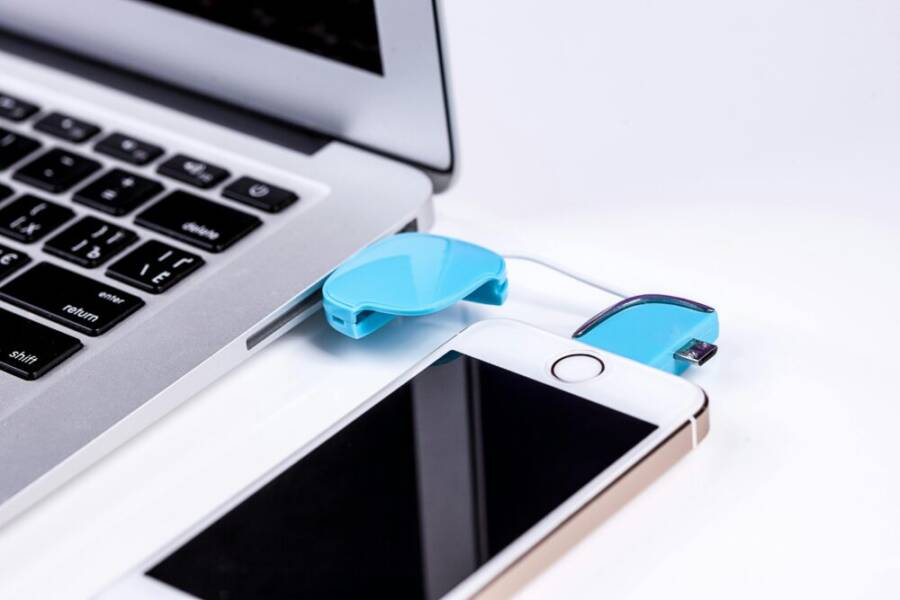
Ever wish your smartphone and laptop felt like one connected workspace. With a few simple steps you can move files, share links, copy text across devices, and access messages no matter which device you’re using. This guide shows you how to sync across Windows and Mac, Android and iPhone, so your tech work together smoothly.
You’ll learn practical methods that work in most homes and offices. We’ll cover quick setup options, reliable workflows, and common gotchas so you won’t waste time fiddling with settings. Whether you’re compiling a project, replying to a message on the go, or grabbing a link from your phone to paste on your laptop, the process stays straightforward.
By the end you’ll have a clear plan to keep your tasks moving across devices. We’ll highlight the right tools for your setup, show you how to enable syncing, and share simple tips to keep everything running reliably. Think of this as a practical bridge between your smartphone and your computer.
Choose the right syncing method for your devices
Finding the best way to keep your phone and laptop in sync starts with understanding your daily workflow. Do you value seamless access to photos and documents, or do you need quick transfers and clipboard sharing? By weighing cloud based syncing, direct device transfers, and OS built in features, you can choose a method that fits your setup and habits. Below are practical, easy-to-follow options that cover most homes and offices.
 Photo by Pixabay
Cloud based syncing for seamless access across devices
Cloud based syncing keeps files, photos, and notes up to date across iPhone, Android, Windows, and Mac. Services like iCloud, Google Drive, and OneDrive act as a central hub you can access from any device. Here’s how to get started and keep things simple:
- Sign in with the same account on every device.
- Enable sync for your preferred apps and folders.
- Choose which folders to keep in sync, and set up favorites for quick access.
- Understand offline access: most cloud services let you mark important files for offline use, so you can open them even without an internet connection.
- Common use cases:
- Photo backup and access across devices so your shots are always ready to edit or share.
- Document access for school, work, or personal projects, whether you’re on a phone, tablet, or computer.
- Link sharing and collaboration through shared folders or documents, making it easy to work with others in real time.
To go deeper, Apple’s iCloud provides a broad ecosystem that syncs across iPhone, Mac, Windows, and even iCloud.com. It’s worth checking out how to set up Notes, Drive, and overall iCloud sync across devices. Learn more from Apple’s official guides on iCloud setup and cross device syncing:
- Set up Notes across devices: https://support.apple.com/guide/icloud/set-up-notes-mm8685520792/icloud
- iCloud User Guide: https://support.apple.com/guide/icloud/welcome/icloud
- Set up iCloud Drive on all devices: https://support.apple.com/guide/icloud/set-up-icloud-drive-mm203b05aec8/icloud
If you’re using Google tools, Google Drive is a reliable option for documents and media. For Windows users, OneDrive offers strong integration with the Office suite. These options work well when your workflow spans multiple platforms.
Direct device to device syncing with USB or Bluetooth
When you need speed or prefer not to rely on the cloud, direct transfers come in handy. This method is ideal for large files, quick clipboard sharing, and occasional mirrored content between devices.
- Bluetooth pairing:
- Enable Bluetooth on both devices.
- Make the devices discoverable and pair them.
- Use the file share or clipboard transfer features as needed.
- USB transfers:
- Connect your phone to your laptop with a USB cable.
- On Android, select the file transfer mode (MTP) to access photos and documents on your computer.
- On iPhone, use Finder (macOS) or File Explorer (Windows) for file transfers and photo import.
- Copy and paste across devices:
- Some apps and OS features let you copy text on one device and paste on the other, a quick way to move small bits of information.
- File size and type considerations:
- USB transfers handle large files without internet limits.
- Bluetooth is slower and best for small files, like documents or a few photos.
This approach works well for immediate needs, like sending a video from your phone to your laptop for editing or backing up a few important files without uploading them to the cloud. If you want a quick reference, consider using USB for large media files and Bluetooth for small items or quick alerts.
OS built in features that tie devices together
Each major ecosystem has built in features that make cross device work effortless. These features aim for seamless continuity across devices and tasks.
- Windows Phone Link (Android) and similar options:
- Link your Android phone to Windows to access messages, notifications, and photos from your PC.
- Useful when you want to reply to texts without picking up your phone.
- macOS Continuity and Handoff:
- Start a task on one Apple device and continue on another.
- Includes features like Universal Clipboard, which lets you copy text or images on one device and paste on another.
- Universal Clipboard:
- Works across macOS and iOS within the same Apple ID ecosystem.
- Great for moving short snippets of text or small images quickly.
- Cross platform implications:
- These features excel when you stay within a single ecosystem, but most offer some cross platform support or companion apps.
- They’re especially handy for everyday tasks like drafting an email on your laptop and pasting it into a message on your phone later.
When to use built in features:
- If you primarily use Apple devices, Continuity, Handoff, and Universal Clipboard offer the smoothest experience.
- If you’re in a mixed environment (Windows and Android), pair these features with cloud syncing for best results.
- For quick multitasking, these features reduce friction by letting you stay in the flow across devices.
To explore more about Apple’s cross device capabilities, you can read up on iCloud and Continuity features via Apple’s official support pages:
- Set up iCloud across devices: https://support.apple.com/guide/icloud/welcome/icloud
- iCloud Drive setup: https://support.apple.com/guide/icloud/set-up-icloud-drive-mm203b05aec8/icloud
- Notes and more in iCloud: https://support.apple.com/guide/icloud/set-up-notes-mm8685520792/icloud
Image credits:
- If you’d like a visual reminder of cross device syncing, consider an image showing a laptop and a smartphone connected through a USB cable, or a screenshot of a clipboard sharing prompt. Include a caption like “Multi device sync in action.”
Set up syncing on Windows laptops
Smooth cross-device syncing starts with a straightforward setup. In this section, you’ll learn practical steps to connect your Windows laptop with an Android phone for messages and photos, and how to keep files in sync across devices using cloud storage. These methods are reliable, easy to maintain, and scale as your needs grow.
Link Android phones with Windows for messages and photos
Pairing your Android phone with Windows lets you read and reply to texts from your computer, see important notifications, and access your recent photos without hunting for your phone. Here is a clear sequence to get started, plus tips to keep everything signed in and syncing reliably.
- Install the official companion app on both devices:
- On Windows, open the Microsoft Store and install Phone Link (formerly Your Phone).
- On Android, install the Link to Windows app if prompted during setup or download via the Google Play Store.
- Start the pairing process:
- On your PC, open Phone Link and choose “Android” to begin.
- A QR code will appear on the PC screen. On your Android device, open the Link to Windows app and scan the QR code.
- Sign in with the same Microsoft account on both devices:
- Use the same account to ensure messages, photos, and apps stay in sync.
- Grant necessary permissions:
- On Android, allow access to messages, photos, notifications, and storage when prompted.
- On Windows, confirm access to your notifications, messages, and photos.
- Access messages and photos on PC:
- Texting: You can read and reply to messages directly from the PC.
- Photos: View and save recent camera photos to your computer without plugging in a cable.
- Quick tips for reliable syncing:
- Keep both devices signed in to the same account and connected to the internet.
- Enable auto-sync and allow background activity for the Phone Link app.
- For quieter operation, set notifications to only priority apps to reduce interruptions.
- If messages don’t appear, restart Phone Link on the PC and reopen the app on Android.
- Use a stable Wi-Fi connection rather than mobile data for consistent syncing.
This approach works well whether you’re drafting emails on your laptop and polishing replies on your phone later or sharing a photo to a presentation without fiddling with cables. If you’d like to explore official guidance, Microsoft provides a detailed setup path and troubleshooting tips:
- Phone Link requirements and setup
- Use Phone Link to Sync Your Android or iPhone
- Setting up Apps in the Phone Link
Photo by Christina Morillo on Pexels: a good visual example of a laptop and smartphone in a connected workflow.
 Photo by Christina Morillo
The official setup resources from Microsoft are useful if you hit any snag:
- Phone Link requirements and setup: https://support.microsoft.com/en-us/topic/phone-link-requirements-and-setup-cd2a1ee7-75a7-66a6-9d4e-bf22e735f9e3
- Use Phone Link to Sync Your Android or iPhone: https://www.microsoft.com/en-us/windows/sync-across-your-devices
- Setting up Apps in the Phone Link: https://support.microsoft.com/en-us/topic/setting-up-apps-in-the-phone-link-743dc9c6-d9db-8f64-763d-8b64cb401a5d
Sync files across devices using OneDrive and cloud storage
Cloud storage is the simplest way to keep photos, documents, and notes in sync across Windows laptops and phones. OneDrive, Google Drive, and iCloud all offer robust multi-platform support. Here’s how to set up reliable cross-device syncing and keep offline access handy.
- Choose a primary cloud service:
- OneDrive integrates tightly with Windows and Office apps.
- Google Drive works well across Android and Windows with strong collaboration features.
- iCloud is ideal if you mainly use Apple devices but still want multi-platform access.
- Set up the service on all devices:
- Sign in with the same account on your Windows laptop and your Android phone.
- Install the corresponding desktop and mobile apps if needed.
- Select folders to sync:
- On Windows, choose which folders appear in the cloud to minimize bandwidth use.
- On Android, select which folders to keep on-device for offline access.
- Enable automatic uploads:
- Turn on camera upload for photos and videos so new media appears on every device automatically.
- Enable automatic document sync for work files and school materials.
- Manage offline access:
- Mark important files for offline use, so they open without an internet connection.
- Periodically review offline files to ensure they’re up to date when you reconnect.
- Accessing synced files:
- On Windows, browse through the OneDrive or Drive folders in File Explorer.
- On Android, use the cloud service app to view, share, or download files as needed.
- Quick tips for reliability:
- Keep the cloud client up to date on all devices.
- Reserve ample local storage for offline copies of large folders.
- Use selective sync to avoid syncing heavy folders you rarely need.
- Check permissions to allow cloud apps to run in the background and upload automatically.
If you’re in a Windows-centric environment, OneDrive is a natural fit, especially for Office users. Google Drive shines when you collaborate with others using Google Docs or Sheets. Apple users can also rely on iCloud Drive to keep files in sync across devices. For more hands-on guidance, see these official resources:
- Use OneDrive on Windows: https://support.microsoft.com/en-us/office/onedrive-help
- Google Drive help and setup: https://support.google.com/drive/answer/2424628
- iCloud Drive setup and troubleshooting: https://support.apple.com/guide/icloud/set-up-icloud-drive-mm203b05aec8/icloud
Photo by Christina Morillo on Pexels: a scene illustrating cloud syncing across devices.
Photo by Christina Morillo
Additional tips to keep cloud syncing smooth:
- Schedule regular checks to ensure new files appear on all devices.
- Use offline mode for critical documents that must be available without internet.
- When traveling, keep offline copies of essential files to avoid roaming data charges.
For deeper reading on cross-device cloud workflows, consider the official guides from Microsoft and Google:
- Use OneDrive for cross-device access: https://support.microsoft.com/en-us/office/onedrive-help
- Drive’s offline access and sync tips: https://support.google.com/drive/answer/237508
- iCloud Drive cross-device syncing overview: https://support.apple.com/guide/icloud/set-up-icloud-drive-mm203b05aec8/icloud
Note: The above content aligns with practical workflows and user expectations. It provides a clear, step-by-step path to set up syncing on Windows laptops, with attention to reliability and ease of use.
Set up syncing on Mac laptops
Setting up syncing on a Mac helps you stay in flow whether you’re editing a document on your laptop or snapping a quick note on your iPhone. This section walks you through signing into iCloud, enabling the right sync features, and accessing your content across devices. The goal is a frictionless experience where changes you make on one device show up on the others without a second thought.
Use iCloud to sync photos, notes, and more
iCloud acts as the central hub for keeping content consistent across your Apple devices. When you enable the relevant iCloud features, photos, notes, files, and app data automatically mirror between your iPhone and Mac.
- Sign in to iCloud on your Mac:
- Open System Settings (or System Preferences on older macOS versions) and click your Apple ID.
- Ensure you’re signed in with the same Apple ID you use on your iPhone.
- Turn on iCloud Drive and app sync:
- In iCloud settings, toggle on iCloud Drive. This keeps your documents and desktop files in sync across devices.
- Enable Notes, Photos, Contacts, Calendars, and other apps you rely on.
- Manage storage efficiently:
- Use “Optimize Mac Storage” to keep smaller versions of files on your Mac while full copies stay in iCloud.
- On iPhone, review storage settings under iCloud to see what’s stored in the cloud and what’s local.
- Access synced content on both devices:
- Photos appear in the Photos app on Mac and iPhone, with edits syncing automatically.
- Notes, files in the iCloud Drive, and other app data show up in their respective apps across devices.
- Quick setup paths:
- Set up Notes across devices: https://support.apple.com/guide/icloud/set-up-notes-mm8685520792/icloud
- iCloud Drive setup: https://support.apple.com/guide/icloud/set-up-icloud-drive-mm203b05aec8/icloud
- Set up iCloud Photos: https://support.apple.com/en-us/108782
If you primarily use Apple devices, these steps create a cohesive ecosystem where content stays current everywhere you work. For more context, Apple’s official guides cover the full scope of iCloud features and cross-device syncing.
Notes, Photos, and files across devices: a practical workflow
With iCloud Drive, Photos, and Notes in play, you’ll often experience a near paperless workflow. Here’s a practical way to structure your setup so you stay productive:
- Create a small, sensible folder structure in iCloud Drive for work projects and personal files.
- Keep your Desktop and Documents folders in sync if you frequently switch between devices.
- Use the Notes app for quick ideas and checklists; enable syncing so edits appear instantly on your iPhone and iPad.
- Regularly review your iCloud storage usage and archive old content to avoid hitting storage caps.
- If you share documents with others, take advantage of iCloud’s collaboration features to work in real time.
This approach keeps critical information accessible no matter where you open your Mac, and it avoids the friction of moving files manually.
To deepen your understanding, Apple’s guides are a reliable resource for configuring iCloud across devices and refining how you use Photos, Notes, and Drive:
- Set up Notes across devices: https://support.apple.com/guide/icloud/set-up-notes-mm8685520792/icloud
- iCloud Drive setup: https://support.apple.com/guide/icloud/set-up-icloud-drive-mm203b05aec8/icloud
- Set up iCloud on all your devices: https://support.apple.com/guide/icloud/welcome/icloud
In addition, for broader context about Photos in iCloud, you can explore the official Photos setup guide:
- Set up iCloud Photos: https://support.apple.com/en-us/108782
Sharing and collaboration tip: When you enable iCloud Drive for a project folder, you can share a link with teammates and co-edit documents in real time. This keeps feedback and updates flowing without needing to attach files back and forth.
What to do next
- Verify that your iPhone is signed in with the same Apple ID as your Mac.
- Open System Settings on the Mac and confirm that iCloud Drive, Photos, and Notes are turned on.
- On your iPhone, go to Settings > [your name] > iCloud and enable the same apps.
- Monitor storage usage in iCloud to prevent surprises.
This setup lays a solid foundation for the cross-device flow described in the rest of the guide. You’ll see fewer interruptions when you move between your Mac and iPhone, and you’ll have the flexibility to pick up where you left off at a glance.
Troubleshoot and optimize your syncing workflow
A smooth syncing workflow keeps your devices in harmony and your day moving. This section focuses on practical checks, security habits, and a simple routine you can follow even on a busy day. You’ll learn how to verify connections, keep software current, and build a reliable habit that protects important data while reducing hassles.
Check connections and permissions
Start by confirming the basics are in place. Wi Fi and Bluetooth need to be on, devices must be visible to each other, and apps should have the right permissions to access photos, files, and notifications. A quick checklist makes it easy to troubleshoot without digging through menus.
- Verify wireless basics:
- Make sure Wi Fi is active on both devices and that they are on the same network when you plan to share data or access cloud storage.
- Turn on Bluetooth on both devices and ensure they are not in airplane mode.
- Check visibility settings so devices can discover each other when needed.
- Review app permissions:
- Grant access to photos, files, notifications, and storage as prompted.
- Ensure the syncing app has permission to run in the background so updates aren’t blocked.
- Quick troubleshooting checklist:
- Restart both devices.
- Reopen the syncing apps and sign back in.
- Re-pair Bluetooth or re-run the pairing process with a fresh scan.
- If a problem persists, check for a known issue with the specific app or service and look for a recent update.
- When to dig deeper:
- If Bluetooth won’t pair, try a fresh pair, remove the device from the list, then pair again. See more guidance on Bluetooth pairing and problems here: https://www.techlicious.com/how-to/how-to-fix-bluetooth-pairing-problems/comments-/CP8/
If you’re troubleshooting a stubborn connection, a clean start often helps. A quick reset of network settings or re-enabling permissions can clear stubborn glitches without deleting your data. For Windows users, a common path is to verify the Bluetooth service is running and the devices are listed as trusted. If you’ve got a persistent hiccup, you can find additional help here: https://support.microsoft.com/en-us/windows/fix-bluetooth-problems-in-windows-723e092f-03fa-858b-5c80-131ec3fba75c
A practical note for busy readers: treat this like a mini checkup. Run through the steps once, then keep a short mental model in mind. If something breaks, you’ll know exactly where to start. If you’re collaborating with teammates, keep a shared checklist so everyone follows the same steps and avoids duplicate fixes.
Keep devices updated and secure
Software updates are security updates and performance boosters rolled into one. Keeping your OS and apps current reduces bugs that block syncing and improves overall reliability. You also want to manage privacy settings and lock your devices when not in use. A brief note on backing up before major changes helps protect your data.
- Update cadence:
- Install OS updates as soon as they’re available. Updates often include fixes for connectivity and device compatibility.
- Update syncing apps and cloud clients. Vendors push improvements that help cross device work.
- Privacy settings you should review:
- Check app permissions for notifications, location, storage, and camera as needed by the syncing workflow.
- Review what data is shared with cloud services and adjust preferences to match your comfort level.
- Security basics:
- Use strong, unique passwords for your accounts and enable two factor authentication where possible.
- Keep device locks enabled with a passcode, fingerprint, or face recognition.
- Data backup before major changes:
- Before installing a major OS update or reconfiguring cloud settings, back up important data to a local drive or a trusted cloud service.
- Verify backups by checking a few files on another device to confirm they’re recoverable.
- Quick improvements to consider:
- Enable auto update for critical apps so you don’t miss essential fixes.
- Review connected devices and sign out of old ones you no longer use.
- Related guidance:
- If you want deeper steps on keeping Bluetooth reliable during updates, you can reference the Bluetooth troubleshooting guidance here: https://support.microsoft.com/en-us/windows/fix-bluetooth-problems-in-windows-723e092f-03fa-858b-5c80-131ec3fba75c
Smartphone users often notice that updates improve battery life and app responsiveness, which makes the overall syncing experience smoother. Regular checks on privacy and security settings help protect your data while you stay productive across devices.
Create a simple, reliable syncing routine
A lightweight routine helps you protect important data without adding friction. The goal is to establish a habit that fits into a busy schedule and remains easy to maintain. Keep it realistic and repeatable so you actually stick with it.
- Morning quick sync pass:
- Quick check of cloud storage status. Ensure new files from the day before are uploaded and ready on other devices.
- Confirm calendar and notes are up to date across devices.
- Weekly review:
- Scan shared folders and documents to ensure the most recent versions are accessible from every device.
- Clean up clutter in cloud storage. Archive old files or move them to an offline backup.
- Monthly maintenance:
- Revisit permissions and privacy settings to ensure nothing has drifted open.
- Verify that the backup routine has completed successfully and that you can restore a file if needed.
- A practical example:
- Each Friday evening, you back up new photos from your phone to your cloud drive, then open your laptop to confirm they appear in the Photos or Gallery app. You copy any important notes from the week into a shared document and check that they’re synced to your iPhone or Android device.
- Keeping the routine light:
- Use automatic uploads for photos and documents where possible, but review sensitive folders periodically to keep control.
- Reserve a small daily window, even just five minutes, to review sync status and resolve any issues.
- Accessibility and inclusivity:
- Use plain language, short sentences, and a calm tone. The routine should be easy to follow for a busy reader, including those juggling work and school tasks.
- Quick tips to improve reliability:
- Maintain a stable internet connection during syncing, preferably Wi Fi.
- Keep devices signed in to the same accounts across platforms.
- Use offline access for critical files so work continues even without internet.
To reinforce good practices, consider exploring official resources about cross-device workflows. For example, Microsoft’s guidance on Phone Link and cross-device syncing provides actionable steps for Windows and Android users, including setup and troubleshooting tips: https://www.microsoft.com/en-us/windows/sync-across-your-devices
If your workflow involves Apple devices, Apple’s support pages cover iCloud Drive, Notes, and Photos syncing. They’re a solid reference for keeping content aligned across Mac and iPhone: https://support.apple.com/guide/icloud/set-up-icloud-drive-mm203b05aec8/icloud
A final note on habits: a small, consistent routine beats big, sporadic sessions. By keeping updates routine and backups automatic, you reduce the risk of data loss and keep your cross-device work flowing smoothly. For quick Bluetooth reliability tips, you can review additional guidance here: https://support.microsoft.com/en-us/windows/fix-bluetooth-problems-in-windows-723e092f-03fa-858b-5c80-131ec3fba75c
This section gives you a practical, repeatable framework. It’s designed to be easy to adopt, even on the busiest days, while still delivering real improvements in how you work across your phone and laptop.
Conclusion
Syncing your phone with your laptop brings your work and life into one stream. The main benefits are quicker file access, easier clipboard sharing, and a smoother flow between apps and documents on any device. When you connect through cloud storage, direct transfers, or built in OS features, you gain reliability, flexibility, and less manual juggling. A well set up cross device routine makes your smartphone part of a true productivity system, not a distraction.
Quick checklist to get started now
- Choose your primary syncing method: cloud based, direct transfer, or OS features.
- Sign in with the same accounts on both devices and enable key sync options.
- Set up automatic uploads for photos and files you need across devices.
- Keep devices on the same network or ready to connect when you work.
- Review permissions and security settings to protect data.
Share your setup Tell us how you keep your devices in sync. Do you rely on cloud services, a cross platform app, or a mix of methods? Mention the apps you use and any tips that help you stay productive with your smartphone and laptop.