What If the Only Thing Between You and the Life You Deserve Is a Hidden Wealth Code Waiting to Be Activated
>>> Open the Door <<<

Making calls from your computer is simpler than you might think. Your phone stays the hub, but your computer handles the dialing, audio, and notes, so you can stay focused on your work. This guide shows you two clear paths depending on whether you use Android or iPhone.
If you’re on Android, you can use Phone Link to connect your device to a Windows PC. It lets you start calls from your computer, see your contacts, and switch back to your phone with a single click. On a Mac, Continuity lets you place calls from FaceTime or the Phone app once your devices are set up for seamless handoffs.
If you’re in the Apple ecosystem, calls on Mac come through iPhone tethering and Continuity. You’ll be able to answer or start calls directly from your Mac, with sound routed through your computer speakers or a headset. No extra apps are needed beyond a quick setup, and you get a consistent experience across devices.
Two easy paths to make calls from your computer
Making calls from your computer is a simple two-route process, depending on your device ecosystem. You’ll either pair an Android device with Windows to dial from your PC or enable Continuity on a Mac to place calls via your iPhone. Both paths keep your phone as the master device while letting your computer handle dialing and audio. Below, you’ll find clear steps for each route, plus practical tips to ensure a smooth setup.
He Was Drowning in Bills and Burnout Until a Simple Daily Ritual Rewired His Brain for Wealth in Less Than a Week
>>> Start Your Shift Today <<<

Android and Windows: Use Phone Link to call from PC
The Android to Windows route centers on the Phone Link app. It’s a direct way to start calls from your computer, view contacts, and switch back to your phone with a single click. The setup is quick and feels almost seamless once you’ve paired the devices.
- What you’ll do: Pair your Android phone with your Windows PC via Phone Link, then place calls straight from the PC. When a call comes in, you can answer on the computer or transfer control back to the phone as needed.
- Quick-start steps: On your PC, open Phone Link and choose Calls, then follow the on-screen prompts to complete pairing with your Android device. On the Android side, grant the necessary permissions so contacts and call data can flow to the PC.
- How it works in practice: Start a call from the computer by selecting a contact or entering a number in the Calls field. Audio will route through your PC speakers or headset, while the call remains connected through the phone. If you switch tasks, the call remains active and can be moved back to the Android device at any time.
- Extra tips:
- Keep both devices on the same Wi-Fi network for best performance, though Bluetooth or a direct USB connection can also work in some setups.
- Customize notification settings to avoid interruptions while you’re on a call.
- If you run into issues, the official setup guide provides step-by-step visuals to verify each requirement is met: Setting up calls in the Phone Link. You can visit the Microsoft support page for precise instructions and troubleshooting steps. For a broader view of syncing and call functionality, see Use Phone Link to Sync Your Android or iPhone. If you want to start making calls quickly, the Make and receive phone calls from your PC page offers a concise walkthrough.
Relevant links:
- Setting up calls in the Phone Link
- Use Phone Link to Sync Your Android or iPhone
- Make and receive phone calls from your PC
iPhone and Mac: Use Continuity to call from Mac
For users in the Apple ecosystem, Continuity makes it easy to place calls from a Mac. The key is enabling calls on other devices and letting the iPhone handle the actual network connection. Once set up, you can place, answer, and control calls from your Mac with audio flowing through your Mac’s speakers or a connected headset.
- What you’ll do: Enable Calls on Other Devices on your iPhone, then ensure your Mac is signed in with the same Apple ID and connected to the same network. When you place a call from the Mac, it travels through the iPhone and uses the Mac for audio output.
- Quick-start steps: On the iPhone, go to Settings > Phone > Calls on Other Devices and turn on Allow Calls on Other Devices. On the Mac, open FaceTime or the Phone app and sign in with the same Apple ID. You’ll now see a new calling option on your Mac.
- How it works in practice: Start a call from the Mac by selecting a contact in Contacts, FaceTime, or the Phone app. The call will ring on the iPhone first and then route to the Mac for hands-free communication. You can answer from either device, but the iPhone handles the actual network connection behind the scenes.
- Extra tips:
- Ensure both devices are on the same Wi-Fi network for a reliable handoff and minimal latency.
- If you use a headset, check audio routing options in System Preferences on the Mac to keep sound balanced between devices.
- If you need a quick reference, consult Apple’s Continuity setup guides and troubleshooting tips to confirm your Mac and iPhone are properly linked.
Note: The Continuity workflow prioritizes a smooth user experience within the Apple ecosystem, with consistent behavior across devices. If you want to explore additional tips on unlocking cross-device features for iPhone and Mac, you can check Apple’s official support resources.
In this section you’ve seen two straightforward ways to place calls from your computer. Whether you’re on Android with Windows or on iPhone with a Mac, the setup remains user-friendly, and the daily tasks of dialing and audio management become a lot easier. As you grow comfortable with either path, you’ll notice how much more productive you can be when your smartphone and computer work in harmony. If you’re ready, you can continue with deeper optimizations, like using call-related shortcuts and integrating these workflows into your daily routines.
Android path: Step by step to call from PC
Calling from your PC is a smooth, focused experience. With Android and Windows working together, you can start, manage, and answer calls right from your computer while your phone stays as the network anchor. This section breaks down the step by step process so you can have everything up and running quickly.
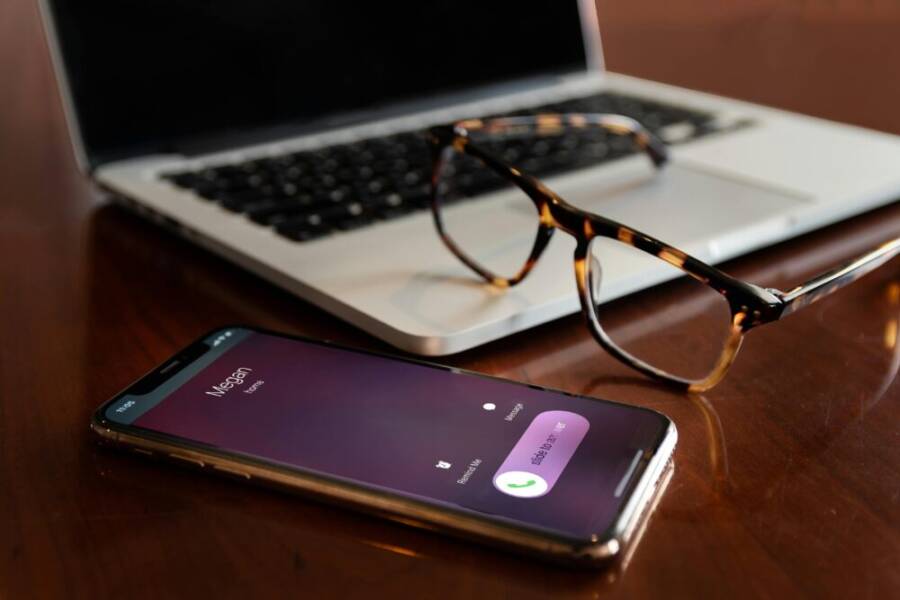
 Photo by Michelle Forrest
What you need to get started
- An Android phone
- A Windows PC
- Bluetooth or a reliable Wi-Fi connection
- A Microsoft account
- The Your Phone app (Phone Link) on Windows
- Granted call permissions on Android
With these in place, you can begin the pairing and set up flow that makes calls from your PC a true hands free experience.
Set up Your Phone Link on Windows
- Install or open the Your Phone app on your Windows PC and sign in with the same Microsoft account you use on your phone.
- Connect your Android device by following the on-screen prompts in the app. The setup flows guide you through linking your phone and PC.
- Enable call access so the app can read your contacts and route call audio to your computer. This is essential for composing numbers, selecting contacts, and hearing the other party clearly.
- After setup, you’ll see a dedicated Calls pane where you can start calls, view recent activity, and manage ongoing conversations from your PC.
- If you ever run into trouble, the official guide offers visuals and precise steps to verify every requirement is met: Setting up calls in the Phone Link. For broader syncing between devices, you can consult Use Phone Link to Sync Your Android or iPhone.
External resources:
- Setting up calls in the Phone Link
- Use Phone Link to Sync Your Android or iPhone
- Make and receive phone calls from your PC
Link your Android and PC via Bluetooth
- Turn on Bluetooth on both devices and issue a pairing request from the Windows PC or the Android phone.
- Accept the pairing on both ends and grant the necessary permissions for calls and messages to flow to Your Phone.
- Ensure the Your Phone app has the appropriate permissions to access contacts and call history. This makes starting a call from the PC as simple as selecting a contact.
- For the most reliable setup, leave the devices close enough to maintain a strong connection. If you experience latency or dropouts, you can switch to a Wi-Fi based pairing or re-pair to refresh the link.
Tip: Bluetooth is handy for short-range setups, but a shared Wi-Fi network often yields the best audio quality and responsiveness.
Place and answer calls from your PC
- Start a call from the Your Phone app by selecting a contact or typing a number in the Calls field.
- Incoming calls appear on the PC as notifications; you can click to answer right away without touching the phone.
- Use the built in microphone and speaker on your PC, or connect a headset for clearer audio and better noise suppression.
- If you need to switch audio routes, you can choose between the PC speakers, headset, or your phone’s speaker in the audio settings of the Your Phone app.
Practical tip: Keep your phone nearby with Bluetooth on, but you can leave it in a bag or a different room if both devices stay connected. When the call ends, the audio routes revert automatically, and you can start another call just as quickly.
Sources and extra guidance:
She Pressed Play on a Strange Audio Track and Within Days Her Financial Reality Started Shifting in Ways She Could Not Explain
>>> See How It Works <<<

- Make and receive phone calls from your PC offers a concise workflow if you want a quick reference.
- The Phone Link setup guide provides step by step visuals to confirm every stage is complete.
Creative shortcuts you can add later:
- Use quick dial shortcuts in the Calls pane to speed up frequent numbers.
- Customize notification behavior to avoid interruptions during calls.
- Create a small routine for turning on Bluetooth and launching the Your Phone app at the start of your work session.
Images and visuals support together with clear steps help ensure you get comfortable with the workflow. If you want to explore more on keeping everything aligned across devices, Apple users have an analogous experience with Continuity, but for Android and Windows the Phone Link route is the standard path. You can find more practical guidance in the linked resources above.
iPhone path: Step by step to call from Mac
Placing calls from your Mac is a smooth process once your iPhone is set up to share the call via Continuity. This path keeps your iPhone as the network anchor while your Mac handles the dialing, audio, and control. Below you’ll find concise, actionable steps to ensure a reliable handoff between iPhone and Mac.
What you need for iPhone calls on Mac
To make iPhone calls from your Mac, gather a few essentials and confirm your settings are aligned. Have your iPhone and Mac nearby, both signed in to the same Apple ID, with Wi Fi or Bluetooth enabled. Check iCloud and FaceTime settings so calls can move between devices without interruptions. A stable internet connection helps maintain a clean handoff, and a comfortable headset or built in mic will improve audio clarity for longer conversations. If you’ve used other Apple features before, you’ll find this setup familiar and straightforward.
- iPhone and Mac
- Same Apple ID on both devices
- Wi Fi or Bluetooth enabled
- iCloud and FaceTime settings configured for call sharing
- A headset or suitable microphone for better audio
Helpful guidance from Apple covers the official setup and troubleshooting for Continuity and iPhone Cellular Calls. For a comprehensive overview, see Apple’s support resources about Continuity features and requirements and how they apply to making calls from Mac or iPad. You can also review how to use iPhone Cellular Calls to extend calls to your Mac when devices share a network. See Apple’s guidance here: Make and receive phone calls on Mac, iPad, and iPhone and related Continuity articles.
Enable Calls on Other Devices on iPhone
The next step is to permit your iPhone to route calls to other devices, including your Mac. This setting is the bridge that lets the Mac place and answer calls using the iPhone as the network connection.
- On your iPhone, open Settings, then go to Phone and select Calls on Other Devices.
- Turn on Allow Calls on Other Devices.
- From the list, enable your Mac (and any other devices you want to use for calls).
- Confirm you’re signed in with the same Apple ID on all devices and that they’re on the same network.
If you run into issues, Apple’s documentation provides clear steps and troubleshooting tips to verify that each device is recognized and authorized for call sharing: Use Continuity to work across Apple devices. This ensures your Mac will appear as a calling option when you initiate a call from any supported app.
Set up on Mac to receive and place calls
With the iPhone configured to share calls, your Mac is ready to participate. The Mac will use the iPhone for the actual network connection while the Mac handles dialing and audio output.
- Sign in with the same Apple ID on your Mac.
- Ensure your Mac is on the same Wi Fi network as your iPhone.
- Open the Phone app or FaceTime on your Mac. You should see the option to place calls using your iPhone as the line.
- When you place a call, the iPhone confirms the connection while the Mac handles the audio path through its speakers or a connected headset.
Apple’s official setup guides walk through turning on these features and confirming the handoff remains active across devices: Continuity features and requirements for Apple devices and Use Continuity to work across Apple devices. If you prefer a quick refresher, Apple’s own step by step guides are a reliable reference to verify every setting.
Tips for smooth Mac calls
A few practical tweaks can make Mac calls feel effortless and reliable.
- Use a headset or built in microphone with proper audio levels. This minimizes echo and background noise.
- Test audio before important calls. A quick check ensures speakers and mic levels are balanced.
- Learn the controls for muting and hanging up. A quick keyboard shortcut or the onscreen control keeps you in control without fumbling.
- If you use multiple devices, keep them on the same network for the most stable handoff. A weak network can introduce latency or dropouts.
- Review audio routing options on your Mac if you notice audio not following the right device. You can adjust this in System Preferences > Sound or in the specific app you’re using to call.
For extra guidance, Apple’s Continuity setup resources provide in depth tips on ensuring your devices stay linked and responsive. If you want to see practical examples and common troubleshooting scenarios, check Apple’s official resources referenced above. For those who prefer a quick reminder, you can revisit the concise steps in Apple’s Mac help guides.
External resources for broader context:
Thousands of People Were Struggling With Money Until They Discovered This One Ancient Secret Hidden in Sound
>>> Unlock It Now <<<

- Make and receive phone calls on Mac, iPad, and iPhone: https://support.apple.com/en-us/102405
- Use Continuity to work across Apple devices: https://support.apple.com/guide/mac-help/intro-to-continuity-mchl1d734309/mac
- Continuity features and requirements for Apple devices: https://support.apple.com/en-us/108046
In this path you’ve seen how the iPhone and Mac work together to place and receive calls. The setup is designed to feel natural, so you can focus on the conversation rather than the connection. If you’re ready, you can explore optimization tips and common gotchas in this path to ensure your setup remains reliable as you use it day to day.
Tips, troubleshooting, and best practices
When you set up calling from your computer, small hiccups can crop up. The goal here is to keep you moving without frustration. Below you’ll find practical guidance on common problems, solid security and battery habits, and smart timing for when to use Wi Fi calling versus Bluetooth. The strategies work whether you’re using Android with Phone Link on Windows or an iPhone with a Mac via Continuity. And if you run into stubborn issues, reliable references are included to help you troubleshoot quickly.
Common issues and fixes
Bluetooth pairing is often the sticking point. If your devices won’t pair or keep dropping the connection, try these concrete steps. Start with a clean slate: turn Bluetooth off on both devices, forget the pairing, then re-pair from scratch. This refreshes the handshake and can resolve lingering mismatches between the Your Phone app or Continuity and the devices.
- Permission prompts can stall setup. When an app asks for access to contacts, call history, or microphone, grant the permissions in a straightforward way. If you see a permission prompt that you accidentally dismissed, go back into the app’s settings and re-enable those permissions. This is especially common on Android where the Your Phone app needs call data access to surface numbers and route audio.
- Sign in issues are frustrating but often fixable. Ensure both devices are signed into the same account family (Microsoft account for Phone Link on Windows, Apple ID for iPhone and Mac). If sign-in fails, re-boot both devices and attempt a fresh login. Clearing app caches on Android can also help if the app seems to stall during setup.
- Updates can affect setup in surprising ways. A small OS or app update can reset permissions or change network behavior. After updating, re-check the pairing status, re-apply required permissions, and run a quick test call to confirm everything flows as expected.
- If Bluetooth remains unreliable, switch to a Wi Fi based pairing or use a wired USB connection where supported. Some setups benefit from temporary changes to the network environment, like placing devices closer or removing competing Bluetooth devices during the initial pairing.
A few quick references can help you stay on track. The official troubleshooting guide for Phone Link walks you through permissions, connectivity, and step by step checks. If you’re curious about broader device syncing, Microsoft’s guide to syncing across devices provides a broader context. And if you’re troubleshooting a stubborn permission prompt, user-driven forums often offer quick, practical fixes that match your setup.
- Setting up calls in the Phone Link
- Use Phone Link to Sync Your Android or iPhone
- Make and receive phone calls from your PC
For Mac users, Apple’s Continuity guides cover how to confirm that Calls on Other Devices is enabled and that your devices stay linked during handoffs. If you experience audio routing issues, a quick check of System Preferences for audio output can prevent surprises during a call.
- Make and receive phone calls on Mac, iPad, and iPhone
- Use Continuity to work across Apple devices
- Continuity features and requirements for Apple devices
Privacy, security, and battery tips
Protecting privacy while you use your computer to place calls is essential. Start by limiting permissions to only what’s necessary for the feature to work. On Android, avoid granting broad access to contacts or messages unless you’re actively using the feature. On Apple devices, keep the trusted device list tight and review cross-device permissions from Settings.
- Manage permissions deliberately. Regularly review the list of apps that can access calls, contacts, microphone, and notifications. Revoke any permissions you don’t actively need.
- Keep devices secure. Use strong, unique passwords, enable two factor authentication where available, and keep OS and app updates current. A secure network also helps; prefer a trusted home Wi Fi network and avoid public networks for sensitive calls.
- Conserve battery during calls. Hands-free calling can drain battery quickly on laptops and tablets. Use a wired headset when possible, keep the display dimmed, and consider enabling power saving modes on the computer during long calls. If you’re on the go, a quick charge before a long conversation helps prevent mid call drops.
- Be mindful of notifications. Silence nonessential alerts during calls to prevent interruptions. On Windows, you can use Focus Assist; on Mac, Do Not Disturb can keep distractions away while you talk.
To deepen your understanding, consult Microsoft’s and Apple’s official resources on privacy and security settings for Phone Link and Continuity. These sources walk you through permission management, account security, and best practices for handling cross-device connections.
- Troubleshooting the Phone Link
- Make and receive phone calls from your PC
- Make and receive phone calls on Mac, iPad, and iPhone
Quick takeaways for battery and privacy:
- Only grant essential permissions and revoke them when not needed.
- Keep devices on trusted networks to reduce data exposure during calls.
- Use a headset to optimize audio and conserve device power.
- Regularly update apps and OS to benefit from security improvements and bug fixes.
When to use Wi Fi calling vs Bluetooth
Choosing between Wi Fi calling and Bluetooth connectivity depends on your environment and what you value most during a call. Here are practical guidelines to help you decide.
- Wi Fi calling shines when you have a strong home or office network. It minimizes cellular data use and can improve call stability if your carrier’s signal is weak in your area. It also helps when your phone is tucked away in a bag or in another room, while you still want clear call quality on your computer.
- Bluetooth pairing is ideal for near field use. If you’re sitting at your desk with your phone in close proximity, Bluetooth often delivers very low latency and straightforward audio routing. It’s convenient for quick, informal calls and for devices without reliable Wi Fi.
- Pros of Wi Fi calling:
- Often steadier across indoor spaces with good network coverage.
- Fewer interruptions if your phone stays in a pocket or bag.
- Easy use on multiple devices using the same network.
- Cons of Wi Fi calling:
- Dependent on network quality; a weak Wi Fi signal can degrade audio.
- More setup steps if you’re switching networks frequently.
- Pros of Bluetooth linked calls:
- Very low latency when devices are nearby.
- Simple for quick setups in a single room.
- Works even when Wi Fi is spotty or unavailable.
- Cons of Bluetooth linked calls:
- Range is limited; walls and interference can cause dropouts.
- Battery impact on the computer and phone can be noticeable during long calls.
If you’re unsure which path to use, start with Bluetooth for quick test calls near your devices. If you notice latency or dropouts, switch to a Wi Fi based setup to test stability. For larger rooms or longer conversations, a solid Wi Fi connection often outperforms Bluetooth for audio reliability.
Practical resources to refine your setup:
- Setting up calls in the Phone Link
- Use Phone Link to Sync Your Android or iPhone
- Make and receive phone calls from your PC
For Apple users, the cross-device handoff relies on the strength of your local network. If you experience any hiccups, verify that both devices are on the same network and that Continuity is enabled on all devices. Apple’s support guides provide step by step checks to confirm settings are correct and the handoff is functioning smoothly.
- Make and receive phone calls on Mac, iPad, and iPhone
- Use Continuity to work across Apple devices
By understanding these options, you can tailor your setup to the exact demands of your workday. A well-tuned system keeps your focus where it belongs — on the conversation, not the connection.
External references and further reading:
- Troubleshooting the Phone Link
- Make and receive phone calls from your PC
- Make and receive phone calls on Mac, iPad, and iPhone
- Use Continuity to work across Apple devices
Note: If you need quick, actionable steps to get back on track, the linked guides above offer concise checklists and visuals that map directly to the steps you’ll take in your own setup. Adjust your approach based on your devices and network, and you’ll keep your workflow smooth and efficient.
Quick start checklist and next steps
Getting set up to make calls from your computer is quicker than you think. Use this compact checklist to confirm you have everything in place, then follow the practical next steps to ensure smooth, reliable calling whether you’re on Android with Windows or on iPhone with a Mac. A few minutes now can save you hours later, especially if you rely on a steady workflow during workdays or travel.
Initial checklist
- Charge and power up both devices. A responsive battery makes long calls more comfortable.
- Enable required features on both sides. For Android and Windows, turn on call permissions in Phone Link; for iPhone and Mac, enable Calls on Other Devices.
- Sign in to the right accounts. Use the same Microsoft account for Phone Link on Windows, or the same Apple ID for iPhone and Mac.
- Ensure both devices are on the same network. A shared Wi Fi network provides the most stable handoff and audio quality.
- Grant necessary permissions. Contacts, microphone, and call history need access to surface numbers and route audio correctly.
This quick setup lays the foundation for a hands-free, productive calling experience. If you run into hiccups, revisit the official setup guides linked below for visuals and step by step checks. For a broader sense of syncing and cross-device calls, you can review the related pages in the resources section.
External resources:
- Setting up calls in the Phone Link
- Use Phone Link to Sync Your Android or iPhone
- Make and receive phone calls from your PC
Test your setup with a quick call
The best way to verify your configuration is to run a short test call. Invite a friend or use a backup number and check every part of the flow: dialing from the PC, audio clarity, and the ability to switch control back to the phone if needed.
- Place a quick test call from your PC by selecting a contact or entering a number.
- Listen for clear audio on your end and confirm the other person can hear you with minimal latency.
- Practice transferring the call back to your phone or switching to a headset to confirm audio routing works as expected.
- Confirm call controls are responsive. Try mute, hold, and end the call to ensure the UI reflects each action.
If something feels off, a quick recheck of permissions and network status often fixes the issue. Microsoft’s guide walks you through the most common troubleshooting steps, and Apple’s support resources cover fine tuning when using Continuity. See the linked references for reference steps and visuals.
External resources:
- Setting up calls in the Phone Link
- Use Phone Link to Sync Your Android or iPhone
- Make and receive phone calls from your PC
What to do if things change
Updates to the OS, app, or device changes can reset a few settings. When that happens, reset and recheck the essentials to restore the smooth flow.
- Recheck network settings. Make sure both devices still share the same Wi Fi network or re-pair over Bluetooth if needed.
- Verify permissions again. After updates, Android or iOS might request new permissions for contacts, microphone, or call history.
- Sign back in if needed. Sometimes a fresh sign in to the Microsoft or Apple accounts helps restore the link.
- Run a quick test call. A fresh test confirms the handoff path remains intact and the audio path is correct.
If issues persist, consult the official troubleshooting guides for Phone Link and Continuity. They provide concise steps that map directly to your setup. These resources can be a real time saver when you’re juggling multiple devices.
External resources:
- Troubleshooting the Phone Link
- Make and receive phone calls from your PC
- Make and receive phone calls on Mac, iPad, and iPhone
This section has given you a compact, action oriented checklist. With everything verified, you’re ready to optimize your workflow further, whether you want quicker dial shortcuts, or deeper integration into your daily routines. If you’re ready, you can move on to more advanced tips and best practices that keep your calls reliable and comfortable across environments.
Conclusion
You now have two clear paths to make calls from your computer. Android users on Windows can start and manage calls directly from your PC using Phone Link, while iPhone users on Mac can place and answer calls via Continuity with the iPhone as the network anchor. Each route keeps your smartphone at the center while letting your computer handle dialing and audio.
Test both setups to find what fits your day. A quick trial helps you compare call quality, responsiveness, and how you switch control between devices. Try a short call from the PC, then a longer one from the phone to feel the workflow in action.
If you want to keep work flowing smoothly, try both paths when you have a moment. Use the setup that best matches your routine and network conditions, but don’t hesitate to switch if latency or interruptions pop up. And remember to keep your devices updated and secure so cross-device calling stays reliable.
There Is a Frequency That the Wealthiest Families Have Used for Generations and Most People Will Never Know It Exists
>>> Open the Door <<<
