Thousands of People Were Struggling With Money Until They Discovered This One Ancient Secret Hidden in Sound
>>> Unlock It Now <<<

Struggling to move files from your phone to your computer quickly happens to many of us, especially when deadlines are tight. This guide shows simple, reliable methods that work with everyday devices, not just fancy setups.
Whether you prefer wireless tricks you already have on your phone, cloud options for cross‑device syncing, or fast wired transfers, you’ll find a method that fits your workflow. The best pick depends on your devices, file types, and how you usually use your phone and computer.
By the end, you’ll know exactly how to send files fast, with practical steps you can try today. For many readers, a quick pin is the easiest path, and for others a cloud or cable fix saves hours. How to send files from your phone to your computer quickly becomes second nature once you choose the right approach.
Fast wireless transfers with built in tools
Moving files between your phone and computer can be almost effortless when you use built in wireless tools. These options require minimal setup, work across different brands, and keep data transfers quick for everyday tasks. Below you’ll find practical, step by step guidance for three reliable methods that don’t rely on third party apps. Each method emphasizes speed, safety, and ease of use so you can choose what fits your workflow best.
What If the Only Thing Between You and the Life You Deserve Is a Hidden Wealth Code Waiting to Be Activated
>>> Open the Door <<<

AirDrop between iPhone and Mac
AirDrop is designed for fast, private transfers between Apple devices. It uses a combination of Bluetooth and WiFi to send files directly, without leaving your devices. Here are the exact steps to share a file from iPhone to Mac, or vice versa.
- Enable AirDrop on both devices:
- On the iPhone: Open Control Center, press and hold the network panel, then tap AirDrop. Choose Contacts Only or Everyone.
- On the Mac: Open Finder, select AirDrop from the sidebar, and set “Allow me to be discovered by” to Contacts Only or Everyone.
- Select the file on the sending device:
- iPhone: Open the app containing the file (Photos, Files, etc.), then tap the share icon.
- Mac: Open Finder and locate the file you want to share.
- Share via AirDrop:
- On iPhone, you’ll see nearby devices in the AirDrop sheet. Tap the Mac name.
- Accept on the receiving device:
- The Mac shows a prompt to Accept. After you approve, the file saves to the default location (Downloads or the app’s destination).
Prerequisites and quick notes
- A shared Apple ID is not required. Bluetooth and WiFi must be on, and the devices should be near each other.
- AirDrop visibility depends on device proximity. If the receiving device isn’t visible, adjust AirDrop settings or move closer.
- AirDrop transfers are encrypted and direct, so they don’t traverse the internet. This makes them fast and private for nearby transfers.
- If you’re new to AirDrop, consult Apple’s official guide for the latest steps and troubleshooting tips: Use AirDrop to send items to nearby Apple devices. You can read more here: https://support.apple.com/guide/mac-help/use-airdrop-to-send-items-to-nearby-devices-mh35868/mac and https://support.apple.com/guide/iphone/use-airdrop-to-send-items-to-nearby-devices-iphcd8b9f0af/ios
Why choose AirDrop
- Ultra fast for media files and documents.
- Extremely convenient for Mac users who frequently move files between iPhone and Mac.
- Works without needing a network connection beyond the devices’ own Bluetooth and WiFi radios.
Tips for smooth transfers
- If AirDrop is slow, try turning off Personal Hotspot on both devices and ensure both are on the same network for the initial discovery.
- Keep devices within a few feet of each other for best performance.
- If you don’t see the Mac in the AirDrop list, toggle AirDrop off and back on, then retry.
Nearby Sharing for Android and Windows or Mac
Nearby Sharing simplifies cross‑platform transfers between Android devices and Windows or Mac computers. It uses Bluetooth to establish a quick link and then leverages a nearby network or WiFi to push the actual data. Here’s how to set it up and use it effectively.
- Enable Nearby Sharing on sending and receiving devices:
- Android: Go to Settings > Google > Devices & sharing > Nearby share. Turn it on and set visibility to Everyone, Contacts, or Only files I share with this device.
- Windows 10/11: Open Settings > System > Shared experiences. Turn on Nearby sharing and choose who can share with you, plus select how you want to receive files (Bluetooth or proximity share via WiFi).
- Mac: If you’re on macOS, ensure AirDrop is available and configured. Nearby Sharing can pair with Windows via Microsoft apps or third‑party support, but the core experience is best with Windows devices.
- Choose the file to send:
- On Android, locate the file in Files by Google or your gallery, then tap Share, choose Nearby, and select the target device.
- On Windows, right‑click a file, choose Share, and pick Nearby sharing. The sender will appear as a device in range.
- Send and accept:
- The receiving device will prompt you to accept the incoming transfer. Accept to begin the transfer, which will occur over a quick, local connection.
- Setup notes and caveats:
- Both sender and receiver should have Bluetooth on, and there must be a near‑by network or direct Bluetooth link depending on device capabilities.
- Speed is best for small to medium files. Large transfers may be slower and could depend on hardware and network quality.
- Compatibility varies by device and OS version. Some older devices may not support the latest nearby sharing features or require updates.
Why Nearby Sharing is appealing
- Works across different ecosystems with minimal setup.
- Great for quick photo or document transfers when you’re near a PC and your smartphone.
- When used over a local network, you avoid data roaming costs and keep transfers private.
If you want a deeper dive into the Android side, you can review Google’s guidance on Nearby Share and cross‑device compatibility. Here are two helpful references: https://support.google.com/android/answer/9052709 and https://support.microsoft.com/en-us/windows/nearby-sharing-overview
Speed considerations and best practices
- For best results, keep Bluetooth enabled and ensure both devices are within a few meters.
- If you’re transferring many large files, consider compressing them first to reduce transfer time and fragmentation overhead.
- When moving between devices with different screen sizes or file system quirks, verify the destination location before initiating the transfer.
Direct wireless transfers with web tools
Direct wireless transfers via web tools offer a simple, platform‑agnostic option. The core idea is to create a temporary, shareable link or code on one device and use a browser to pull the file on another device on the same network. This approach works on any operating system, including Windows, macOS, Linux, iOS, and Android.
What you need
- Both devices connected to the same local network (WiFi or wired routing that creates a common LAN).
- A browser on each device and a quick web tool that can generate a transfer link or code.
How it works
- On the sending device, open the web tool and select the file you want to share. The tool creates a short link or a code.
- On the receiving device, input the code or open the link in a browser. The browser fetches the file directly from the sending device.
- Accept the transfer when prompted, then save the file to your chosen location.
Quick steps you can try today
- Choose a reputable local web transfer tool that emphasizes privacy and encryption. Look for tools that don’t require you to upload files to a cloud server for the transfer.
- Keep transfers on the same network to avoid data roaming costs and to maximize speed.
Safety tips for web transfers
- Use a trusted web tool from a reputable source. Avoid unknown services that request excessive permissions.
- When possible, encrypt sensitive files before transfer or use tools that provide end‑to‑end encryption.
- After the transfer finishes, terminate the session and clear any temporary links or codes.
Benefits of direct wireless transfers
- Platform agnostic: works on nearly any device with a modern browser.
- Quick for single files or small batches without installing apps.
- A good fallback when AirDrop or Nearby Sharing isn’t available or convenient.
Helpful resources for implementing web transfers
- For practical, privacy‑mocused web transfer options, you can explore secure local transfer tools and their setup guides.
- Always verify the latest compatibility notes and security recommendations from the tool’s official documentation.
Bringing it all together
Each method has its strengths. AirDrop shines when both devices are Apple and you want a seamless, fast handoff. Nearby Sharing delivers flexible cross‑platform speed within the same vicinity, especially handy if you’re bouncing between Android and Windows ecosystems. Web based wireless transfers offer a universal option that requires no special hardware, just a browser and a shared network.
If you’re planning a workflow, consider these quick questions:
- Do you primarily use Apple devices or a mix of platforms?
- Are your transfers usually small quick bites or large batches?
- Do you need a method that works without any cloud or cable involvement?
In the next sections, you’ll find more practical tips and side‑by‑side comparisons to help you pick the best method for your day to day tasks. For further reading on AirDrop specifically, see Apple’s official guide linked above. You can also explore general cross‑platform sharing tips and best practices from reputable sources to stay up to date with how these features evolve.
Cross platform transfers using cloud apps and web tools
Moving files between your phone and computer across platforms is easier when you use cloud storage or direct web transfers. This section breaks down practical, low-friction options that work with everyday devices. You’ll find clear steps, quick tips, and realistic limits so you can choose the right method for your file types and workflow.
Cloud storage options for quick access
Cloud storage is the backbone of cross‑device file access. When you upload from your phone, the same files appear on your computer within minutes. Here are practical workflows using Google Drive, OneDrive, or Dropbox.
- How to upload from your phone:
- Google Drive: Open the Drive app, locate the file, tap the three dots or share icon, then choose Upload or Save to Drive. For photos and videos, you can enable auto‑backup so new captures appear on all devices.
- OneDrive: In the OneDrive app, use the Add button to upload files or photos. Turn on Camera Upload if you want automatic syncing from your phone.
- Dropbox: Open the app, tap Add, choose the files, and upload. Use Camera Upload for automatic media syncing if you like.
- Accessing on your computer:
- Open the corresponding desktop app or web interface, sign in, and locate your file in the cloud storage location. You can then download or open directly from the browser.
- Organizing shared folders and offline access:
- Create a clear folder structure (e.g., Projects/Client A/2024) and share only what’s needed.
- Enable offline access for essential folders so you can work without an internet connection. Most cloud apps offer a Right‑Click > Make Available Offline option or a pin for quick access.
- General file types and size limits:
- Photos, documents, and small media files transfer smoothly. Large backups or ultra‑high‑res video can be slower and may require chunked uploads or premium plans.
- Quick tips:
- Use the same account across devices to avoid permission prompts.
- Enable selective sync to keep local storage lean on your computer.
For more detailed cloud steps and official guidance, see Google Drive and Android transfer tips:
- Transfer files between your computer and Android device, Google Support
- Download a file on Android from Google Drive, Google Support
Luxury note: if you’re using Pixel devices or want device‑specific paths, Google’s help pages cover USB transfers and other options as well.
Web transfer services for fast one‑off moves
Web based transfer services let you move a file without signing in or syncing to a cloud folder. They’re ideal for one‑time sends or when you’re on a device that isn’t ready to install apps.
- How it works in practice:
- On your phone, visit a reputable transfer service, select the file, and generate a transfer link or code.
- On your computer, open the link or enter the code in a browser, then download the file to your chosen location.
- File size, expiration, and privacy:
- Most services support files from a few megabytes up to several gigabytes. Links typically expire after a set window, such as 24 hours or a few days, depending on the service.
- Reputable tools publish encryption in transit and may offer optional password protection for extra privacy.
- Keep steps short and clear:
- Upload on phone, receive on computer, save where you want. No app installs needed in many cases.
If you want a quick, private transfer without cloud storage, web transfer services are a reliable fallback. Look for trusted providers with clear privacy notes and short expiry times to minimize risk.
Helpful references for web transfer options and best practices include privacy‑minded local transfer tools and their setup guides.
Email and messaging for small files
For tiny transfers, email and messaging still do a solid job. They work well when you need a quick note to yourself or a colleague with a small attachment.
- Simple workflow you can try now:
- From your phone, attach the file to an email addressed to yourself or a trusted contact. Send it.
- Open the email on your computer and download the attachment to your preferred folder.
- If you prefer messaging, share the file via a chat app that you already use on both devices, then save the received file on the computer.
- Size limits and security:
- Email attachments are usually capped around 20–25 MB, depending on the provider. Larger files may need compression or a cloud link instead.
- Use secure connections (avoid public Wi‑Fi) and enable two‑factor authentication on your email account.
- Simple workflow recap:
- Attach, send, open on computer, and save. It’s as quick as sending yourself a note.
This approach works best for reports, receipts, or small work samples. It’s the least setup heavy and requires minimal tech know‑how.
External links and sources for common email and messaging workflows can help you optimize speed and security when transferring small files.
Each method has its own strengths. Cloud storage is great for ongoing access and organization. Web transfer services shine for quick, one‑off moves without a cloud footprint. Email and messaging suit tiny files and fast sharing with minimal setup.
If you’re building a daily workflow, combine these options to fit your needs. Use cloud storage for ongoing projects, web transfers for large one‑offs when you don’t want to pollute your cloud folder, and email for fast, small files that you want to keep private. For deeper guidance on Google Drive and Android file transfers, you can consult the official support pages linked above.
Wired transfers for speed and reliability
When time is tight, a direct wired connection often wins. USB cables provide stable, fast transfers with minimal setup. Below you’ll find practical, step by step guidance for iPhone to Mac and Android to PC, plus essential tips to keep wired moves smooth and predictable.
iPhone to Mac via USB
Connecting an iPhone to a Mac with a Lightning or USB‑C cable lets you import photos, videos, and other files quickly. Use Finder or Photos to move your media and confirm everything lands in the right folder. Remember to charge while transferring and watch for prompts that appear on either device.
- Connect the devices with the appropriate cable:
- Lightning to USB, or USB‑C to USB‑C, depending on your iPhone model and Mac port.
- Open the right app on your Mac:
- For photos and videos, open the Photos app. If you prefer file management, use Finder and navigate to your iPhone under Locations.
- Import or copy files:
- In Photos, select the items and click Import Selected. In Finder, drag files from your device to the target folder on your Mac.
- Verify and finalize:
- Check that the files appear in the destination folder and match the original count. If prompted, approve any trust prompts on the iPhone.
- Keep an eye on prompts and charging:
- Some transfers trigger prompts to trust the computer or enable access. Ensure your iPhone stays charged or connected to a power source during the transfer.
Helpful reference for Apple users
- Transfer photos and videos from your iPhone or iPad to a Mac using a USB connection: https://support.apple.com/guide/mac-help/use-airdrop-to-send-items-to-nearby-devices-mh35868/mac
- Use the Finder to share files between your Mac and iPhone or iPad: https://support.apple.com/guide/iphone/use-airdrop-to-send-items-to-nearby-devices-iphcd8b9f0af/ios
- Sync your photos manually using the Finder: https://support.apple.com/en-us/102375
Why this method shines
- Speed and reliability are top notch for local transfers.
- No internet required; everything stays between your devices.
- Works well for large photo libraries or full‑resolution video.
Tips to avoid hiccups
- Use a high quality cable and avoid cheap adapters that slow transfers.
- If the Mac doesn’t see the iPhone, unlock the iPhone and trust the computer when prompted.
- Close other apps that might access the disk during the copy to prevent slowdowns.
Image ideas
- A close‑up of a laptop connected to a phone with a USB cable, illustrating a wired transfer. Photo by Pixabay. Source
Android to PC via USB (MTP)
Transferring from Android to a Windows PC is straightforward when you enable USB File Transfer (MTP). Use File Explorer to copy files and choose the destination carefully. You may need to install drivers on Windows or update existing ones for smooth operation.
What to do
- Prepare the devices:
- On the Android phone, open Settings > About phone and tap Build number seven times to enable Developer options if needed. Then go to Developer options and enable USB debugging (optional for transfers, not required but sometimes helpful).
- Enable MTP mode:
- Pull down the notification shade, tap the USB option, and select File Transfer or MTP.
- Connect to PC:
- Plug the USB cable into both devices. On Windows, a notification may appear asking what you want to do with the device. Choose File Transfer.
- Copy files:
- Open File Explorer, locate the phone under This PC. Browse to the files you want, then drag and drop to the desired folder on your computer.
- Choose the right destination:
- Create a dedicated folder for each project or media type (Camera, Screenshots, Downloads). Keeping a consistent structure saves time later.
- Confirm completion:
- Double‑check that all intended files copied and appear in the target folder. If you transferred a lot of data, verify the file sizes match.
Driver notes and quick tips
- Windows may install drivers automatically; if not, visit the device manufacturer page to locate the correct USB drivers.
- If a file won’t copy, try a different USB port or cable. Some USB ports provide power only, not data transfer.
- For large libraries, consider transferring in smaller batches to reduce fragmentation and errors.
Useful resources for Android to Windows transfers
- Nearby sharing guidance and cross‑device tips: https://support.google.com/android/answer/9052709
- Windows Nearby sharing overview: https://support.microsoft.com/en-us/windows/nearby-sharing-overview
Image ideas
- A phone connected to a Windows PC with a cable, ready for data transfer. Photo by Pixabay. Source
Tips for smooth wired moves
Wired transfers are reliable, but you can make them even smoother with a few practical habits. These tips help you avoid common snags and keep your workflow steady.
- Use the right cable:
- Prefer cables that are known to handle data transfer well. A damaged or low‑quality cable can cause slowdowns or intermittent disconnects.
- Keep devices awake:
- Ensure both devices stay awake during the transfer. Sudden sleep or screen turning off can interrupt the process.
- Avoid concurrent transfers:
- Don’t run multiple large transfers at once. Focus on one batch to prevent bandwidth contention and reduce the chance of errors.
- Organize first:
- Create a clear folder plan before you start. It minimizes post‑transfer tidying and makes it easier to locate files later.
- Verify destination before copying:
- Double‑check the folder you’re copying to. A wrong destination can waste time and cause confusion.
Practical example
- You’re moving a month of smartphone photos to your Mac. Create a Photos import album named Photos_May. Connect the phone, choose Import All, and then import to that album. After the transfer, confirm that all files appear within the album and on the Mac side.
Image ideas
What If the Only Thing Between You and the Life You Deserve Is a Hidden Wealth Code Waiting to Be Activated
>>> Open the Door <<<
- A streamlined desk setup with a phone plugged into a laptop, showing a clean workflow. Photo by Pixabay. Source
Bringing it together
Wired transfers deliver speed and reliability when wireless options aren’t ideal. They’re perfect for large photo libraries, 4K videos, and work files that you want to land exactly where you expect. Use iPhone to Mac for Apple‑to‑Apple workflows, or Android to PC for cross‑platform needs. Pair wired transfers with smart file organization and you’ll gain a predictable, repeatable process.
If you’d like to explore more transfer approaches, the next section covers cross‑platform cloud and web tools that complement wired methods.
Best practices for fast transfers
Speed is not just about the method you pick; it’s also about how you prepare and organize your files. Clear naming, smart compression, and solid security habits all shave minutes off every transfer, especially when you’re moving many items at once. Use these best practices to keep moves quick, predictable, and safe, whether you’re using wireless options, cloud tools, or wired connections.
Organize files and name clearly
A thoughtful naming scheme and folder structure pay off in big ways when you transfer dozens or hundreds of items. Start with a simple framework you can reuse across projects, then stick to it every time. For example, use:
- Main category / Subcategory / YYYY-MM-DD / descriptive-name.filetype
- Example: Projects/ClientA/2024-04-12/Proposal_Draft_v2.pdf
Benefits of good organization
- Faster selection: You can select all files from a project in one click.
- Cleaner transfers: Fewer mixed file types reduces errors and the need for manual sorting after arrival.
- Easier automation: Consistent names let automation rules move or rename files without manual input.
A practical, scalable structure makes a big difference when you’re moving many items. If you’re unsure where to start, mirror the structure you already use on your computer but apply it to the phone side too. A simple rule is to group by project or topic first, then by file type or date. This keeps related items together and makes bulk moves painless.
To support this approach with guidance you can trust, check out best practices for folder structures and naming conventions from established guides. For a solid starting point on organizing digital files, see resources like The Guide to Folder Structures and related tips on file naming and hierarchies. These references provide clear frameworks you can adapt to your workflow. The Guide to Folder Structures
Tips and tricks for simple and quick folder and file naming conventions
11 ideas for how to organize digital files
Smartphone users often juggle many files at once, from photos to reports. A consistent naming system helps when you batch-transfer from a phone to a computer. Think about how you’ll locate files later, not just how they look today. If you’re collaborating, share your folder structure with teammates so everyone uploads to the same place, with the same naming rules.
Quick checklist
- Use a consistent root folder for each project or event.
- Include dates in a clear format like YYYY-MM-DD.
- Avoid spaces and use underscores or hyphens for readability.
- Name files by content and version, not by location alone.
Compress large files when possible
Compression can dramatically reduce transfer times, especially for large media or document bundles. Use zip or other lossless formats when the receiver can decompress on their end, and consider when compression will save time versus adding a step for unpacking.
When to compress
- You’re sending many small files that would benefit from one archive.
- You’re transferring large media (4K video, high‑res images) where a single archive saves bandwidth and reduces fragmentation.
When not to compress
- If the recipient needs to edit files individually, maintaining access to each item is easier without extracting.
- If a cloud or WiFi network is already fast, the overhead of creating and unpacking archives may not be worth it.
Common steps for popular devices
- On Android or iPhone:
- Create a new archive on a computer or use a file manager app that supports compression.
- Add the selected files to the archive, then transfer the single compressed file.
- On the receiving device, decompress to the desired folder.
- On Windows or macOS:
- Right-click the files, choose a compression option (e.g., “Compress” on macOS or “Compressed (zipped) folder” on Windows).
- Move the resulting archive to the destination. The recipient unpacks it there.
- Quick tip: If you’re transferring from a phone to a computer, compression can be especially helpful for photo sets or project batches. It reduces the number of items to copy and can improve transfer stability on slower networks.
A few practical notes
- Choose a compression format your recipient can open without extra software, like ZIP.
- For sensitive files, apply password protection where supported and share the password through a separate channel.
- Large archives should be tested after transfer to ensure nothing corrupted during the move.
Useful reference for compression and file management practices can help refine your approach, including general guidelines on organizing digital files and efficient naming. See these sources for deeper insights and concrete examples: The Guide to Folder Structures, Tips and tricks for simple and quick folder and file naming conventions, and 11 ideas for how to organize digital files.
- https://www.suitefiles.com/guide/the-guide-to-folder-structures-best-practices-for-professional-service-firms-and-more/
- https://www.earley.com/insights/tips-and-tricks-simple-and-quick-folder-and-file-naming-conventions
- https://www.microsoft.com/en-us/microsoft-365/business-insights-ideas/resources/11-ideas-for-how-to-organize-digital-files
Privacy note: If you’re sending sensitive content, consider encrypting the archive with a strong password and sharing the key through a separate channel. That extra step can save you a lot of trouble if a transfer is intercepted or misrouted.
Security and privacy tips
Protecting your files during transfers is as important as speed. A few targeted habits keep data safe without slowing you down.
Best practices for secure transfers
- Use trusted networks: Prefer a private WiFi network or a protected wired connection over public hotspots.
- Turn off sharing when not needed: Disable file sharing on devices after your transfer completes to reduce exposure.
- Review access after transfers: Check who can access the shared folder or link and revoke access when the job finishes.
- Keep software up to date: Ensure your devices and apps have the latest security patches, especially if you rely on web tools or cloud services.
- Use encryption for sensitive files: Encrypt files before moving when possible, and choose services that offer end-to-end encryption.
Practical tips for everyday workflows
- On the road, avoid public networks for large or sensitive transfers. If you must use a public network, use a VPN and limit data exposure.
- When using cloud storage, enable two-factor authentication and review shared folders regularly.
- After a transfer, delete any temporary links or codes you created for that session to minimize risk.
A quick reminder on cross‑platform tools
- If you use cloud storage, pick a service with strong access controls and transparent privacy settings.
- For web transfers, choose reputable providers that publish encryption in transit and, ideally, end‑to‑end encryption for sensitive files.
- When in doubt, default to offline or wired transfers for highly sensitive materials.
As you build your transfer habit, keep these references handy for best practices around security and privacy. The guidance from reputable sources helps you stay aligned with up-to-date protections while keeping your workflow smooth.
Smartphone usage note: if you’re juggling multiple devices, a steady security routine matters more than ever. A quick review after any large transfer helps ensure you didn’t leave a door open for unauthorized access.
In this section you now have a clear set of practices for fast transfers: organize with a clear naming scheme, compress when you need to move lots of large files, and guard privacy with solid network habits and post-transfer reviews. The next sections will show how these principles fit into a broader workflow across wireless, cloud, and wired options.
Troubleshooting common issues
When you’re moving files between your phone and computer, hiccups happen. The good news is most problems are quick to fix with a few smart checks. This section covers the most common issues you’ll run into, plus fast remedies that keep you moving. You’ll learn how to verify connections, improve speeds, and recover missing files without redoing the entire transfer.
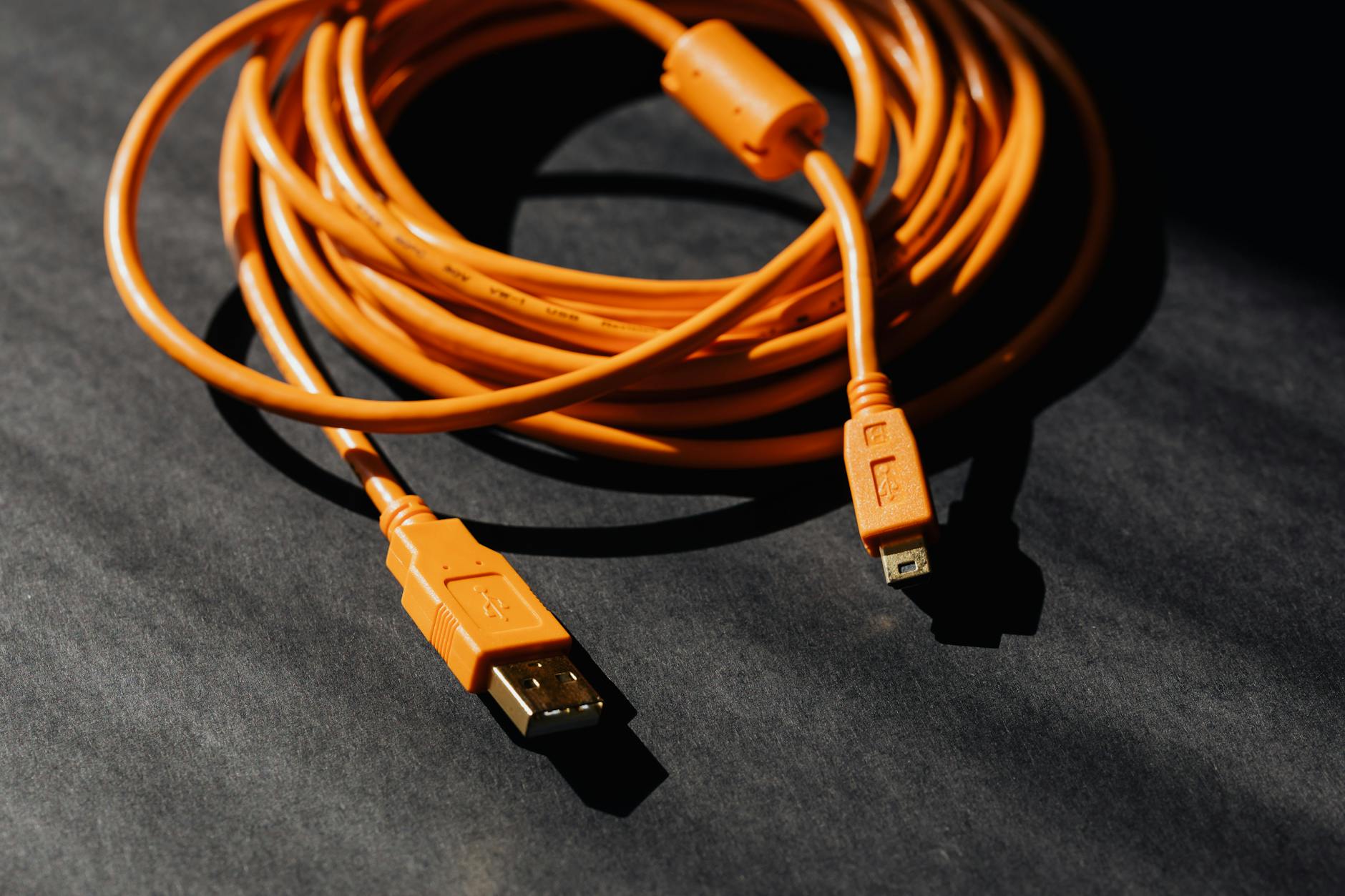 Photo by Karola G
No devices found or connection fails
When a transfer won’t start, the first thing to do is confirm the basic connection is solid. Re-pair or re‑connect, then test with a simple file to rule out format issues. If you’re using Bluetooth or a local network, ensure both devices are close enough and have the correct permissions.
Key quick checks
He Was Drowning in Bills and Burnout Until a Simple Daily Ritual Rewired His Brain for Wealth in Less Than a Week
>>> Start Your Shift Today <<<

- Re‑pair Bluetooth or re‑establish the local network. Turn Bluetooth off then on, or disconnect and reconnect to the WiFi network on both devices.
- Confirm compatibility and mode. On Android and iPhone, verify the USB or wireless transfer mode is set to File Transfer, MTP, or the equivalent on your device.
- Restart devices. A quick reboot often clears stubborn connection problems.
- Update software. Install the latest OS updates on both devices to fix driver or protocol issues.
If the issue persists, scan for device visibility and permissions. For Android to Windows, ensure Nearby Sharing or Bluetooth visibility is enabled on both ends. If you’re on a Mac, check that Finder or the Photos app has permission to access the connected device.
Helpful reference
- For Windows users, a common fix is ensuring the USB connection mode is set to File Transfer. See Microsoft’s guidance on “PC no longer sees files on phone” for context and steps: https://learn.microsoft.com/en-us/answers/questions/4046318/pc-no-longer-sees-files-on-phone-or-tablets-but-do
- If you’re on a Mac and Android, you may run into “Android File Transfer could not connect to device.” Consider trying a different USB cable or port: https://www.imobie.com/support/android-file-transfer-no-android-device-found.htm?srsltid=AfmBOoq_90zqEU2V087Wi_laTRHEPlzsED4WNZcBZZfKqW0PDx6Onn86
When to seek deeper help
- The device list never appears in the transfer window after trying a fresh cable or re-pair.
- You see a particular error message about drivers or permissions that you can’t resolve with a restart.
- You’ve tried multiple cables and ports with the same result.
Mini‑checklist for no‑friction troubleshooting
- Try a different USB cable and port.
- Disable any VPNs or firewall rules that could block local transfers.
- On Android, switch USB configuration to File Transfer (MTP) in the notifications shade.
- On iPhone, temporarily disable Personal Hotspot if you’re using AirDrop or Nearby Sharing.
If you want a deeper dive into Android to Mac or Windows transfer quirks, see practical guides and troubleshooting threads from reliable sources. For example, you can consult the Reddit community and Microsoft support discussions for real‑world fixes: Reddit thread on Android not showing as a drive, https://www.reddit.com/r/techsupport/comments/119xb54/why_isnt_my_android_phone_showing_as_a_drive_when/ and Microsoft’s article on USB connection settings, https://learn.microsoft.com/en-us/answers/questions/4046318/pc-no-longer-sees-files-on-phone-or-tablets-but-do
Transfer speeds are slow
Slow transfers kill momentum. The issue could be the network, the device hardware, or the file size. Start with the simplest fix and move to the more technical ones if needed. Sometimes a small change makes a big difference.
Speed boosters you can apply today
- Move closer to the router or switch to a wired method for large files. A strong WiFi signal reduces retries and congestion.
- Pause other downloads or streaming activities during the transfer. Even a single large download can jam the network.
- Use a direct method for large batches. A wired USB transfer or a local web transfer can dramatically cut time.
- Compress files before transfer when possible. A single ZIP or RAR can shrink the total data and reduce fragmentation.
If you’re using wireless, a quick check is to confirm the network is not overloaded by devices streaming or gaming. For cross‑platform transfers, you can also pick a method that uses local radios only, reducing hops and overhead.
Practical tips from real‑world use
- For Android to Windows or Mac, consider Nearby Sharing only for small to medium files. For big video libraries, a wired approach is usually faster.
- If you must use wireless, disable nonessential devices on the same network to reclaim bandwidth.
External pointers that complement this guide
- You may find additional wireless transfer tips from Google on Nearby Share: https://support.google.com/android/answer/9052709
- For a general view on Windows Nearby Sharing, refer to Microsoft’s overview: https://support.microsoft.com/en-us/windows/nearby-sharing-overview
When to switch strategies
- If you’re transferring gigabytes of data, a direct USB connection often beats WiFi hands down.
- For frequent day‑to‑day transfers, cloud syncing can still be faster in aggregate, once you factor in background indexing and offline access.
Files missing after transfer
Missing files after a transfer is frustrating, especially if you’re racing to meet a deadline. The most common causes are destination misplacement, incomplete transfers, or automatic re‑routing by the OS. The good news is you can verify and recover quickly with a methodical check.
How to verify and recover
- Check the destination folders. On both devices, confirm the exact path you selected before copying and recheck after completion.
- Review transfer history. Look for any partial transfers or error messages in the app you used. Some tools offer a completion report that lists all items moved.
- Re‑send if needed. If something didn’t arrive, repeat the transfer for just that item or batch. In cloud workflows, re-uploading or re‑sharing can fix gaps.
Practical steps by transfer type
- Wireless AirDrop or Nearby Sharing: The destination is usually the Downloads folder or a designated app folder. If you don’t see the files, search the device for the file name, check hidden folders, or re-run the transfer with a smaller batch.
- Direct wireless web transfers: The receiving device should save the file to a chosen location. If nothing appears, refresh the page, regenerate the link or code, and retry in a new session.
- USB wired transfers: Use the native file explorer to locate the device. If you can’t see the files, re‑select the correct source folder on the device and copy again to a known destination.
A quick practical example
- You transferred a photo set from your phone to your Mac via USB. You can verify by opening Photos on the Mac and looking for the new imports, or by checking the Finder location you chose. If missing, search for the file names on the Mac to confirm whether they landed somewhere else.
External references that help with verification
- For general guidance on USB transfer issues and visibility across devices, you can review the linked Microsoft and Mac guides in the previous subsection. These sources cover typical prompts and permissions that can block visibility if not approved. See https://learn.microsoft.com/en-us/answers/questions/4046318/pc-no-longer-sees-files-on-phone-or-tablets-but-do and the Mac AirDrop troubleshooting pages linked earlier.
Final notes on recovery workflow
- Maintain a simple naming convention so you can quickly search for files after transfer.
- When re‑sending, do a small batch first to confirm success before repeating for larger groups.
- If you’re juggling multiple devices, keep a running log of where each file landed to avoid confusion later.
Images that fit this section
- A close look at a phone and computer showing a transfer confirmation screen can illustrate the moment of success. Photo by Karola G
By following these checks and routines, you reduce repeat transfers and keep your workflow smooth. If you still run into trouble, the next section covers best practices that apply across wireless, cloud, and wired options, helping you choose the right method for your file types and speed needs.
Conclusion
To move files from your smartphone to your computer quickly, you have four reliable routes: wireless transfers with built in tools, cross‑platform cloud or web transfers, and direct wired connections. Each method fits different needs, so the best pick depends on your devices, file types, and network conditions. Bookmark this guide to compare options at a glance and speed up your next file move. Start with a quick test today and pick the method that feels fastest for your workflow, then stick with it for consistent results.
He Was Drowning in Bills and Burnout Until a Simple Daily Ritual Rewired His Brain for Wealth in Less Than a Week
>>> Start Your Shift Today <<<