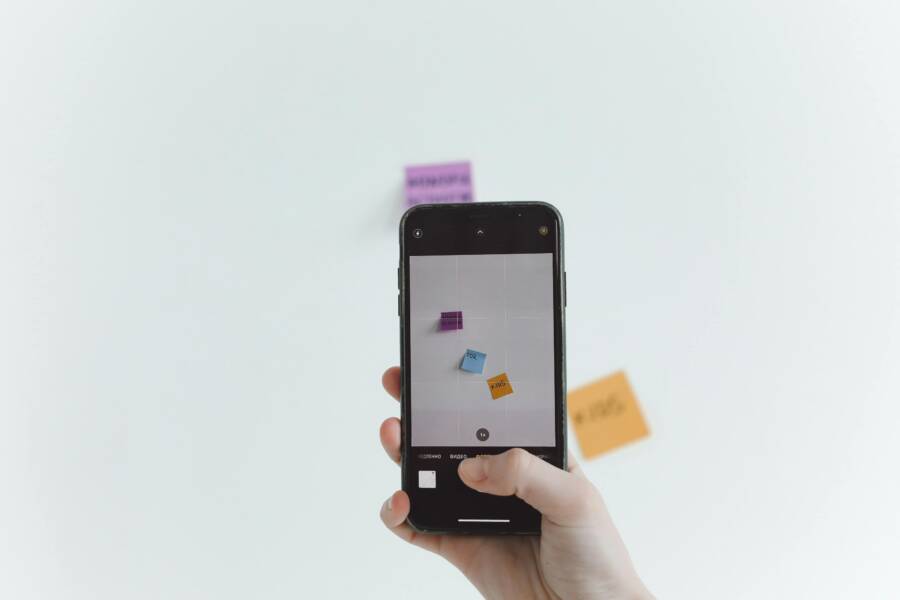
You can convert images to PDF directly on your smartphone using built-in features, so you do not need third-party apps. This process is useful when you need to send professional documents, compile receipts for expenses, or organize photos for easier sharing.
Mastering this skill saves time and keeps your files tidy. Most modern mobile operating systems include tools that perform this task in just a few taps.
Follow these steps to learn how to change your image files into portable documents today.
Convert Images to PDF Using Your iPhone
You do not need extra software to turn photos into PDF files on your smartphone. Apple includes a print feature that functions as a document converter. This tool works by rendering images into a portable document format before you send them to a printer. You can save these files directly to your internal storage instead of sending them to a print queue.
Using the Built-in Print Menu
You can trigger this conversion process through the native Photos app. Start by opening the app and selecting the single photo you want to convert. Tap the share icon in the lower-left corner of your screen. This icon looks like a square with an arrow pointing upward.
A share sheet will appear with several options. Scroll down the list and select the Print option. Your smartphone will open a print preview window. At this stage, do not tap the print button. Instead, place two fingers on the image preview and perform a pinch-to-zoom gesture outward.
This specific gesture expands the preview into a full-page document view. Your device essentially treats this as a generated PDF file. Tap the share icon again while in this preview mode. Now, select the option to Save to Files. Choose a folder on your smartphone or iCloud Drive to store the document. The system saves the image as a standard PDF file in your chosen location.
Organizing Multiple Photos into One PDF
Combining several images into a single document is just as easy as converting one photo. Open the Photos app and navigate to your main library or a specific album. Tap the Select button at the top right of your screen. You can then tap each image you want to include in the document.
Check that the photos appear in the order you want them to show up in the PDF. Once you finish selecting, tap the share icon at the bottom of the screen. Select the Print option from the pop-up menu. The smartphone creates a preview containing all selected images.
Perform the same pinch-to-zoom gesture on the preview thumbnail to convert the collection into a multi-page PDF. You can swipe through the preview to verify the order and content of the pages. Tap the share icon a final time to save the combined document to your Files app. This method keeps related images grouped together, which makes your digital filing much more efficient.
Turn Photos into PDF Files on Android Devices
Converting images to PDF files on your smartphone is a common task. Most Android users have access to Google Photos, which includes a built-in feature to handle this conversion. You do not need to install extra software or use web-based converters that might compromise your privacy. By using the tools already present on your device, you can turn your pictures into professional documents in seconds.
The Google Photos Method
You can transform your images into PDFs by utilizing the print menu within the Google Photos app. This workaround is effective because it forces the system to render your image selection into a universal document format.
Follow these steps to complete the process:
- Open the Google Photos app on your smartphone.
- Select the image you want to convert. If you need to combine multiple photos, tap and hold on the first image, then tap additional photos to add them to your selection.
- Tap the three-dot menu icon located in the top-right corner of the screen.
- Select the Print option from the overflow menu.
- Tap the dropdown menu at the top of the screen that usually shows “Select a printer.”
- Choose Save as PDF from the list of available printers.
- Tap the circular download or save icon, which typically appears as a PDF button.
- Select the destination folder on your device storage and confirm by tapping Save.
This process maintains the resolution of your original files. It is an ideal way to share receipts, notes, or scanned documents from your smartphone without losing quality.
Managing Your PDF Documents
Once you save your new file, you need to know where the system keeps it. Android devices store these documents in the internal storage of your smartphone. Most of the time, the file will appear inside a folder named Documents or within the Downloads folder.
You can find your files by opening the Files by Google app or any other file manager installed on your device. Use the search bar inside your file manager if you cannot locate the document immediately. Searching for the file name or filtering by document type often saves time. If you frequently need these files, you can create a dedicated folder and move your converted PDFs there to keep your storage space organized.
Third-Party Apps for Advanced PDF Features
While built-in tools handle basic conversions effectively, third-party apps provide specialized functions for complex tasks. Developers build these applications to replace traditional flatbed scanners with your smartphone. They include sophisticated image processing engines that adjust contrast, perspective, and lighting automatically. If your project requires high-quality digital archives or specific file management needs, these tools offer functionality that native system apps often lack.
When to Use a Dedicated App
You should install a dedicated scanning app when you need consistent, professional results from varied physical sources. These apps excel at capturing receipts, legal contracts, or multi-page reports where image clarity matters. Unlike the standard print-to-PDF method, these tools perform automatic edge detection. This feature identifies the document boundaries in real time, crops out the background, and straightens the perspective so the final PDF looks flat and clean.
Dedicated scanners also include image enhancement filters designed for text legibility. They can sharpen faded ink, remove shadows from poor lighting, and convert colored pages into high-contrast black-and-white files. These optimizations reduce file sizes while maintaining readability, which is helpful when you share documents via email or cloud storage.
Consider using these apps if you deal with these document types:
- Long contracts that require optical character recognition (OCR) to make the text searchable or editable.
- Receipts that need categorized storage or automatic extraction of totals and dates.
- Multi-page brochures or assignments where you need a single, orderly file with uniform page sizes.
Many of these apps also offer cloud synchronization, allowing you to scan a document on your smartphone and view it on your computer instantly. If your daily workflow involves frequent document handling, the time saved by these automated features justifies the small storage footprint of an extra application.
Frequently Asked Questions About PDF Conversions
Most users have concerns regarding file integrity and storage when shifting image formats. Understanding how your smartphone handles these changes helps you maintain control over your digital documents. Here are answers to common questions about the conversion process.
Will I Lose Image Quality During Conversion?
The short answer is no, provided you use the native print-to-PDF functions on your smartphone. These tools create a document by wrapping the original image data in a PDF container without re-encoding the pixels. Since the system does not apply additional lossy compression, your photos retain their original resolution and clarity.
However, the final quality of the file depends on your choice of settings if you opt for third-party applications. Some specialized scanner apps offer options to adjust the output, such as:
- High-resolution settings for professional printing or archival needs.
- Reduced file size options that sacrifice minor detail to save storage space.
- Black-and-white filters that remove color data to increase text contrast.
If you stick to the built-in system features, the OS keeps the file quality consistent with the original photo. You can verify this by zooming in on the final PDF after you save it. If the image looks blurry in the preview before saving, check the original photo quality first. Low-resolution images or files that were compressed during a previous transfer will always look poor, regardless of the format.
Think of the PDF as a digital envelope. If you place a clear photo inside, the photo stays clear. If you place a blurry photo inside, the result remains blurry. As long as the source material is sharp, your smartphone effectively preserves that detail during the conversion process.
Conclusion
Converting your photos to a PDF format on your smartphone is a straightforward process that avoids the need for external software. By relying on native print functions, you maintain full control over your files while keeping your storage organized. These built-in methods are sufficient for most personal and professional needs.
Test these features on your device before downloading extra apps. This habit saves storage space and improves your daily productivity. You now have the knowledge to handle document management directly from your phone whenever the need arises.