Dealing with banking apps not opening on your phone can be stressful, especially when you need quick access to your finances. This guide gives a simple, step by step plan to diagnose and fix the issue on both Android and iPhone. Most problems have an easy home fix, so you can get back to banking without a long wait.
First, we’ll cover the most common causes, from app glitches to connectivity hiccups. You’ll learn how to check your internet, clear app data, and update the app so you don’t miss out on important security features. Think of this as a fast troubleshooting routine you can run anytime.
Next, we’ll walk through device specific tips for Android and iPhone, plus when to reach out to your bank. By the end, you’ll know which step to take first, what to try if one method fails, and how to prevent this issue from returning. This guide is written in plain language, so you can fix it with confidence.
Diagnose the problem: why banking apps won’t open on your phone
When a banking app won’t open, it can feel like a roadblock to quick access to your money. This section guides you through a practical, step by step approach to identify the root cause and fix it. We’ll cover outages, updates, device compatibility, storage, and permissions. Use these checks in order so you can pinpoint the issue quickly and avoid risky workarounds. Keep in mind that some fixes are device specific, so stay flexible as you troubleshoot on your smartphone.
Check for outages or server problems
Banking apps rely on live servers. If the bank’s systems are down, the app may fail to open or stay stuck on a loading screen. Start with a quick outage check so you don’t waste time chasing a device problem that isn’t there.
- Check the bank’s status page. Most banks publish real time service health updates. Look for a dedicated status or outages section on the bank’s site.
- Review official social channels. Banks often post outage notices on Twitter, Facebook, or X. If there’s an ongoing incident, you’ll typically see a message with expected restoration times.
- Visit trusted outage trackers. Sites like Downdetector aggregate user reports and show whether a service is experiencing problems. For quick checks, you can start with the bank’s Downdetector page or a general outage hub.
- If the app is down at the bank: plan a simple, safe approach. Do not try workarounds that could compromise security. Use your bank’s website from a browser or a branch ATM if urgent access is required. Keep monitoring the official status pages for updates and restore times.
- What to do next: if the bank confirms an outage, wait for the restoration notice before trying to reopen the app. If there’s no outage reported, move to the next steps to rule out device issues.
External resources you can use for quick outage checks:
- US Bank status and outage information: https://downdetector.com/status/us-bank/
- Downdetector home page for general reference: https://downdetector.com/
- Cash App Status page for service health indicators: https://status.cash.app/
Confirm the app needs an update
Out of date banking apps can fail to load for several reasons. A fresh update often resolves compatibility issues and security checks that prevent the app from starting.
- Open the app store on your device and check for updates. If an update is available, install it.
- Ensure automatic updates are enabled. This keeps your apps current without manual checks.
- Some updates require a device restart. If you see a prompt after installing, restart your device to complete the update.
- After updating, try launching the app again. If it still doesn’t open, move to the next section to check for deeper causes.
Tip: Even small version differences can affect startup. Keeping the banking app current is a simple, effective safeguard.
Check device compatibility and storage
Old devices or devices with limited storage can struggle to boot banking apps. Even if the app is installed, insufficient resources can cause it to stall at startup.
- Check available storage. Go to your device settings and review used vs. free space. If storage is low, delete or move unused apps, photos, and videos, or offload data to cloud storage.
- Verify OS support. Banks frequently drop support for older OS versions. If your device’s OS is out of date, the app may refuse to run or behave unpredictably.
- Consider an OS update. If an OS update is available for your device, installing it can restore app compatibility and improve overall performance.
- If the device is very old, weigh options. In some cases, upgrading the phone is the most reliable path to ensure banking apps work smoothly and securely.
Why this matters: modern banking apps rely on current OS features and security frameworks. Without them, the app’s startup logic may fail or exit early.
Review app permissions and background activity
Permissions gaps or aggressive power saving can block a banking app from launching properly. If the app can’t access essential features, it may not start or stay running.
- Check app permissions. In your device settings, locate the banking app and ensure permissions like Location, Camera, Microphone, Storage, and Contacts are appropriately granted for core operations.
- Verify background activity is allowed. Banks need to run in the background to refresh security tokens and transaction data. Ensure the app isn’t restricted from background use.
- Adjust battery optimization settings. Some devices apply aggressive power saving to apps in the background. If your bank app is optimized, switch it to unrestricted or add it to a exceptions list.
- After adjusting permissions, open the app again. If it still won’t start, proceed to more steps or contact support.
Pro tip: a quick permissions audit can save hours of frustration. Giving the app the access it needs helps it initialize correctly and stay responsive.
External resources for outage checks and status pages:
- US Bank down status page (outage tracking): https://downdetector.com/status/us-bank/
- Cash App status indicators: https://status.cash.app/
- Downdetector general outage hub: https://downdetector.com/
Fast fixes you can try right away
When banking apps won’t open, a quick tune-up can save you a lot of time. These fast fixes are practical, designed for both Android and iPhone users, and focus on common hiccups like glitches, network quirks, or stale data. Tackle them in order, and you’ll likely get back into your banking app without a lot of fuss. If one step doesn’t do the trick, move to the next with confidence.
Restart your device
A fresh start clears many minor glitches that build up over time. It can reset background processes that block apps from launching.
- Android: Hold the power button, tap Restart, and wait for the device to come back. If you don’t see Restart, power off, wait 10 seconds, then power on again.
- iPhone: Press and hold the side button plus volume up or down, slide to power off, wait a moment, then press and hold the side button to turn it back on.
Why this helps: a simple reboot clears memory and resets processes that may be preventing the banking app from starting. If the problem persists, move to the next step.
If you want official guidance on handling apps that won’t respond, you can check Apple’s steps for closing and restarting apps: https://support.apple.com/en-us/109359
Close and reopen the banking app
Sometimes the app itself is in a bad state. Fully closing it and launching again can reset its startup sequence without touching your data.
- On Android: Open Recent apps, find the banking app, and swipe it off the screen to close. Reopen from your home screen or app drawer.
- On iPhone: Double press the home button or swipe up from the bottom (depending on model) to view the app switcher. Swipe the banking app up to close, then tap the app icon to reopen.
Why this matters: closing the app clears its current session and any stuck state, giving it a clean start when you reopen it. If it still won’t open, proceed to network checks.
Test your network and try a different connection
A weak or unstable connection can masquerade as an app issue. A quick network check often solves the problem.
- Try WiFi and then switch to mobile data, or vice versa.
- Toggle airplane mode on, then off to refresh network settings.
- If possible, connect to a different network (another WiFi network or a mobile hotspot) and try the banking app again.
Why this works: apps rely on network calls to load data and validate your session. A flaky connection can cause timeouts or boot failures. If you’re still stuck, move to the next step.
External resources you can use for quick outage checks and status pages:
- US Bank status and outage information: https://downdetector.com/status/us-bank/
- Downdetector general outage hub: https://downdetector.com/
Clear app cache and data on Android
Clearing cache removes temporary files that can corrupt startup. If needed, clearing data resets the app like a fresh install, but you’ll need to log in again.
- Steps:
- Open Settings > Apps & notifications > See all apps.
- Find the banking app and tap it.
- Tap Storage & cache (or Storage).
- Tap Clear cache. If needed, tap Clear storage (Clear data) and confirm.
- Reopen the app and sign in again if you cleared data.
Note: Clearing data logs you out and resets in-app preferences. You’ll need to re-enter your credentials after this step.
External resources for how-to help:
- Clear the app cache on Galaxy devices: https://www.samsung.com/us/support/answer/ANS10001372/
Update or reinstall the app
Software updates fix known issues and improve compatibility with the latest OS versions. If updating doesn’t help, reinstalling can clear stubborn problems that updates alone can’t fix.
- Update:
- Open the Google Play Store or Apple App Store, check for updates for the banking app, and install any available updates.
- Enable automatic updates so you stay current without manual checks.
- Reinstall:
- Uninstall the banking app from your device.
- Reinstall from the official store.
- Sign back in with your credentials and complete any security prompts.
Why this approach works: developers release fixes that address startup problems and strengthen security. A clean install often resolves issues caused by corrupted app files or misconfigured data.
External resources you can consult for installation and reinstall guidance:
- Unable to install some banking apps on Google Play: https://support.google.com/googleplay/thread/302794099/unable-to-install-some-banking-apps?hl=en
- Mobile banking app support from major banks: https://www.mtb.com/personal/online-and-mobile/mobile-banking/app-support
Additional context and practical tips
- If you’re still blocked after trying these steps, check your bank’s official status page or social channels for any ongoing outages. Outages can affect a bank’s app performance even when your device is fine.
- When you reinstall, make sure you’re downloading the genuine app from the official store to avoid phishing or tampered versions.
- Keep your device and apps up to date. A quick audit every couple of weeks can prevent many startup issues.
If you want to dive deeper, here are a couple of extra resources that cover common app startup problems and practical fixes:
- Quick fixes for iOS banking apps not working: https://www.tenorshare.com/ios-26/ios-26-banking-apps.html
- Top fixes for banking apps failing on iOS 26: https://www.ultfone.com/ios-26/ios-26-banking-apps.html
This suite of steps gives you a fast, reliable way to get back into your banking app. If you’ve tried everything here and the app still won’t open, it may be time to contact your bank’s support team or consider trying the web version temporarily while you sort out the app issue.
Platform specific fixes for Android and iPhone
If your banking app still won’t open after trying general fixes, it’s time to tailor the steps to your device. Below are practical, platform specific actions for Android and iPhone. These steps are easy to follow and designed to get you back into your banking app quickly.
Android fixes
These concrete Android steps address common startup blockers like stale data, permission gaps, and power saving. Start with the simplest option and move down the list until you gain access.
- Clear the app’s cache: Go to Settings > Apps & notifications > See all apps > select your banking app > Storage & cache > Clear cache. Reopen the app to see if it starts normally.
- Clear app data if needed: If clearing cache doesn’t help, repeat the same path and select Clear storage (data). You’ll need to sign in again, but this resets the app to a clean state.
- Check and grant app permissions: Open Settings > Apps & notifications > See all apps > banking app > Permissions. Ensure essential permissions like Storage, Location, and Contacts are allowed for proper startup and operation.
- Turn off battery saver or add an exception: Settings > Battery > Battery saver. If it’s on, disable it for the banking app or add it to an exceptions list to prevent startup suppression.
- Reset app preferences: Settings > System > Reset options > Reset app preferences. This resets disabled apps, notification restrictions, and background data restrictions without losing your personal data.
- Ensure background activity is allowed: Settings > Apps & notifications > See all apps > banking app > Battery > Allow background activity. This keeps tokens and updates flowing while you use the app.
- Update the app and OS: Open Google Play Store > your profile > Manage apps & devices > Updates available. Install any banking app updates. If your device isn’t on the latest OS, update Android as well.
- If you must, reinstall the app from the Play Store: Uninstall the banking app, reboot the device, and reinstall from Google Play. Sign back in and complete any security prompts.
- Test a different network: Some Android devices perform better on a different WiFi network or a mobile hotspot. This helps rule out network-related startup issues.
- When to seek help: If the app still won’t open after these steps, check the bank’s official status page for outages and contact support for a deeper look.
Useful resources to support these steps:
- Fix an installed Android app that isn’t working: https://support.google.com/googleplay/answer/2668665?hl=en
- Clear the app cache on Galaxy devices: https://www.samsung.com/us/support/answer/ANS10001372/
Smartphone tip: If you manage multiple banking apps, try reordering them in your launcher so the one you use most often is readily accessible.
iPhone fixes
iPhone users can fix startup problems by focusing on updates, reinstalls, and any network or privacy controls that block apps. Follow these steps in order to restore reliable access.
- Update iOS to the latest version: Open Settings > General > Software Update. Install any available update to ensure compatibility with your banking app.
- Reinstall the banking app: Press and hold the app icon, choose Remove App > Delete App, then go to the App Store to reinstall. Sign back in after reinstall.
- Update all apps from the App Store: Open the App Store > your account > Update All. Keeping every app current helps avoid startup conflicts.
- Check network settings: Reset network settings if needed. Go to Settings > General > Reset > Reset Network Settings. Reconnect to WiFi or cellular after the reset.
- Review content and privacy restrictions: Settings > Screen Time > Content & Privacy Restrictions. If restrictions are on, verify that the banking app is allowed to run and access necessary services.
- Verify iPhone storage: Settings > General > iPhone Storage. If storage is low, free up space by removing unused apps, videos, or large downloads.
- Offload or reset app permissions if problems persist: Settings > Privacy & Security > Banking app. Revoke and regrant permissions as needed.
- Refresh Apple ID for App Store issues: Settings > [your name] > iTunes & App Store > Sign Out, then sign back in.
- Reboot and test again: A simple restart can clear transient glitches that block startup.
- When to reach out: If none of these steps fix the issue, contact your bank’s support or try the bank’s web version temporarily.
Helpful links for iPhone users:
- Apps Not Working on iPhone After Update? Fix Them Fast: https://oneclicktechnologies.us/blog/apps-not-working-on-iphone-after-update/
- iPhone app troubleshooting after iOS updates: https://www.tenorshare.com/ios-26/ios-26-banking-apps.html
Smartphone tip: Keep a small note of app version and iOS version when you contact support. It helps speed up diagnosis.
If you’ve worked through these platform specific fixes and your banking app still won’t open, don’t hesitate to switch to the bank’s web portal temporarily. In many cases, the bank’s mobile site offers full functionality while the app issue is being resolved.
What to do if the app still won’t open
If you’ve worked through the quick fixes and your banking app still won’t open, it’s time to zero in on more targeted steps. This section helps you stay disciplined and methodical, so you can either restore access quickly or have solid information ready when you contact support. Keep in mind that outages can affect many users, so checking official channels first is always wise. As you troubleshoot, you’ll often discover a straightforward path forward, sometimes just a small setting or a fresh start with the web version.
Check outages and report to the bank
Outages can pause or slow banking apps for everyone, so verify official status before assuming it’s something on your device. Start with reliable sources and watch for updates.
- Check the bank’s status page or official outage alerts. Banks publish real time service health updates, so you’ll see when they’re addressing a larger issue.
- Review the bank’s social channels for outage notes and restoration timelines. A quick post can save you hours of guesswork.
- Visit established outage trackers to confirm if others are affected. If the app is down for many, the fix is on the provider’s end.
- If an outage is confirmed, avoid risky workarounds. Use the bank’s website from a browser or a branch ATM if you need urgent access. Stay tuned for a restoration notice and retry once officials say it’s back online.
- What to do next: note any outage confirmation, then retry the app after the bank signals service restoration.
External resources you can use for quick outage checks:
- https://downdetector.com/status/us-bank/
- https://downdetector.com/
- https://status.cash.app/
Contact bank support channels
When outages aren’t the issue or you need a fast answer about your account, reach out through official channels. Having essential details handy speeds things up.
- In-app chat or message center when available. It’s typically the quickest route.
- Phone support for urgent access or complex questions. Use the number listed on the bank’s official site.
- Social media support can be responsive, especially for non-urgent questions.
- Be ready with your account number, last login time, and device details. Information like your device model and OS version helps reps diagnose faster.
- If you’re asked for security data, provide only what’s requested through official channels.
Relevant banks’ contact options you can explore:
- Bank of America Mobile Banking Customer Service: https://www.bankofamerica.com/customer-service/contact-us/mobile-banking/
- Bank of America Customer Service & Contact Numbers: https://www.bankofamerica.com/customer-service/contact-us/
- MT Bank Mobile Banking App Support: https://www.mtb.com/personal/online-and-mobile/mobile-banking/app-support
- Bank of America Online Banking Help & Support: https://secure.bankofamerica.com/customer-service/help-support-center/
Use the bank’s mobile site as a workaround
If the app stubbornly refuses to load, the bank’s mobile site is usually fully functional and secure. It’s a reliable temporary alternative to keep money moving.
- Access the bank via a mobile browser and log in as you would on a desktop. Bookmarks save time for future visits.
- Save a bookmark to your home screen for quick access, so you don’t have to type the URL each time.
- Use the mobile site to view balances, transfer funds, and pay bills while you troubleshoot the app.
Tips to make this smoother:
- Create a dedicated mobile banking bookmark and keep it on your home screen for one-t tap access.
- If you’re on a shared device, be mindful of privacy; sign out after completing any actions.
External resources for browser-based access guidance:
- Using a Browser for Consumer Online Banking on a Mobile Device (Guaranty Bank example): https://gbankmo.com/files/documents/Using%20a%20Browser%20for%20Consumer%20Online%20Banking%20on%20a%20Mobile%20Device.pdf
Prepare information to speed up support
Having the right details ready saves time and reduces back-and-forth. Collect these before you contact support.
- Device model and OS version (for example, iPhone 14 with iOS 18, or Android 13 on a Pixel 8).
- App version and any recent update dates.
- Exact error messages or screenshots of the issue.
- Steps you took before the problem started and any patterns (e.g., only on startup, after update, after a failed login).
- Your approximate time of the issue and whether it happens on Wi Fi, mobile data, or both.
Pro tip: write down the above as a quick checklist on your notes app so you can share it quickly with a support agent. Clear, precise details speed up diagnosis and resolution.
External resources for support guidance:
- What to do if you’re having trouble with digital banking: https://www.usbank.com/customer-service/knowledge-base/KB0069994.html
If you’re still blocked after gathering details, proceed to platform specific fixes or escalate to bank engineering if available. The goal is a fast restoration with minimal risk to your security.
Additional context and practical tips
- When you reinstall, ensure you download the genuine app from the official store to avoid phishing or tampered versions.
- Keep your device and apps up to date. A quick maintenance check every few weeks helps prevent startup issues.
- If the problem lingers, consider using the bank’s web portal temporarily while the app issue is resolved.
External resources you can consult for installation and troubleshooting:
- Mobile Banking App Support from major banks: https://www.mtb.com/personal/online-and-mobile/mobile-banking/app-support
- Bank of America Help & Support Center: https://secure.bankofamerica.com/customer-service/help-support-center/?result=SUCCESS&useCase=helpSupport&channel=Desktop&ssoSource=OLB&userType=OLB&request_locale=en-us
If you’ve tried all the steps and the app still won’t open, it may be time to connect with your bank’s support team again or switch to the web version temporarily while the issue is being resolved. It’s better to move now than wait in frustration.
This section is designed to keep you moving, even when the app stays stubborn. The next section covers deeper platform specific fixes for Android and iPhone to address stubborn startup blocks and get you back to banking quickly.
Prevent future issues and keep banking apps reliable
Keeping banking apps reliable is about less drama and more steady access. This section outlines practical habits that prevent startup hiccups, improve security, and make updates painless. When you treat your phone like a trusted financial tool, you reduce the chances of outages, crashes, or slow load times. Below are straightforward steps you can weave into your regular routine.
 Photo by Dan Nelson
Keep software updated
Update habit shields you from many startup problems. When both apps and the operating system stay current, you benefit from stability improvements and security fixes that prevent frictions at launch.
- Turn on automatic updates for both apps and the OS. This keeps you on the latest version without manual checks.
- Check for updates regularly. A quick glance every week ensures you don’t miss critical improvements.
- Remember: some updates require a device restart. If you see a prompt, restart to complete the install.
- After updating, try launching the banking app again. If it still won’t open, move to deeper checks.
Pro tip: even small version bumps can fix startup issues. Keeping things current is a simple, effective safeguard.
External resource for managing updates across platforms:
- How to manually update apps from the App Store: https://support.apple.com/en-us/102629
Free up storage and manage apps
Sufficient free space and lean app footprints help startup sequences run smoothly. Over time, cluttered storage and bloated caches slow things down and can cause apps to stall.
- Delete unused apps and large files periodically. Offload photos or move media to cloud storage when possible.
- Clear app cache and, if needed, data for apps that feel sluggish. This removes stale temporary files that can interfere with startup.
- Back up important data before clearing data or uninstalling apps. This protects your information if you need to reinstall.
- Regular cleanup reduces background load and helps the system allocate resources for banking apps.
If you notice ongoing lag, a quick cache purge for frequently used apps can make a noticeable difference without affecting your personal data.
External resources for storage management and cache cleaning:
- How to Clear Cache and Delete Cookies on Your Phone: https://www.android.com/articles/clear-cache-and-cookies/
Enable auto updates and security checks
Auto updates and periodic security checks form a safety net that keeps banking apps both usable and protected.
- Auto updates ensure you receive the latest security patches, which can prevent startup failures caused by compatibility issues.
- Run security checks periodically. Ensure your device’s protections, such as built-in antivirus or security features, stay current.
- Keep authentication methods up to date and review app permissions during these checks.
- If your device prompts you to review permissions after an update, take a moment to approve only the essentials.
A quick reminder on security practice: automatic updates reduce the risk of running outdated, vulnerable code. Pair this with routine device scans for best results.
Helpful resources on enabling automatic updates and staying secure:
- How to turn on automatic updates for banking apps (Android and iPhone): https://support.apple.com/en-us/102629
- How to enable automatic app updates on iOS and Android: https://support.board.vision/support/solutions/articles/42000062337-step-2-enable-automatic-app-updates
- How to enable automatic updates for ATB Personal app: https://atb.com/resources/support/enable-automatic-app-updates
Use strong passwords and enable security features
Security starts with who can access your accounts. Strong credentials and layered protections keep banking apps safe and less prone to issues caused by suspicious activity.
- Use a strong passcode or biometric access for your device. Combine this with a unique, long password for each banking app when possible.
- Enable two factor authentication (2FA) wherever available. 2FA adds a second barrier that makes unauthorized access much harder.
- Do not share login details. If you need to use another device, sign out after finishing.
- Review security prompts during login and app setup. Avoid saving login information on shared devices.
If you already use 2FA, consider adding a trusted authenticator app for an extra layer of protection. This reduces the risk of compromised credentials and aligns with best practices for mobile banking.
Security-focused resources you can consult:
- Two-factor authentication for Apple Account: https://support.apple.com/en-us/102660
- Authy: Two-factor Authentication App & Guides: https://authy.com/
- Get verification codes with Google Authenticator on Android: https://support.google.com/accounts/answer/1066447?hl=en
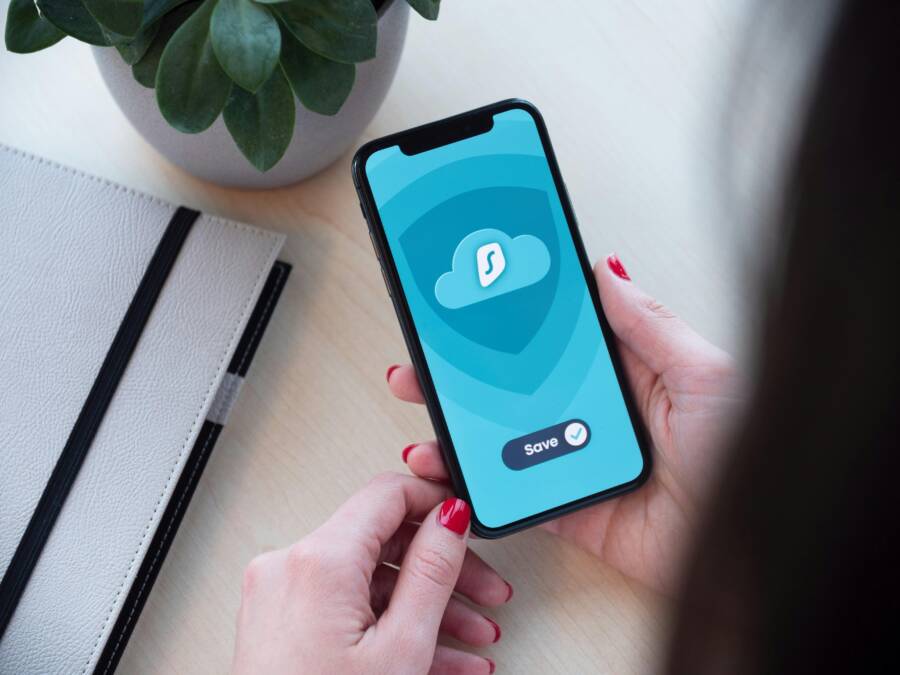
Images and visuals help readers grasp these practices. Use a simple, clean photo like the one above to illustrate secure banking on a smartphone.
What to take away from this section
- Regular updates are a frontline defense against startup issues.
- A tidy device with ample free space reduces friction on launch.
- Auto updates plus periodic security checks create safer, smoother banking experiences.
- Strong authentication details preserve access while protecting your money.
If you want to explore deeper, these additional reads broaden your understanding of mobile banking security and maintenance:
- Yes, Banking Apps Are Safe. But You Still Need to Be Careful: https://www.cnet.com/personal-finance/banking/yes-banking-apps-are-safe-but-you-still-need-to-be-careful/
- Mobile banking apps: A guide to mitigating fraud: https://promon.io/security-news/mobile-banking-apps-fraud-prevention
- Essential Best Practices for Mobile Banking App Security: https://codesuite.org/blogs/essential-best-practices-for-mobile-banking-app-security-in-2025/
By building these habits now, you’ll minimize the chance of future banking app issues and keep your financial tools reliable for daily use. The next section focuses on practical, device-specific routines that keep Android and iPhone banking apps running smoothly under real-world conditions.
Conclusion
Most banking app startup hiccups have a straightforward fix, and this guide walks you through reliable steps you can take right away. A quick check of outages, an update, and a clean start often restore access without drama, and keeping your device and apps current prevents repeats. For lasting reliability, keep storage free, grant essential permissions, and enable auto updates along with strong authentication. Bookmark this guide so you can tackle future issues quickly and keep your smartphone secure and functional.