Tangled Bluetooth and Wi-Fi connections can disrupt calls, drain battery, and expose your privacy. If your phone keeps jumping to the wrong speaker, car, or network, you’re not alone. Learn why this happens and how to take back control in a few simple steps.
This guide covers both Bluetooth and Wi-Fi behavior on Android and iOS, so you won’t have to guess what to do next. You’ll see clear actions to stop your smartphone from auto connecting to the wrong device, with emphasis on trusted connections and easy fixes.
You’ll get practical, step by step steps you can follow right away. From forgetting problematic devices to resetting settings and managing permissions, these actions are designed to be approachable for everyday use.
Why Does Your Phone Keep Auto-Connecting to the Wrong Device?
When your phone keeps jumping to the wrong earbud, the neighbor’s Wi‑Fi, or the car you last rode in, it can feel frustrating. The problem usually comes down to how devices remember past connections and how radio signals compete for priority. Below are two focused subsections that explain the core reasons and how to diagnose and fix them quickly.
Saved Connections Take Priority
Your phone is basically a memory beast when it comes to Bluetooth and Wi‑Fi. It catalogs every familiar network and device it has paired with or joined before. When a nearby device has a remembered relationship with your phone, the phone will try to reconnect automatically without asking for permission. That’s convenient most of the time, but it’s also the main culprit when things go wrong.
- Old earbuds and headphones: If you previously paired with a set of wireless earbuds, your phone may repeatedly prefer that connection over new ones, even if you just want a different audio device. If the earbuds are within range, you’ll see them pop up as the default choice in your audio settings.
- Public and household Wi‑Fi: Your phone keeps a list of known networks. When you enter a cafe, a library, or a coworking space, your device may automatically reconnect to a saved network that isn’t the one you intend to use at that moment. This is especially noticeable if a familiar but weaker network is still saved and becomes the first option.
What to do:
- Review and prune saved connections. Go to Bluetooth settings and remove devices you no longer use. For Wi‑Fi, forget networks you don’t actively rely on, especially those you connected to in the past in public or shared spaces.
- Prioritize intentionally. If you need a specific device to connect first, adjust the priority order where possible. Some devices and platforms offer a way to set preferred networks or preferred Bluetooth devices, which makes future connections more predictable.
- Reconnect with a clean slate. After pruning, reconnect only the devices you actually want to see as the top choice. This resets the automatic behavior and reduces unexpected handoffs.
For practical guidance on setting priorities and handling sticky connections on Android, you can review how others approach the problem and implement a more deterministic connection order. See resources that discuss prioritizing Bluetooth devices and network connections, such as the Android community discussions and how-to articles on setting network priority. Is there a way to prioritize or make Bluetooth device connections sticky on an Android phone? and a hands-on look at configuring Android network priorities.
If you want a broader how-to that covers both Bluetooth and Wi‑Fi, this article explains setting up network and device priorities on Android in a straightforward way. How to Auto Connect Android to the Correct Network and …
On the iOS side, Apple devices generally handle “remembered” connections tightly, but you can still benefit from cleaning up old Bluetooth pairings and known networks. For context on Wi‑Fi and Bluetooth management, see discussions about reducing interference and prioritizing connections. Devices Connecting to the Wrong Network? How to Change Connection Priority
If you’re curious about Bluetooth connection dynamics from a troubleshooting perspective, you’ll find practical setups and common questions explored here. How can I set Bluetooth connection priority for various devices?
A quick reminder: after you prune saved connections, test by connecting fresh to the device you want. If the problem resurges, it may be worth a full reset of network settings on the phone, followed by re-pairing only the essentials.
Signal Strength Tricks Your Phone
Radio signals aren’t just about distance. Proximity and interference play big roles in which device wins the connection race. When Bluetooth and Wi‑Fi signals crowd the air, weaker or less ideal options can sneak in as the default, simply because they appear more readily reachable or stable at that moment.
Key factors to consider:
- Proximity matters: The closer the target device, the stronger the signal. A phone may choose a nearby, lower-quality device over a farther but better option if the nearby device presents a more reliable immediate signal.
- Interference from other devices: Many electronics—eco devices, microwaves, other Bluetooth gadgets, or neighboring Wi‑Fi networks—use overlapping frequencies. That interference can cause a device with a slightly stronger but messier signal to win the handoff.
- Channel congestion: In dense environments, multiple networks and devices contend for airtime. Your phone may latch onto a network or device that appears available at the moment, even if a more suitable option exists.
First steps you can take now:
- Scan the area for signals. Take a quick look around to identify likely culprits. If you notice many networks or devices competing for the same space, that can explain sudden auto connections.
- Move or change the environment. If possible, step away from dense gadget clusters or move closer to the device you want to connect. This simple shift can dramatically alter which connection the phone prefers.
- Test with a single variable. Try pairing or connecting to one device at a time to confirm whether the issue is general interference or a specific device preference.
If you want to deepen your understanding of how interference affects both Bluetooth and Wi‑Fi, several practical guides explain how to diagnose and reduce signal problems in real homes or offices. For a targeted look at interference and how it affects connectivity, you can explore this overview. Fix Wireless Interference: Wi‑Fi & Bluetooth Tips
Another solid reference explains how to identify and reduce wireless signal problems, including cases of misbehaving devices. How to Check for WiFi Interference and Reduce Wireless Signal Problems
If you’re troubleshooting a specific scenario like car Bluetooth or in-office devices, you’ll find practical examples and step-by-step checks in consumer-focused guides. For instance, a common question about managing Bluetooth connections in different contexts is addressed here. How can I set Bluetooth connection priority for various devices?
Tips to keep in mind:
- Use a clean slate approach for testing. Temporarily turning off other nearby devices can reveal whether interference is the root cause.
- Maintain consistent distances during tests. Try to keep the target device within a stable range so you can assess signal behavior accurately.
- Document what changes work. A simple note helps you remember which steps fixed the issue in your environment.
In practice, you’ll likely combine both sections to resolve most auto‑connect annoyances. Start by cleaning saved connections, then observe how signals behave in your everyday spaces. If the problem persists, you may consider deeper network adjustments or a factory reset as a last resort. And as you experiment, you’ll gain a better understanding of how your smartphone negotiates connections and how to keep the right device at hand every time.
Quick Fixes That Work on Any Phone
When your phone keeps connecting to the wrong Bluetooth device or rejoining a familiar Wi‑Fi network you don’t want, it’s not just annoying. It can drain battery, interrupt calls, and even pose security risks. The fixes below are simple, universal, and work across Android and iOS. They focus on pruning memories and tightening control so your phone behaves the way you expect in everyday life.
Forget or Remove Unwanted Devices
One of the fastest ways to stop false auto‑connects is to remove outdated or unknown connections from your device’s memory. Think of it as decluttering your digital short list. By forgetting these devices or networks, you prevent automatic reentries and clear up confusion for your phone, your ears, and your battery life.
Step-by-step guide
- Open your Bluetooth settings and review the list of paired devices. Tap the device you no longer want to reconnect with, then choose “Forget” or “Unpair.” Repeat for any entries you don’t recognize or no longer use.
- For Wi‑Fi, head to Settings > Wi‑Fi (or the equivalent on your device). Tap the information icon next to saved networks, then select “Forget This Network” or remove the network. Do this for networks you’ve connected to in cafés, airports, or at a neighbor’s house that you won’t use again.
- After pruning, test by connecting to the device you want. If you still see a prior device as the default, re‑pair only the essentials and re‑test until the desired connection is reliably top of mind.
Why this helps
- Security benefits: You reduce the attack surface by limiting saved connections that a thief or a prankster could exploit. A smaller list means fewer opportunities for unexpected pairing.
- Battery benefits: Your radio hardware doesn’t wake up to chase phantom connections as often, which saves power over the day.
- Predictability: A clean slate makes future connections predictable, especially in busy places like airports or office corridors.
Practical notes and related guidance
- On Android devices, you’ll often find “Unpair” in the Bluetooth device’s detail page or under the device menu in a list of paired devices. On iPhone, you’ll tap the “i” next to the device in Settings > Bluetooth and choose Forget This Device. For a quick reference, see guides that walk through removing Bluetooth devices on Android and iPhone, such as Android-focused tutorials and Apple Support articles.
- For Wi‑Fi, Apple’s guidance covers forgetting networks on iPhone and Mac, while Android users can follow device‑specific paths to remove saved networks. See Apple’s step-by-step instructions and Android how‑tos for forgetting networks.
Examples and quick hits
- If your car’s Bluetooth keeps reappearing even when you’re not in the car, forget the car’s system from your phone’s Bluetooth list. You’ll still be able to reconnect later if needed, but the phone won’t auto‑connect by default.
- If a neighbor’s Wi‑Fi network keeps showing up, forget that network and any others you don’t actively use at home. You’ll avoid automatic switches when you’re out and about.
Useful links for this task
- How to forget a Bluetooth device on Android and iPhone: https://androidpolice.com/remove-bluetooth-devices-android
- How to unforget a Bluetooth device on iPhone, Android and Laptop: https://www.techpout.com/how-to-unforget-a-bluetooth-device-on-iphone-android-laptop/
- How to forget a Wi‑Fi network on iPhone, iPad, Mac, or Apple Vision Pro: https://support.apple.com/en-us/102480
- How to forget a Wi‑Fi network on iPhone, iPad, Mac, or Apple Vision Pro – Apple Support: https://support.apple.com/en-asia/102480
What to remember from this step
- Start with the easiest wins: your list of remembered devices and networks.
- After you prune, reconnect only the devices you actually want in the order you prefer.
- If problems persist, move to the next fix with a clean slate mindset.
Disable Auto-Join Features
Auto‑join or auto‑connect features are designed for convenience, but they can backfire in crowded spaces or when multiple devices are nearby. Turning these features off lets you decide each time which network or device to use, reducing surprises and interruptions. This is especially helpful in places with many Bluetooth speakers or overlapping Wi‑Fi networks.
What to toggle and where
- Bluetooth: Look for settings such as “Auto-connect” or “Trusted devices” and switch them off for devices you don’t want to auto‑connect to. Some phones offer per‑device auto‑connect controls, letting you force manual pairing while keeping Bluetooth enabled for essential functions like HFP calls or messages.
- Wi‑Fi: Disable options like “Auto join networks,” “Auto‑connect to open networks,” or “Ask to join networks.” This prevents your phone from hopping onto a saved network that’s nearby but not ideal.
Why it matters in real life
- Crowded venues: In a bus, stadium, or conference, many Bluetooth and Wi‑Fi signals compete. Auto‑join can hand your connection to a nearby, weaker network or device, causing audio dropouts or slow data.
- Shared spaces: In apartments or offices, overlapping networks can create constant re‑connections to the wrong home or guest network. Manual selection avoids this chaos.
- Battery considerations: Fewer auto‑connections mean fewer radio scans and handshakes, which conserves power.
Practical steps you can take now
- On Android, navigate to Bluetooth settings and look for options like “Auto-connect” or per‑device preferences. Disable or customize as needed.
- On iPhone, disable auto‑join in Wi‑Fi settings by going to Settings > Wi‑Fi, tapping the “i” next to networks, and turning off auto‑join or adjusting per-network settings.
- For a more deliberate approach, combine this with the forget‑unwanted‑devices step. You’ll gain a predictable, controlled connection experience.
When this approach shines
- You’ll notice fewer random audio transitions when you’re moving through rooms or entering a car.
- Your phone won’t switch to a neighbor’s network just because it’s nearby.
- It’s a straightforward, low‑risk change that benefits most users.
Additional resources and context
- How to disable auto-connect for Bluetooth on Android: https://www.howtogeek.com/use-this-trick-to-stop-your-android-phone-from-auto-connecting-to-bluetooth-devices/
- How to stop Bluetooth auto‑connect on iPhone or Android: https://android.stackexchange.com/questions/252003/how-do-i-disable-auto-connect-for-bluetooth-device
- How to disable auto pair for Bluetooth devices on Apple Discussions: https://discussions.apple.com/thread/250535700
Final quick guidance
- Start with forget and prune. It’s quick, and you’ll likely see immediate benefits.
- Follow with auto‑join adjustments to lock in the behavior you want.
- Test in everyday scenarios to confirm you’ve achieved the calm, predictable connectivity you seek.
- If you still see issues, cycle through the combined steps again and consider a full network settings reset as a last resort.
By applying these targeted fixes, your smartphone becomes a more reliable ally in daily life. You’ll hear fewer surprises and enjoy longer battery life, cleaner audio, and a more secure, private connection profile.
Fix It on Android: Step-by-Step Guide
If your Android phone keeps grabbing the wrong Bluetooth device or sticking to a weak Wi-Fi network, you’re not alone. A few precise tweaks can dramatically improve reliability. This section walks you through a practical, Android‑focused approach that starts with the simplest fixes and moves to automation for tougher scenarios. Think of it as a clear playbook your smartphone can follow to stay in the right lane.
Limit Connections in Developer Options
Limiting the number of active Bluetooth connections can stop the phone from chasing every nearby gadget. This is a low‑friction, high‑reward move you can apply without changing how you use your device daily.
Full steps:
- Enable Developer Options by tapping the build number in Settings > About phone multiple times until it says you’re a developer.
- Open Developer Options and find the setting labeled “Bluetooth max connected devices” or a similarly named option.
- Set this value to 1. This ensures your phone only keeps one active Bluetooth connection at a time.
- Restart your phone to apply the change.
Why this helps
- It prevents the radio from juggling multiple devices at once, which reduces accidental handoffs.
- It makes Bluetooth behavior more predictable, especially when you’re moving between devices like a car and wireless headphones.
Practical note
- After you apply the limit, pair only the devices you actually want in priority order. If you need to switch, do it manually rather than relying on auto‑connect.
Related reading
- If you’re curious about where to find similar controls or how others tweak Bluetooth behavior on Android, explore discussions on prioritizing Bluetooth devices and connected networks. For instance, community threads address whether you can force a sticky order for Bluetooth devices, and practical tutorials show how to adjust network priority in Android settings. See examples like “Is there a way to prioritize or make Bluetooth device connections sticky on an Android phone?” and related how‑tos.
Supporting resources
- Official guidance and practical tips on Bluetooth permissions and connectivity in Android’s developer documentation can help you understand what happens under the hood. See the Bluetooth permissions page for context and best practices. https://developer.android.com/develop/connectivity/bluetooth/bt-permissions
- A practical Android community discussion offers real‑world perspectives on prioritizing Bluetooth connections. https://support.google.com/android/thread/140821605/stop-bluetooth-auto-connect?hl=en
What to expect
- After the restart, your phone should honor the single Bluetooth connection more consistently.
- If you still notice unwanted handoffs, you can combine this with other steps described in this section.
Set Up Automation to Block Wrong Ones
Automation can be a friendly guardrail. Free apps let you compose simple routines that disconnect or block specific devices when they appear, without overhauling your entire workflow.
Recommended free apps
- MacroDroid: A straightforward automation tool that can run a short sequence to disconnect from a particular Bluetooth device when it appears in range. It’s approachable and effective for many everyday setups. https://play.google.com/store/apps/details?id=com.arlosoft.macrodroid&hl=en_US
- Tasker (optional): If you want deeper customization, Tasker offers more granular control, though it has a steeper learning curve.
Simple routine example
- Trigger: Bluetooth device is connected to your Android device and the device’s name matches a device you want to block.
- Action: Disconnect Bluetooth from that device, then optionally re‑open your preferred audio device or restore your own preferred settings.
- Result: Your phone does not stay locked to the unwanted device and instead follows your intended handoff.
Why automation helps
- It reduces repeated manual steps when you’re moving through busy spaces with many Bluetooth devices.
- It creates a predictable pattern so you know what to expect in everyday use.
Tips for crafting reliable automations
- Start with a narrow rule. Target one specific device to test reliability.
- Use clear naming. Make sure the device name you use in the rule exactly matches what you see in Bluetooth settings.
- Test in real life. Try the routine in your car, at home, and in a public space to confirm it behaves as expected.
Further context and examples
- If you want to see how people implement automated Bluetooth management using MacroDroid, you can review community fixes and action examples that show configuring Bluetooth state changes. For a quick start, MacroDroid’s app page provides the essential setup path and examples. https://play.google.com/store/apps/details?id=com.arlosoft.macrodroid&hl=en_US
- For broader automation needs on Android, a related discussion demonstrates reacting to Bluetooth disconnections with automation rules, which can be a helpful blueprint if your goal is to reset or switch profiles automatically. https://android.stackexchange.com/questions/179877/reacting-to-bluetooth-disconnection
What to remember
- Automation is a smart add‑on, not a replacement for pruning stale connections. Use both to reduce unexpected behavior.
- Keep routines simple at first. A single device trigger with one action is enough to validate the concept.
Turn Off Auto Bluetooth Tomorrow
Auto‑connect features are meant to be convenient, but they can cause chaos in busy spaces. Turning these off gives you the control you want and reduces misfires.
Path to adjust this setting
- Path: Settings > Connected Devices > Bluetooth preferences
What to change
- Turn off auto‑connect for non‑essential devices.
- If available, disable per‑device auto‑connect for gadgets you don’t want to rejoin automatically.
- Consider keeping Bluetooth on for essential functions like hands‑free calling, but restrict automatic pairing for others.
Why this matters
- In crowded places, many devices try to connect at once. Auto‑connect can pick a weaker option by default, leading to audio dropouts or unstable data links.
- It also reduces the number of routine radio scans, extending battery life slightly.
Practical workflow
- After you disable auto‑connect, go through your device list and remove or forget networks or devices you no longer need to auto‑connect to. Keep a short, trusted set at the top of the list.
- Test in daily use. Move from room to room, or get in and out of a car, to confirm the behavior matches your expectations.
What to test after changes
- Verify that the preferred device connects first when it is in range.
- Confirm that you aren’t bounced to a neighbor’s network or a nearby speaker unless you explicitly choose to pair.
Notes and additional context
- If you want a quick reference for common steps, several guides show how to disable auto‑connect for Bluetooth on Android devices. These resources walk you through locating the Bluetooth preferences and turning off auto‑connect per device. https://www.howtogeek.com/use-this-trick-to-stop-your-android-phone-from-auto-connecting-to-bluetooth-devices/
- A Google support thread provides direct steps for turning off Bluetooth auto connect on Android, which aligns with what you’ll find in most devices’ menus. https://support.google.com/android/thread/140821605/stop-bluetooth-auto-connect?hl=en
- For broader video guidance, a short tutorial explains the practical steps to stop Android Bluetooth from re‑enabling automatically after disable. https://www.youtube.com/watch?v=Klu_RQRJ1Z8
When this approach shines
- You’ll see fewer unexpected audio handoffs as you move through rooms or enter a vehicle.
- Your device will stay focused on your chosen connections, improving both reliability and battery life.
What to remember from this section
- Start with limiting connections and turning off auto‑join. These steps deliver immediate improvements.
- Layer automation and manual control to build a robust, predictable setup.
- Regularly test in real‑world scenarios to confirm you’ve achieved steady, expected behavior.
Fix It on iPhone: Easy iOS Steps
If your iPhone keeps auto connecting to the wrong Bluetooth device or jumps onto an unfamiliar Wi‑Fi network, you’re not alone. The good news is that a few targeted iOS steps can restore control without a full reset. In this section, you’ll learn two practical, Apple‑friendly fixes you can implement quickly. They’re designed to minimize interruptions, protect your privacy, and improve battery life. Let’s get you back in charge of your connections.
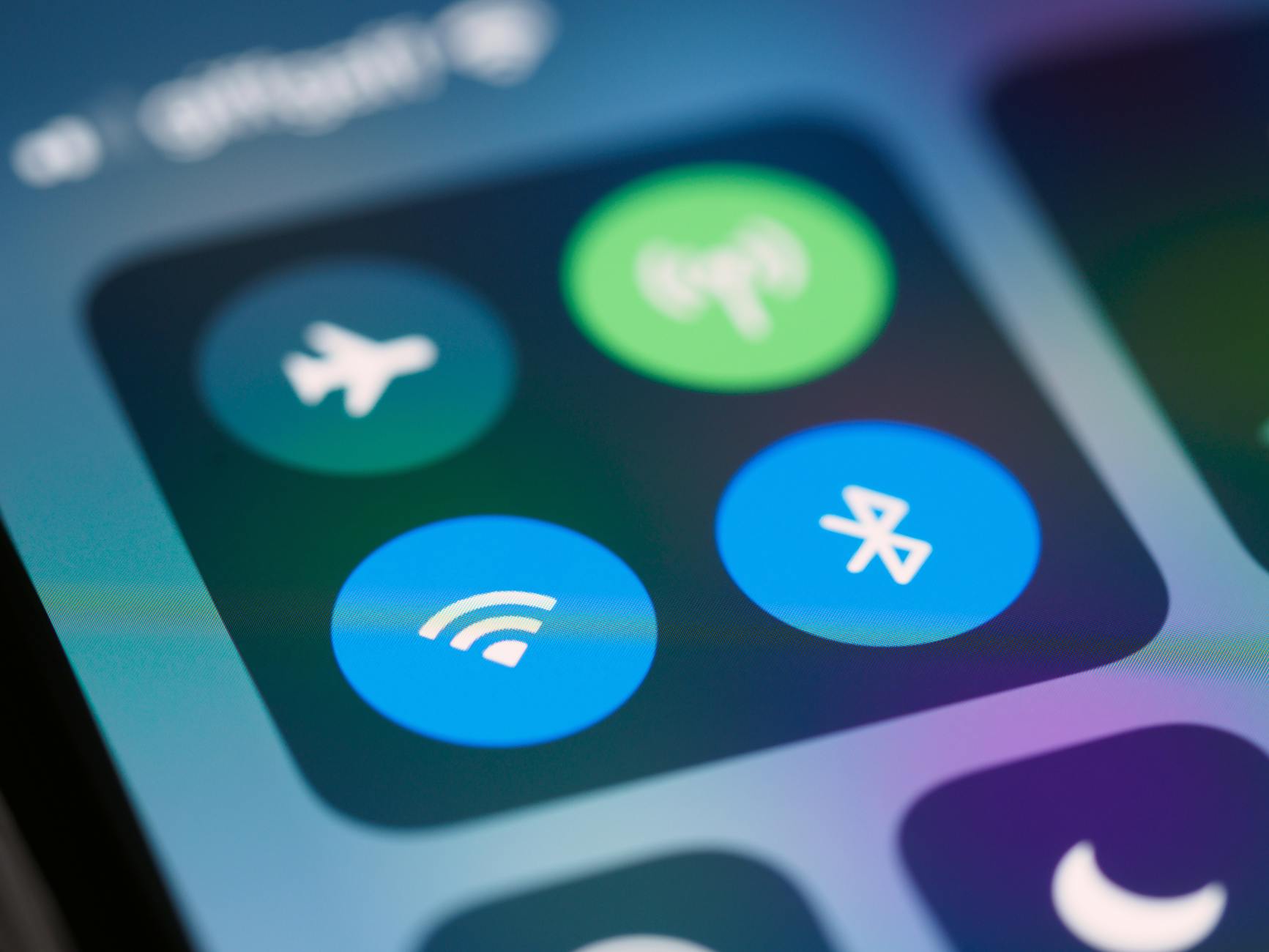 Photo by Brett Jordan
Keep Audio Locked to Your Headphones
When your iPhone tends to swap audio output, the simplest fix is to lock the AirPlay and Continuity behavior for audio devices. This prevents the device from switching back and forth as you move around or as different audio devices come into range. The aim is straightforward: ensure your headphones or preferred audio accessory stay the primary choice unless you explicitly change it.
How to configure this on iPhone
- Open Settings > General > AirPlay & Continuity.
- Toggle on the option that locks audio output to your current headphones or preferred device.
- If your iPhone shows conflicting options, set your go‑to device as the default for audio playback in the app you’re using, and keep AirPlay directed to that device.
Why this helps
- It stops automatic handoffs mid‑stream when you move between rooms or get in and out of a car.
- It preserves listening consistency for calls, music, and videos.
- It reduces wear on the battery by avoiding constant re‑negotiation with nearby devices.
Practical tip
- After you enable the lock, test with a short audio clip. Move away from the device and back again to confirm the output remains stable. If you notice a drift, revisit the AirPlay settings to confirm the correct device is kept in front.
Related guidance and further reading
- For broader iOS context on managing Bluetooth and network behavior, Apple’s support pages offer step‑by‑step instructions. If you’re curious about how to refine device preferences on iPhone, see Apple’s Bluetooth and network management guidance. Apple Support: Forget a Bluetooth device on iPhone
Image note
- If you want visual help, the image above shows the control panel where those settings live. It’s a good cue for where to look as you make adjustments.
Forget Devices and Use Shortcuts
Another robust approach is to prune the devices you no longer use and automate smart behaviors with shortcuts. Forgetting old Bluetooth devices and known Wi‑Fi networks removes ambiguity, while Shortcuts can help you nudge the iPhone to perform clean transitions when you connect in different contexts.
What to do on iPhone
- Forget old Bluetooth devices:
- Go to Settings > Bluetooth.
- Tap the info button next to the device you want to remove and choose Forget This Device.
- Repeat for any devices you no longer use or trust.
- Forget networks you don’t actively rely on:
- Open Settings > Wi‑Fi.
- Tap the info icon next to a saved network and select Forget This Network.
- Create a simple Shortcuts automation (optional):
- Open the Shortcuts app and create a new automation that runs when you connect to a specific device or join a certain network.
- Example: When connecting to your home Wi‑Fi, ensure your preferred audio device is ready, or automatically switch AirPlay to your Bluetooth headphones.
Why this helps
- A lean list of remembered devices and networks reduces the chances of the iPhone defaulting to the wrong option.
- Shortcuts give you hands‑free control in common scenarios, so you don’t have to fiddle with settings each time.
Practical example
- Shortcuts can trigger a reminder to switch to your car’s Bluetooth when you approach the vehicle, or switch AirPlay to your car stereo when you connect to your car’s Bluetooth. This keeps your daily routines smooth and predictable.
Tips for getting the most from Shortcuts
- Start with a specific, one‑device rule for reliability.
- Use exact device names to avoid misfires.
- Test in the real world, not just in a controlled setting.
Helpful resources
- For a helpful primer on shortcuts that manage Bluetooth state, you can explore community discussions and how‑tos about Shortcuts and Bluetooth. Shortcuts App & Manage Bluetooth State & Connected Device
- Apple discussions about using shortcuts to disconnect Bluetooth for specific situations can provide practical insight. iPhone shortcut using Bluetooth disconnect and location
Image note
- The approach of pruning and automating can be visually reinforced by a quick glance at your Bluetooth list and a simple Shortcuts action. Use the image above as a quick reference to where you’ll make these changes.
What to remember from this section
- Start by pruning memory: forget unused devices and networks.
- If you like automation, add a simple Shortcuts routine to handle common handoffs.
- Test across typical daily routes to confirm the setup behaves as intended.
External links for deeper learning
- Forgetting Bluetooth devices on iPhone and Android: https://support.apple.com/en-us/HT204076
- Shortcuts automation ideas for Bluetooth and network state: https://community.folivora.ai/t/shortcuts-app-manage-bluetooth-state-connected-device/39551
By implementing these steps, you’ll notice quieter transitions and longer battery life. Your iPhone will stay focused on the devices you actually use, keeping your audio, your privacy, and your daily workflows in sync.
Prevent Future Auto-Connections for Good
Staying in control of Bluetooth and Wi-Fi connections keeps your smartphone from annoying handoffs, preserves battery life, and protects your privacy. By tackling how devices remember networks and by tightening how your phone connects, you can prevent future auto connections from hijacking your audio, data, or hotspot behavior. In this section, we’ll focus on two practical approaches: regular updates and audits, and a disciplined setup that prioritizes trusted connections.
Regular Updates and Audits
Regular software updates fix bugs that cause erratic auto connections. Developers learn from real-world use and patch issues that cause devices to misbehave in crowded spaces or with new hardware. Keeping your phone updated ensures you benefit from these improvements and better connection handling.
Start with a quick audit of saved connections:
- Review Bluetooth pairings and delete devices you no longer use. A lean list reduces the chances of your smartphone automatically reconnecting to the wrong gadget.
- Clean up saved Wi‑Fi networks. Forget networks that you don’t actively rely on, especially public or shared networks you connected to briefly.
What to check for during audits:
- Battery impact and behavior after updates. After a software update, observe whether auto connects behave more predictably.
- Consistency across updates. If a bug resurfaces after an update, re-run the audit and verify that old connections aren’t creeping back.
Practical benefits go beyond smoother listening experiences. Fewer auto connects reduce unnecessary radio scans, which can extend battery life and lower the risk of unwanted data handoffs. For further reading on how updates influence Bluetooth and Wi‑Fi stability, see guidance on connectivity improvements after recent software updates.
If you want deeper context, you can explore discussions about Bluetooth and network behavior on Android and iPhone. For instance, you’ll find user experiences about prioritizing devices and adjusting network priorities, along with official guidance on how updates can influence connectivity. Bluetooth and WiFi connectivity after recent update and related discussions offer practical perspectives.
Environment matters too. In busy venues or transit hubs, even small changes from updates can sharpen how your smartphone negotiates priority. If you notice continued issues, re-run the audits after a few days of use and before you travel or attend events.
Key takeaway: keep your device software current and prune stale connections regularly. A well‑maintained baseline helps your smartphone make smarter, more predictable choices.
Prioritize and Secure Your Setup
Establishing clear priorities for Bluetooth devices and saved networks makes auto connections predictable. When you control which devices your smartphone should connect to first, you reduce the chance of hopping to an undesired option in the moment.
How to implement prioritization
- Set preferred Bluetooth devices. On many devices you can designate a primary device for audio or hands‑free calls. Place this device at the top of your list and keep it in a known, reliable range.
- Create a short list of trusted Wi‑Fi networks. Favor home and work networks you control, and remove or forget unfamiliar networks you encounter in public spaces.
- Use per‑device auto‑connect controls. If your phone supports per‑device preferences, disable auto‑connect for anything you don’t want to join automatically.
Practical outcomes
- Your audio will stay with the right headset or speaker more often, especially when you move between rooms or cars.
- Your phone won’t switch to a neighbor’s network just because it’s nearby, which improves privacy and reduces data risk.
- The overall experience becomes steadier and easier to predict, especially in daily routines.
For Android users, there are community and official resources that discuss how to set Bluetooth device priority and manage network behavior. These discussions help you translate the concept of priority into concrete steps on different phones. If you want real‑world examples, you can review threads about forcing a sticky order for Bluetooth devices and practical Android network prioritization tips. A representative discussion is about prioritizing Bluetooth connections on Android devices, which can guide you through similar steps on your device.
To deepen your understanding, you can also look at general guidance on securing wireless connections and managing trusted networks. See resources focused on protecting wireless connections and reducing the risk of automatic joins in public spaces. These guides complement the practice of prioritizing and securing your setup.
Tips to make prioritization effective
- Start small. Pick one device to treat as the top priority and test its behavior for a week.
- Use exact device names. Matching names precisely prevents accidental misfires.
- Test across scenarios. Check at home, in the car, and in a public space to ensure consistent behavior.
Short example: you might set your car’s Bluetooth as the primary audio device and forget or disable auto‑connect for nearby speakers. When you get in the car, you’ll still have a smooth handoff because the system is tuned to favor the car connection.
External resources for deeper learning:
- Learn more about prioritizing Bluetooth devices on Android and related setup steps. How to prioritize Bluetooth connections on Android
- Guidance on managing trusted networks and minimizing auto joins on Android and iPhone. Tips for safely using public Wi‑Fi
Final note: pairing and priority are living settings. Revisit them after major changes to your devices and environments, and adjust as needed. With consistent audits and clear priorities, your smartphone stays in charge, not the other way around.
Conclusion
You now have a practical, easy path to stop your smartphone from auto connecting to the wrong device. The core fixes boil down to pruning memory, turning off auto-join, and adding smart automation where it makes sense. Start with removing stale Bluetooth pairings and forgotten Wi Fi networks. This lean baseline prevents unwanted handoffs and reduces battery drain.
Next, tighten how your connections behave. Disable auto connect for non essential devices and use per device controls when available. Layer in simple automations to block the wrong devices, then test in real life scenarios such as moving between rooms or stepping in and out of a car. These steps deliver immediate, noticeable relief.
If you want extra peace of mind, keep a short trusted list of connections and run quick audits after major updates or hardware changes. A little routine goes a long way toward stable, predictable performance from your smartphone. The goal is clear: fewer surprises, more control, better battery life.
Give one fix a try today and see the difference. Share your story in the comments or test it on your phone now. You’ll find control is easier than it looks, and the benefits compound with everyday use. Your smartphone will stay focused on the right devices, without drama.